

AgentsHow to
Edit a template
Edit a template when topics of one kind keep missing something, like a field your board needs or a table people always add by hand. See Templates for the idea.
Before you start
Section titled “Before you start”- Who can
- You can change your own templates, the ones shared with you as Edits, and the organisation’s if your role lets you manage templates. Emargen’s own templates can’t be changed. Duplicate one and change the copy.
- What changes
- A field you add reaches every topic of the template. Changes to sections reach new topics only.
- The pictures
- An administrator at ACME, the company in the docs’ pictures, adds the Team field to the Security questionnaire template and asks for a table in its answers. To follow them, pick a template you may change with fewer than ten fields. You’ll also need a field of your organisation’s that isn’t on it yet, and a section that should hold a table.
-
In the menu, click the chevron beside Workspace to unfold it, then click Templates. Click the template’s name. In the pictures, that’s Security questionnaire.
Open Templates (opens Emargen in a new tab) -
Under Fields, click Add a field. A list of the organisation’s fields not on the template yet opens, with a box to find one by name. At ten fields, Add a field doesn’t show.
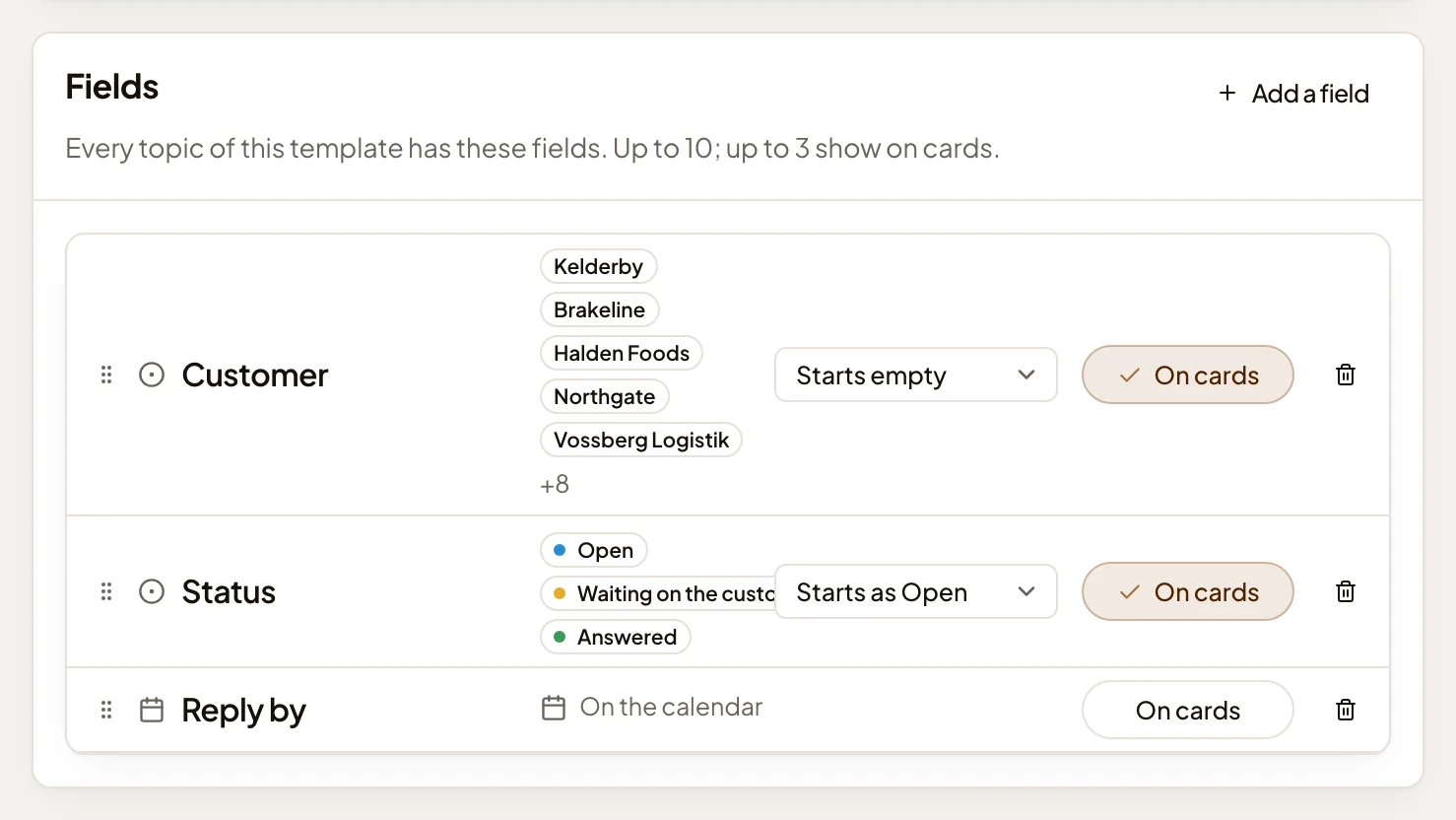
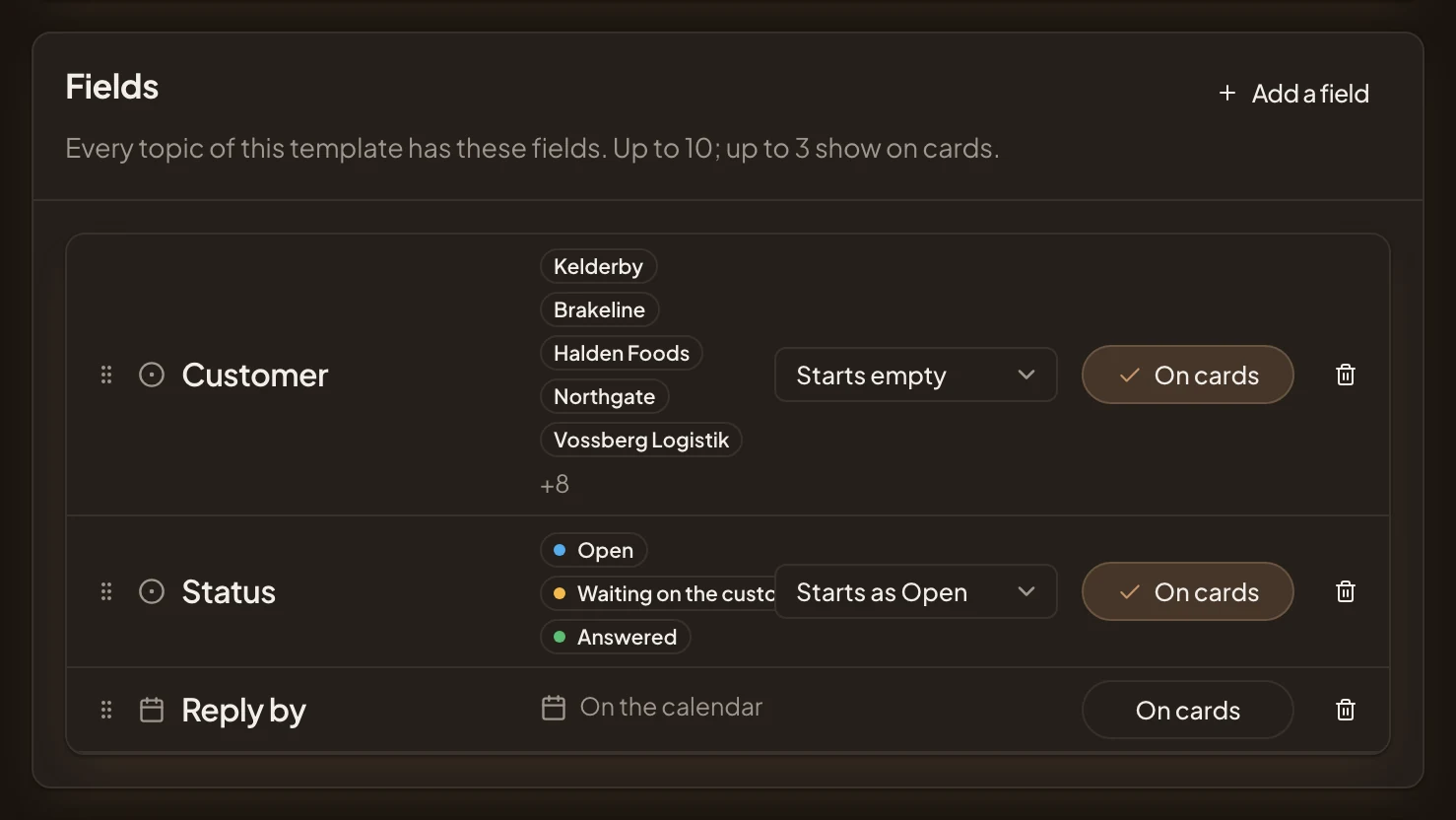
- Add a field. Adds one of the organisation’s fields.
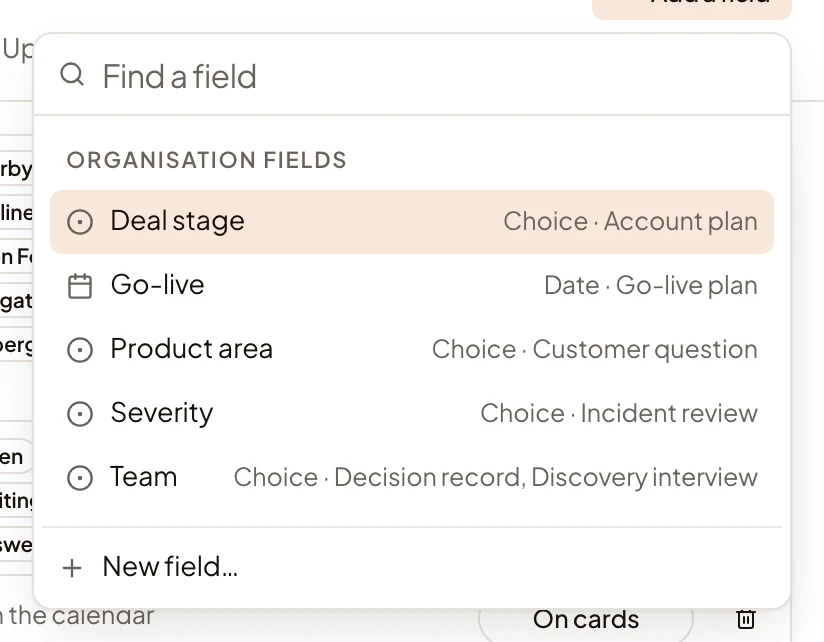
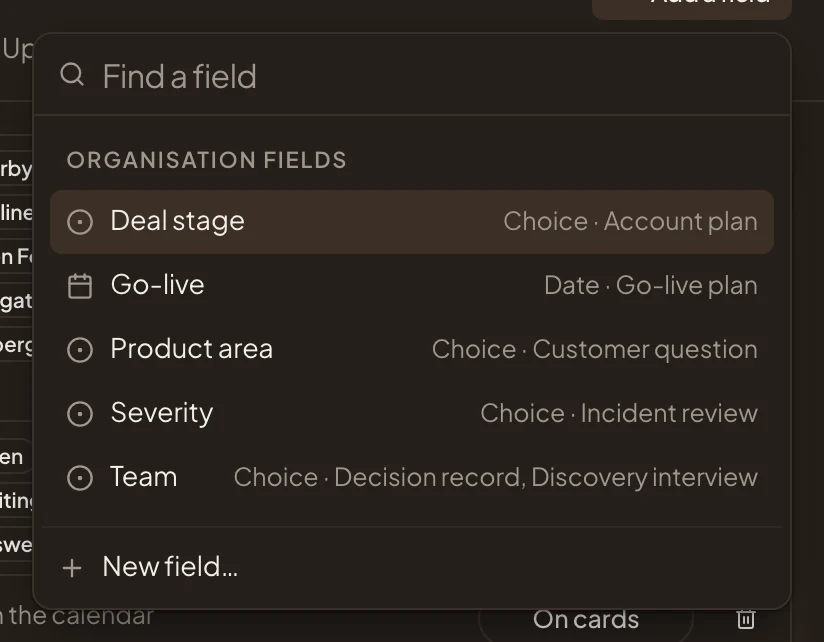
- Team. A field of the organisation’s, with its kind. New field… at the foot makes one first.
-
Click the field you want on the template. In the pictures, that’s Team. It joins the template’s fields, with its values beside it.
-
For a field you pick from a list, choose the value new topics start with. Its list says Starts empty until you do. For the questionnaire, Starts as Security would keep each new one with the security team until someone changes it. Other kinds of field have no starting value, so skip this.
-
Press the field’s On cards, so it shows on the topic’s card and row. Three fields at most show on cards. Once three are on, the others’ buttons are greyed out. Turn one off first to make room.
-
Under Sections, click the section that should always hold a table, to open it. In the pictures, that’s Our answers.
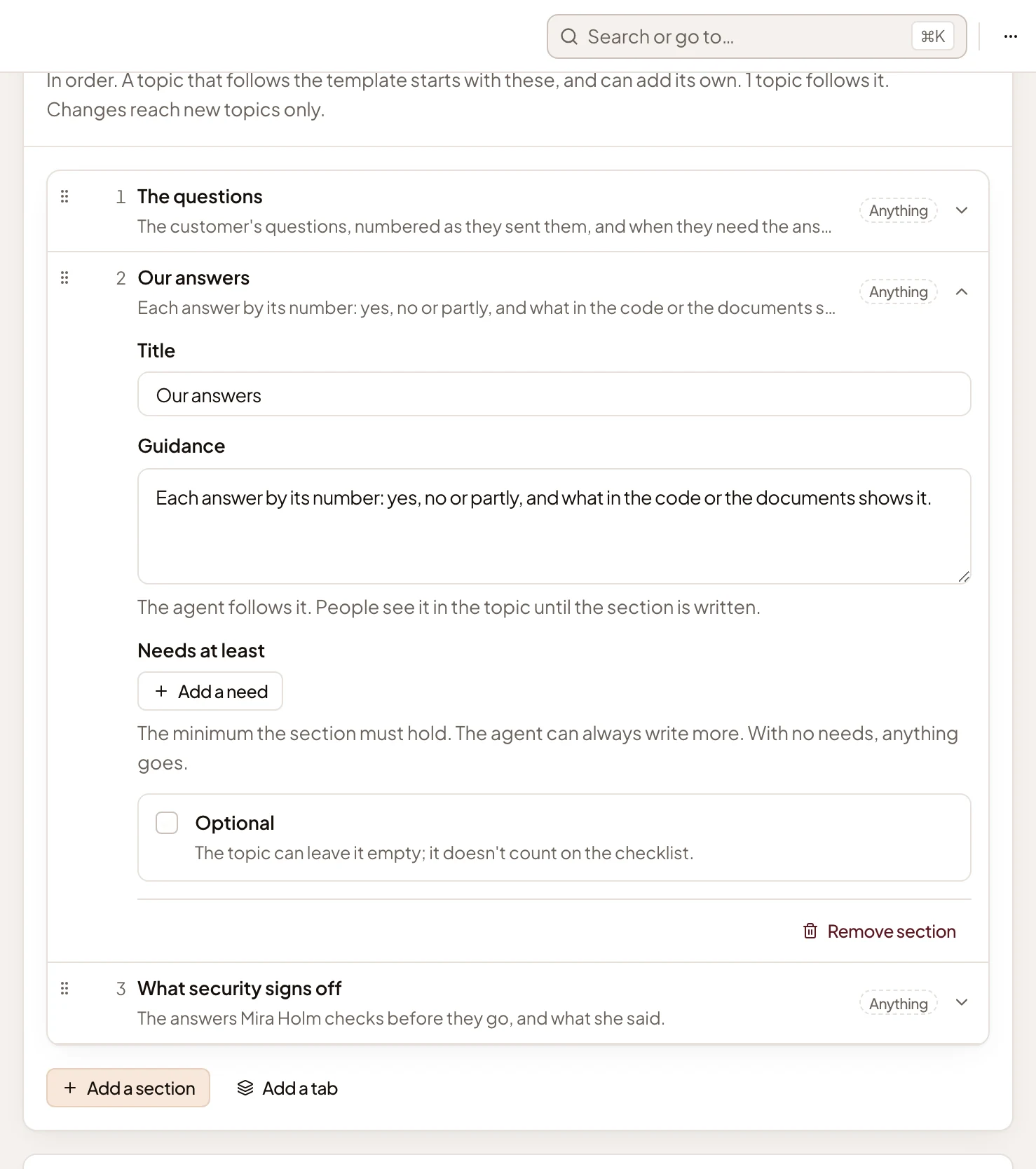
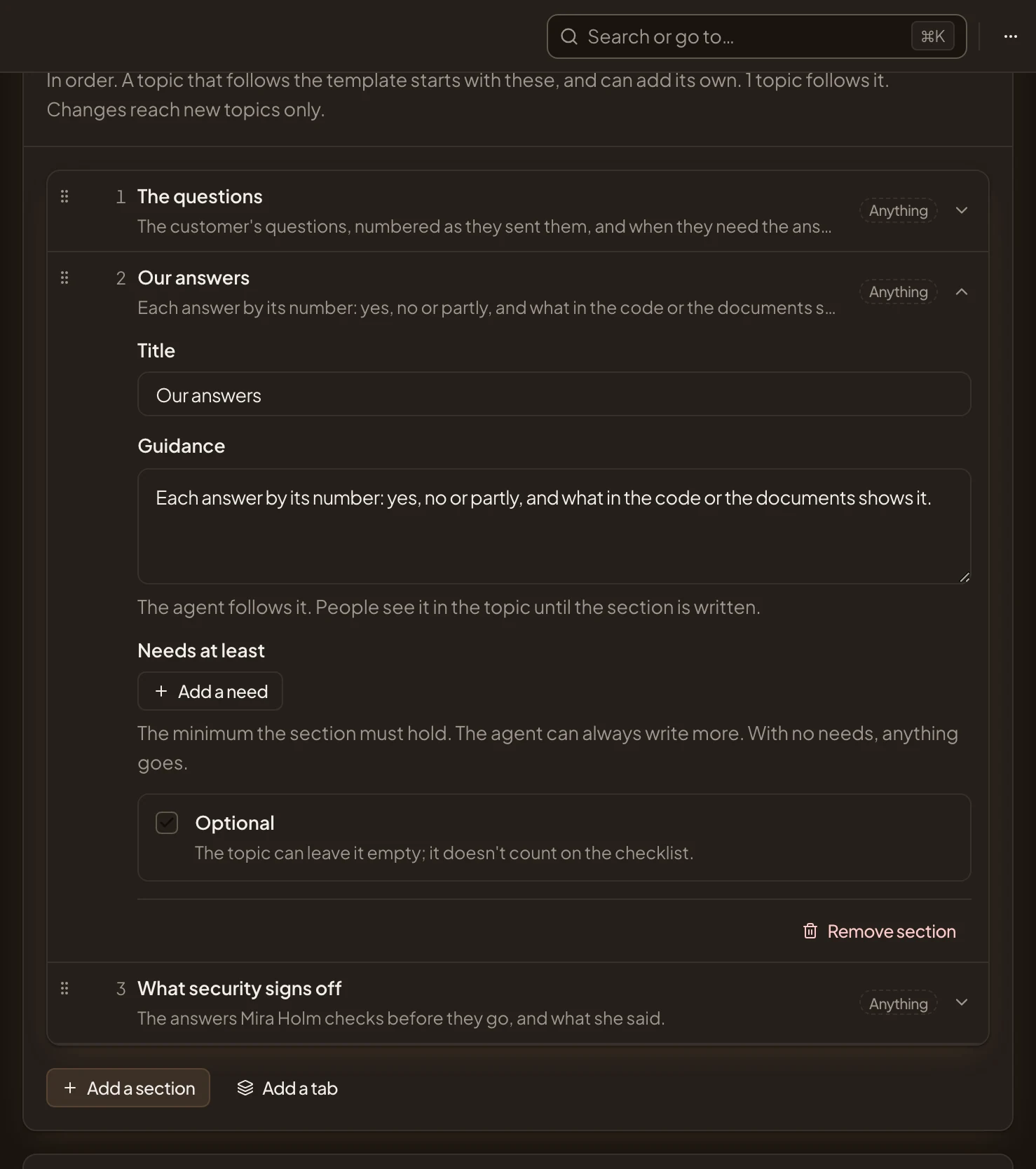
- Our answers. Click a section’s row to open or close it.
- Guidance. What the agent follows, and what people see in the topic until the section is written.
- Add a need. What the section holds at least.
-
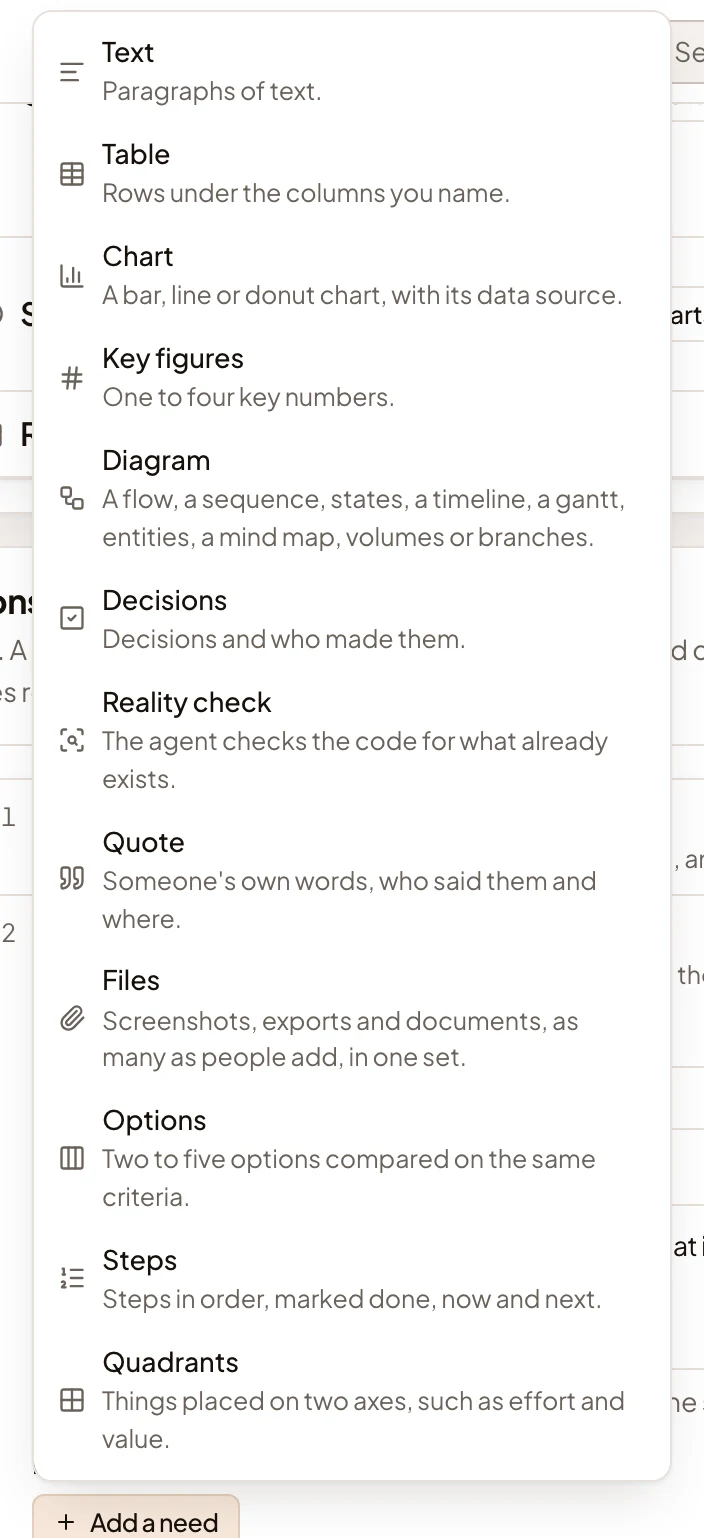
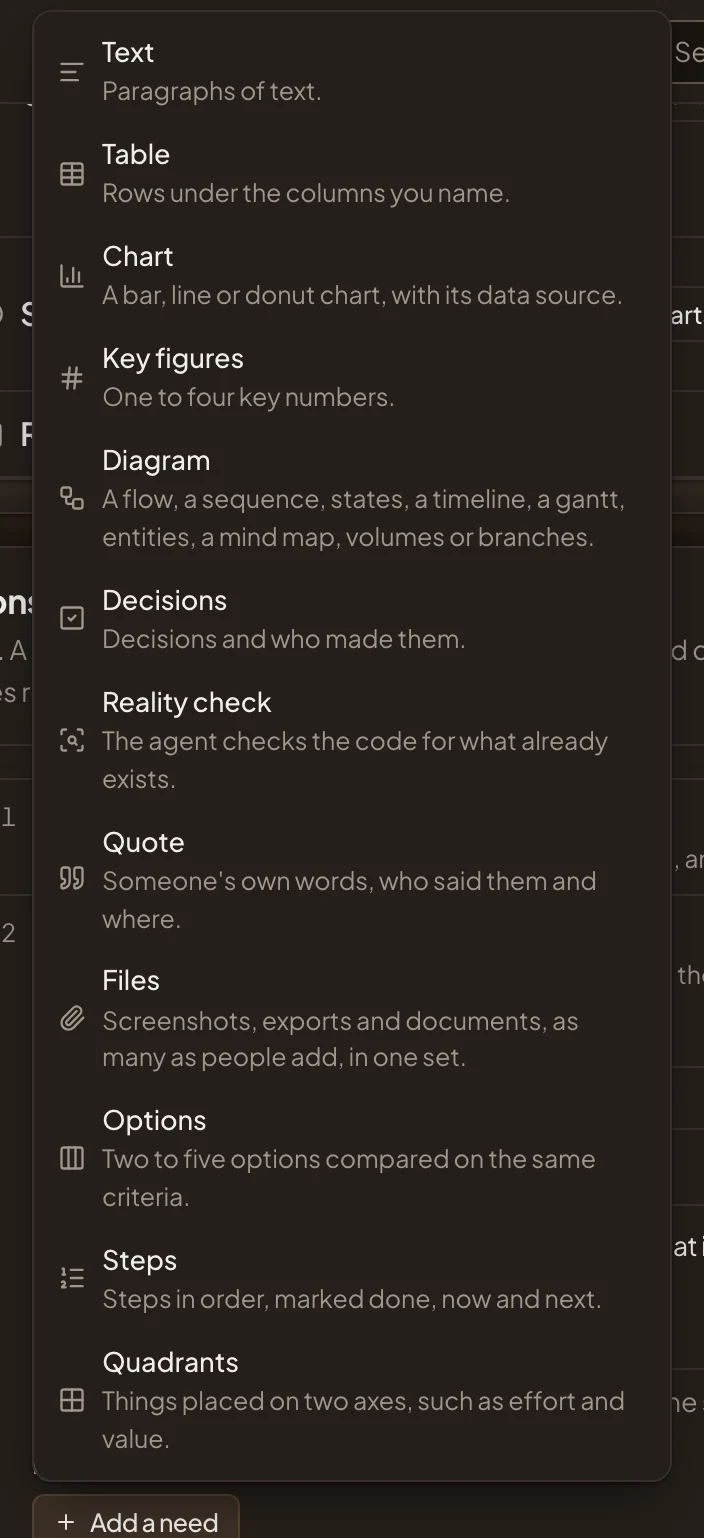
Click Add a need. A list opens with the kinds of content a section can require, each explained in a line.
-
Pick Table. It joins Needs at least, with no columns yet.
-
Click Add a column, and type the column’s name in its box. Do the same for each column. In the pictures they’re Question, Answer and Where it shows. Beside each name, a list says what the column holds. It starts as Text, and offers Number, Status, Person, Date and more.
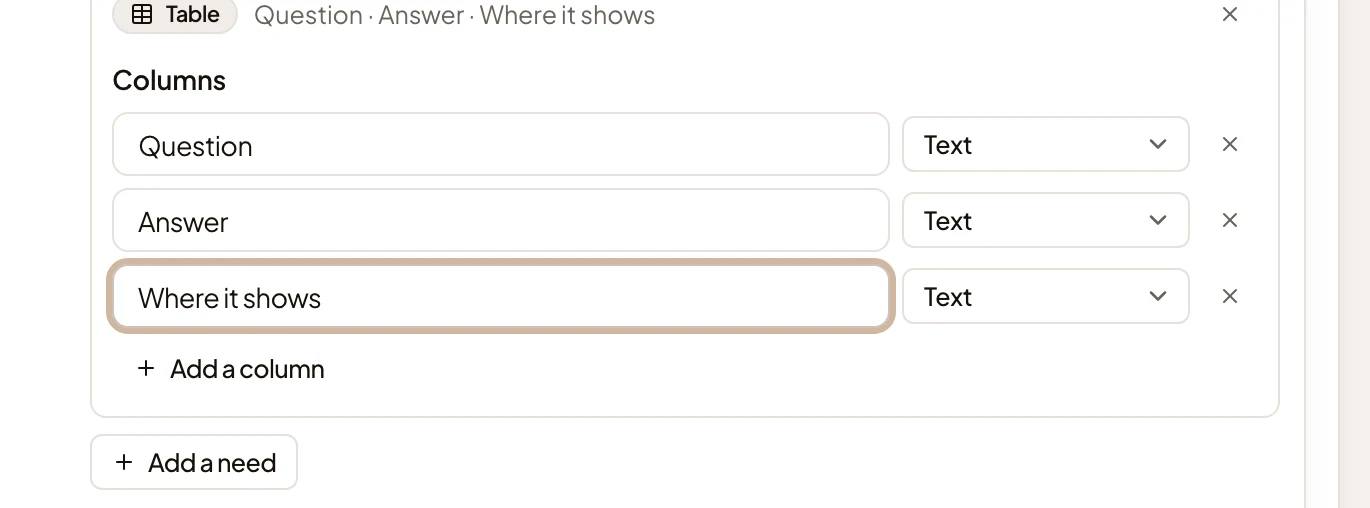
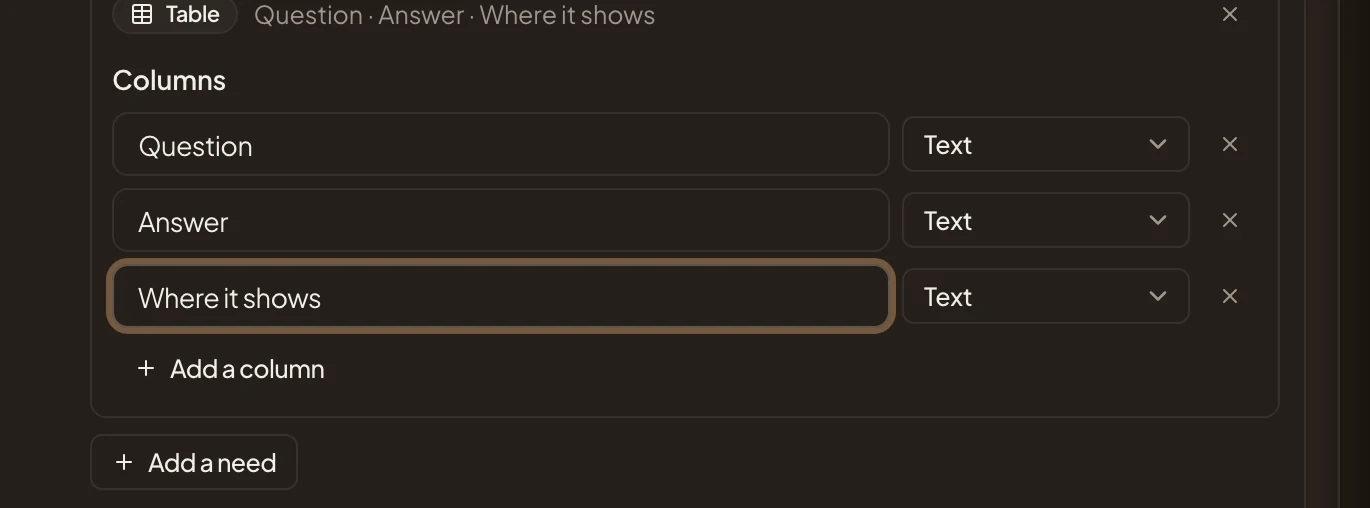
- Column 1. The column’s name, as the table’s heading.
- Column 1 type. What the column holds. Choose Link for Where it shows, if the answers point at pages.
- Add a column. Adds the next column.
-
Further down, under Writing guidance, say how the whole document reads. For a security questionnaire, as in the pictures: “For the customer’s security reviewer. One answer per question, yes, no or partly, and never a promise of a date.”
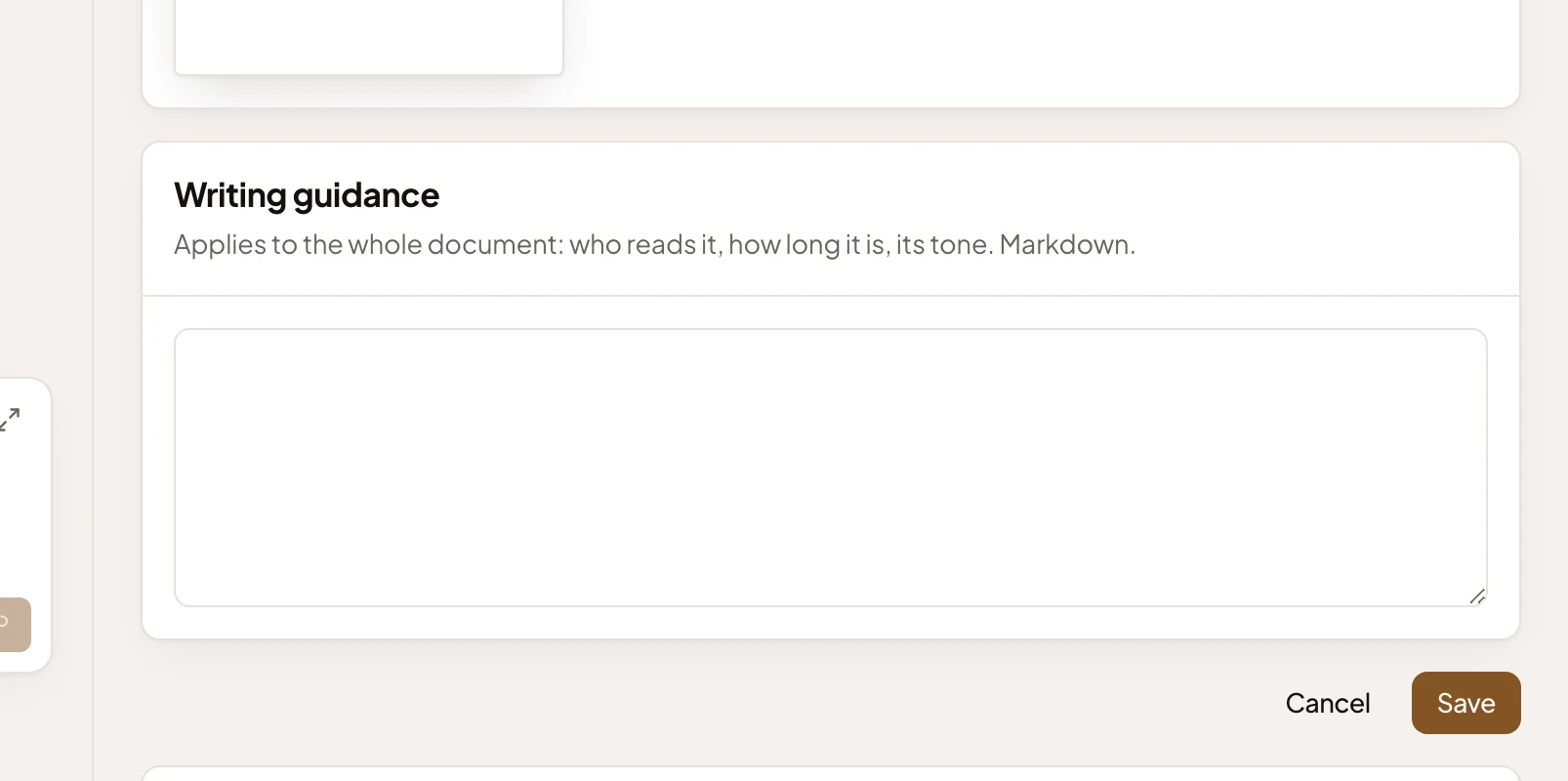
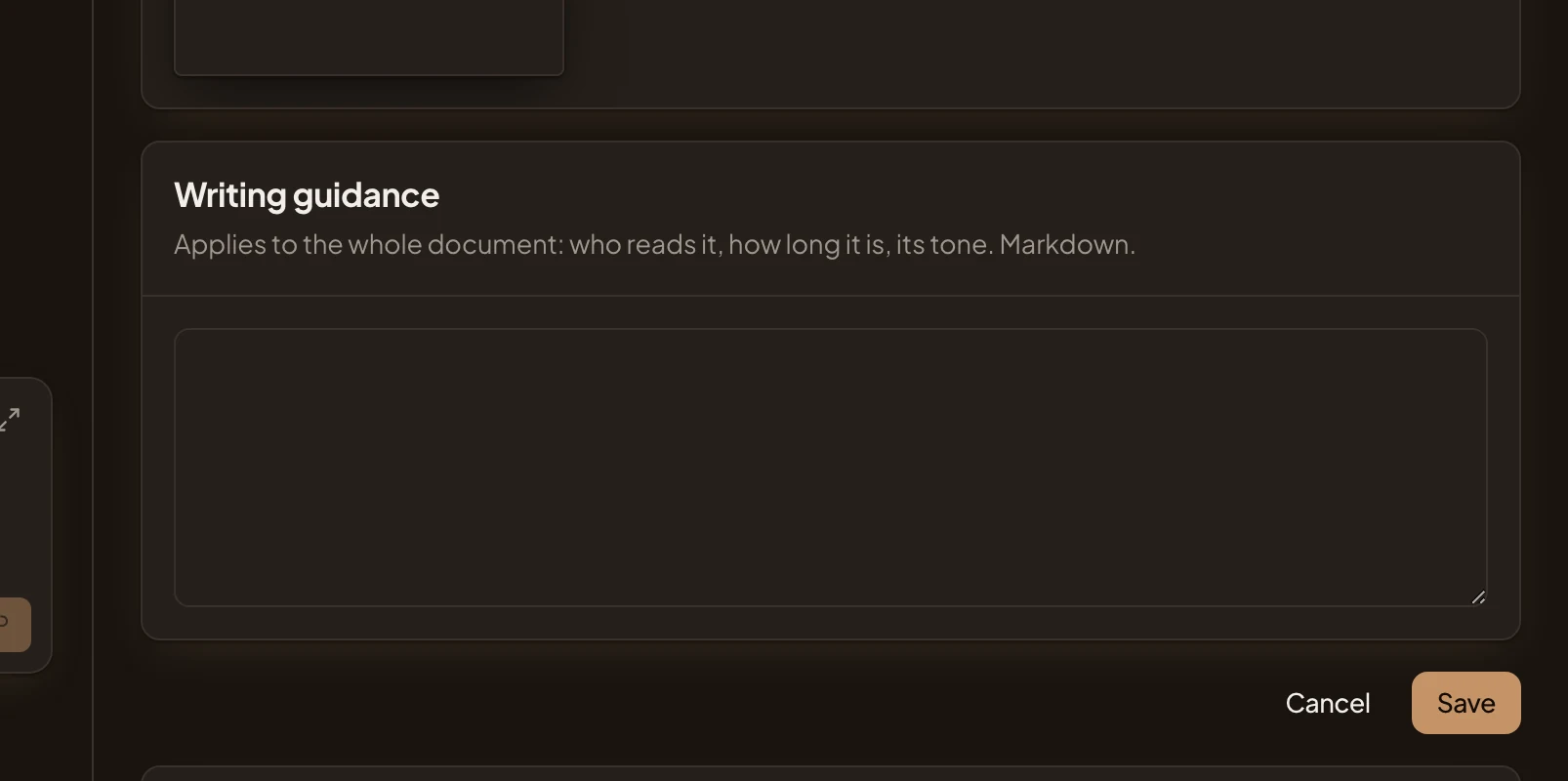
- Writing guidance. For the whole document, in Markdown.
- Save. Saves the template and goes back to Templates.
-
Click Save. You’re back on Templates, with no message. Open the template again to see the new version.
You can also ask the personas agent beside the page for the same changes, in your words. For the pictures’ template, you might write “Add Team to the security questionnaire, starting as Security and on cards.” Then ask for a table of question, answer and where it shows in the answers section. It changes the page as you watch and asks in the chat before saving. When a field doesn’t exist yet, it makes the field first and the template after, as one checklist.
What you get
Section titled “What you get”- The template’s next version, listed under Versions on its page. It has your name, when, and what changed, such as “Added the field Team”.
- Every topic that follows the template has the new field. Once a topic has a value for it, its card in the topics list and on boards shows it.
- New topics from the template start with a table under that section, and the template’s Preview shows it already. Topics that started earlier keep their outline.