

CalendarHow to
Hand a job to the agent on a schedule
Hand the agent a job that comes round on a schedule, like a list every Friday of what’s left before a customer’s onboarding is done. Then nobody has to remember it. The agent does it at the time you set, and writes what it found in a new topic each run. Agent tasks says how they work.
Before you start
Section titled “Before you start”- Anyone in the organisation can make an agent task. You own the tasks you make.
- Know, in a sentence or two, what the agent should look at and what it should write. Put it the way you’d ask the agent in a topic.
- You’ll make a task that writes a new topic each run. To put each new topic on a list, see Fill a list with an agent task. To keep one topic up to date, set the task up in the topic: see Keep a topic up to date.
- The pictures show ACME’s customer success lead making a task for a customer’s onboarding: every Friday, a list of what’s still open.
-
Open the Calendar.
Open the Calendar (opens Emargen in a new tab) -
Click New task at the top right, or the small + under a day to start the task on that day. In the pictures it’s the + under Friday 6 November, next week. In your own week, click the one under the coming Friday.
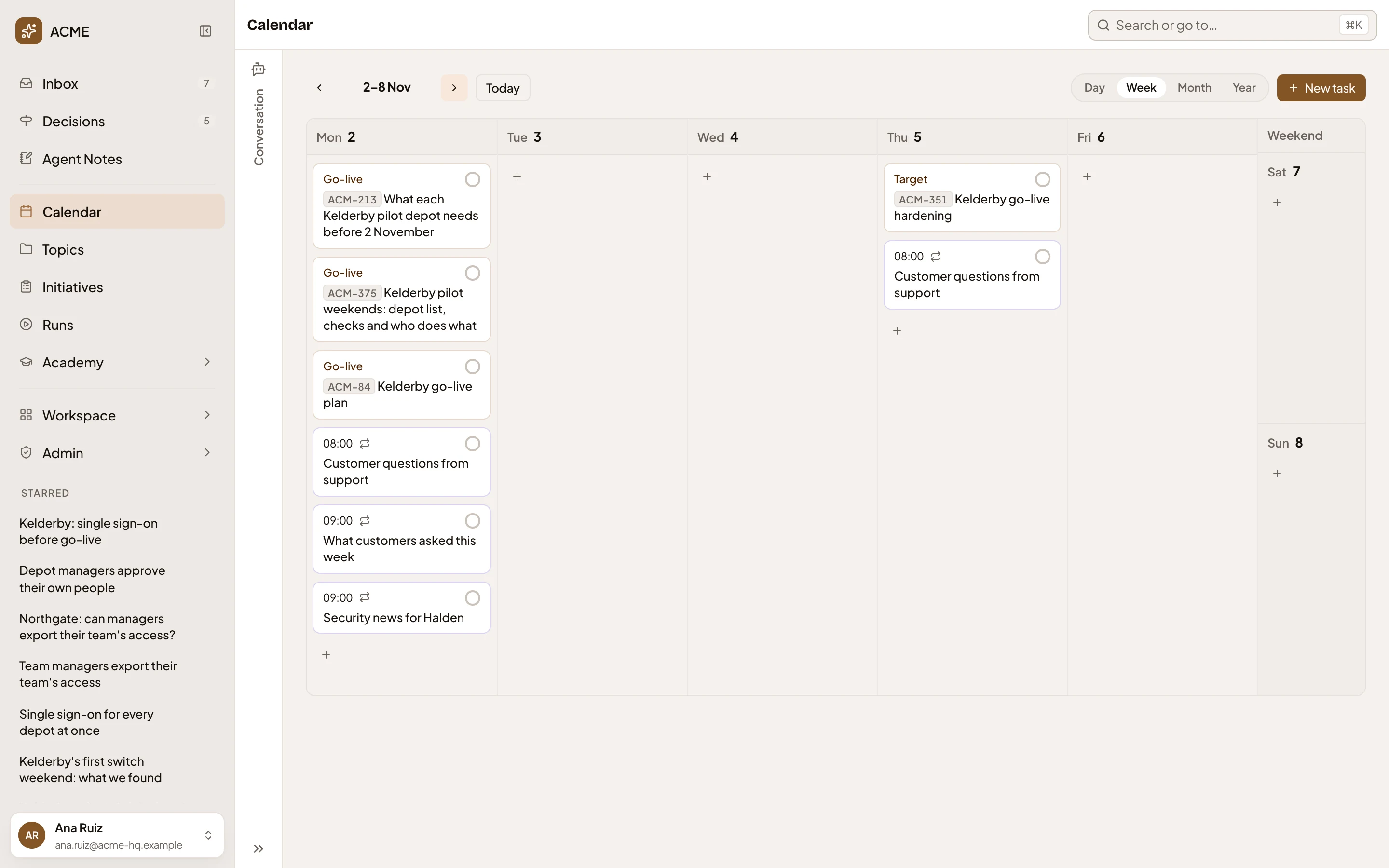
- New task: a task starting today.
- The + under a day: a task starting that day.
New agent task opens on a page of its own, with the workspace agent on the left.
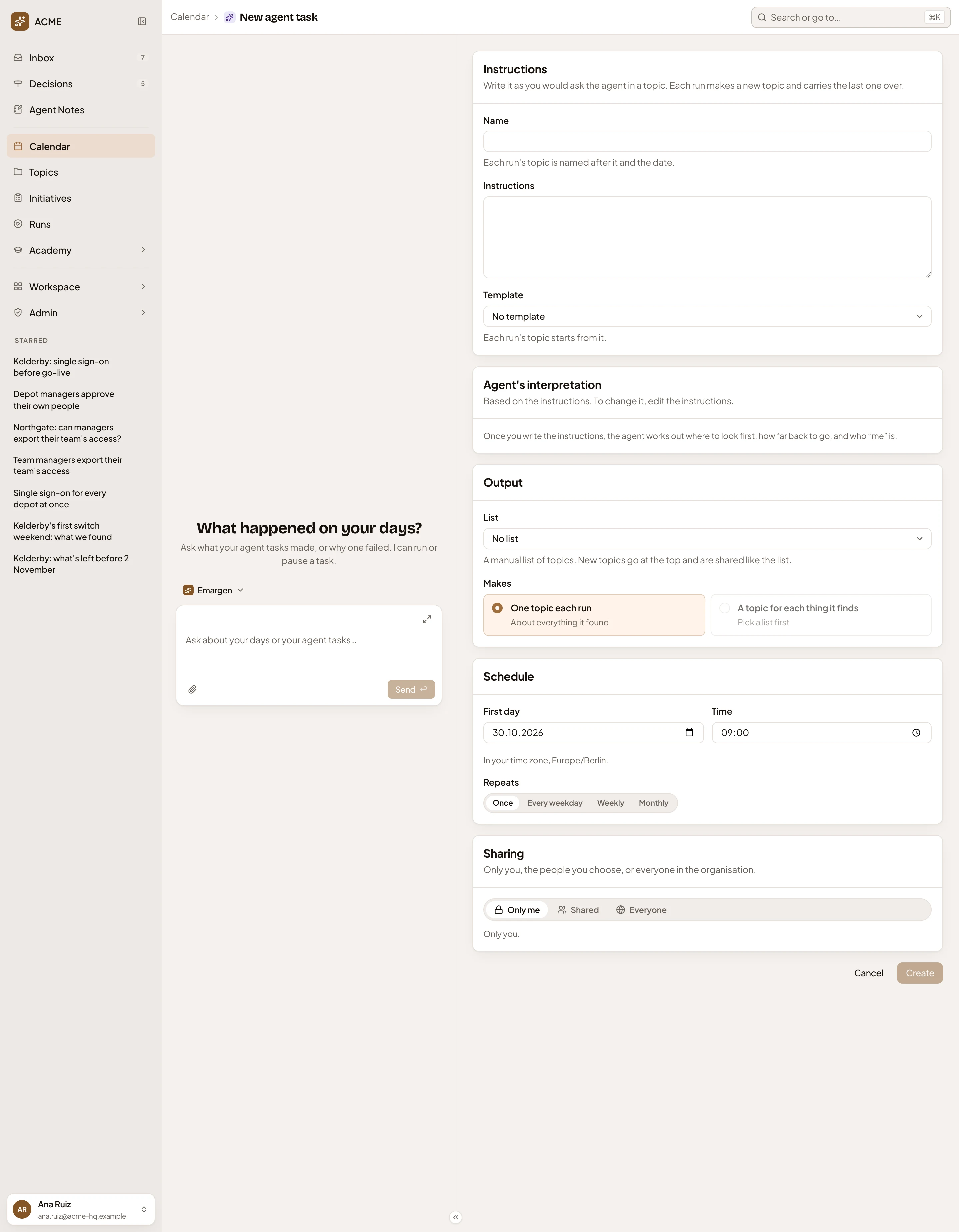
- Name: a few words for the task. Each run’s topic is named after it and the date.
- Instructions: the job, in your words.
- Template: a template each run’s topic starts from, or No template.
- Agent’s interpretation: where the agent will look and how far back it will read, once it has read your instructions.
- List: a list for the topics, or No list.
- First day: when it first runs.
- Repeats: Once, Every weekday, Weekly or Monthly.
- Sharing: Only me, Shared or Everyone.
- Create: starts the task. It stays greyed out until the task has a name and instructions, and, when it repeats weekly, at least one day.
-
In Name, type what the task is called in a few words, such as a customer’s onboarding and “what’s left”.
-
Before you write the job, set when it runs, under Schedule. The agent reads your instructions together with how often the task runs. First day is the day you started from, and Time is 09:00, in your time zone. Change either if you like. Then pick how it Repeats, here Weekly. A row of days, On, appears with none picked, even when the first day is a Friday. Click Fri.
-
Back at the top, in Instructions, write the job as you’d ask the agent, naming the topics or places it should read. In the pictures: “Every Friday, list what is still open on Halden Foods’ onboarding: sites not on the EU region yet, open questions on ACM-395, and what Halden asked us this week.”
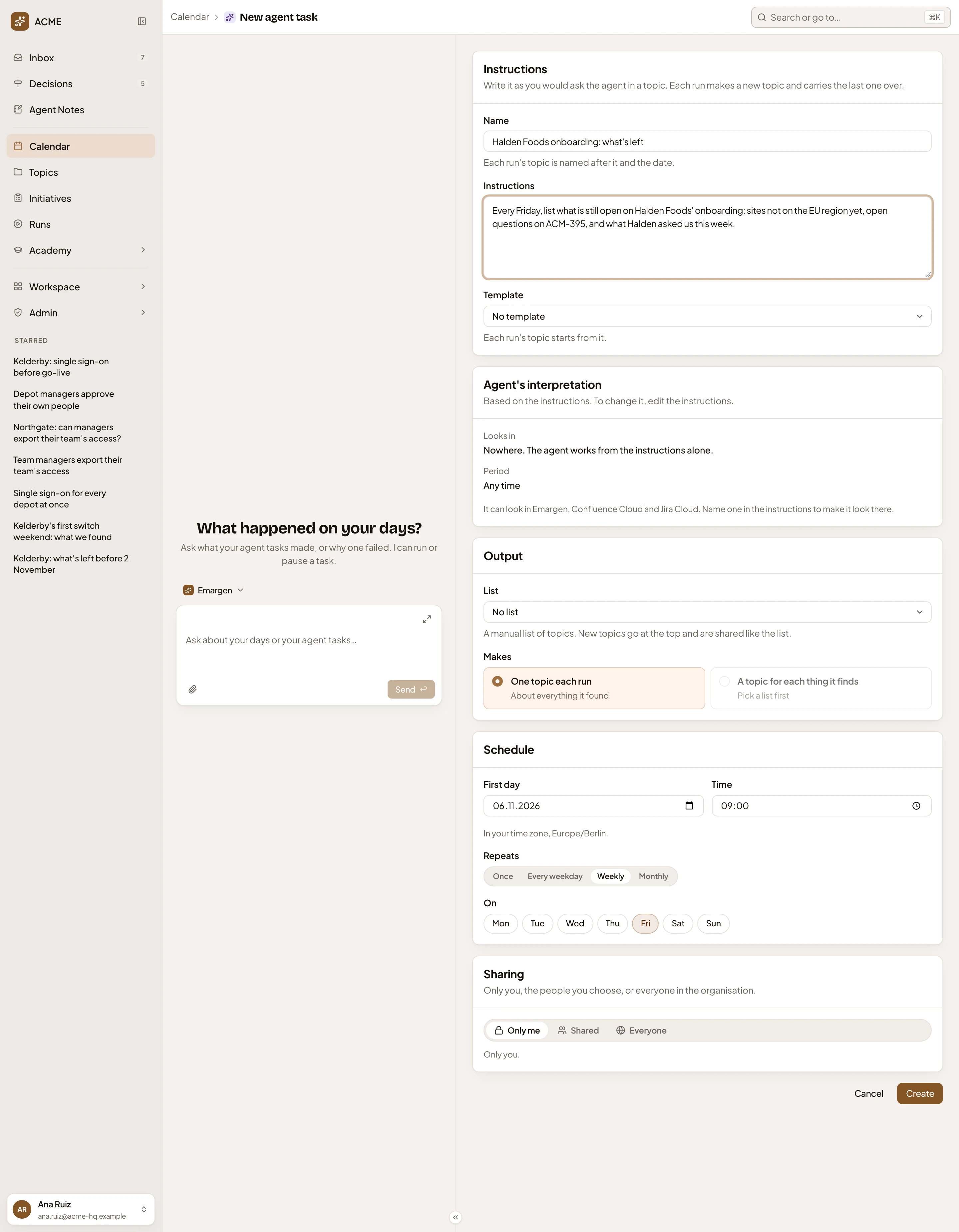
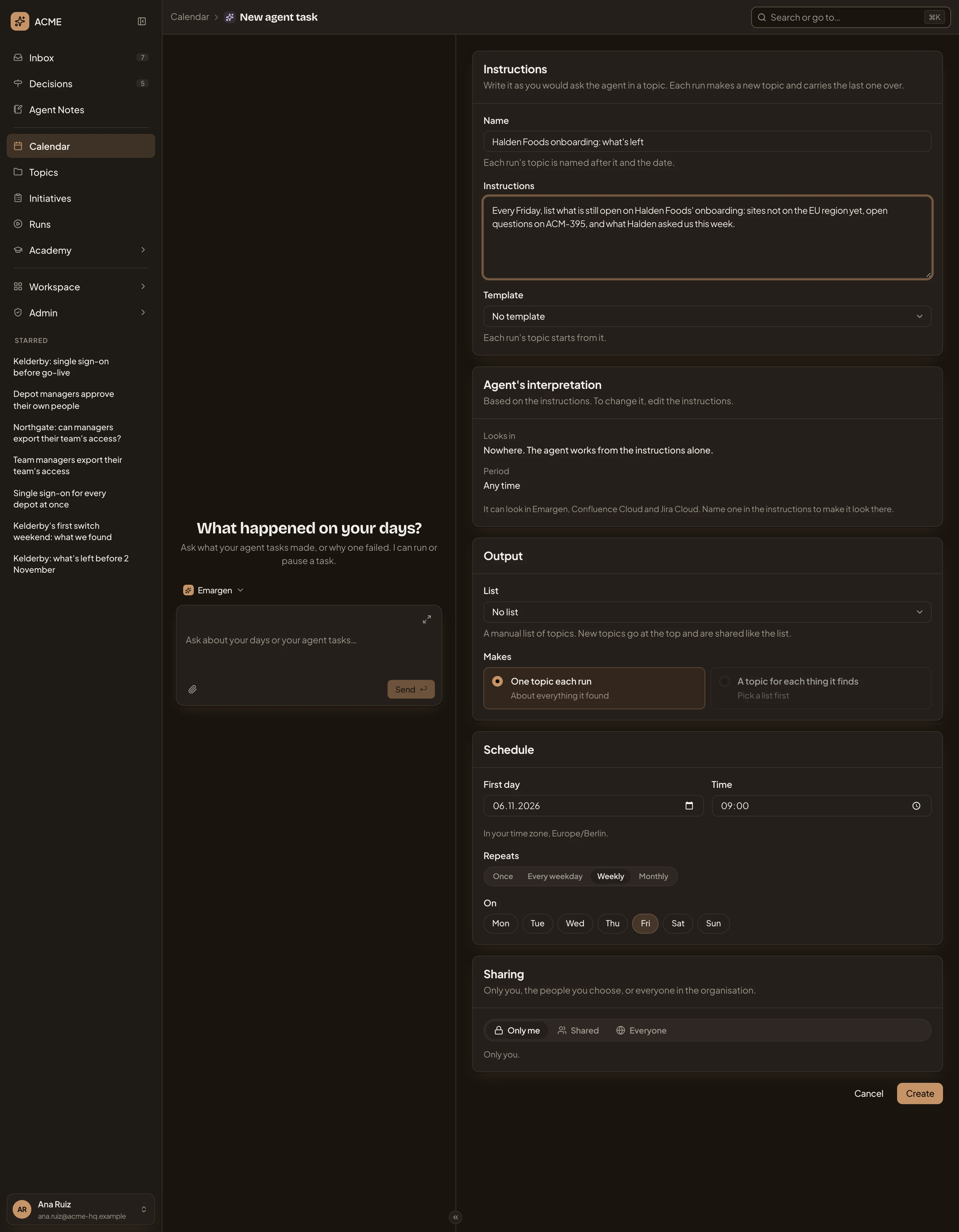
- First day: Friday 6 November, the day whose + you clicked.
- Repeats: Weekly.
- On: the days of the week it runs, here Friday.
- Create, now that everything it needs is filled in.
-
Click outside the box, such as on the heading Instructions, so the agent reads all of your words. Under Agent’s interpretation, Looks in shows where it’ll look first. Period says how far back. When your words say “me”, it says who that is. Under them, a line says where it could look, like “It can look in Emargen, Confluence Cloud and Jira Cloud. Name one in the instructions to make it look there.” That’s the agent’s reading, so yours may differ. If it read them wrong, change the words and click outside again.
-
Pick a Template if each run’s topic should follow one. In the pictures it stays at No template. Under Output, leave List at No list, so it makes One topic each run, about everything it found.
-
Under Sharing, choose who sees the task and the topics its runs make. Pick Only me, Shared with the people you add, or Everyone. Pick Everyone when colleagues should read them too. A table of People appears under it, with you as Owner. Add people gives someone more, like editing the task.
-
Click Create.
What you get
Section titled “What you get”- The task’s own page opens, and Past runs says “It has not run yet.”
- Its coming runs show on the Calendar, on every Friday, with a repeat mark.
- On each run, the agent does the job and writes a new topic, named after the task and the date. It reads the previous run’s topic and builds on it. When it finds nothing new since the last run, the run ends as “Nothing new”, with no topic.
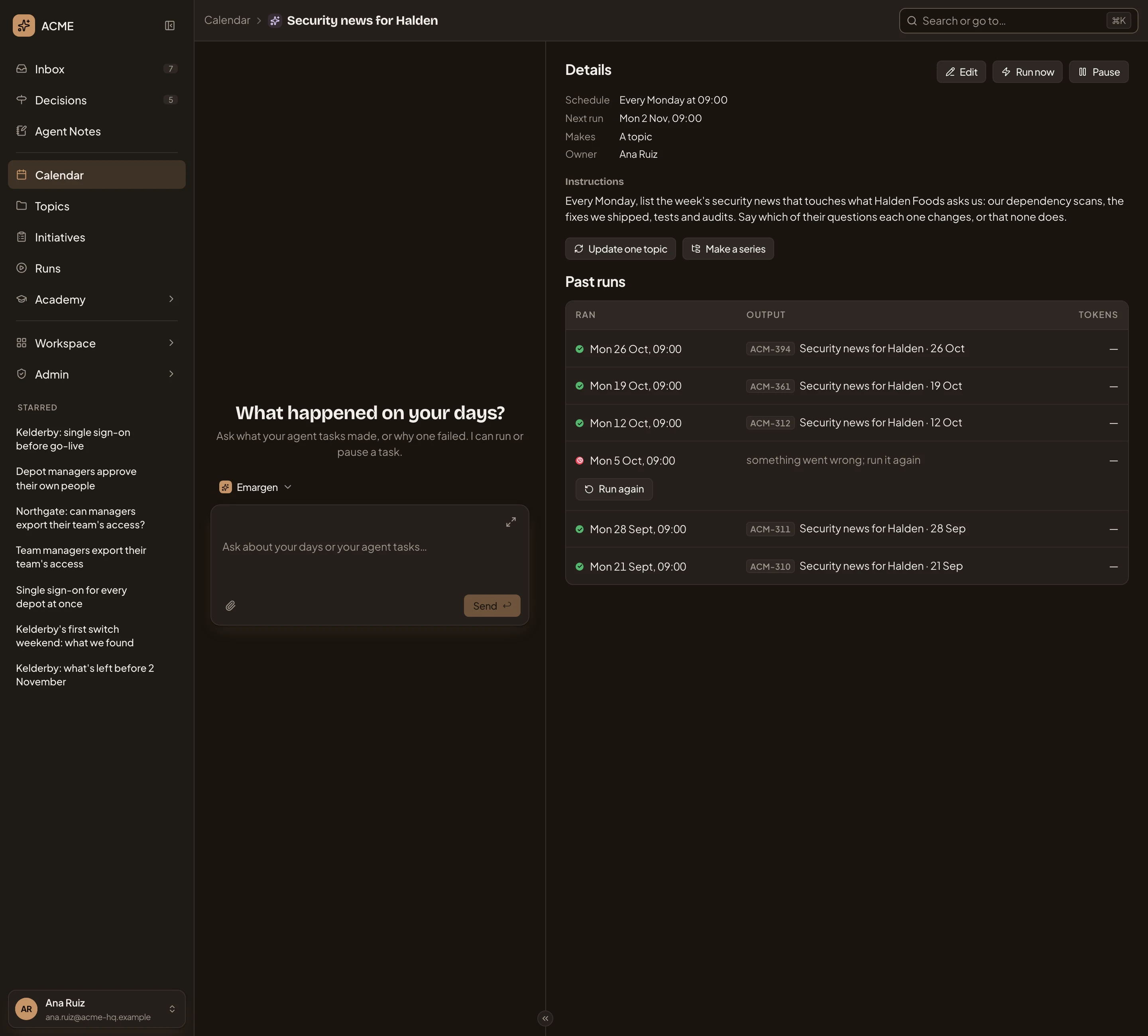
- A run that works sends you nothing. Its topic is on the Calendar and on the task’s page. A run that fails puts a task in your Inbox, under To do, with Run again. The run shows in Past runs with Run again too. In the picture, a task like this one at ACME after six Mondays, with one run that failed on 5 October:
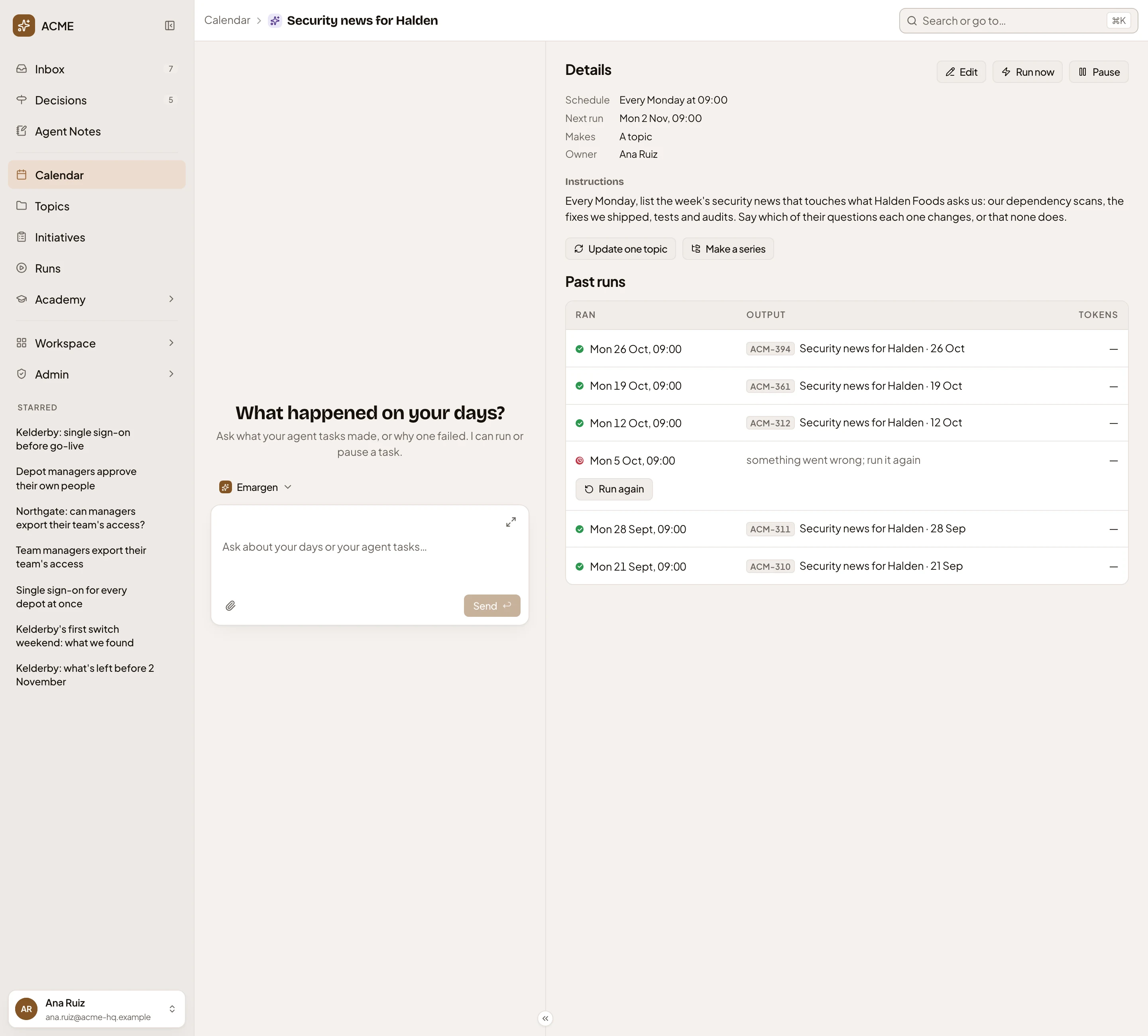
- Next run.
- Edit: opens the form again, with Save.
- Run now: runs it once now, to try it out. The schedule goes on as it was.
- Pause: stops future runs and changes to Resume. Past runs stay.
- Run again: tries the failed run once more.
- To change the task later, open it and click Edit. Change what you need, and click Save. The form also has Paused. Past runs stay, and no new runs start., and Delete this task at its end.