

Getting aroundHow to
Connect your own agent
Connect your own agent when you’d like the assistant you already use to work in Emargen for you. Claude on your phone can find last week’s topics, and Claude Code can read an initiative’s published requirements as it builds. It works as you, in one organisation, with only the tools you allow. See Agent access.
Before you start
Section titled “Before you start”- Anyone can connect their own agent, within what your organisation allows.
- For Claude or ChatGPT, an account there. ChatGPT may only read on Plus and Pro. Changing anything needs Business or Enterprise.
- For Claude Code or Codex, the agent installed on your computer.
- The pictures show Ana Ruiz, at ACME, connecting Claude.
Connect Claude or ChatGPT
Section titled “Connect Claude or ChatGPT”-
Click your name at the bottom of the menu, then Your profile, then Security. Connect an agent is near the top.
Open Security (opens Emargen in a new tab) -
Click the Claude tab (or ChatGPT). The steps for that assistant show, with your organisation’s address.
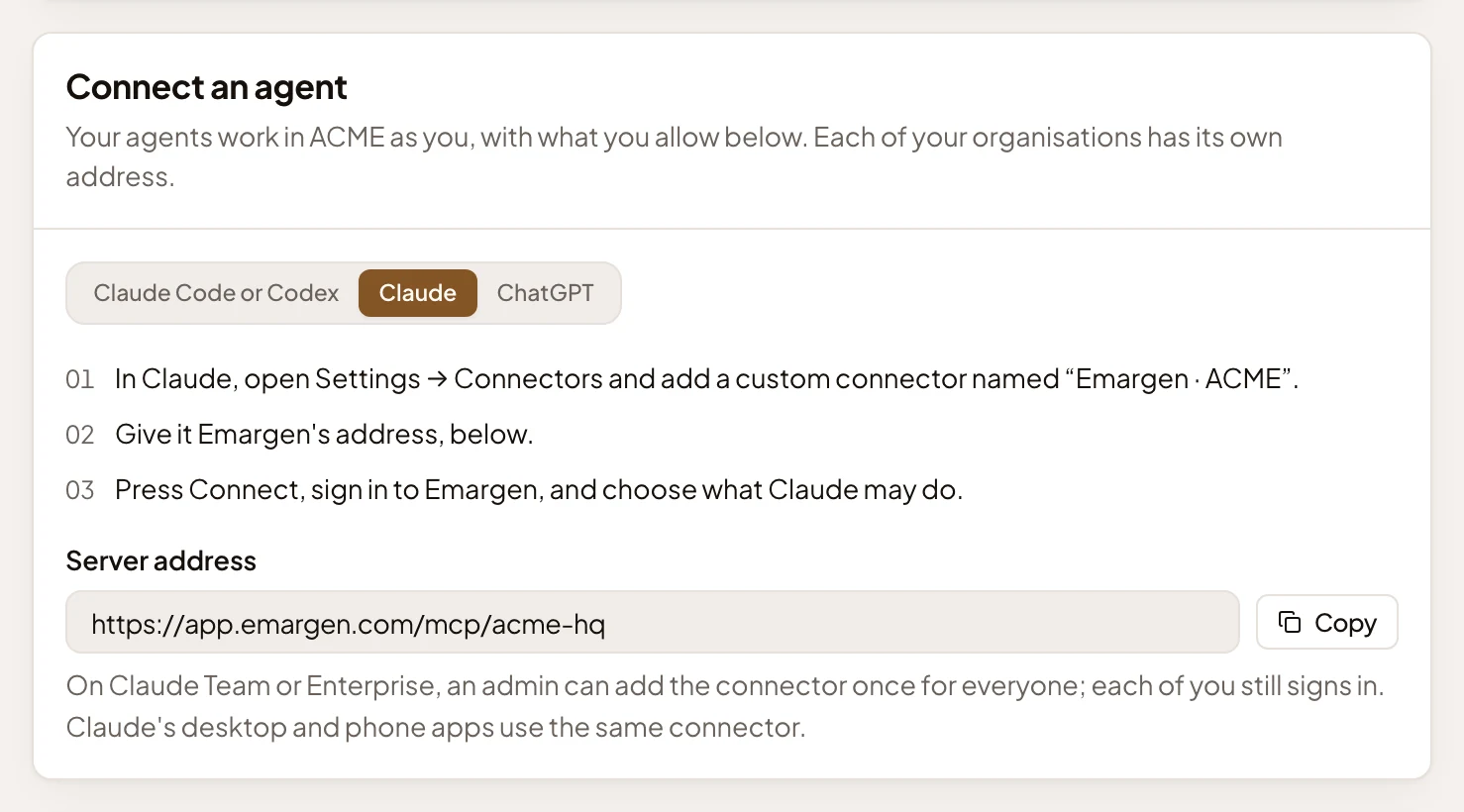
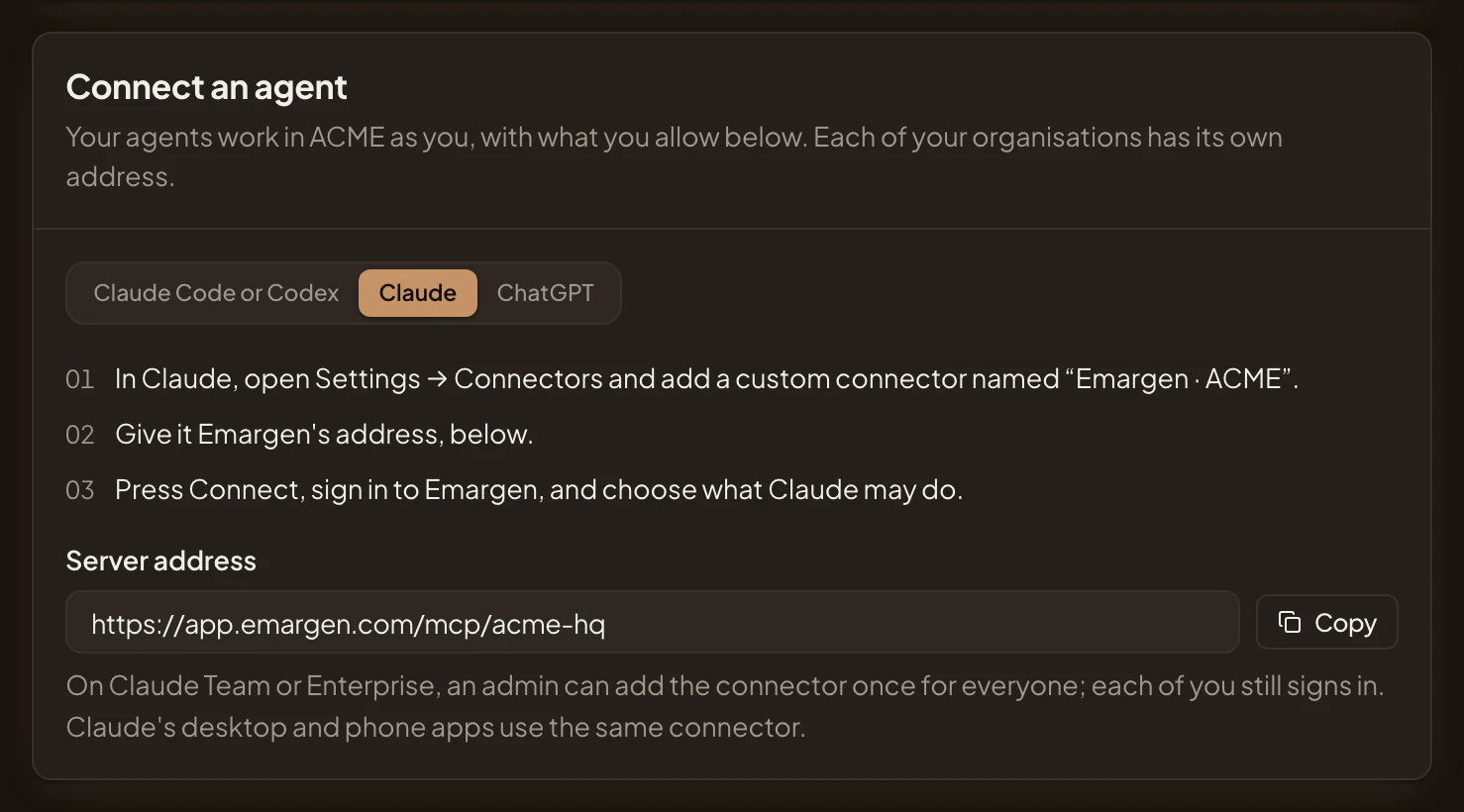
- Claude.
- The steps, with the name to give the connector: Emargen · ACME.
- Copy. Puts Emargen’s address on your clipboard.
-
Click Copy.
Steps 4, 5 and 7 happen in Claude or ChatGPT. Step 6 is Emargen’s page, which the assistant opens in your browser.
-
In Claude, open Settings, then Connectors. Add a custom connector. Use the name shown on Security (“Emargen ·” and your organisation’s name) and paste the address you copied. In ChatGPT, turn on Developer mode in its settings, then add an app with the same name and address, and OAuth as its sign-in.
-
Press Connect there, in Claude or in ChatGPT. The assistant opens Emargen in your browser and asks you to sign in, if you aren’t already.
-
Emargen shows a page headed with the assistant’s name and “wants to act as you in Emargen”. It starts on Topics and notes. Pick Read only when it should only read, Everything when it should build an initiative’s work too, or Custom to tick its tools one by one. Then press Allow. Connect an assistant shows the page and every choice.
-
Back in Claude or ChatGPT, Emargen’s tools are there. Ask it about a topic you know, like what a customer asked you this month. It answers from your organisation’s topics, naming each by its key.
-
To check it worked, open Security again: the assistant now shows under Connected assistants, with what it may use.
On Claude Team or Enterprise, or ChatGPT Business or Enterprise, an admin there can add the connector once for everyone. Each person still signs in.
Connect Claude Code or Codex
Section titled “Connect Claude Code or Codex”A coding agent on your computer doesn’t sign in. It takes a personal access token. You make the token on Security, and it says what the agent may do and for how long. You get a line to run where you use the agent. Connect Claude Code or Codex has the steps, and the script that starts each session with your open notes.
What you get
Section titled “What you get”- Your agent works in your organisation as you. It sees what you see, and its changes show as yours, named for the agent.
- It uses only the tools you allowed, and only those your organisation lets any agent use.
- On Security, a token shows under Personal access tokens and an assistant under Connected assistants. Each shows what it may use and when it was last used.
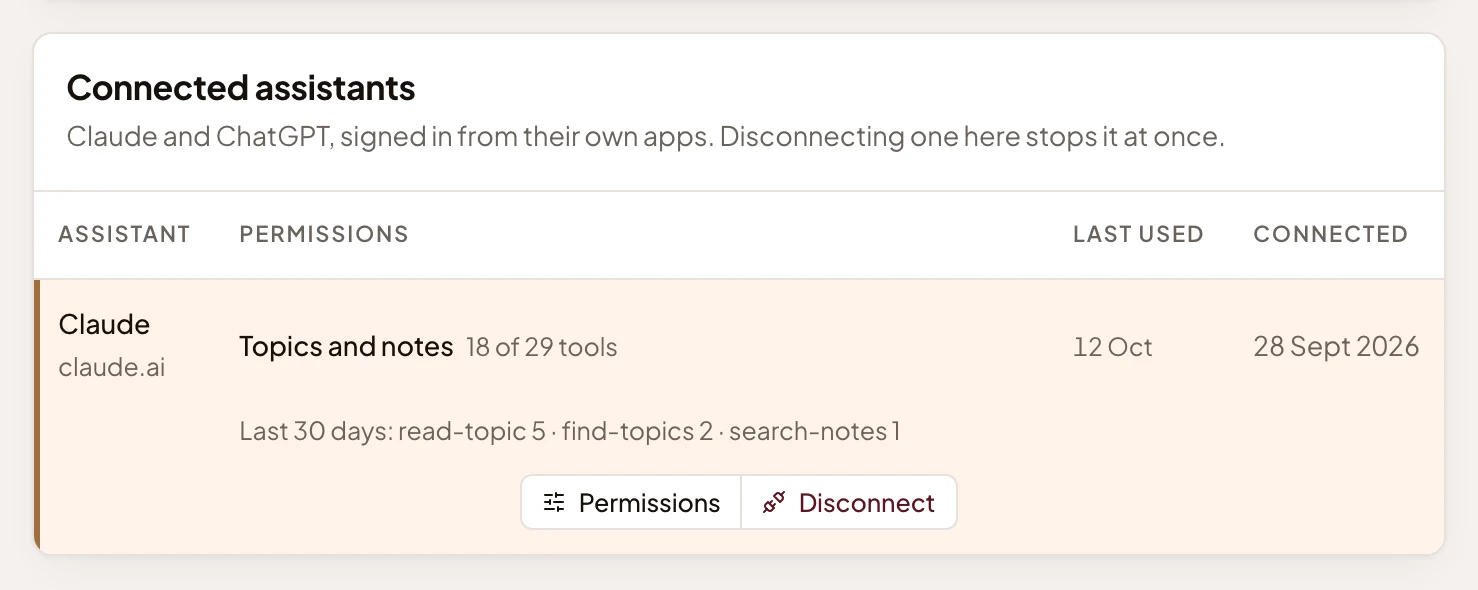
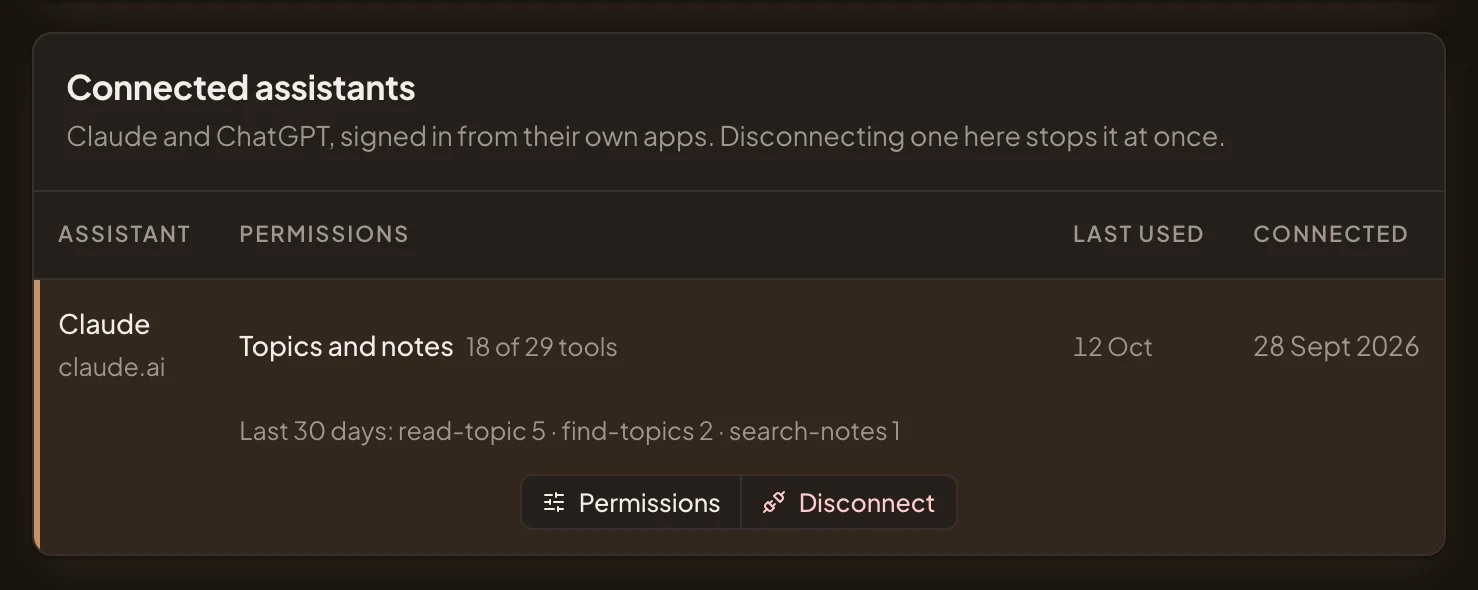
- What it may use.
- Click the assistant’s row to see Disconnect and Permissions. Change what it may do and press Save. It applies from its next call.
- Disconnect. Stop it at once. A token’s row on Security has Revoke instead.
- Your administrators see that you have it and when it was last used, and can revoke it. Their list holds nothing it read or wrote. Anyone the topic is shared with reads what it wrote, like any version.