

Getting aroundPage by page
Security
Security is where you change your password and manage the agents that work in Emargen as you. Open it from the Security tab of Your profile. Agent access has the idea behind it.
Open Security (opens Emargen in a new tab)No tokens yet, and a Claude connected from claude.ai on 28 September.
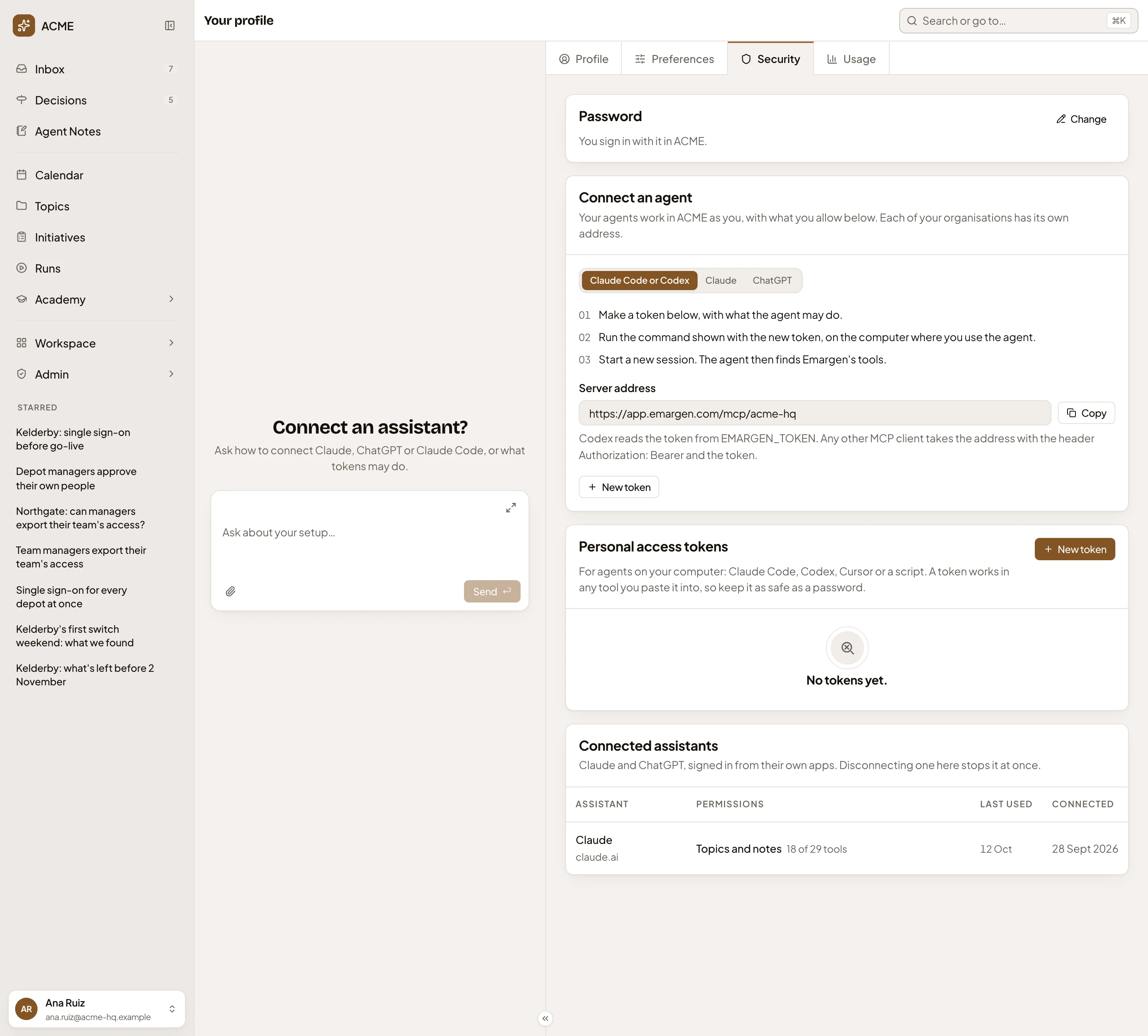
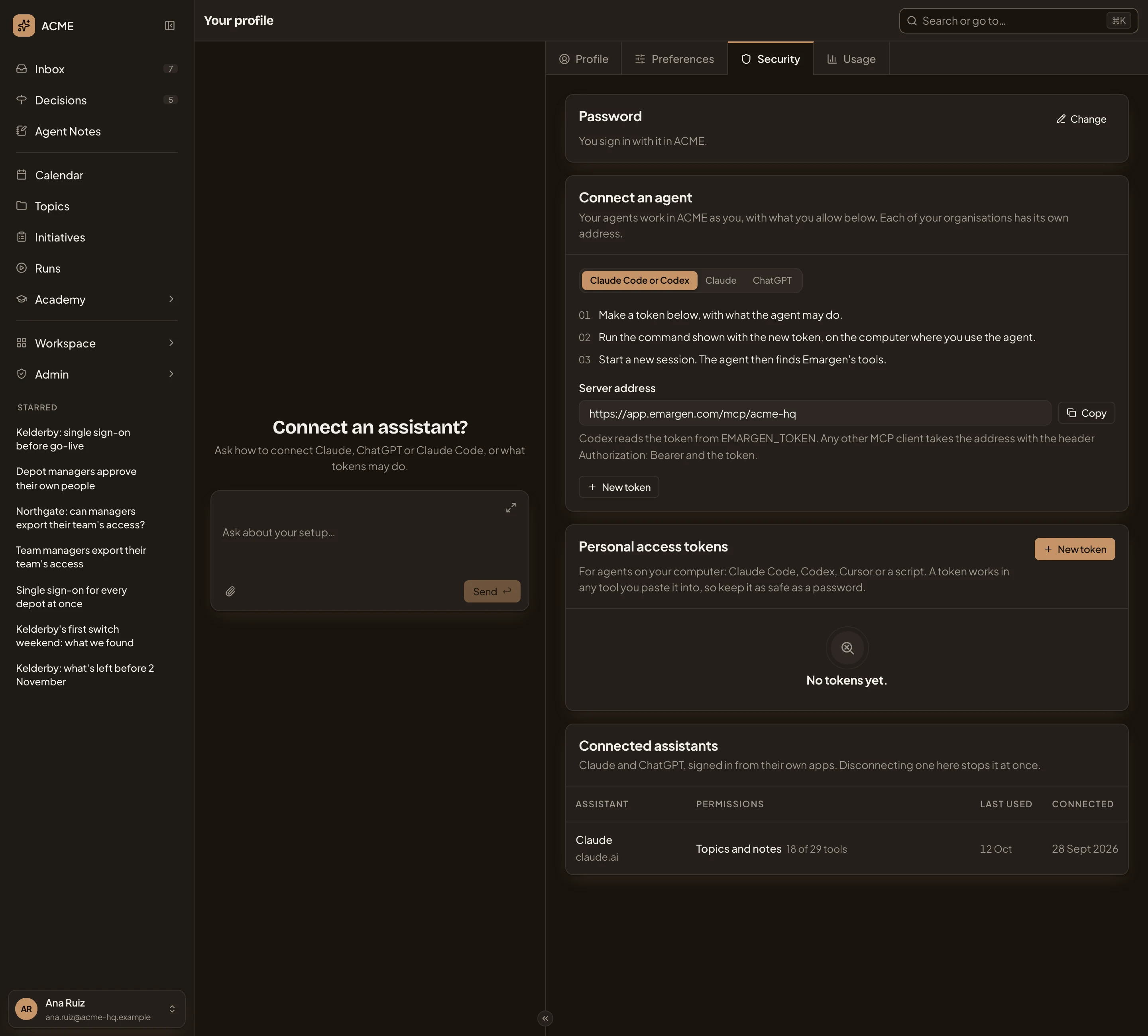
- The admin agent beside Security. Ask it how to connect Claude, ChatGPT or Claude Code, or what your tokens and assistants may do. It can show you the steps and open New token filled in for you. To change or revoke an agent’s access, it puts a card in the chat for you to confirm. It never sees a token.
- Password. The organisations you sign in to with it, and Change (see Your password).
- Connect an agent. A tab for each kind of agent: Claude Code or Codex, Claude and ChatGPT.
- The steps for that kind of agent.
- Server address. Your organisation’s own address for agents. Each organisation you belong to has its own.
- Copy. Copies the address.
- New token. For Claude Code or Codex. Makes the token you paste into the steps (see A new token).
- Personal access tokens. The tokens you made for agents on your computer.
- Connected assistants. Claude or ChatGPT, signed in as you from their own apps. Each shows what it may use, when it was last used, and when it connected.
An agent you connect works only in the organisation whose address it was given. It does only what you allow it, within what your organisation allows any agent (Agent access). It reaches Emargen’s tools for agents, never the rest of the app.
Connect an agent
Section titled “Connect an agent”Claude Code or Codex is for a coding agent on your computer.
- Make a token below, with what the agent may do.
- Run the command the new token shows, on the computer where you use the agent.
- Start a new session. The agent then finds Emargen’s tools.
Codex reads the token from a setting called EMARGEN_TOKEN. Any other tool that speaks to the server address takes the token in a header.
Claude gives the steps for Claude on the web, the desktop or the phone.
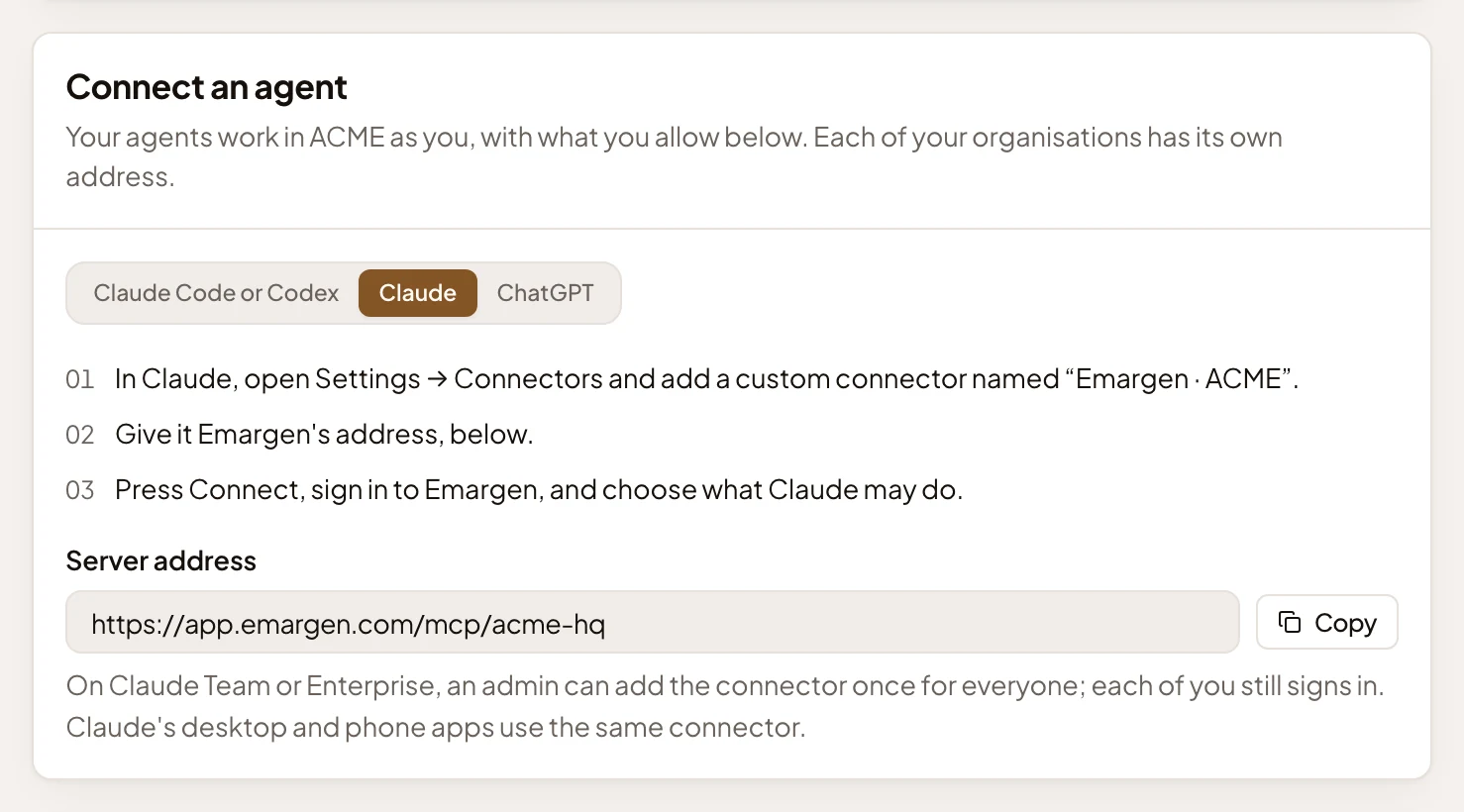
On Claude Team or Enterprise, an admin there can add the connector once for everyone. Each of you still signs in. Claude’s desktop and phone apps use the same connector.
ChatGPT gives ChatGPT’s steps. Turn on Developer mode in its settings. Add an app with Emargen’s address and OAuth as its sign-in. Then connect and sign in.
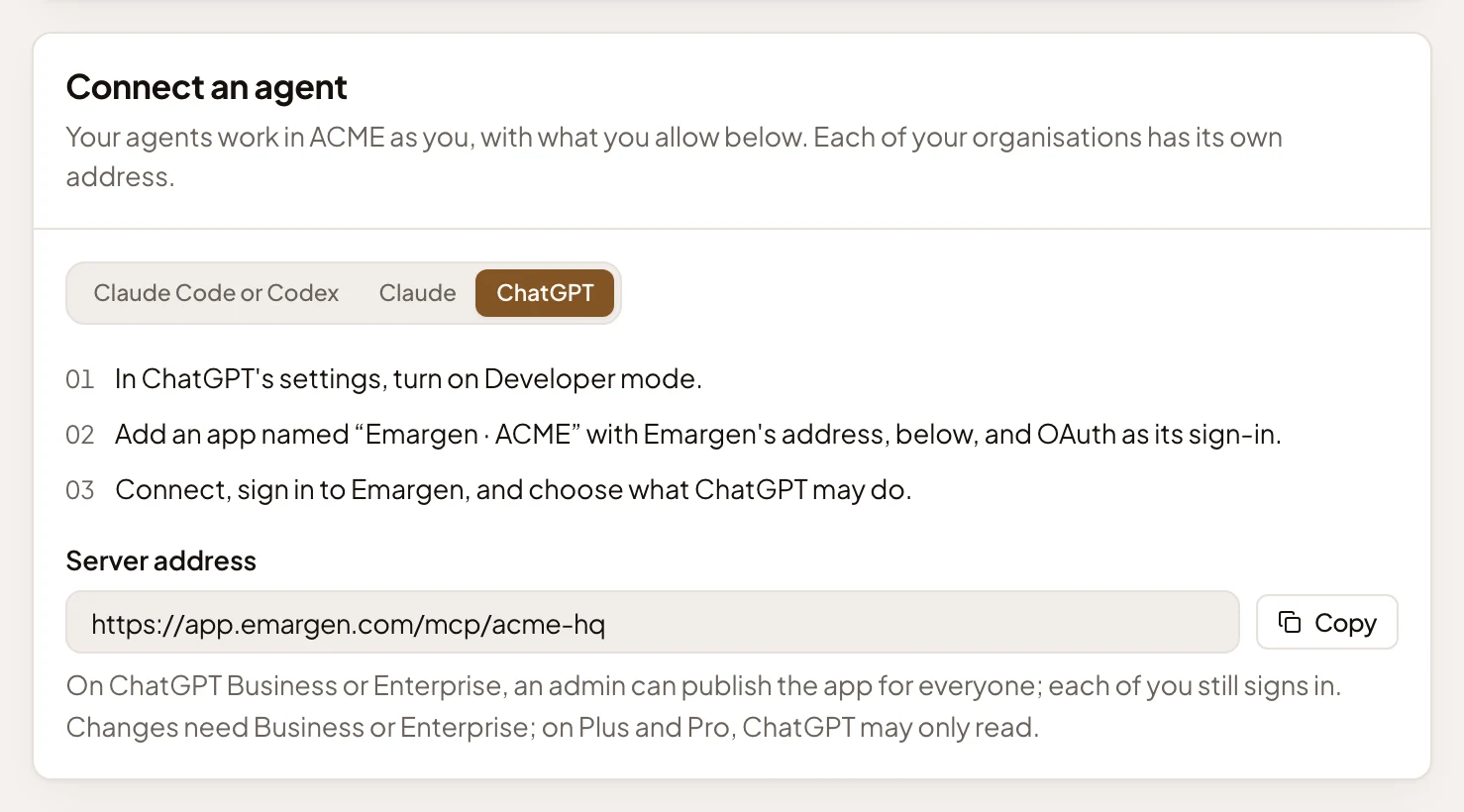
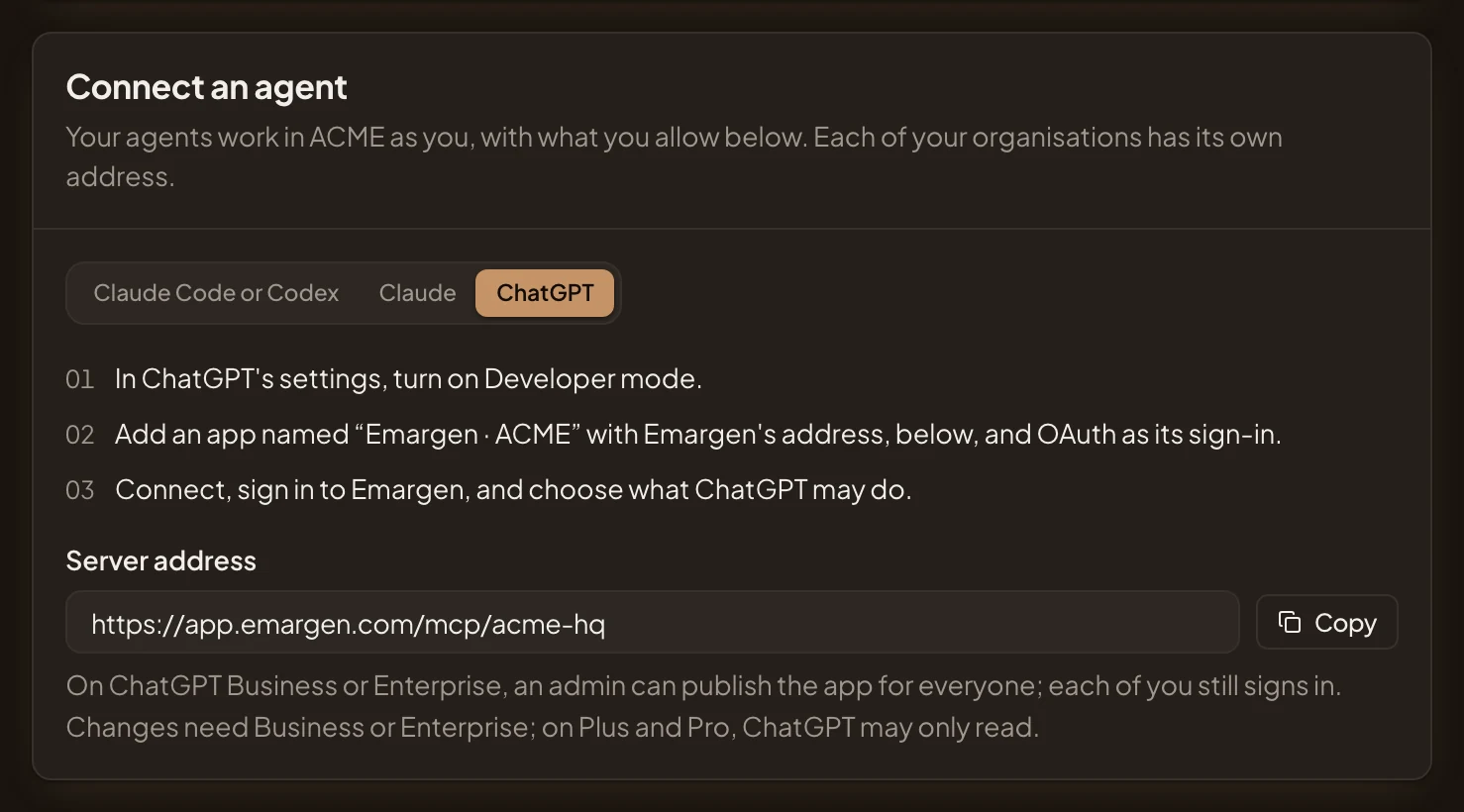
ChatGPT may only read on Plus and Pro. Changing anything needs Business or Enterprise, where an admin can also publish the app for everyone.
When Claude or ChatGPT connects, it sends you to Emargen to sign in and choose what it may do (Connect an assistant). It then shows under Connected assistants. The whole job is in Connect your own agent, and engineers’ details are in Connect Claude Code or Codex.
A new token
Section titled “A new token”New token opens New personal access token.
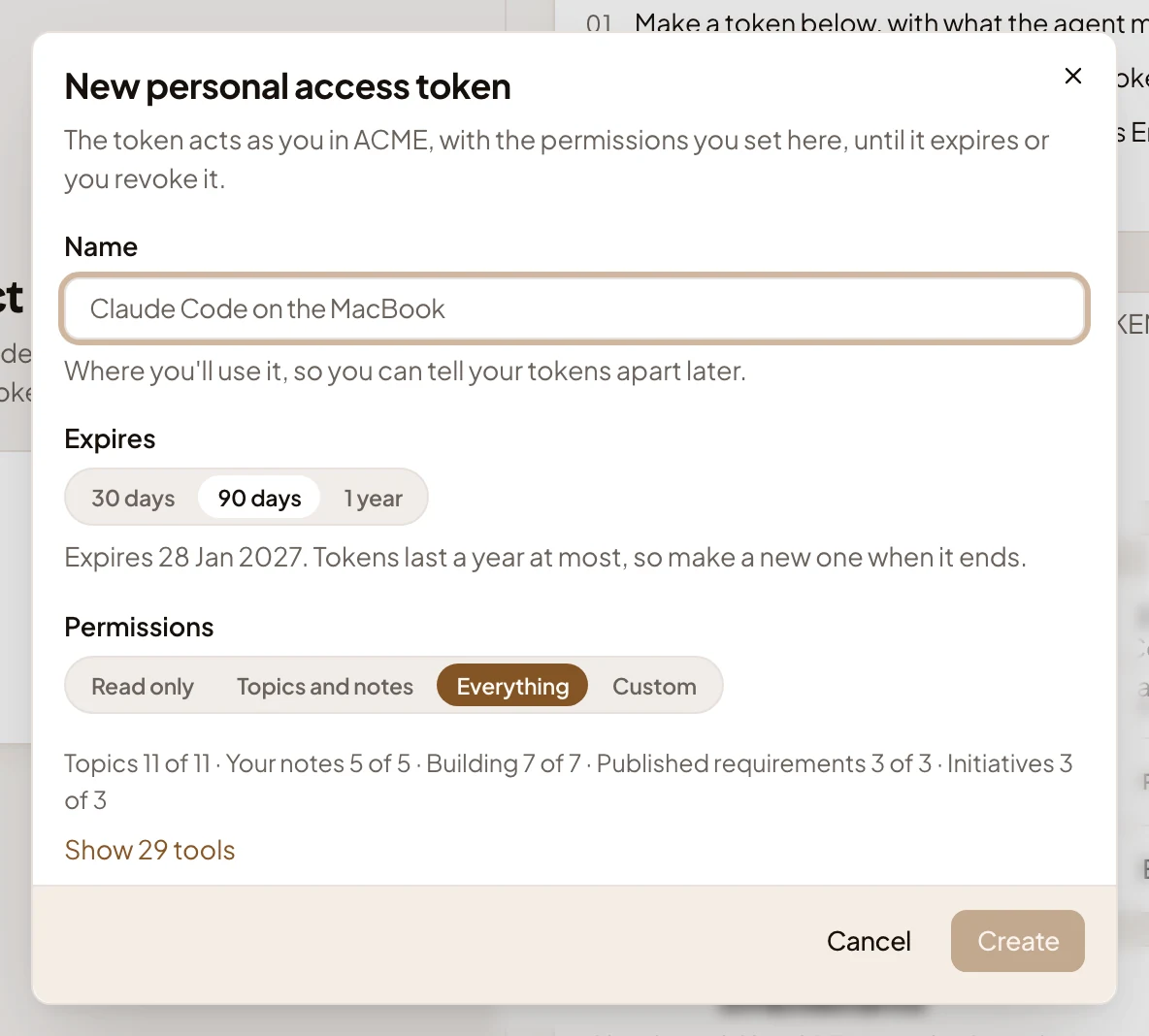
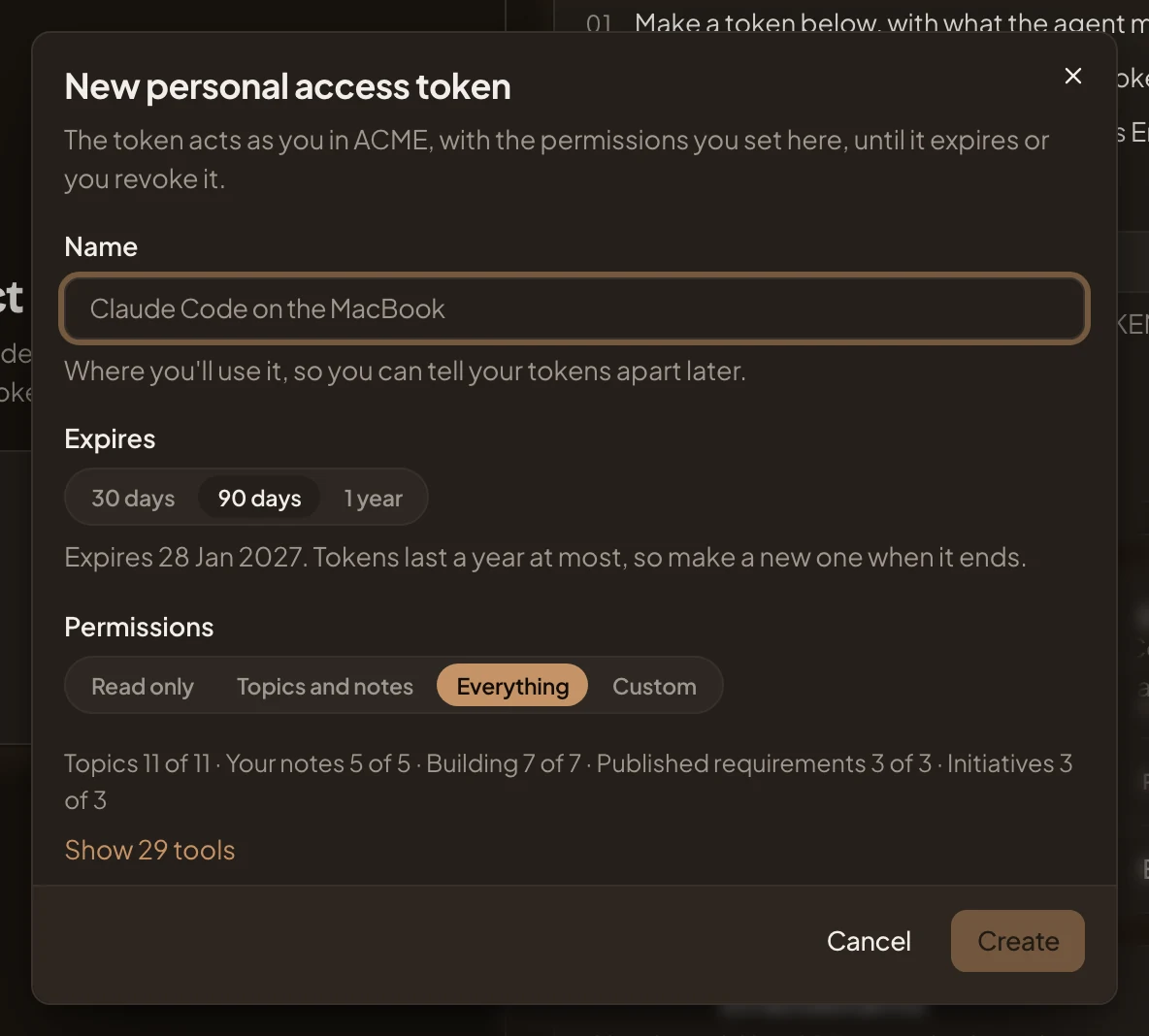
- Name. Where you’ll use it, so you can tell your tokens apart later.
- Expires. 30 days, 90 days or 1 year, with the date under it. A token lasts a year at most, so make a new one when it ends.
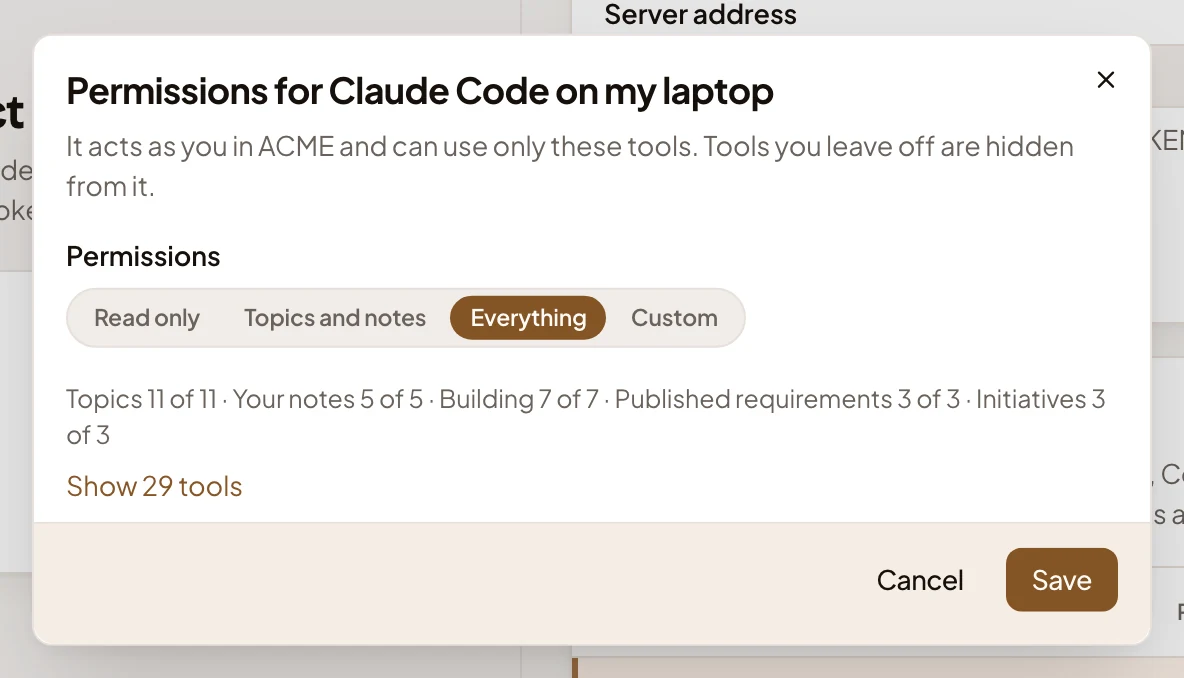
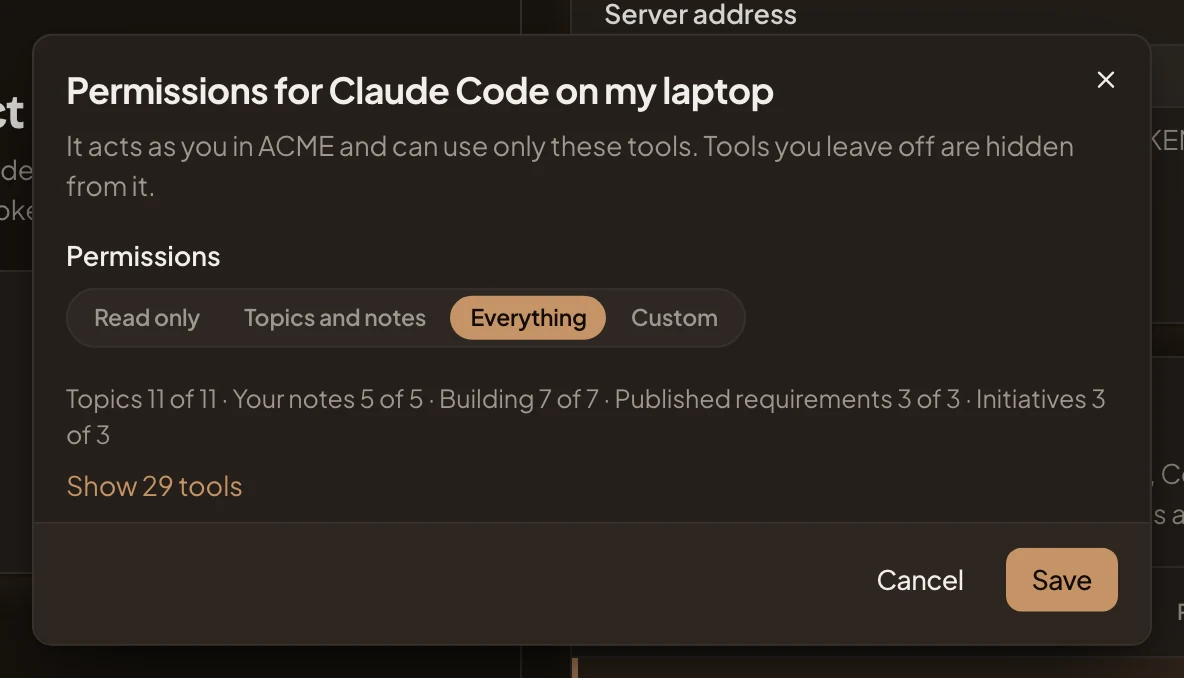
- Permissions. Read only (every tool that only reads), Topics and notes, Everything, or Custom to tick tools one by one. A token starts on Everything.
- How many tools your choice gives in each area.
- Show 29 tools. Lists each tool by area, with what it does and whether it reads or changes something.
- Create. Makes the token.
A choice by name, like Topics and notes, takes on new tools of its kind as Emargen adds them. A Custom choice never gains one by itself. A tool your organisation doesn’t let agents use stays off, and says so.
After Create, the dialog shows the token itself, once. Copy it then, since Emargen keeps only a fingerprint of it and can’t show it again. Under it are the lines that add Emargen to Claude Code or Codex with the token, each with a copy button. Folded under those is an optional script that hands the agent your open notes when a session starts. Done closes it, and the token shows in the list.
Your tokens
Section titled “Your tokens”Click a token to select it. In the picture, a token that may use every tool:
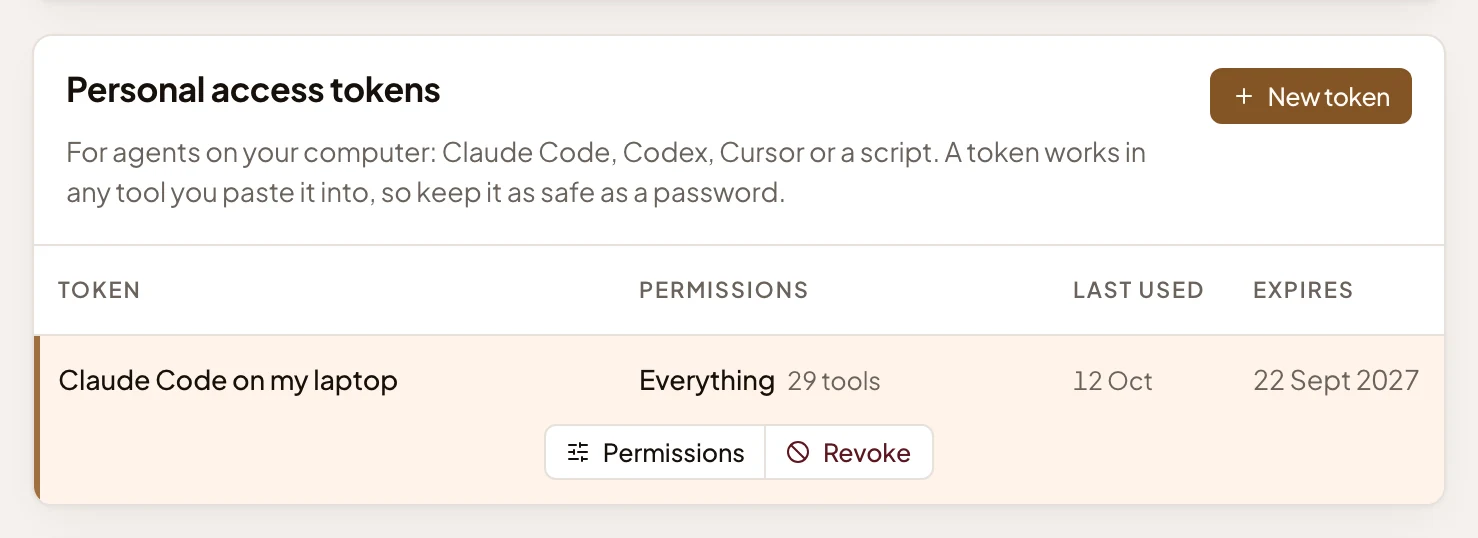
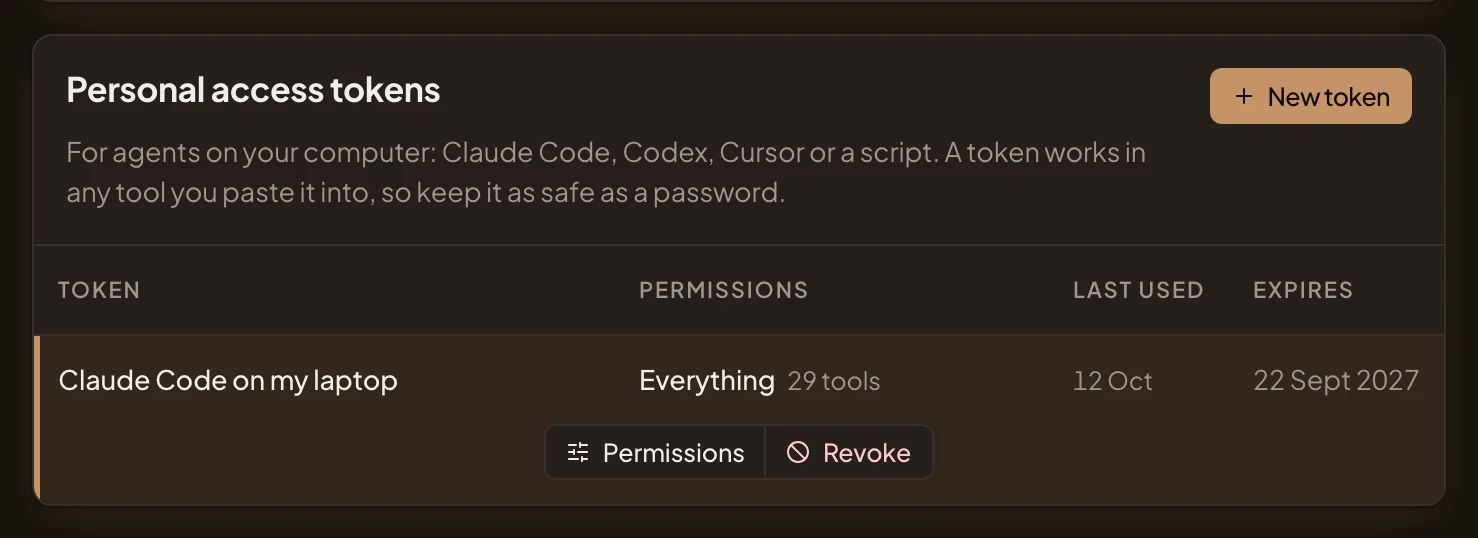
- What it may do: a choice by name and how many tools, or Custom.
- Expires. When it stops working. An expired token leaves the list.
- Permissions. Changes what it may do, from its next call.
- Revoke. Stops it working, after asking. Anything that uses it stops at once.
Your assistants
Section titled “Your assistants”Click an assistant to select it. It shows what it did in the last 30 days, tool by tool.
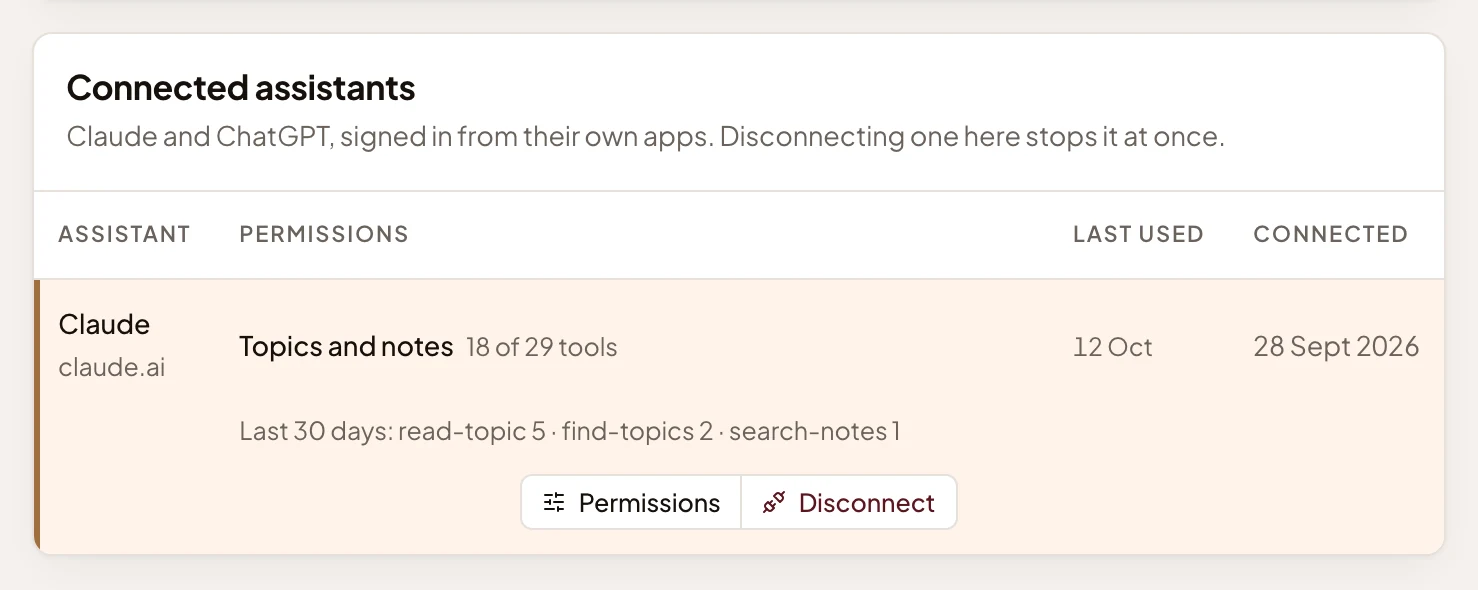
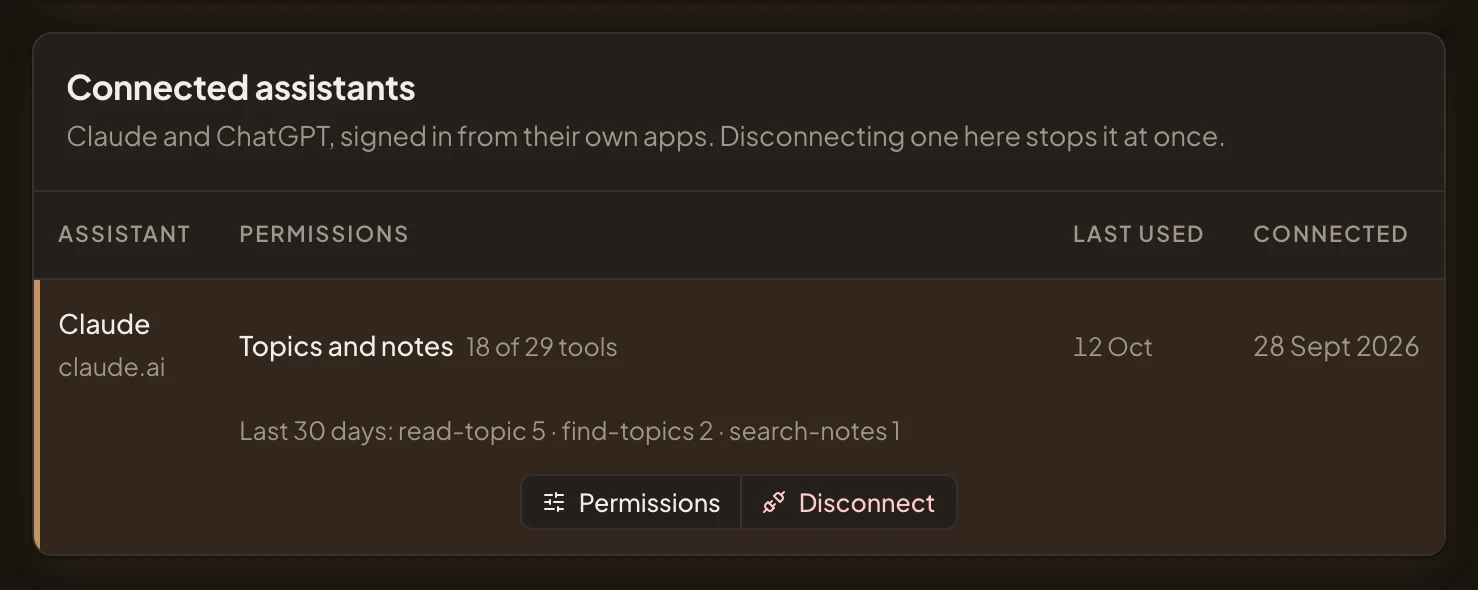
- What it may use. An assistant starts on Topics and notes.
- What it did here in the last 30 days: each tool and how often.
- Permissions. Changes what it may do.
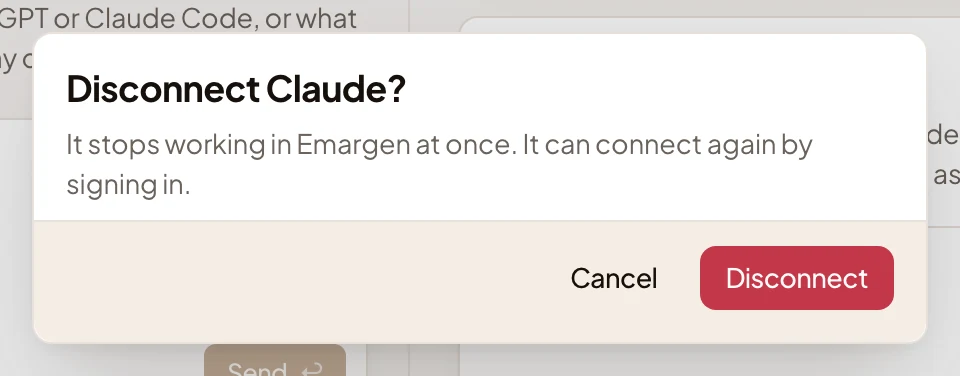
- Disconnect. Stops it at once, after asking.
Permissions opens the same choice as a token’s. Topics and notes lets an assistant work on topics and your notes, and read published requirements and initiatives. It can’t import pages, close your todos, start an initiative, or work on an initiative’s build.
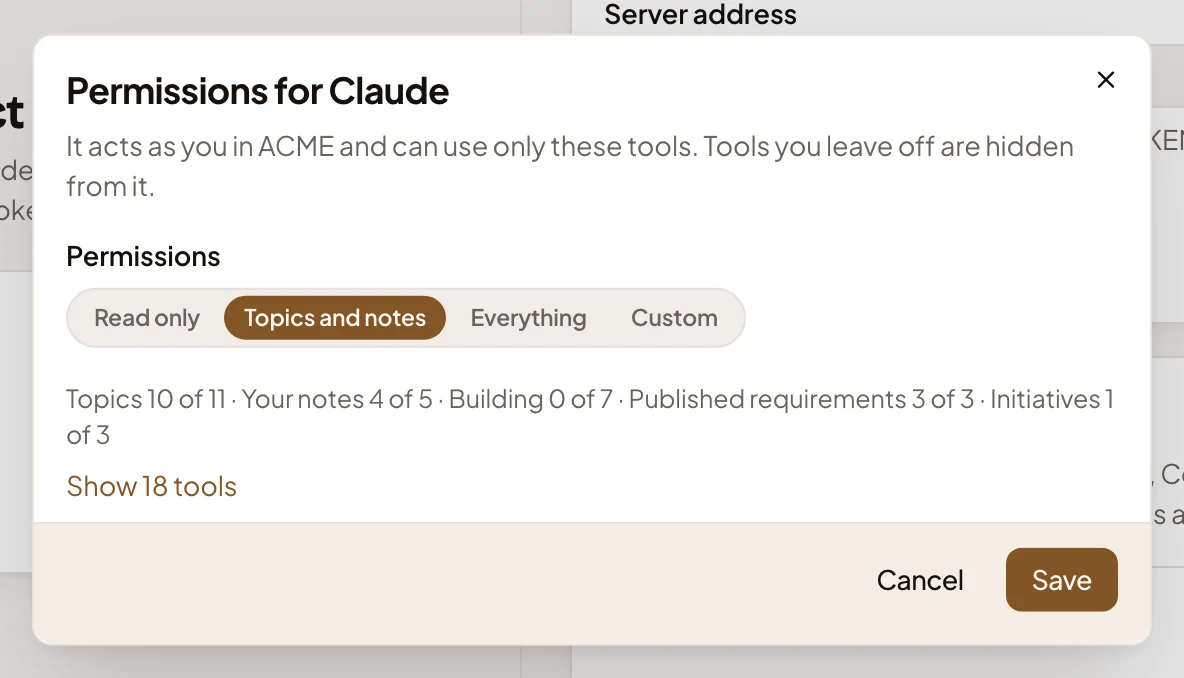
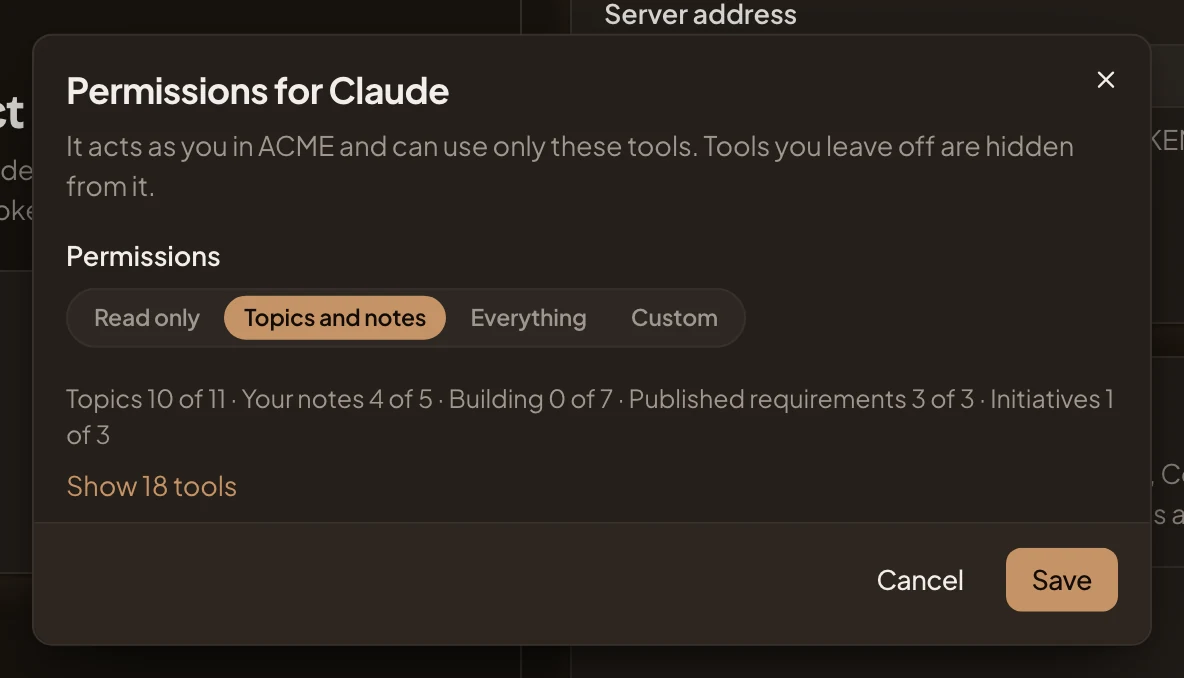
- Topics and notes, chosen.
- Building 0 of 7: it can’t touch an initiative’s slice work.
Disconnect asks first.
Your password
Section titled “Your password”Change opens Change your password.
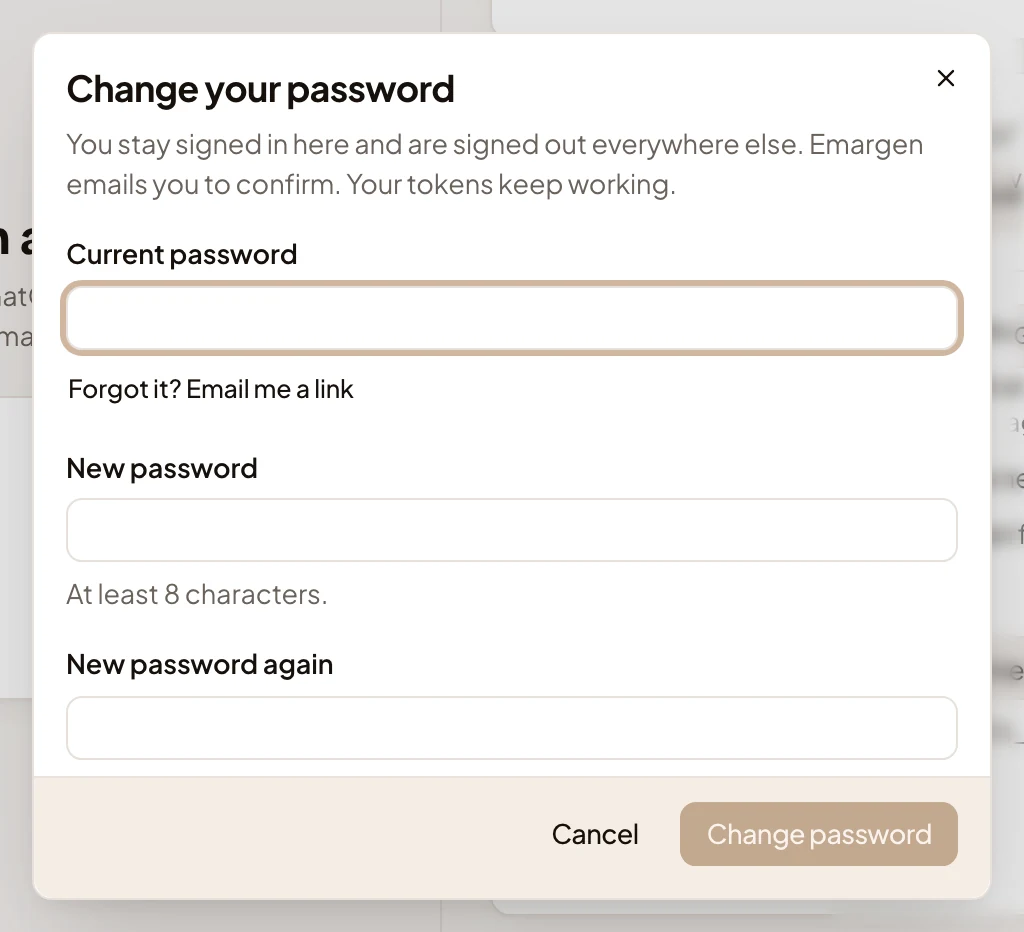
- Current password.
- Forgot it? Email me a link. Sends you a link to set a new one instead.
- New password. At least 8 characters.
- New password again.
- Change password. You stay signed in here, and you’re signed out everywhere else. Emargen emails you to confirm. Your tokens keep working.
An organisation that signs in only through your organisation’s single sign-on takes no password. Only organisations that use one show here. If none do, there’s no Password section.
On a phone
Section titled “On a phone”You land on Security, with Conversation above it to switch to the agent.
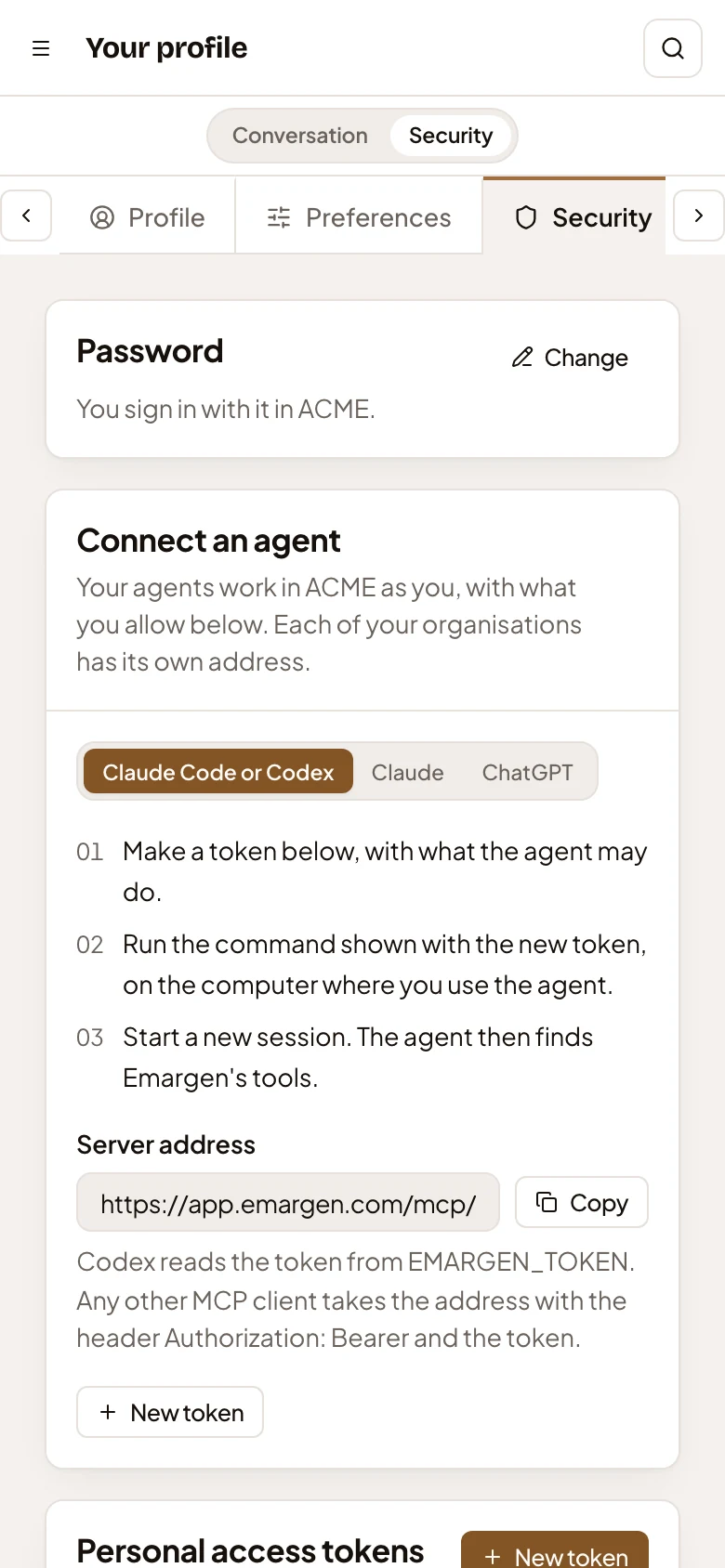
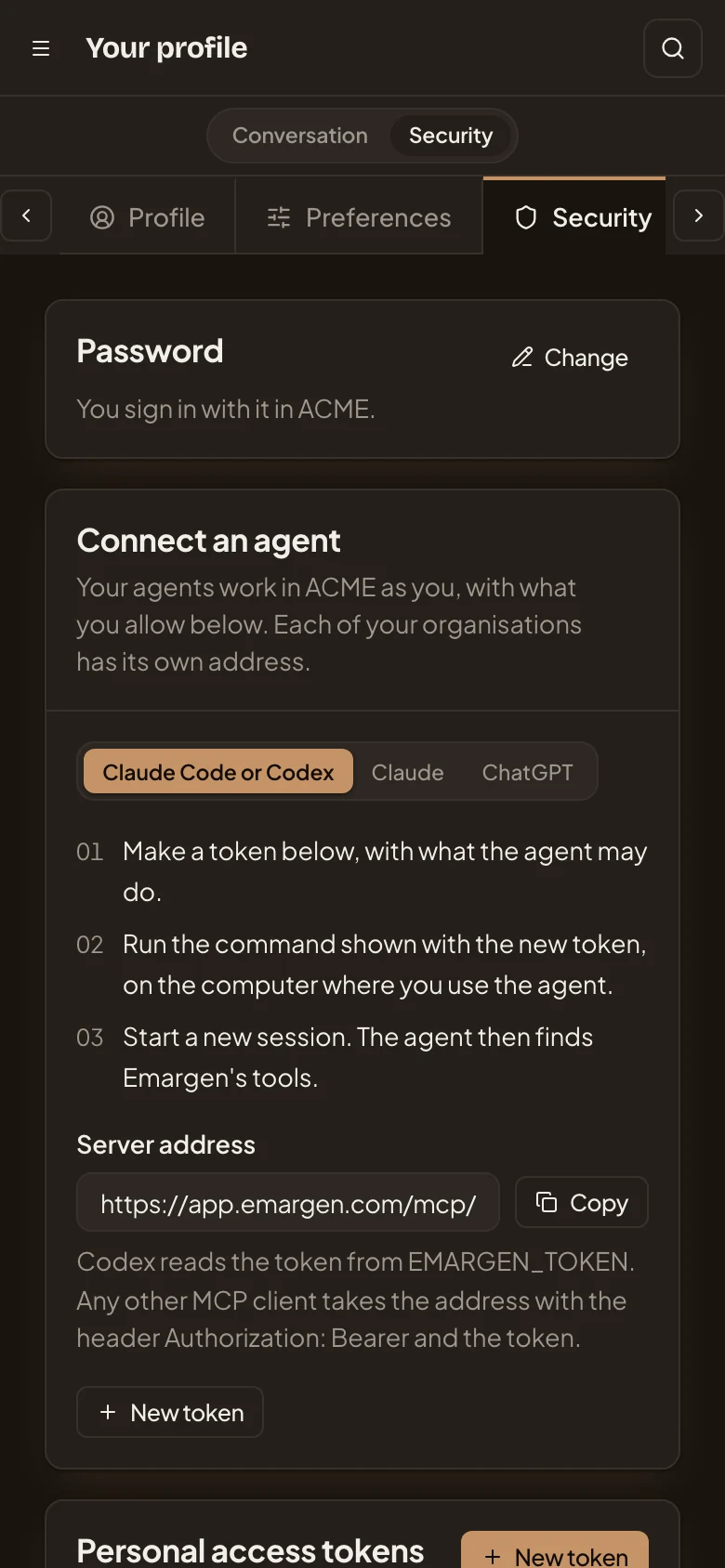
- The menu.
- Your profile’s pages, scrolling sideways.
- Conversation. Switches to the agent beside Security.
Access
Section titled “Access”Everyone changes their own password. Your organisation’s administrators see who has an agent and when it was last used on Agent access, and can revoke one there. They never see what it read or wrote.