

AcademyPage by page
Challenges
On the challenges page you see every challenge you sent or were sent, and send new ones. Open it with Challenges under Academy in the menu, or with Take on a challenge waiting in your Inbox.
Open your challenges (opens Emargen in a new tab)In the picture, a customer success lead at ACME has two challenges. They sent one to a colleague in support on 12 October, who hasn’t taken it yet. A sales engineer sent them the other before a customer’s security call, and both of them finished it.
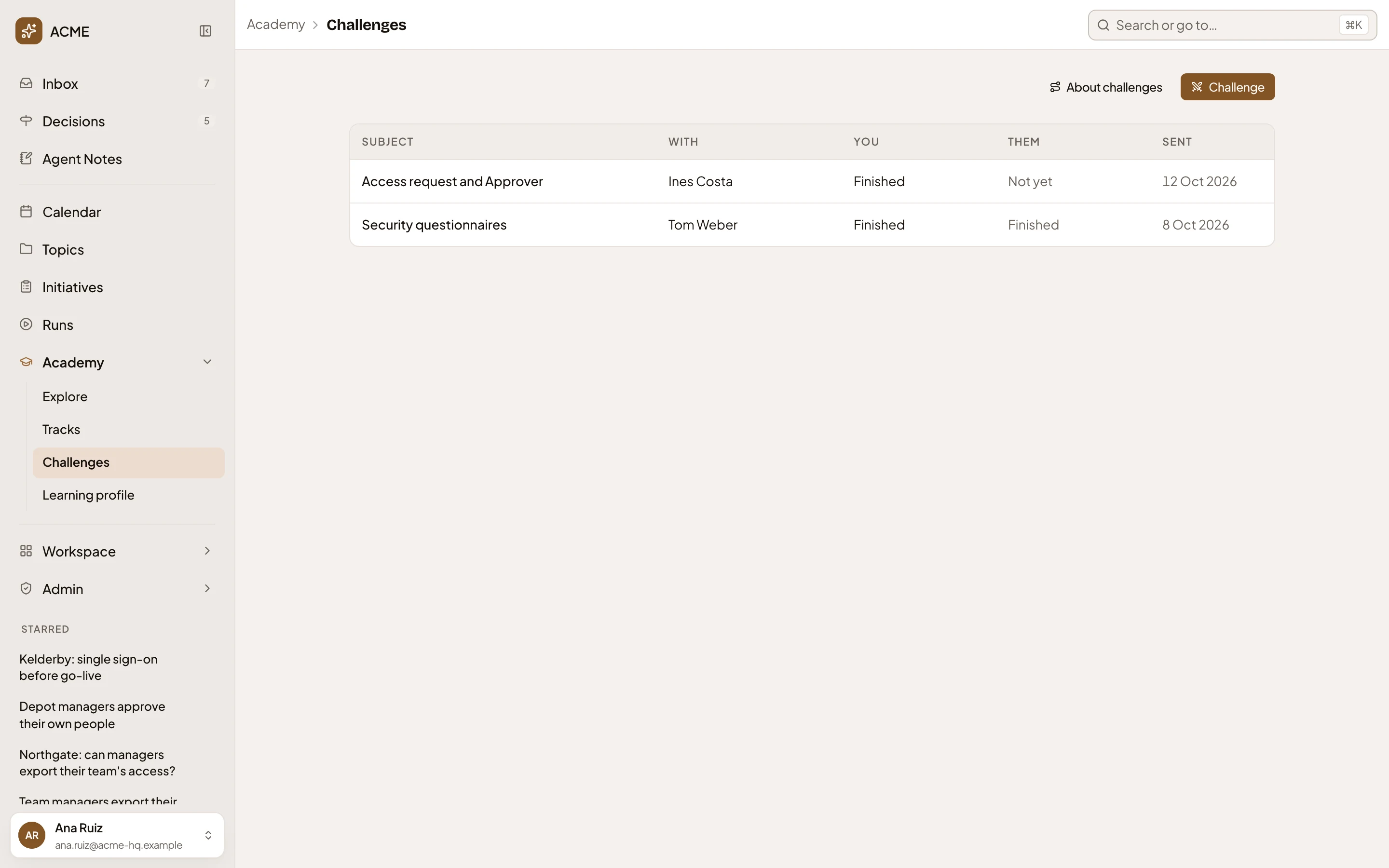
- Academy takes you back.
- About challenges. Five steps, from picking someone to saving what you missed.
- Challenge. Opens Challenge someone.
- A challenge. The columns show the subject, who it’s with, how far each of you got, and when it was sent. Click the row to open the challenge.
- Another challenge, which both of you finished.
The challenges waiting for you come first. In the next picture, the colleague in support sees that challenge, with none of its cards answered yet, and that the sender finished.


Challenge someone
Section titled “Challenge someone”Challenge opens Challenge someone. Opened here, it’s empty. Opened from a track, region or spot, Subject is filled in.
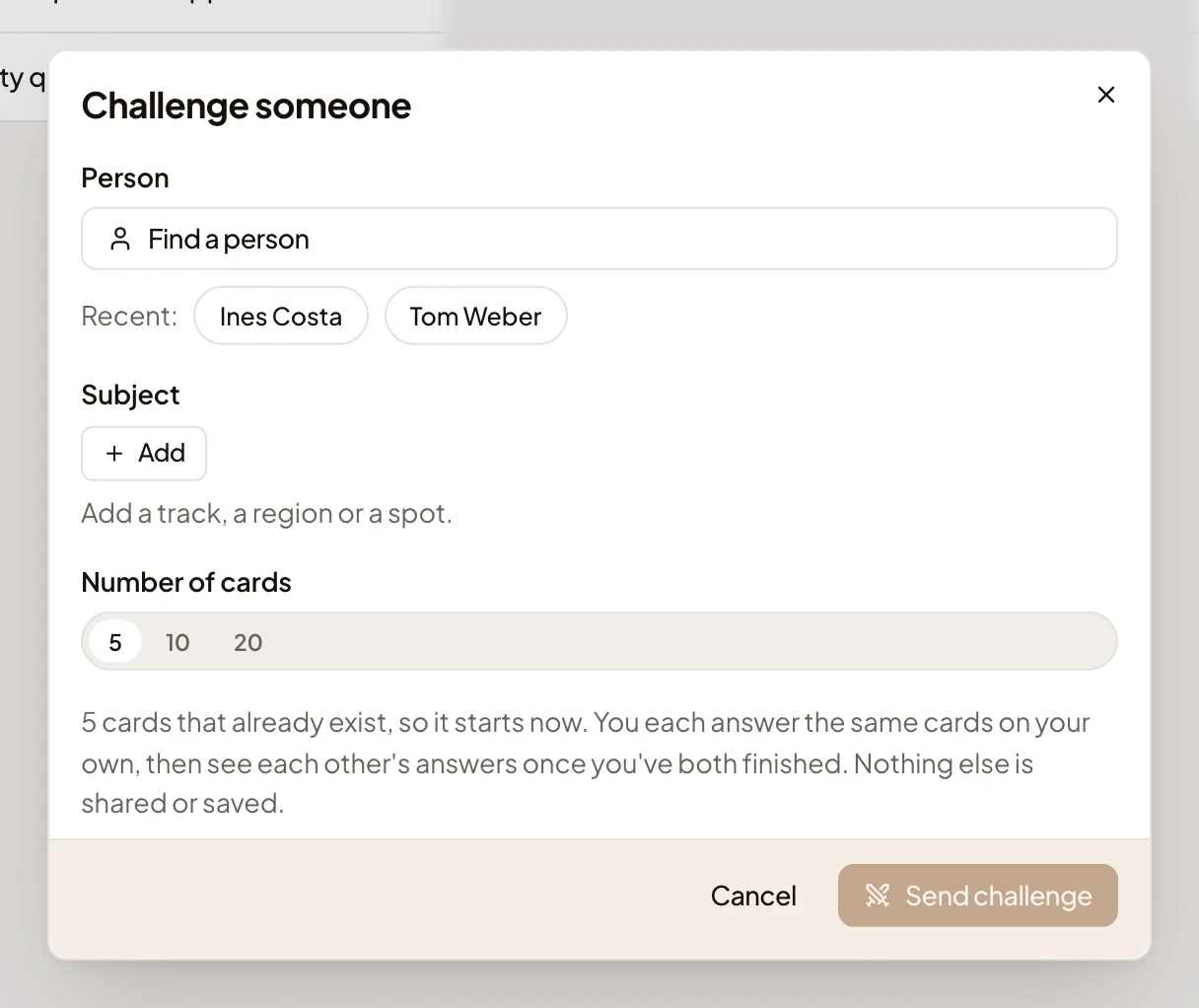
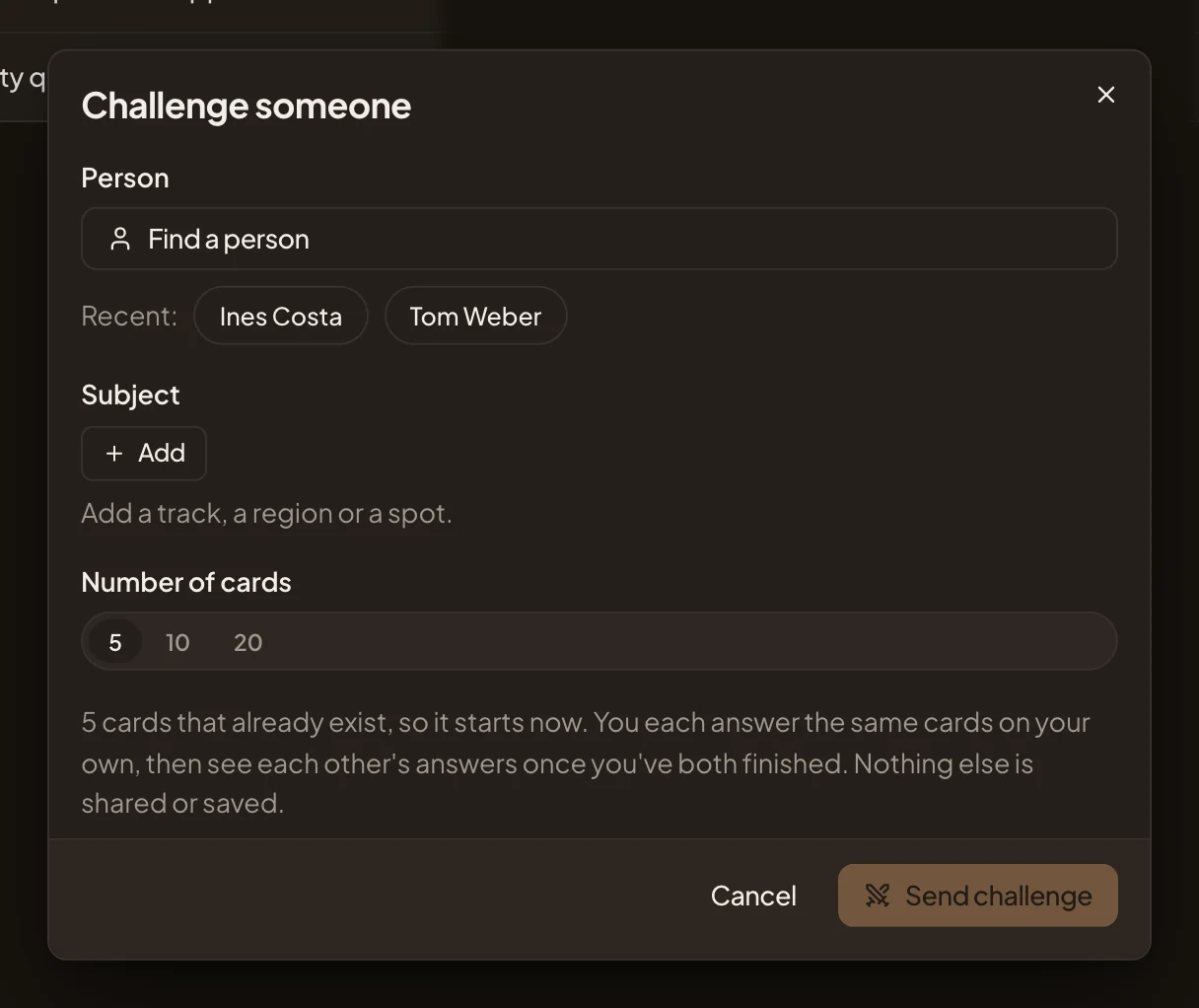
- Find a person. Anyone in the organisation but you.
- Recent: the people you challenged, or who challenged you, lately. Click one to pick them.
- Add. What the challenge is on, a track of yours, a region or a spot. Add up to ten in all.
- Number of cards: 5, 10 or 20.
- Send challenge. Sends it, once you’ve picked someone and there are cards to draw from.
Find a person lists the organisation’s people. Type to find someone by name.
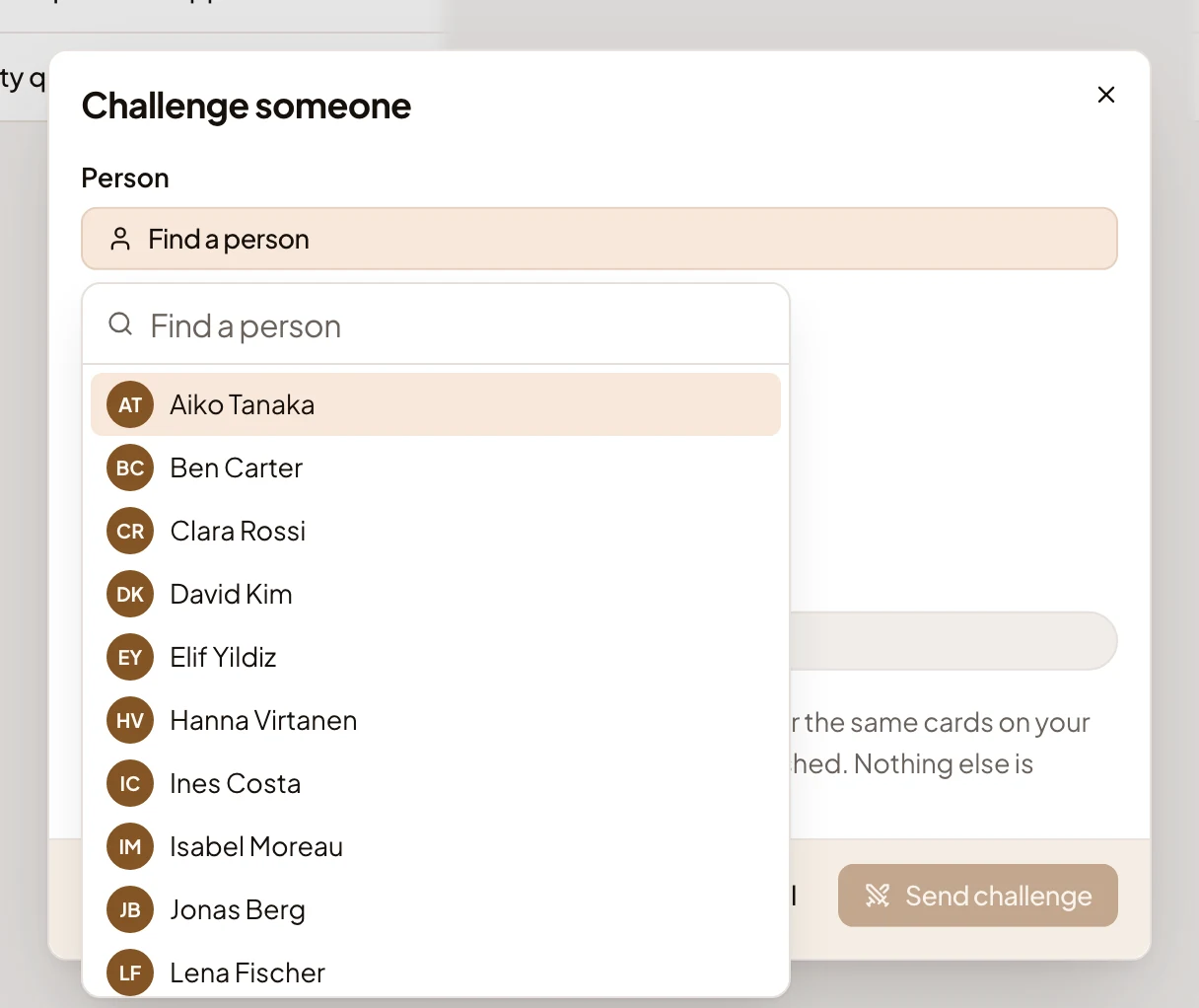
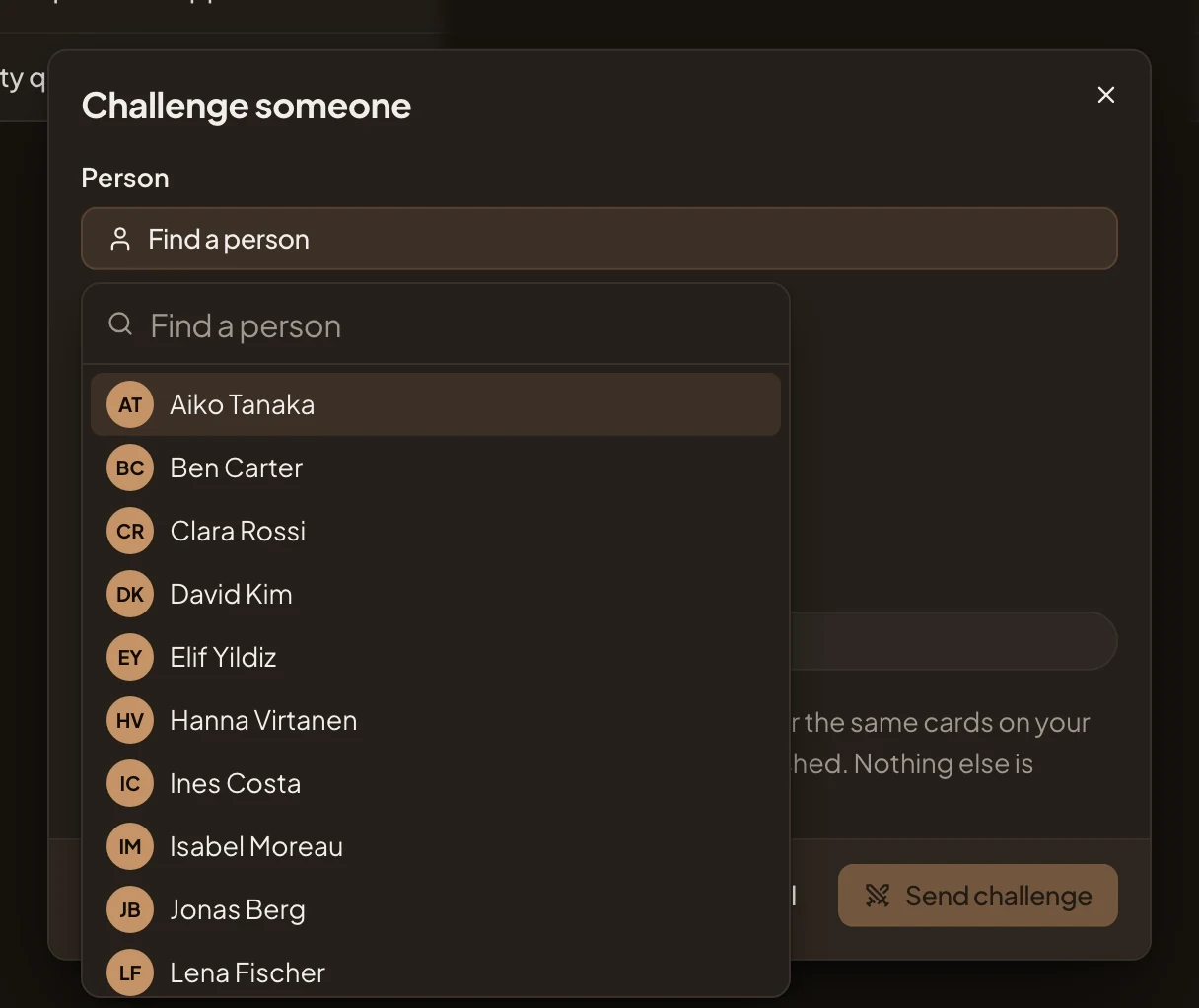
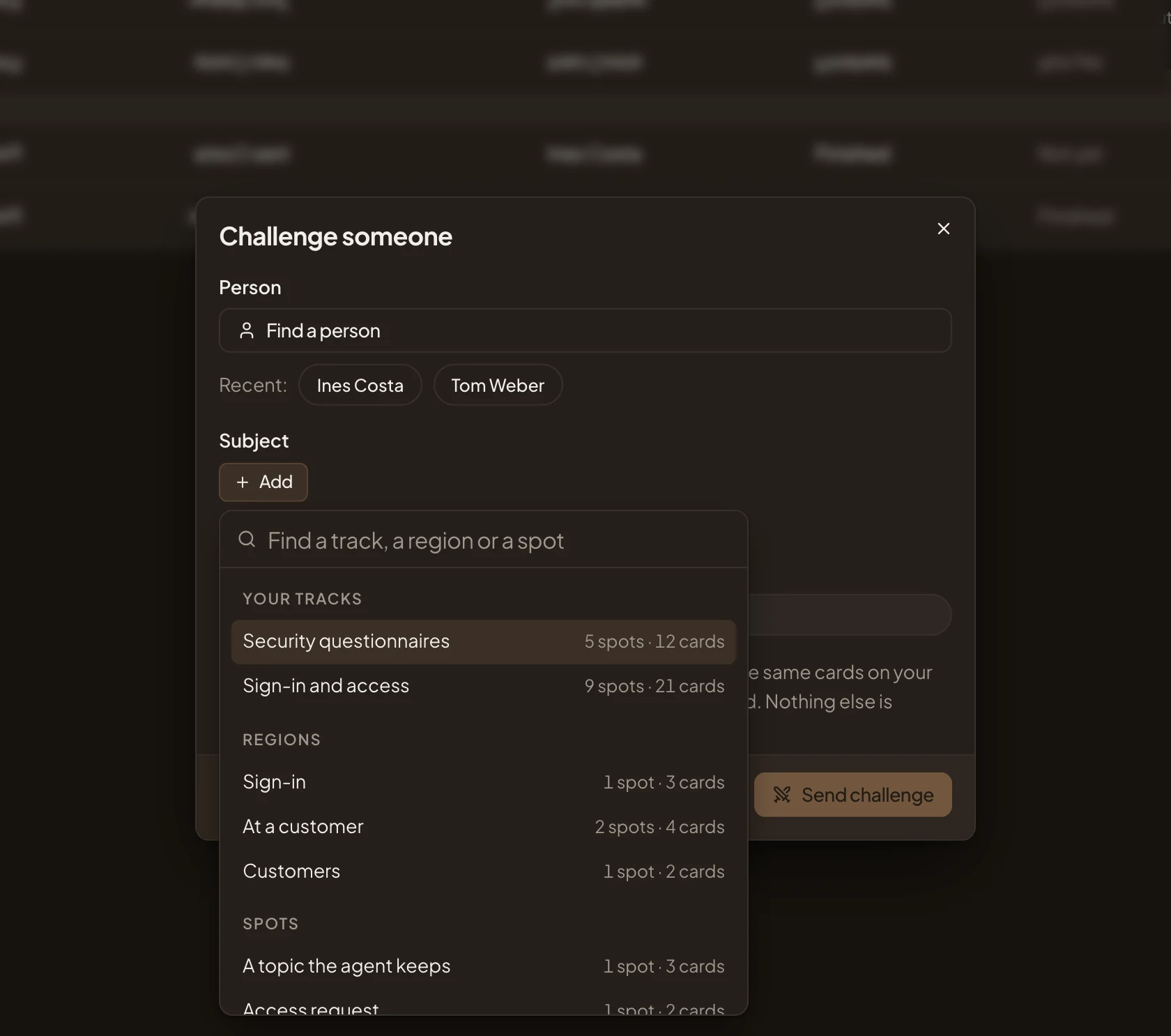
Add finds what to challenge on. Type a few words, or pick from Your tracks, Regions and Spots. Each shows a few, with how many spots and cards it holds.
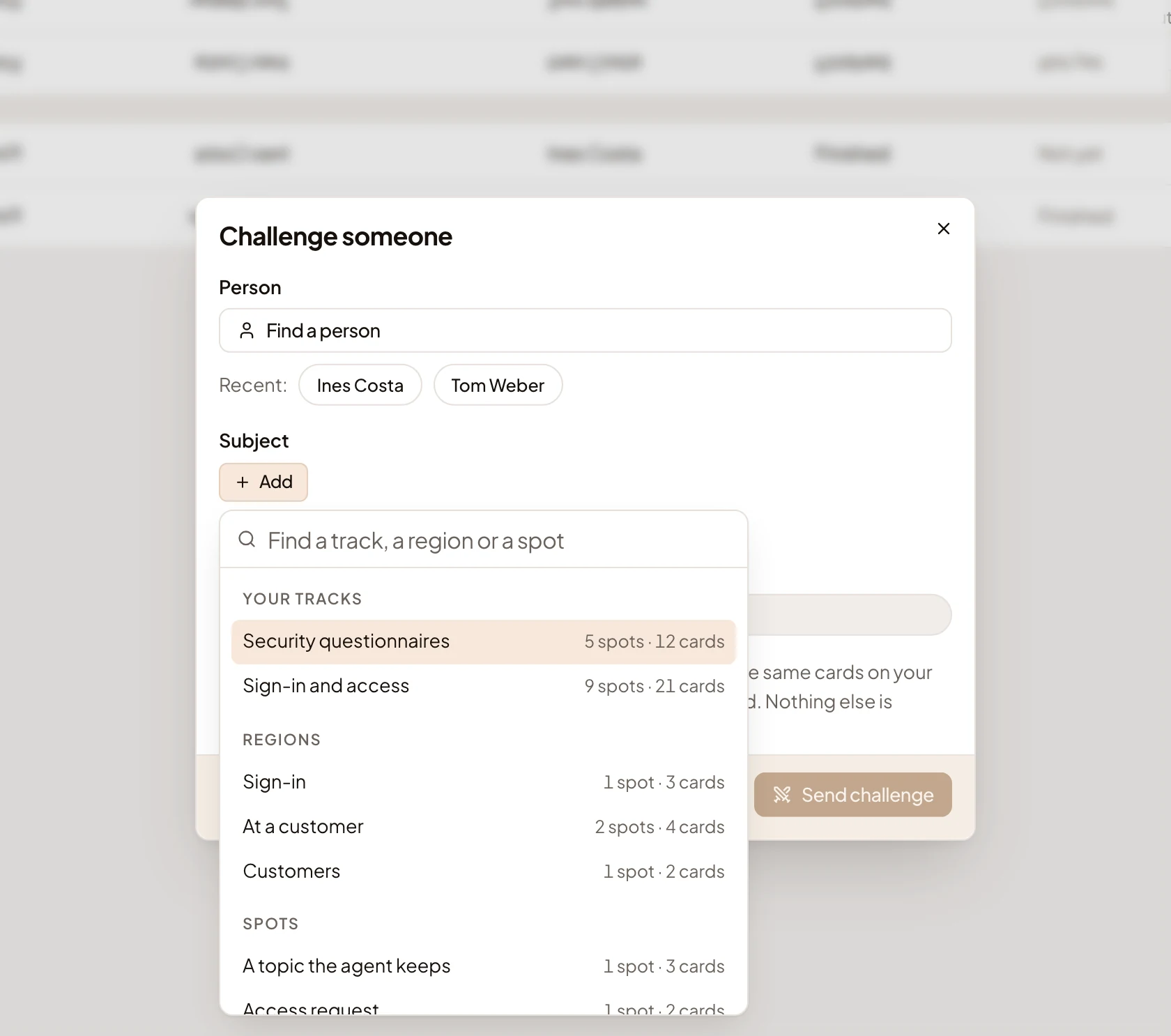
What you add appears as a chip. Click its × to take it off. Under the chips, a line shows how many cards there are to draw from. The challenge uses cards that already exist, so it starts at once. You each answer the same cards on your own, and once you’ve both finished, you each see the other’s answers.
You get at most one existing card per fact, spread across as many spots as possible. If there aren’t that many cards, the challenge has fewer. Written cards come into a challenge only when your organisation has a model set up to check them.
Send challenge sends it and opens it, so you can answer its cards straight away. The person you challenged gets a task in their Inbox with Take, which opens their challenges.
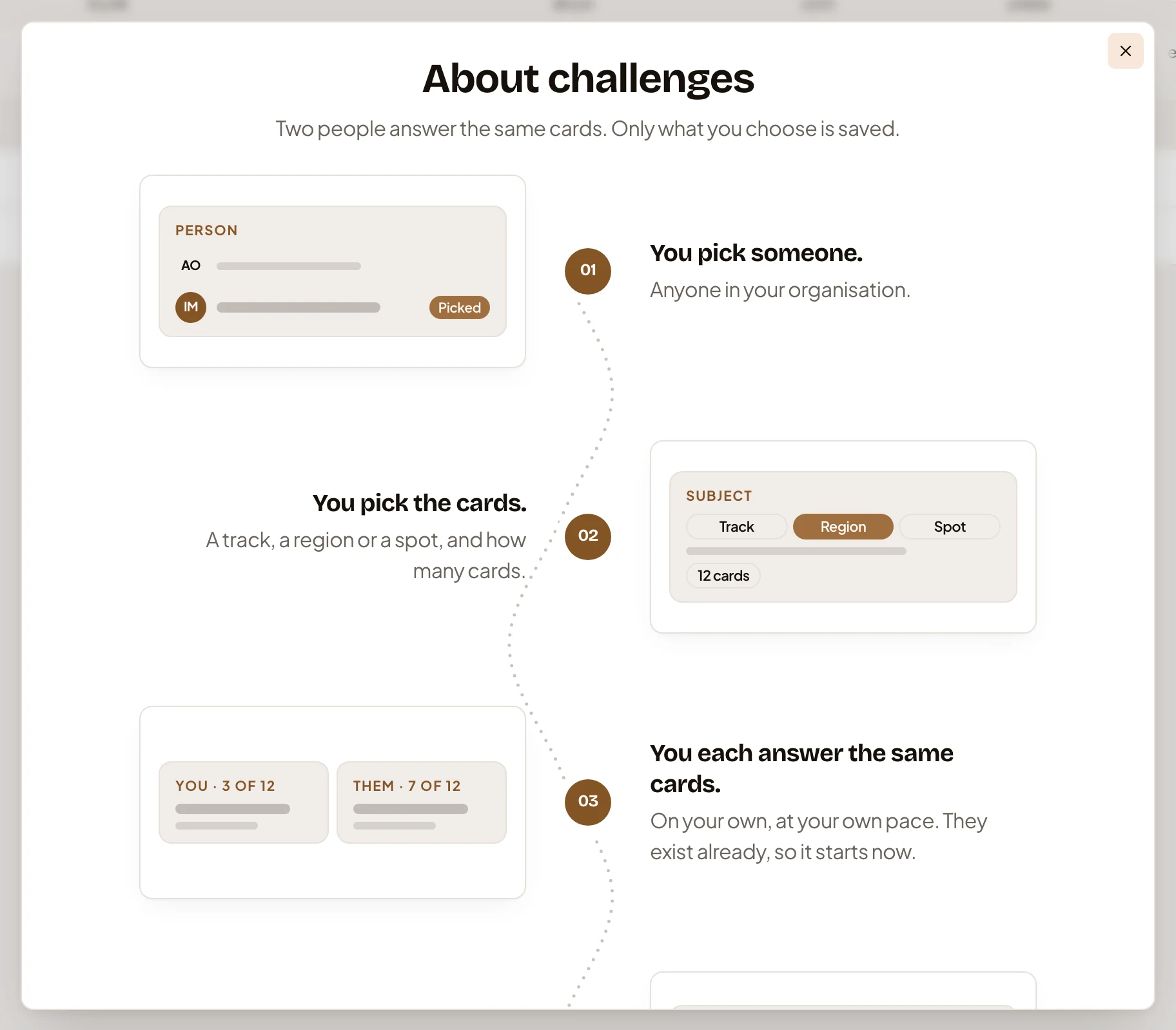
With no challenges yet, the page shows “No challenges yet.” and Challenge, then the five steps of About challenges.
Access
Section titled “Access”Everyone in the organisation has their own challenges page, with only the challenges they sent or were sent.