

AcademyPage by page
A track
A track’s page is where you shape a track with the Academy agent and, once it’s built, see its spots and practise them. Open it by clicking a track on Tracks, or with Edit with the agent on a lit track’s card on the Academy. A spot’s page links to its tracks too, and a challenge you saved as a track shows Open the track.
A built track
Section titled “A built track”A track at ACME, Sign-in and access, covers nine spots. Its owner’s chat with the Academy agent is on the left, the track’s spots on the right.
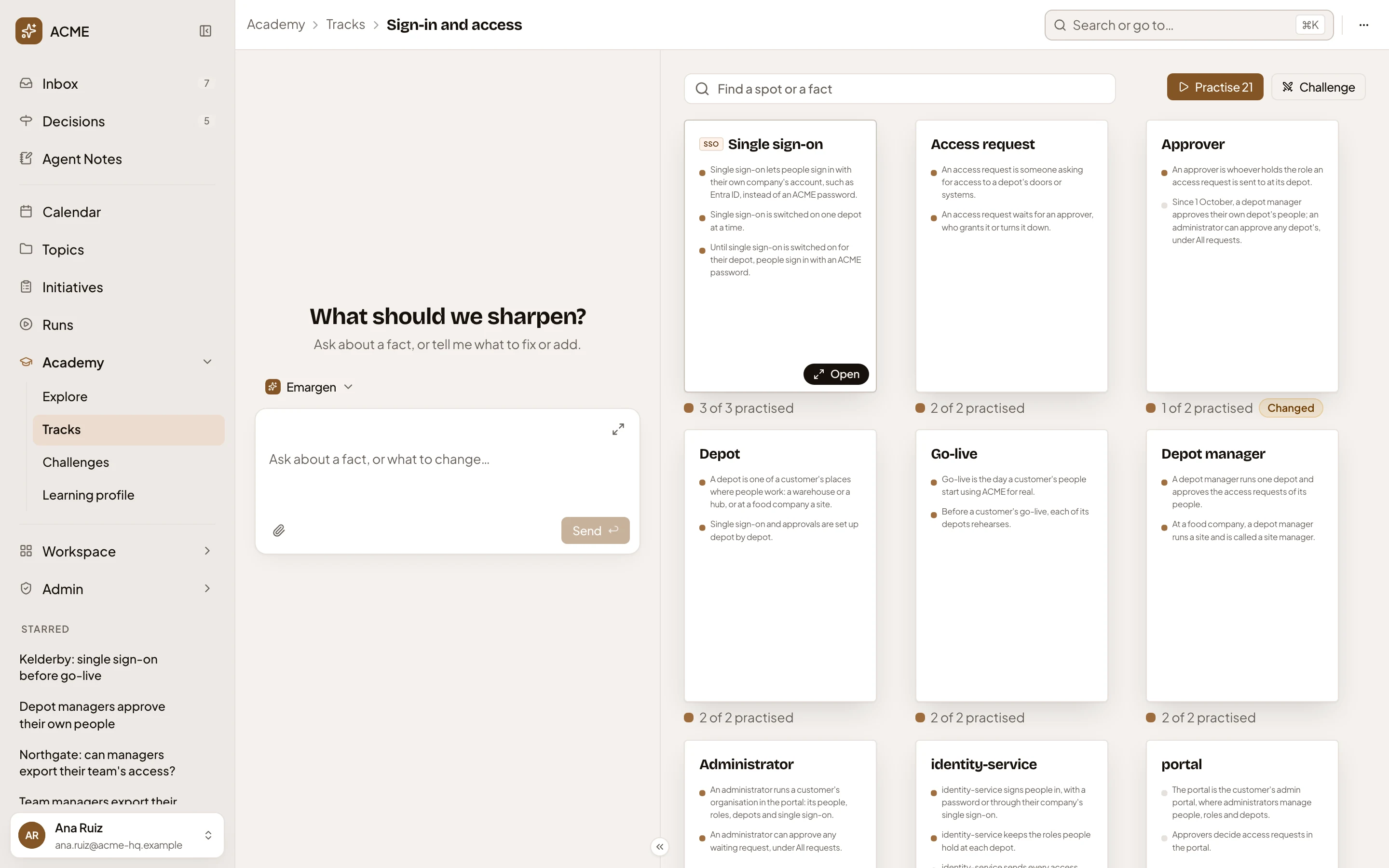
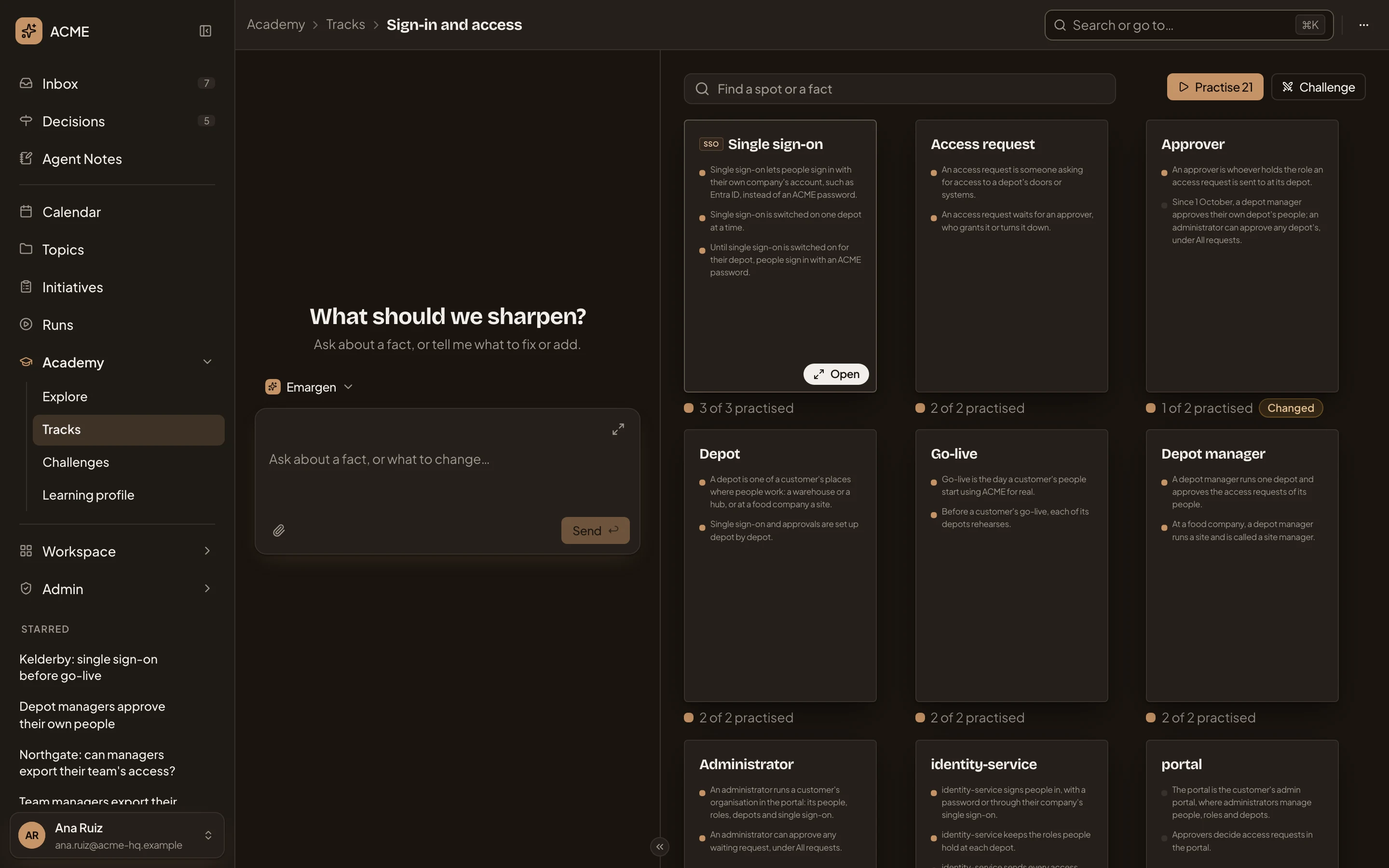
- Where you are. Click Academy to go back to your map.
- More actions for Sign-in and access, the ⋯ button, with Copy link and Delete track (see The track’s menu).
- Your chat with the Academy agent. The agent knows which track is open, so ask it about the track’s spots, or what to sharpen.
- Emargen. The persona that answers you. Click it to pick another (Personas and skills).
- Message the Academy agent. Ask, or tell it what to change.
- Hide the chat (⌘J). Gives the spots the room.
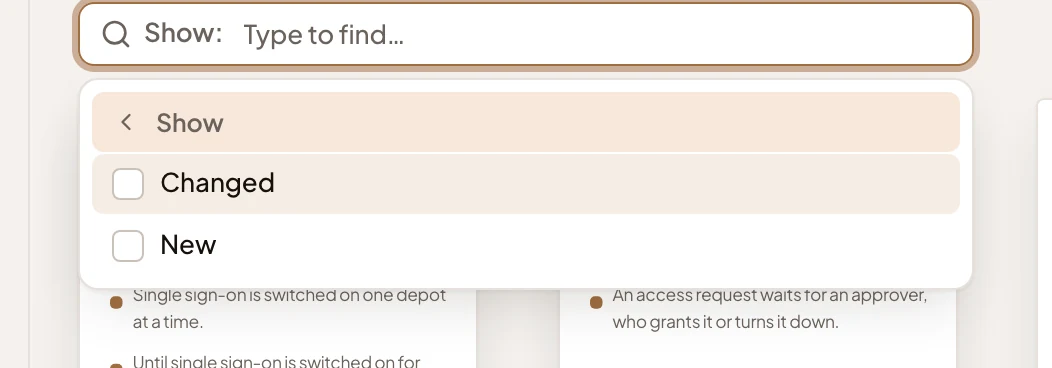
- Find a spot or a fact. Type words to show the spots with matching names or facts. Or choose Show to keep only spots with a fact that’s Changed or New since you last practised it.
- Practise 21. Runs through this track’s cards only. The number counts the facts the track has ready.
- Challenge. Challenges a colleague on this track (Challenges).
- A spot, with its name and first facts. Under it, how many of its facts you’ve practised, and Changed or New. Click it to open the spot.
The Academy chat beside a track
Section titled “The Academy chat beside a track”The chat beside a track is your own chat with the Academy agent, the same chat you have on the other Academy pages. Ask it about a fact that reads wrong, a question that’s too easy, or a spot to add. Ask it to:
- change or remove facts and cards, or change what a written answer must cover
- add spots to this track, which are drafted in the background and join your practice once ready
- take a spot out of this track, which leaves it in your other tracks and everyone else’s
Facts and cards belong to the organisation, so a change reaches everyone who practises that spot. It’s marked Changed, with who changed it. A changed fact starts over in everyone’s practice. A reworded card doesn’t. A small notification on the page says when a fact or card changed. An administrator can make every change wait instead, with Approve each change under Academy edits in the workspace’s settings. Then the agent puts each change on a card in the chat, and nothing changes until it’s applied.
When you open a track, the chat starts fresh, unless the last thing you said in it was about this track. Your earlier chat is kept, and Continue brings it back. Once a chat has a message, use New chat above the message box.
The track’s menu
Section titled “The track’s menu”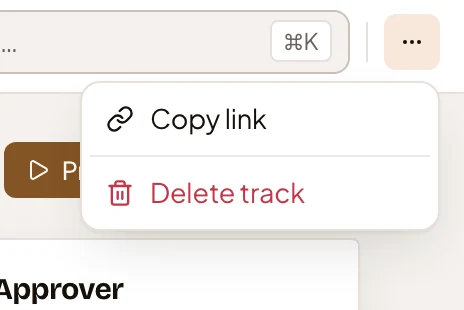
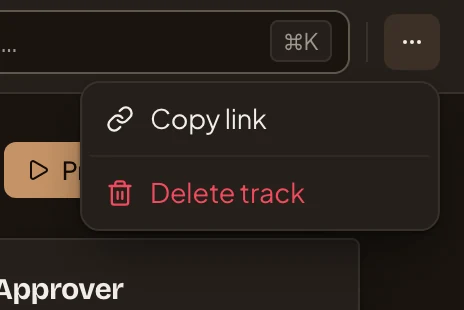
- Copy link copies the track’s address.
- Delete track asks you to confirm first.
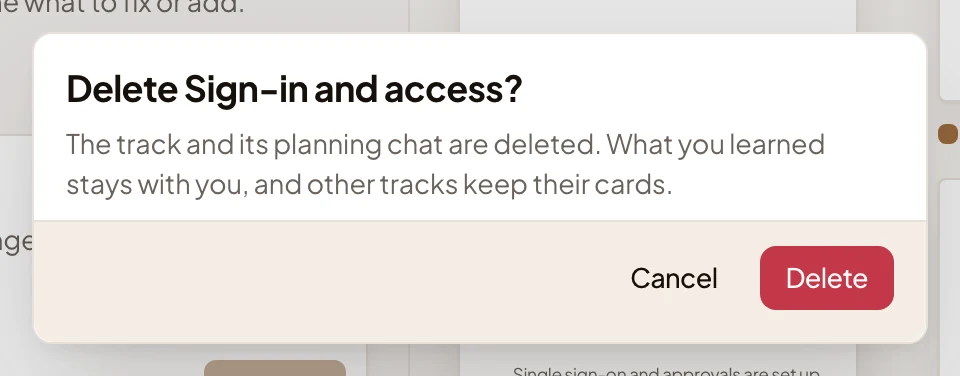
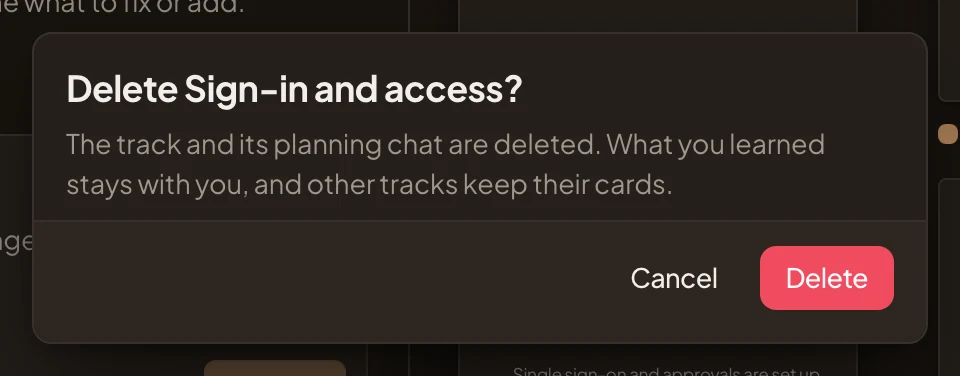
Delete removes the track and takes you to Tracks. What you learned stays with you, and so do its spots in your other tracks.
While a track is framed
Section titled “While a track is framed”New track on Tracks makes a track and opens it here, framed in its own chat. Telling the agent there what you want to learn does the same. Your words become the framing chat’s first message. The agent asks what you want to practise. Then it looks through the Landscape for the spots your answer touches, and asks a few questions, one card at a time.
- What you’ll do with it. The choices are Build or change it, Shape or review work on it, Explain it to customers or support, and Find my way around.
- How deep to go. The names and what each part does, how the parts work together, or the rules and edge cases.
- Every spot it picked is listed, so you can untick the ones you don’t want.
- Which spots you already know well. Those you tick start later in your practice, and you needn’t answer.
It skips a question your words already answered, and shows that answer as decided.
Beside the chat is your map, zoomed to your spots. The spots the agent picks show dashed on it, marked “Picked for a track still being planned”. The track’s draft is the card over the map. It has the track’s title, how many spots are picked, what you want from it and what you decided so far. A bar shows how ready the track is, from “Gathering” to “Narrowing it down”, and what comes next.
Once you’ve decided what it’s for, how deep it goes and its spots, the card says “Ready to build” and offers Build the track. Only you build it, never the agent. When you name something the Landscape doesn’t hold, the agent says so instead of making it up, and a track with no spots can’t be built.
While it builds
Section titled “While it builds”Pressing Build the track closes the framing chat for good and starts the build. The agent drafts each spot’s facts and cards in the background, a few at a time. It reuses a spot whose facts already exist, unless its Landscape entry changed since. The page shows how far it got, such as “12 facts ready · 4 of 9 spots”, with a bar. Each spot still being drafted shows as an empty page until its facts are ready. You can practise what’s ready as it goes. A spot that fails shows “Building did not finish.” and offers Retry.
When the track is ready, your Inbox has a message.
A track saved from a challenge
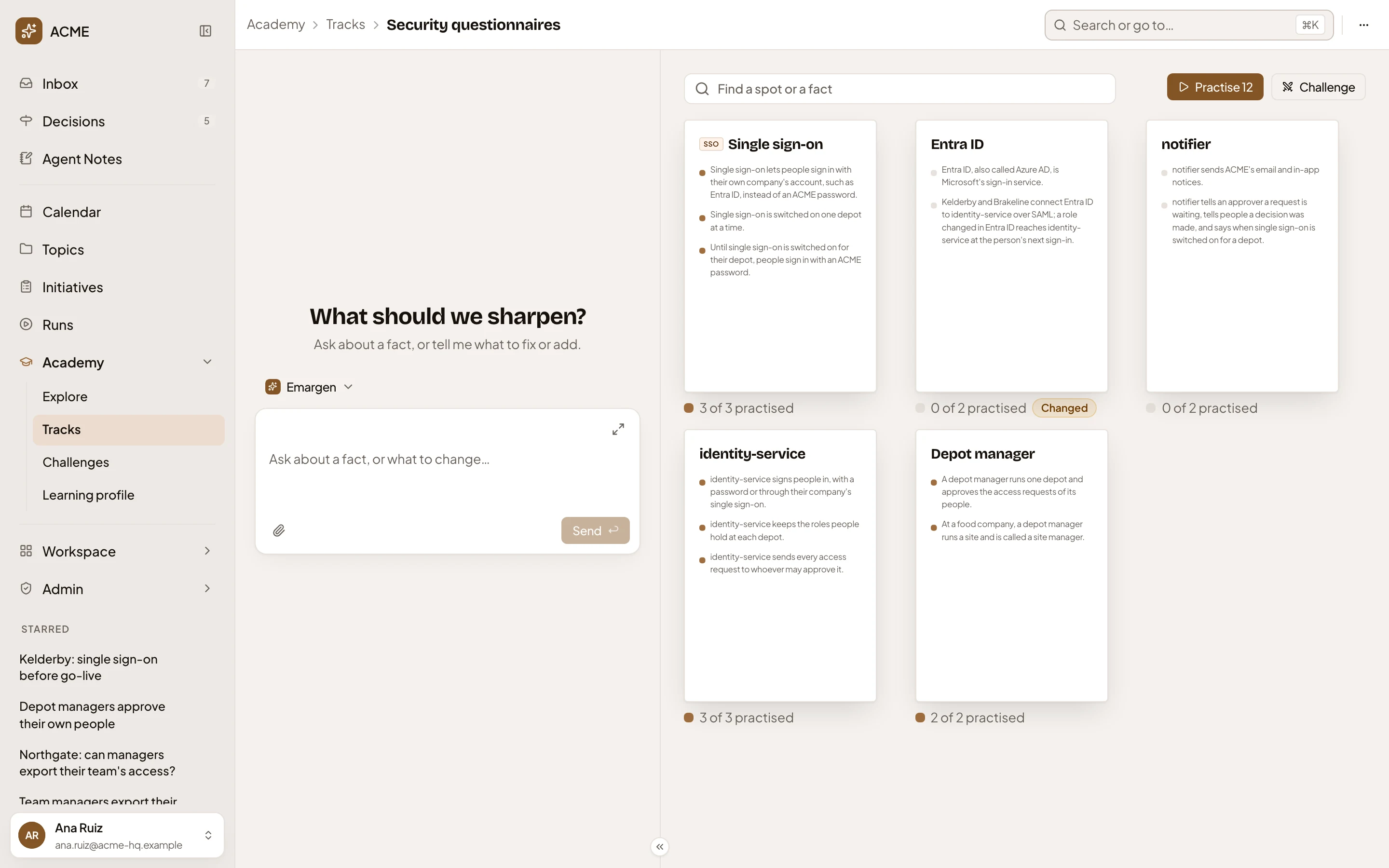
Section titled “A track saved from a challenge”A track saved from a challenge is a track like any other. Security questionnaires, saved from a colleague’s challenge at ACME, covers the five spots that challenge drew from.
Access
Section titled “Access”Only you can see your tracks or open their pages.