

WorkspacePage by page
A board
Here you change what a board shows and who sees it, or make a new one. Open it by clicking a board’s name on Boards. New board there opens it empty. The board itself opens with Open board, on the topics list or the initiatives list.
Open Boards (opens Emargen in a new tab)A manual board
Section titled “A manual board”A manual board shows lists. Each list is a column in Columns and a group in Rows. In the picture, ACME’s Customers board shows a list for each customer, and each list fills itself with that customer’s topics.
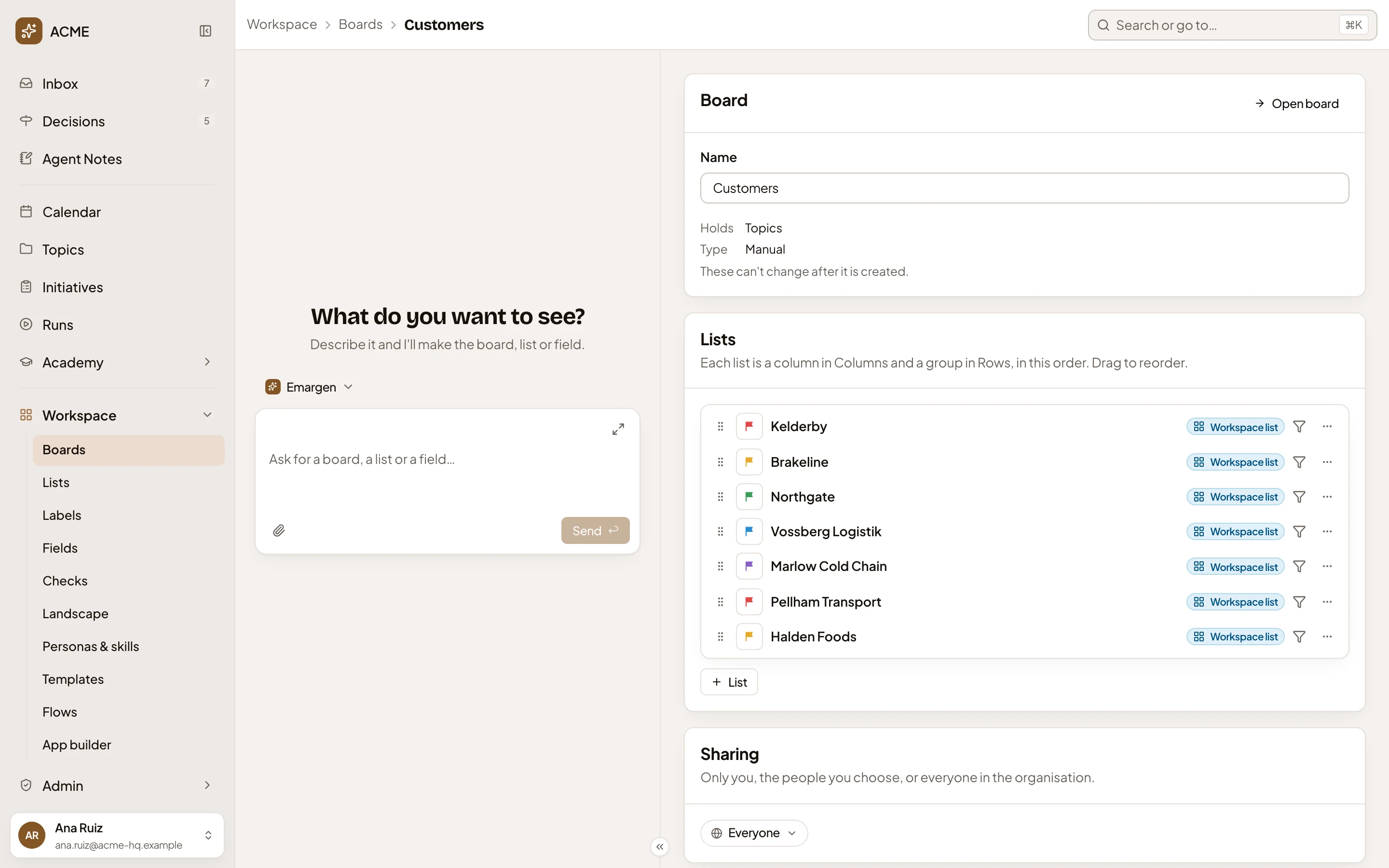
- Where you are: Workspace, Boards, then the board’s name. Click Boards to go back to every board.
- Open board. Opens the board itself, on the topics list (or the initiatives list, for a board of initiatives).
- Name. The board’s name, as the switcher and Boards show it.
- Holds and Type. Topics or initiatives, and Automatic or Manual. “These can’t change after it is created.”
- Lists. The board’s lists, in the order they appear.
Changes save as you make them, and a tick shows beside a part once it has saved. A board that exists has no Save button. Further down are its sharing and, for the board’s owner, Delete board.
Each person groups and lays out the board for themselves, under View options and the layout switch (see the topics list).
A board can mix lists from the workspace with lists of its own. ACME’s Support board shows three workspace lists, and two of its own.
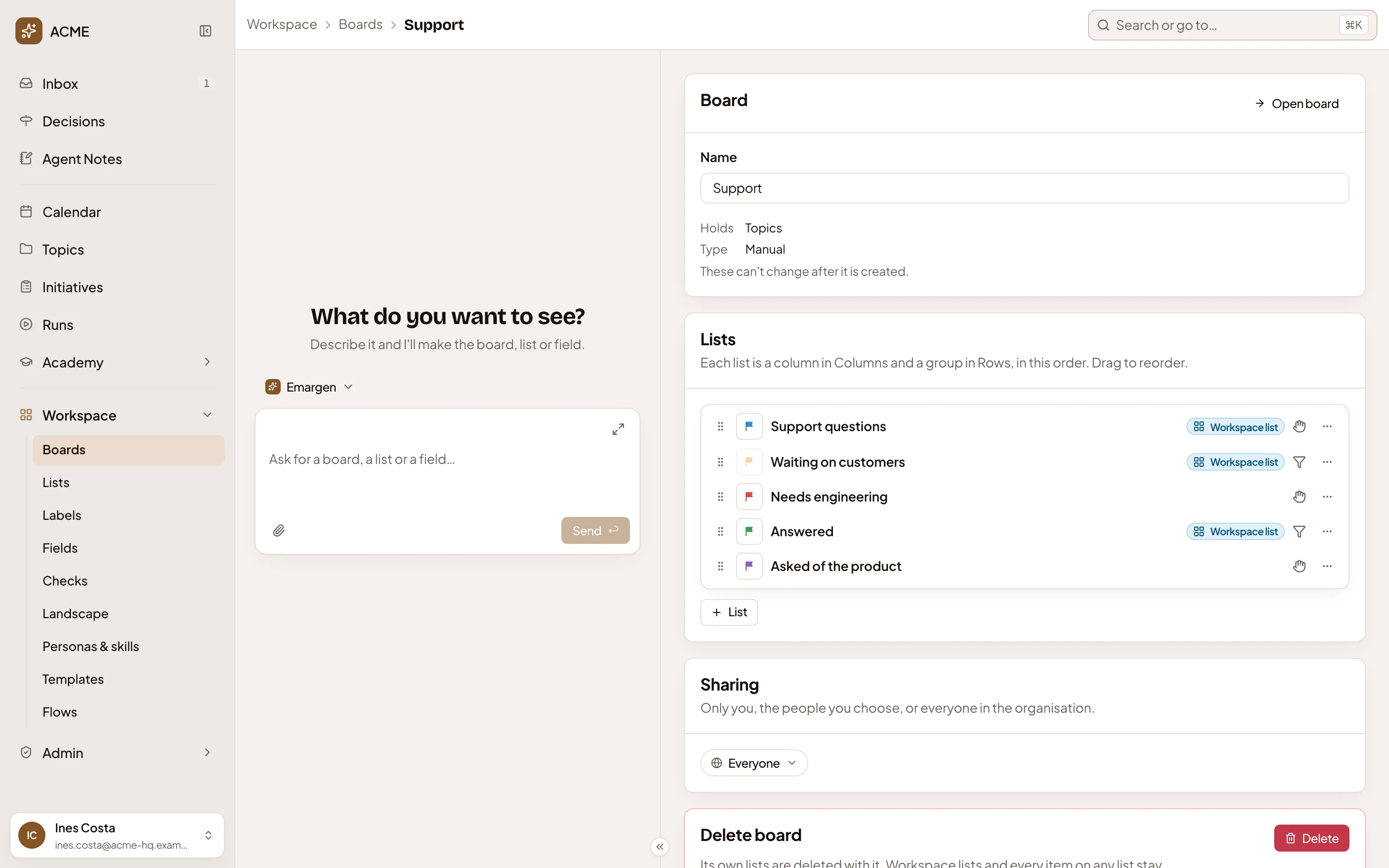
- Move. Drag a list up or down, and its column moves on the board for everyone.
- Colour of Support questions. The list’s own colour, which its column and group take on every board that shows it. It’s greyed out when you may not change the list.
- Workspace list. The list lives in the workspace, and other boards can show it too. A list without this mark is the board’s own. It shows only on this board, and whoever sees the board sees it.
- Manual. People put topics on the list and order them.
- Automatic. The list keeps whatever matches its own conditions.
- Actions for Support questions. The list’s menu.
- List. Adds a list: a new one of the board’s own, or a workspace list (see below).
- Sharing. Who sees the board, and what they may do (see Sharing the board).
- Delete. Deletes the board (see Deleting a board).
On the board itself, you drag topics only on and between manual lists. You can’t drag them onto or off a list that fills itself, or one an agent task fills.
A list’s menu holds what you can do with it on this board. For the board’s own list, Needs engineering:
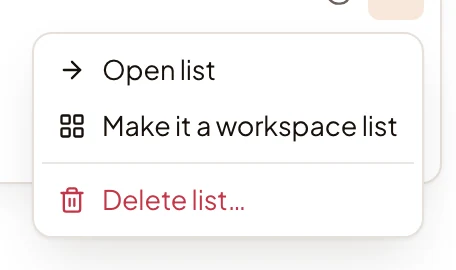
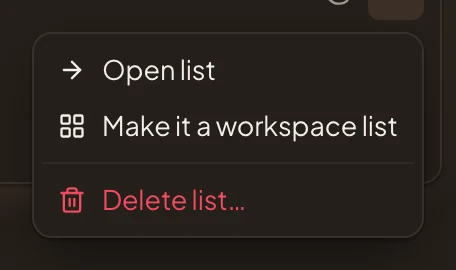
- Open list opens the list’s page.
- Make it a workspace list moves it out to the workspace, with the same topics on it, so other boards can show it. It starts with the same sharing as the board.
- Delete list… deletes it for good, after asking. The topics on it stay on their other lists.
For a workspace list, such as Waiting on customers:
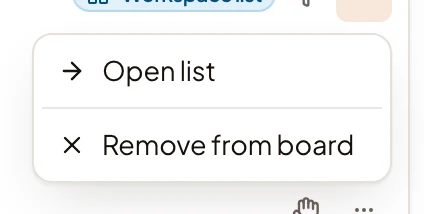
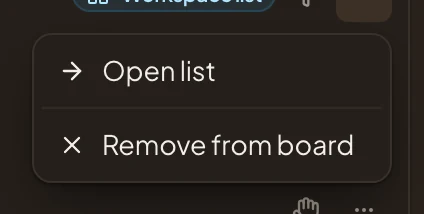
- Remove from board leaves the list in the workspace.
- A workspace list of yours that only this board shows also has Keep it on this board only, which makes it the board’s own again.
List opens a box. Type a name and press Enter for a new list of the board’s own, or pick one of the workspace lists you see, each with how many items it holds.
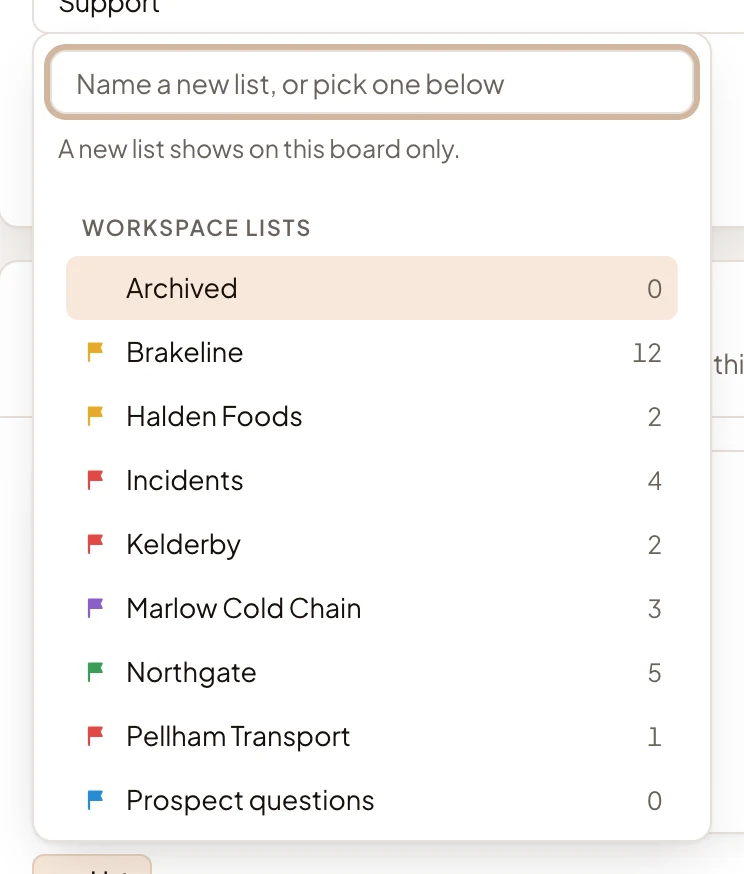
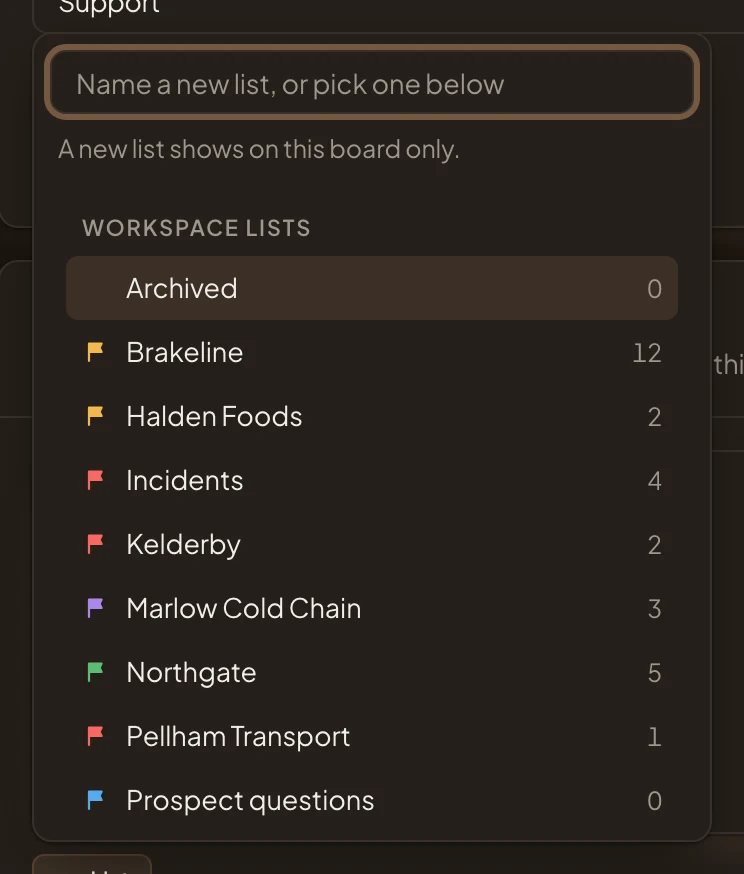
- New list’s name. Type a name and press Enter: the list shows on this board only.
- Workspace lists. Lists from the workspace that the board doesn’t show yet.
A new list appears in the Lists section. In the picture, the board’s owner has typed Escalated.
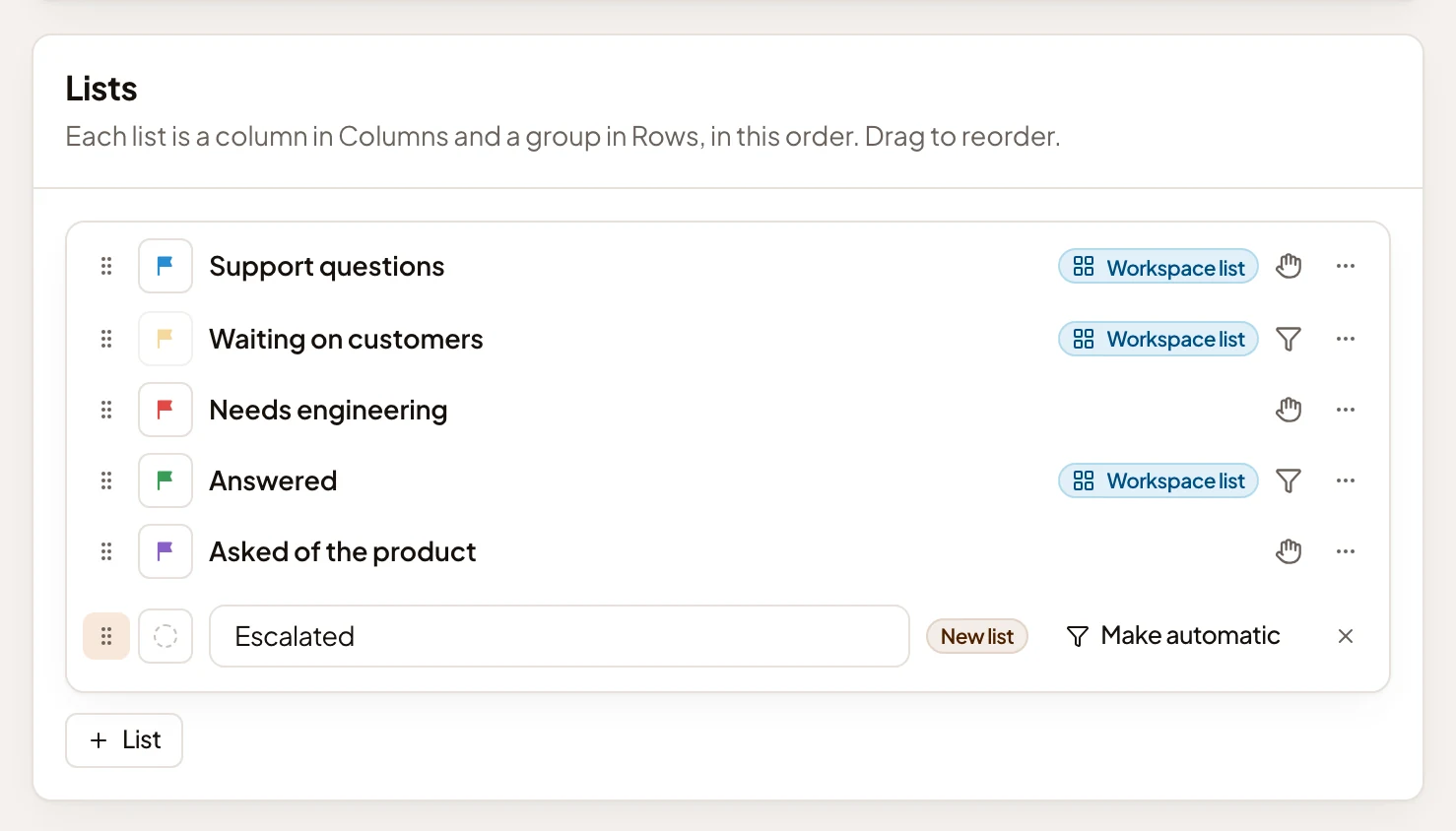
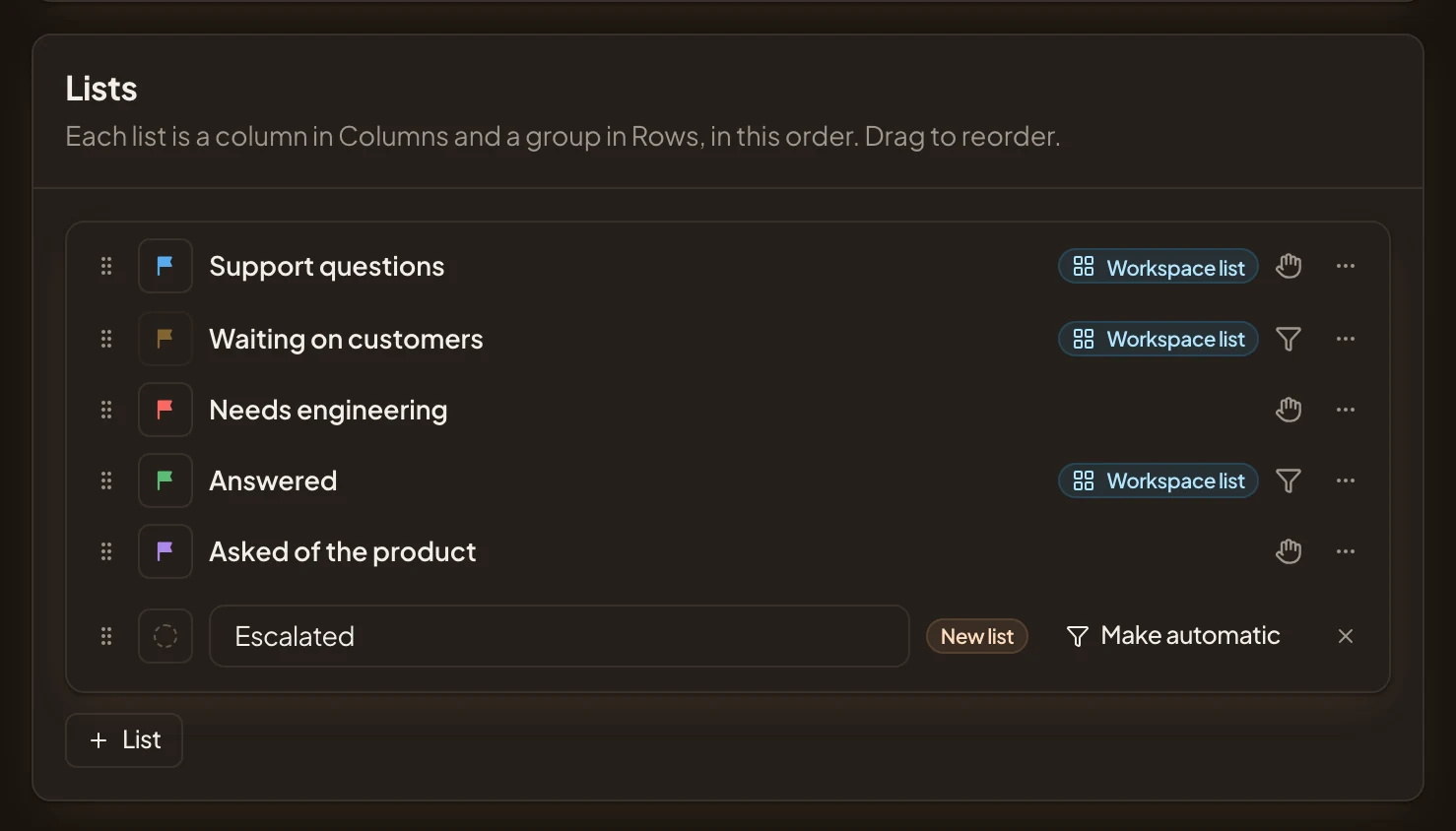
- New list’s name. Type the name you want.
- New list. The list is made when you leave the box.
- Make automatic. Gives the list conditions of its own, so it fills itself. The conditions open under the row, and Make manual turns it back.
- Remove Escalated. Takes the new list away before it is made.
An automatic board
Section titled “An automatic board”An automatic board has no lists. It shows only the topics or initiatives that match all of its conditions, and keeps itself up to date as they change. Its page holds the conditions where a manual board’s holds its lists.
Conditions
Section titled “Conditions”In the picture, a new automatic board of topics has one condition: every topic that follows the Customer question template.
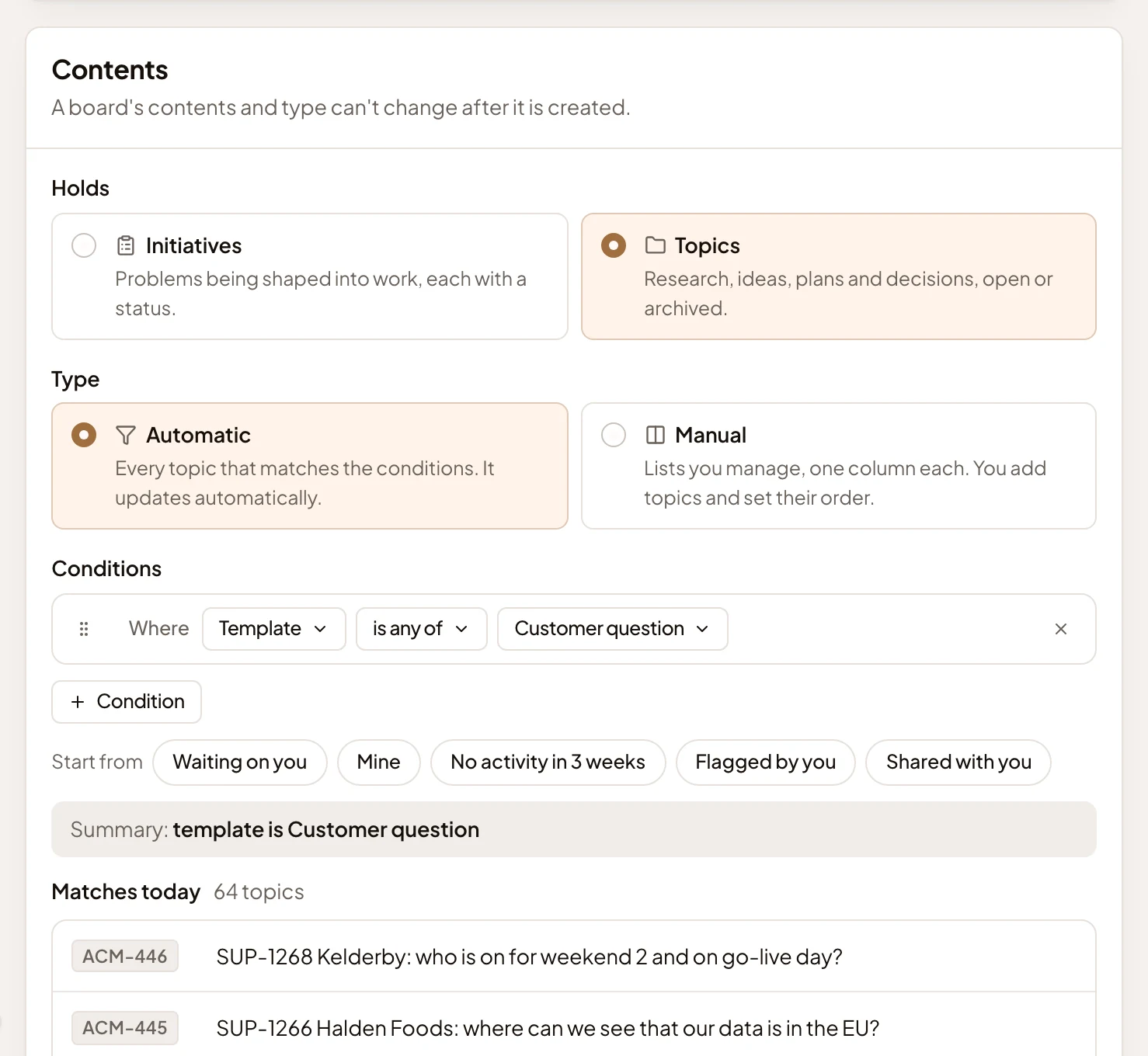
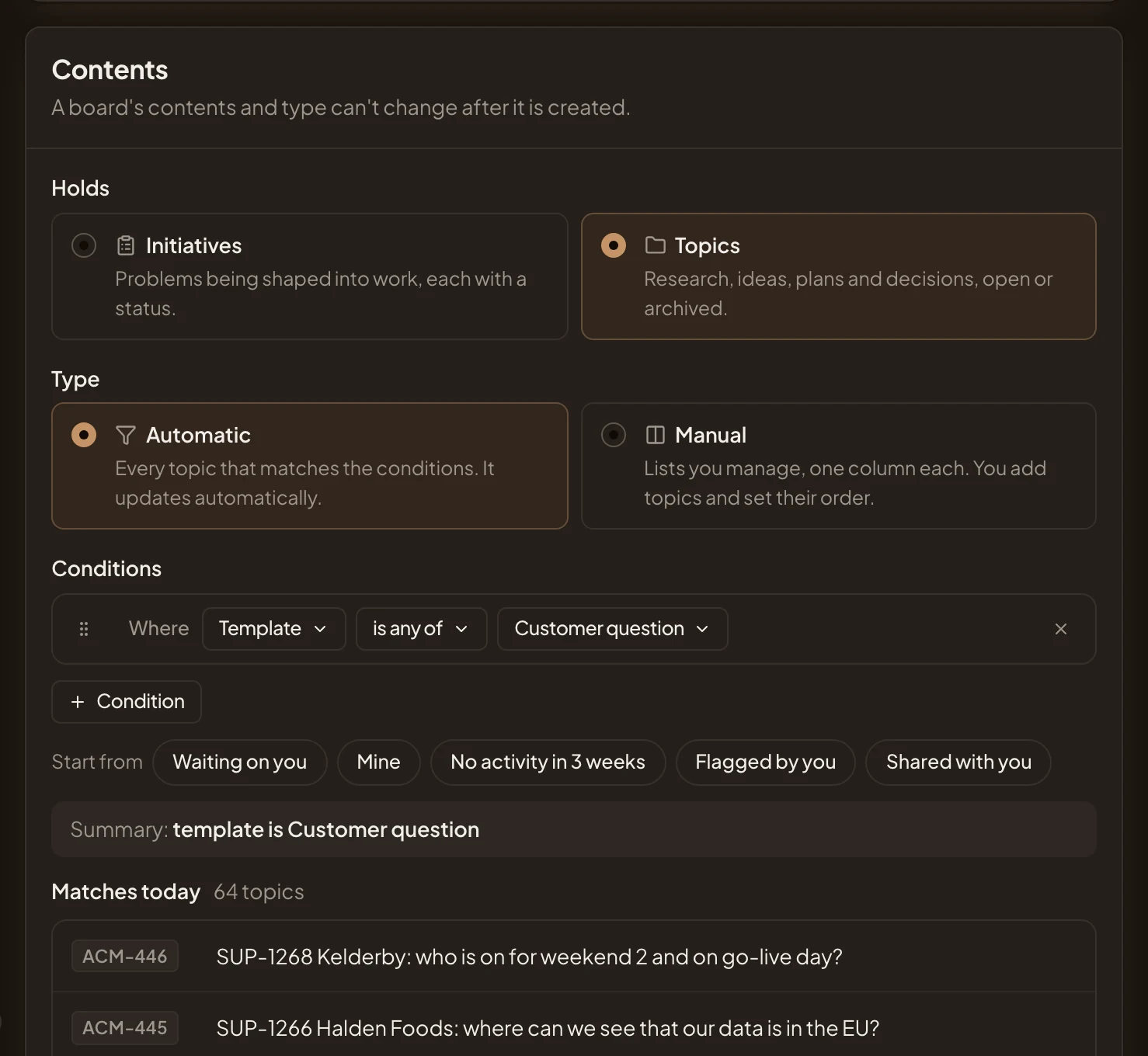
- Move. Drag a condition up or down. The order doesn’t change what matches.
- Field. What the condition is about. Click it to choose (see the list below).
- Comparison. Like is any of or is none of. The choices depend on the field.
- Value. One or more templates, labels, people, lists, or a field’s values. The comparison says how several values count, like is any of, where one is enough.
- Remove. Takes the condition away.
- Condition. Adds a row. Every row must match. There’s no “or” between rows.
- Start from. Ready-made conditions to begin with, like Waiting on you, Mine, No activity in 3 weeks and Flagged by you. A board of topics adds Shared with you, and one of initiatives adds Open, In delivery and Closed.
- Summary. The conditions as one phrase, so you can check them, like “template is Customer question”.
- Matches today. How many match now, and the first of them.
A row that isn’t finished says “This row needs a value to compare with.” Conditions that say “me”, such as Mine, mean whoever looks at the board, so a shared board of “mine” shows each person their own.
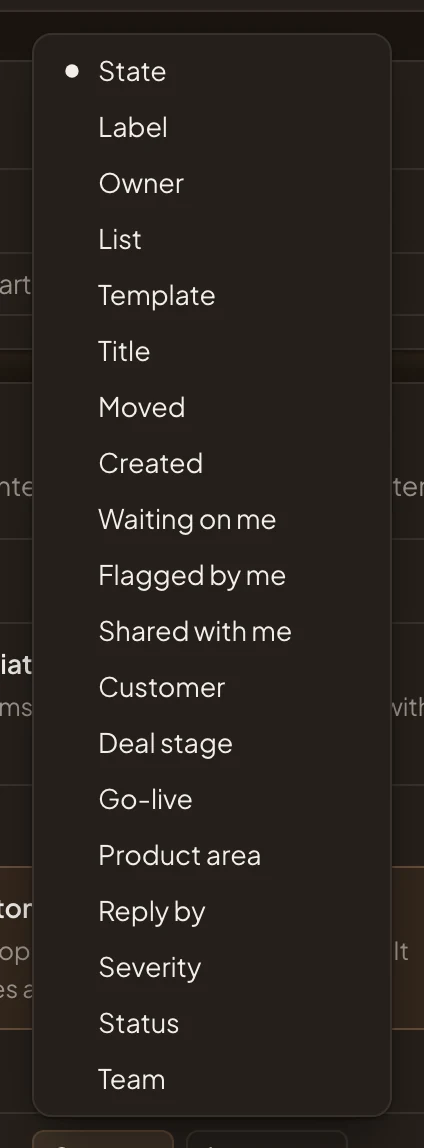
Field offers, for a board of topics:
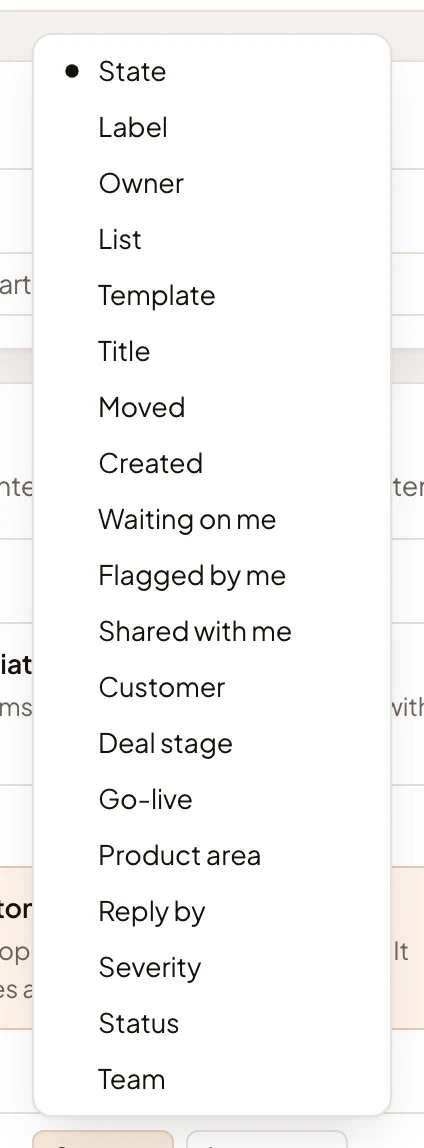
- State: open or archived.
- Label, Owner, List and Template.
- Title: words it contains.
- Moved and Created: like more than three weeks ago.
- Waiting on me, Flagged by me and Shared with me.
Next, your organisation’s fields, in the picture Customer, Deal stage and the others down to Team. A board of initiatives starts with the initiative’s Status instead.
Sharing the board
Section titled “Sharing the board”Sharing opens a box that says who sees the board. Only the owner can change it. Everyone else can read it.
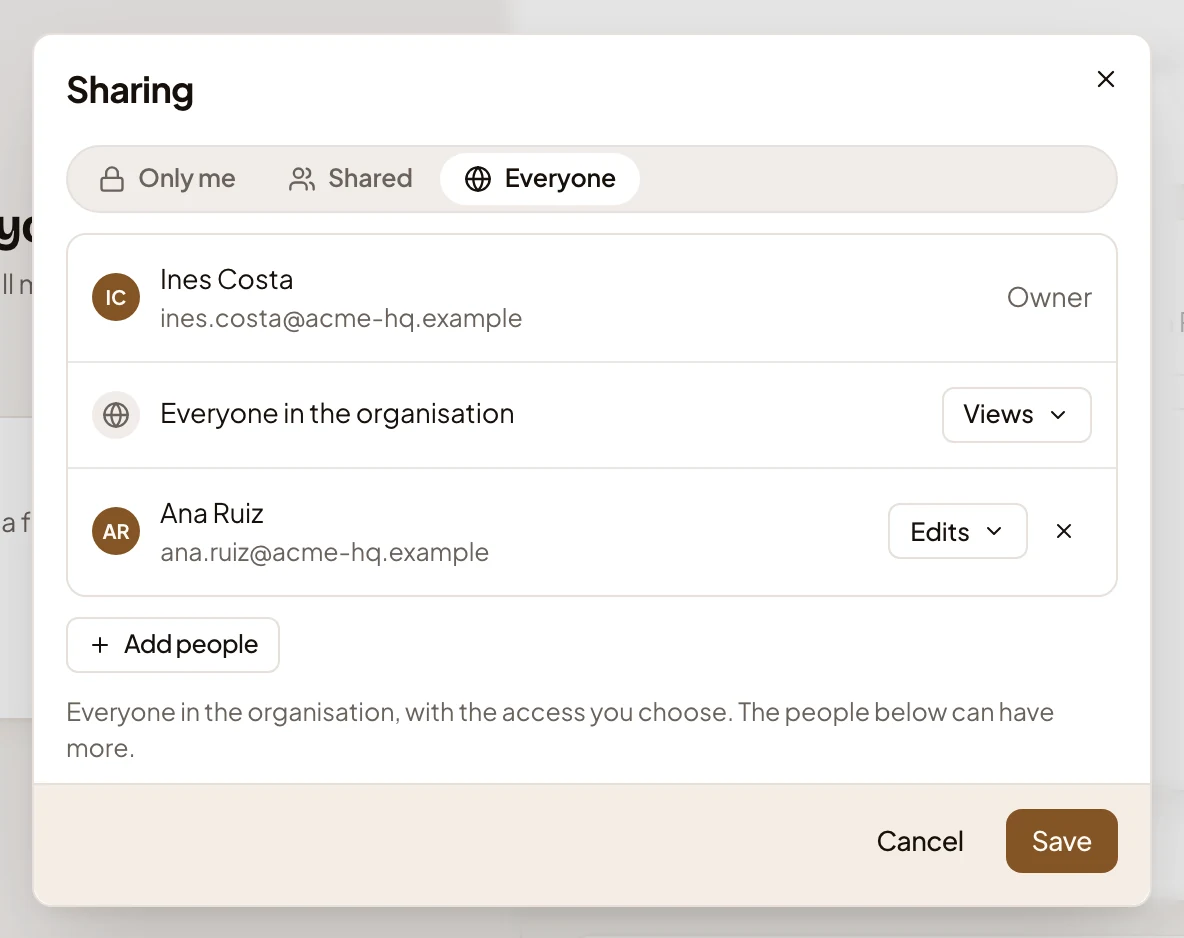
- Only me, Shared or Everyone. Only you, the people you add, or everyone in the organisation.
- Access for everyone. With Everyone, Views lets people see the board, and Edits lets them change it.
- Access for Ana Ruiz. The same for one person. Ana edits the Support board.
- Add people. Pick someone from the organisation.
Nothing changes until Save. Whoever sees a board sees its lists too, its own and the workspace lists it shows. People who edit a board change its name, its conditions and its lists, and their order. Only its owner shares it and deletes it. See Sharing.
Deleting a board
Section titled “Deleting a board”Delete, under Delete board, is there for the board’s owner. It asks first.
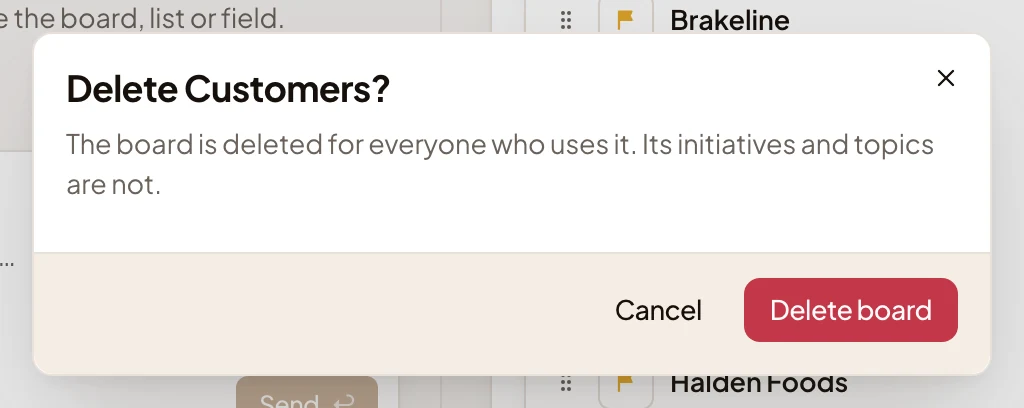
No topic or initiative goes with it. The board’s own lists are deleted with it, and the dialog names them. The workspace lists it showed stay, with everything on them.
A new board
Section titled “A new board”New board opens the same page, empty, with what the board holds and its type to choose first. From the board switcher on the topics or initiatives list, New board opens it already holding topics or initiatives.
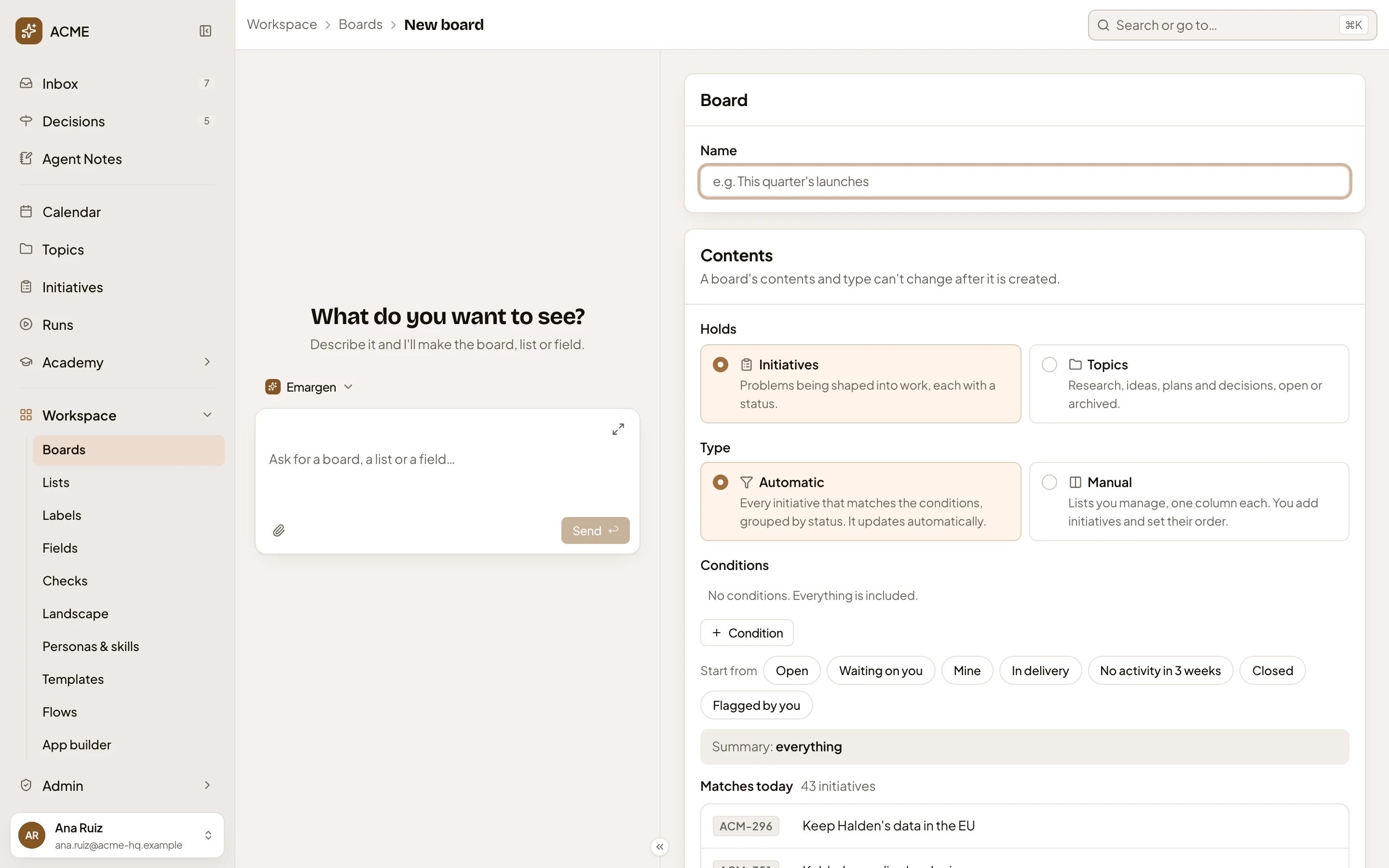
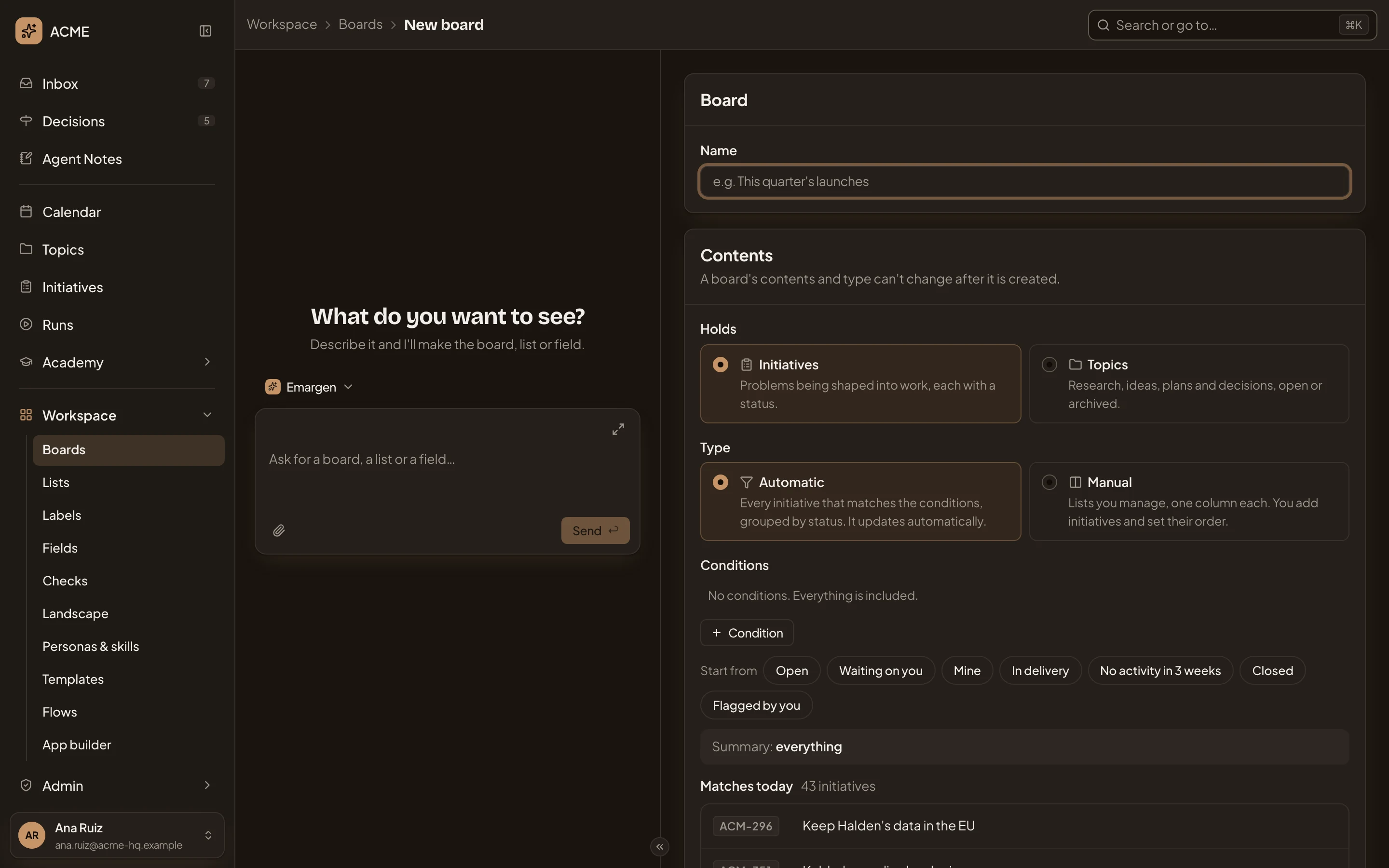
- Name. What the board shows.
- Holds. Initiatives, “Problems being shaped into work, each with a status”, or Topics, “Research, ideas, plans and decisions, open or archived”. It can’t change later.
- Type. Automatic keeps every one that matches the conditions, up to date (a board of initiatives is grouped by status). Manual shows lists you manage, one column each. It can’t change later either.
An automatic board then has its conditions. A manual board has its Lists section, which starts with “No lists yet: name a new one, or add a workspace list.” Then comes its sharing.
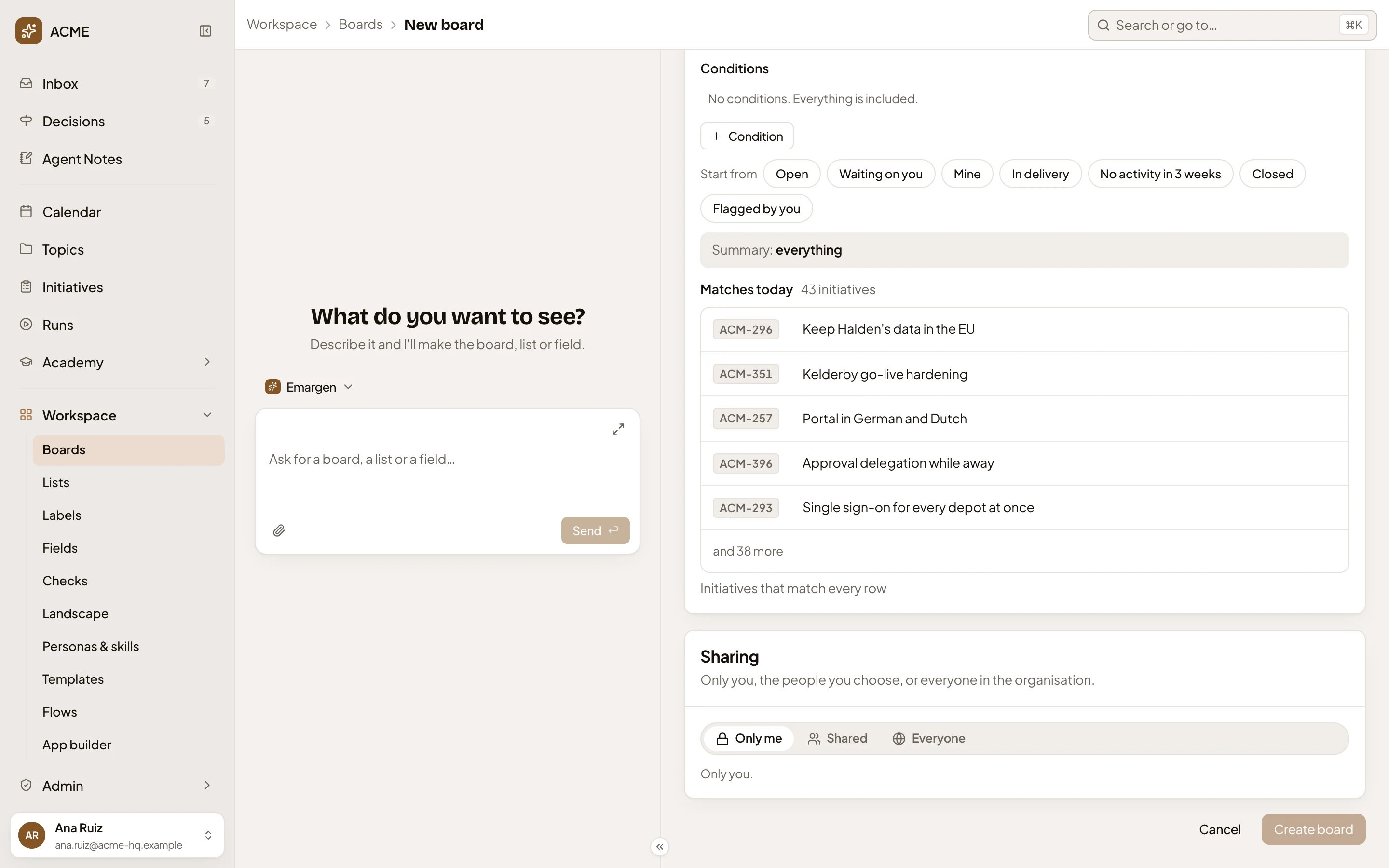
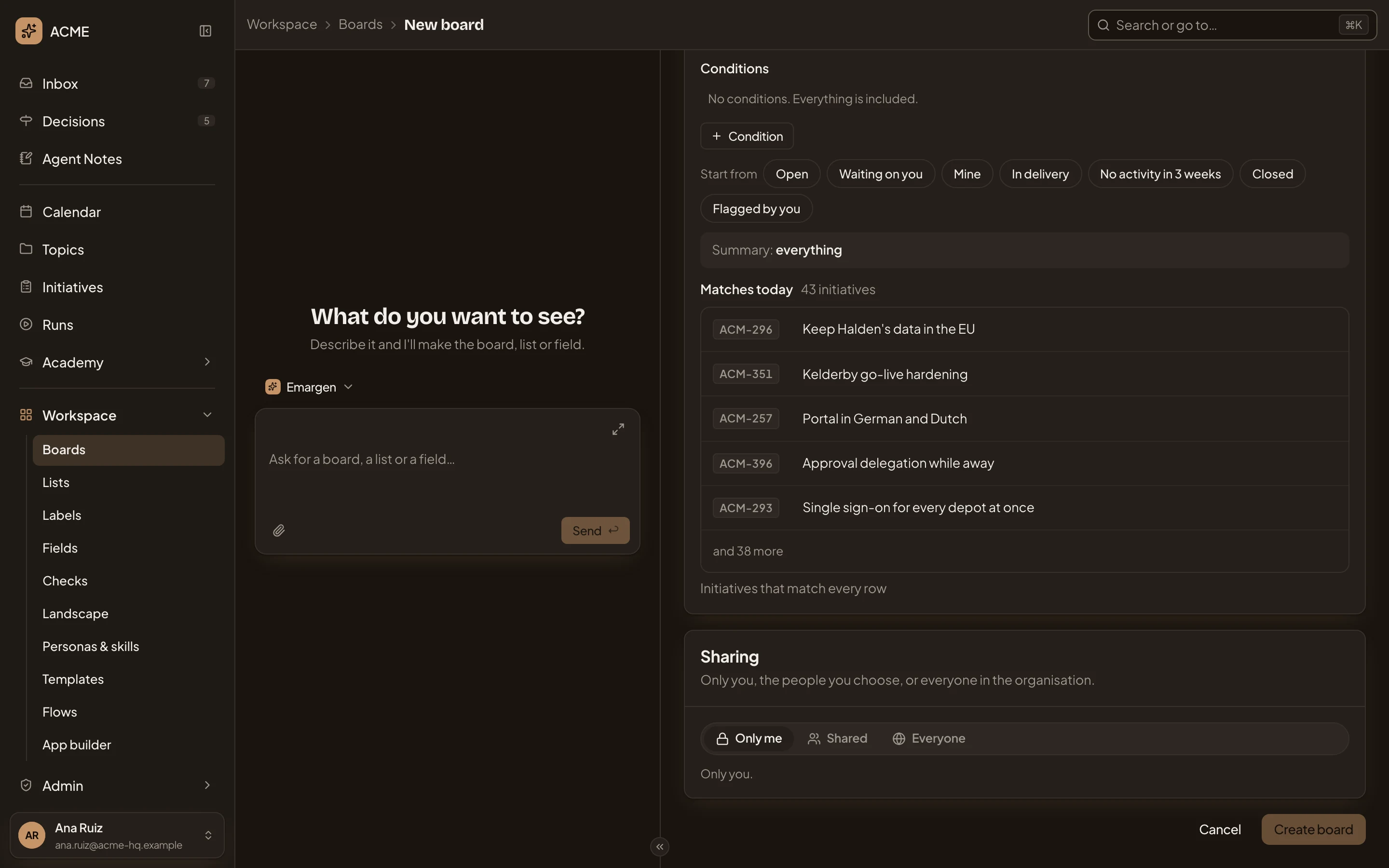
- Conditions. With none, the board keeps everything.
- Matches today. What the board would show now.
- Sharing. Only me to start with. Shared lists the people you add. Everyone adds a line for what everyone may do.
- Cancel. Leaves without making the board.
- Create board. Makes the board and opens it. It can be pressed once the board has a name and its conditions are finished.
Ask the workspace agent instead, and it fills this page in for you, step by step. Nothing is made until you press Create board, or the button on the card the agent puts in the chat. See Make a board.
Access
Section titled “Access”Anyone in the organisation makes a board. Whoever sees the board can open its page.
Someone who may only view a board still sees its page as if they could change it, and can type in its name and conditions. Nothing changes for anyone. The app refuses the change, and the page says “Only the board’s owner and the people who edit it can change it.”