

InboxHow to
Work through your inbox
The Inbox opens on what waits for you, so you can clear that first and read the rest after.
Before you start
Section titled “Before you start”- Who can
- Everyone has an Inbox. There’s nothing to set up, and what it holds is yours alone.
- The pictures
- The pictures show the Inbox of ACME’s customer success lead on Friday morning.
-
Click Inbox at the top of the menu. The number beside it is how many items wait in To reply and To do.
Open the Inbox (opens Emargen in a new tab)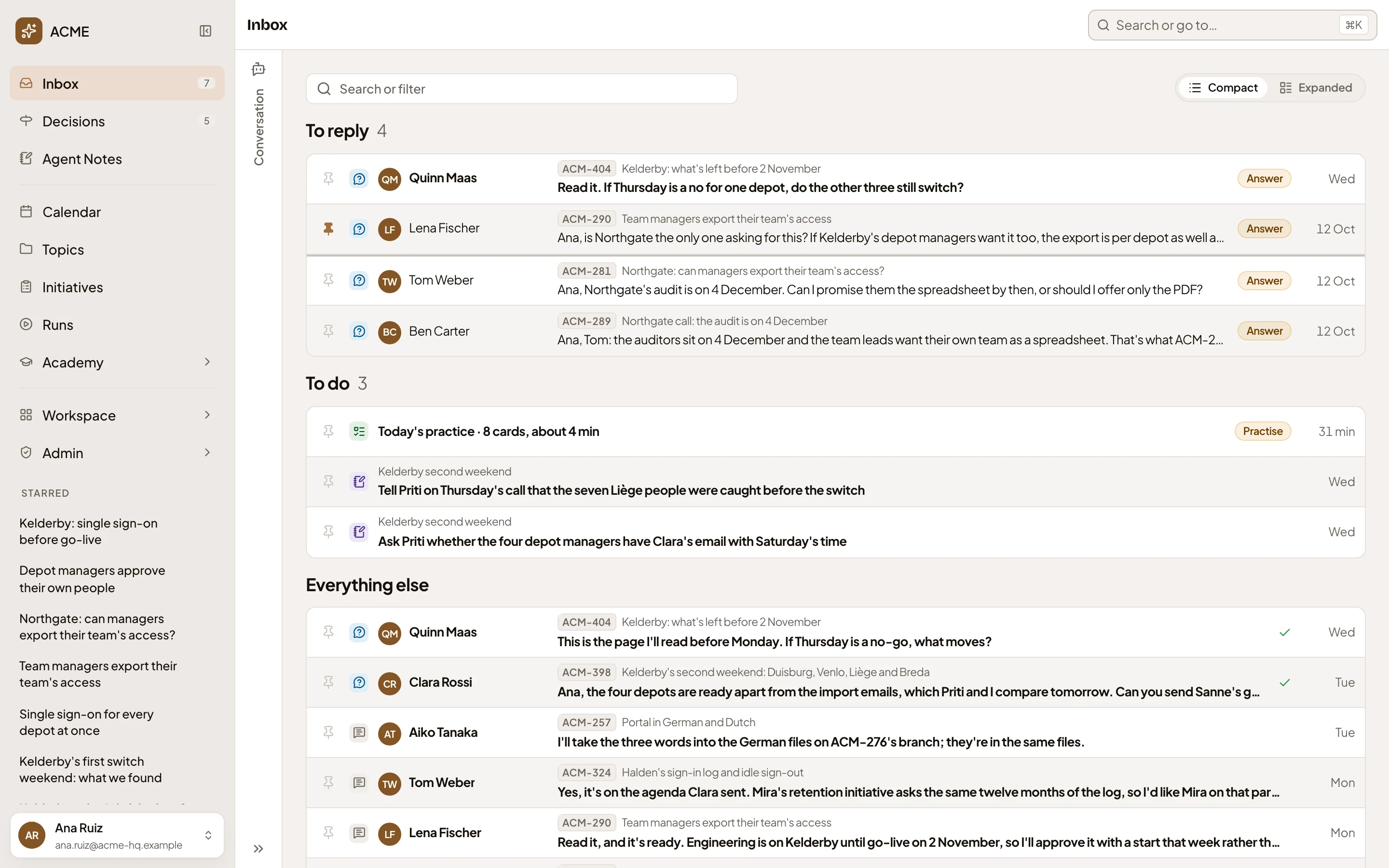
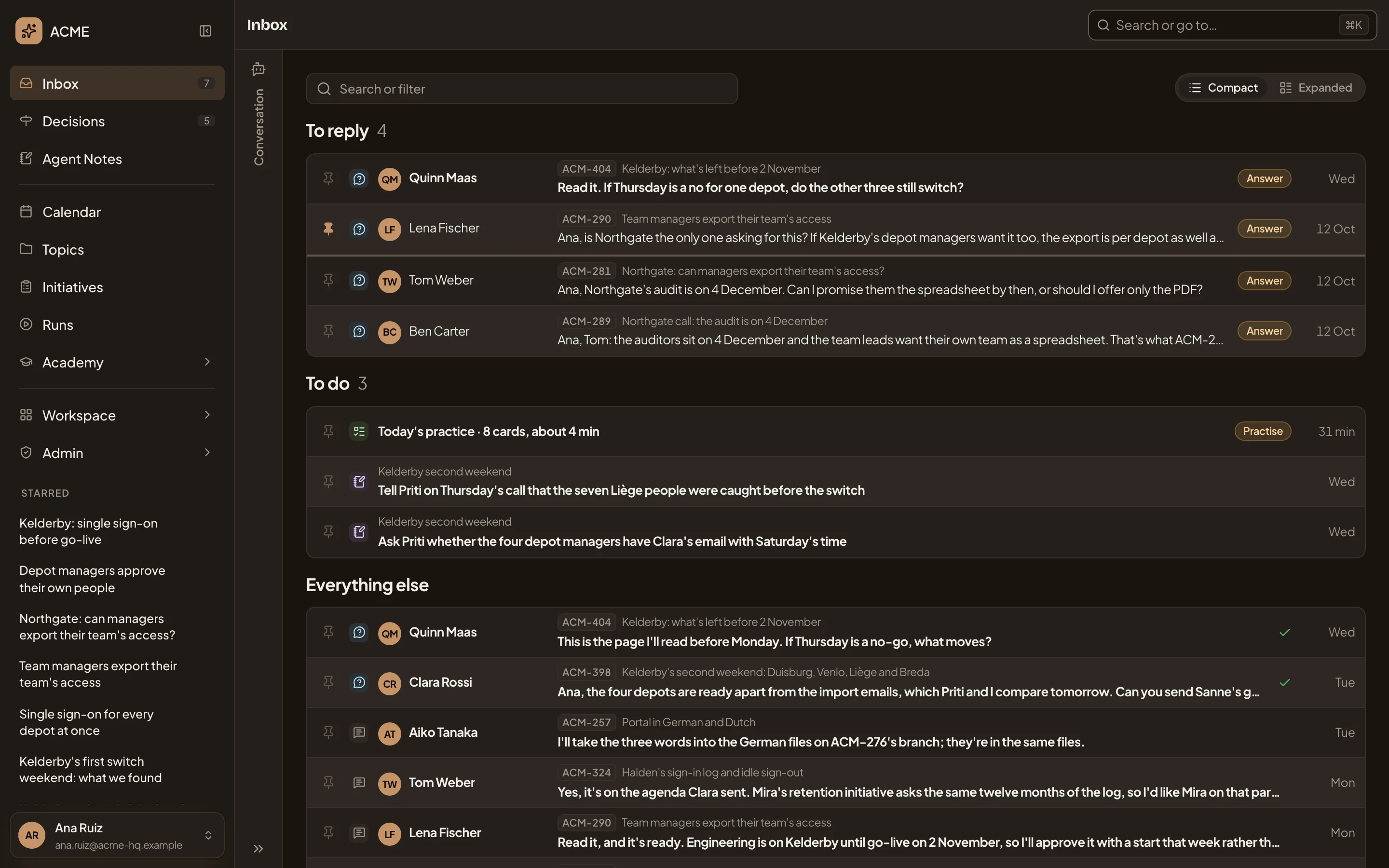
- Inbox, and how many wait.
- To reply. What waits for your answer.
- To do. What Emargen asks of you, and your notes’ open todos.
- Everything else. The rest, newest first.
-
Start with To reply. Click the first item. It opens beside the list, with its buttons at the top. In the picture, it’s a colleague’s question on the go-live plan for a customer.
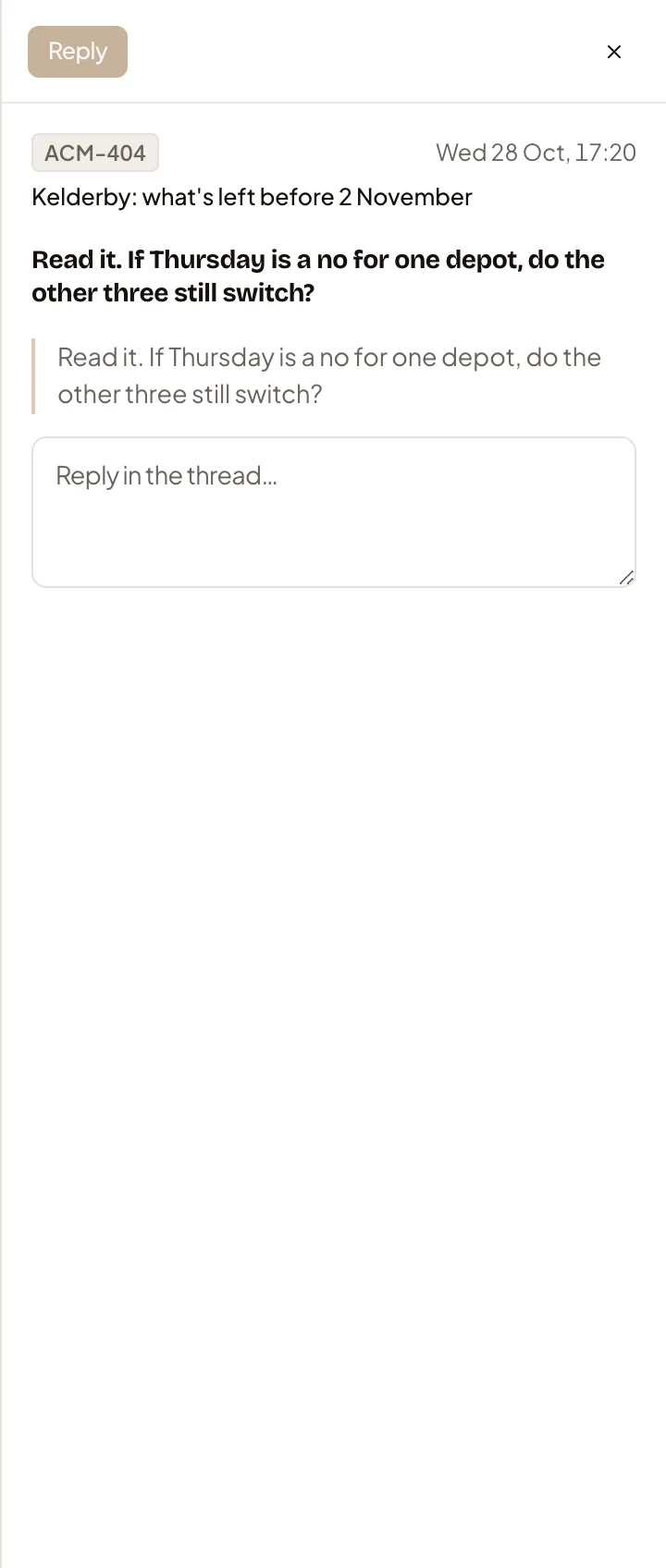
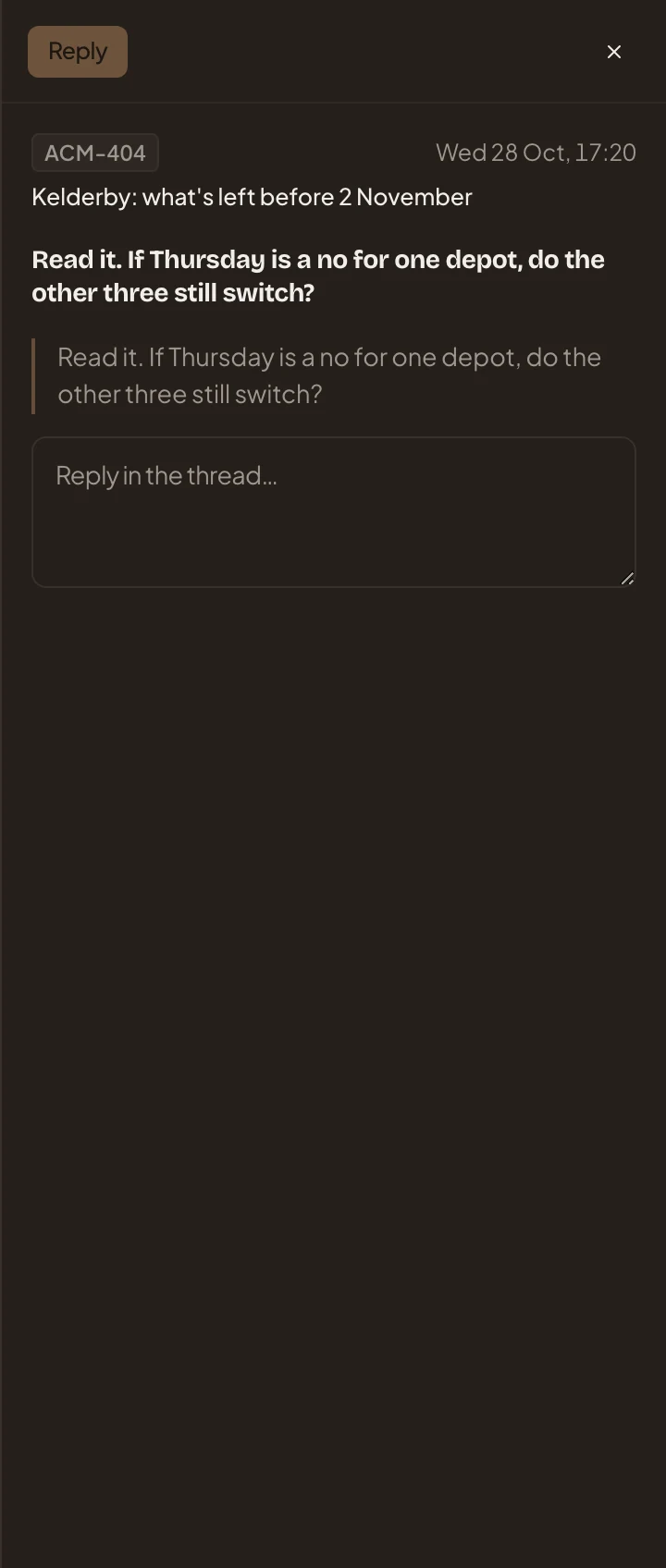
- Reply. Greyed out until you’ve written something.
- The topic it was asked on. Click it to read the whole thread there first.
- The reply box.
-
Do what the item asks.
- A colleague’s question. Write your reply, or start from the agent’s draft with Use this, then click Reply. See Answer a question from a colleague.
- A comment: write in the box under it and click Send reply.
- A question from your chats: pick an option, or write your own, and click “Send answer”.
A message at the bottom of the screen says what you did, with “Undo”, for a few seconds. Then it’s sent. An answered question gets a tick, and the panel moves to the next item that waits. A comment you replied to stays as it was.
-
To move through the list yourself, press the down or up arrow. The panel follows. Esc closes it.
-
Then To do. Open an item and use the button at the top of the panel.
- Practise opens today’s practice in the Academy. The task gets its tick once you’ve practised today’s cards.
- Take opens a challenge a colleague sent you.
- Run again at the top retries that day’s failed runs, for every agent task the item lists. See Agent tasks.
- A todo from your notes opens the note’s page. Click Done there once you’ve done it.
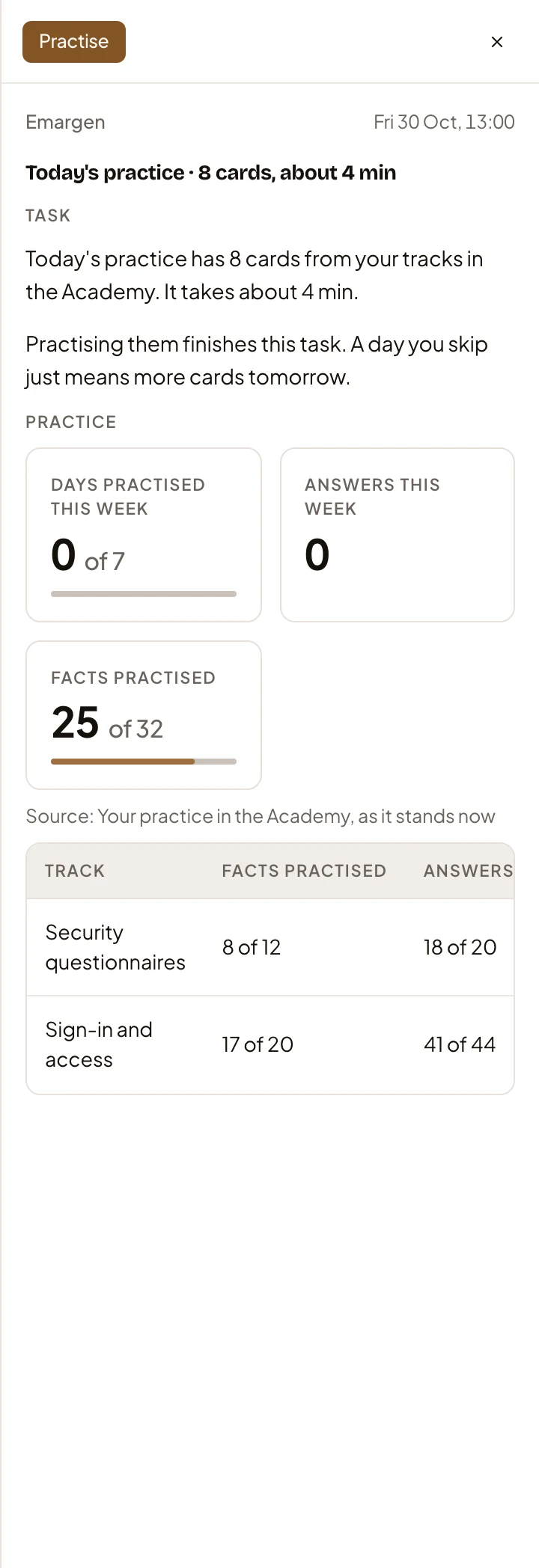
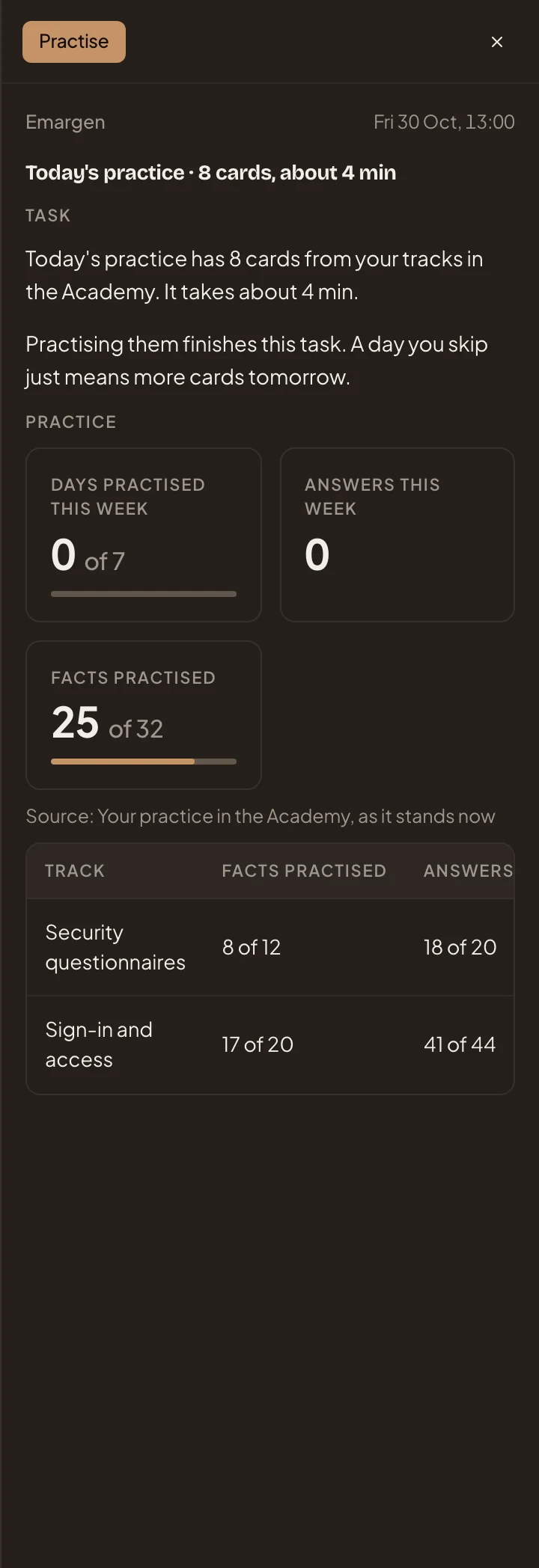
- Practise.
- Practice. How your practice went this week, and each track.
When a button opens another page, your browser’s Back brings you back to the Inbox.
-
Pin what you can’t deal with now but mustn’t lose: click Pin at the start of its row. A pinned item in Everything else stays at the top of it until you click Unpin. In To reply and To do, items stay newest first.
-
To see only what waits for you to act, click Search or filter above the list, then Your turn. The groups give way to one list. This filter leaves out your todos. Click the × on the chip to see everything again.
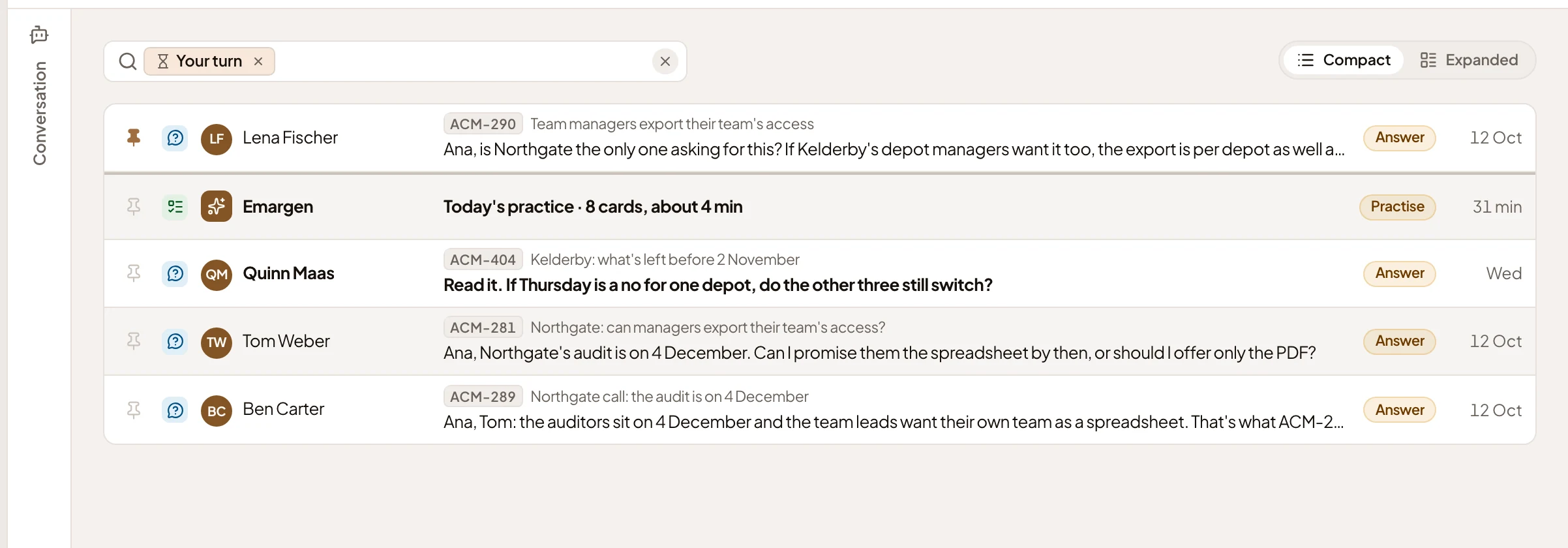
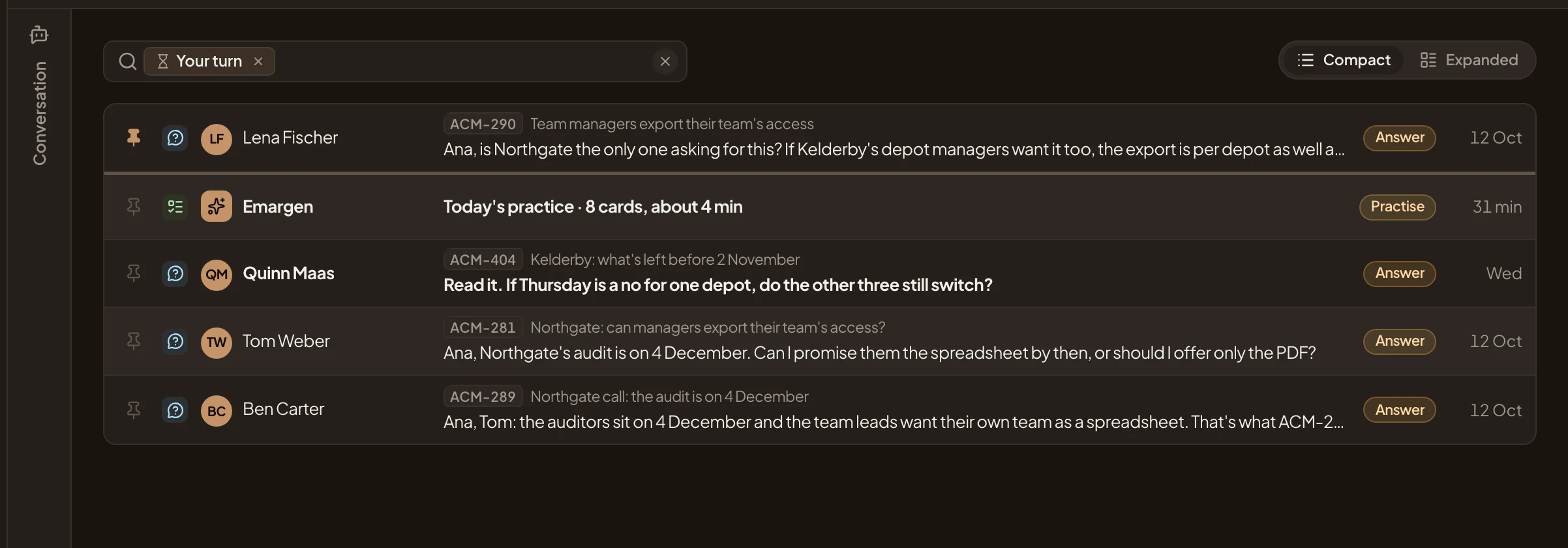
- Your turn, as a chip.
- Practise, one item’s button.
-
To read everything else in full, switch to Expanded at the top right. To reply and To do stay at the top, and the rest shows under the day it came. Clicking an item there opens its own page.
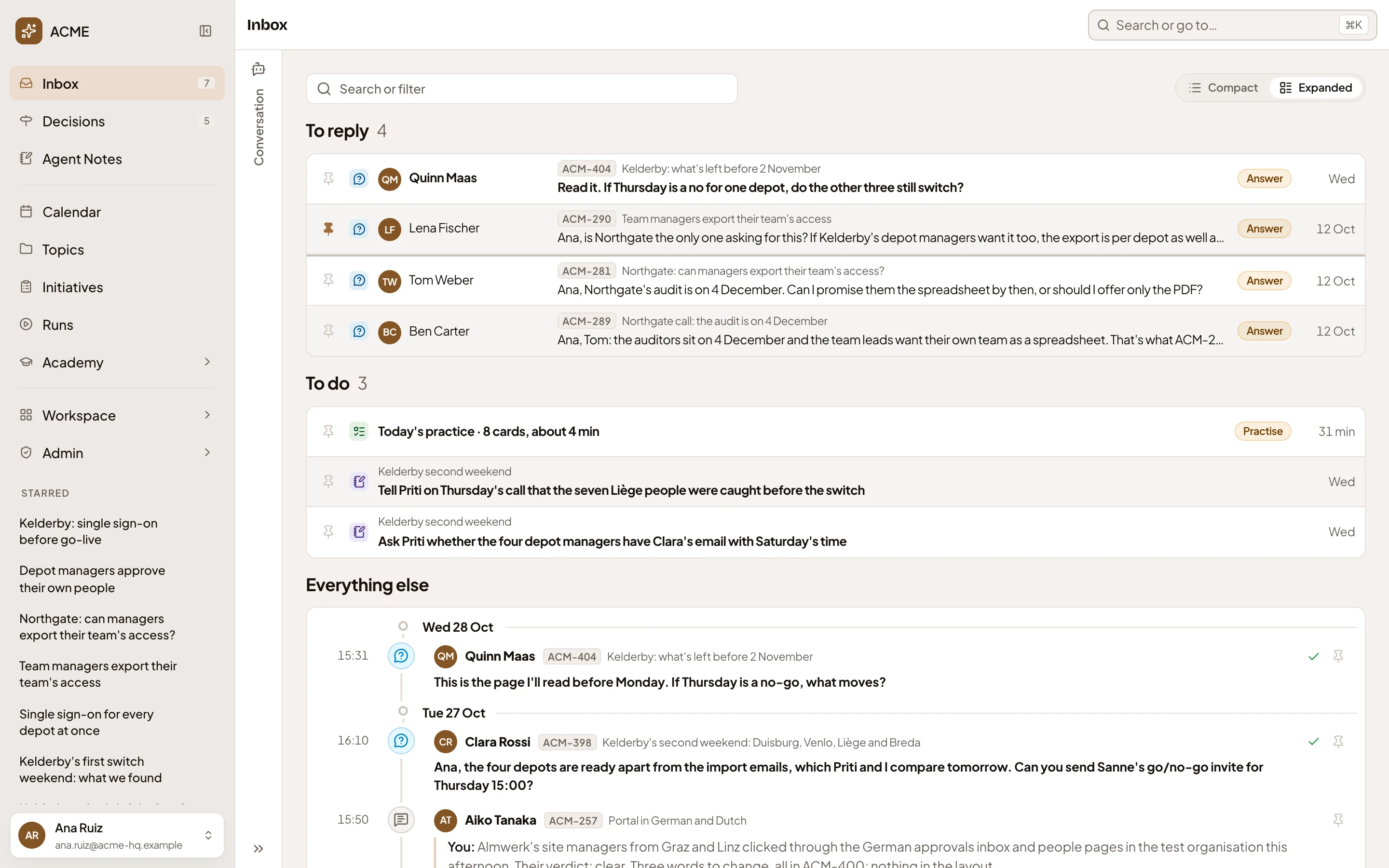
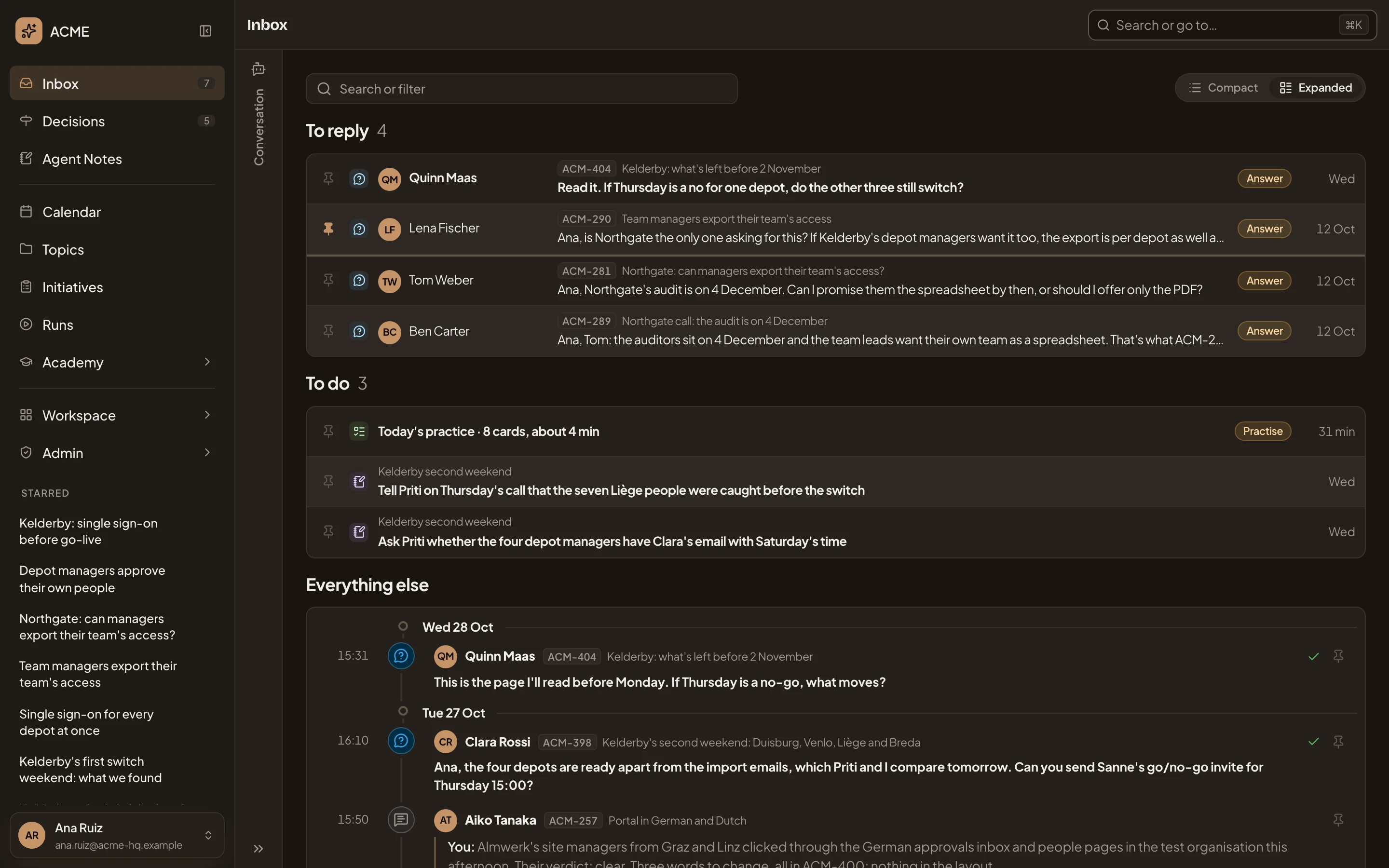
- Expanded, picked.
- A day, with what came that day.
Emargen remembers the layout for next time.
What you get
Section titled “What you get”- The count beside Inbox falls as you clear To reply and To do, and empty groups disappear. A todo you marked done leaves the Inbox.
- Your replies sit in the threads they answer, where your colleagues read them.
- Pinned items in Everything else wait at its top.