

AdminPage by page
A connection
A connection’s page shows how Emargen reaches one system, and the tools that system offers. The tabs hold what Emargen searches there, and the names flows use. Click a connection on Connections to open it.
Open Connections (opens Emargen in a new tab)ACME’s Jira Cloud, which the agent searches for the support team’s tickets.
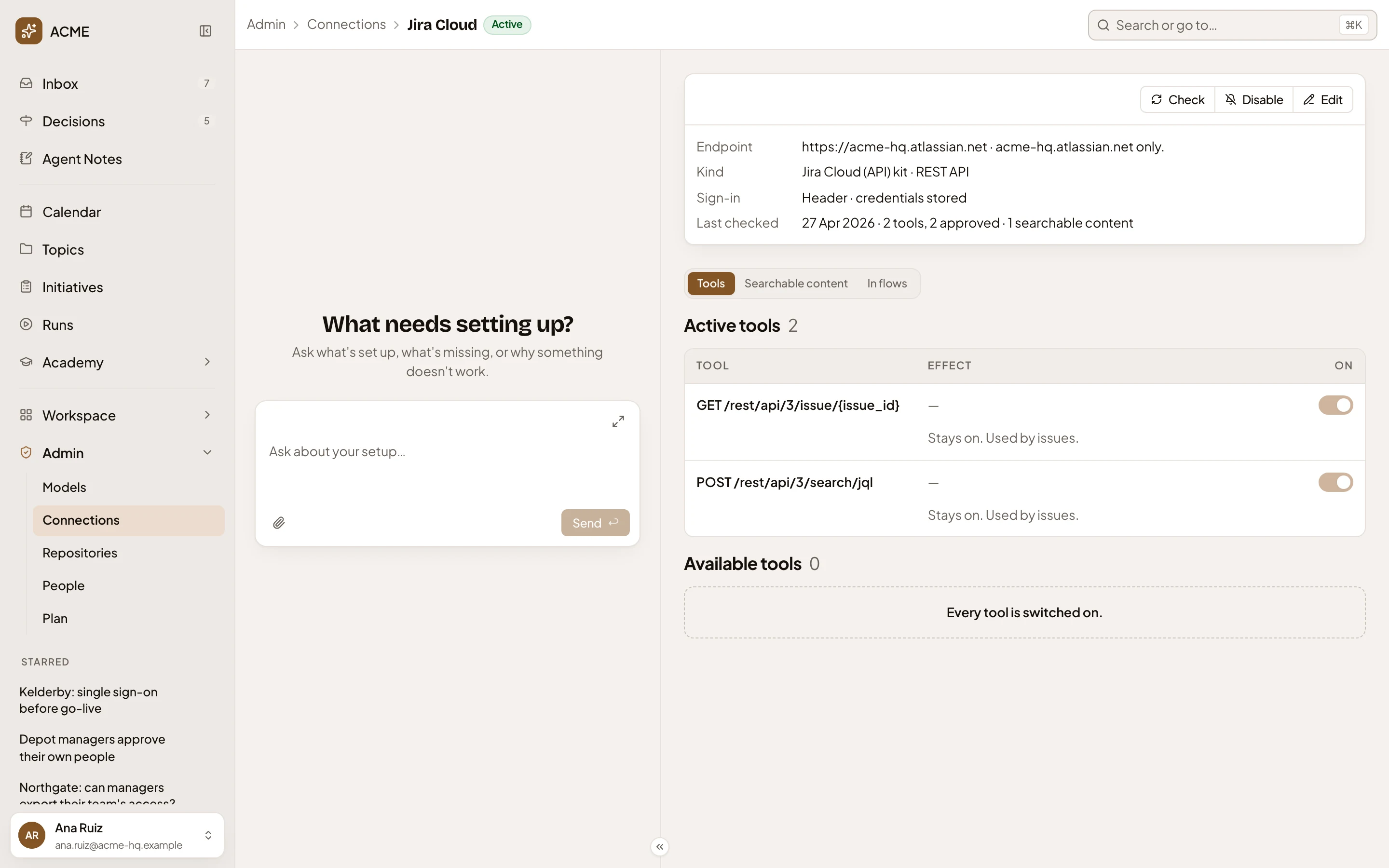
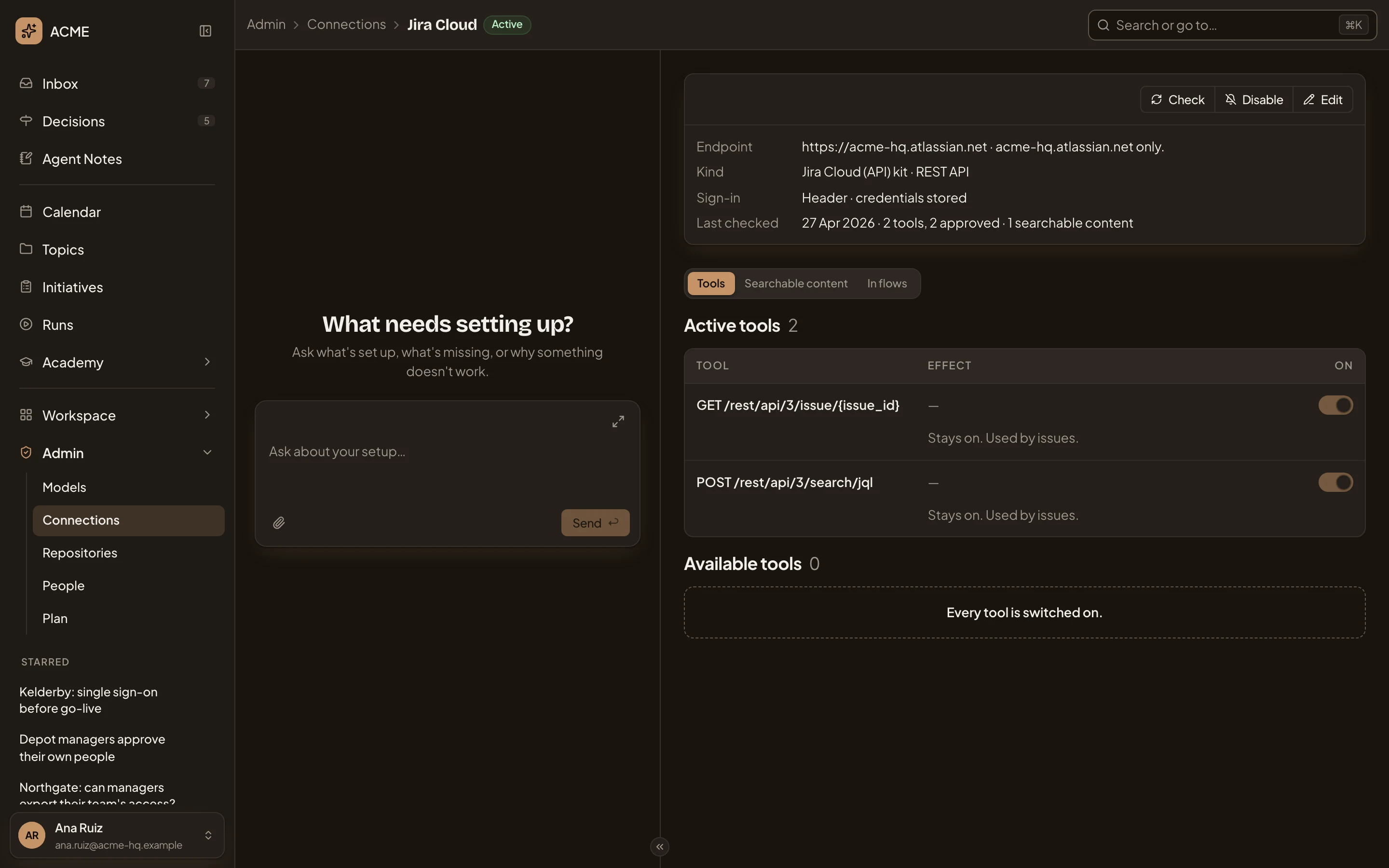
- Active. The other statuses are Disabled, Needs reconnect when the system stopped accepting the sign-in, and Error when the last check couldn’t reach it.
- Check, Disable and Edit, the connection’s buttons.
- Endpoint. The address Emargen calls, and the only host it may reach.
- Last checked. When Emargen last checked the connection. The counts beside it show its tools, the approved ones and its searchable contents. Kind above it shows where it came from, and whether it’s an MCP server or a REST API. Sign-in shows how Emargen signs in.
- Tools, Searchable content and In flows each hold one part of the connection.
- A tool’s switch. On means a person approved it.
- Stays on. Used by issues. A searchable content relies on this tool, so it can’t be switched off.
- Available tools. The tools not switched on. Here there are none.
The connection’s buttons
Section titled “The connection’s buttons”- Check asks an MCP server again which tools it offers, and lists new ones under Available tools. The button reads Discover while the connection has no tools yet, and Discover again once the connection has tools. A REST API has nothing to list, so Check only updates Last checked. To try the system itself, check one of its searchable contents.
- Disable switches the connection off. Nothing is searched through it and agents can’t call its tools until you enable it again. Nothing is deleted.
- Edit opens the Edit page.
When the connection needs attention, a notice above the card appears, and names the button to click. Reconnect when the system no longer accepts the sign-in. Discover again when it couldn’t be reached. Approve again when a tool changed since it was approved. An approval holds for the tool as it was when someone looked at it, so a changed tool is paused until someone approves it again.
Tools lists what the system offers, one row per tool, with a switch. Effect is the system’s own description of what the tool does. Click a row to read all of it.
Active tools are the approved ones. The app searches with them, and on an MCP server agents may call them too. Available tools are the rest, with a box to find one. Switching a tool on approves it. When you switch one off, Emargen asks first, since agents lose it and the app stops searching with it.
Searchable content
Section titled “Searchable content”Searchable content lists what Emargen searches through the connection. Here it’s Confluence Cloud’s: ACME’s wiki, across five of its spaces.
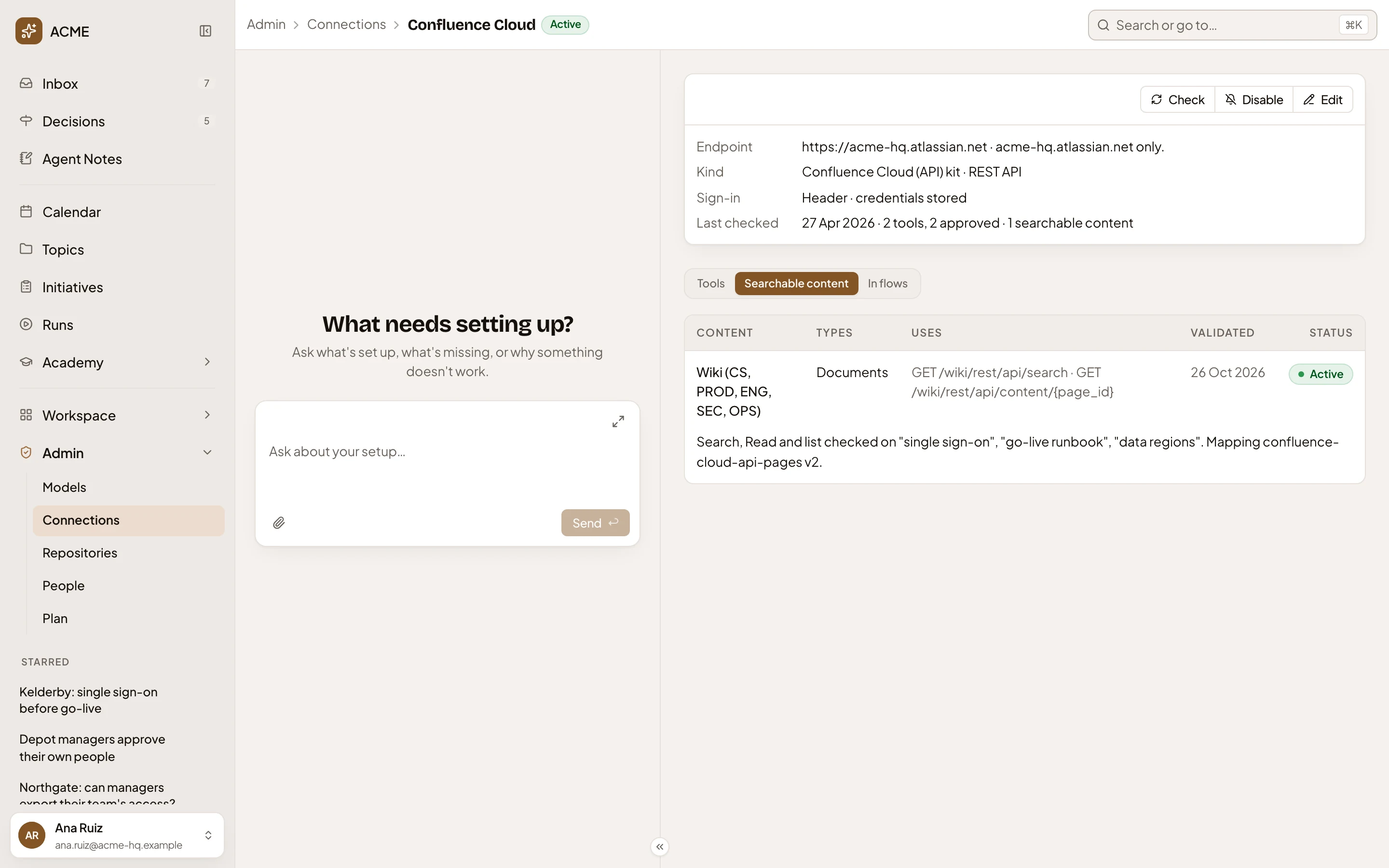
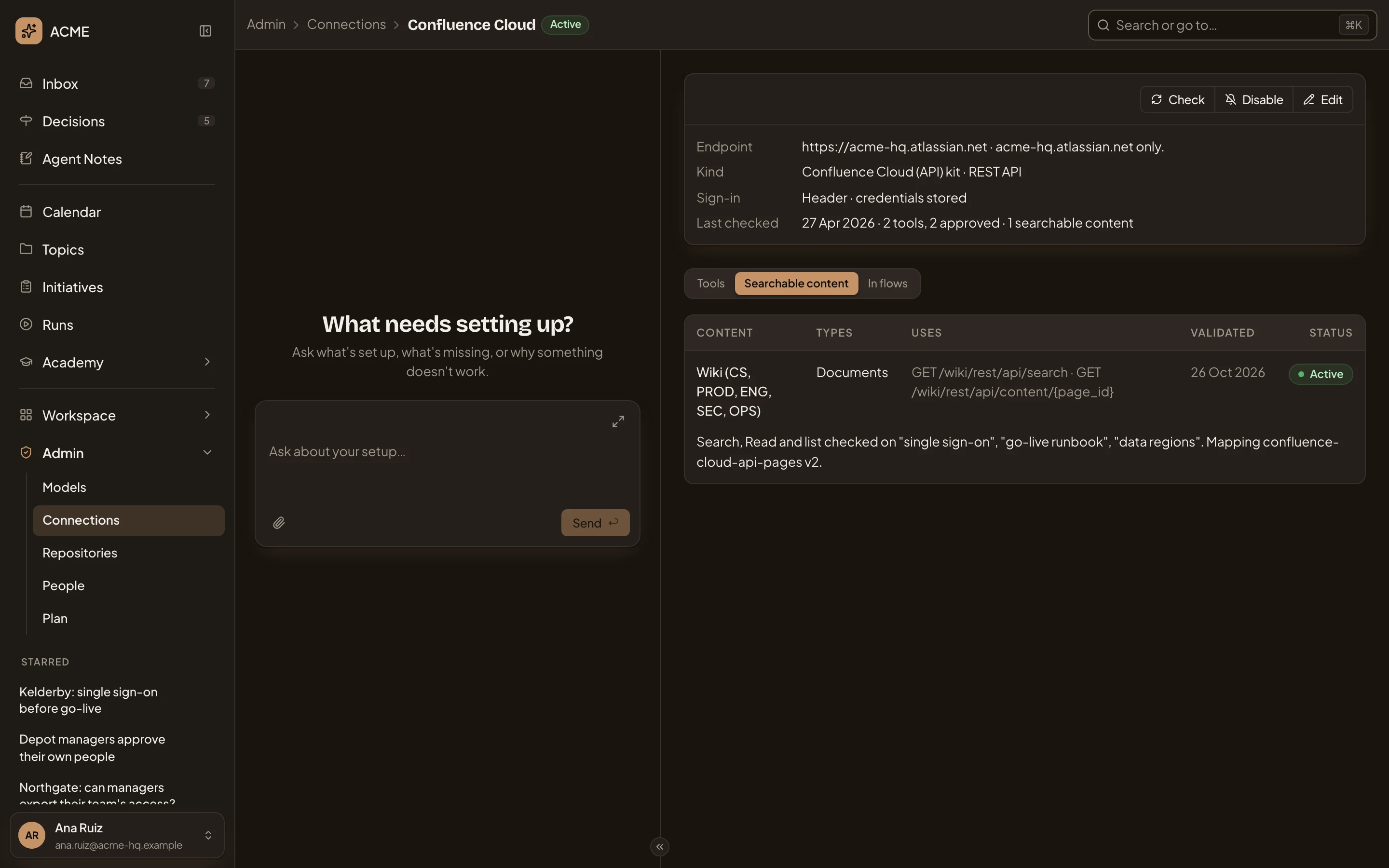
- The content. Click its name to open its page.
- Types. What it holds. Documents here. Jira’s tickets show as Work items.
- Uses. The tools it searches and reads with.
- Validated. When its last check ran. The status beside it is Active, Draft before the check passes, Failed when the last one failed, or Disabled.
- What the last check tried, and with which searches.
Click a row anywhere but its name to show its buttons. Preview opens the content’s page, where you can try a search. Edit opens its setup steps. Disable stops it being searched, and Enable starts it again. A content that hasn’t passed its check also has Validate.
A connection made from a kit gets its contents from the kit. On one you connected by hand, the tab also has New, to set one up step by step, and Set up with the agent. The agent looks at the switched-on tools and proposes one content for each search tool. A proposal shows as Proposed, with Keep, Edit and Discard, and nothing is searched until you keep it.
In flows
Section titled “In flows”In flows says how a flow names each switched-on tool, as Jira Cloud’s does.
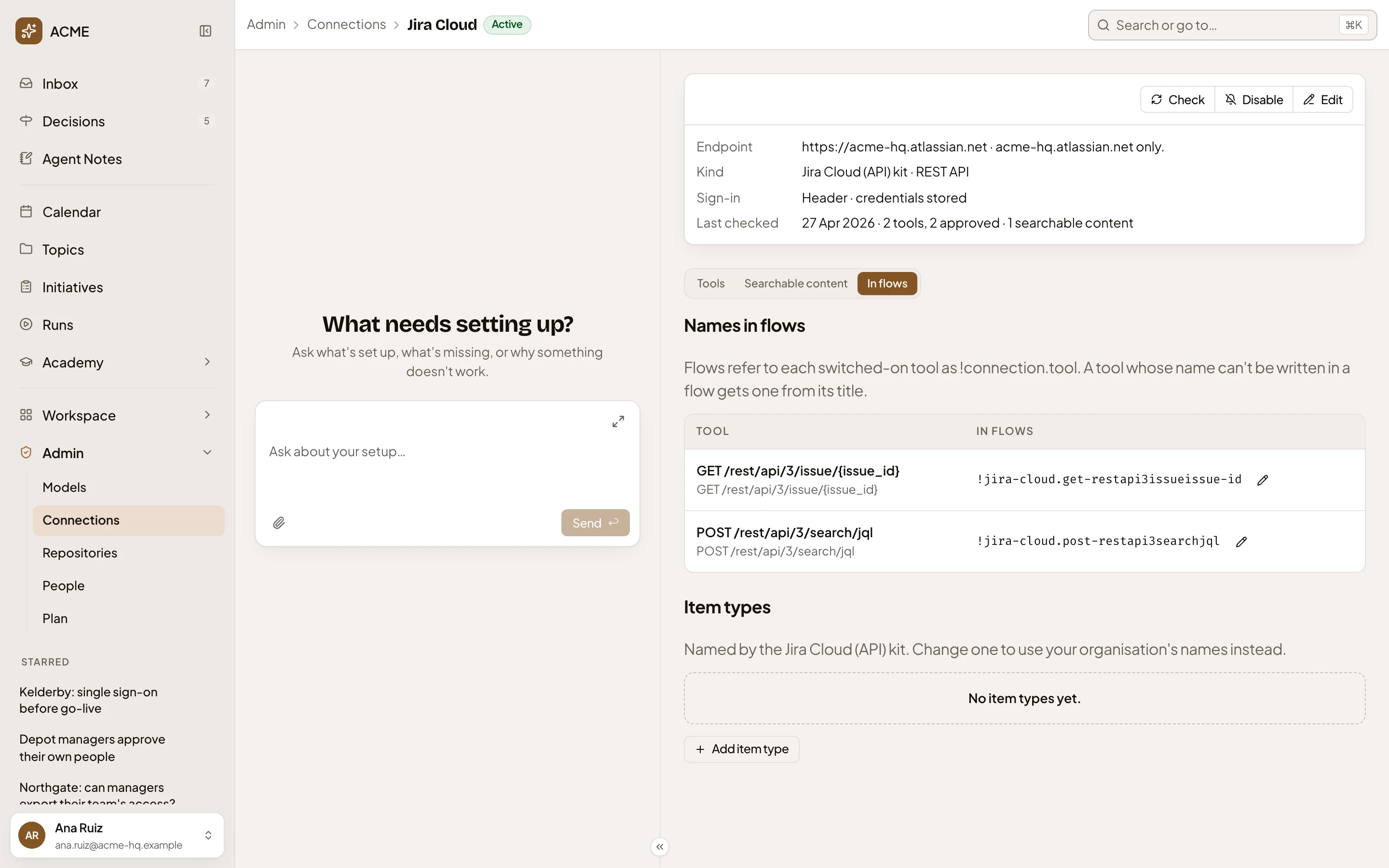
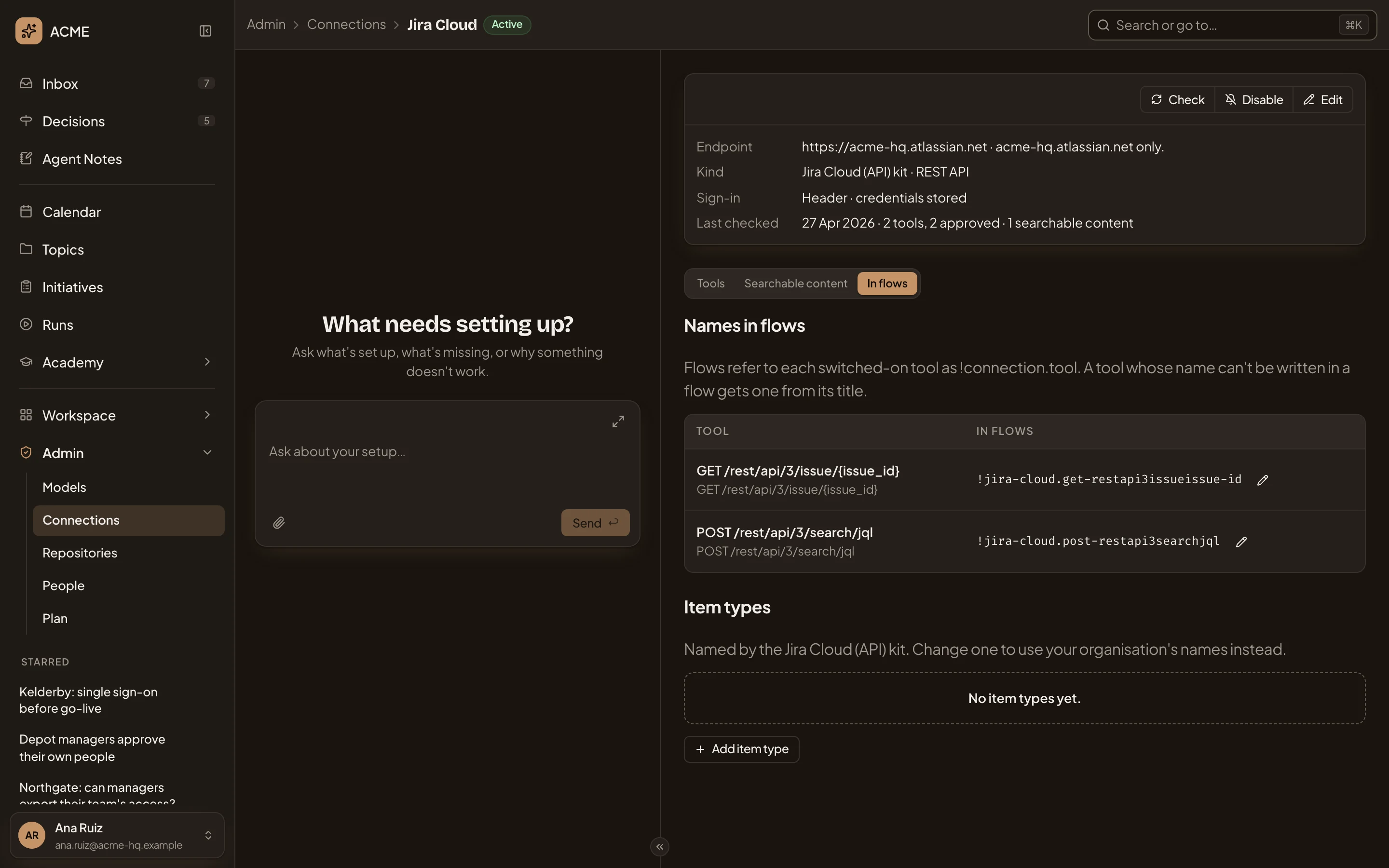
- Names in flows. A flow writes a tool as
!connection.tool. A tool whose name can’t be written that way gets one from its title. - The button that changes the name flows use.
- Item types. Names for the items the connection’s tools read, such as an issue. Flows use these names. A kit names them first, and you can change one to your organisation’s word.
- Add item type. Names one more.
A tool that changes things also has Reach. Outside is the default: someone approves each change a flow makes with it. Inside the organisation lets a flow’s step make the change without asking anyone first. Jira Cloud’s tools here only read, so it has none.
Jira Cloud’s form.
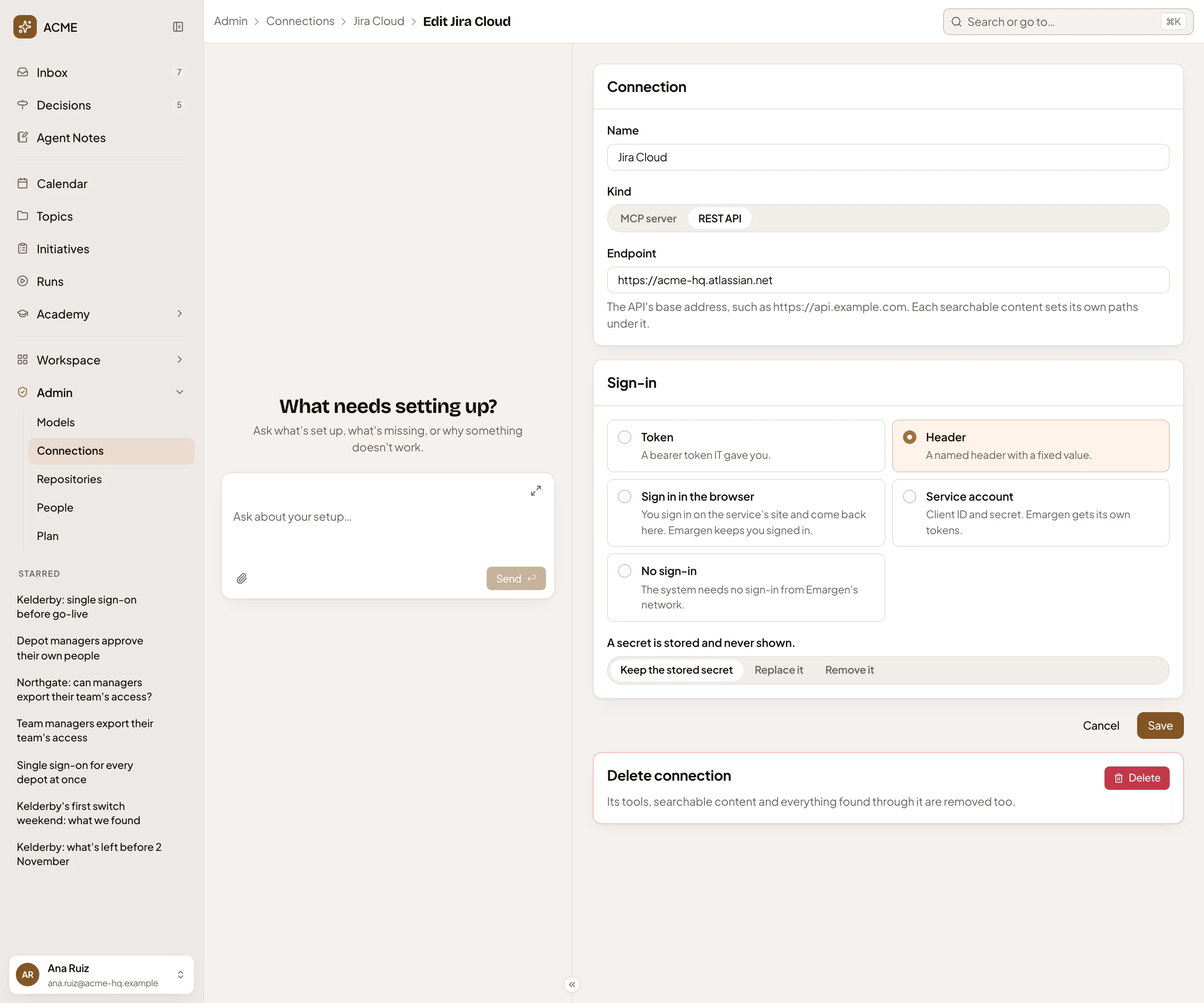
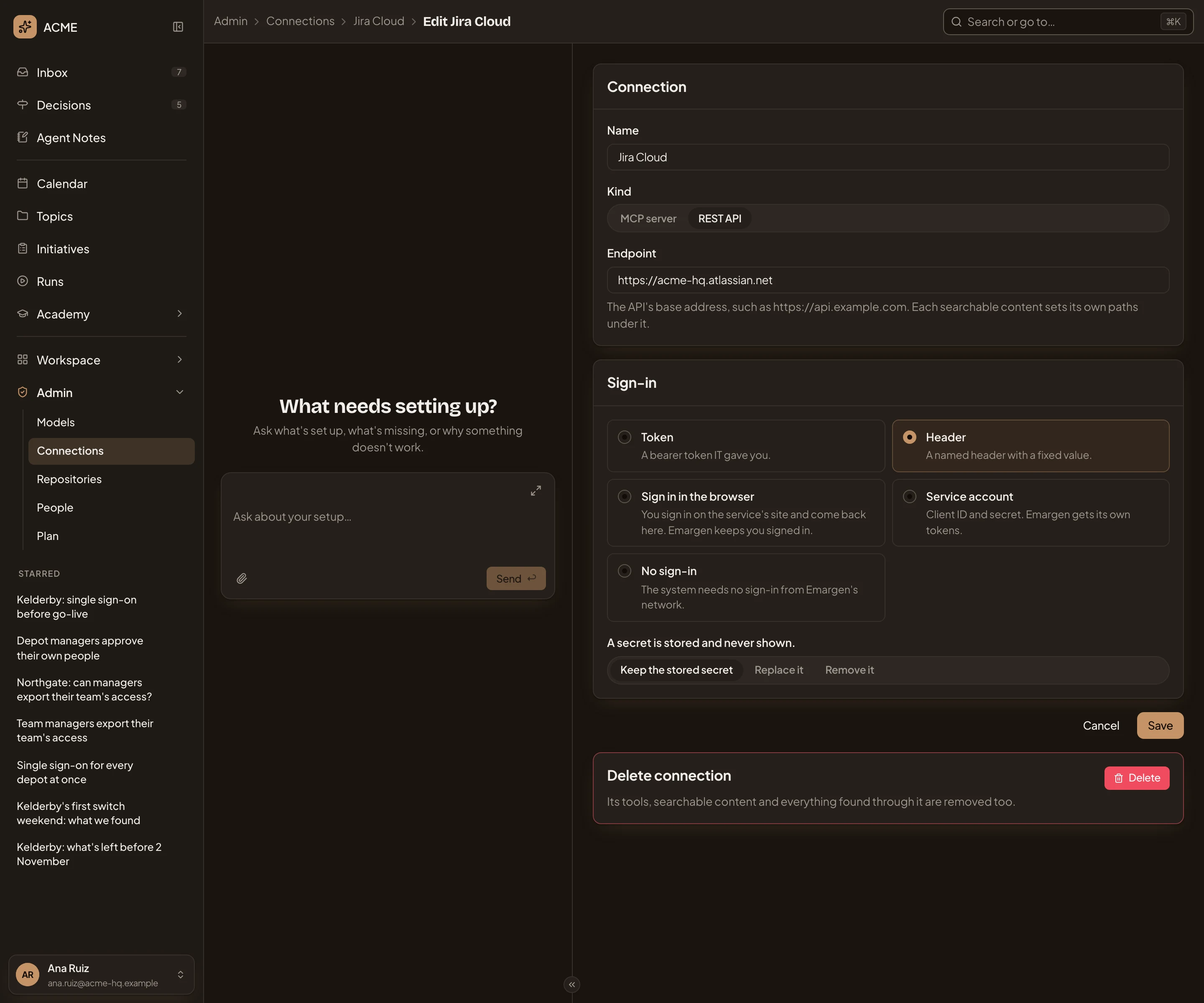
- Name. How the connection is listed.
- Kind. MCP server or REST API. It can’t change once the connection exists.
- Endpoint. For a REST API, its base address. Each searchable content says which paths under it it calls.
- Sign-in. Token, Header, Sign in in the browser, Service account or No sign-in. Each says in a line what it needs.
- A secret is stored and never shown. Keep the stored secret, Replace it or Remove it. Nobody sees a stored secret again, you included.
- Save. Keeps the change and goes back to the connection’s page.
- Delete. Deletes the connection, once you confirm.
Deleting removes the connection, its tools, its searchable content and everything found through it. Initiatives keep what they cited from it, as text. It can’t be undone. To use the system again, connect it again.
On a phone
Section titled “On a phone”The page and the admin agent’s chat take turns on the screen. See Admin.
Access
Section titled “Access”Everyone in the organisation can open a connection’s page. Its buttons and switches, Edit and Delete, are for whoever connected the system, and for people whose role lets them manage connections, such as administrators. Anyone else sees the switches greyed. See roles and permissions.