

Getting aroundHow to
Email a topic in
A lot of work starts in an email, like a customer’s question or a report from a site. Forward it to your own Emargen address, and it becomes a topic of yours with the agent already on it. Nothing gets copied by hand.
Before you start
Section titled “Before you start”- Everyone has an address of their own, in each organisation they belong to. It’s on your profile.
- Forward from the address you sign in to Emargen with. Mail from anywhere else is refused.
- Your organisation’s administrators can switch forwarding off for everyone. Your profile then says so.
- The pictures show Ana Ruiz’s address at ACME, the example company.
-
Click your name at the bottom of the menu, then Your profile, then Preferences. Email to Emargen is at the bottom.
Open Preferences (opens Emargen in a new tab)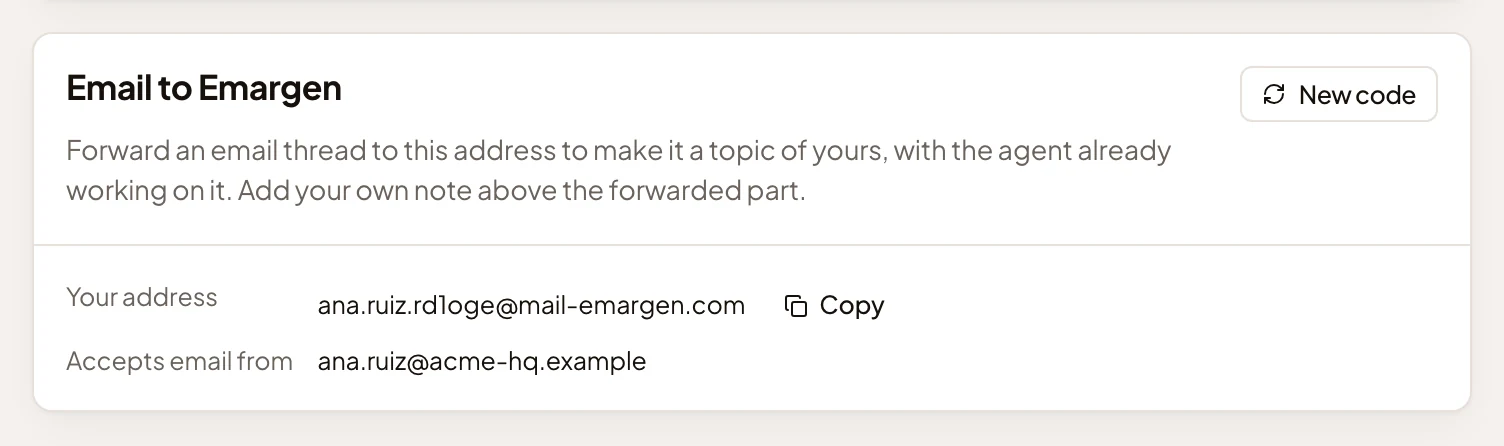
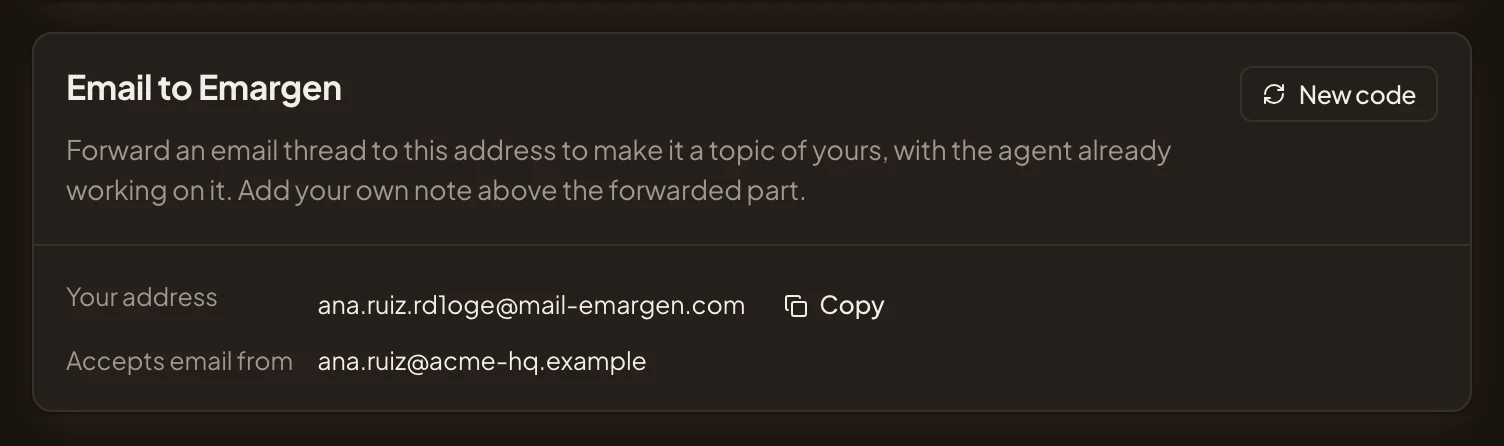
- Copy. Puts your address on the clipboard.
- Accepts email from. Your sign-in address, the only one it takes mail from.
- New code. Gives you a new address if this one has leaked.
-
Click Copy. A message says “Address copied”. Add the address to your email contacts as “Emargen”, so it’s there next time.
-
In your email, forward the thread to that address.
-
Above the forwarded part, write what you want, as you would in a chat: “Can agency drivers use the depot’s single sign-on before the go-live, even if they aren’t in the depot’s directory?” To start from a template, name one you can use, like “Use the Customer question template”.
-
Send it.
-
In Emargen, click Topics in the menu. Once the email has arrived, the new topic shows under Triage, titled by the email’s subject until the agent names it.
What you get
Section titled “What you get”- A new topic of yours, under Triage on your topics list. Only you see it until you share it.
- The chat shows your email, marked as sent by email, then your note. The agent starts on it at once and writes what it finds into the topic’s document. The attachments become the topic’s files.
- An email back from Emargen, with the topic’s key and title, a link to open it, and a line from the agent. Reply to that email to answer in the topic’s chat.
- Anything that would reach other people still waits for you to confirm it in the topic.
To add a later email to the same topic, reply to Emargen’s email, forward it with the topic’s key in the subject, or forward the same thread again.
If nothing arrives
Section titled “If nothing arrives”- Mail that isn’t from your sign-in address, or can’t prove it came from you, is refused without a reply. It shows under your address on Preferences, with the reason.
- An email over 25 MB, or more than 50 in a day, gets a reply saying so, and no topic is made.
- If your organisation has no model for its agents yet, Emargen still makes the topic, and the reply says an administrator must set one.