AdminPage by page
Models
Models is where your organisation gets its AI. Your providers and their models are listed here, and you choose the model each kind of work runs on. Open it from Models under Admin in the menu. Admin itself opens here too.
Open Models (opens Emargen in a new tab)ACME buys from OpenAI and TypeSafe.
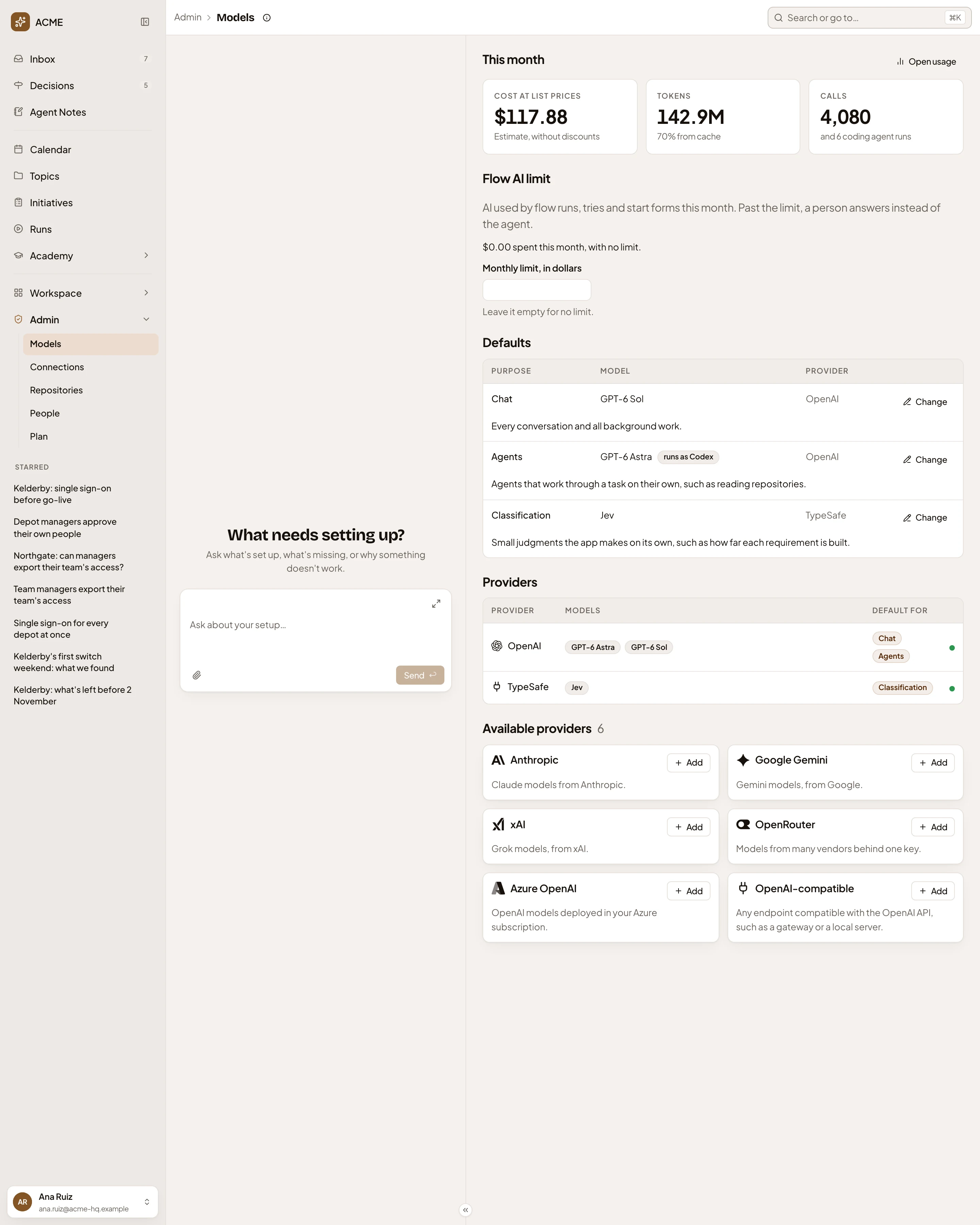
- Models guide. What the page is for, and what to watch for.
- This month. Your organisation’s use of AI so far this month, in Cost at list prices, Tokens and Calls, with the coding agents’ runs beside the calls.
- Open usage. Opens Usage, the whole month.
- Flow AI limit. A monthly limit on what the flows spend on AI.
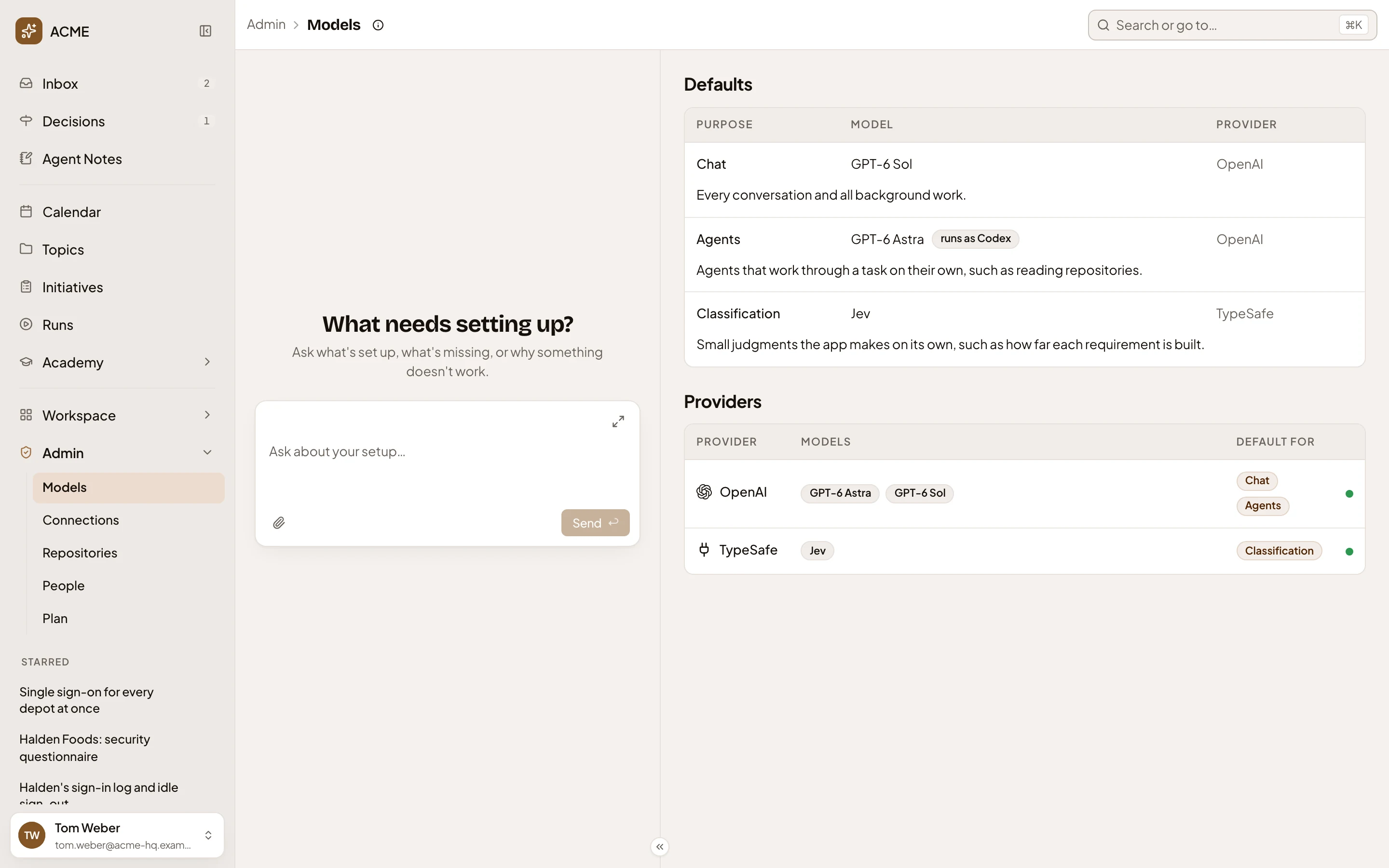
- Defaults. Which model each kind of work runs on. Click a provider to open its page.
- runs as Codex. The harness that runs the agents on the model: Codex or Claude Code.
- Change. Opens that default’s dialog. A default not set yet has Set.
- Providers. The companies your organisation buys AI from, the models it uses on each and what each is the default for. Click a row to open the provider.
- The provider’s status. Point at it to read it: Active, Untested, Inactive, Needs a new key or Out of quota. The last two put a red count on Models in the menu.
- Available providers. The kinds of provider your organisation hasn’t added yet.
- Add. Asks for that provider’s key.
The chat on the left is the admin agent.
The three defaults
Section titled “The three defaults”Your organisation’s own work runs on three defaults. The admin agent beside this page runs on Emargen’s own models.
- Chat: conversations about your work, and the work the app does in the background, such as naming a topic or drafting a brief.
- Agents: agents that work through a task on their own, such as reading repositories. Until one is set, agents can’t run.
- Classification: small judgments the app makes on its own, such as how far each requirement is built. It’s optional. Until one is set, how far a build has come is counted from its tasks.
Change beside Chat lists the models that can take it, under their providers.
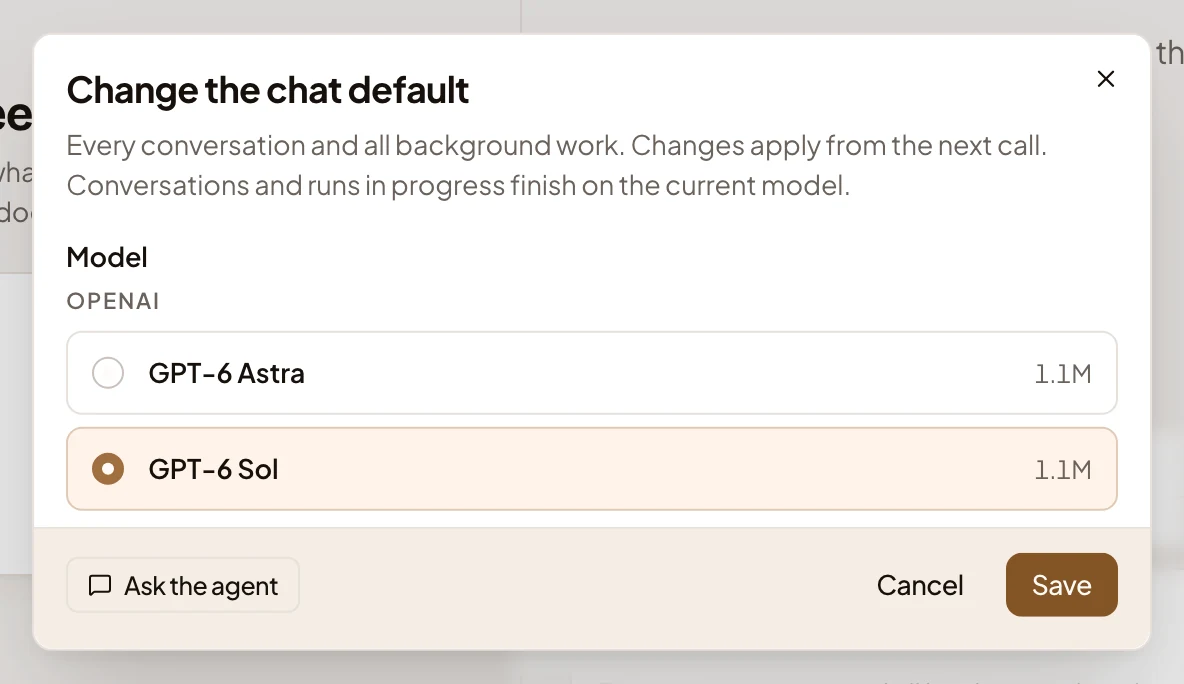
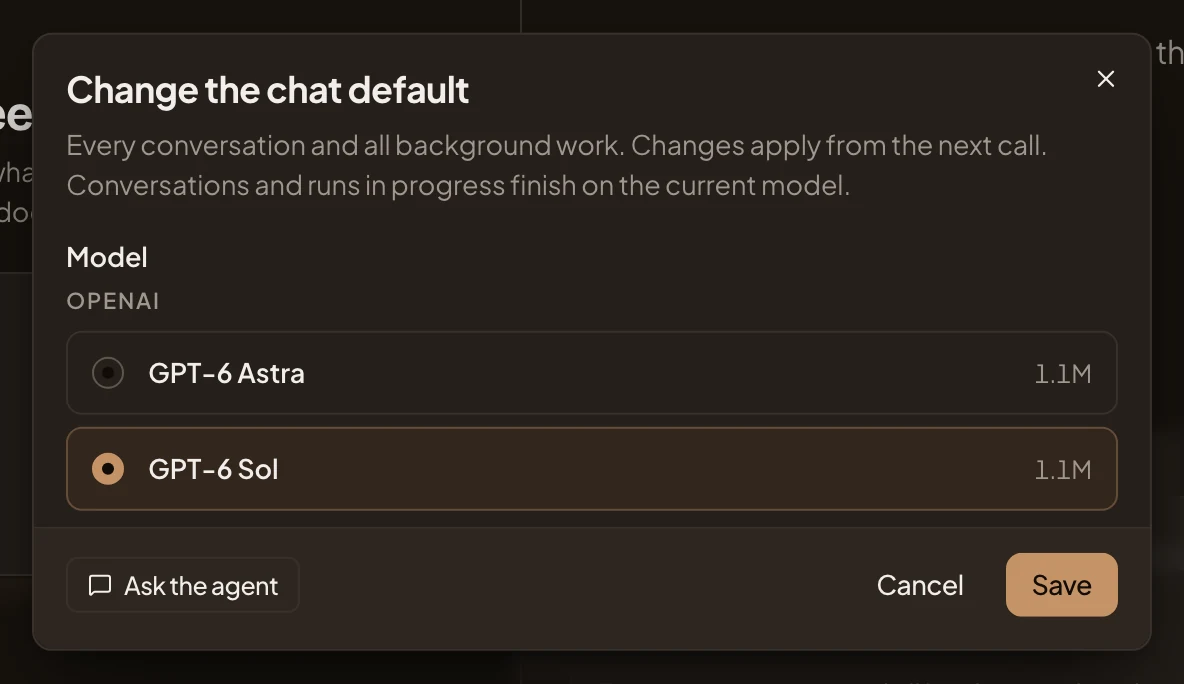
- Model. The models that can serve it, with how much each reads at once. Only models that were tried, on a provider whose key works, are offered.
- Ask the agent. Hands the job to the admin agent in the chat.
- Save. Saves the new default.
A change applies from the next call. An answer already being written finishes on the old model. If Emargen hasn’t checked a chat model yet, saving first tests it. It must call tools, answer in a set shape and stream. That takes a few seconds, and a model that can’t is refused.
Change beside Agents asks first which harness runs the agents, then which model. Each harness shows once you’ve added a provider it runs, with only the models it can run. In the picture, ACME has OpenAI’s models alone, so Codex is the only harness.
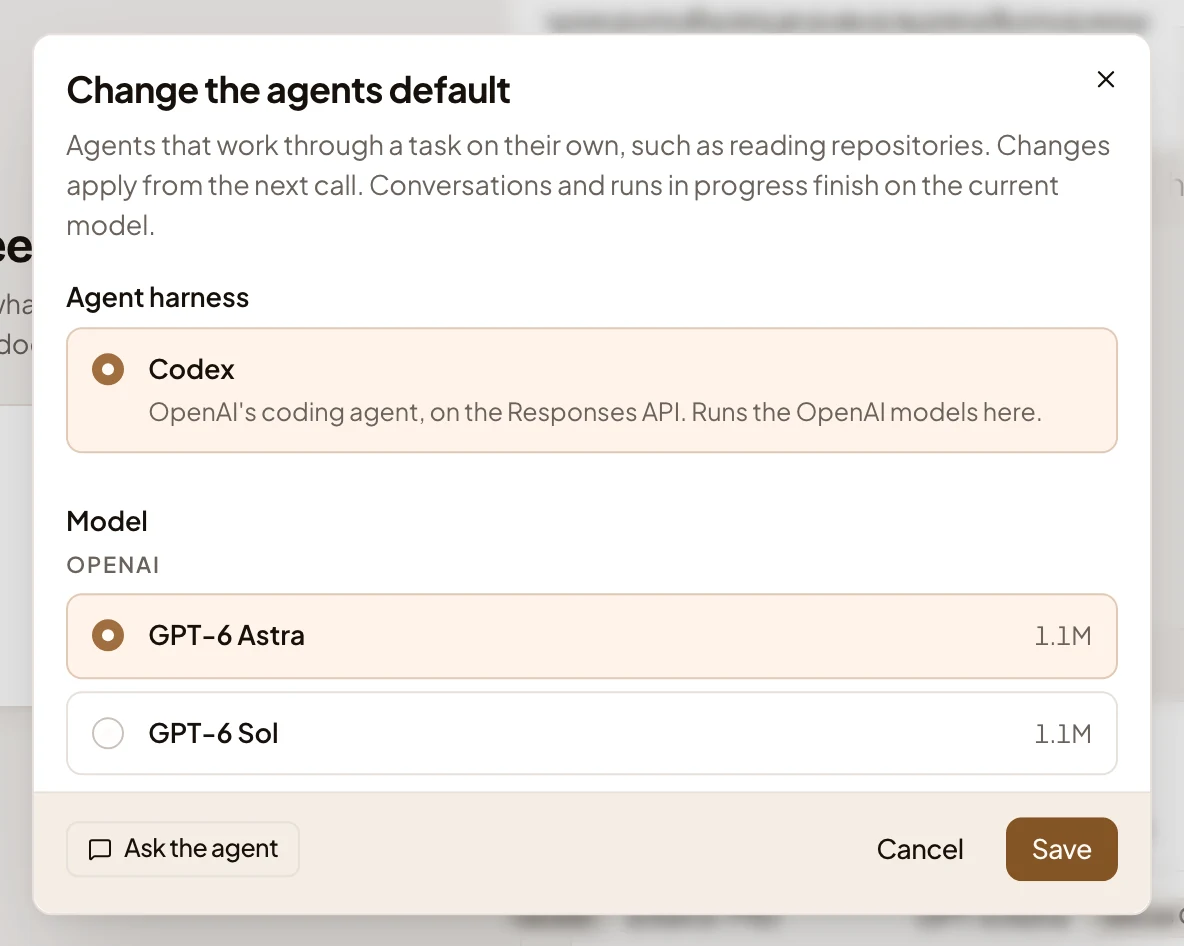
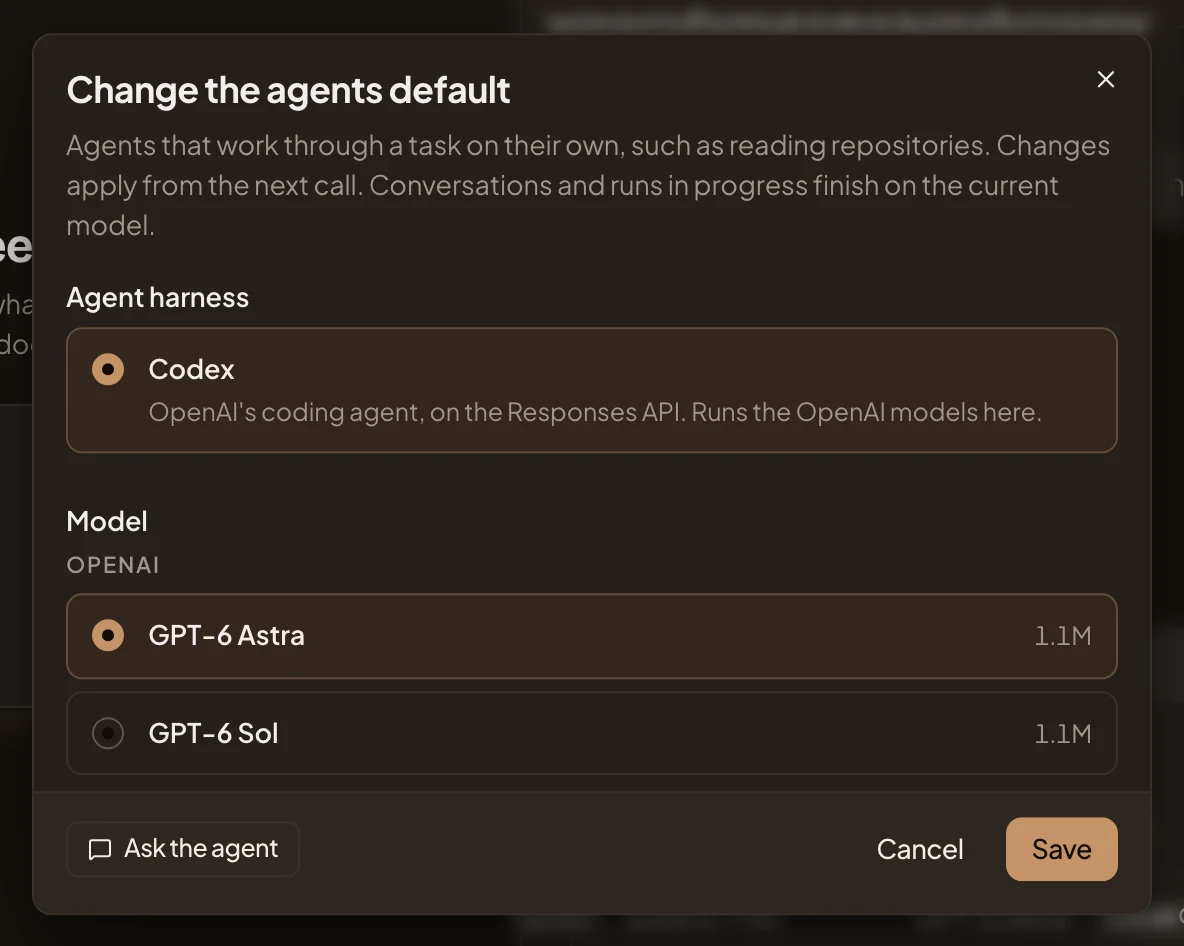
- Agent harness. Codex or Claude Code, each with the providers it runs here.
- Model. The models the chosen harness can run.
Emargen tests a new harness or model by running it once. While it checks, the Agents row shows the check running. That can take a few minutes. The default changes once the check passes. If the harness can’t run on the model, the default stays as it was, and the row says why.
Until an Agents default is set, work that needs an agent, such as a spike’s questions or a repository’s analysis, says “No agent model is set” and waits.
Change beside Classification offers only a classifying model, such as TypeSafe’s Jev, which answers typed questions instead of writing. When no model can take a default yet, the dialog says to add and try one first.
Flow AI limit
Section titled “Flow AI limit”Flow AI limit caps what your organisation’s flows spend on AI in a month, on their runs, their tries and their start forms. Past the limit, Emargen asks the model nothing more for a flow, and a person answers instead. Under the heading, this month’s spend so far.
Type a number of dollars in Monthly limit, in dollars, and Save appears beside it. Leave it empty for no limit.
Adding a provider
Section titled “Adding a provider”Add on an available provider asks for its key. In the picture, Google Gemini’s.
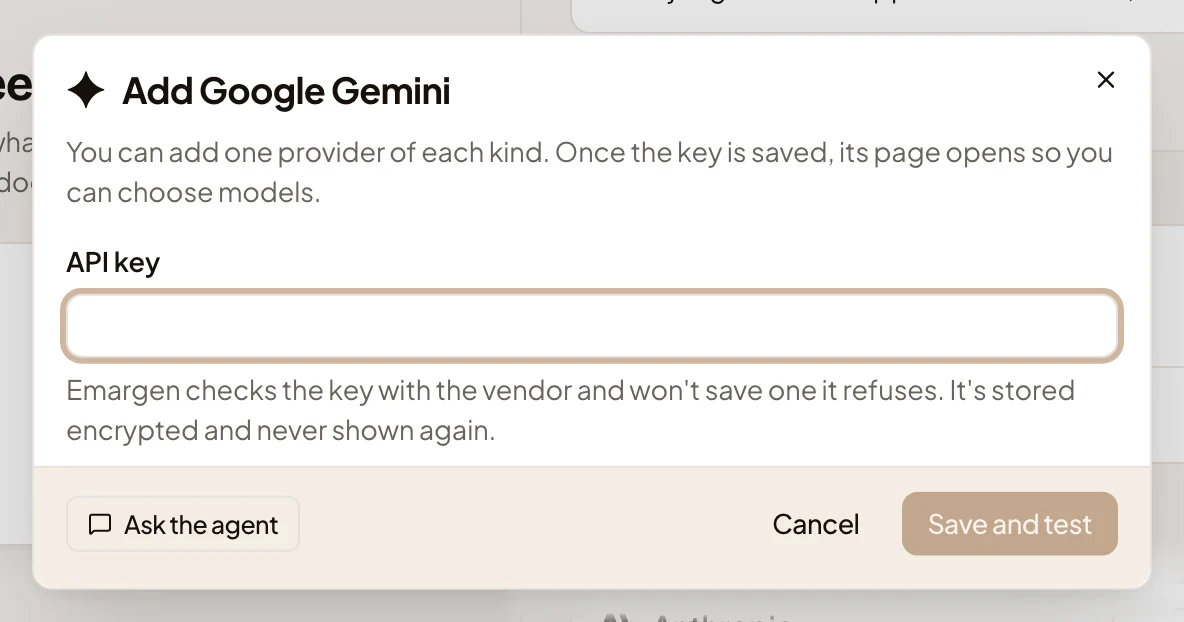
- API key. The key from your account with the provider. It’s stored encrypted and never shown again.
- Ask the agent. The agent puts a card in the chat where you type the key, which goes straight to Emargen.
- Save and test. Checks the key with the provider, then saves it. A refused key isn’t saved.
Once the key is saved, the provider’s page opens, where you choose its models. Azure OpenAI also asks for its Endpoint and API version, and an OpenAI-compatible endpoint for its address. An OpenAI-compatible endpoint may need no key.
A new organisation has no providers. Providers says “No providers yet”, every default says Not set, and Available providers lists all eight kinds. See the Models step on Setup › Launch.
On a phone
Section titled “On a phone”The page and the admin agent’s chat take turns on the screen. See Admin.
Access
Section titled “Access”Everyone in your organisation can read the defaults and the providers. Only people whose role lets them manage models see This month, Flow AI limit, Change, Set and Available providers. That’s administrators, unless your organisation gives it to another role. A member sees this: