

TopicsPage by page
New topic
Start a topic here. Say what you want to work through, and the agent works it out with you. Open it with New topic on the topics list.
Open New topic (opens Emargen in a new tab)The page has one message box and, under it, the templates your organisation uses most.
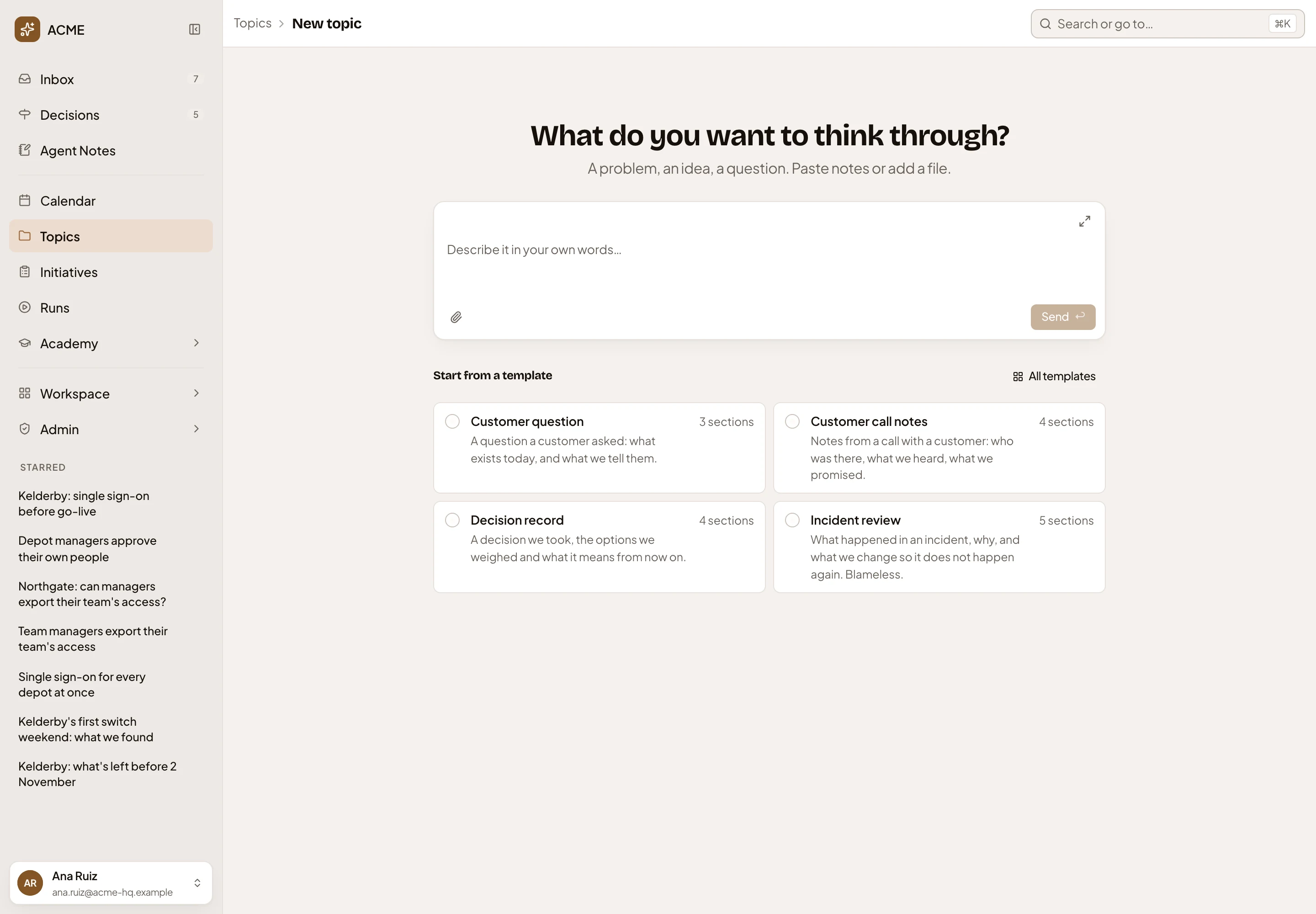
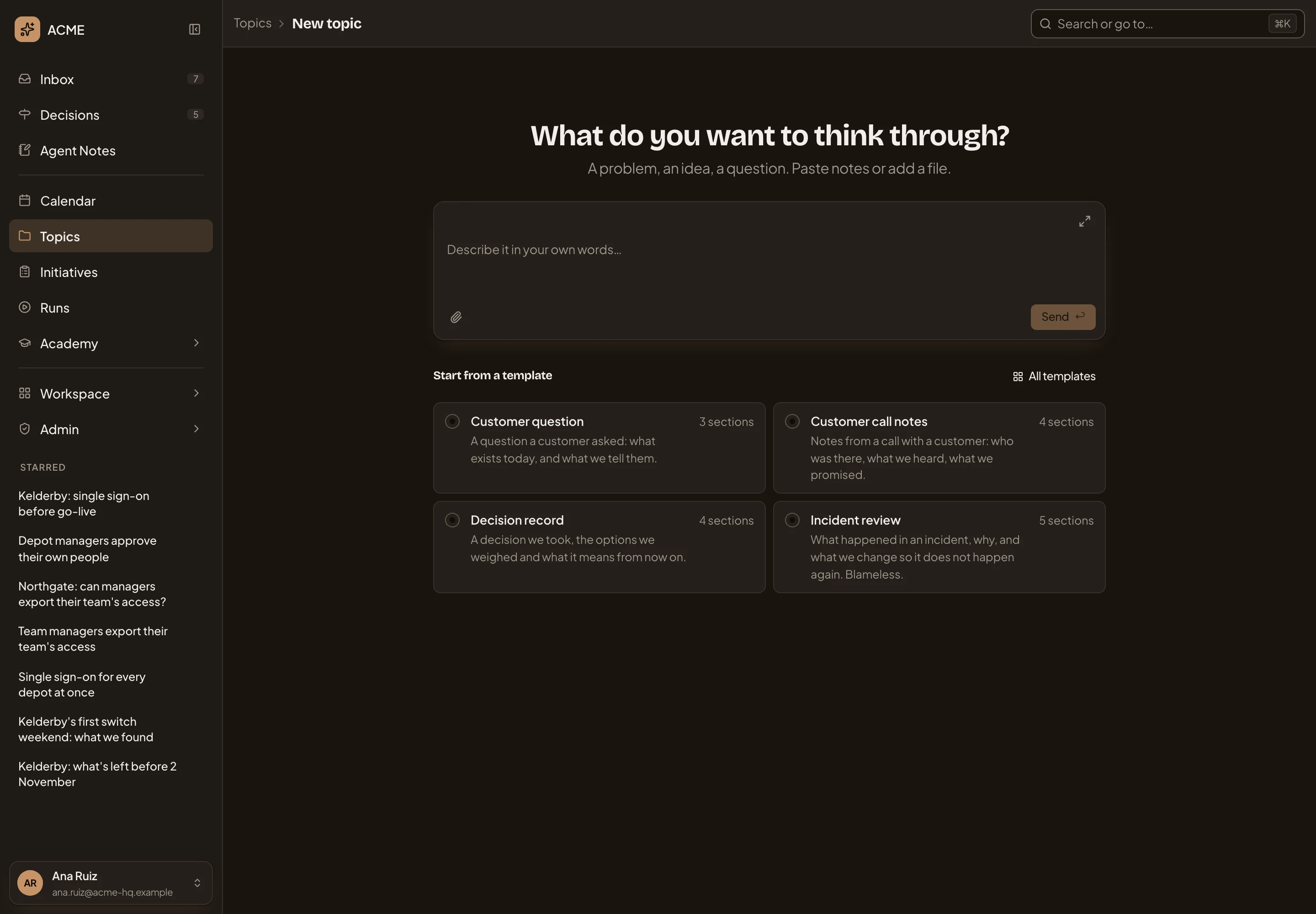
- What do you want to think through? A problem, an idea, a question. You can paste notes or add a file.
- Start a topic. The message box. Write what you have in mind, in your own words.
- Expand the message box. Makes the box bigger, with formatting (see A bigger message box).
- Attach files. Adds a file for the agent to read with your message.
- Send. Starts the topic. It stays greyed until you write something or attach a file.
- A template’s card. It names the template, says when to use it, and counts the sections it gives the topic (see Starting from a template).
- All templates. Every template you can use, in a dialog over the page (see Every template).
When you send, the new topic’s page opens with your message at the top of the chat, and the agent starts answering. The title reads “Untitled topic” until the agent names it. The topic sits in Triage on the topics list. Only you see it until you share it. A topic’s page shows the rest.
Flows don’t start here. You start one from Runs in the menu (see Flows).
Starting from a template
Section titled “Starting from a template”Start from a template shows the four templates your organisation uses most, by how many topics follow each. Click a card to start from it. Picking a card puts the template’s name in the message box.
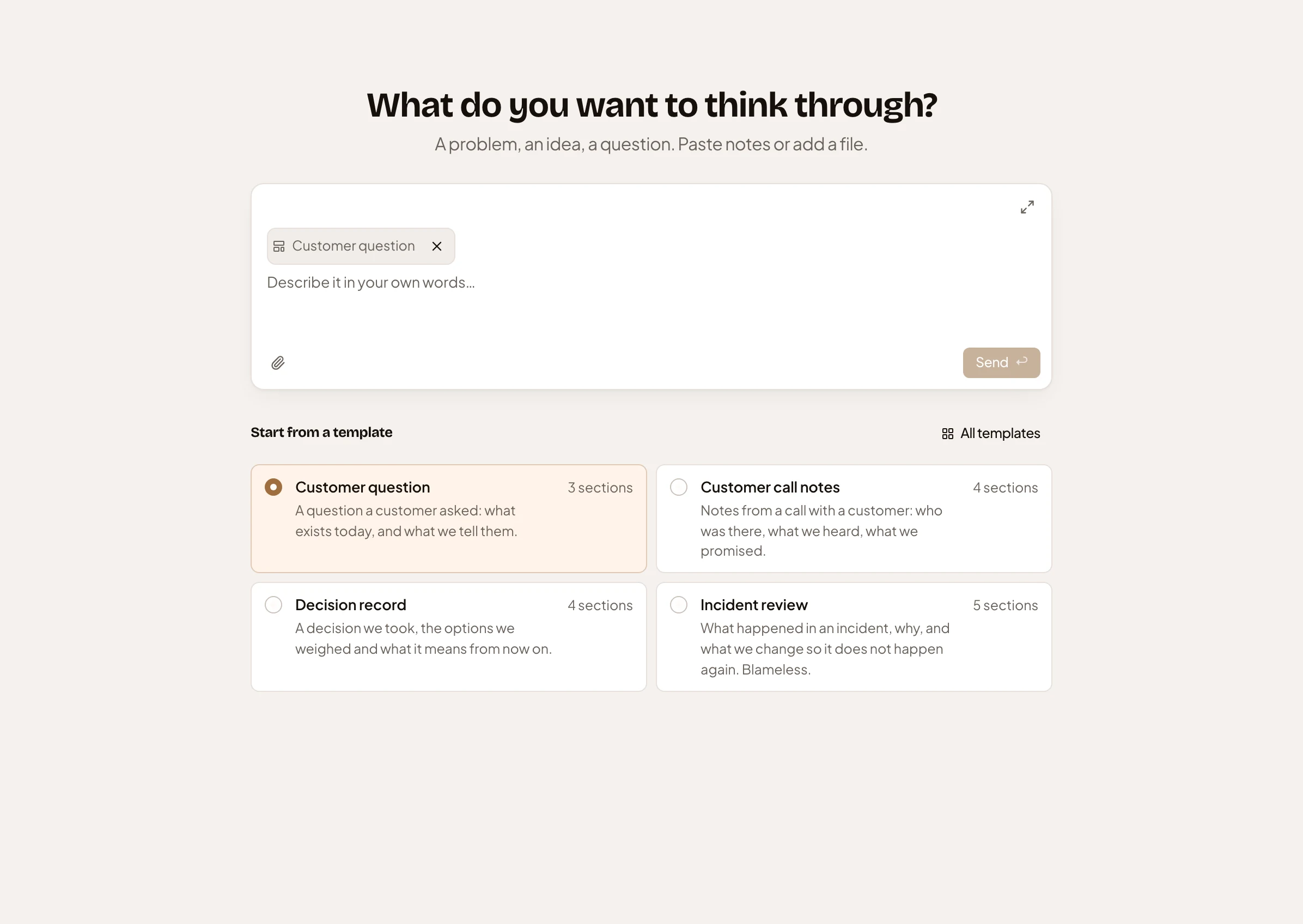
- The template’s name in the message box. Click it to choose another in All templates.
- Start without a template. The × beside the name.
- The card you picked.
Templates and fields says what a template gives a topic, and Start a topic from a template walks through it.
Every template
Section titled “Every template”All templates opens Choose a template, every template you can use. The ones your organisation uses most come first. Each row says when to use the template and lists its sections, so you can read the outline before you pick it. Emargen’s own templates, such as Decision brief and Idea, are there for every organisation, marked Built-in.
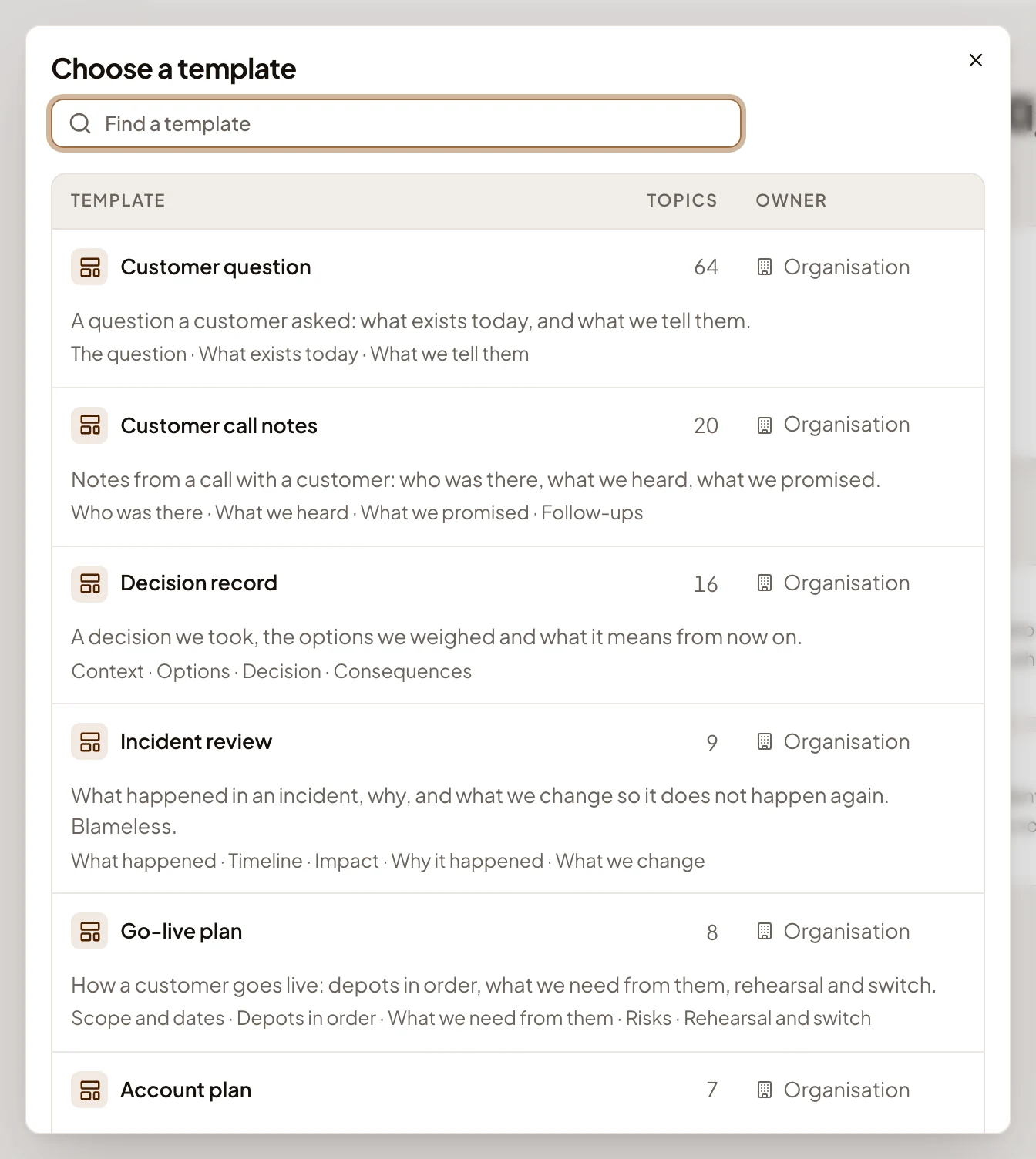
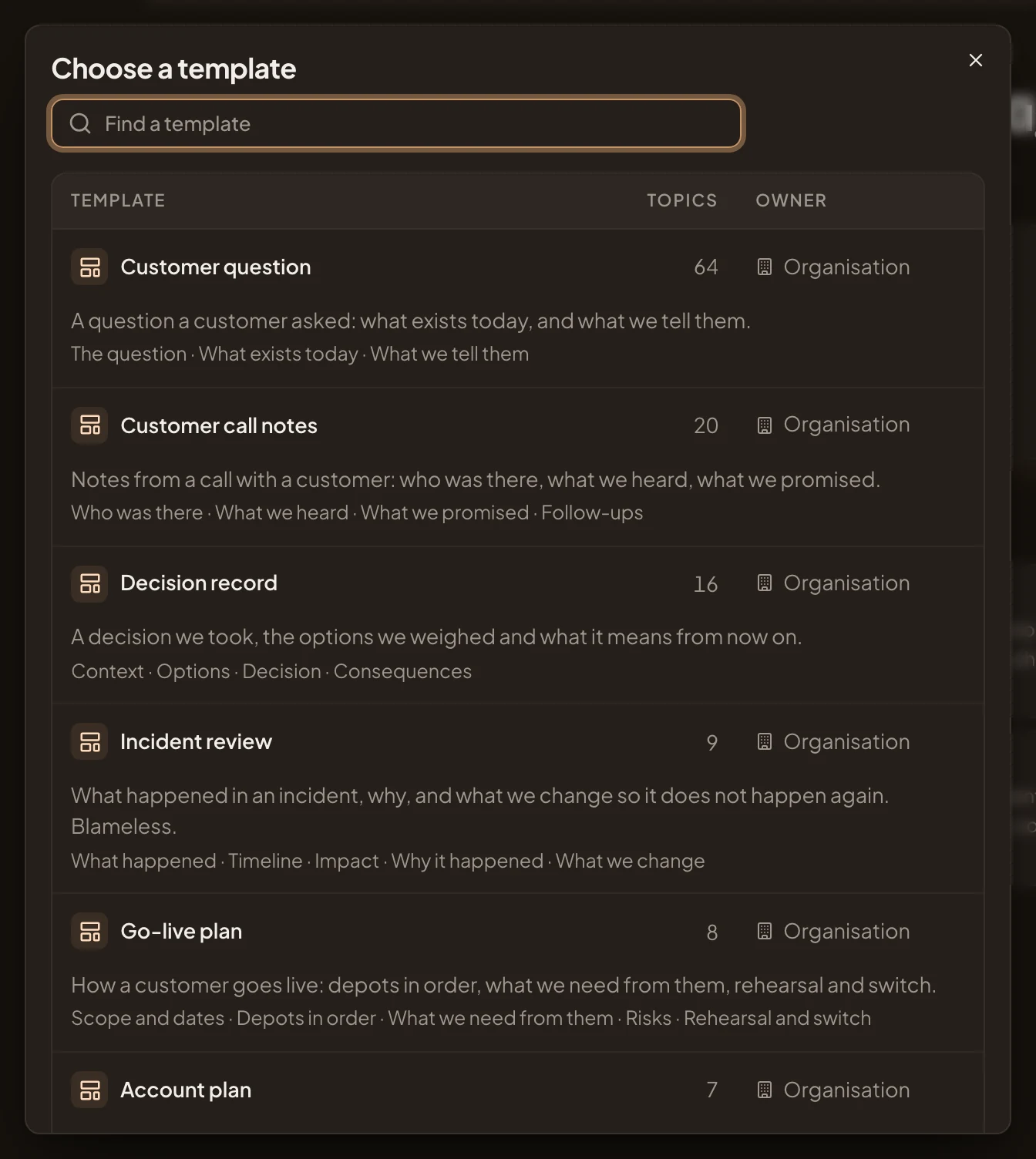
- Find a template. Type a word to narrow the list by a template’s name, its line on when to use it, or its sections’ titles. The words it matched are marked.
- Topics. How many topics follow the template.
- Owner. Whose it is: Organisation, yours, one shared with you, or Built-in for Emargen’s own.
- A template. Click its row to pick it. The dialog closes and the name appears in the message box. One that wasn’t among the four takes the first card.
Closing the dialog keeps what you’ve written in the message box.
A bigger message box
Section titled “A bigger message box”Expand the message box makes the box fill the page, for a longer message or pasted notes.
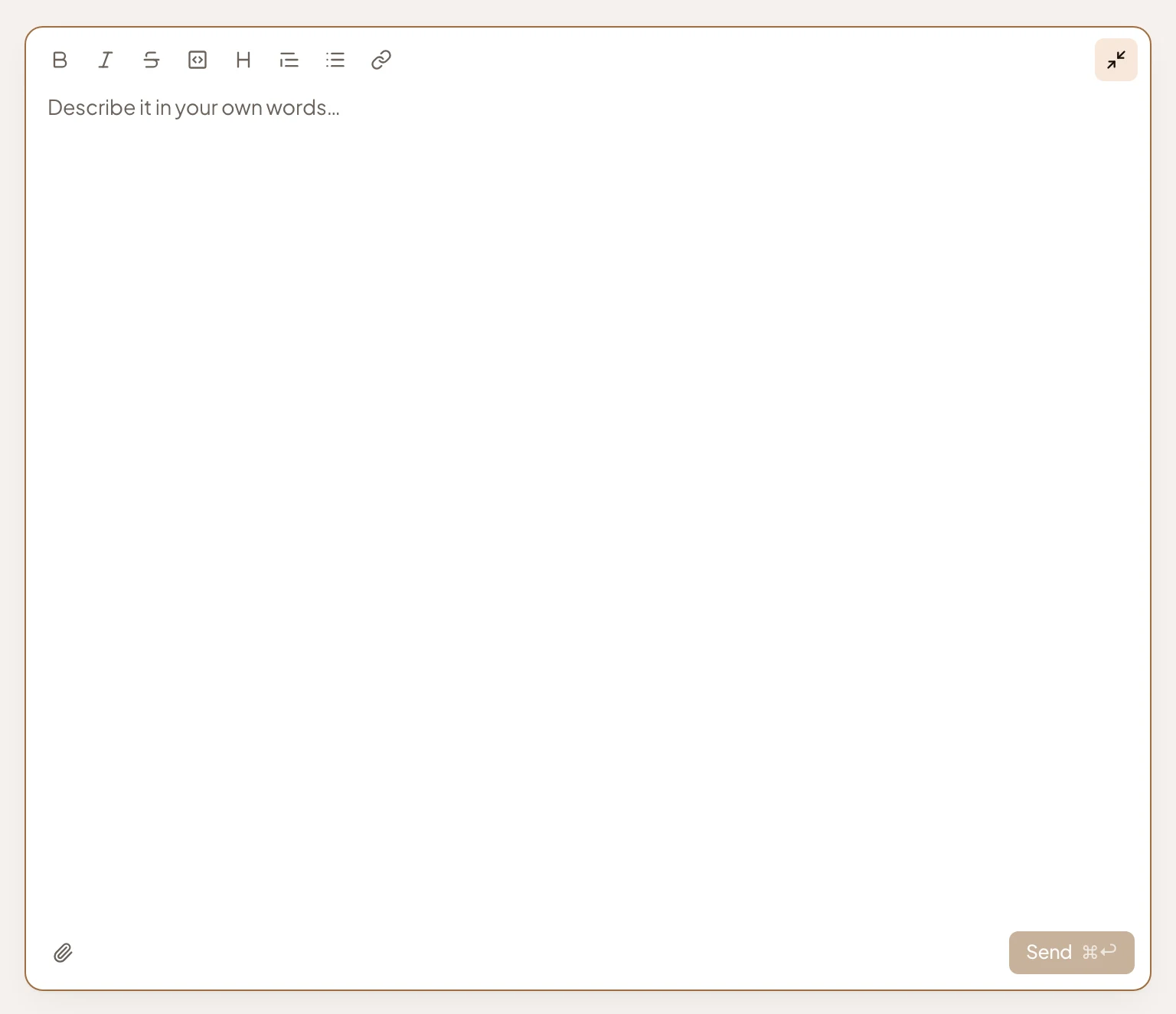
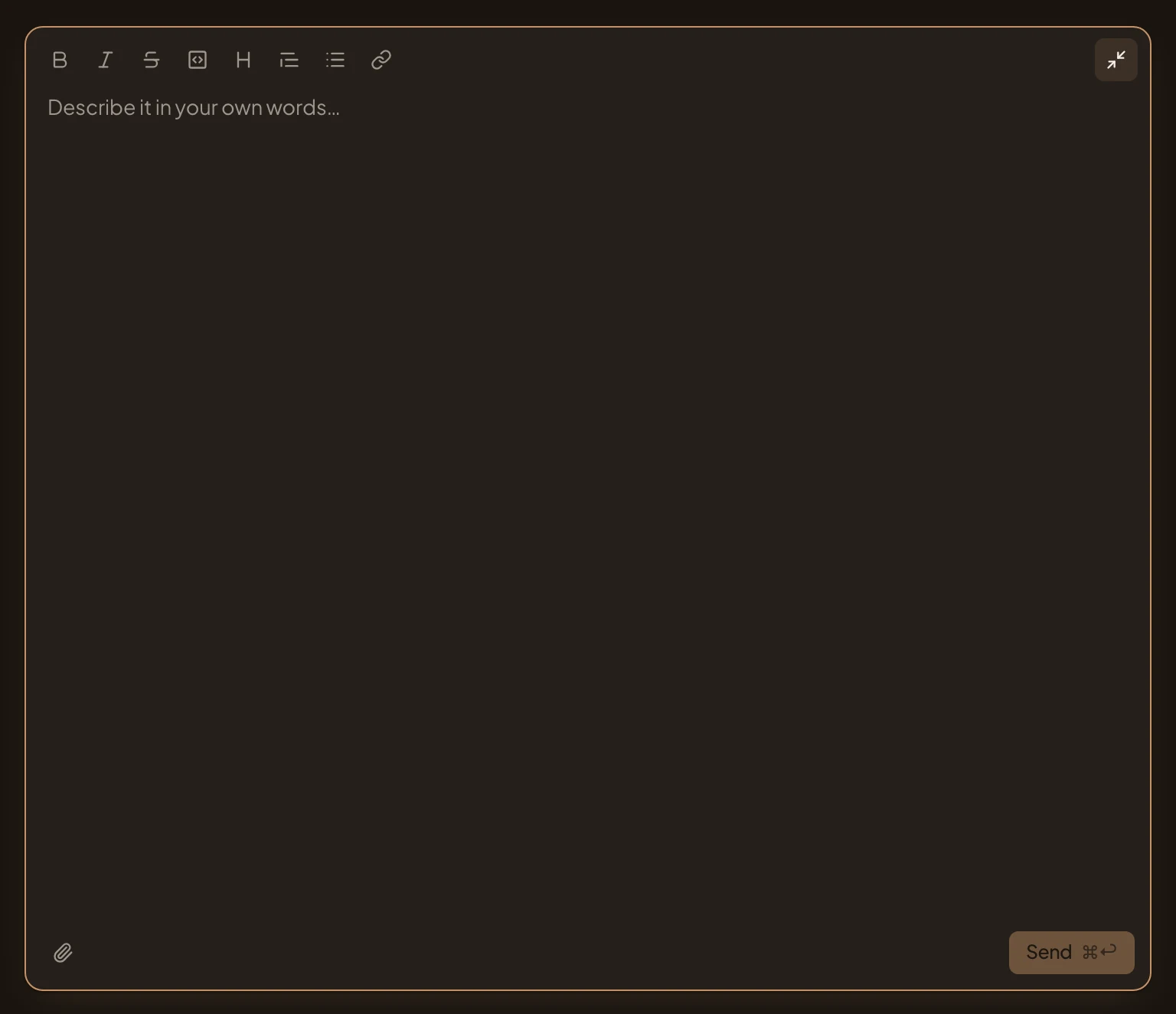
- Formatting: bold, italic, strikethrough, code block, heading, quote, bulleted list and link.
- Shrink the message box.
In the bigger box, Send shows ⌘ and Enter. Press both to send.
Starting a subtopic
Section titled “Starting a subtopic”Use Add a subtopic in a topic’s ⋯ menu to start a topic under that one. The line under the question names it. The templates work the same. A subtopic has the same sharing as the topic above it until its owner changes it. See Subtopics.
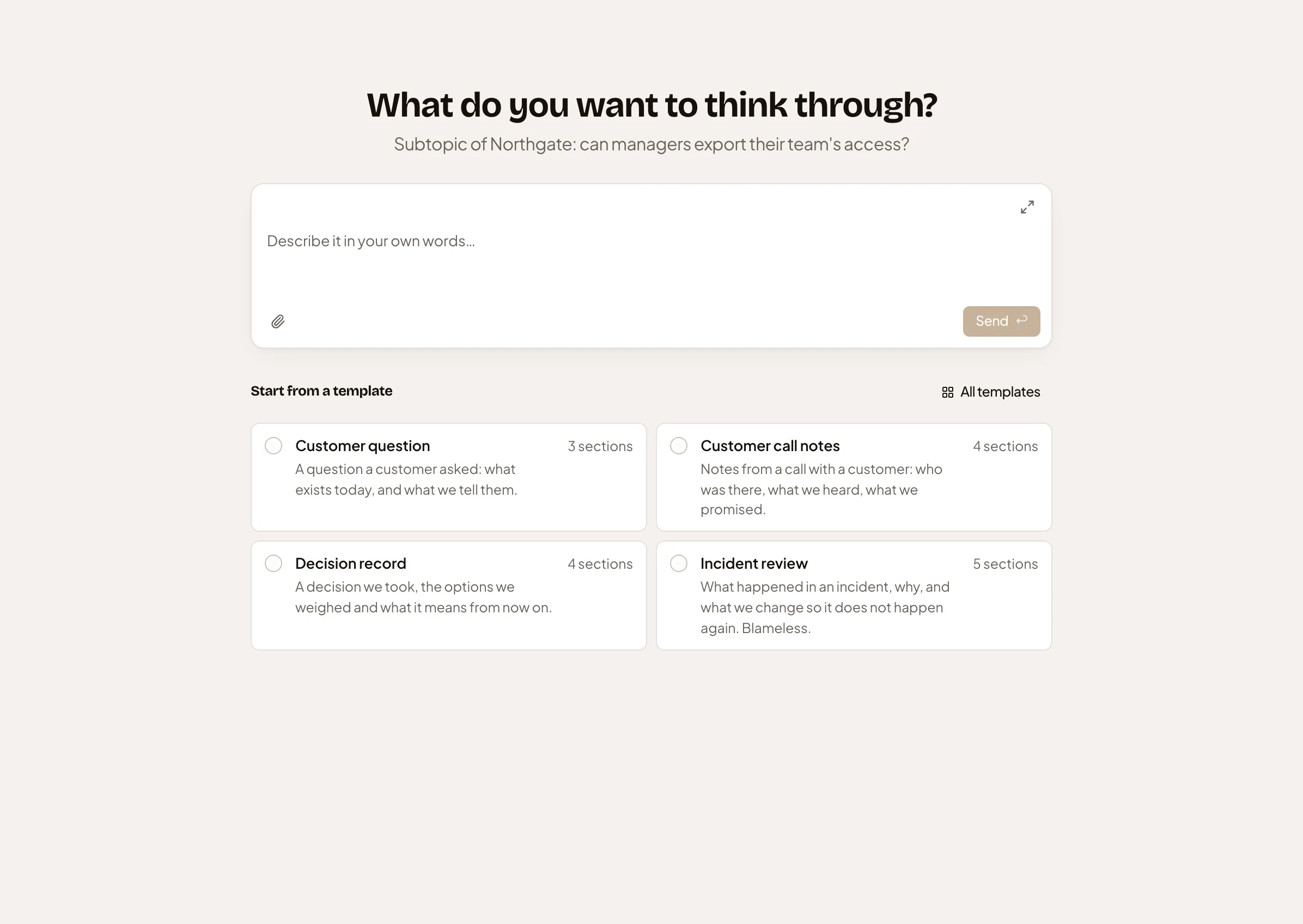
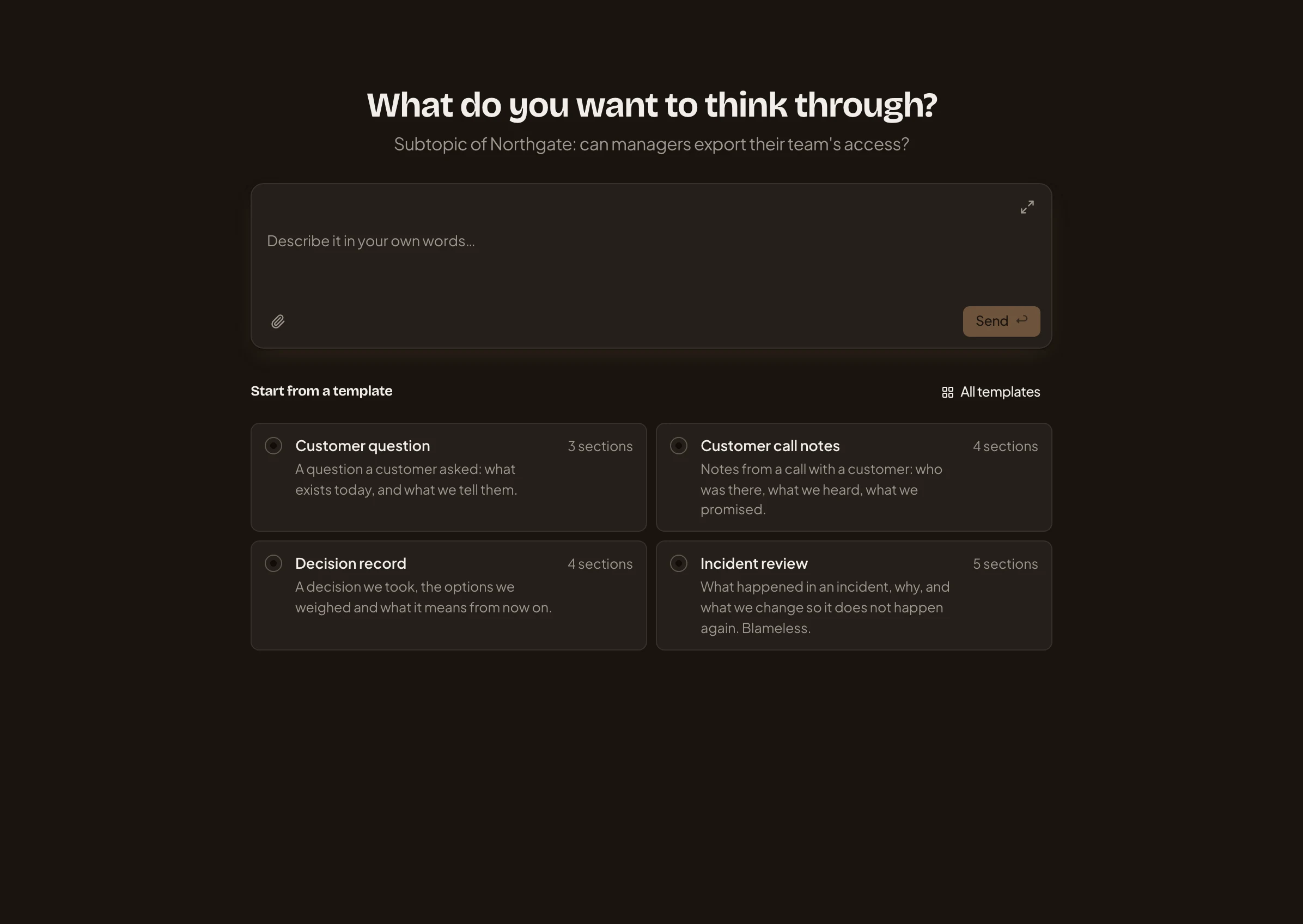
- The topic it goes under.
On a phone
Section titled “On a phone”The page is the same, in one column: the question, the message box, then the templates.
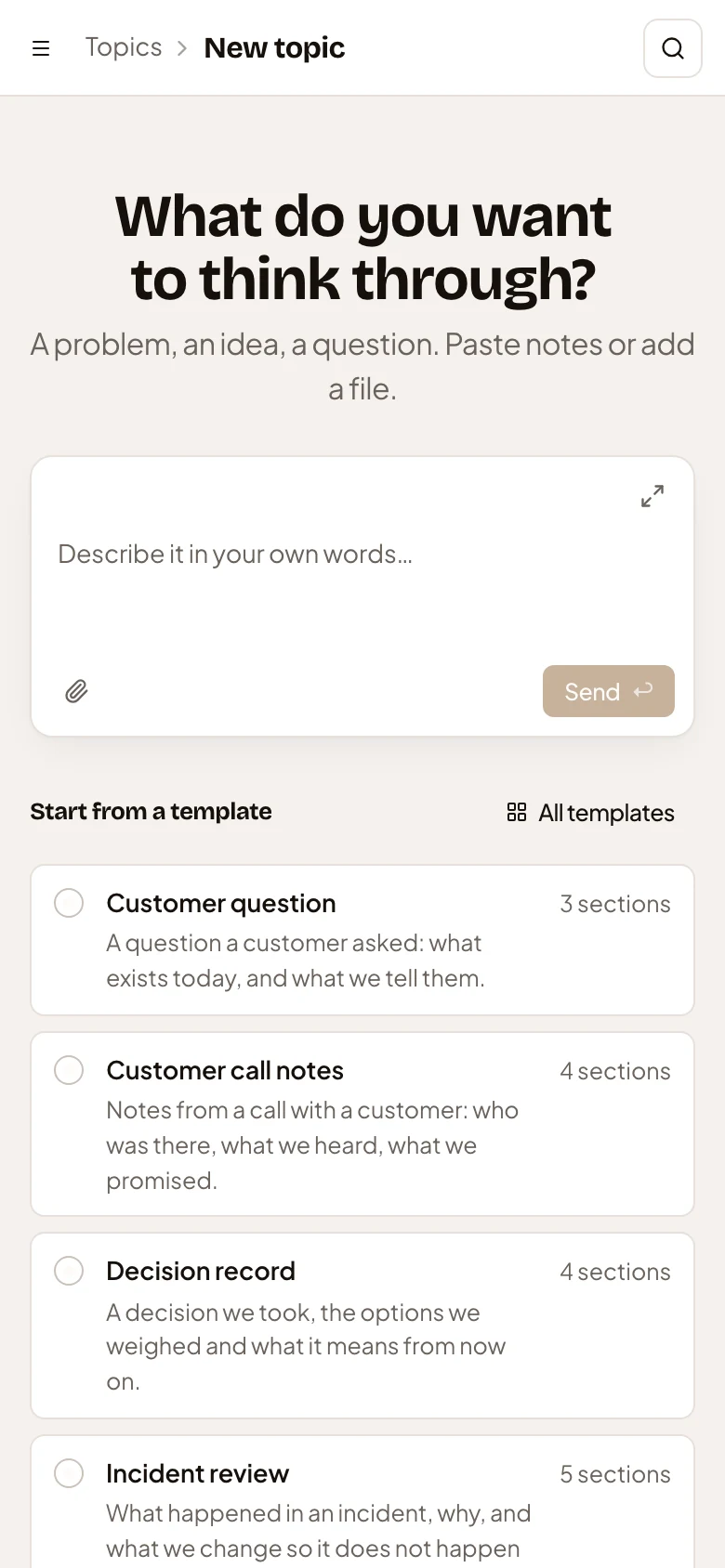
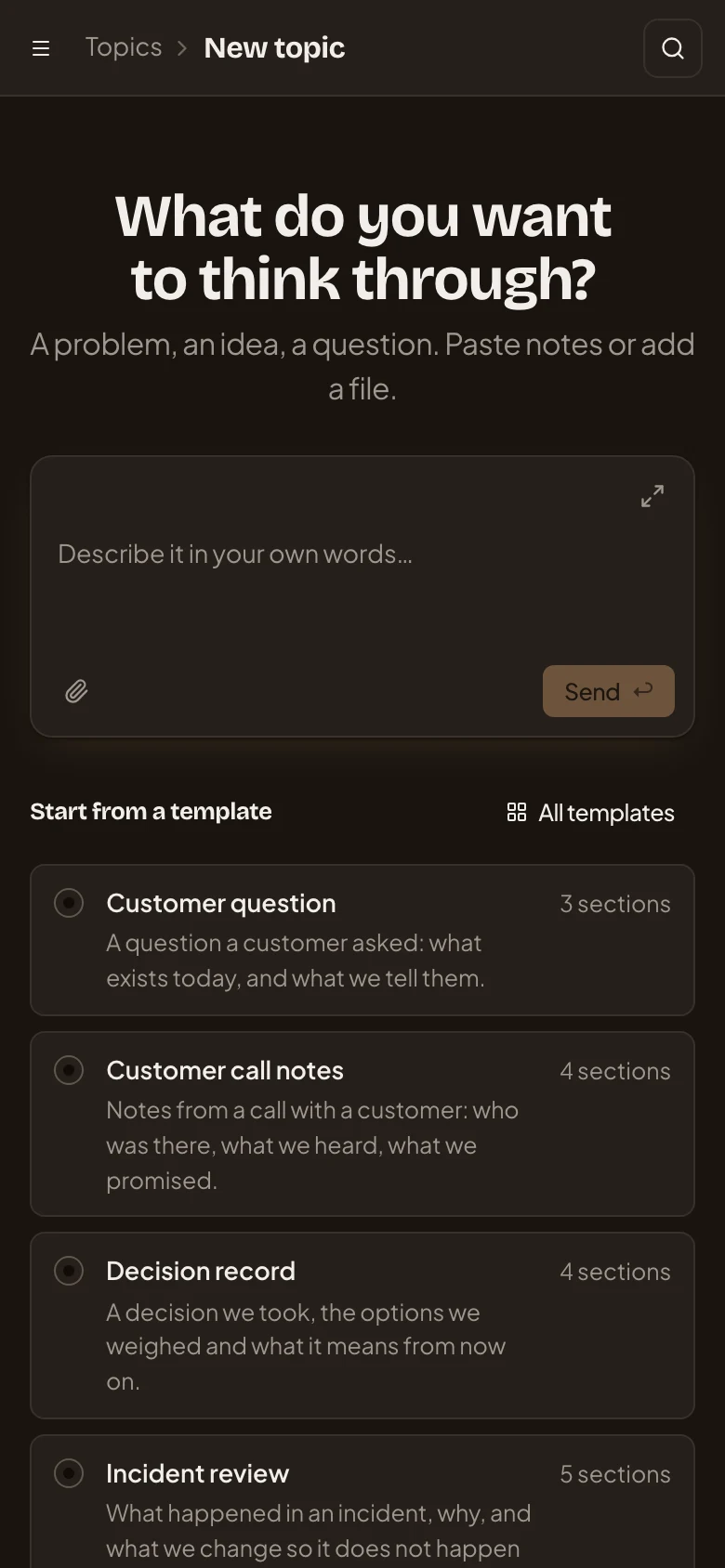
- Open the menu.
- Start a topic. The message box.
- Start from a template. The templates, one under another.
Access
Section titled “Access”Everyone in the organisation can start a topic.