

AgentsPage by page
A template's page
A template’s page is where you read or change one template. It holds the fields and sections a topic of one kind starts with, and how the agent writes it. Open it by clicking a template’s name on the Templates page, or the template’s name at the top of a topic that follows it.
The picture shows Security questionnaire, a template made on 12 October for the questionnaires customers’ security teams send. One topic uses it.
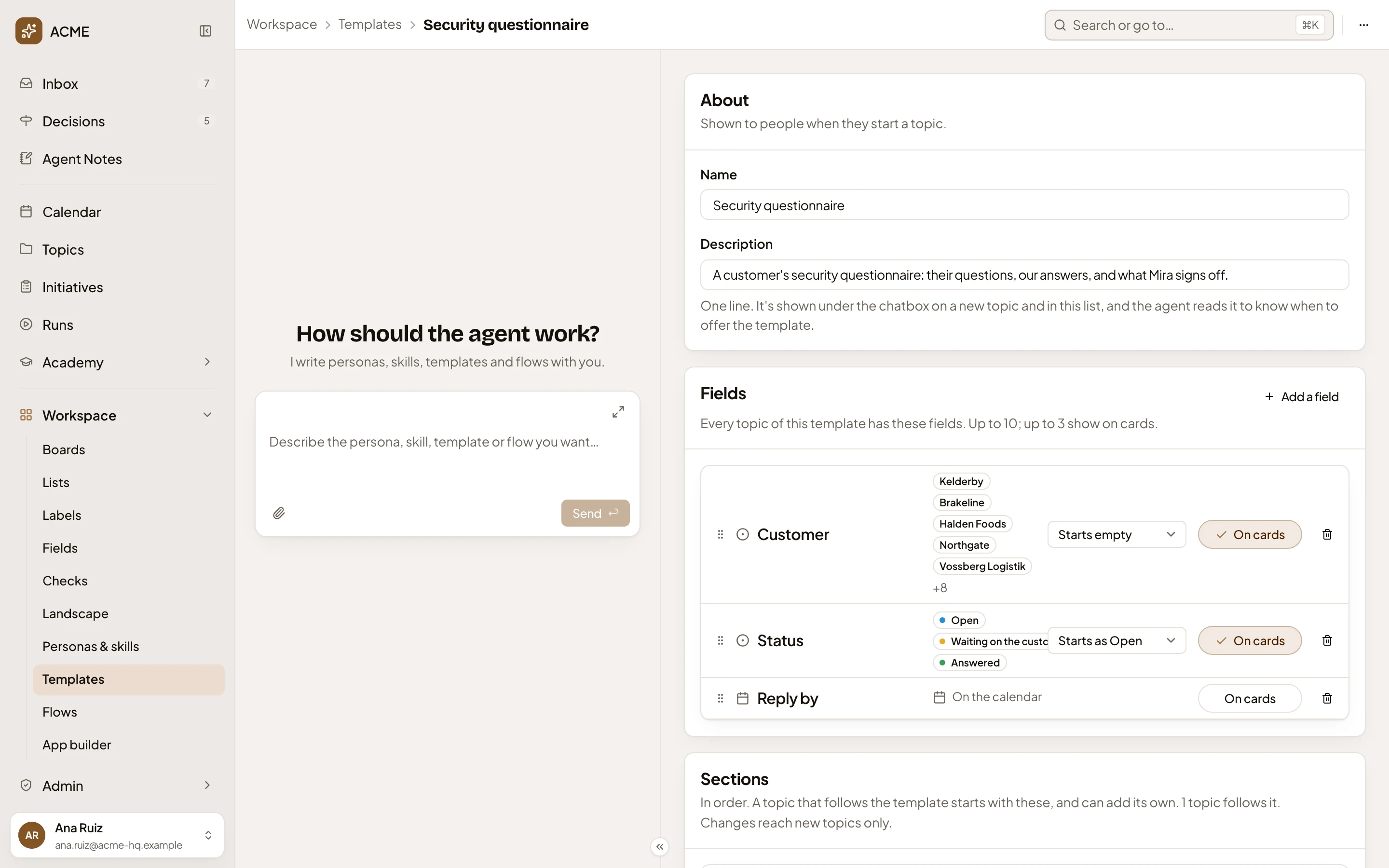
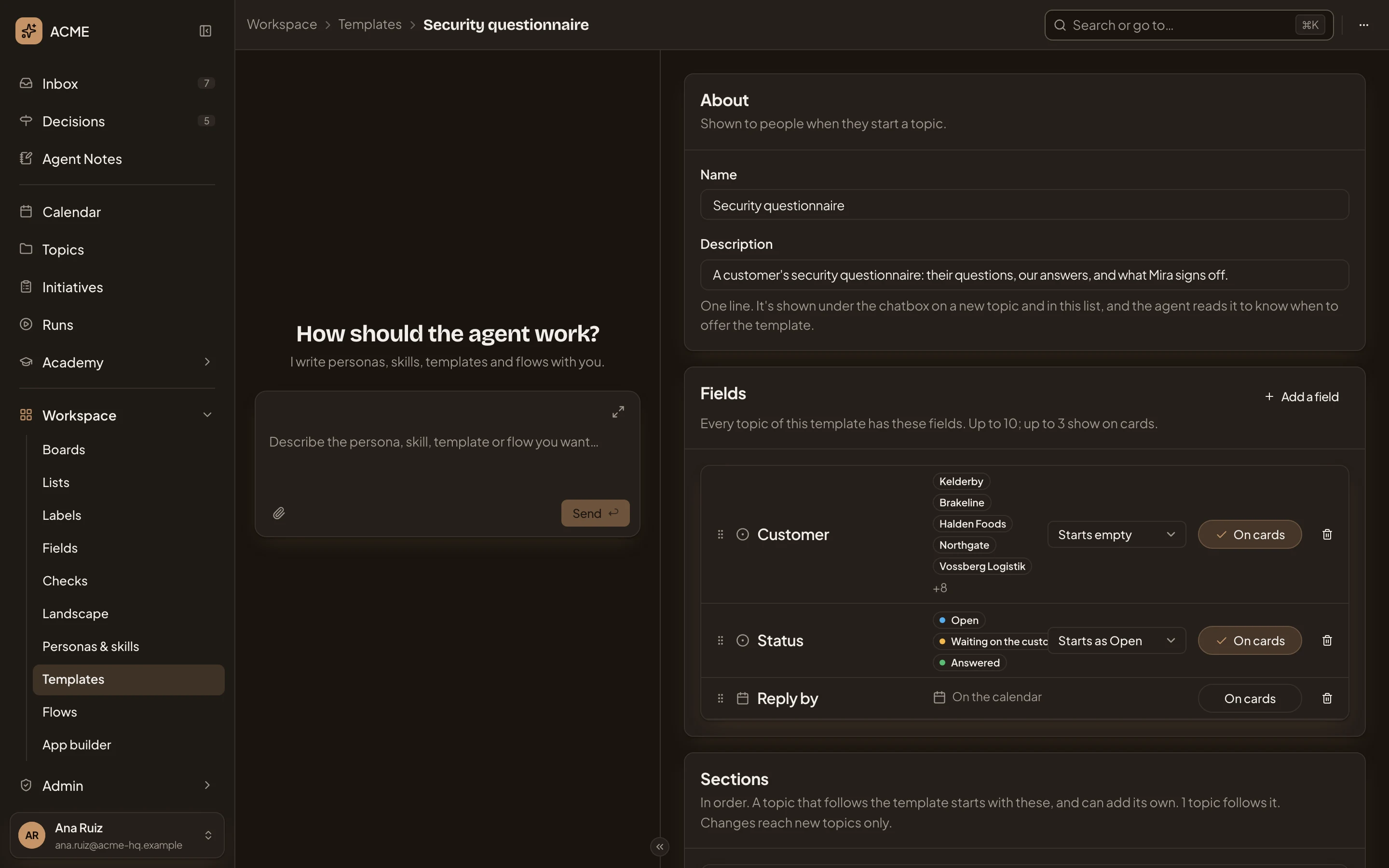
- You’re in Workspace, under Templates, on the template’s page. Templates goes back to the list.
- More actions for Security questionnaire. The ⋯ menu, with Copy link, and Duplicate, which makes a copy of your own and opens it.
- Name. What people see when they pick it.
- Description. One line. It shows under the message box on New topic and on the Templates page, and the agent reads it to know when to offer the template.
- Add a field. Adds one of the organisation’s fields (see Fields).
The personas agent on the left can change the template for you. Ask it to add a section, reword one, or add the fields a kind of topic needs. It fills the page as you watch and asks in the chat before saving.
Fields
Section titled “Fields”The fields every topic of this template carries. A template holds up to ten, and up to three of them show on the topic’s cards and rows.
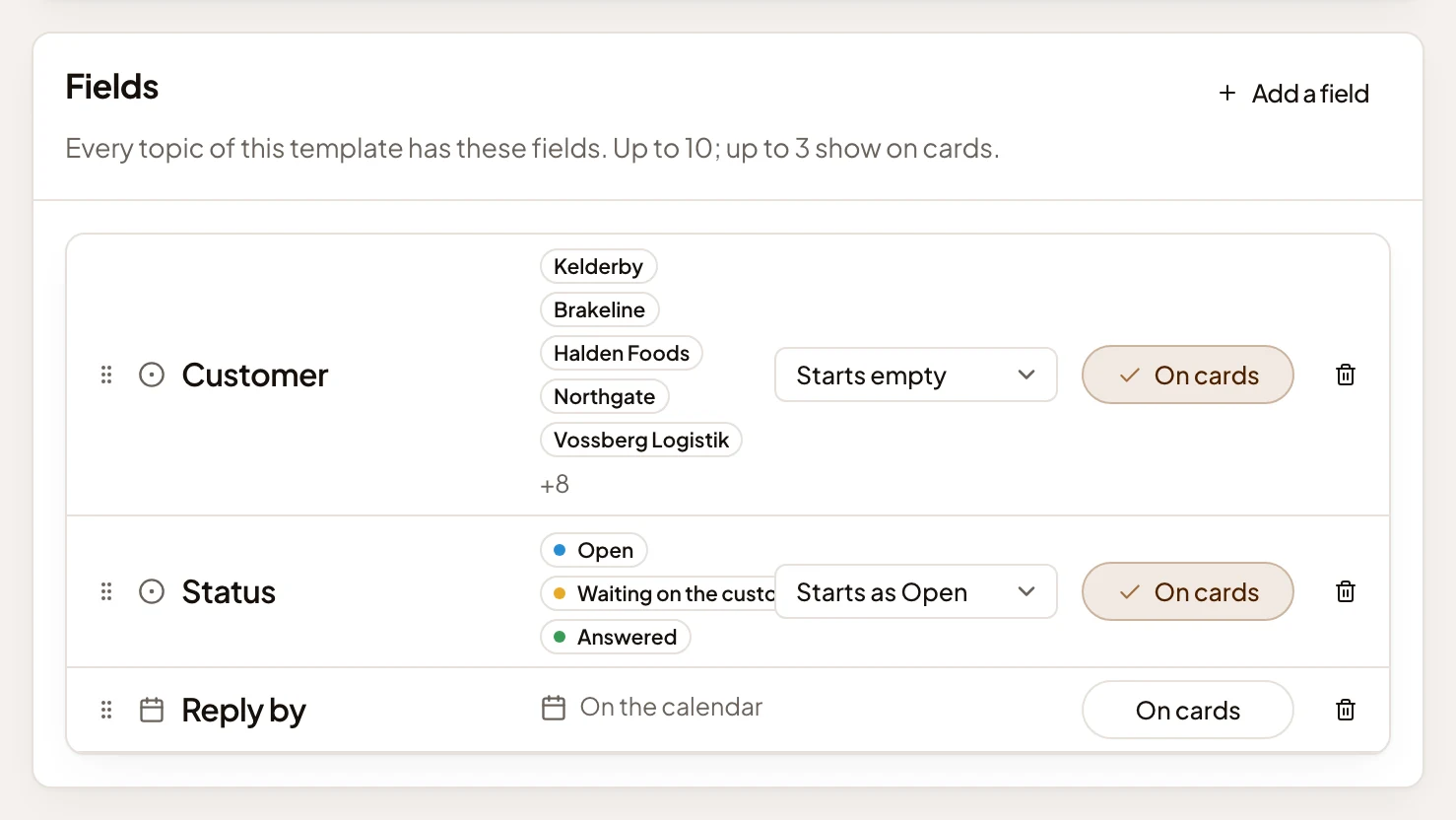
- Add a field. Opens a list of the organisation’s fields not on the template yet (see below).
- Move Customer. Drag the handle to put the field in another place.
- A field you pick from a list shows its values. A date shows “On the calendar” when the calendar does.
- Starting value of Status. The value a new topic starts with, or Starts empty.
- Show Customer on cards. Pressed, the field shows on the topic’s card and row. Once three fields are on cards, the others’ buttons are greyed out.
- Show Reply by on cards. Not pressed: Reply by stays at the top of the topic but not on its card.
- Remove Customer. Takes the field off. It asks first, and says how many topics hold a value for it: those values go when you save.
Unlike sections, fields stay live. Add a field to a template, and the topics that follow it get the field, those already there and those to come. A built-in template has no fields, and the section says “Copy this template to add fields.”
Add a field opens a list to find a field by name.
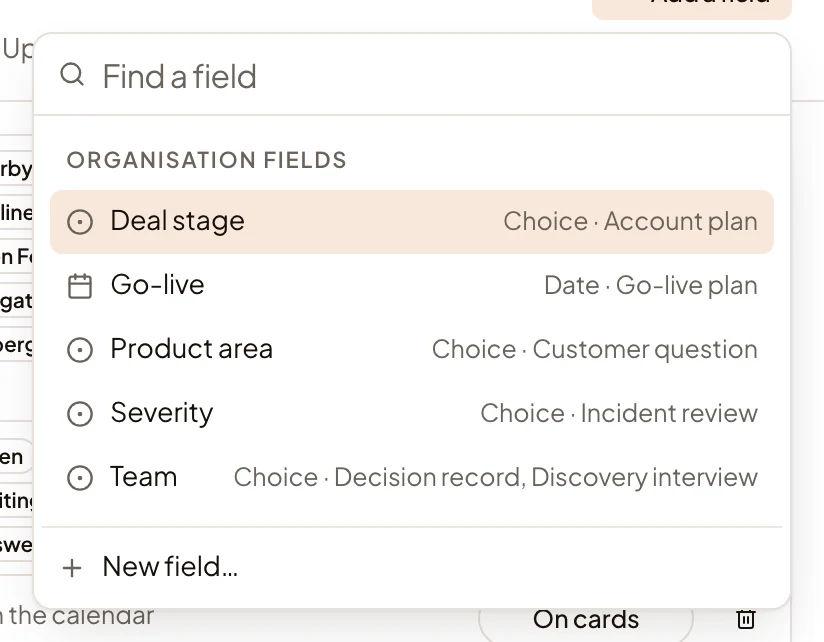
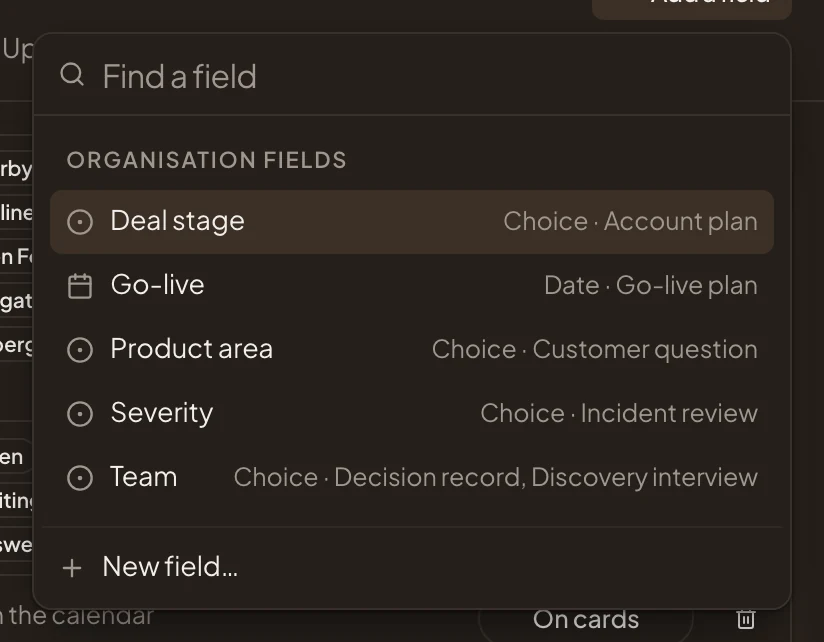
- Team. One of the organisation’s fields, with its kind and the templates that use it already, here Decision record and Discovery interview. Click it to add it.
- New field…. Opens a new field’s page. Once you create the field there, you come back here with it added.
Sections
Section titled “Sections”A topic that follows the template starts with these sections, in this order, and can add its own. Closed rows show the title, the first line of what goes in it, and what it needs at least, or “Anything”. Click a row to open it.
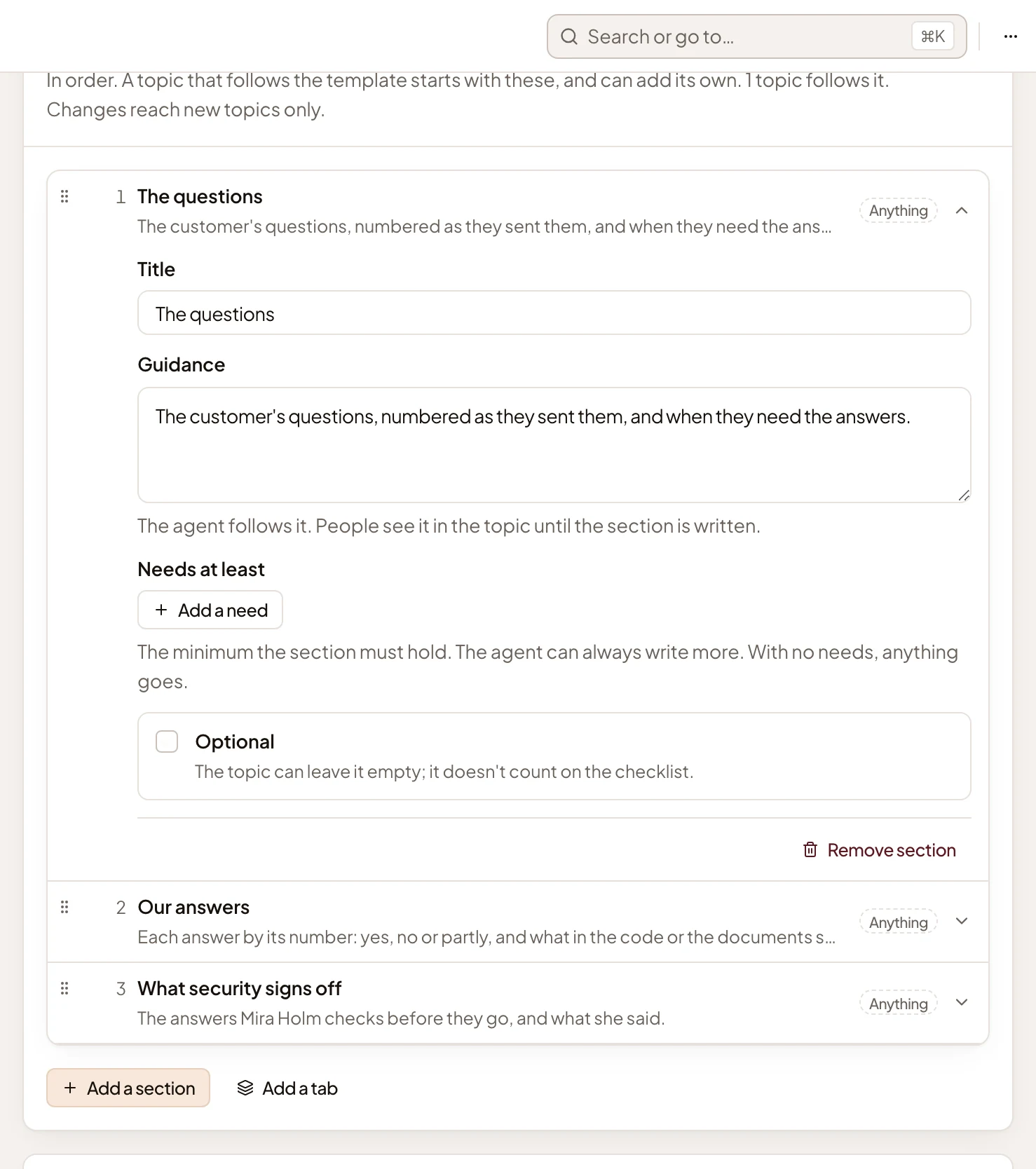
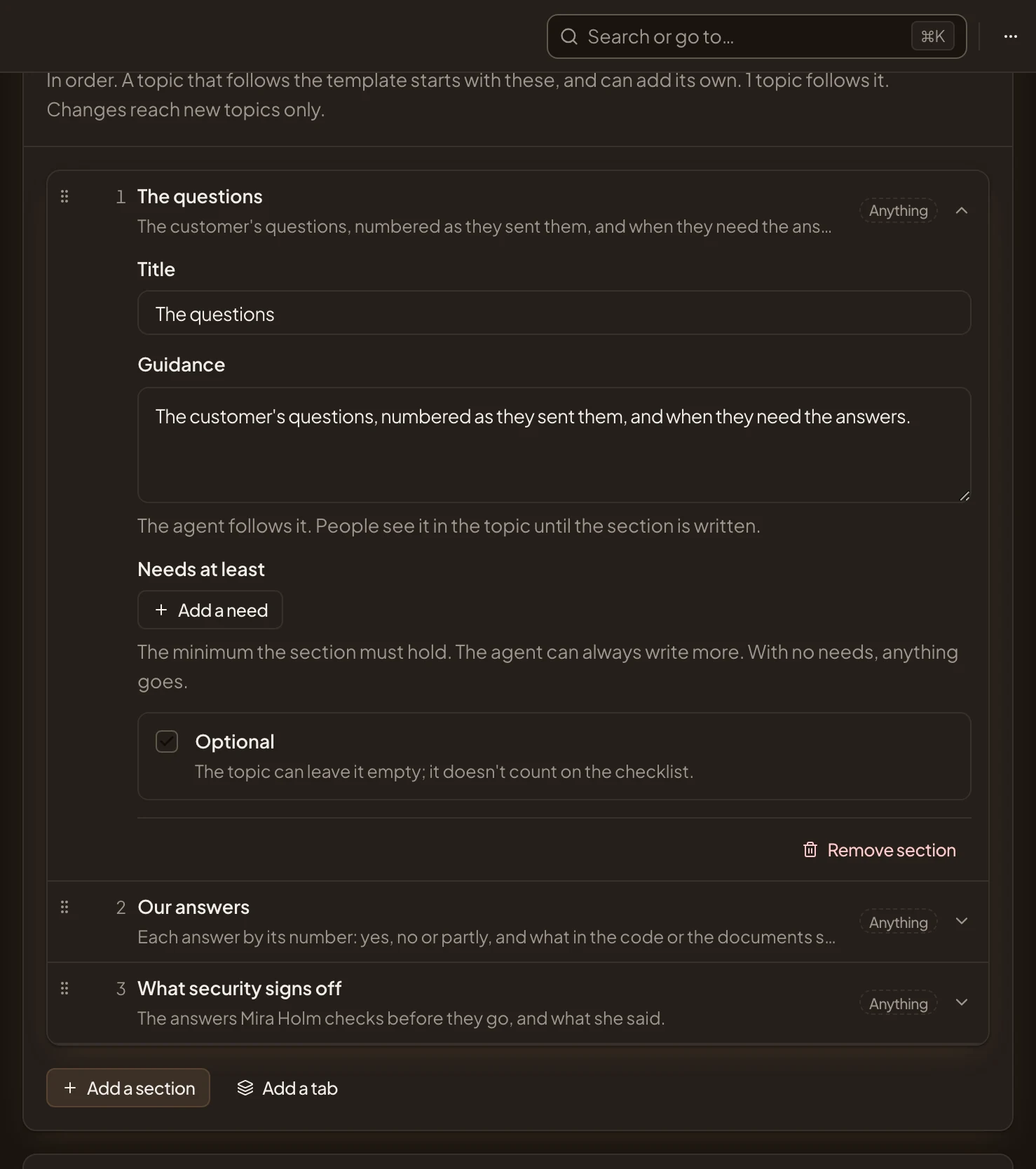
- Move The questions. Drag the handle to put the section in another place.
- Title. The section’s heading in the topic.
- Guidance. The agent follows it, and people see it in grey in the topic until the section is written.
- Add a need. Sets what the section must include (see below). The agent may always write more.
- Optional. The topic can leave the section empty, and it doesn’t count towards what the topic still needs.
- Remove section. Takes the section off the template when you save. It asks first. Topics that already follow the template keep theirs.
- A closed section. Click it to open it.
- Add a section. Adds an empty section at the end, open, for you to name. A template holds up to 20 sections, or 40 with tabs.
- Add a tab. Splits the template into tabs (see Tabs).
Add a need opens the kinds a section can ask for, from Text and Table to Reality check, where the agent checks the code and says what exists. Each says in a line what it is.
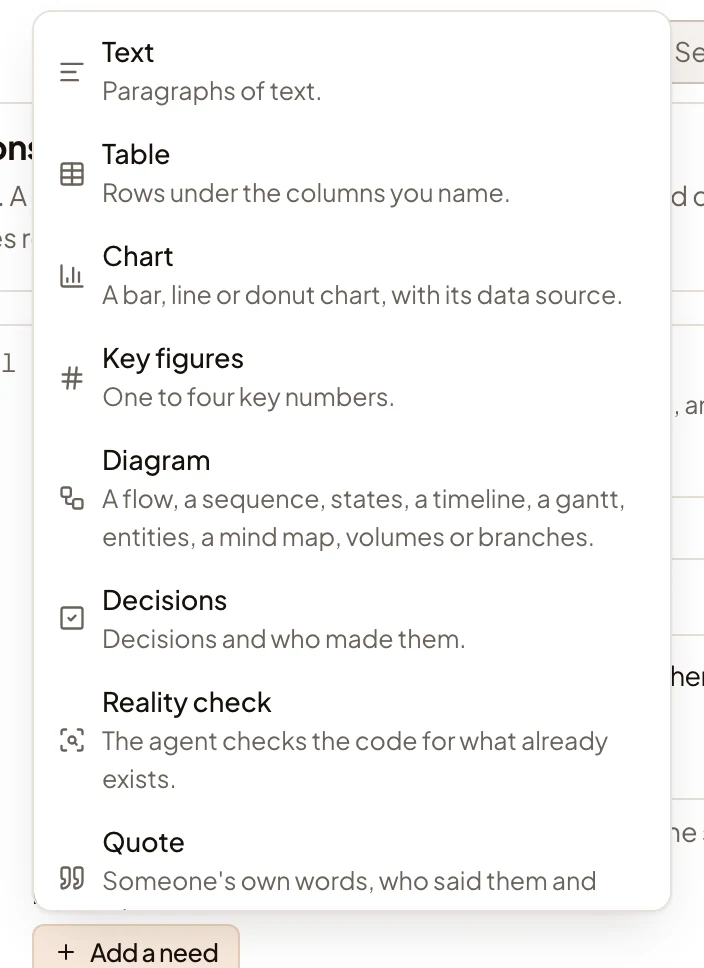
For some needs, you choose one more thing, like a table’s columns or a reality check’s question. The same need twice counts once.
Once topics follow a template, the section counts them, and that changes reach new topics only. Changing the sections never rewrites topics that already started.
You can split a template for long topics into tabs, each with its own sections. Add a tab puts the sections you have into a first tab, open, and adds an empty second one. Each tab is a card, with its name, a line on what goes in it for the agent, and its sections under it.
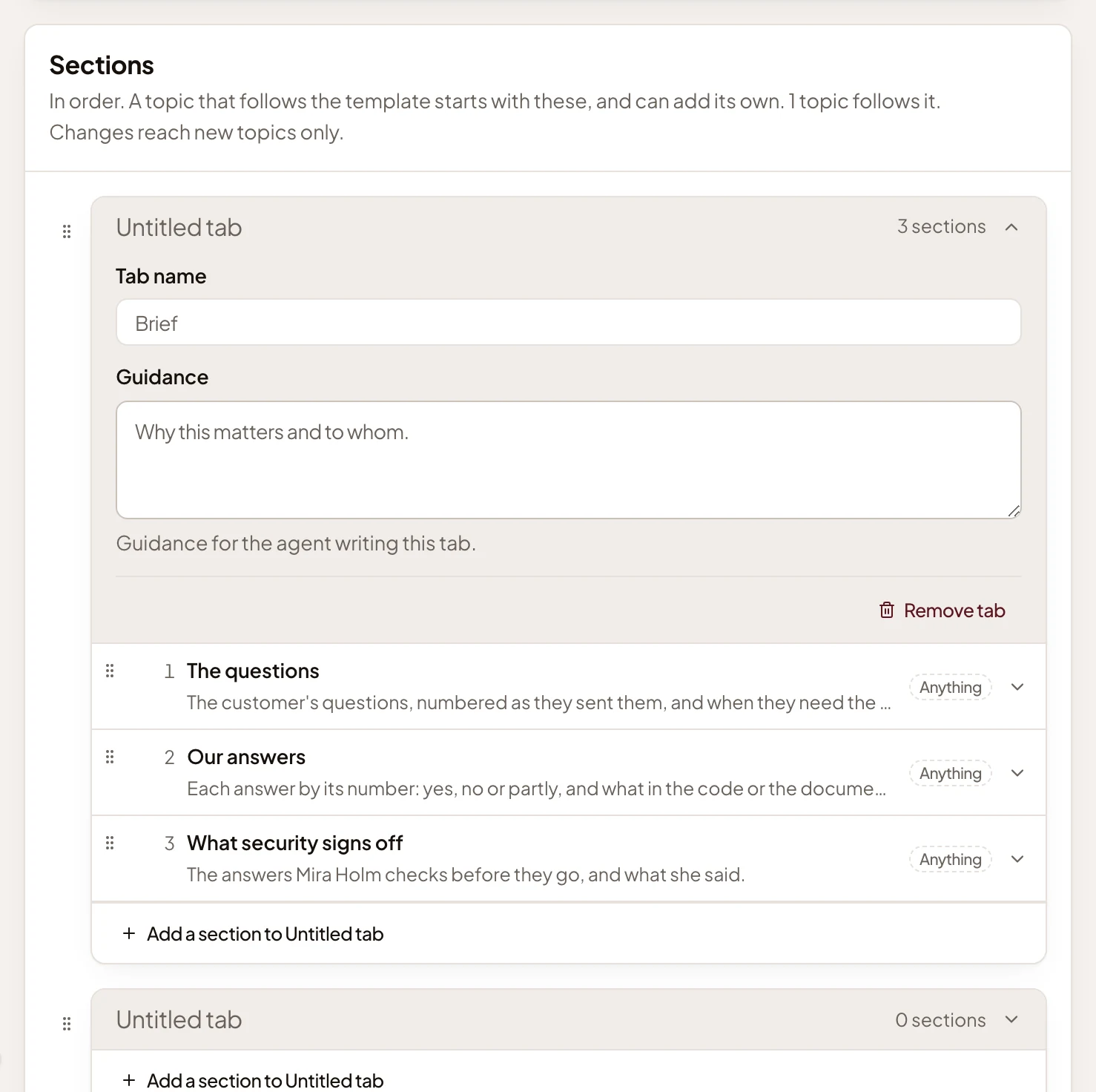
- A tab, with the number of sections it holds. Click it to open or close it.
- Tab name. The tab’s name in the topic.
- Guidance. What goes in this tab, for the agent writing it.
- Remove tab. Asks first, then moves its sections to a neighbouring tab. With one tab left, the template reads as one column again.
- Add a section to Untitled tab. Adds a section to this tab.
- Add a tab. Adds another tab, up to eight.
A section’s own form has a Tab choice, which moves it to the end of another tab. Like sections, new tabs reach new topics only, and the preview shows them.
Preview
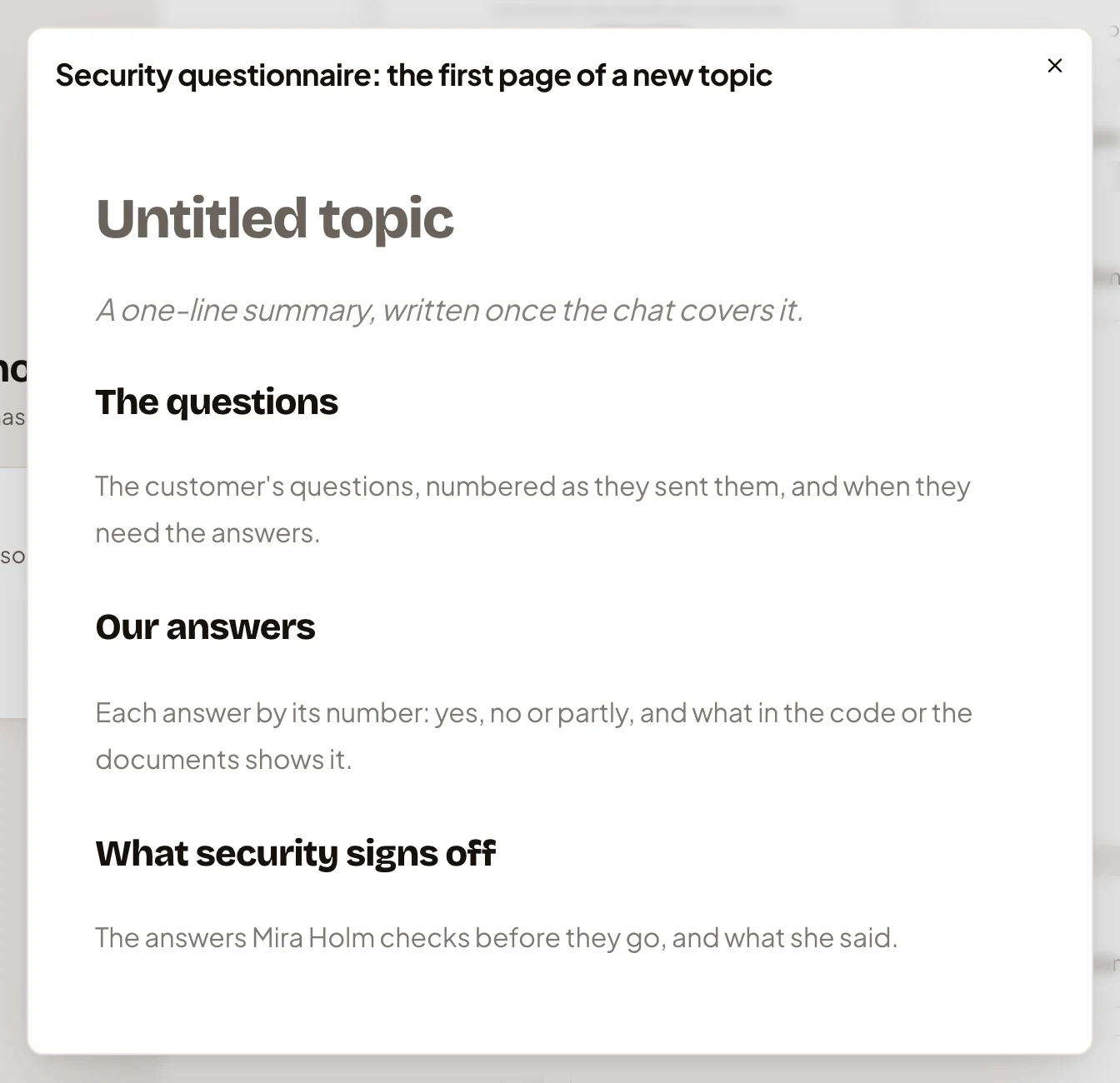
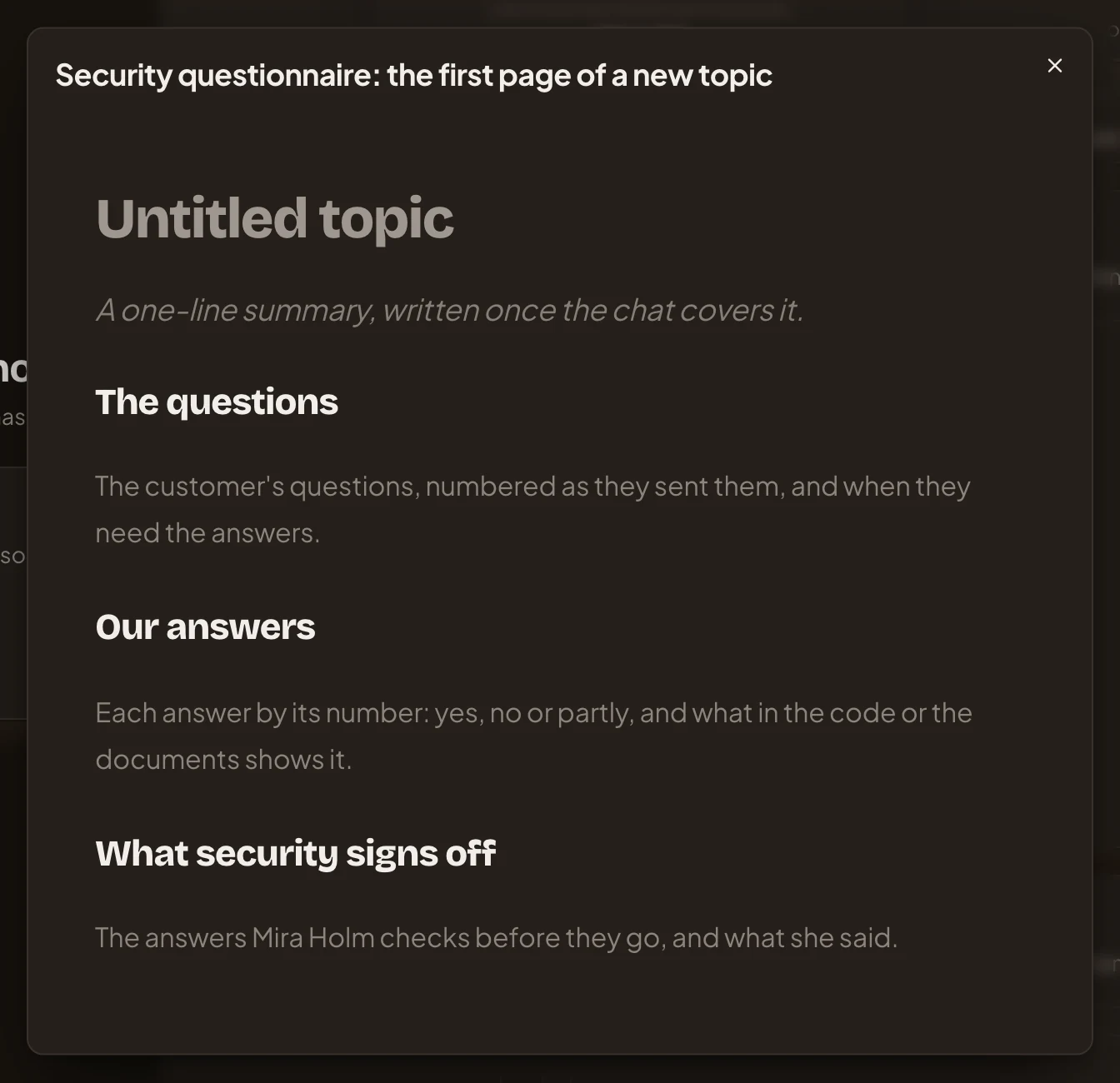
Section titled “Preview”The Preview section shows a small picture of the first page of a topic that follows the template, before anything is written. Click it to see it full size.
Writing it, saving and versions
Section titled “Writing it, saving and versions”Writing guidance is for the whole document, in Markdown. It says who reads it, how long it is, and its tone.
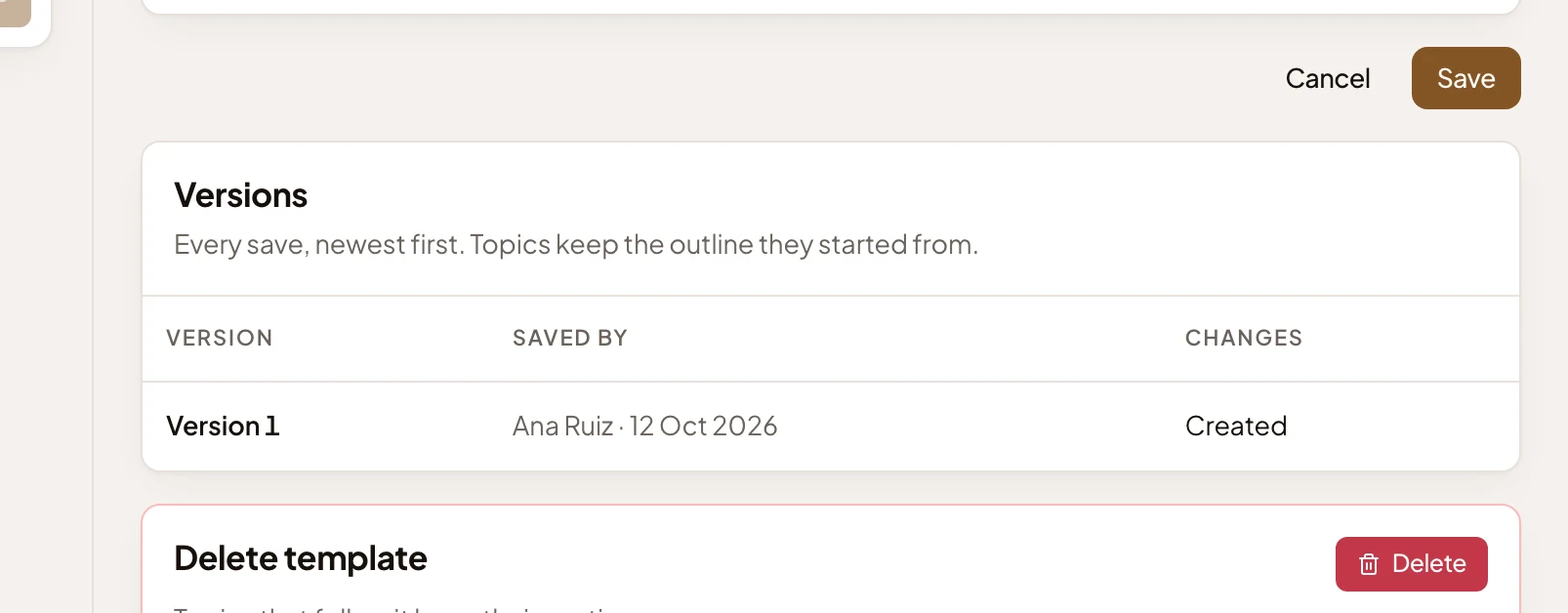
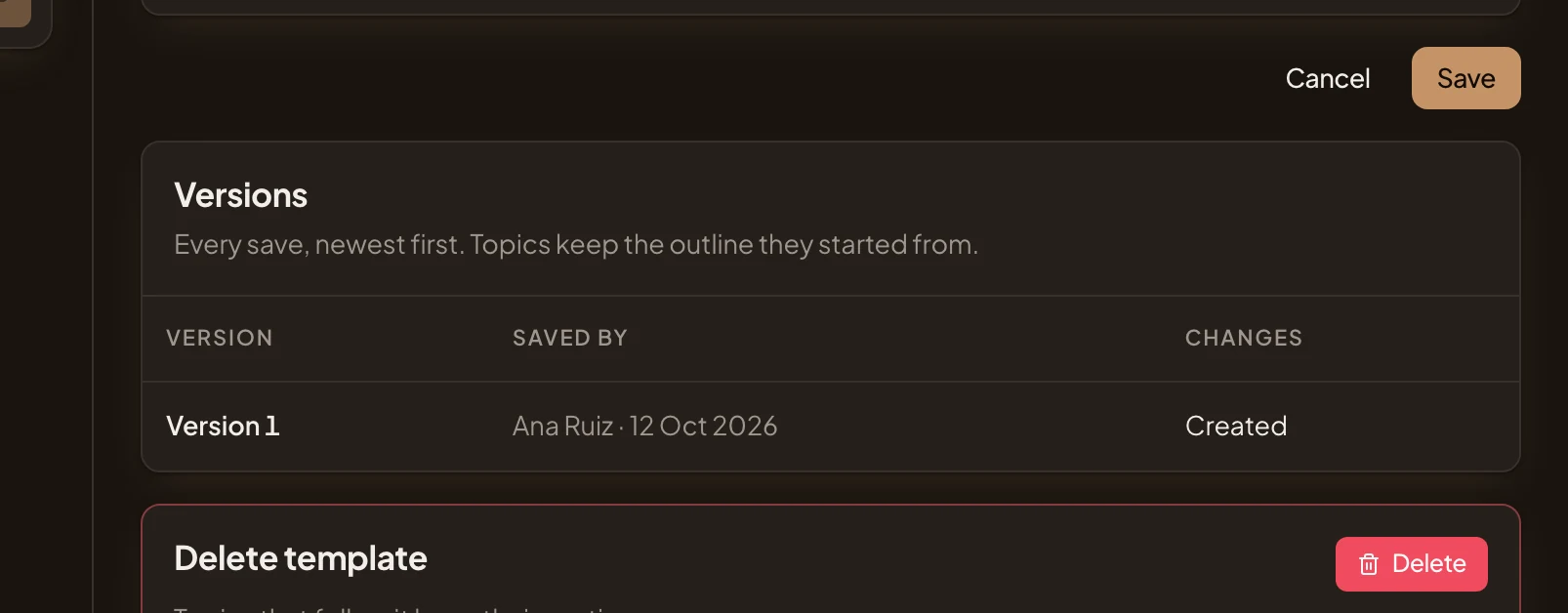
- Save. Saves the template as a new version and goes back to the Templates page. Cancel leaves without saving.
- Version 1. Every save, newest first, with who saved it, when, and what changed. A save made through someone’s own assistant names it too. Topics keep the outline they started from.
- Delete. Deletes the template once you confirm. Topics that follow it keep their sections.
A built-in template
Section titled “A built-in template”Emargen’s own templates, such as Decision brief, can’t be changed.
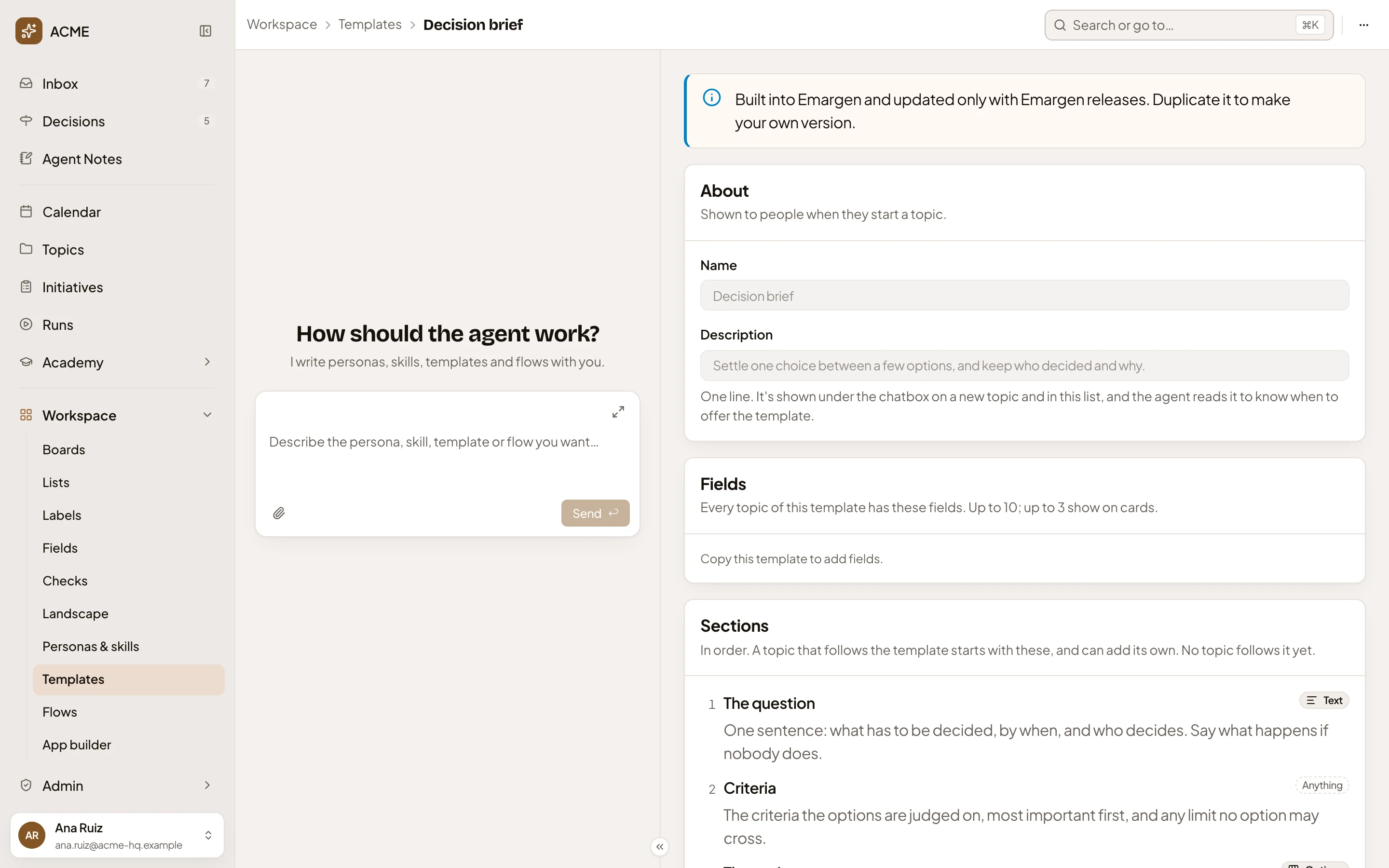
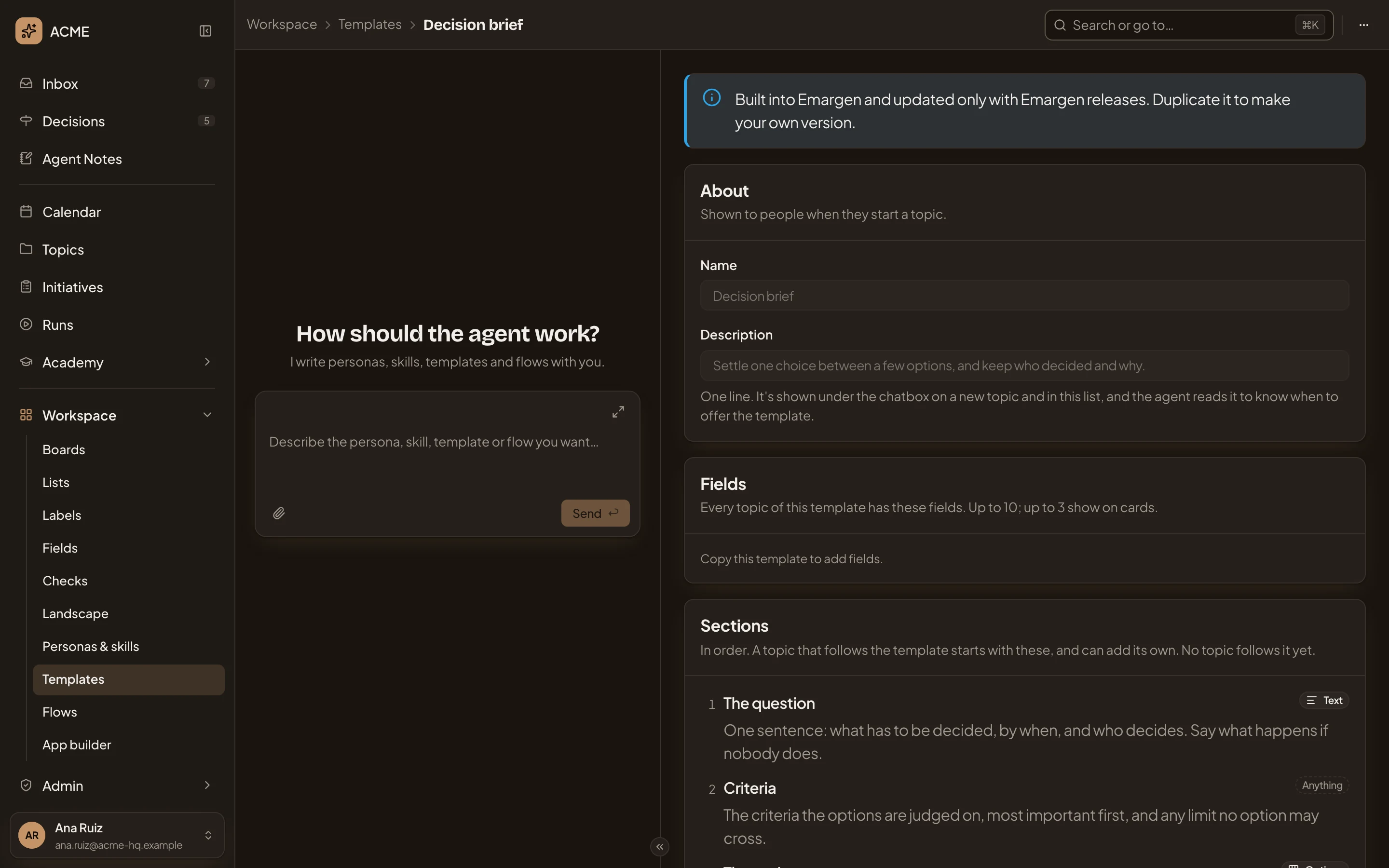
- “Built into Emargen and updated only with Emargen releases. Duplicate it to make your own version.”
- More actions for Decision brief. Its Duplicate makes a copy you can change.
- “Copy this template to add fields.” Built-in templates carry none.
A template you can only use, such as a colleague’s shared with you, looks the same, with “You can use this template. Duplicate it to make one of your own you can change.” at the top.
New template
Section titled “New template”New template on the Templates page opens an empty page.
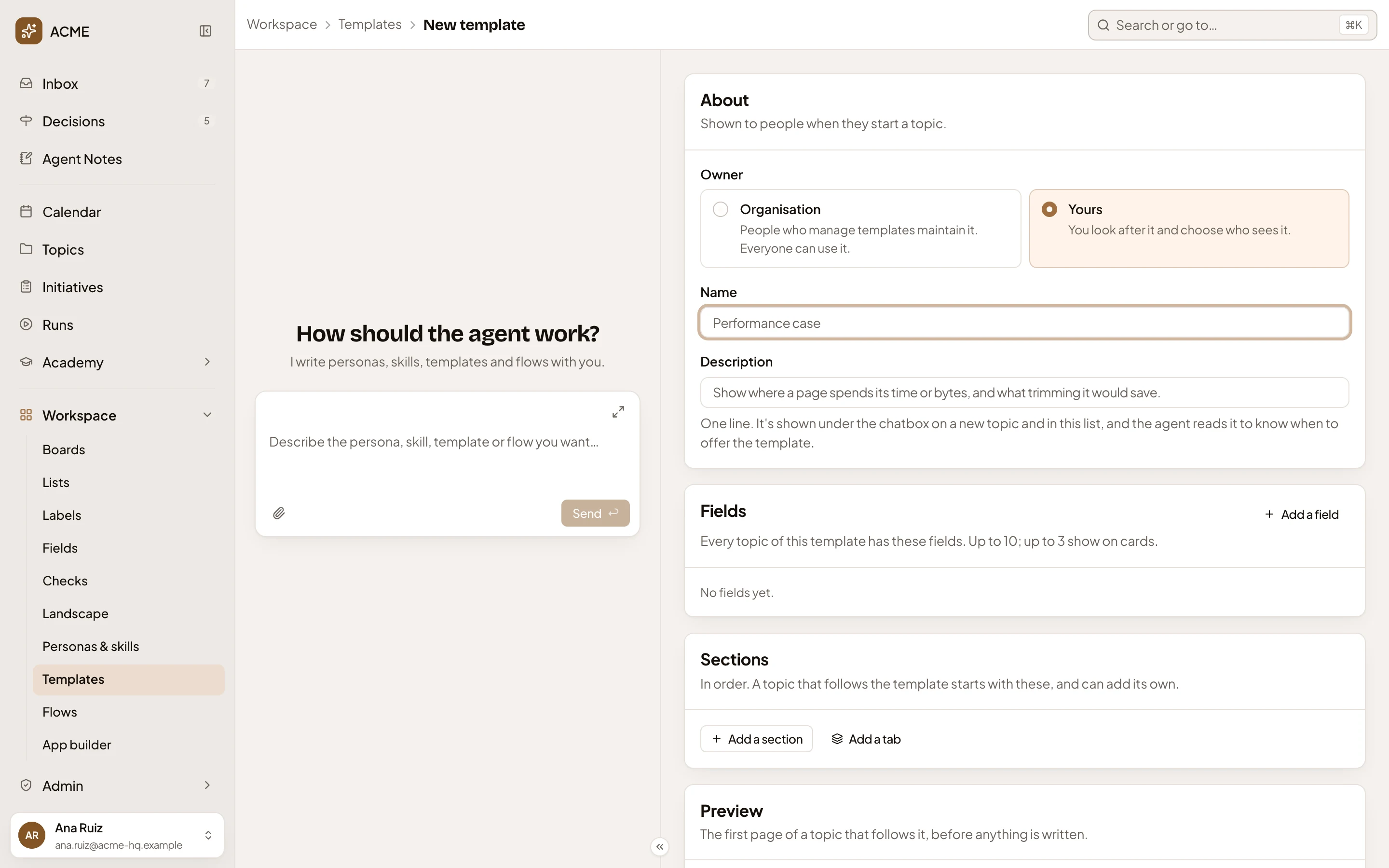
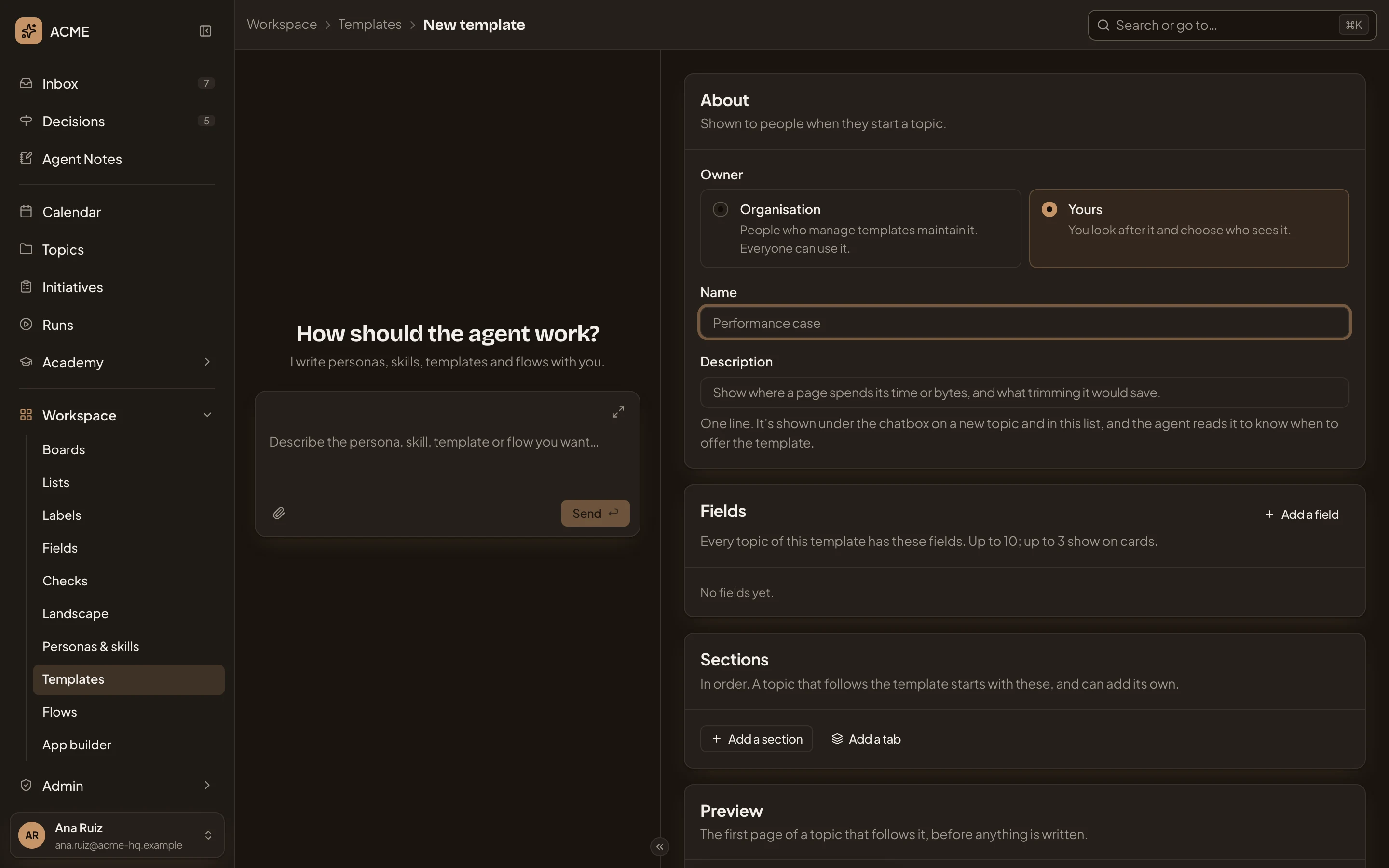
- Owner. Organisation, which those who manage templates look after and everyone can use. Or Yours, which you look after and share as you choose. Only people who manage templates see this choice.
- Add a field. As on a template that exists.
- Add a section. A template needs at least one section, each with a title.
A template of your own ends with Sharing, starting at Only me. Create template stays greyed out until the template has a name, a Description, and at least one section with a title. It saves the template and opens its page.
You can also start a template from a topic. Save as a new template in a topic’s ⋯ menu opens New template, with the personas agent already drafting it from that topic.
Access
Section titled “Access”Anyone can open a template they can use. People whose role lets them manage templates change the organisation’s templates. You change your own, and so do the people you share them with as Edits. Emargen’s own change with its releases only.