

AdminPage by page
Roles & permissions
Roles & permissions lists your organisation’s roles, then every permission a role can hold and which roles hold it. Open the Roles & permissions tab of People, under Admin in the menu.
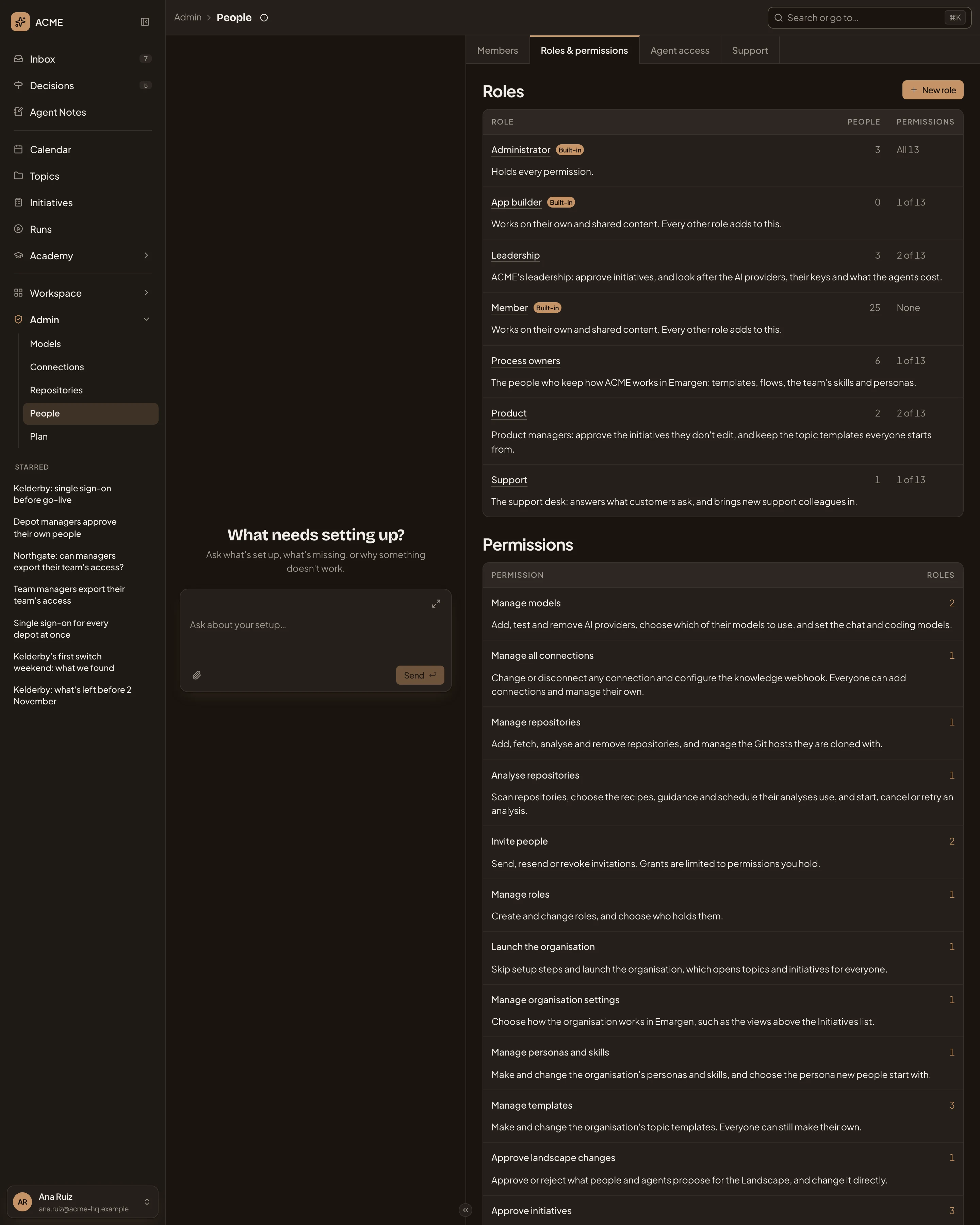
Open Roles & permissions (opens Emargen in a new tab)The picture shows ACME’s roles. Administrator, App builder and Member are built in. The rest are ACME’s own, such as Product for its product managers and Support for its support desk.
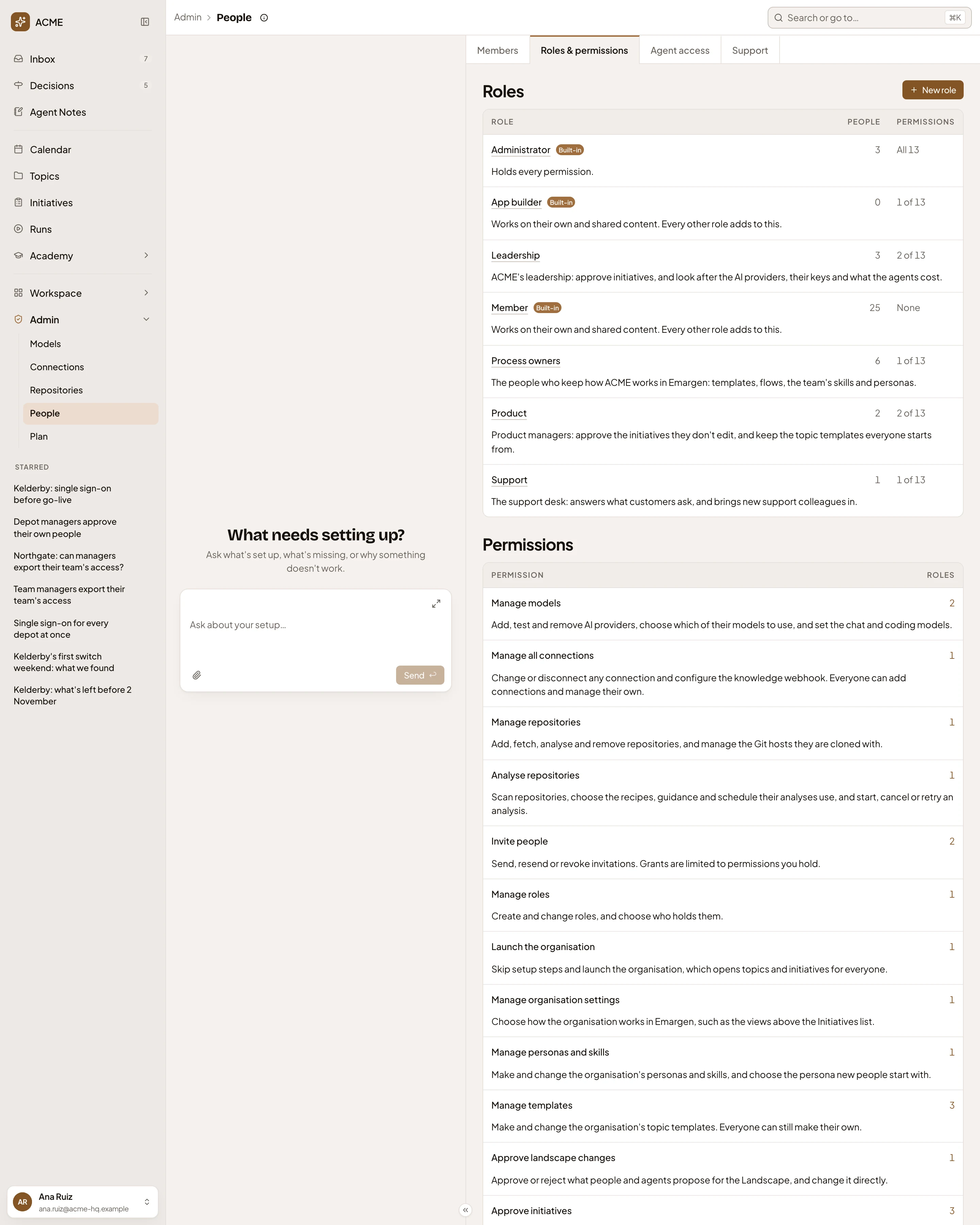
- New role. Opens an empty role page to make one.
- A role’s name. It opens the role’s page.
- Built-in. A role every organisation has. Its name and permissions don’t change.
- People. How many people hold it.
- How many permissions it holds. Member holds None.
- What the role is for. A built-in role says what holding all, or none, means.
- Permissions. Every permission, with what it allows.
- How many roles grant it. Click the number to see which.
Administrator holds every permission, and whoever set the organisation up holds it first. Member holds none. Everyone holds Member, and every other role adds to it. App builder holds only Build apps, for the people who build the organisation’s apps. Everyone else can still use the apps shared with them. Roles and permissions says what each permission reaches across the app.
Roles that grant a permission
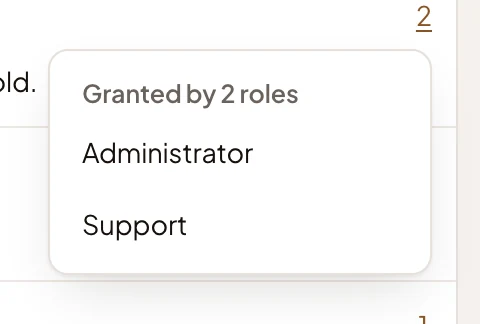
Section titled “Roles that grant a permission”Click the number beside a permission. A small list names the roles that grant it, and each opens its page. A permission no role grants shows 0.
From single sign-on
Section titled “From single sign-on”When your organisation signs in through your company’s single sign-on, you’ll find a section called From single sign-on between the roles and the permissions. It lists the roles your company sends at sign-in, and the Emargen roles each one gives.
Each row is a company role. It shows the role’s name, how many people carried it at their last sign-in, and the Emargen roles it gives, or None. Select a row, then Choose roles, and tick the Emargen roles it gives. Everyone with that company role gets them at once, and again at every sign-in. Tick none, and the company role gives nothing.
Roles from sign-in sit beside the ones given by hand, which never change. When your company takes a role away from someone, the Emargen roles it gave go at their next sign-in. If your company no longer lists a role, you’ll see it on that row. Until your company lists roles or someone signs in with one, the section says “No company roles yet”.
Access
Section titled “Access”Administrators manage roles, unless your organisation gives Manage roles to another role. Someone who may only invite people lands on Members if they open it. Anyone else is told they need permission to manage roles or invite people.
See Make a role.