

AdminHow to
Decide what agents may do
Your people can connect their own agents to Emargen, like Claude Code on their computer or Claude in its own app. Each agent acts as the person who connected it. Here you decide the most any agent may do in your organisation, and each person can allow less. Your security team might want agents to read but never change anything. Agent access explains the idea behind it.
Before you start
Section titled “Before you start”- You need a role that may manage roles and the organisation’s settings. Administrators have both.
- Until you change it, agents may use every tool, and any Emargen adds later.
- In ACME, agents may use every tool until one is unticked.
Say your security lead wants to stop coding agents exporting published requirements as bundles. You take that one tool away. An agent allowed to read a published requirement still gets its contents. The bundle is only the packaged form.
-
Click Admin in the menu, then People under it, then the Agent access tab at the top of the page. Agent permissions says how many tools of each area agents may use.
Open Agent access (opens Emargen in a new tab)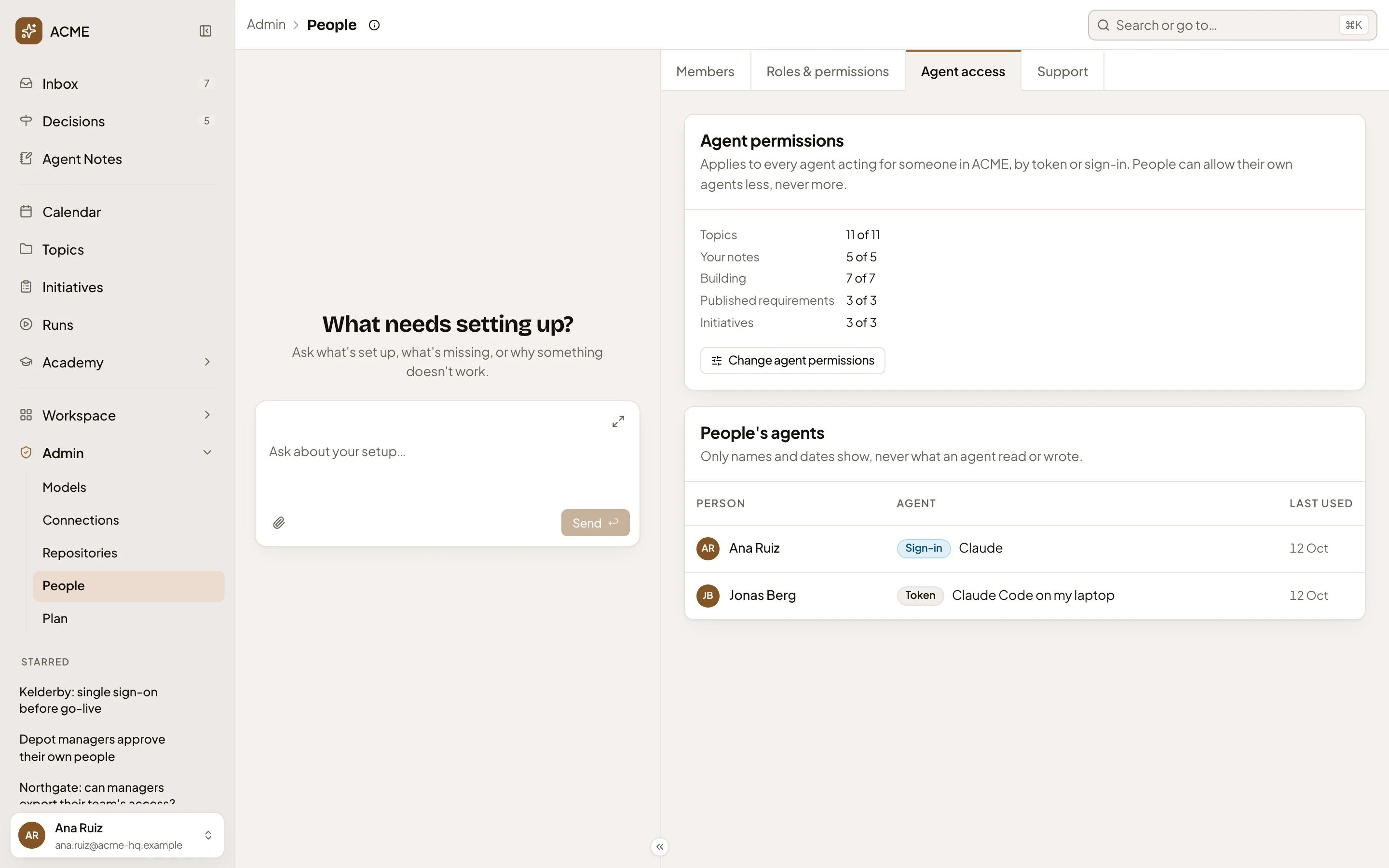
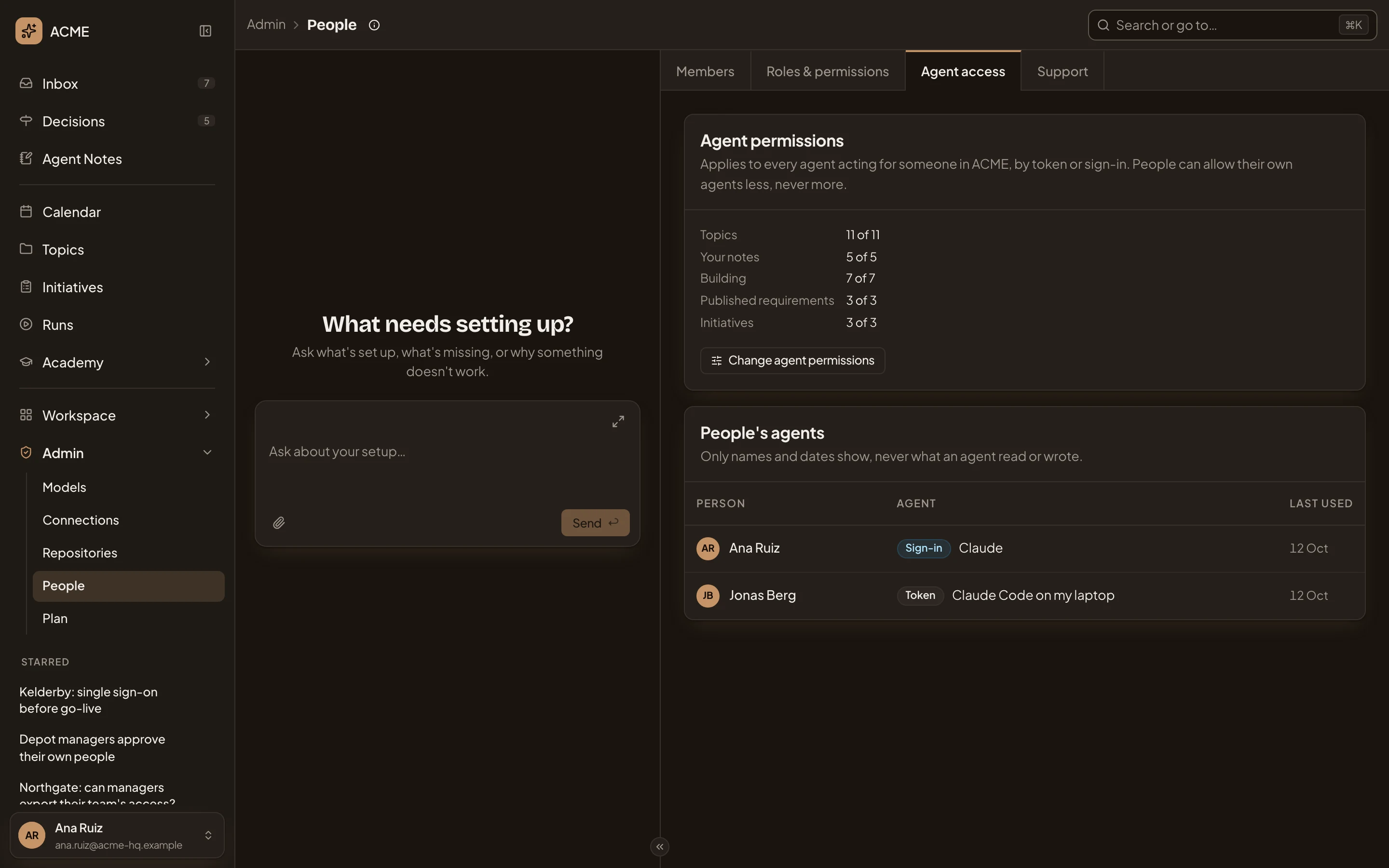
- Agent access.
- Agent permissions.
- Change agent permissions.
-
Click Change agent permissions. Agent permissions opens, with every tool allowed.
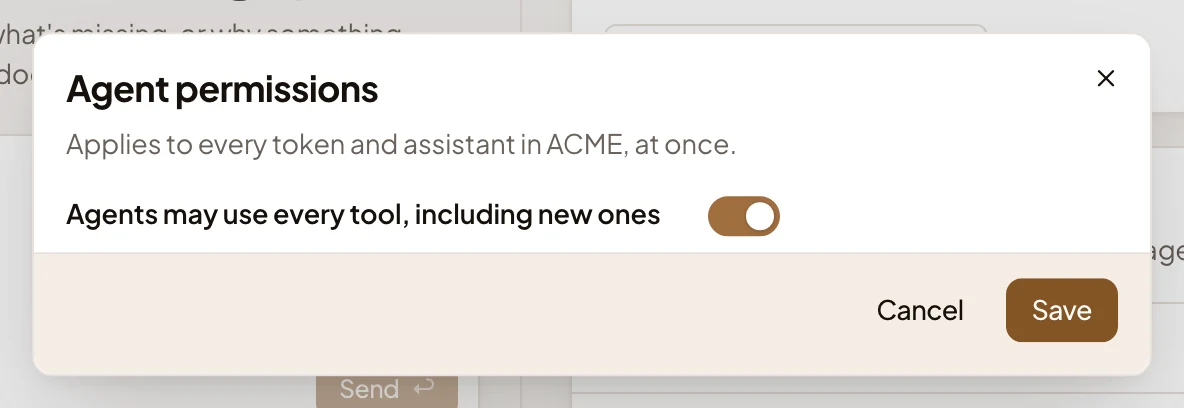
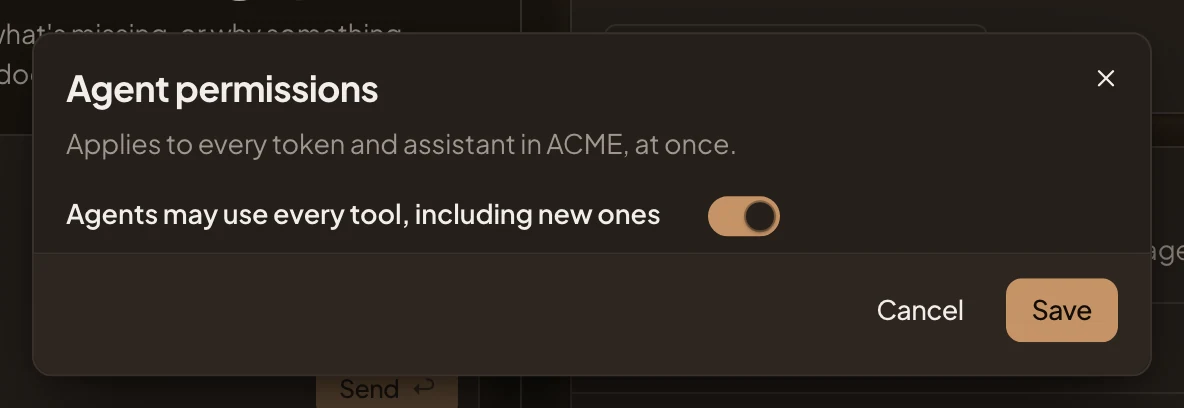
- Agents may use every tool, including new ones.
-
Turn the switch off. Every tool shows by area, ticked. Each says what it does, its name for agents, and if it Reads or Changes something. A few tools under Topics have no name of their own yet, and show a raw name from the app instead.
-
Untick the tools agents may not use. Here: Export a requirement bundle, under Published requirements. The count under the area drops to 2 of 3.
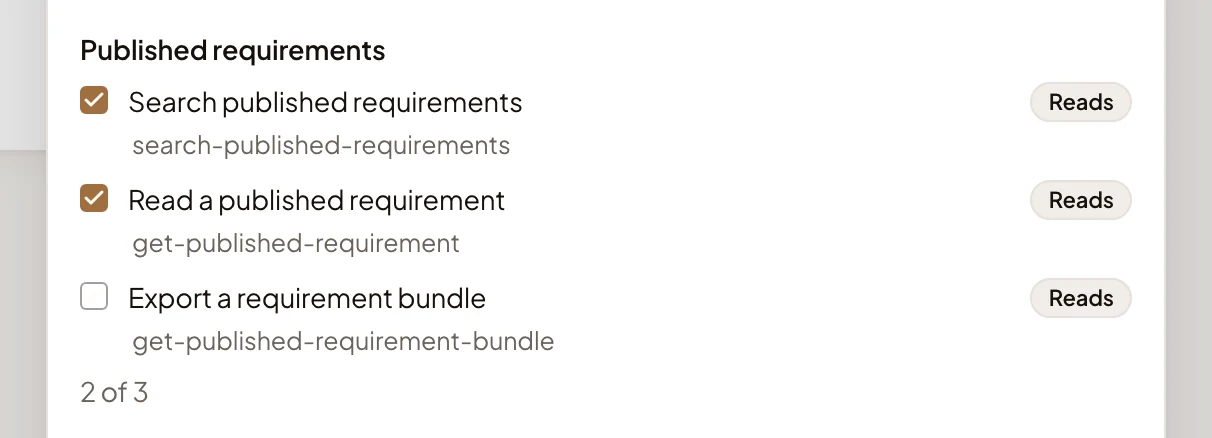
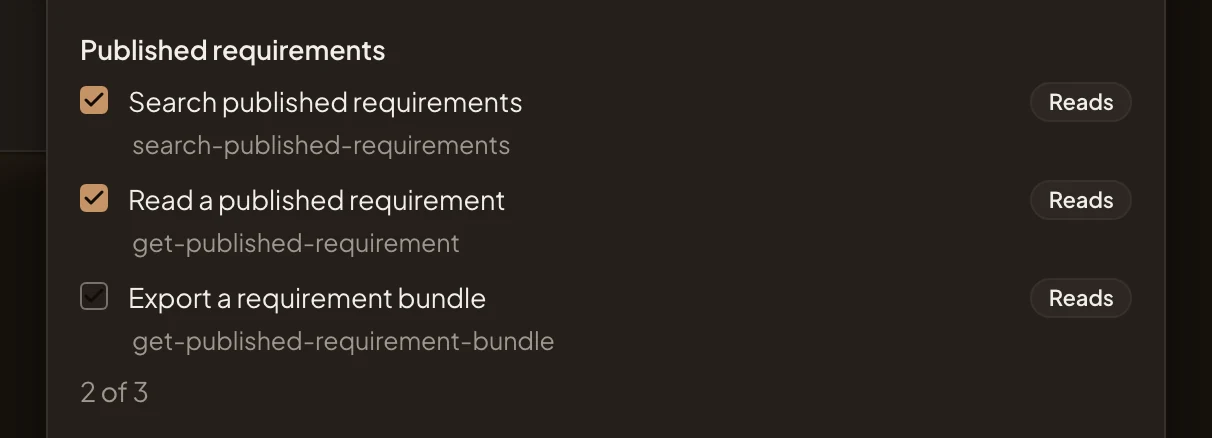
- Export a requirement bundle, unticked.
- How many of the area’s tools agents may still use.
-
Click Save. The dialog closes and the page says “Saved”. Agent permissions now says Published requirements 2 of 3.
What you get
Section titled “What you get”- From then on, no agent in your organisation may export a requirement bundle. Agents lose the tool, even if the people who connected them allowed it. Agents can still search and read published requirements.
- On their Security page, each person sees the tool greyed out, with a line that says your organisation “doesn’t let agents use this”.
- A tool Emargen adds later stays off until you tick it, because the switch is off. Turn it back on to let agents use every tool again, new ones too.
- To leave agents with no tools at all, untick every one.
Stop one person’s agent
Section titled “Stop one person’s agent”Under People’s agents, click the agent’s row, and Revoke opens under it. Click Revoke, and confirm with Revoke in the question that names whose agent it is. It stops working at once. They can make a new token or connect again. Emargen doesn’t tell them, so tell them why. See Agent access.