

WorkspacePage by page
The Landscape's groups
Groups are the headings the Landscape lists each kind’s entries under. Open them with Groups beside the New button on the Landscape. The workspace agent sits on the left.
Open the Landscape’s groups (opens Emargen in a new tab)In the picture, an approver at ACME has three groups of systems open and has clicked the first.
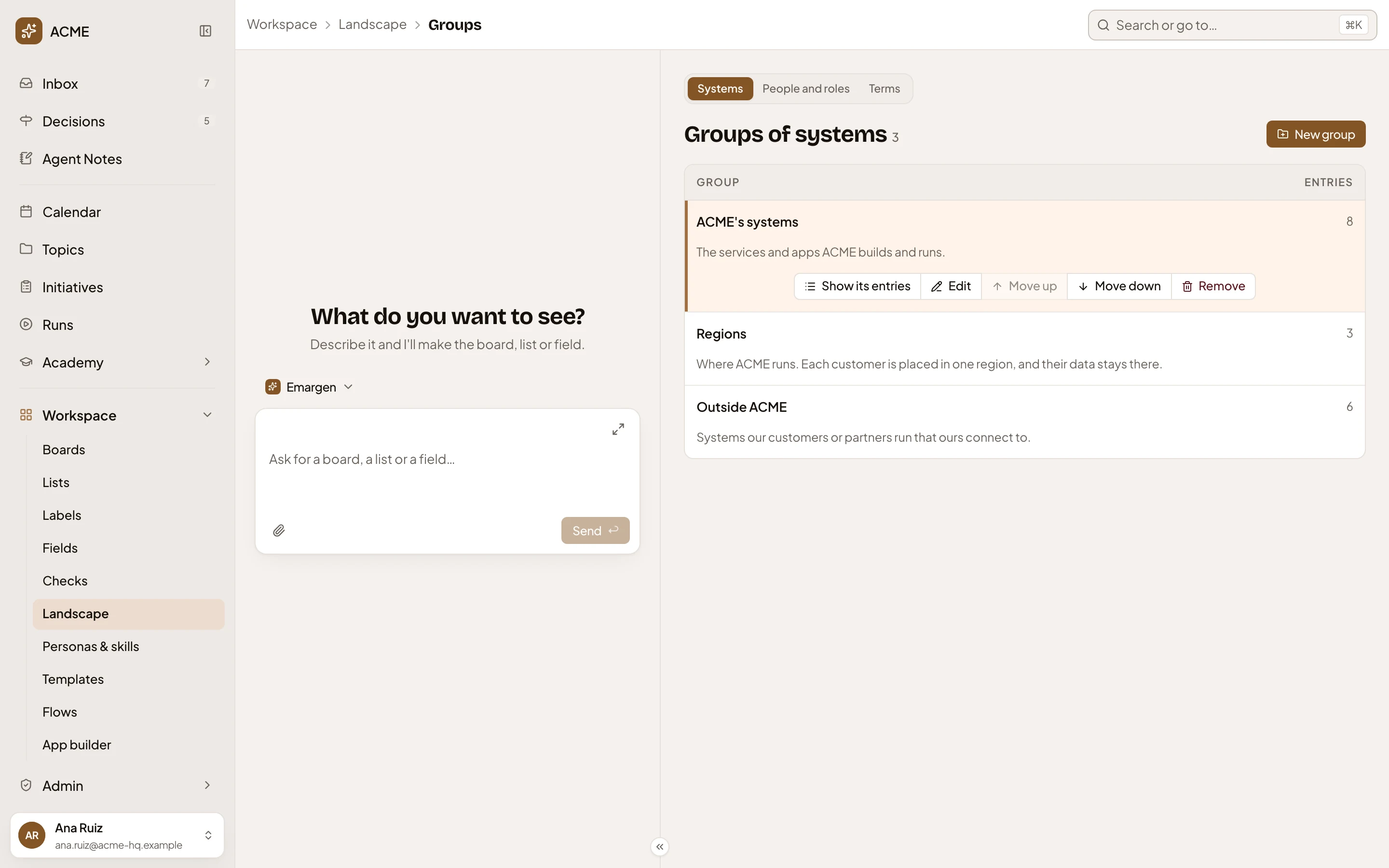
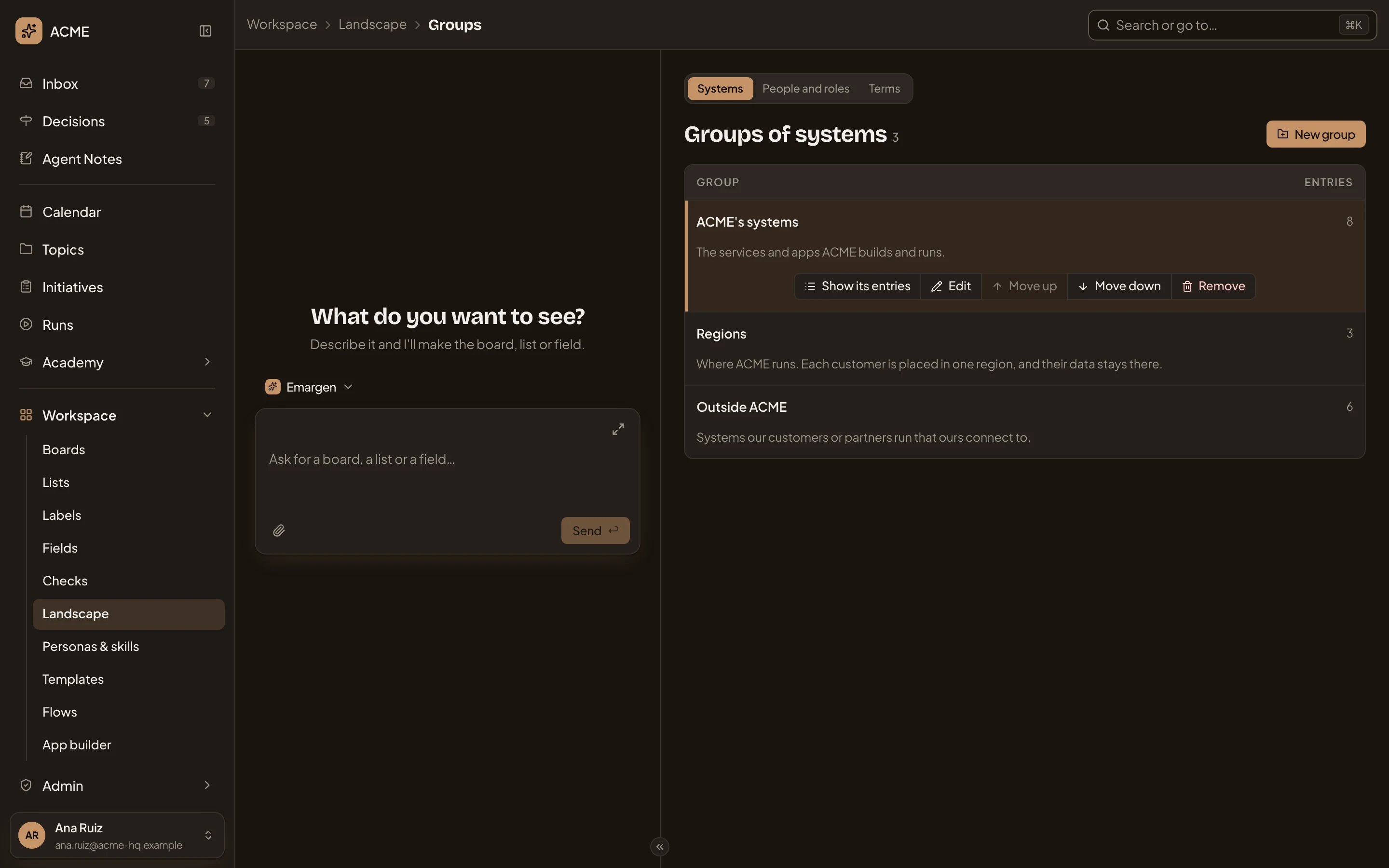
- Where you are: Workspace, Landscape, then Groups. Landscape goes back to the entries.
- Systems, People and roles and Terms. The kind whose groups you see.
- New group. Makes a group of this kind.
- A group, with how many entries it holds, and under it what belongs in it. Click its row for what you can do with it.
- Show its entries. Opens the Landscape on this kind, narrowed to the group.
- Edit. Renames it, or changes what belongs in it.
- Move up and Move down. Move the group up or down the Landscape’s list. The first can’t move up, and the last can’t move down.
- Remove. Takes the group away, after asking.
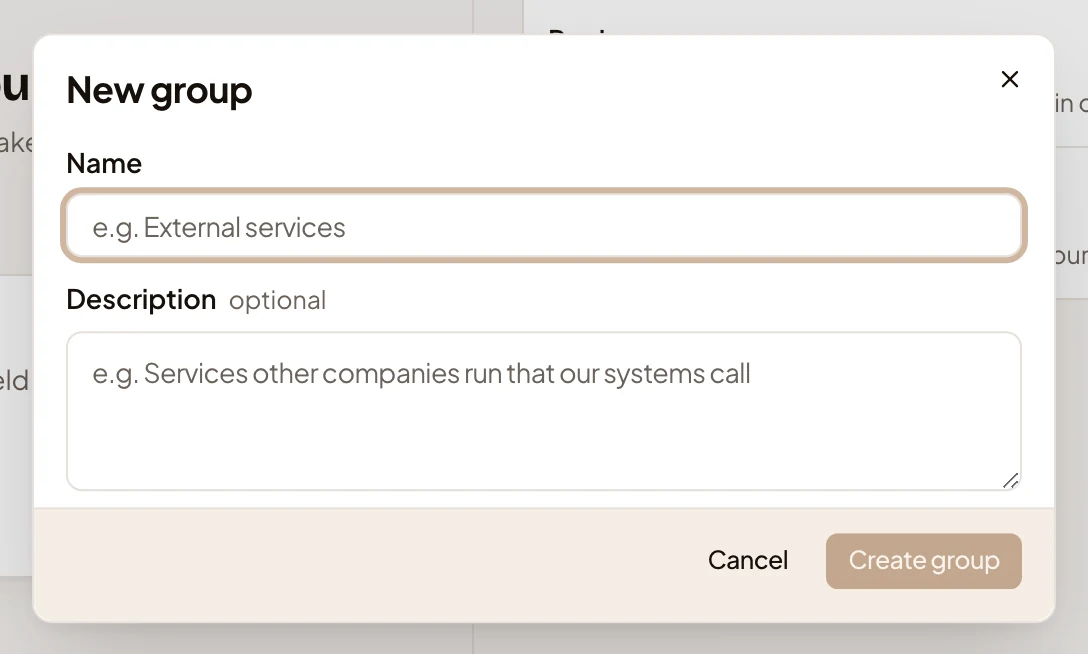
New group and Edit open the same dialog. It asks for a Name, and a Description of what belongs in it, which you may leave empty. Create group works once the group has a name. Each change applies at once.
Remove asks “Remove the group Outside ACME?” first. Its entries stay in the Landscape, under Other.
An empty group shows only here. The Landscape lists a group once it has entries.
A kind with no groups says “No groups yet”, then “Groups organise the Landscape’s entries. Create one with New group.” for an approver and “Groups organise the Landscape’s entries. Someone who can approve Landscape changes creates them.” for everyone else.
On a phone
Section titled “On a phone”On a phone, use Conversation and Groups to switch between the workspace agent and the groups.
Access
Section titled “Access”Everyone in the organisation reads the groups and opens a group’s entries with Show its entries. Administrators, and others whose role lets them approve Landscape changes, also see New group, Edit, Move up, Move down and Remove.