

Area of Emargen
Getting around
Every page of Emargen sits in the same frame. The menu runs down the left. The search is at the top. Most pages have a chat with the agent beside them.
Finding your way in a full organisation
Section titled “Finding your way in a full organisation”You usually arrive in an organisation already full of work. topics colleagues worked through with the agent, initiatives being shaped and built, decisions waiting on people. The frame is how you find your way in it. The menu holds every place in Emargen, in one order. The search finds a word you remember, wherever you’re allowed to look. And the agent sits beside the page you’re on, so you never leave it to ask what something means or to get something done.
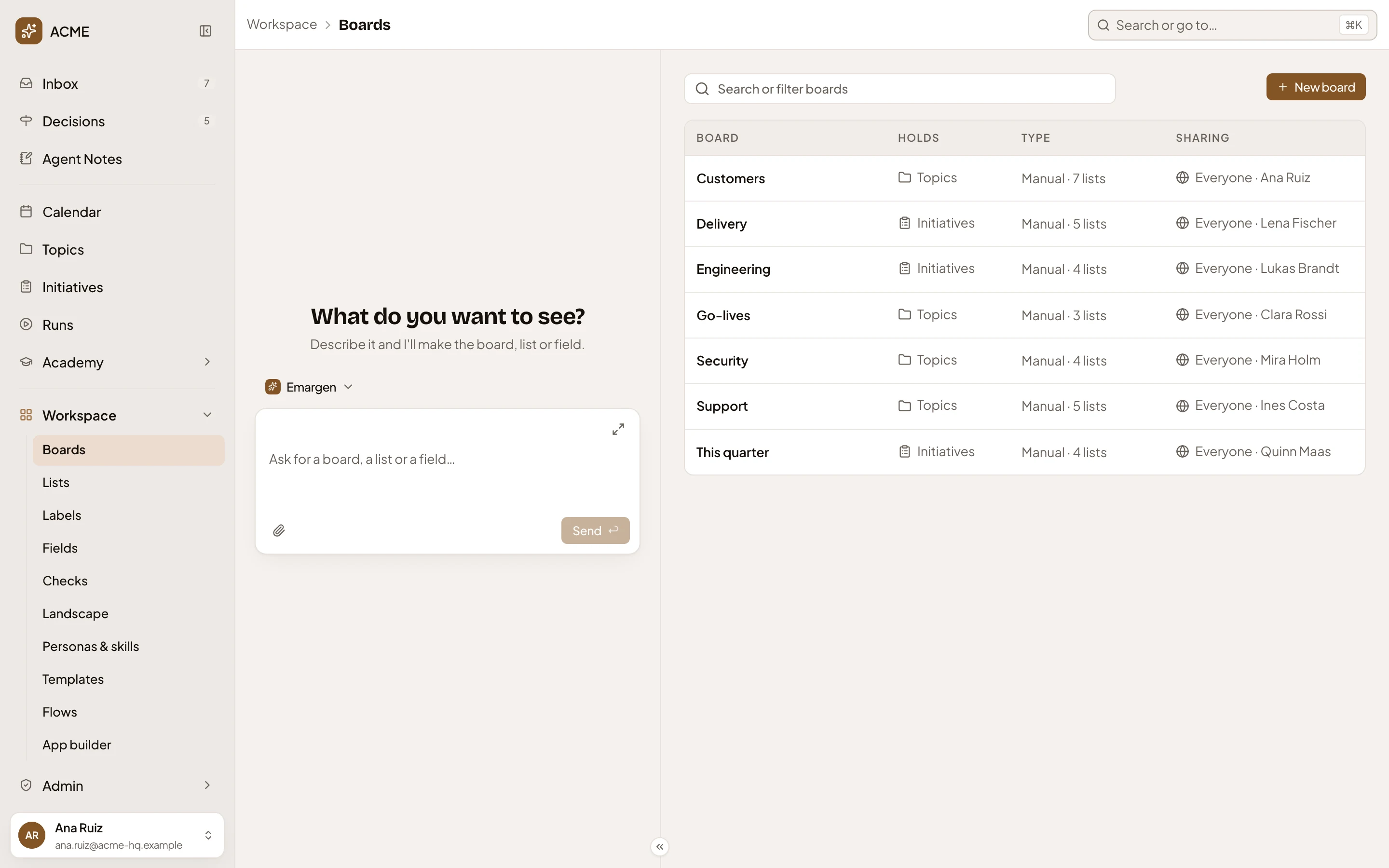
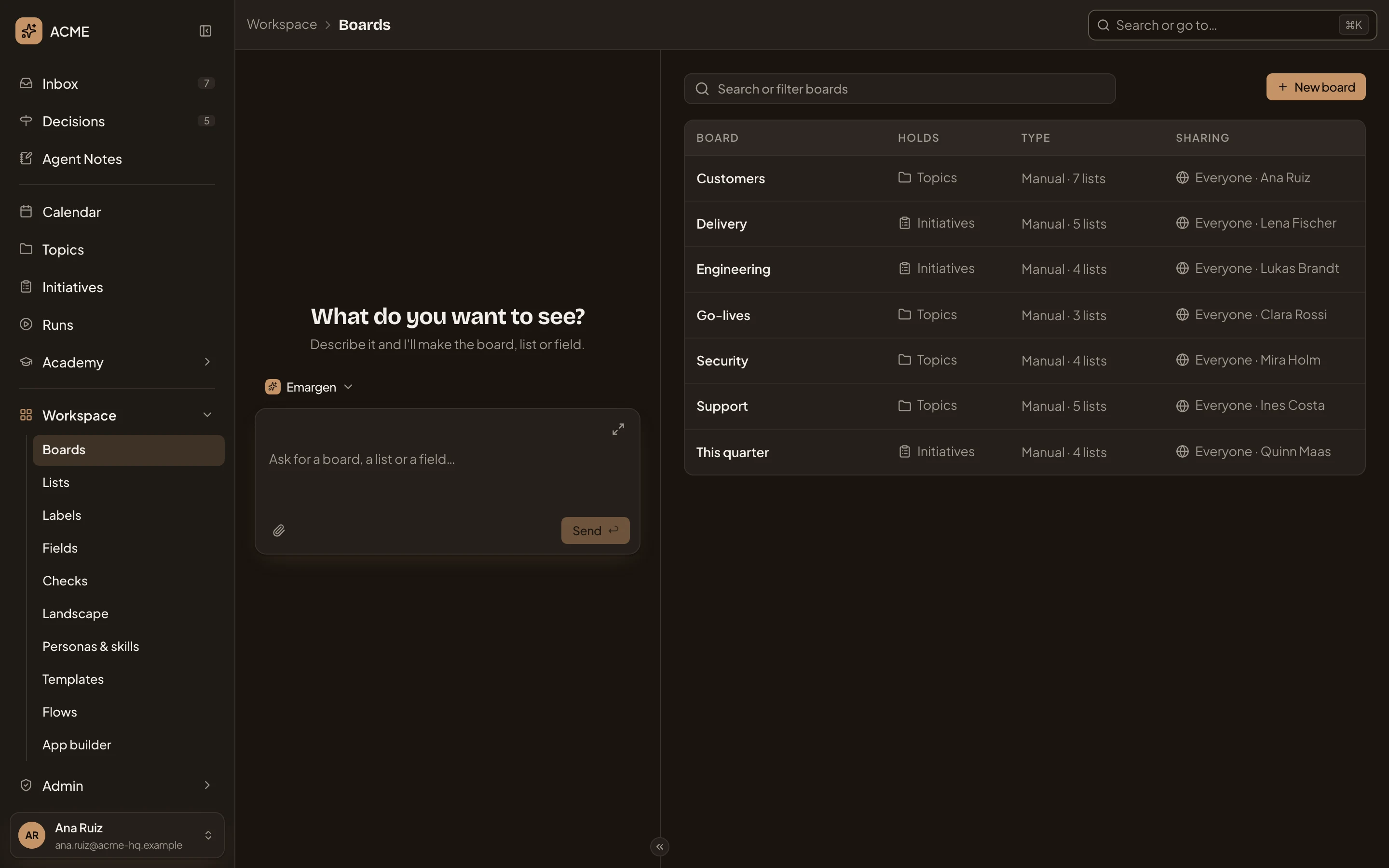
- The menu, with every place in Emargen in one order, and counts for what arrived for you.
- Your card, which opens your profile.
- The search, also on ⌘K.
- The empty chat says what the page’s agent does here, before you ask anything.
- The page itself, here the Workspace’s boards.
The menu
Section titled “The menu”The menu is the same on every page. What arrived for you sits at the top, with counts. The Inbox counts what you have to reply to and do, and Decisions the choices waiting on you. Starred sits at the bottom, with the topics and initiatives you marked to keep within reach.
Everyone sees the same menu. What you may do with each topic or board is set by its sharing, item by item. A role only adds what affects the whole organisation, like inviting people or approving initiatives.
On a window narrower than 1320 pixels, the menu starts folded to a rail of icons. That’s the width where the open menu, a chat and the page still fit side by side. Unfold it whenever you like, and Emargen remembers your choice.
Search
Section titled “Search”The search at the top of every page, also on ⌘K, finds a word inside every topic and initiative you may open, and in the Landscape, your Inbox and your Agent Notes. Type a page’s name, and it takes you there. Type what you’d like to make, and it starts it. See Search.
The chat beside the page
Section titled “The chat beside the page”Each area has its own agent, in a chat beside its pages. It knows the page you’re on and works on it with you. Ask the workspace agent for a board, and it drafts the board on the page and asks before it saves.
Most of what you can do with a click, you can also ask any chat to do. Publishing, approving and a few other acts stay yours. Ask it to star something or mark a note done, and it happens at once. The chat shows one line with an Undo, and nothing waits for a yes. Bigger changes, like saving a board, wait for you to confirm them in the chat.
Under its latest answer, the agent may offer a next step or two, like the question you’d likely ask next. They come with the answer itself, so there’s nothing to wait for. When a chat has run long, type /clear to empty the window. The agent keeps a short summary of what came before, so you carry on where you were.
Your chat is your own. Nobody else reads it. In the chats about your organisation’s work, the agent answers as a persona, a saved way of working that you can swap for another.
The chat’s starting width depends on what the page is for. It takes more room where the conversation leads, like an initiative still being framed. On the Inbox and Decisions, where you mostly read, it starts hidden. Hide it or bring it back whenever you like.
The rail on the right
Section titled “The rail on the right”When you pick something, its detail opens in a rail on the right, like an item in your Inbox or a task on the Calendar. A checklist the agent works through for you stays there on every page until it’s done.
Your profile
Section titled “Your profile”Your profile opens from your card at the bottom of the menu, and it’s yours alone. It’s where you choose how Emargen looks and works for you, and connect your own agents, like Claude Code. It also shows what your own AI use cost this month. See Your profile.
On a phone, the frame folds away so you see only the page. When your organisation allows it, Emargen keeps a copy of what you read on your device, so a dropped connection doesn’t stop you reading.
A support ticket, start to finish
Section titled “A support ticket, start to finish”A ticket lands with someone in support. A customer’s requests vanished after someone’s role changed, again. They press ⌘K and type the customer’s name. Their own topic from last time comes up, with the passage where the name was found.
In the chat beside it, they ask the agent what to tell the customer now. It writes the reply into the topic, with where each part came from. They copy it into the ticket and star the topic, so it’s in the menu next time.
Back in the Inbox, a colleague’s question waits under To reply. They open it in the rail and answer it there without leaving the list.