

WorkspaceHow to
Keep a list
Keep a list by hand when you choose what goes on it, like the questions to answer before a customer goes live, or the bugs you pick up this week.
Before you start
Section titled “Before you start”- Anyone in the organisation can make a list, and it’s yours.
- A list holds topics or initiatives, not both, and you can’t change that later.
- ACME’s customer success lead keeps Kelderby go-live, what must be answered before a customer goes live. They share it with the sales engineer who answers the technical questions.
-
In the menu, click Lists under Workspace (the arrow beside Workspace unfolds it), and click New list.
Open Lists (opens Emargen in a new tab)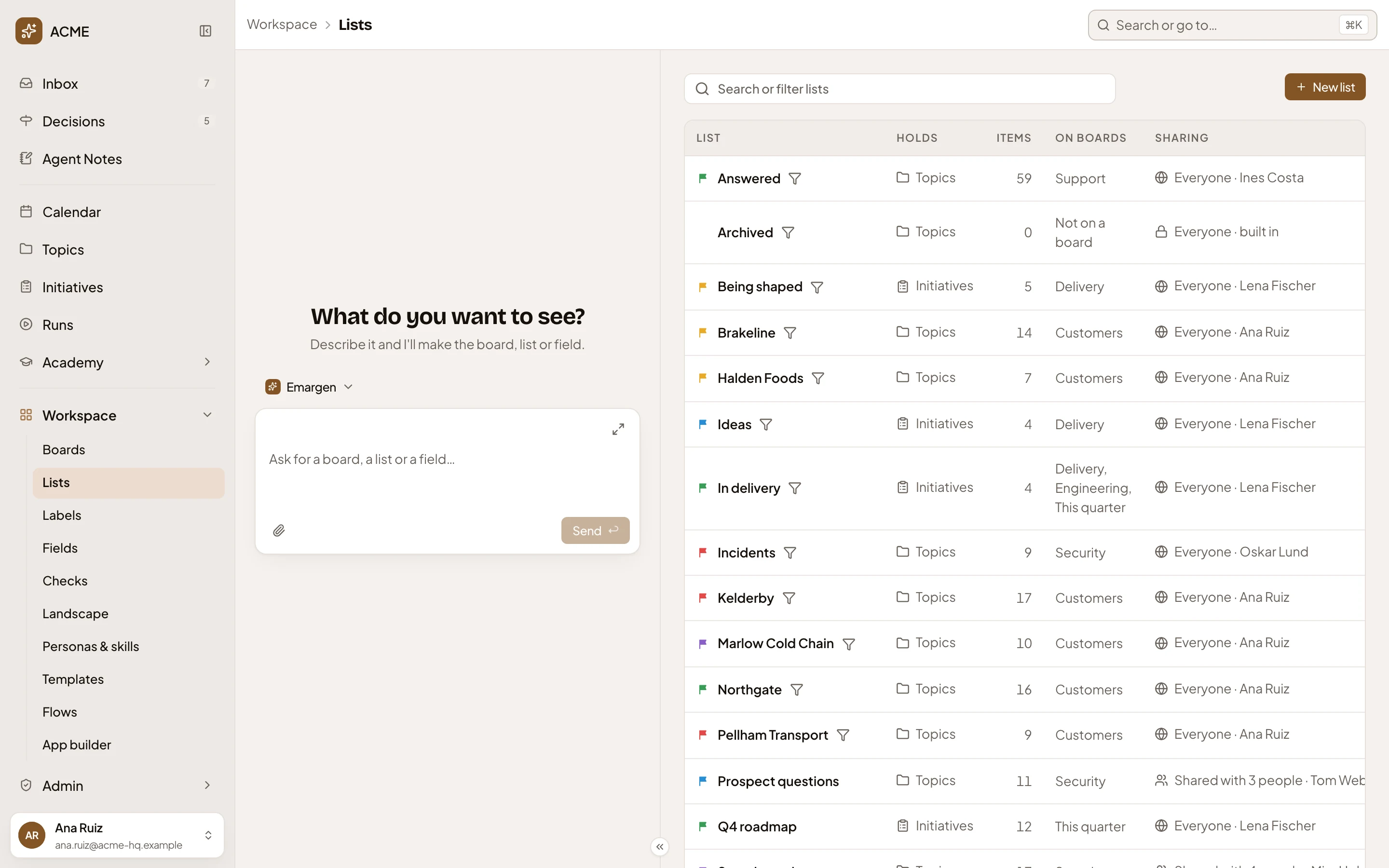
- New list.
-
In Name, type what belongs on the list, like a customer’s go-live. In Description, write a sentence about it. It shows with the list.
-
Under Holds, click Topics. Leave Type on Manual, and leave Filled by an agent task below it as it is.
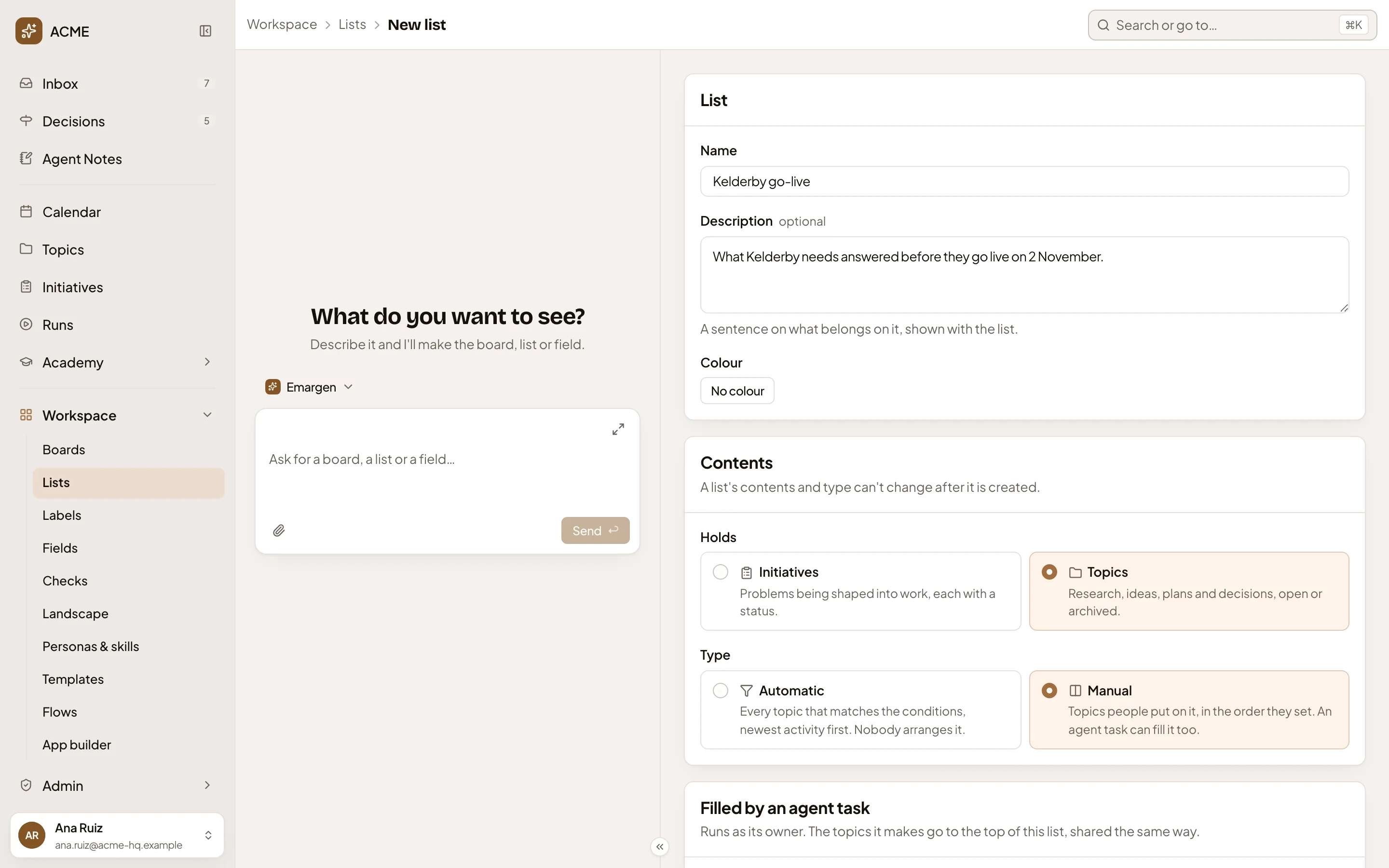
- Name.
- Description.
- Colour. The colour of its column and group on boards.
- Holds: Topics.
- Type: Manual.
- Filled by an agent task. For a list an agent task fills (see Make a list that fills itself). Leave it.
-
Click No colour under Colour and pick one: red, amber, green, blue or violet.


-
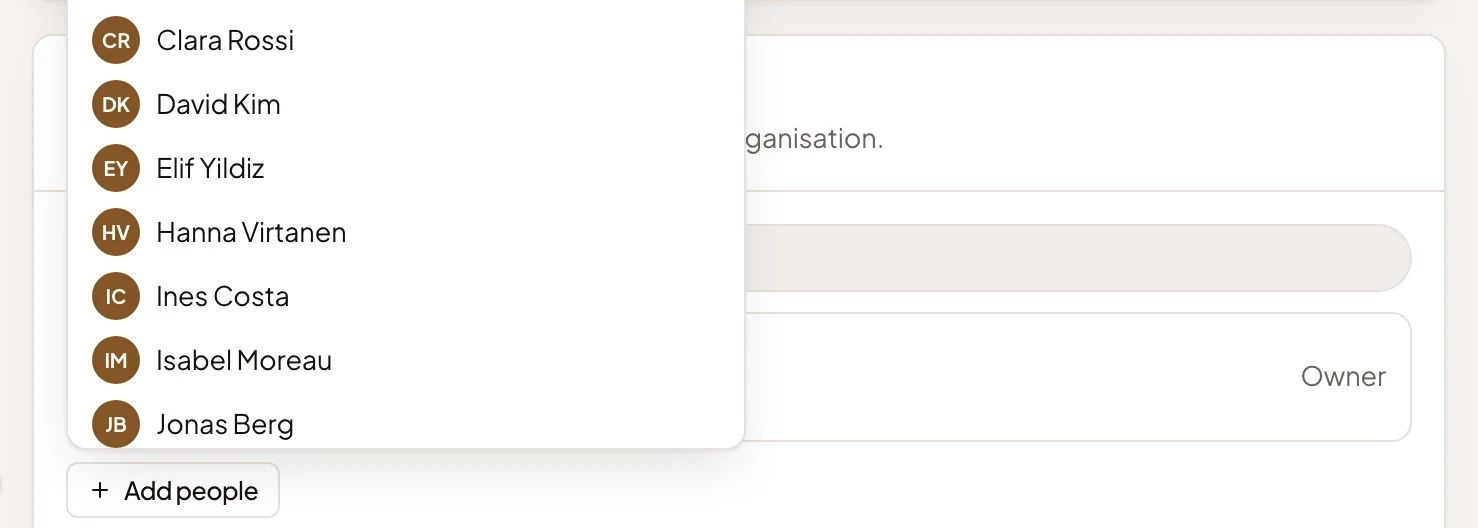
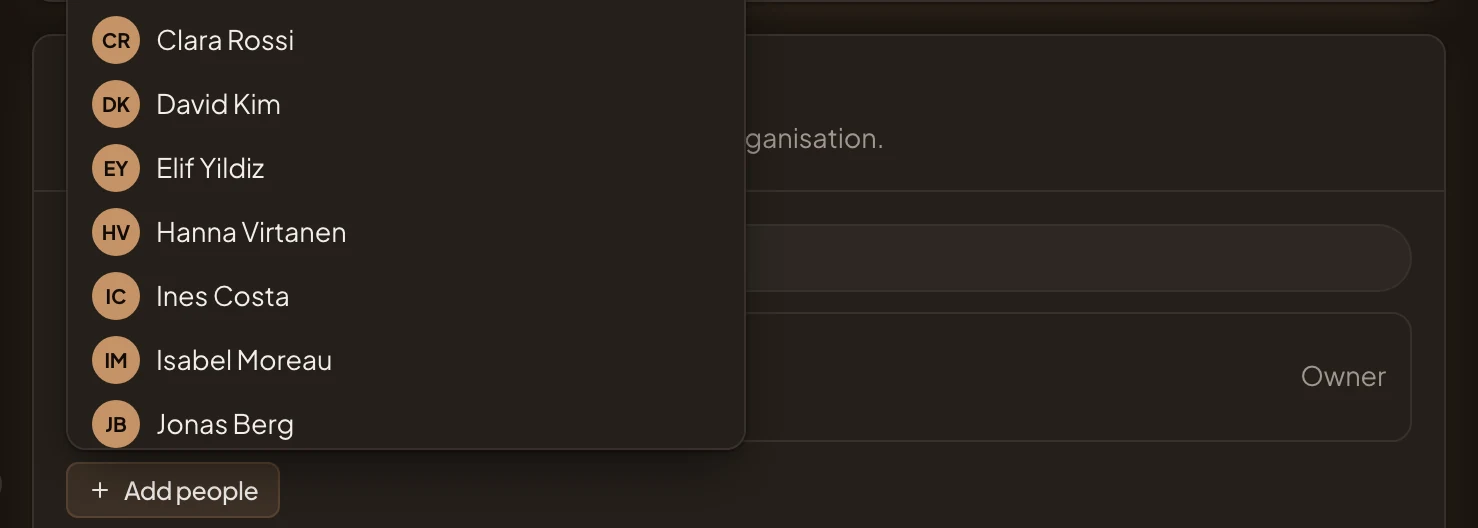
Under Sharing, click Shared, then Add people. Type the name of the colleague who should see the list, and pick them. People already on it are greyed out.
-
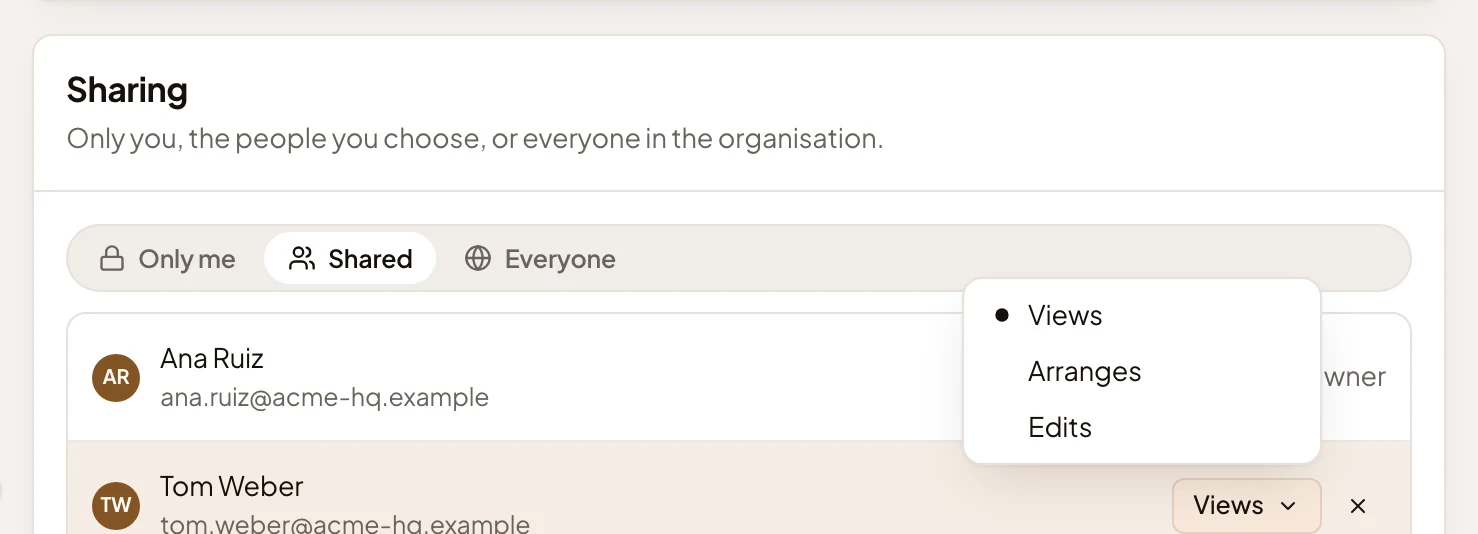
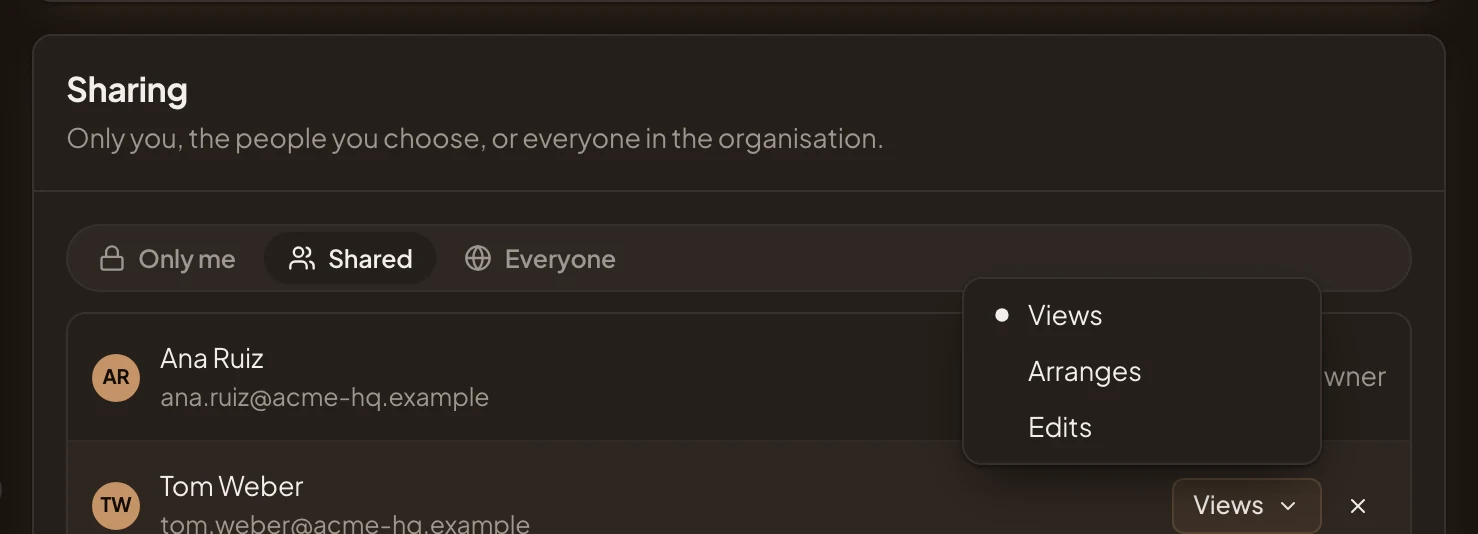
Beside their name, click their access (it reads Views) and pick Arranges. They can then put topics on the list, take them off and order them. Views only lets them see it. Edits also lets them change its name, description and colour. The menu stays open after you pick. Press Escape, or click beside it, to close it.
-
Click Create list. You’re back on Lists, with a row for your new list.
-
Put topics on it, one at a time. On a topic’s page, click the ⋯ at the top right, then Lists…, and tick your list under Workspace lists. A tick puts the topic on the list at once. Tick it again to take it off. Press Escape to close the list.
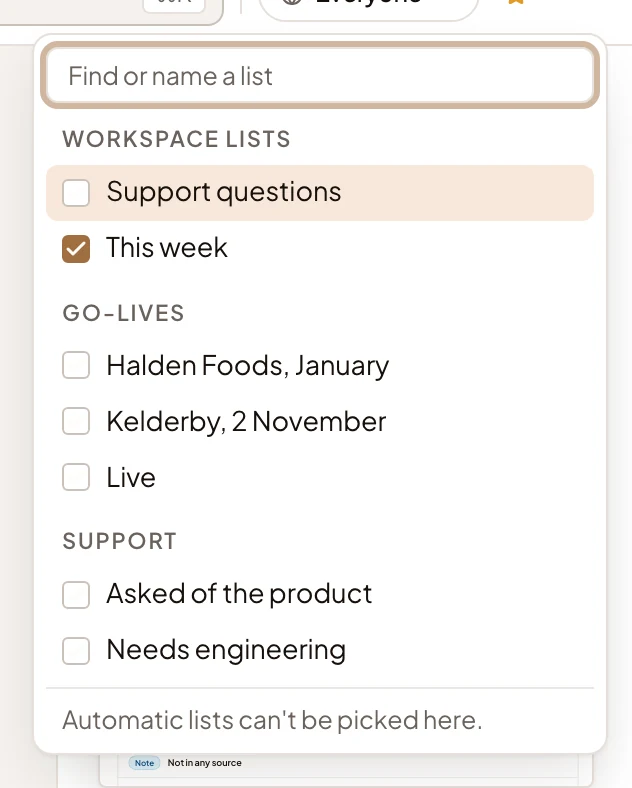
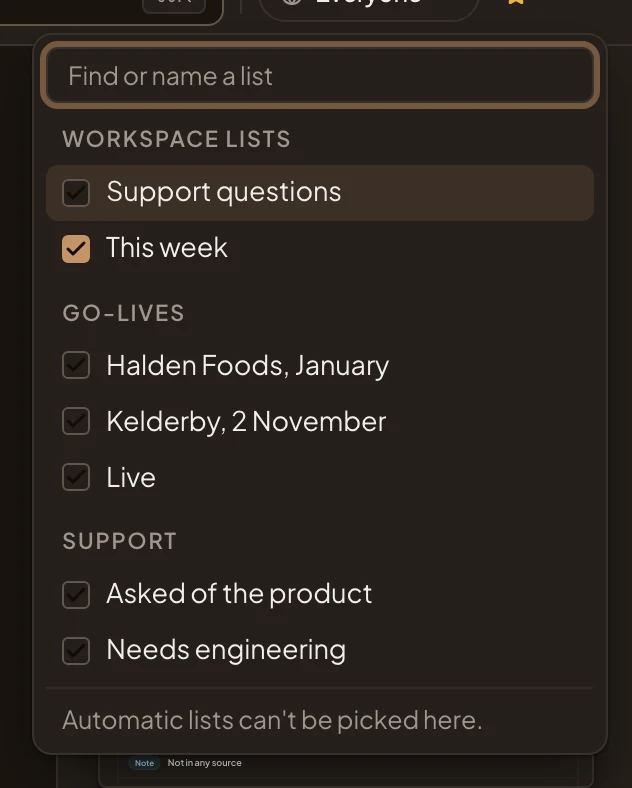
- Find or name a list. Type to find a list, or a new name to make one.
- Workspace lists. Your list is here once you’ve made it.
With the topic’s document open, the + beside Lists at its top does the same (see a topic’s page). On the topics list, click a topic’s row beside its title, then Lists under it. Nothing changes until you tick your list and click Save.
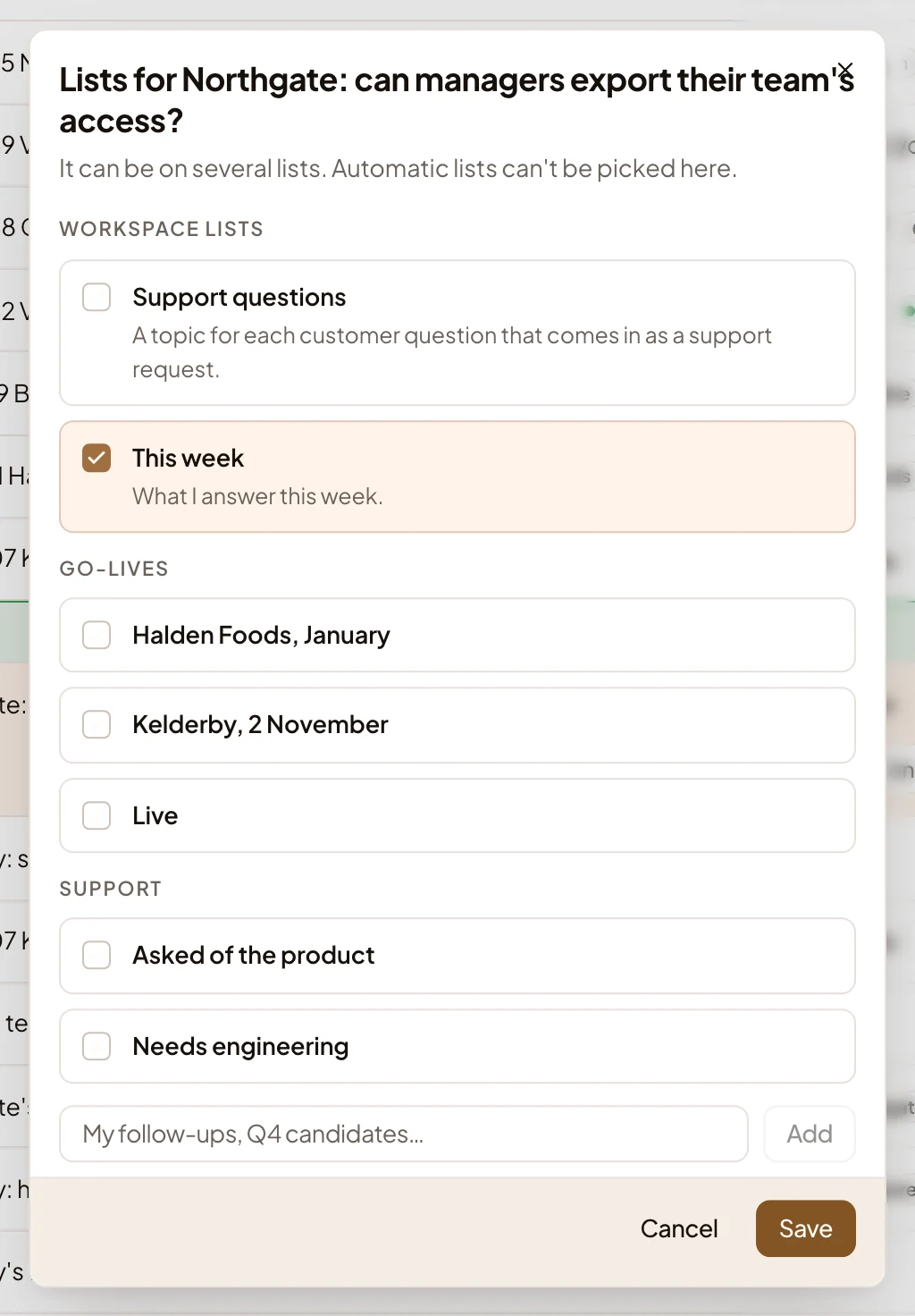
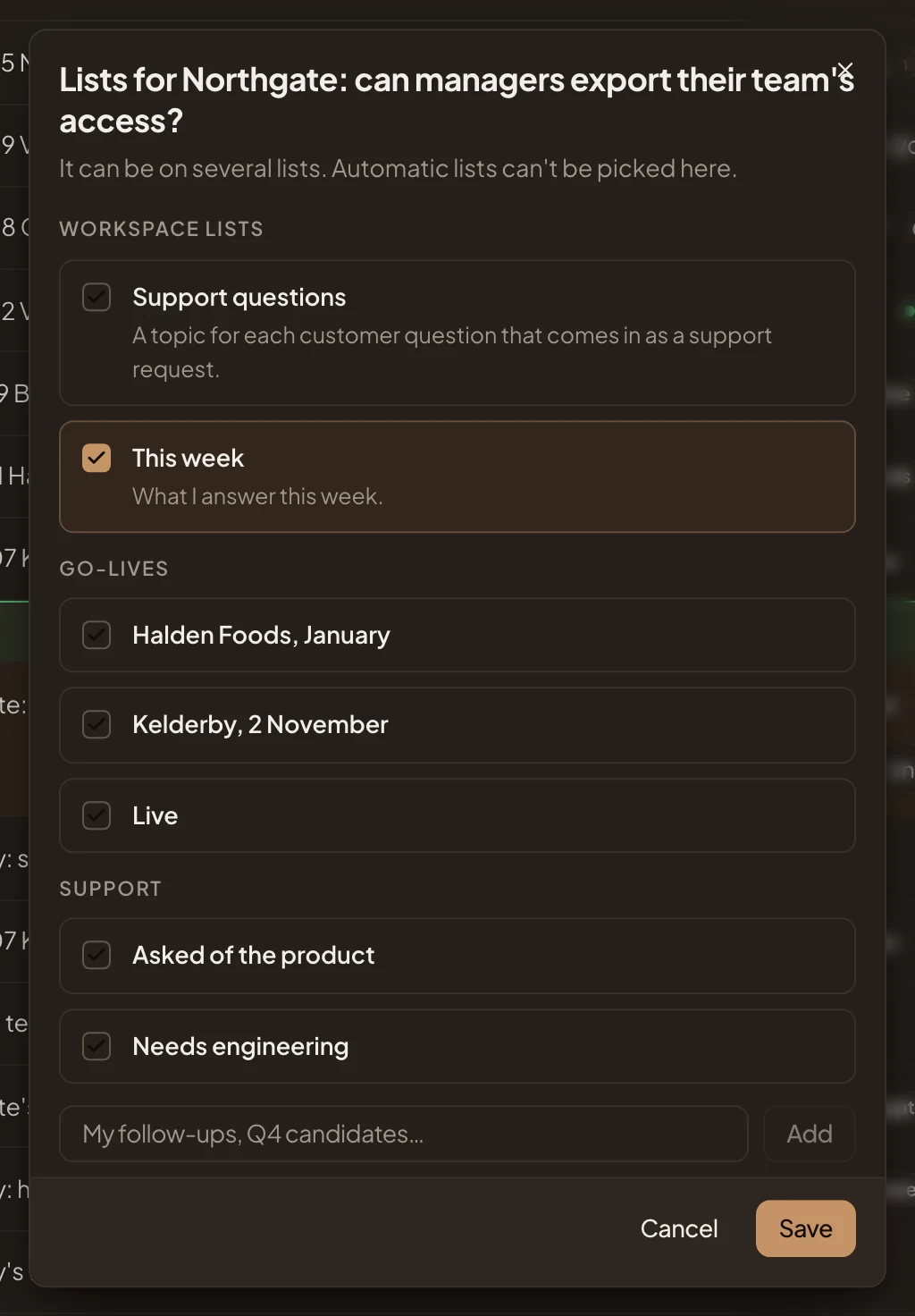
- The lists, ticked where the topic is on them.
- Save.
The colleague who arranges the list can do the same. If Topics in the menu opens another board, click its name at the top and pick Everything to see every group.
-
To show the list on a board, open it from Lists and click Add to a board. It offers the manual boards of topics that you may change and that don’t show it yet. In the picture, those are Customers, Go-lives and Support.


What you get
Section titled “What you get”- A list of topics that you and the people you shared it with keep. On the topics list, its topics show as a group of their own, between Triage and Shared with you. Each person sees the topics on it that they can see.
- On a board that shows it, it is a column in Columns and a group in Rows, in its colour. Drag topics up or down to order them, or onto it from another list kept by hand. You can’t drag topics onto or off a list that fills itself, or one an agent task fills.
- A topic can be on several lists. Putting a topic on a list changes nothing for the people who see the topic but not the list.
- Change the list later on its page. Changes save as you make them (see A list).