

Getting aroundPage by page
Around every page
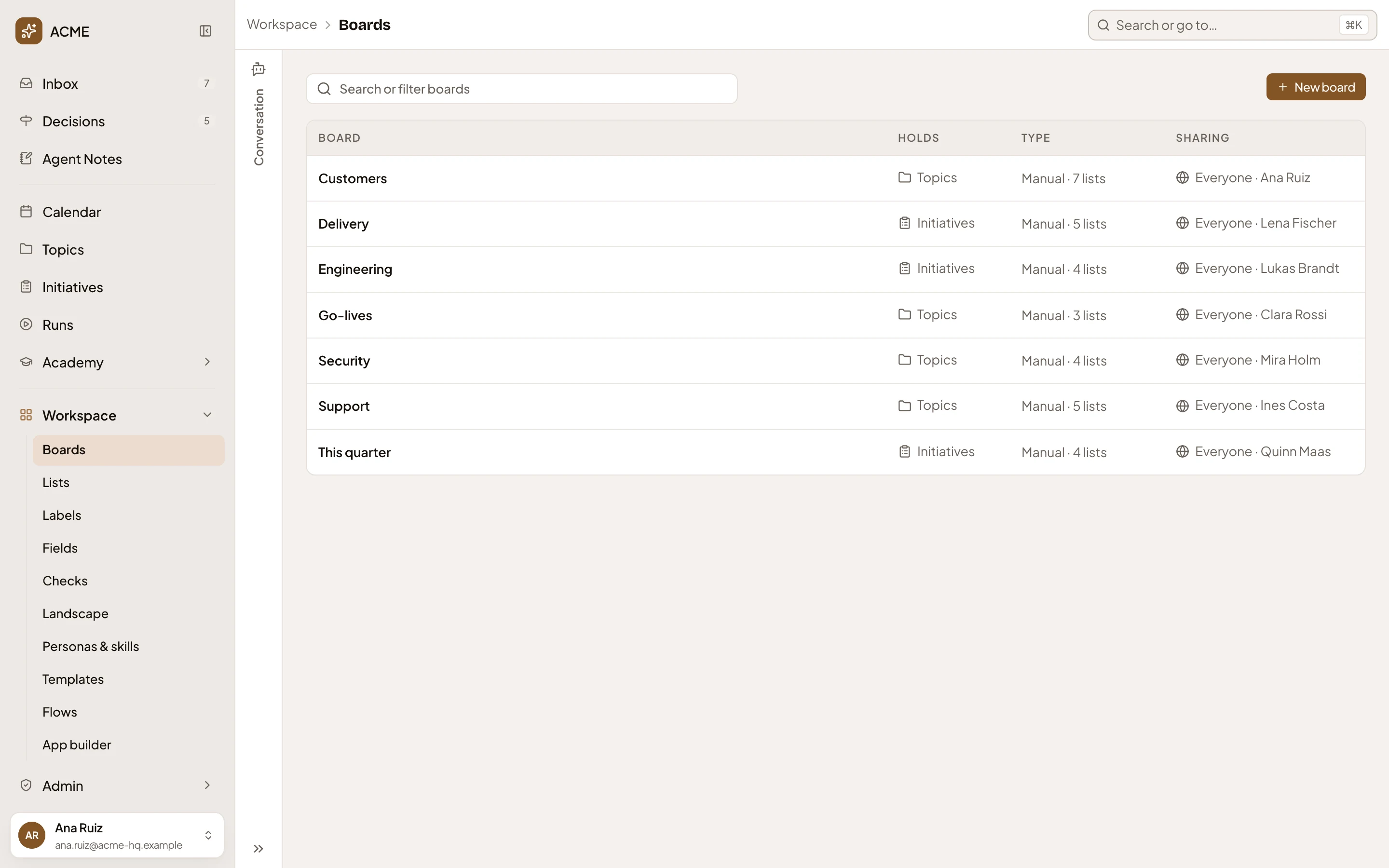
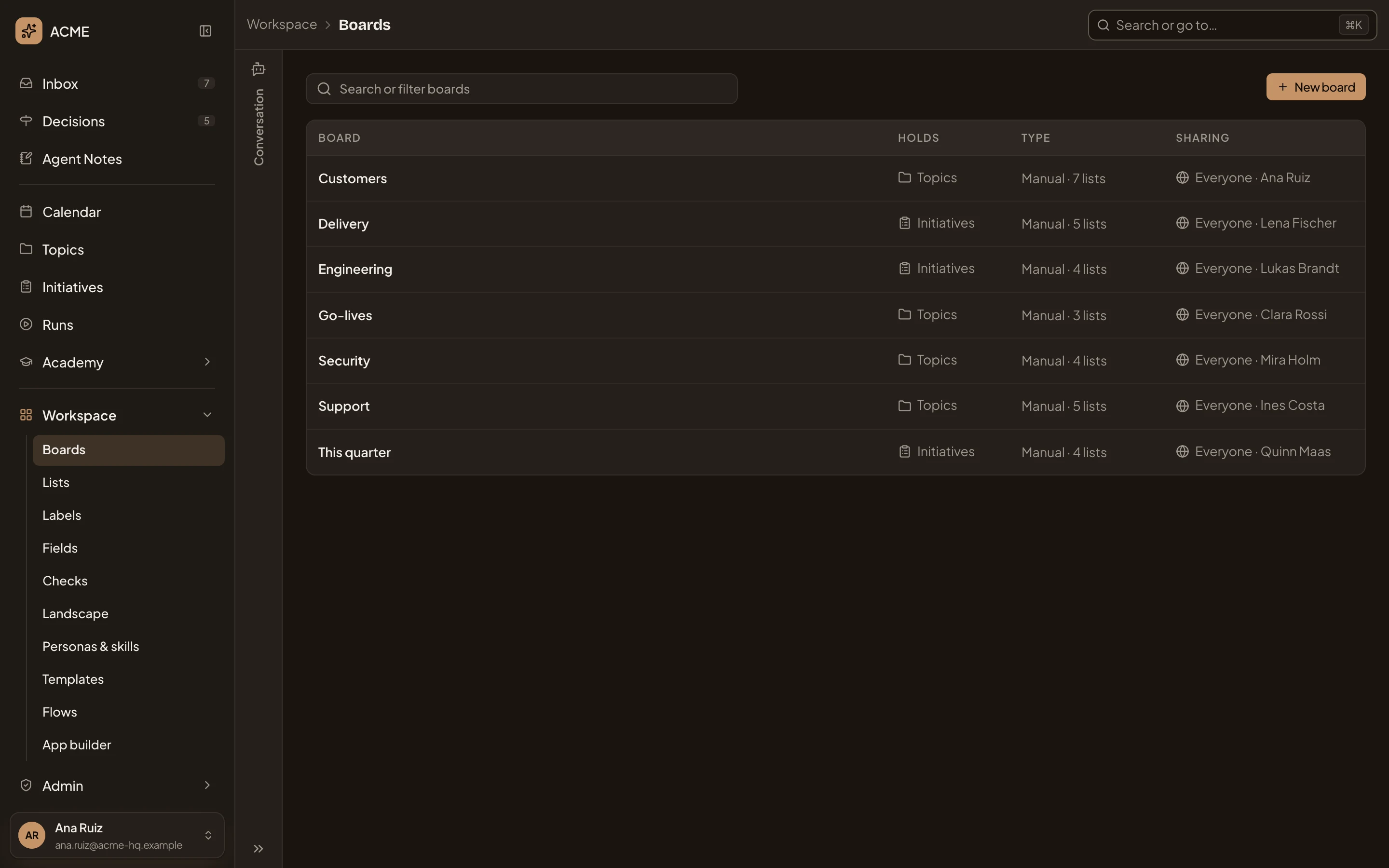
Every page of Emargen sits in the same frame. The menu is on the left, the search in a bar across the top, and a chat with the agent beside most pages. The frame has no address of its own.
Open Workspace › Boards (opens Emargen in a new tab)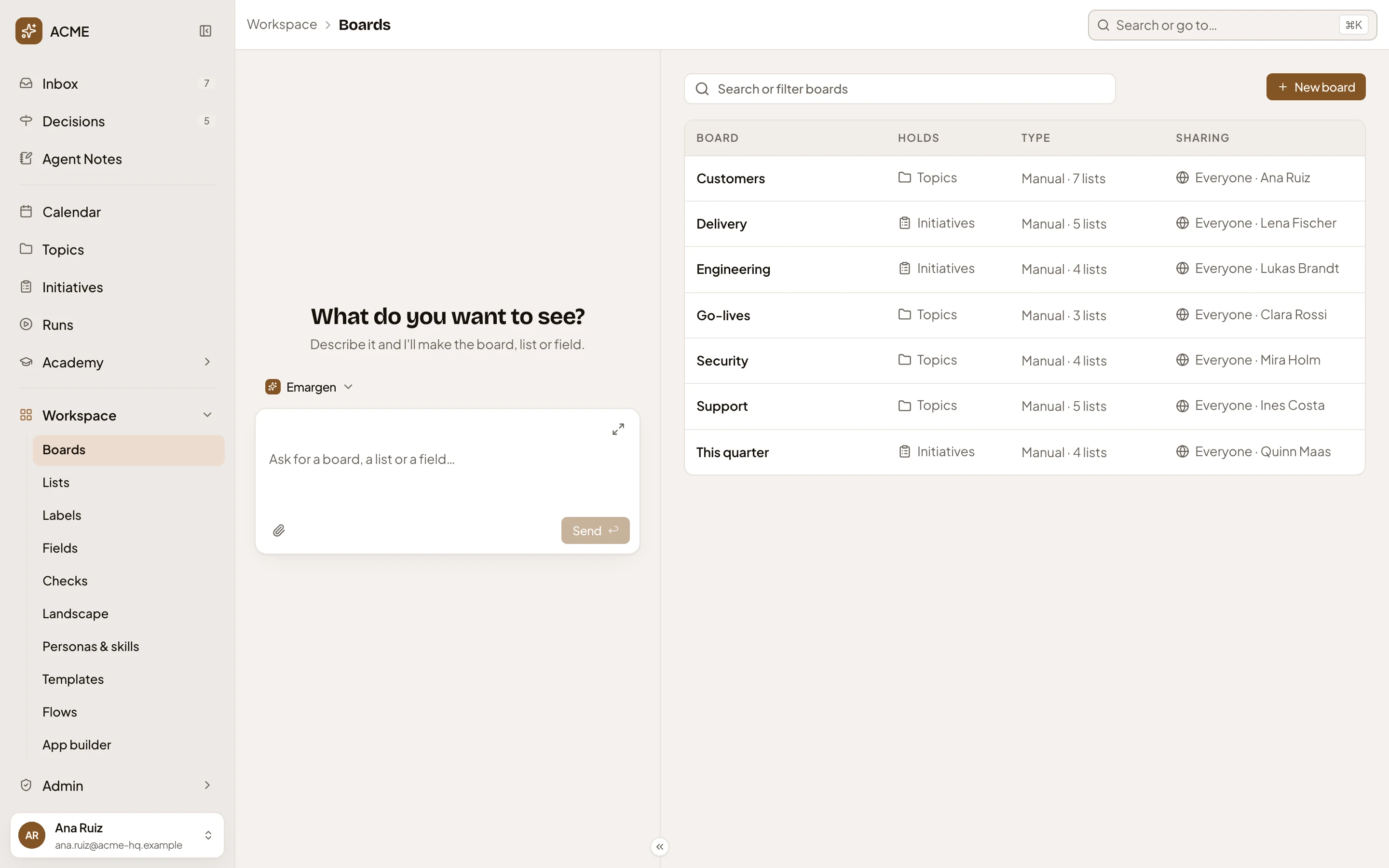
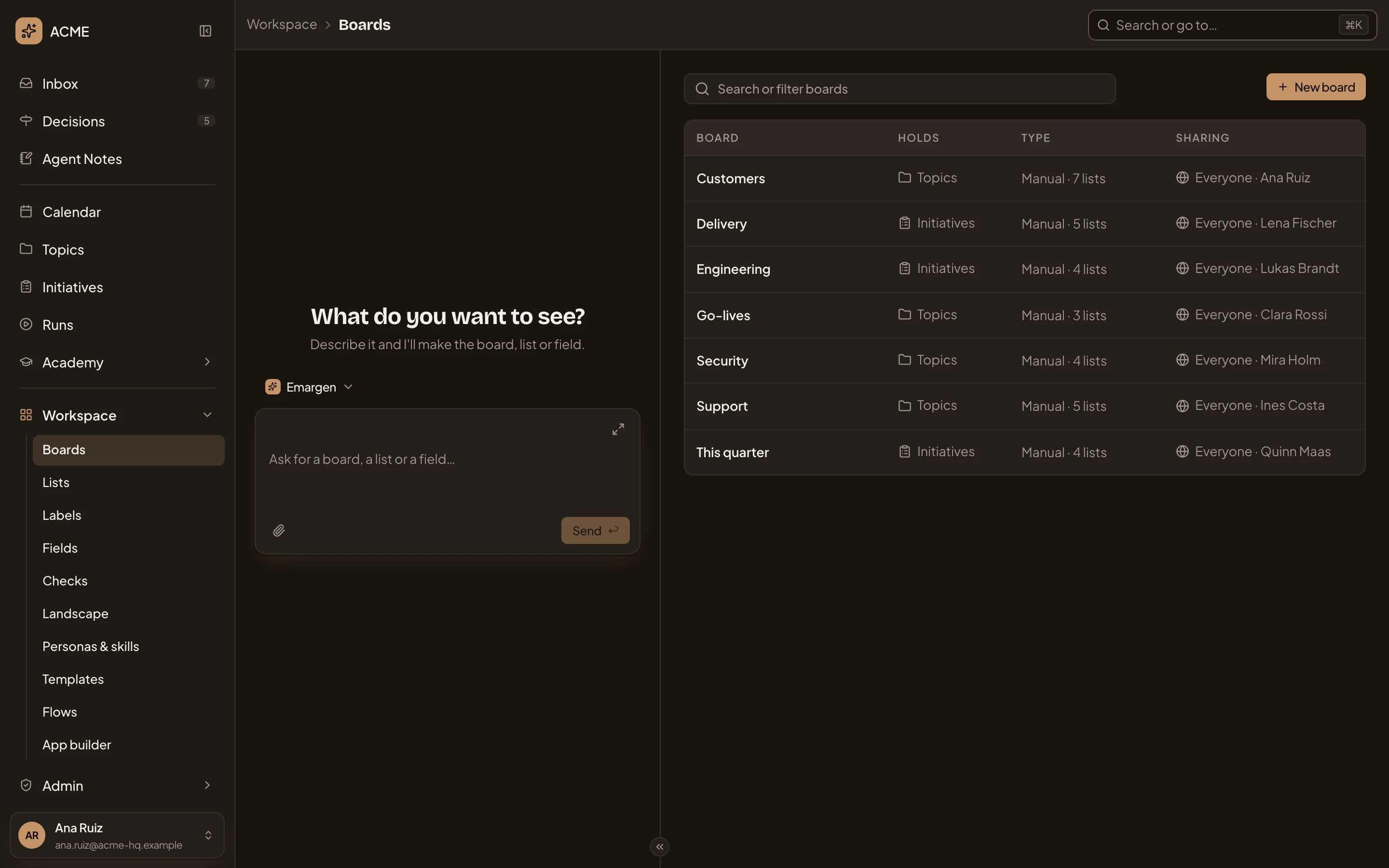
- The menu. Every place in Emargen, your stars, and your user card at the bottom (see The menu).
- Where you are. The page’s name and the pages above it. Click Workspace to go up a level.
- The search, Search or go to…. ⌘K (Ctrl+K on Windows and Linux) opens it from anywhere (see Search).
- The empty chat’s heading and line. The page’s agent says what it does here before you ask anything.
- Emargen. The persona the agent answers as. Click it to pick another (see The persona).
- The message box. Ask in your own words.
- Hide the chat. Hides the chat to a strip (see Hiding the chat).
- The divider. Drag it to give the chat or the page more room.
- The page itself, here the workspace’s boards.
The menu
Section titled “The menu”The menu holds every place in Emargen, in the same order on every page. The place you’re in is lit.
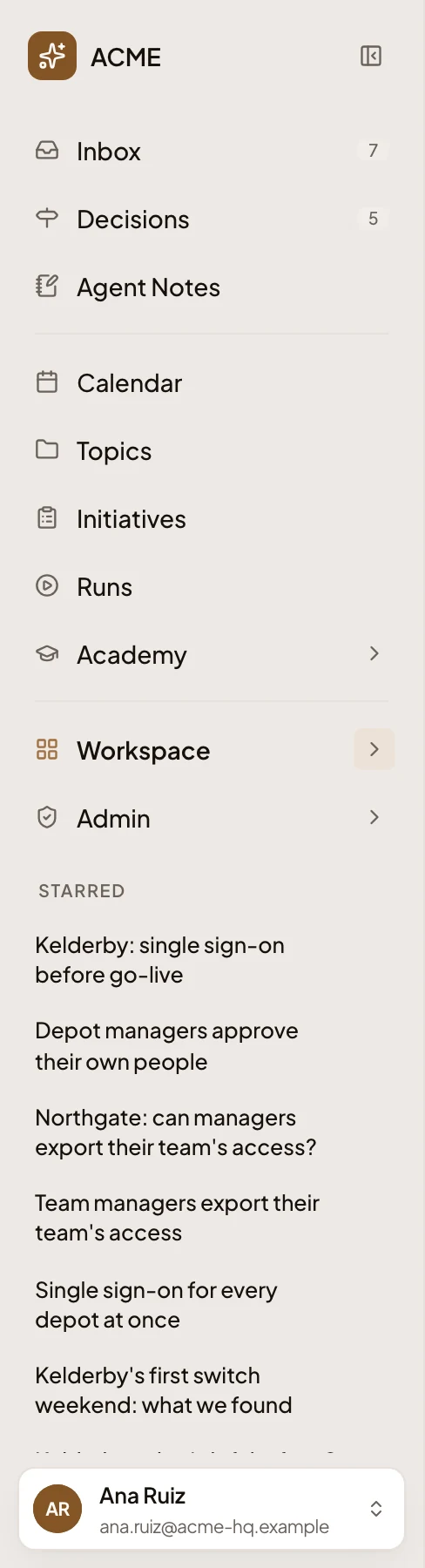
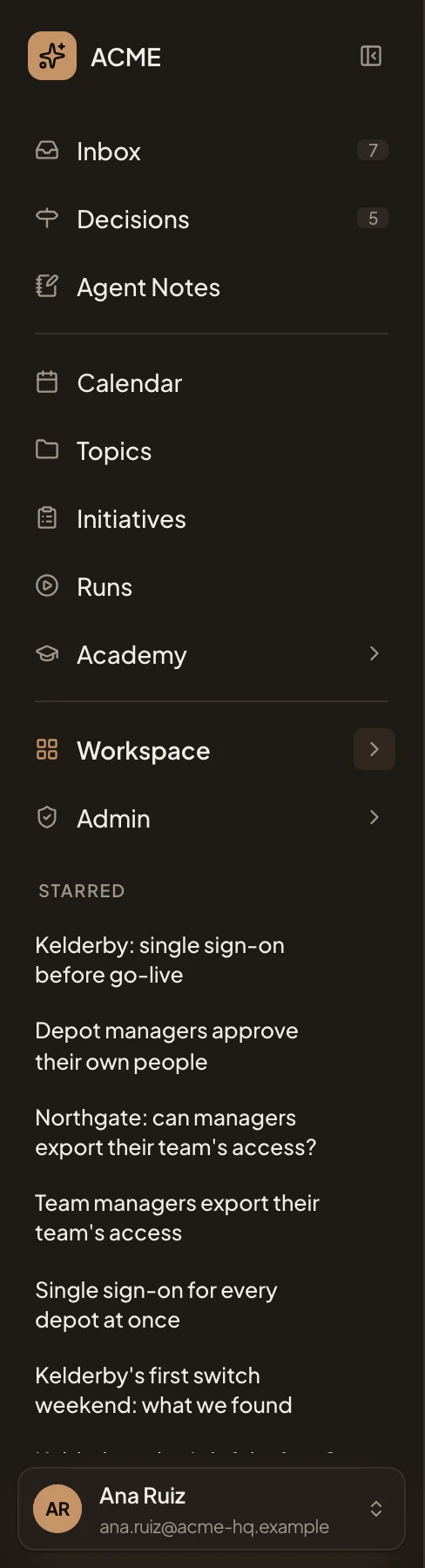
- ACME. The organisation you’re working in.
- Collapse navigation. Folds the menu to a rail of icons. ⌘B (Ctrl+B) does the same, and brings it back.
- Inbox. Everything that arrived for you (the Inbox). Its number counts what waits under To reply and To do.
- Decisions. What waits on you to decide or approve (Decisions), with how many.
- Agent Notes. What your agents left you (Agent Notes).
- Calendar. Your days, what’s due, and the jobs the agent runs for you on a schedule (the Calendar).
- Topics. Your topics and the ones shared with you.
- Initiatives. Every initiative you can see.
- Runs. The runs of your organisation’s flows you can read, and where you start one (Runs).
- Academy. The map of what your organisation knows (the Academy).
- The chevron. Unfolds a group’s pages without leaving the page you’re on.
- Workspace. Your team’s home (the Workspace). It’s lit here because Boards is one of its pages.
- Admin. How the organisation is set up and run. A red number counts what needs attention there.
- Starred. The topics and initiatives you starred (see Starred).
- Your user card. Your name and email. Click it for your own menu (see The user card).
The menu comes in four groups, each set apart by a line. Only Starred has a name.
Academy, Workspace and Admin fold. Click a group’s name to open its own page and unfold its pages under it. Click its chevron to fold or unfold it without going anywhere. Emargen remembers in this browser which groups you left open, and the group of the page you open unfolds as you arrive.
- Academy holds Explore, Tracks, Challenges and Learning profile.
- Workspace holds Boards, Lists, Labels, Fields, Checks, Landscape, Personas & skills, Templates, Flows and App builder (Apps).
- Admin holds Models, Connections, Repositories, People and Plan.
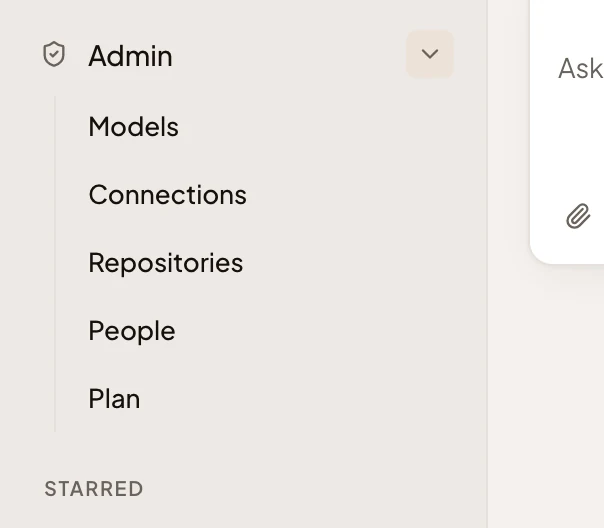
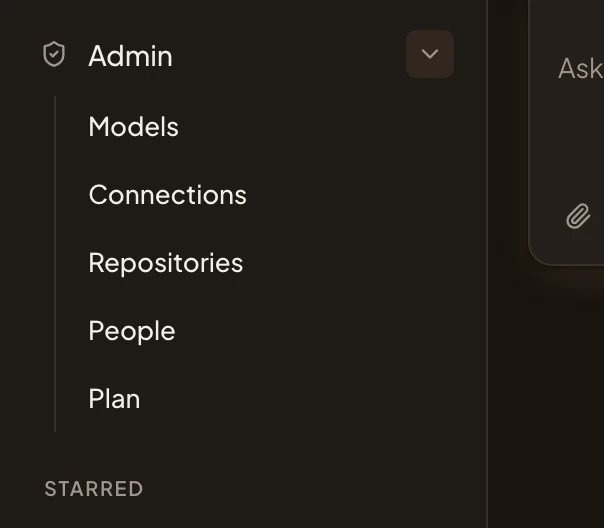
A red number on one of Admin’s rows means something there is waiting. A provider that needs its key again or ran out of quota, a connection that needs signing in again, a repository whose analysis failed, or a Git host that stopped working. The folded Admin row carries the total. Everyone sees the same menu. What you can change on Admin’s pages depends on your role.
Starred
Section titled “Starred”Starred holds the topics and initiatives you starred, oldest star first, for you alone. It shows once you star something with the star at the top right of a topic’s or an initiative’s page. Each row is the name alone, on up to two lines. Point at one to see its key and full name, and the star at its end that unstars it.
The menu folded
Section titled “The menu folded”Folded, the menu is a rail of icons. On a window narrower than 1320 pixels, it starts that way. Your choice wins. Emargen remembers it separately for narrow and wide windows, and the menu only changes by itself when you open Emargen or the window crosses that width.


- Expand navigation. Point at the mark at the top and click to unfold the menu.
- Inbox. A page’s icon. Click it to go there.
- Academy. A group’s icon. Click it to see its pages beside the rail.
- Starred. Opens your starred topics and initiatives beside the rail.
- Ana Ruiz. Your user card, as your initials.
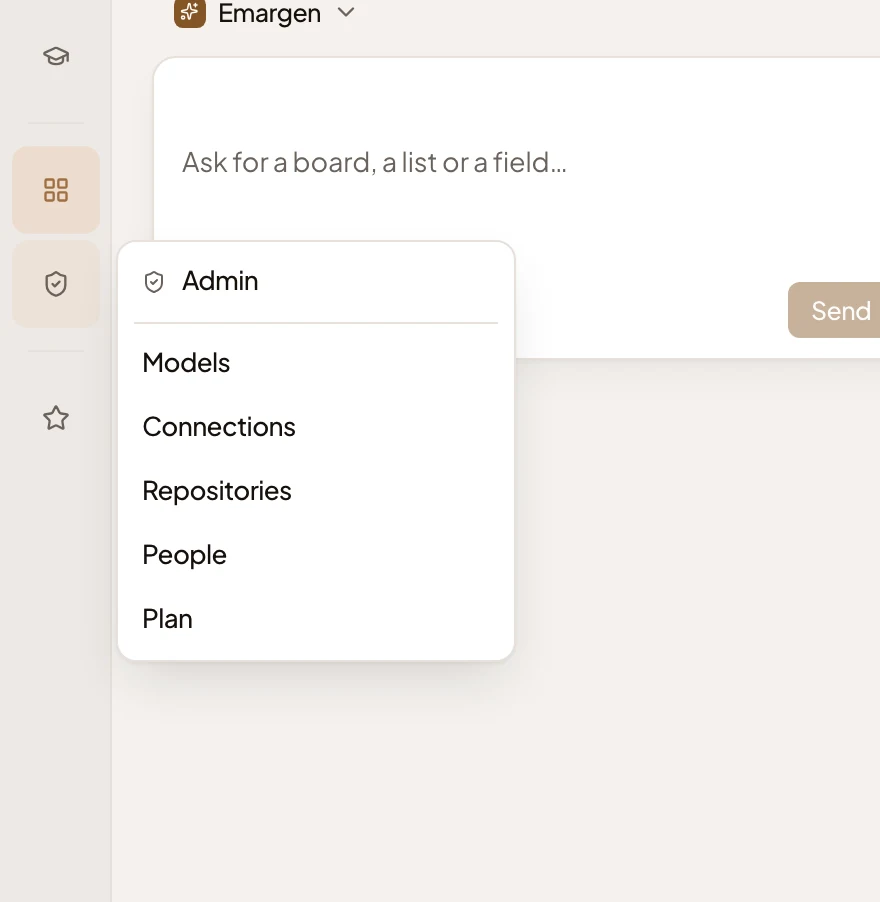
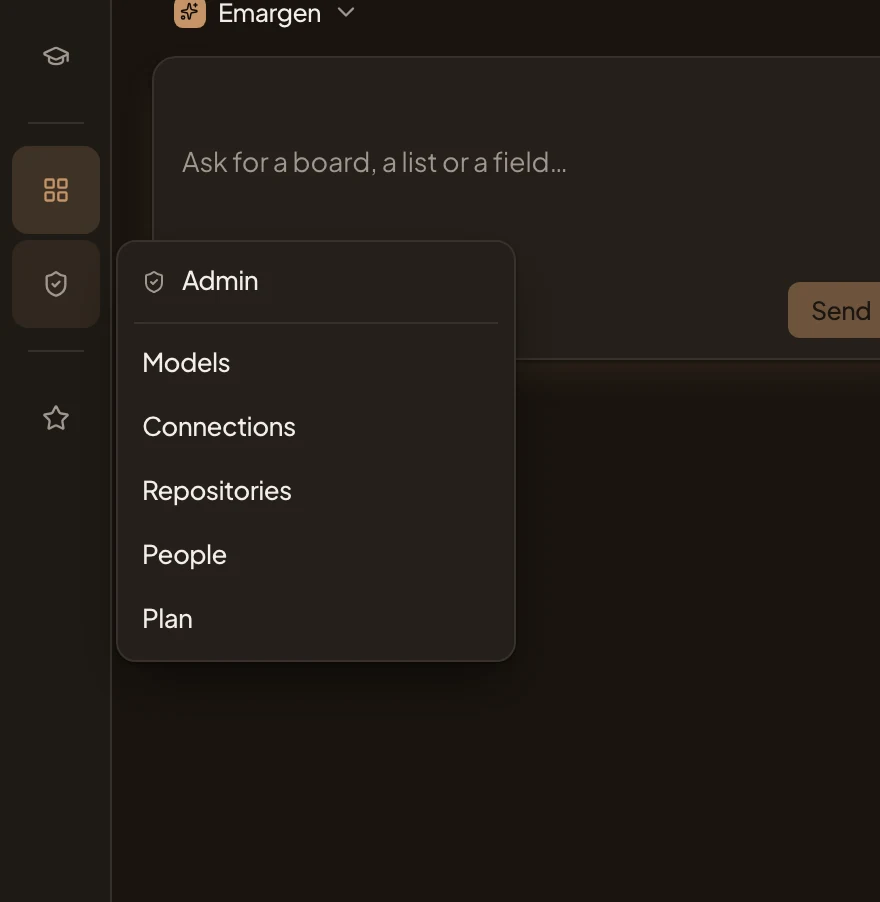
- Admin. The group’s icon, lit while its pages are open.
- Admin. The group’s own page.
- Models. One of its pages. Click one to go there.
The user card
Section titled “The user card”Your card at the bottom of the menu opens your own menu.
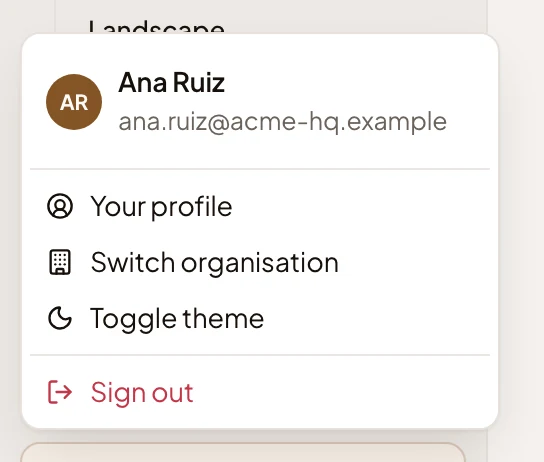
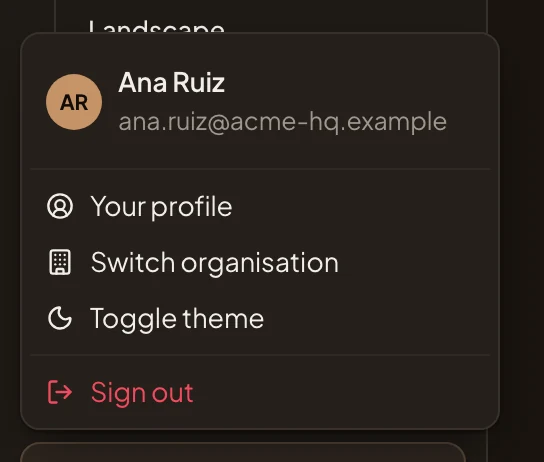
- Your profile. Your name and photo, your preferences, how you sign in, and your own use of AI (Your profile).
- Switch organisation. Opens another organisation you belong to. Each browser tab keeps the organisation you picked in it.
- Toggle theme. Switches between light and dark. To follow your computer instead, choose System in your preferences.
- Sign out. Signs you out of Emargen in every tab of this browser.
The chat beside a page
Section titled “The chat beside a page”Most pages have an agent of their own in a chat beside them. Each knows its page and works on it with you. See The agents.
An empty chat opens on a heading and a line that say what its agent does on the page. A few pages offer questions of their own to start with, like the setup’s. Beside an item, like a topic, an empty chat shows the item’s History instead, with the latest line nearest the box.
Any chat can do most of what a click does. Publishing, approving and a few other acts stay yours. Ask it for one of your own marks, like a star or a pin, and it happens at once, with Undo on the line the chat shows. Bigger changes, like saving a board, wait on a card in the chat until you confirm them. A change of one step is one press on that card.
Under its latest answer, the agent may offer one or two next steps as chips. One might be a question you’d likely ask next, another something it can do on the page. It offers none while it waits on you, like a question it asked, a card to confirm or work still running.
Your chat with an agent is your own, and nobody else reads it. On a page with an agent of its own, like Workspace or Admin, Emargen keeps every chat you had there. Once a chat has a message, New chat, the pen above the message box, starts a new one. An empty chat offers your last one back under the box, with Continue.
Commands
Section titled “Commands”Type / in the message box for its commands, ahead of the skills you can call.
- /clear empties the window once the chat has a message. The agent keeps a short summary of what came before. A line says when you cleared it, and Show earlier brings the messages back.
- /new starts a fresh chat, on a page that keeps several. The agent won’t remember the last one.
An answer that didn’t finish
Section titled “An answer that didn’t finish”When an answer stops, one line takes its place and says what happened, like “The connection dropped. The partial answer is below.” Send again sends your message once more. When the account behind the model is out of credit, the line says so. Whoever manages models gets Open Models to fix it, and everyone else sees who was told. Details holds a reference to pass on to whoever runs Emargen, with Copy.
The chat’s width
Section titled “The chat’s width”The chat starts at a width that suits the page. It takes the most room where the conversation leads, like an initiative still being framed and the organisation’s setup. It sits beside the page on a topic, an initiative once it’s in shaping, Workspace, Admin and your profile. The chat starts hidden and opens narrow on the Inbox, Decisions and the boards. This browser remembers the width you drag the chat to, for that kind of page.
Hiding the chat
Section titled “Hiding the chat”Hide the chat, the « at the foot of the divider, hides the chat to a narrow strip. Press ⌘J (Ctrl+J) to hide it or bring it back from anywhere on the page.
- Conversation. The hidden chat. Click it to bring it back.
A dot on the strip says the agent is working, has a new answer, or is asking you something. The chat never comes back by itself, except when you hand it something, like Ask the agent about from the search. This browser remembers a hidden chat for each kind of page.
The persona
Section titled “The persona”A persona is how the agent works for you. It covers the model it runs on, how long it thinks, and its instructions. The chats about your organisation’s work show the persona’s name above the message box. Click it to pick another.
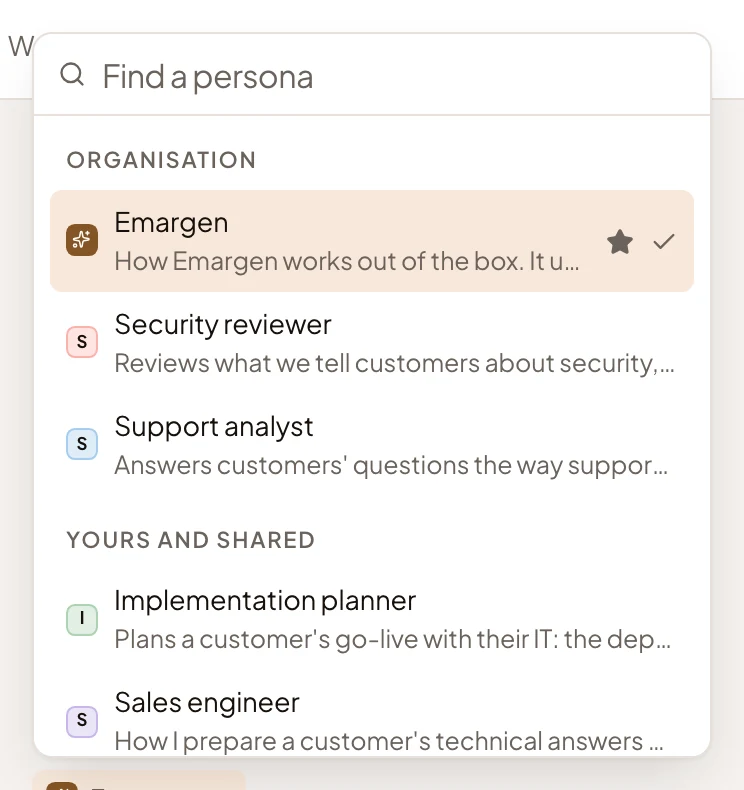
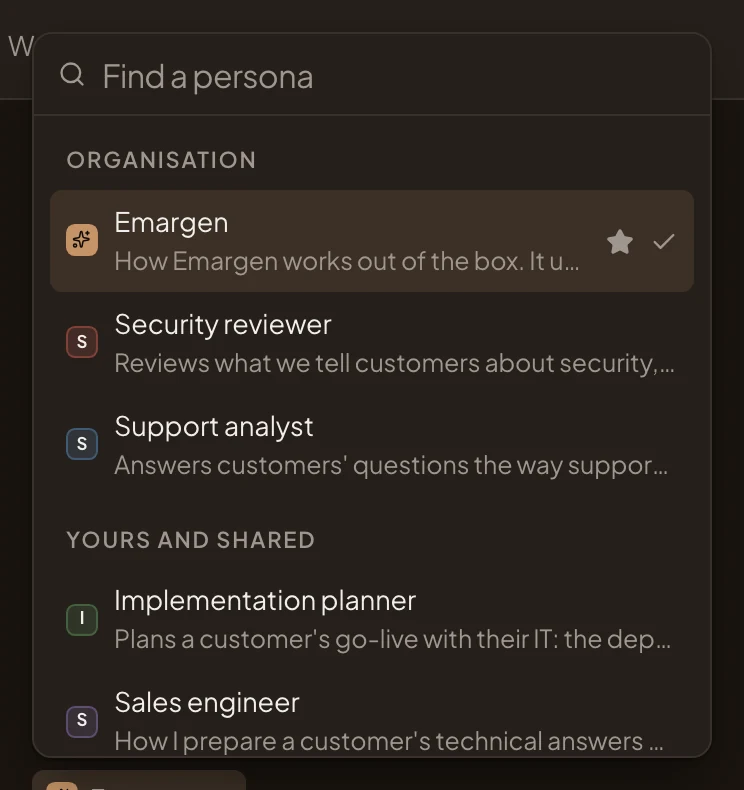
- Emargen. A persona, with a line on what it’s for. The star marks your default, and the tick the one answering now.
- Organisation. The organisation’s personas.
- Yours and shared. Your own personas, and those people share with you.
Manage personas, at the end of the list, opens Personas & skills.
The persona you pick answers from your next message on. In the message box, / offers the skills you can call by a word, and @ asks another persona to review the answer. See Pick a persona. The admin agent and the agent beside Personas & skills, Templates and Flows always work the same way, and have no persona to pick.
The right rail
Section titled “The right rail”When you pick something on a page, like an item in the Inbox or a run that failed on the Calendar, its detail opens in a rail on the right.
Open the Inbox (opens Emargen in a new tab)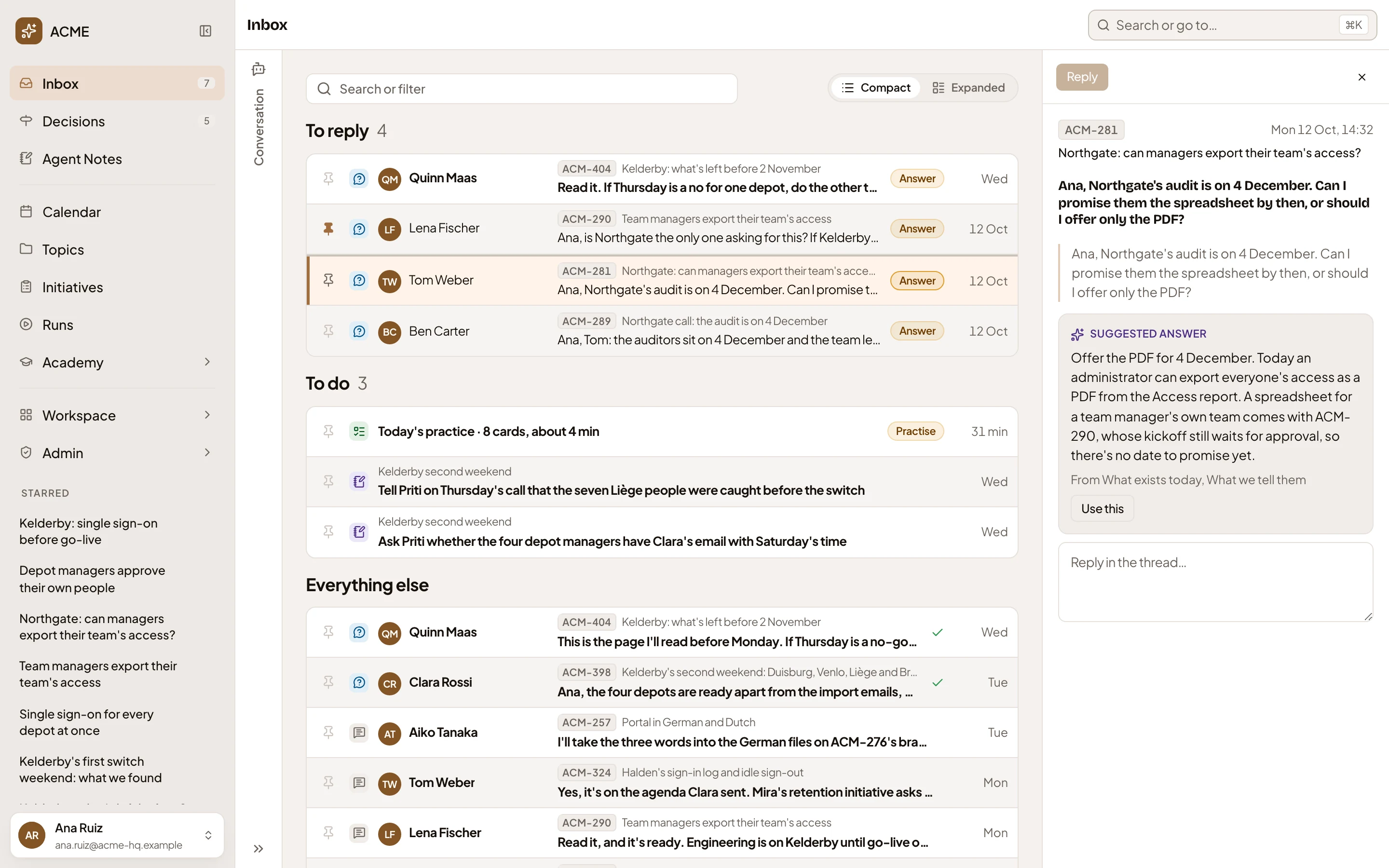
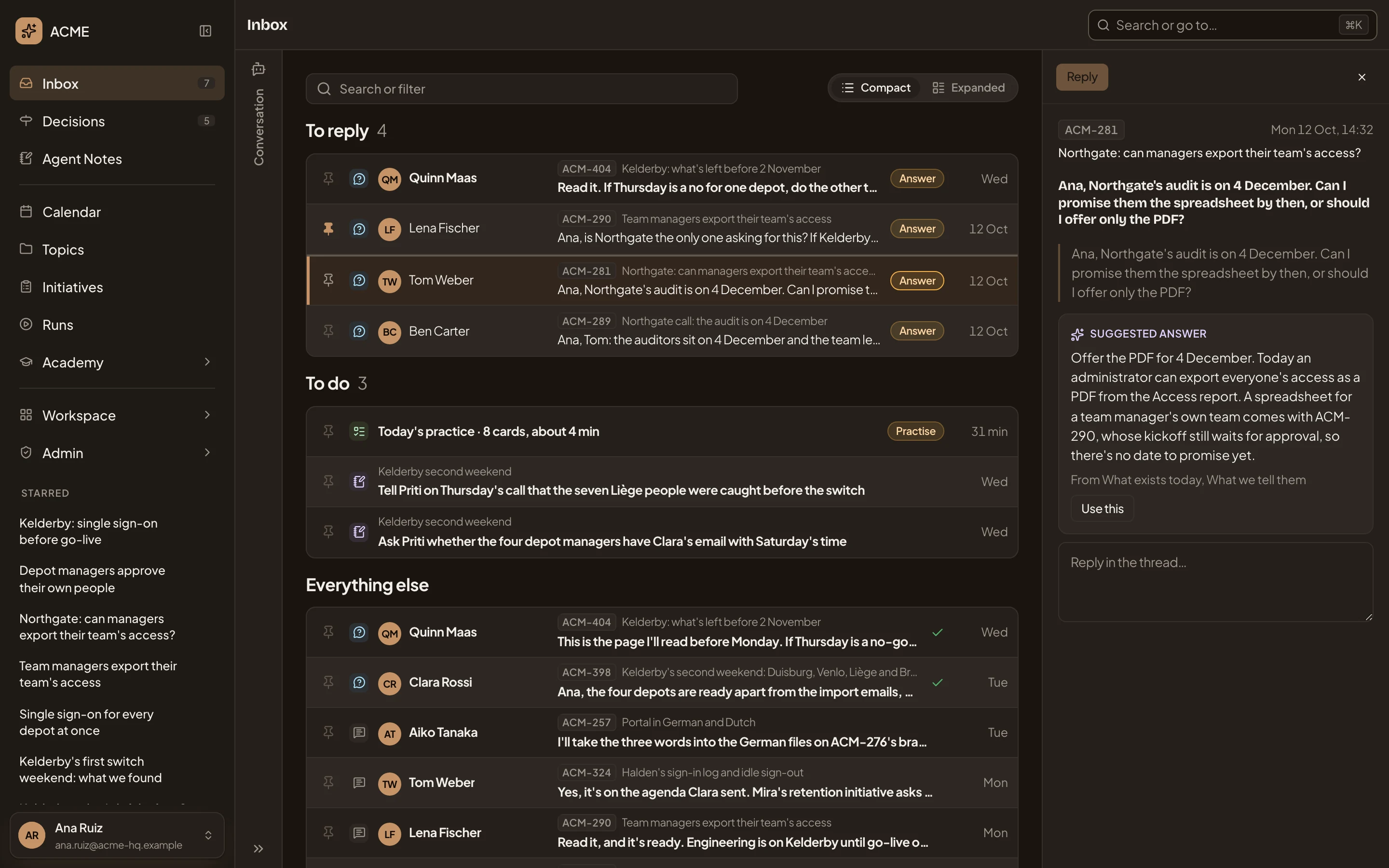
- The rail: everything about what you picked, and what you can do with it.
- Close. Puts the rail away.
A checklist the agent works through for you also sits in the right rail, on every page, until it ends. See The checklist.
Notifications
Section titled “Notifications”After you copy a link, a short message shows at the bottom right for a moment. A message there also says when something couldn’t be saved. Alt+T moves to them with the keyboard. What waits on you arrives in your Inbox instead.
Reading offline
Section titled “Reading offline”Emargen keeps a copy of what you read on your device: your Inbox, topics, initiatives and notes. When the connection drops, you go on reading. The bar then shows Offline. Click it to see when the copy was last brought up to date. While you’re offline, the message box says “You’re offline. You can write once you’re back online.”
Administrators choose whether devices keep a copy, with Save a copy on devices on the Workspace’s settings. Without it, only what’s open can be read. Signing out deletes the device’s copy.
On a phone
Section titled “On a phone”On a phone, and on a tablet held upright, the frame folds up so the page has the screen.
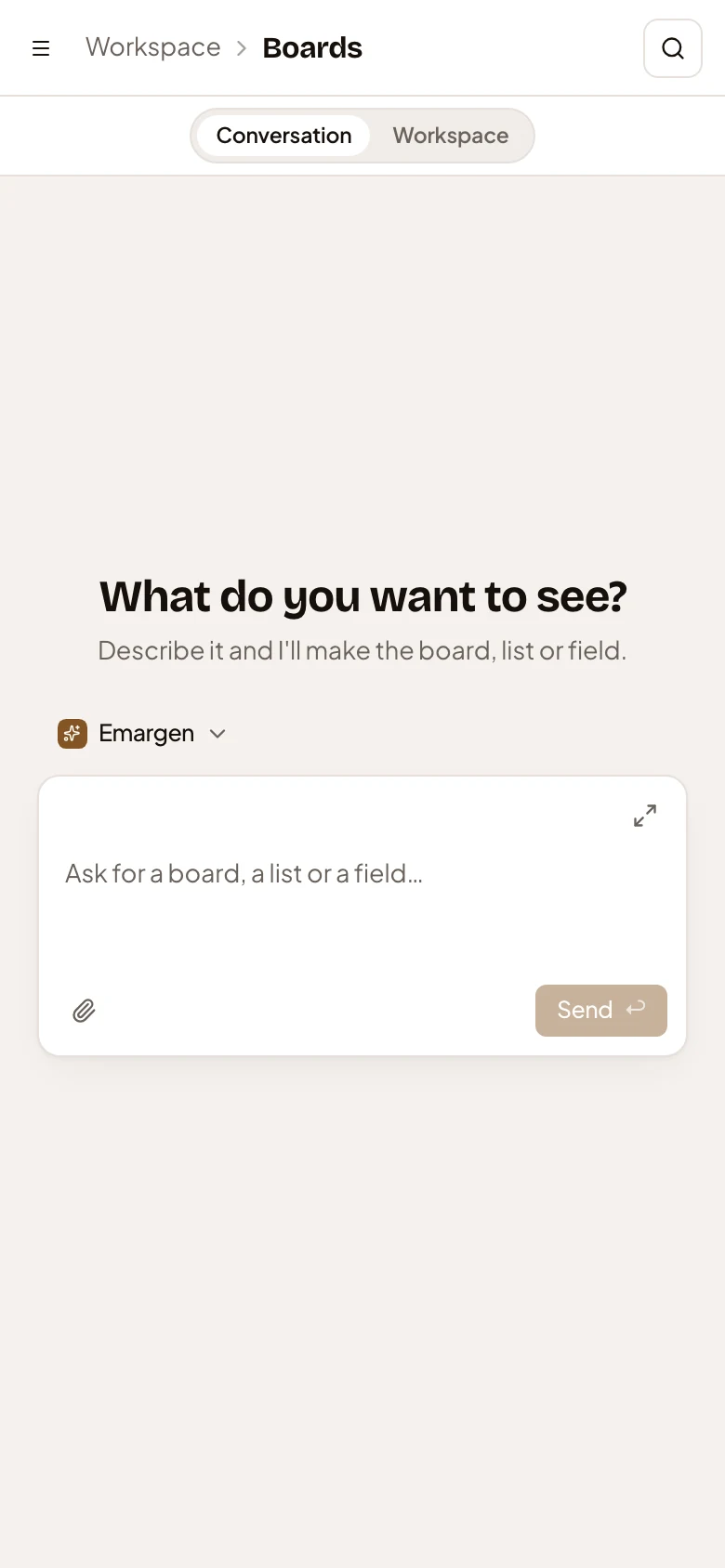
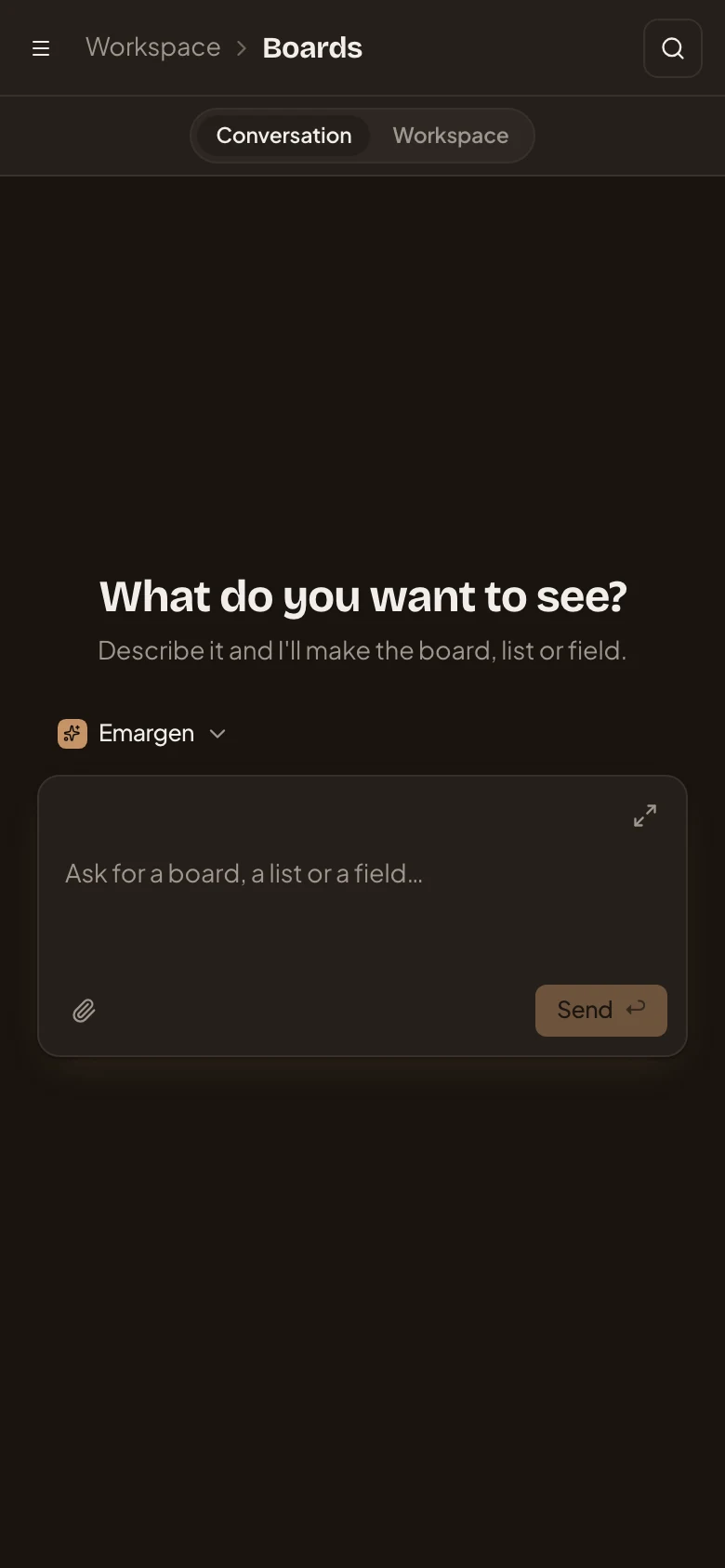
- The menu button, Open the menu. Opens the menu as a sheet over the page.
- Where you are.
- Search. Opens the search on the whole screen.
- Conversation, and the page’s name beside it. The chat and the page take turns. Tap one to switch.
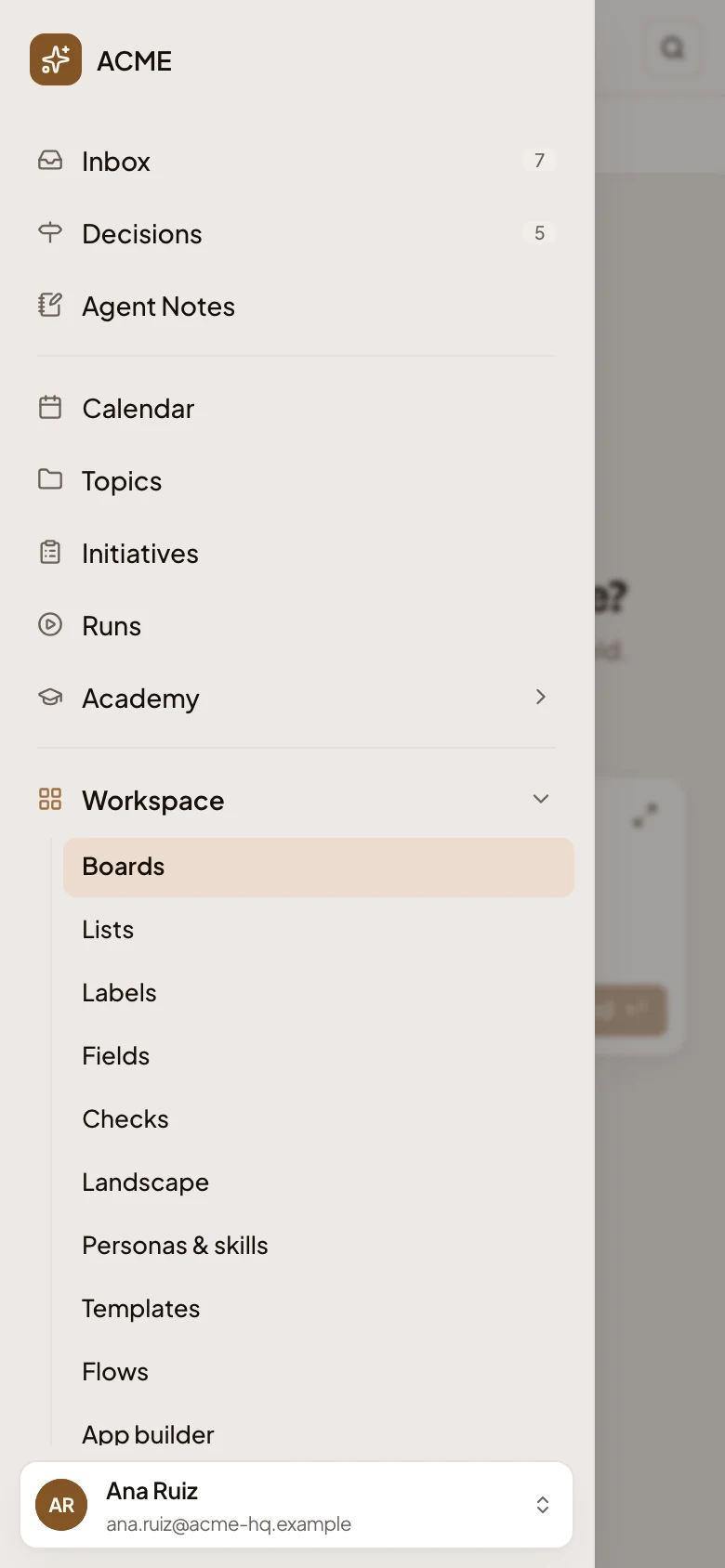
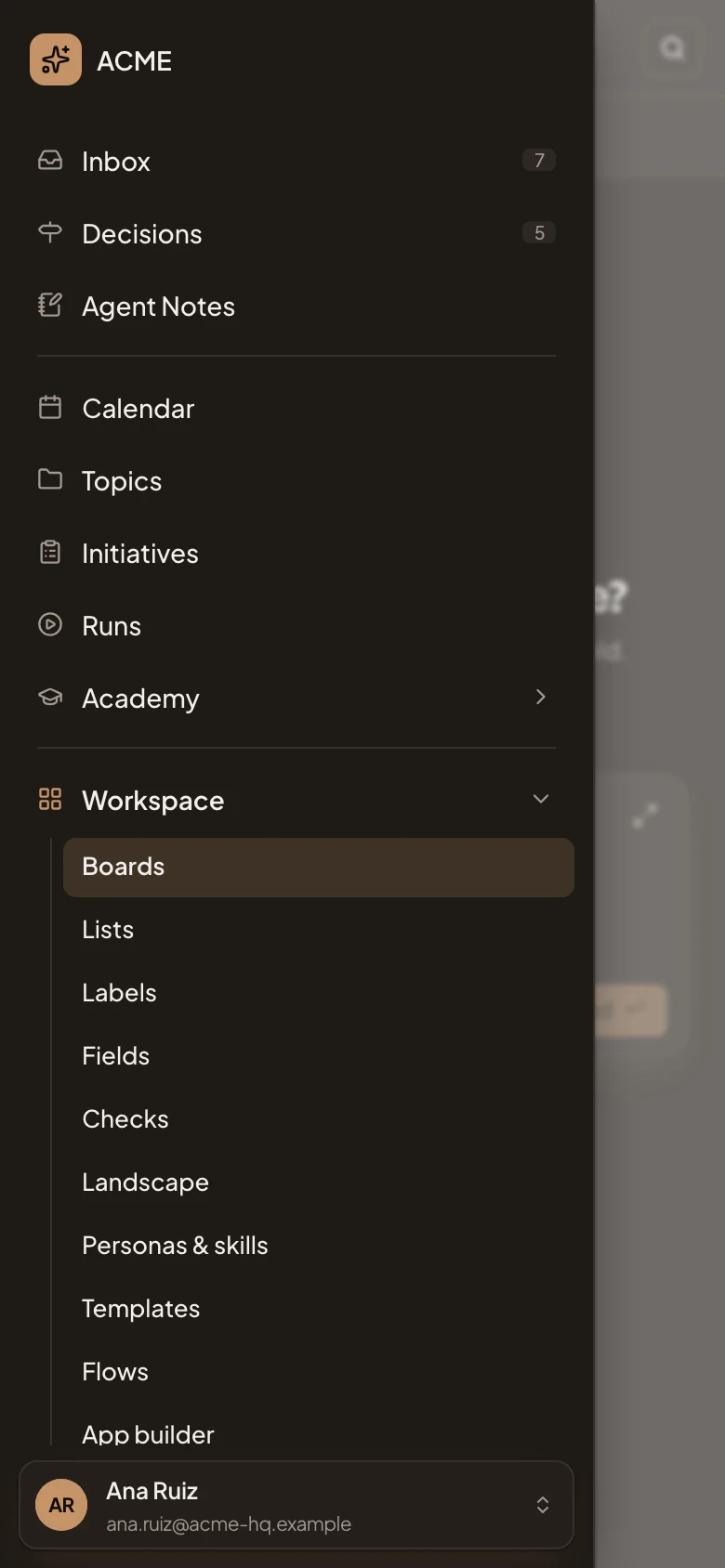
The menu opens over the page with the same places, groups and user card. Tap a place to go there, or tap beside the sheet to close it.
On a phone, the right rail opens as a sheet from the bottom. You switch between Chat, Document and Comments on a topic’s page (see A topic’s page).
- Search, the search at the top of every page.
- Find anything.
- Pick a persona.
- Your first hour.