

AdminHow to
Make content searchable
Do this to change what the agent can search through a connection. Support now handles onboarding too, in a second Jira project. Nothing is searched until its check passes. Connections and knowledge explains the idea behind it.
Before you start
Section titled “Before you start”- Who can
- You change a connection’s searchable content if you connected it, or if your role lets you manage all connections. Administrators can.
- You need
- You need two or three searches the way a colleague would type them, such as “single sign-on” or “phone code”: the check runs them for real.
- The pictures
- The pictures widen ACME’s Tickets (SUP, ENG, OPS), on its Jira Cloud connection, to a fourth project, ONB, where its support team now keeps onboarding requests.
-
Open Admin in the menu (it opens on Models), click Connections under it, then the connection. Click the Searchable content tab, then the content’s name. In the pictures, Jira Cloud’s Tickets (SUP, ENG, OPS).
Open Connections (opens Emargen in a new tab)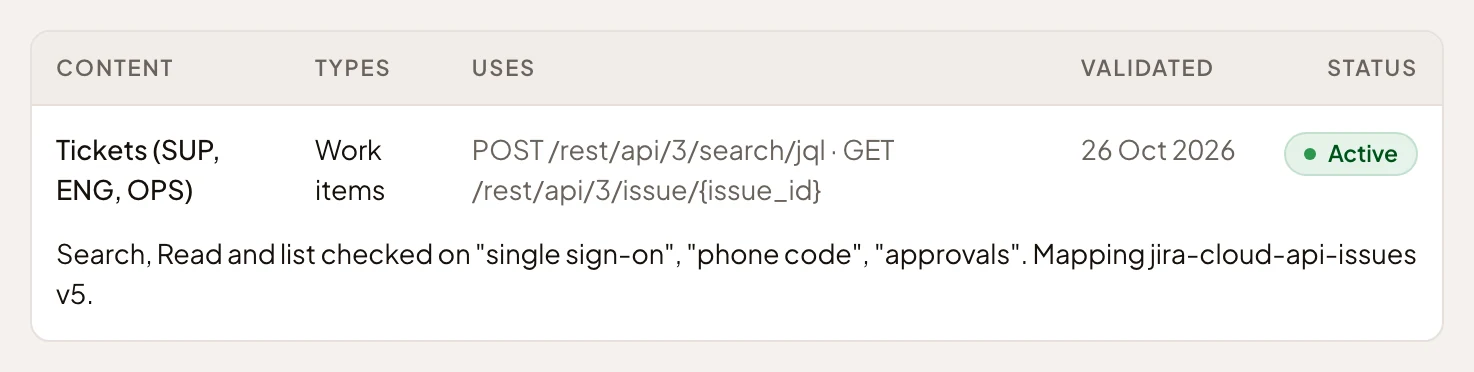
- Tickets (SUP, ENG, OPS).
-
On the content’s page, click Edit in the About card.
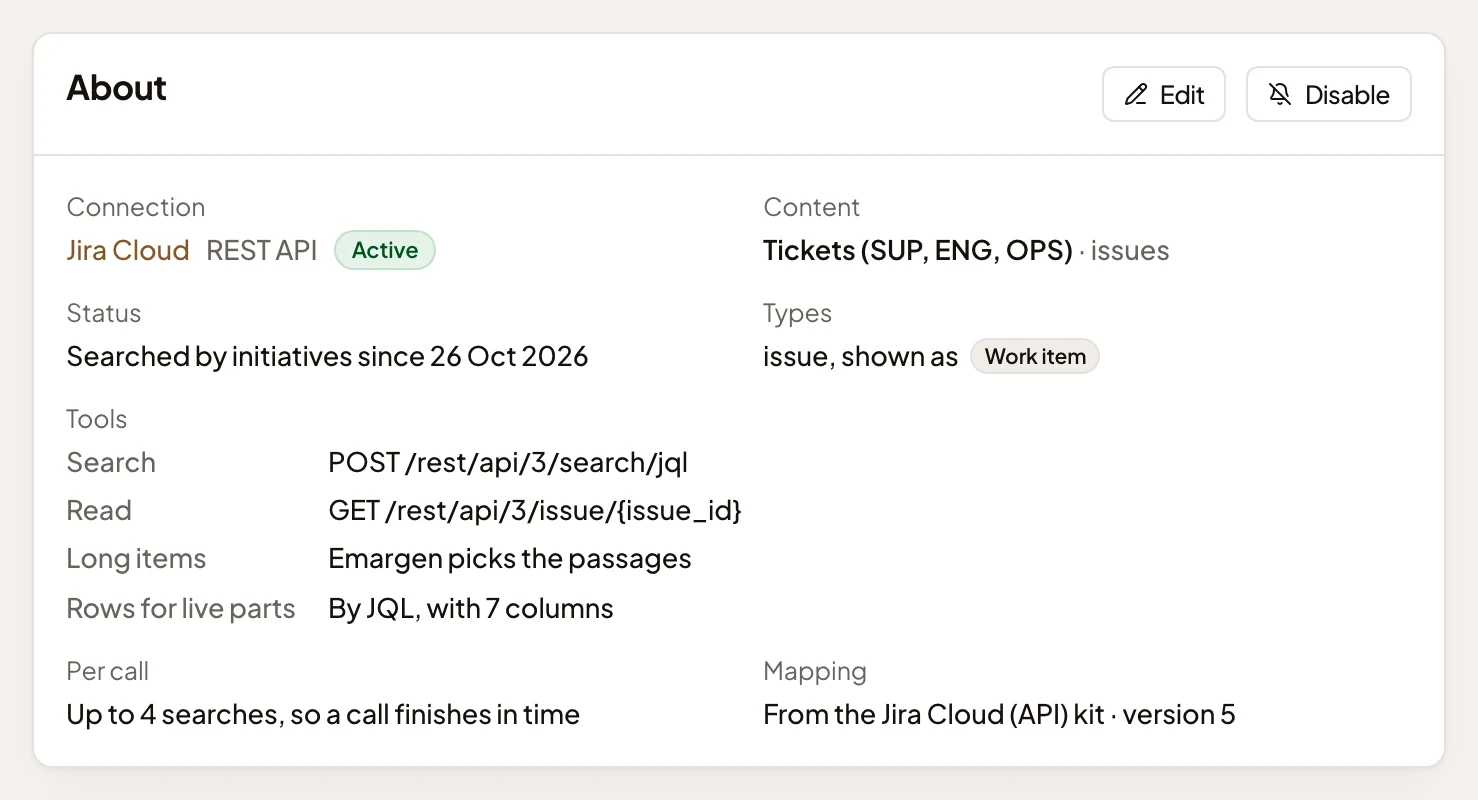
- Edit.
The setup steps open on the first one, Searches.
-
Change the fields this step holds.
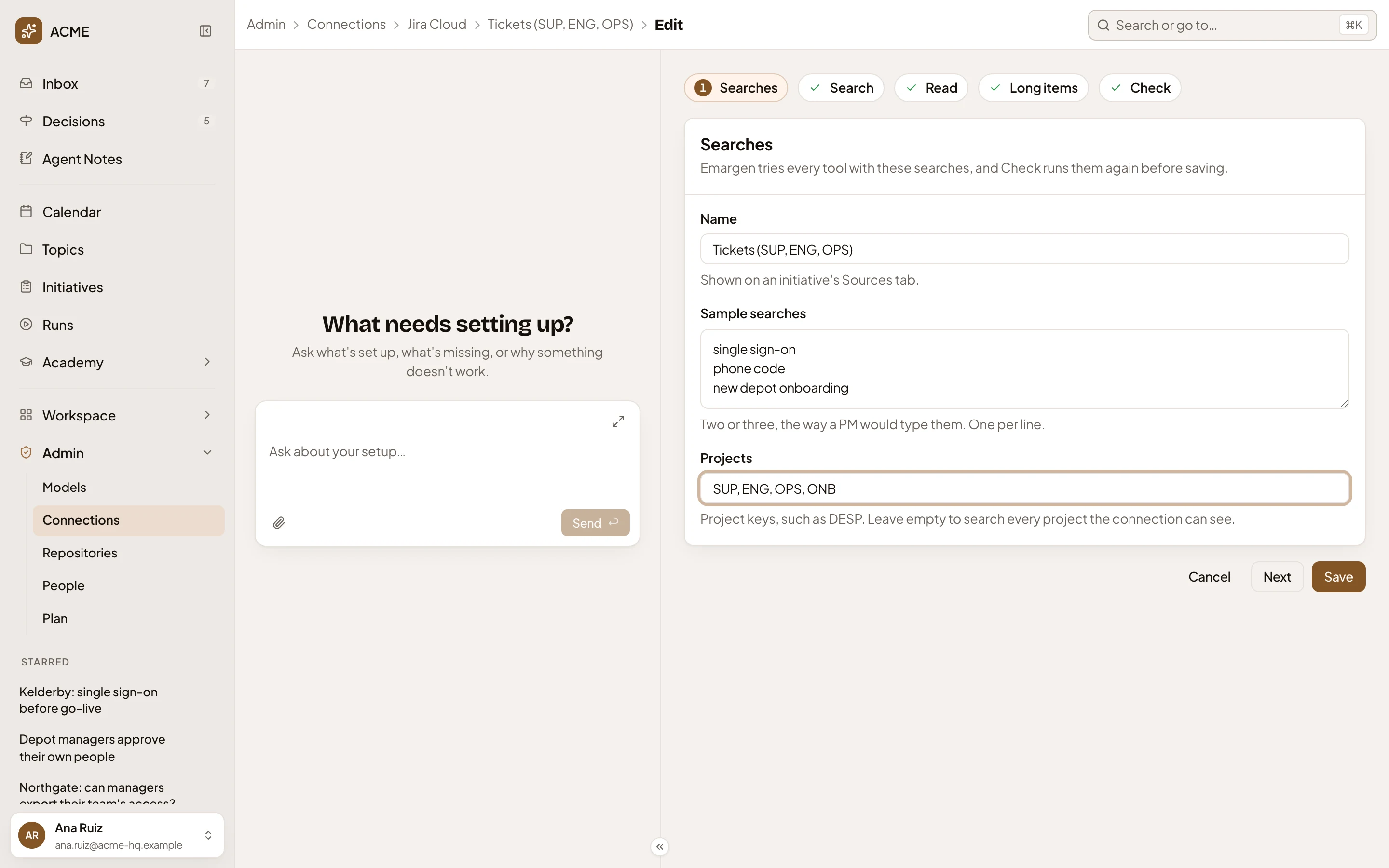
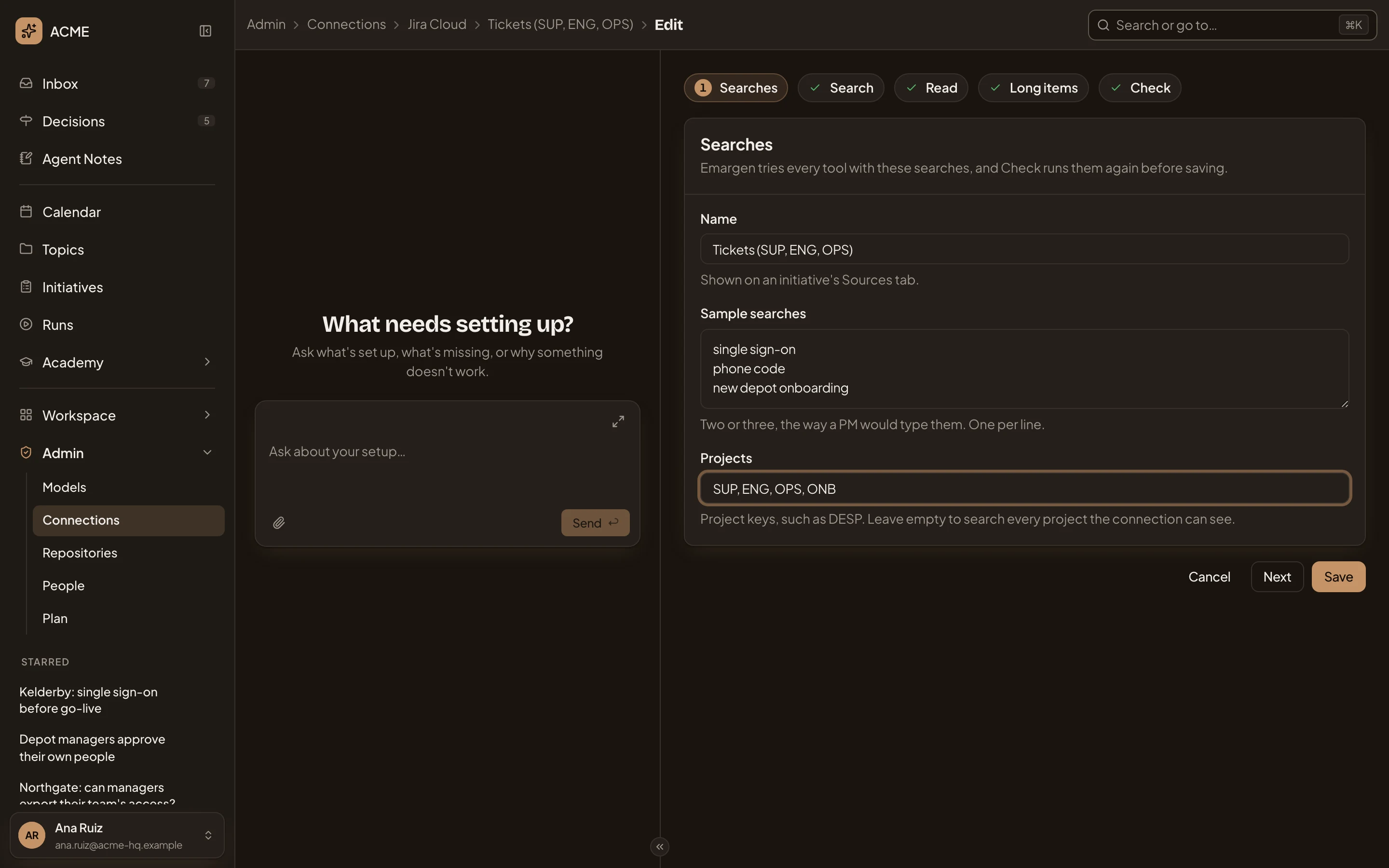
- Sample searches: two or three, one per line. Replace one with a search the new project should answer, such as “new depot onboarding”.
- Projects: the project keys, separated by commas. Keep the ones it searches now and add the new one, like SUP, ENG, OPS, ONB. Left empty, every project the connection can see is searched.
- Save.
You can also change the Name, which you see on an initiative’s Sources tab. You might call it Tickets (SUP, ENG, OPS, ONB).
-
Click Save. Emargen saves the content, checks it with your sample searches, and opens its page with how the check went.
If the new check’s search or read fails, the content stops being searched altogether until a check passes, even for the projects that worked before. So add only project keys you know. A key Jira doesn’t know fails the check.
-
Read the Check card. When the check passes, Search and Read say Passed, and the content is searched again, now with your changes. Read may say “Not tried: the searches found nothing to read”. That isn’t a failure. Add a search that will find something to read, so the check can try reading one.
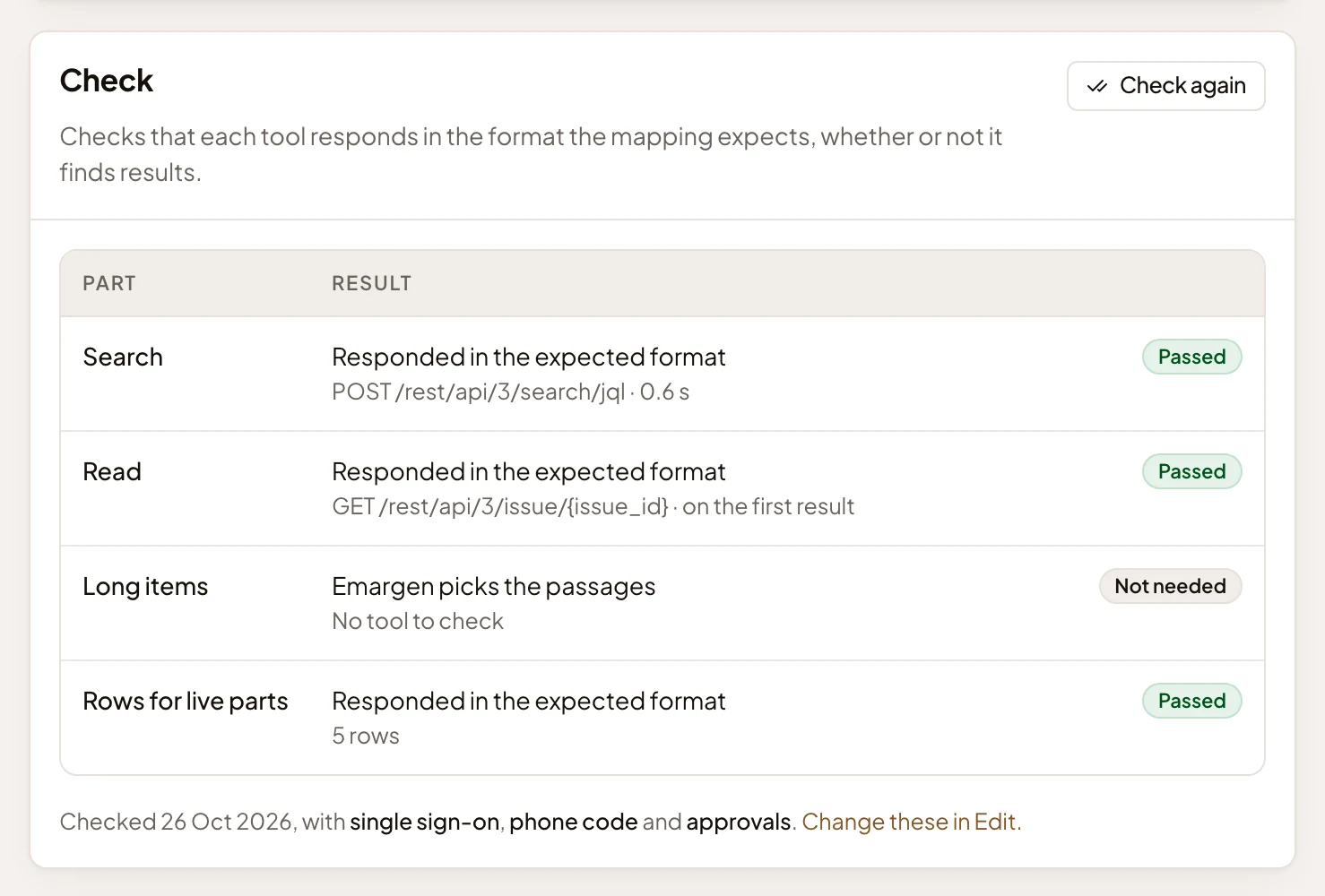
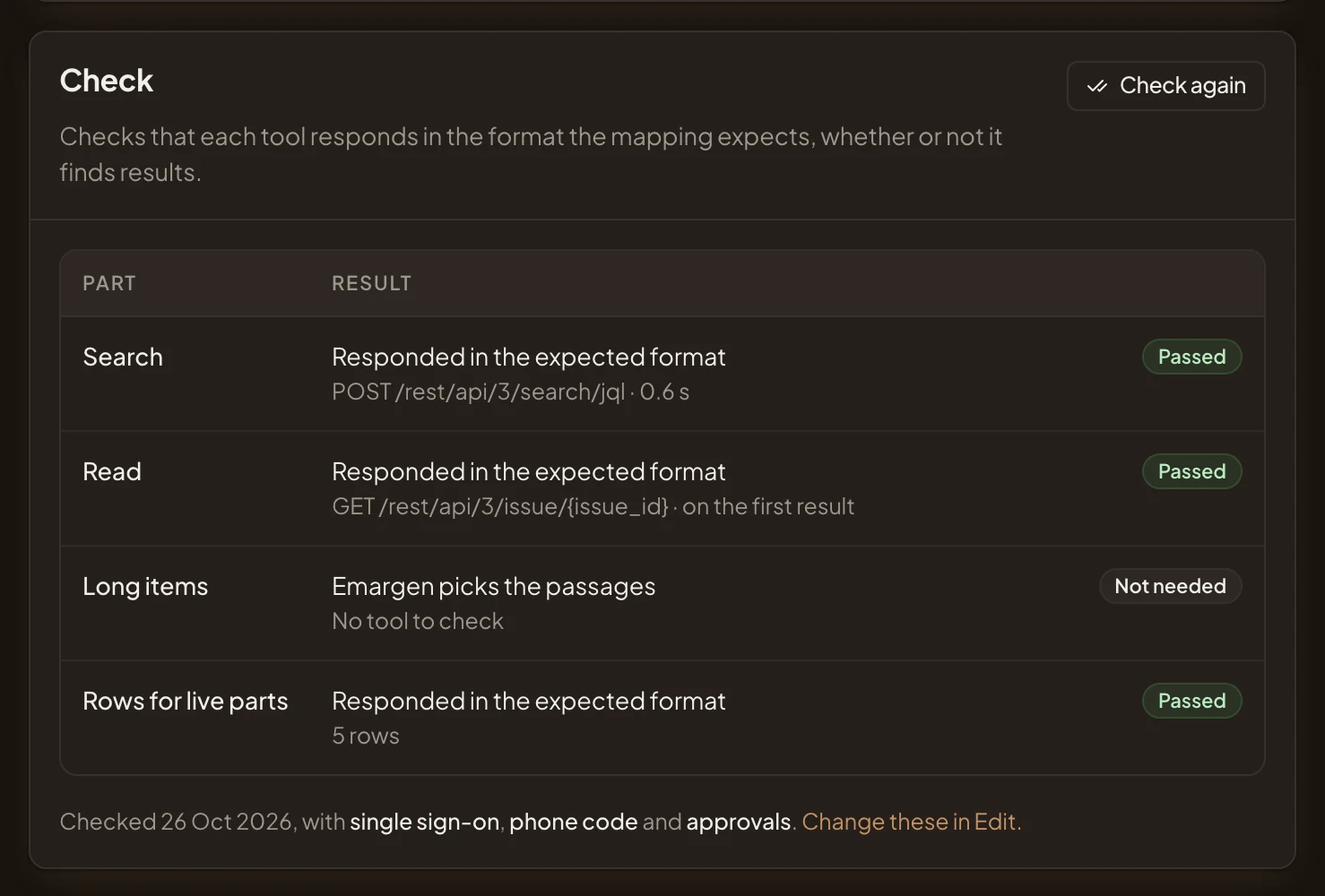
- Check again: runs the check again, any time, with the sample searches.
If Search or Read says Failed, read the reason under that part. Click Change these in Edit. under the card, correct the problem, then click Check again.
“The service answered with an error” on Search often means a project key Jira doesn’t know, or one the account can’t see. If the connection also says Needs reconnect, Jira refused its sign-in instead. If Rows for live parts alone fails, the content is still searched, but live tables in topics stay empty until a check can read its rows. Connect Jira or Confluence lists every reason.
-
Try it under Try a search. Type what a colleague would ask, like “onboarding”, and click Search. The list shows what it found, each item with its title, kind and reference. Click one to read it as the agent will.
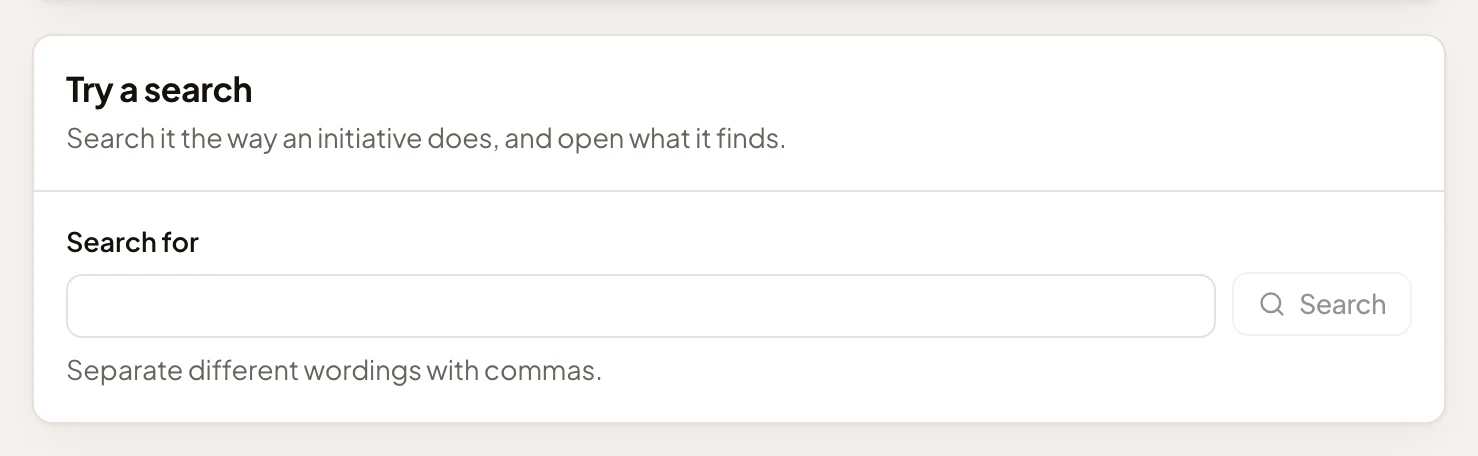
- Search for: different wordings, separated by commas.
You can only try content that’s being searched. While its check has failed, Try a search says “The search failed: unconfigured.” whatever you type.
What you get
Section titled “What you get”- The content’s status says it is searched by initiatives. The agent searches every project in it when someone asks in a topic, and you see what it found under Sources.
On a connection you set up yourself
Section titled “On a connection you set up yourself”A connection made from a kit, like Jira Cloud, comes with its contents, and you change them as above. On a connection you set up yourself, with Any MCP server or Any REST API, you make each content:
-
On the connection’s Tools tab, switch on the tools that search and read the system.
-
On its Searchable content tab, click New. Or click Set up with the agent, and the agent proposes one content per search tool. You keep or discard each.
-
Under Searches, add a name, a key and sample searches. In Search, choose the search tool and set how results appear. In Read, choose the tool that reads whole items. In Long items, say who picks the passages. Then run Check. Each step opens once the one before is done.
-
Click Save on Check.
See A searchable content for every field of the steps.