

CalendarHow to
Fill a list with an agent task
Fill a list with an agent task when new things keep arriving somewhere and each one needs working out, like customer questions in the support queue. On each run the agent looks for what’s new and makes a topic for each thing it finds. Each lands at the top of one of your lists, where your team finds it. Nobody copies requests over by hand.
Before you start
Section titled “Before you start”- A list of topics kept by hand, that you can change and that no other task fills. A list that fills itself from a filter isn’t offered. To make one, see Keep a list. A list’s own page can set up its task too.
- A connected source, such as Jira Cloud, for the agent to look outside Emargen. See connections.
- Only you change the task, because the agent reads on your behalf. People who can change the list can pause it.
- The pictures show the task of ACME’s support person, “Customer questions from support”. On Mondays and Thursdays it puts a topic on the list Support questions for each customer question that came in as a Jira request.
-
Open the Calendar and click New task at the top right. New agent task opens on a page of its own, with Create greyed out until the task has what it needs.
Open the Calendar (opens Emargen in a new tab) -
In Name, name the task by what it collects.
Pick the list and the days first. The agent reads your Instructions with them.
-
Under Output, open List and pick the list. A list that belongs to a board shows under the board’s name.
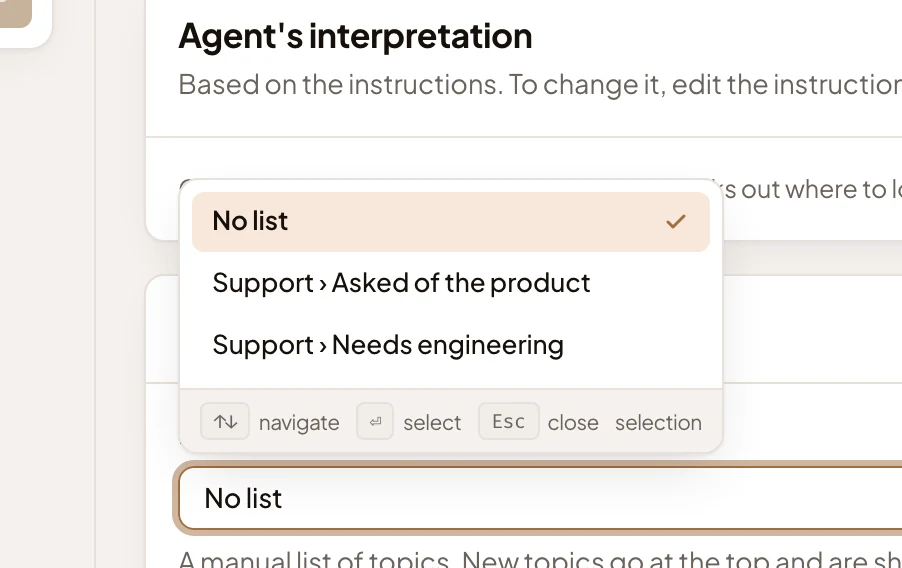
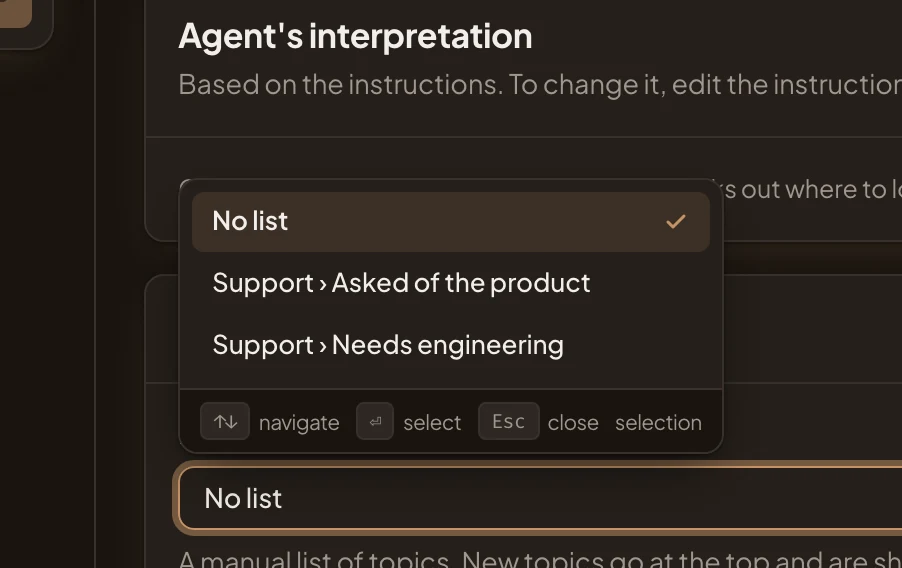
Support questions isn’t offered, since a task already fills it. A list takes one task. Once you pick a list, Sharing leaves the form, because whoever sees the list sees the task.
-
Under Makes, pick A topic for each thing it finds: one per thing, up to 10 a run. Past ten, the rest get no topic from that run. It’s greyed out, with “Pick a list first”, until you’ve picked a list. One topic each run makes one topic for everything it found instead.
-
Under Schedule, pick the First day and the Time, then Weekly under Repeats. A row of days, On, appears with none picked. Click each day it should run. In the pictures, it runs on Mon and Thu, at 08:00.
-
Back at the top, in Instructions, say what to look for and what each topic should say. In the pictures: “Make a topic for each new support request in which a customer asks whether something can be done or how it works. Name the customer, write their question in their own words, and what exists today.” Then pick a Template for the topics, so each one has the same sections and fields. In the pictures, Customer question. The agent fills the template’s fields from what it found.
-
As soon as you leave Instructions, the agent reads your words and fills in Agent’s interpretation. Looks in is where it searches, and Period is how far back. Under them, a line says where it could look, like “It can look in Emargen, Confluence Cloud and Jira Cloud. Name one in the instructions to make it look there.”
That’s the agent’s reading, made afresh each time, so check it. The task in the pictures looks in Jira Cloud and reads Since the last run. To read only what’s new, say “since the last run”. To keep it to one source, name only that source. The same words in a new task may also send it to Confluence Cloud, for “what exists today”. The first run looks back one repeat, a week for a weekly task. Change the words and leave the box again to have it read them anew.
Here’s the finished form of the task in the pictures, open on Edit.
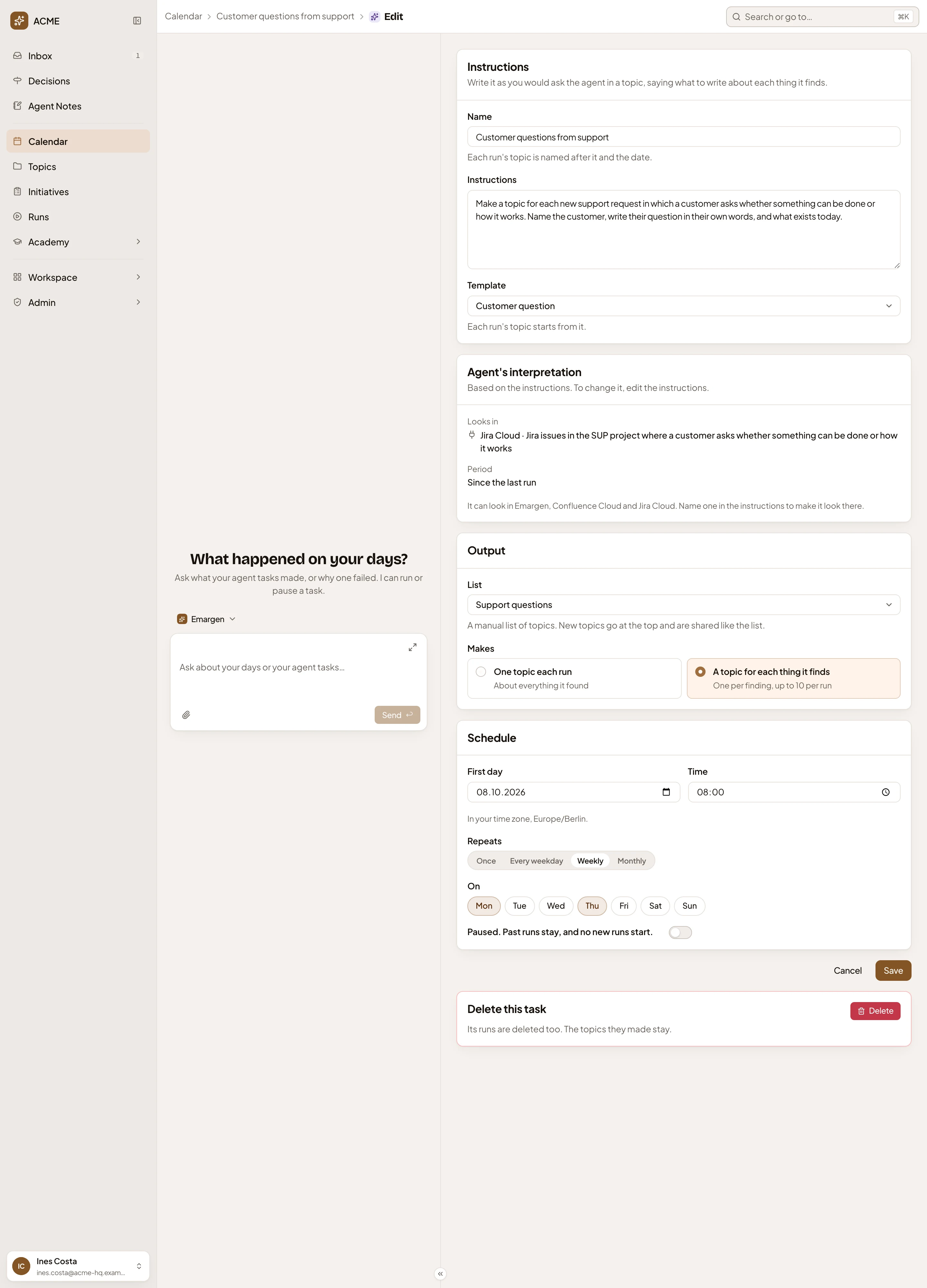
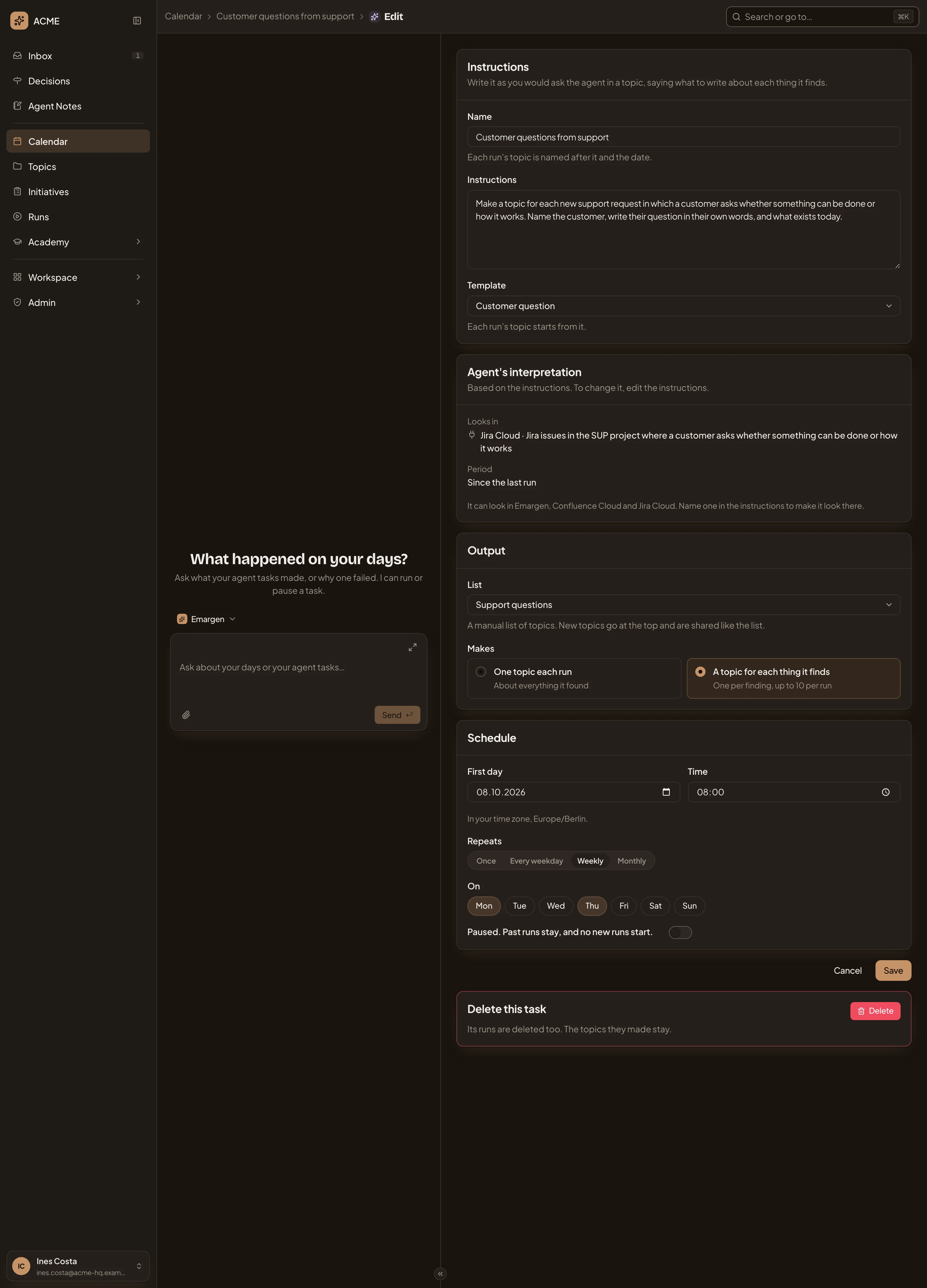
- Instructions: what to look for, and what each topic says.
- Template: each topic starts from Customer question.
- Looks in: the places the agent understood you want searched.
- List: the list, Support questions.
- A topic for each thing it finds.
- On: Monday and Thursday.
-
Click Create. If the form says “Choose places the organisation has.”, the reading names a place your organisation hasn’t connected. Copy the source’s name from the line under Agent’s interpretation into Instructions. Leave the box, check the new reading, and click Create again.
What you get
Section titled “What you get”- The task’s own page opens. It shows the list it Fills, where it Looks in and what it Reads. Past runs says “It has not run yet.” Its runs show on the Calendar from the first day on.
- On each run, the agent follows your instructions and looks as far back as Reads says. It makes a topic for each thing, named after it, at the top of the list. The topics are shared like the list. Whoever sees the list reads them, and whoever can change it takes part in them.
- The task won’t make a second topic for a thing, even after its topic leaves the list. When its source says it changed, the task brings the topic up to date instead. Each run says what it found and made:
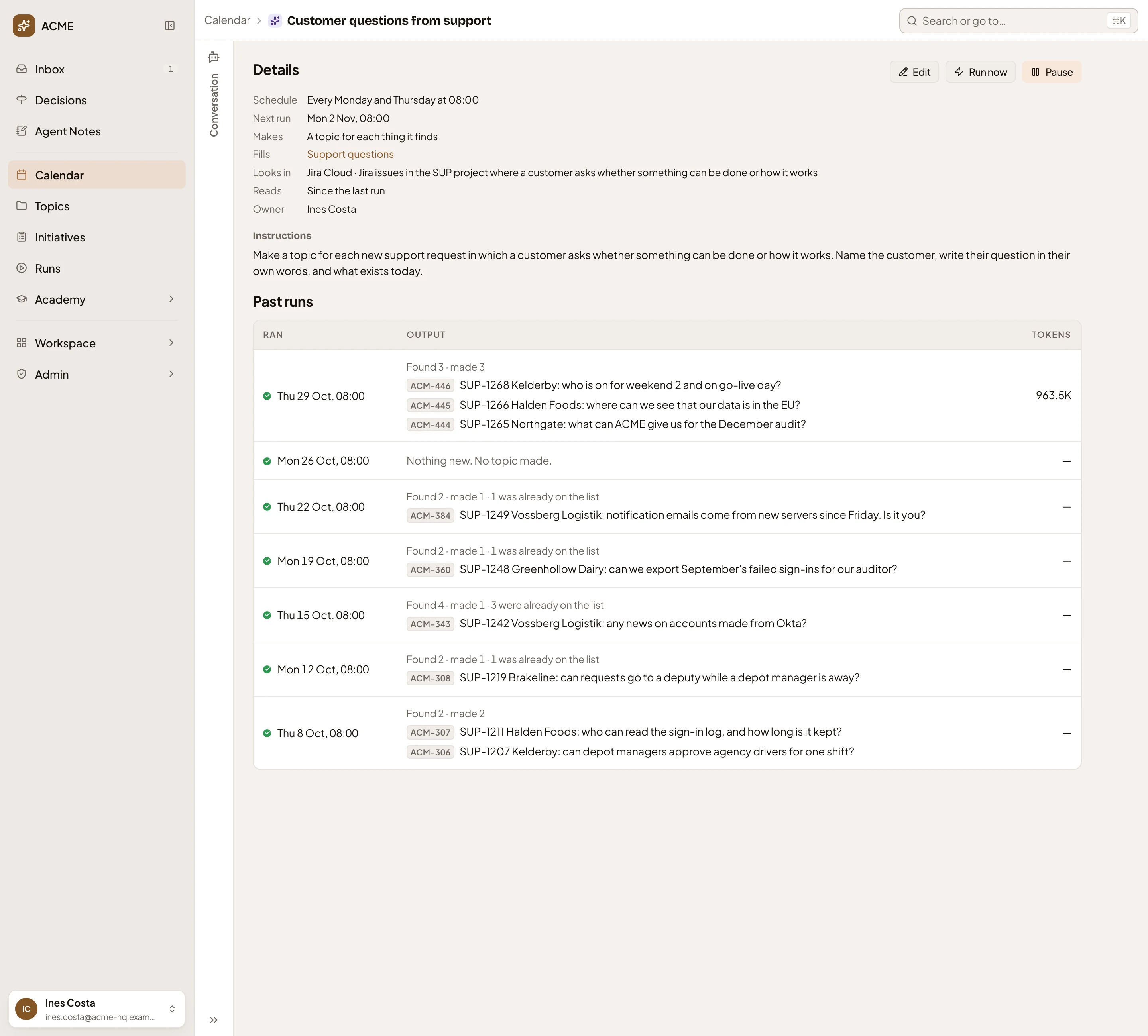
- Fills: the list. Click it to open the list.
- Run now: checks for anything new since the last run.
- A run that found three requests and made three topics.
- A topic it made, for one customer’s question. Click it to open the topic.
- A run that found nothing new, and made nothing.
- A run that found two, and made one: the other was already on the list.
- A run that works sends no message. The new topics are on the list, on the Calendar and on the task’s page. Only a run that fails reaches your Inbox, as a task in To do with Run again.
- The list’s own page shows the task under Filled by an agent task. Your colleagues see the new topics wherever they keep the list, such as a column on a board.