

WorkspaceHow to
Add a field
Add a field when one fact about a kind of topic should show at a glance and group a board, like how badly a support case hurts.
Before you start
Section titled “Before you start”- Anyone in the organisation can make a field. Its maker and administrators change it later.
- After you make the field, you add it to a template you can change. That’s your own template, or one shared with you to edit. To change your organisation’s template, you need a role that manages templates, like an administrator’s. Otherwise, ask someone who can.
- Look on Fields first. The field may exist already.
- The pictures show ACME’s support lead making Impact for the template Customer question, then asking an administrator to add it there. Impact says how many of a customer’s people a problem stops.
-
In the menu, click Fields under Workspace (the arrow beside Workspace unfolds it), and click New field.
Open New field (opens Emargen in a new tab)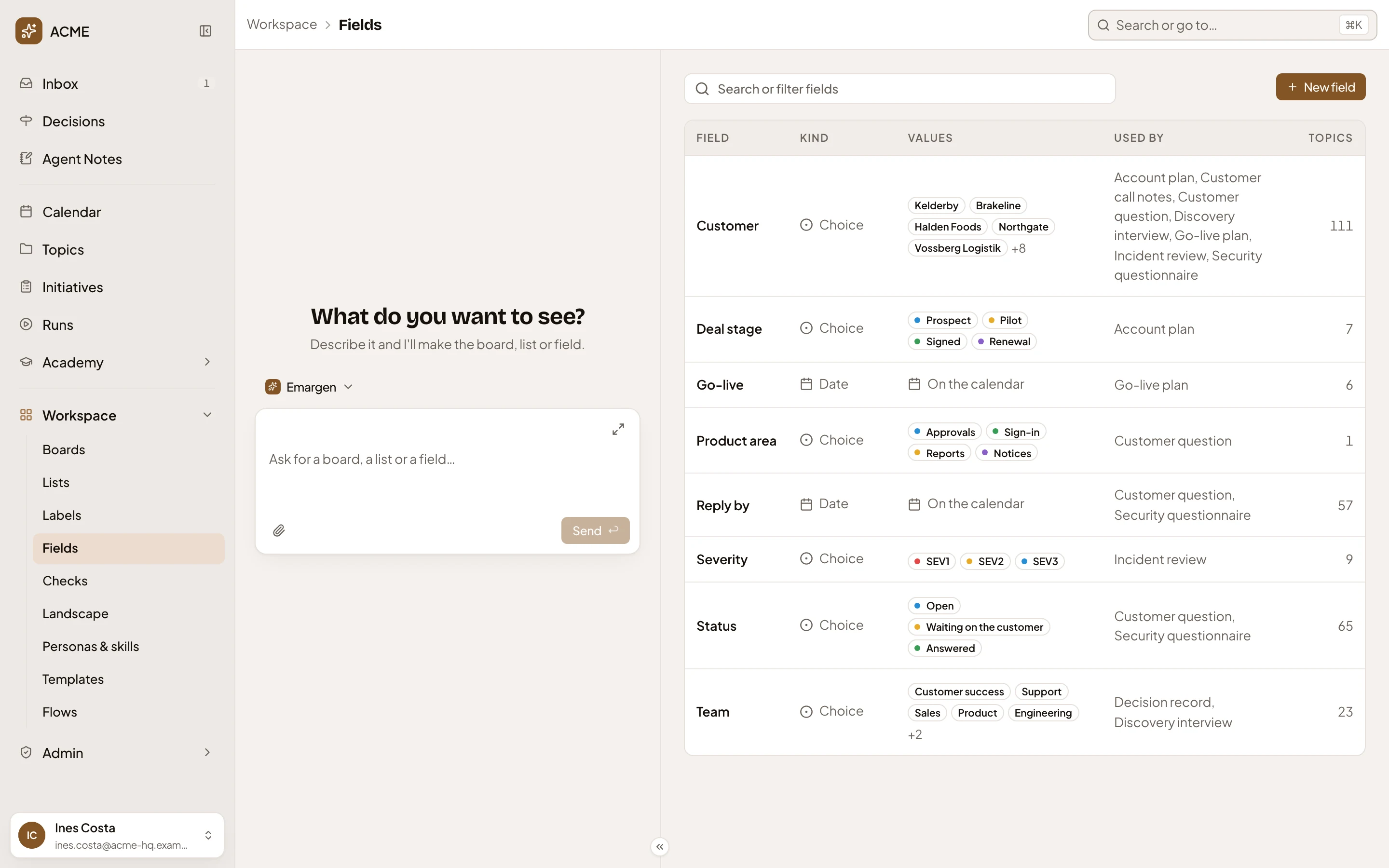
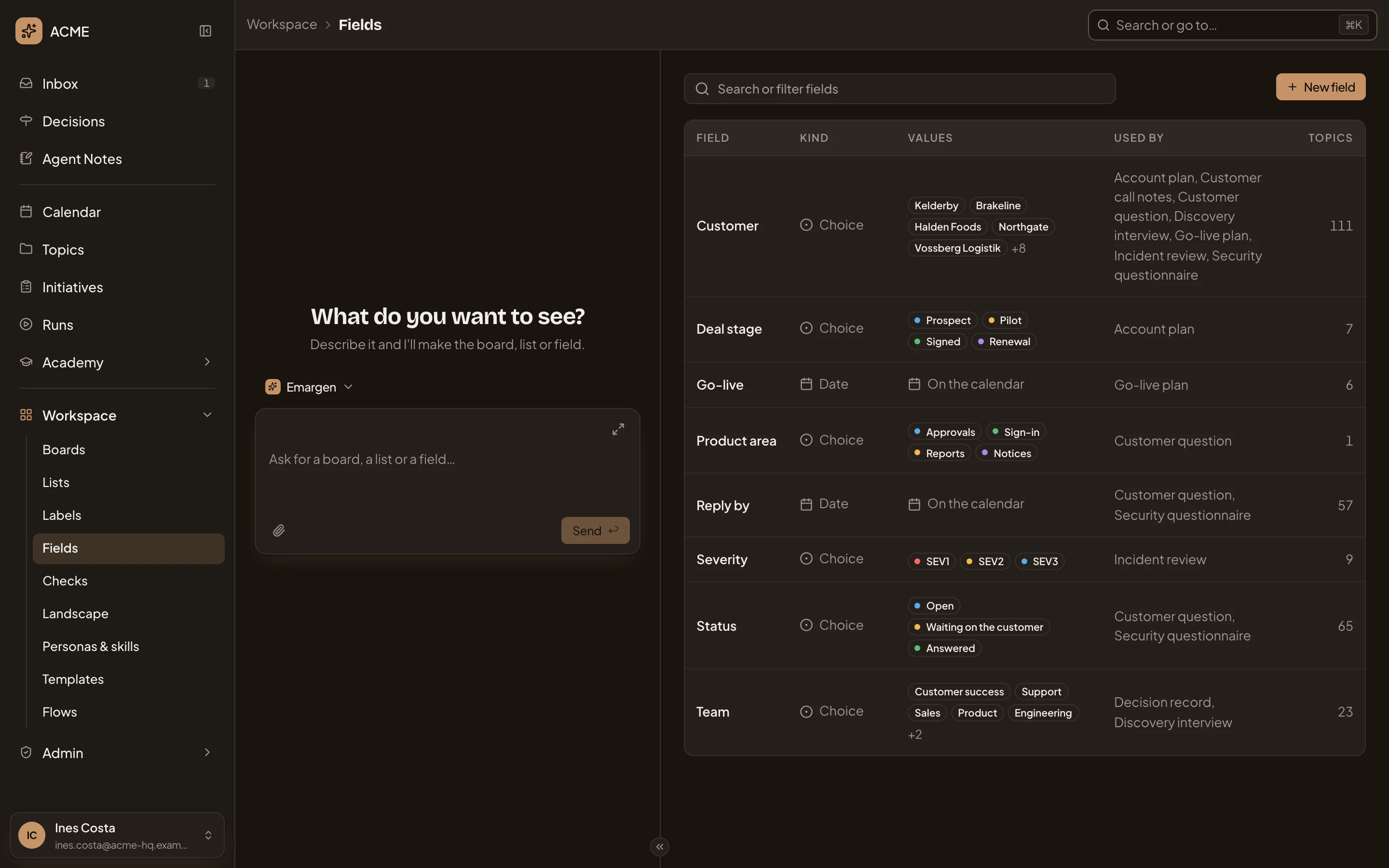
- New field.
-
Leave Kind on Choice, since Impact is one of a few values. Click it to see the other kinds.
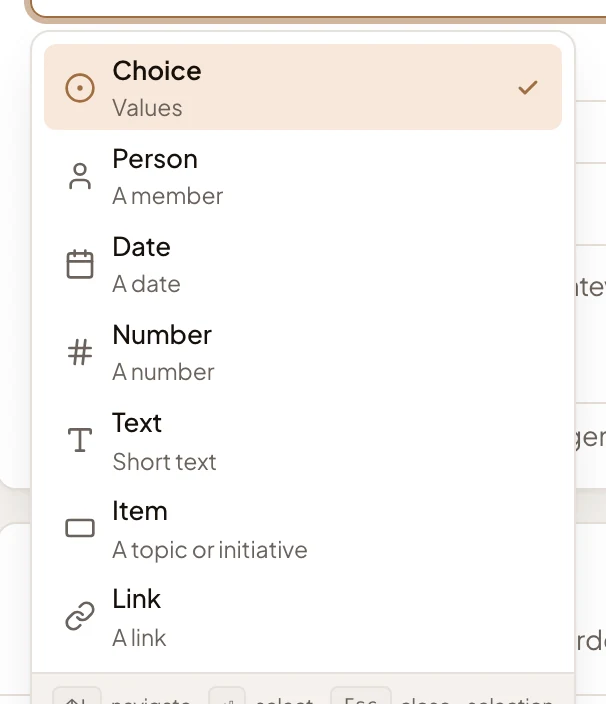
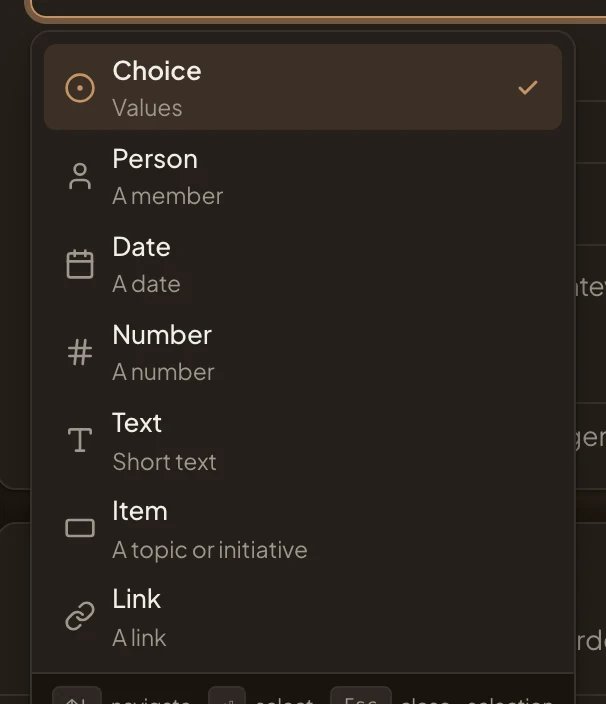
A Person is someone in the organisation. A Date can show on the calendar. A Number can have a unit. An Item is a topic or initiative by its key, and a Link is a web address.
-
In Name, type Impact. In Meaning, write a sentence or two. The agent reads them to pick a value, so say what the field is about. Leave out how to fill it.
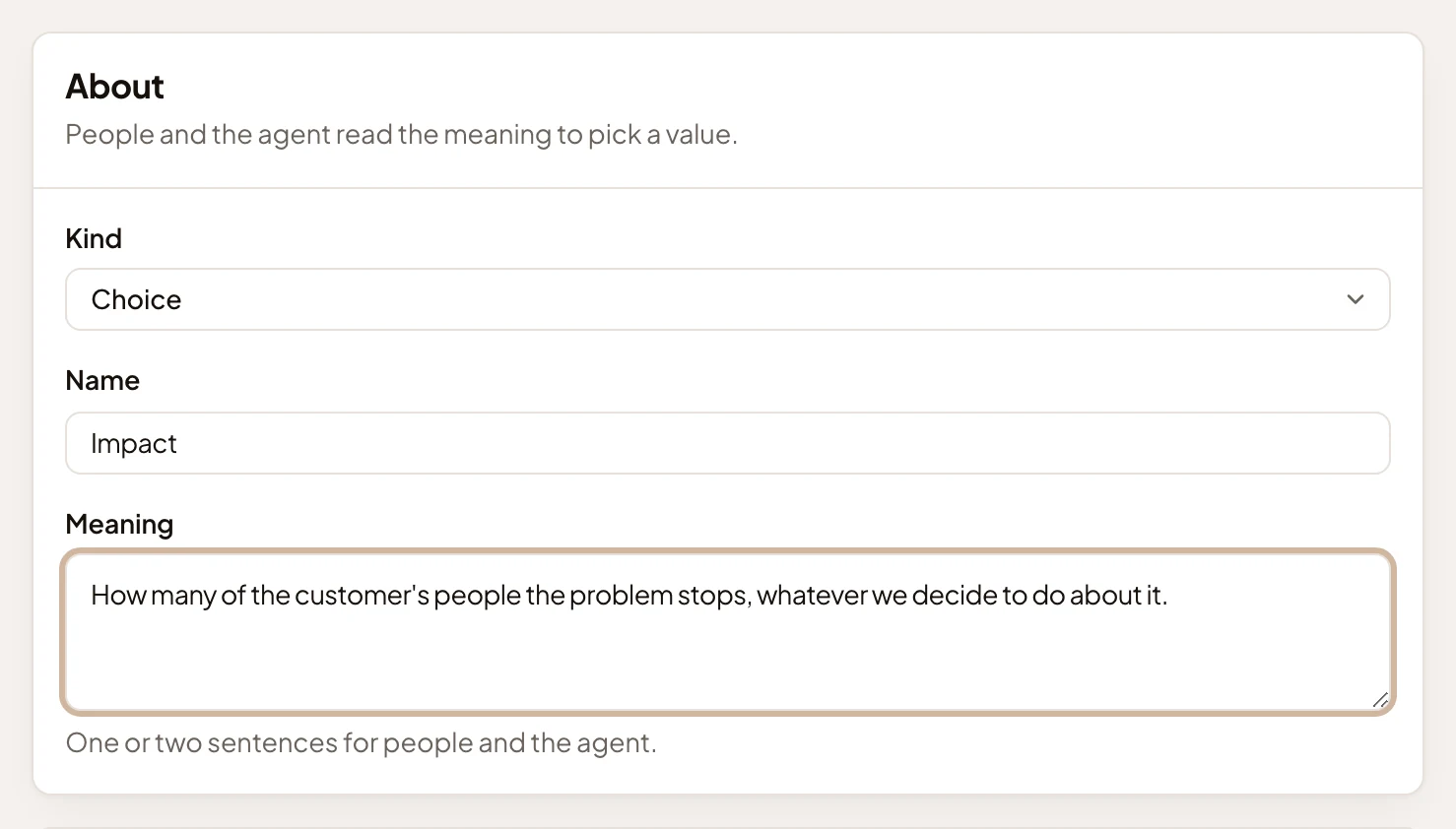
- Kind.
- Name.
- Meaning.
-
Click Add a value, type its name, and give it a meaning. Do it for each value, in order. The first is the first column on a board.
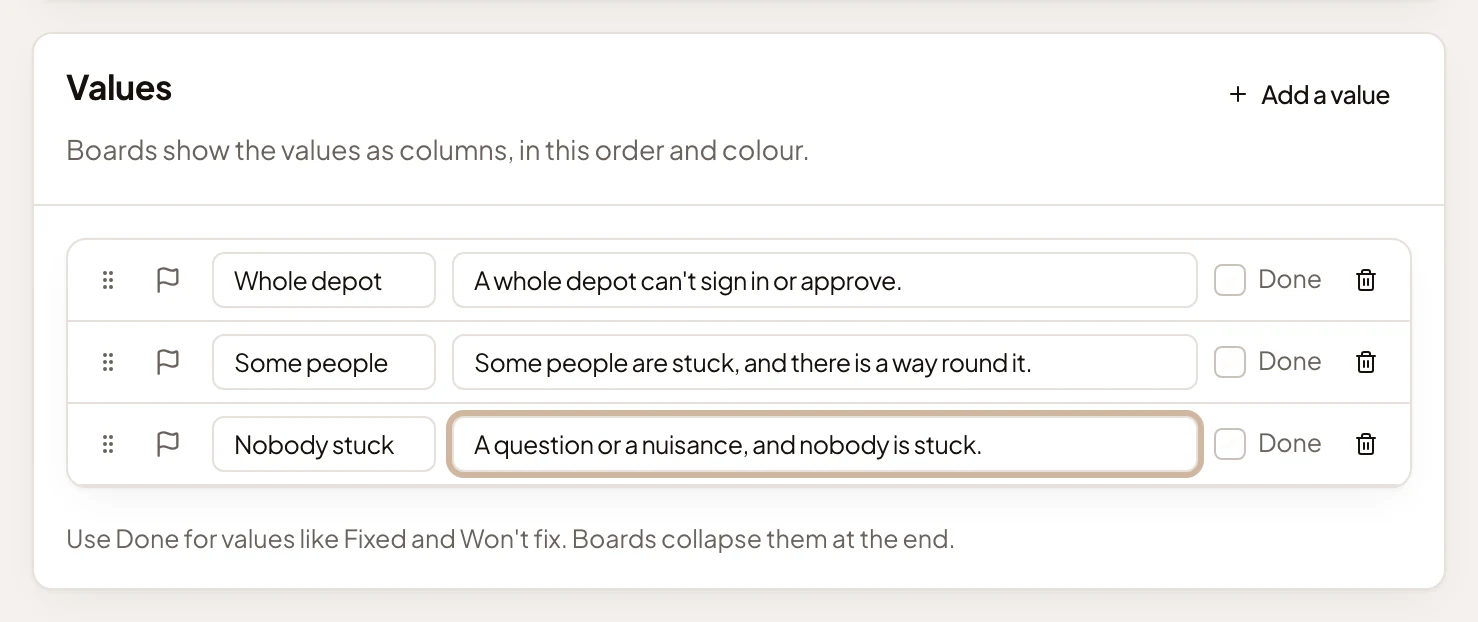
- Add a value.
- The value’s name: Whole depot.
- Its meaning, so people and the agent pick the same one.
- Its colour. Click the flag to pick one. Boards and topics show the value in it.
- Done. Tick it for values that close the matter, like Fixed or Won’t fix: boards fold them at the end. Impact has none.
- Move. Drag a value to change the order.
-
Click Create field. You can press it once the field has a name, a meaning, and a value with a name.
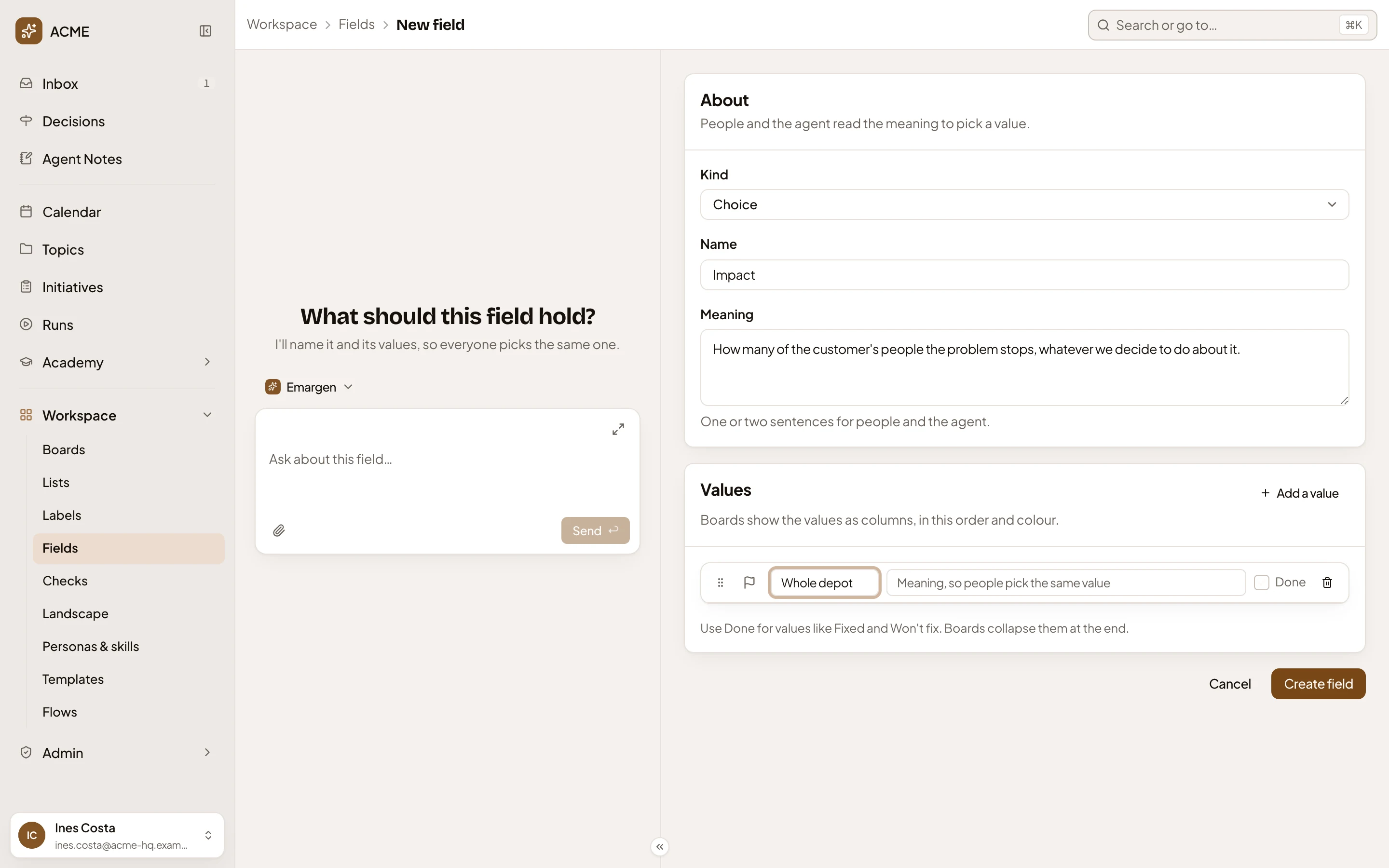
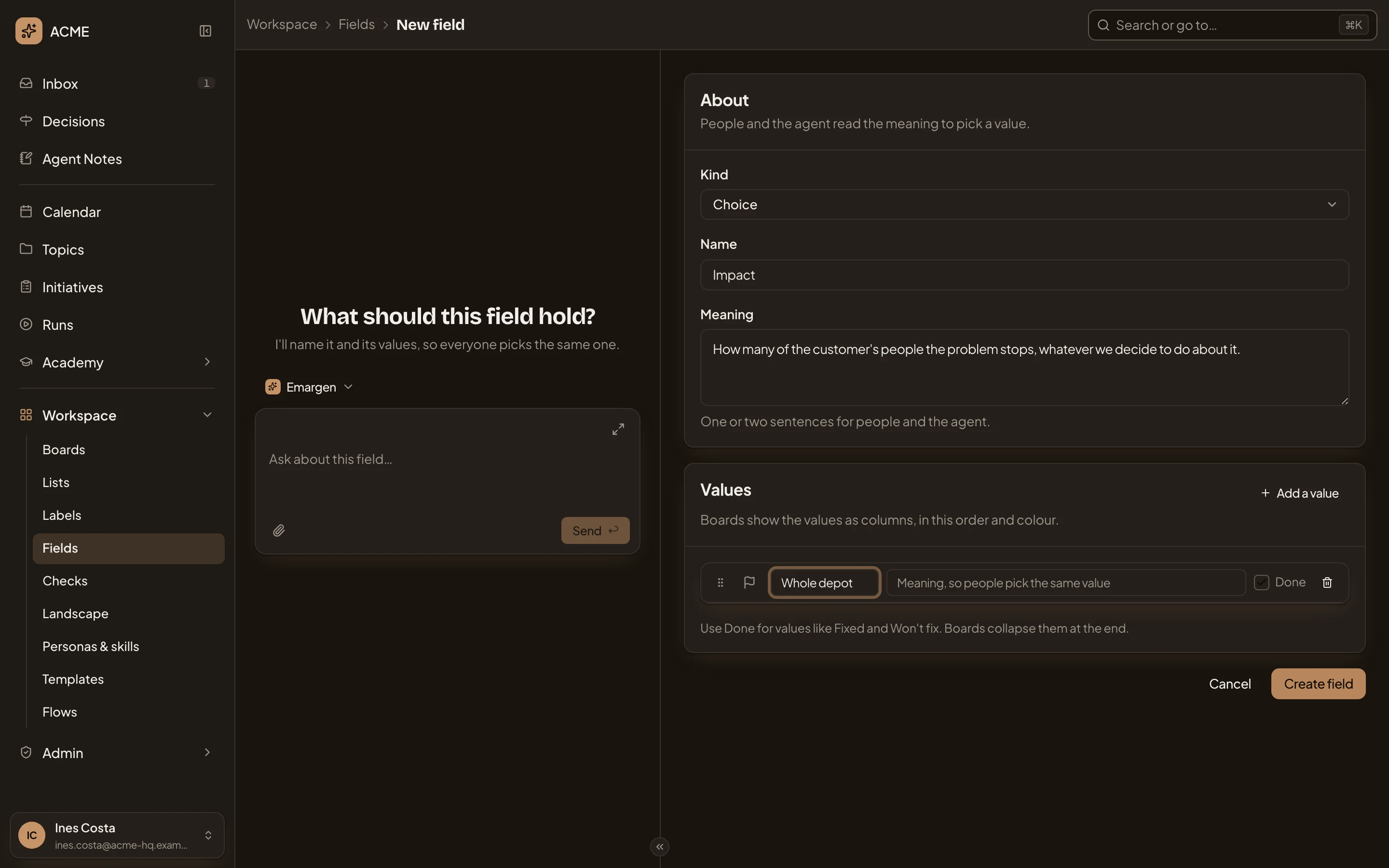
- Create field.
You’re back on Fields. Impact has its row among the others, in name order, with Not used yet, since no template carries it.
-
Put it on a template. Open Templates under Workspace in the menu, and click the template whose topics need the field. In the pictures, that’s Customer question.
If you can’t change this template, ask someone who manages templates to add Impact. Or open the ⋯ at the top right and click Duplicate for a copy of your own. Only topics that follow the copy then carry Impact.
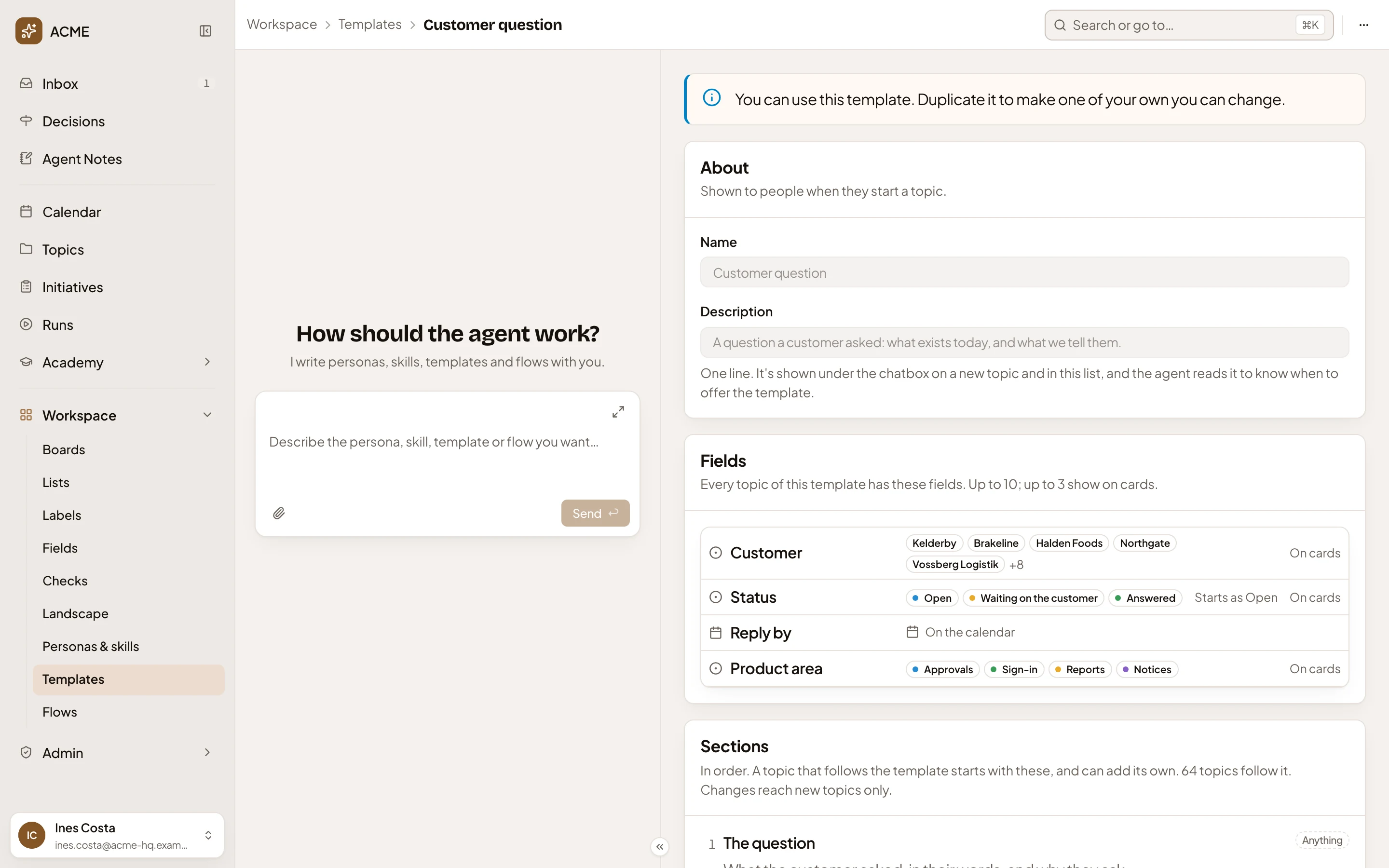
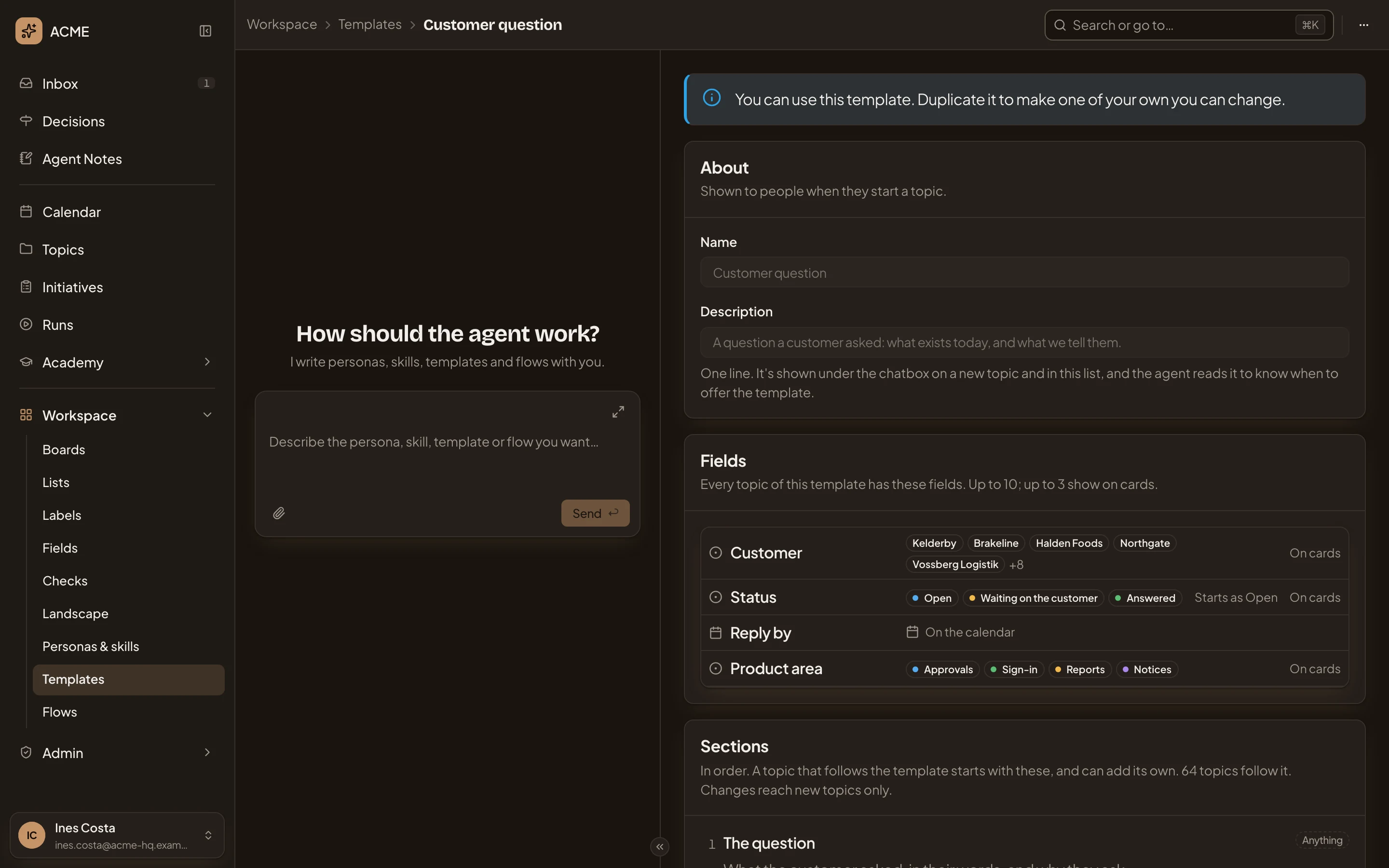
- “You can use this template.” It is the organisation’s, and your role doesn’t manage templates.
- Fields. What every topic of the template has. Nothing here can be changed.
- More actions for Customer question. Copy link and Duplicate.
On a template you may change
Section titled “On a template you may change”On the template’s page, click Add a field under Fields. The list holds the organisation’s fields the template doesn’t have yet, with a box to find one by name. Click Impact, and it joins the template’s fields. Then click Save at the foot of the page. See Edit a template for what a field starts as and On cards.
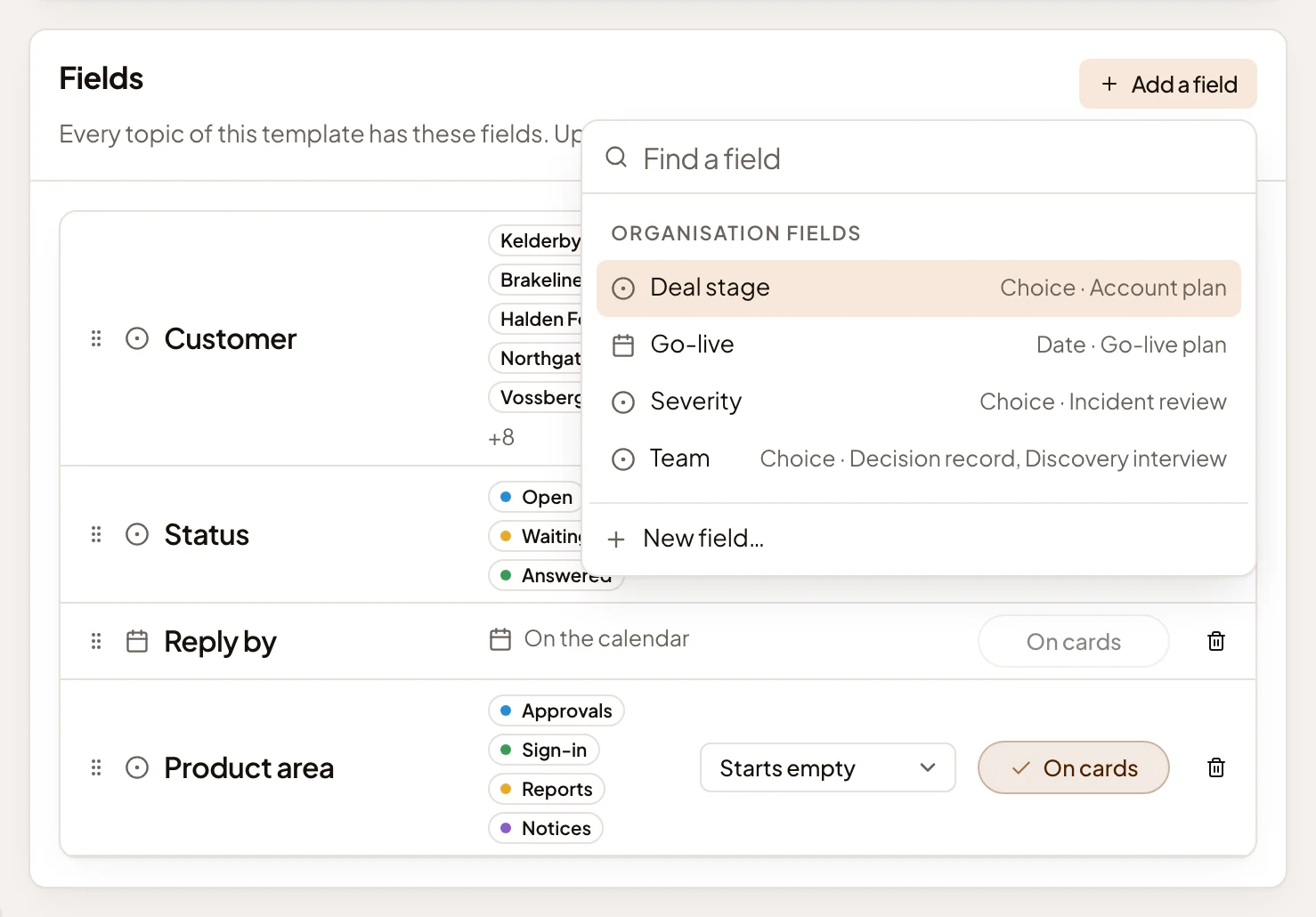
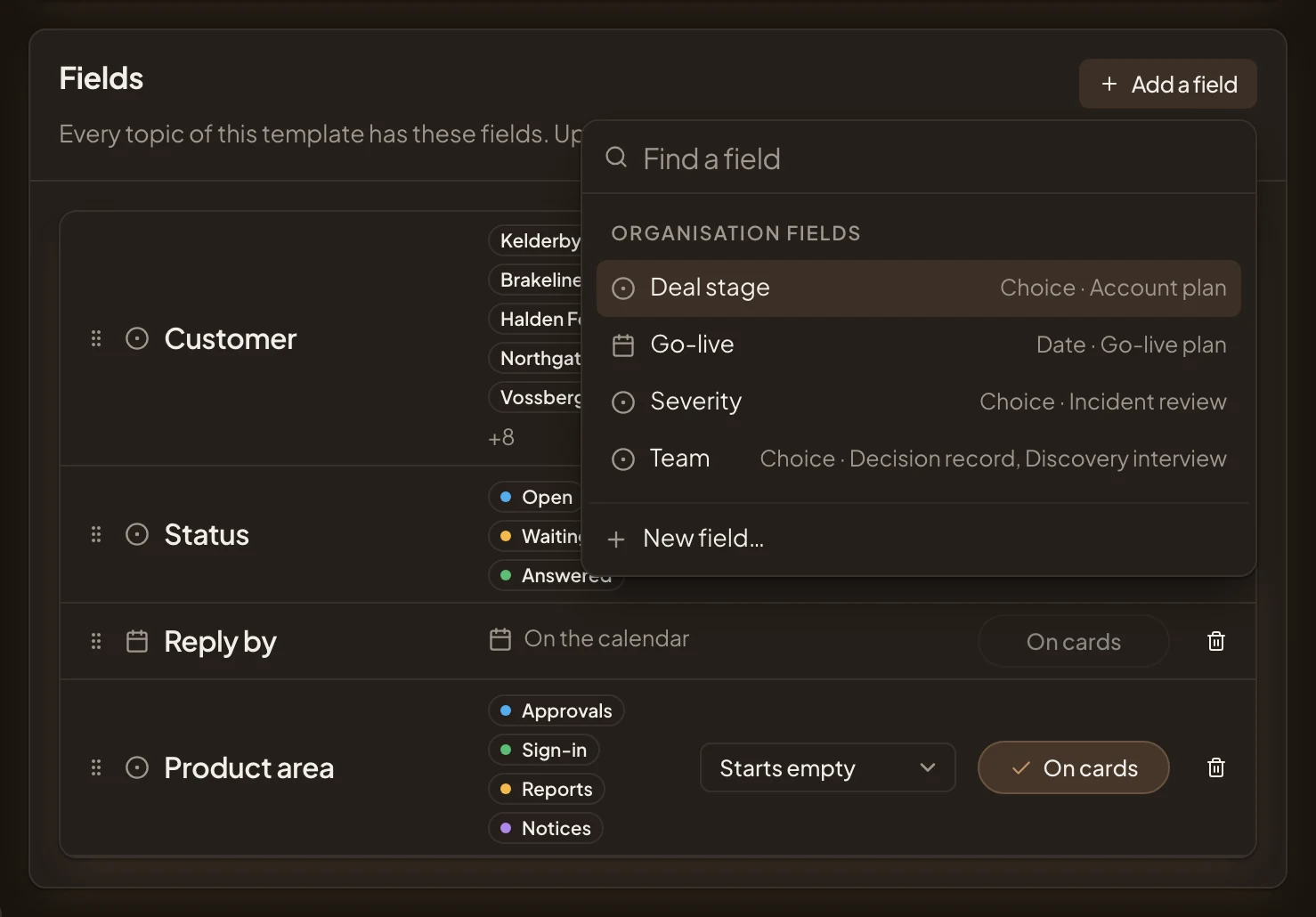
- Add a field.
- Organisation fields that the template doesn’t have yet.
What you get
Section titled “What you get”- Impact, a field of the organisation, with three values and what each means.
- Once a template carries it, every topic of that template has Impact at the top of its document, empty until someone or the agent sets it. People who take part in a topic change it by clicking its value. The agent fills it when the conversation or the source makes it clear, and leaves it empty otherwise.
- You can group a board of topics by Impact, with Whole depot, Some people and Nobody stuck as its columns. You can also filter a board of topics, or a list of topics that fills itself, by it (see Make a list that fills itself).
From a template
Section titled “From a template”On a template’s page, New field… opens the same page. Once you create the field, you go back to the template with the field added.
Ask the agent instead
Section titled “Ask the agent instead”The workspace agent beside the page helps you name the field and its values. Tell it what you want to track, and it fills in the page as it goes. Nothing is made until you press Create field, or the button on the card it puts in the chat.