

TopicsPage by page
A version of a topic
A version shows a topic’s document as it was at one moment, so you can see what’s changed since. Versions are made as people work on the topic with the agent. Changes in the topic’s own chats go into one version until an hour passes with none. An agent task’s run, an imported page or a coding agent’s session gets a version of its own.
Getting there
Section titled “Getting there”Open the topic’s document and click its versions count, such as 2 versions, under the fields. The versions open, newest first. The pictures use a customer question at ACME. The topic’s owner made version 1, and a colleague who takes part made version 2.
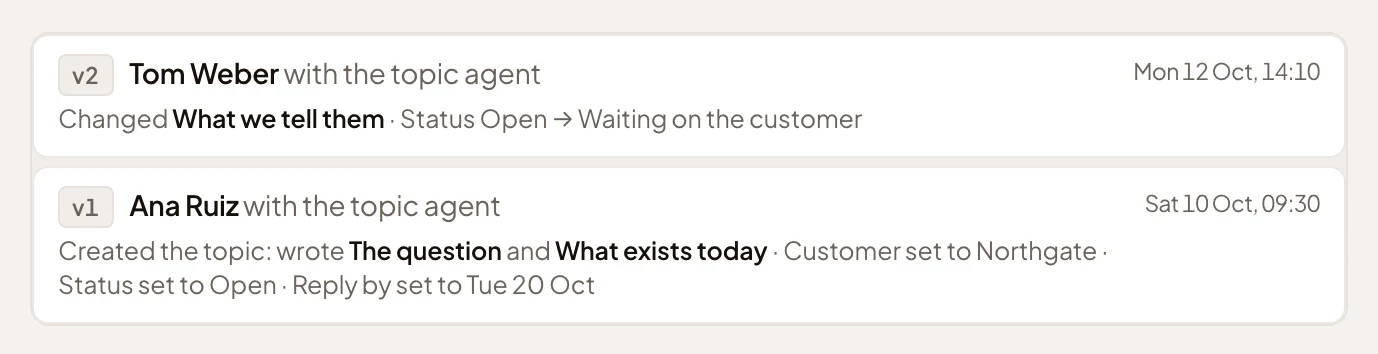
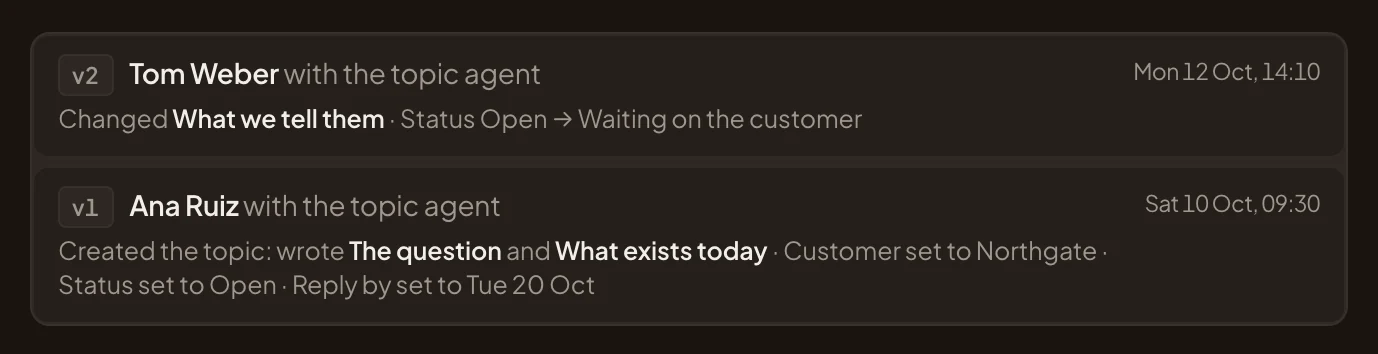
- v2. The newest version: who made it, with the topic agent, what changed, and when.
- v1. The first version, made when the owner started the topic.
Click a version to open it. Each version has its own address, so you can send someone a link to it. A topic’s page has the rest of the document.
The version
Section titled “The version”The version opens in the document’s place, and your chat stays on the left. The picture shows version 1, which the owner made on Saturday.
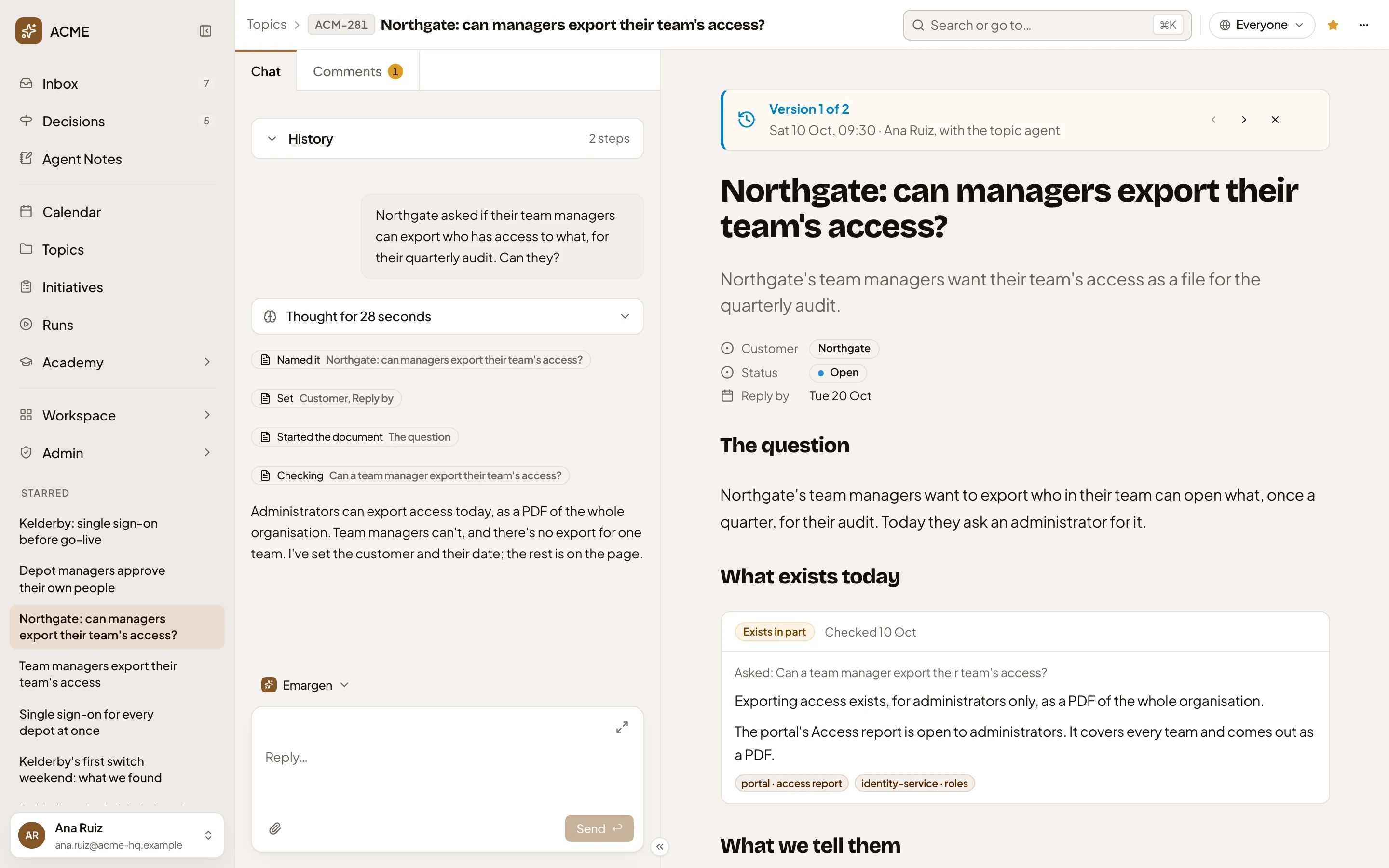
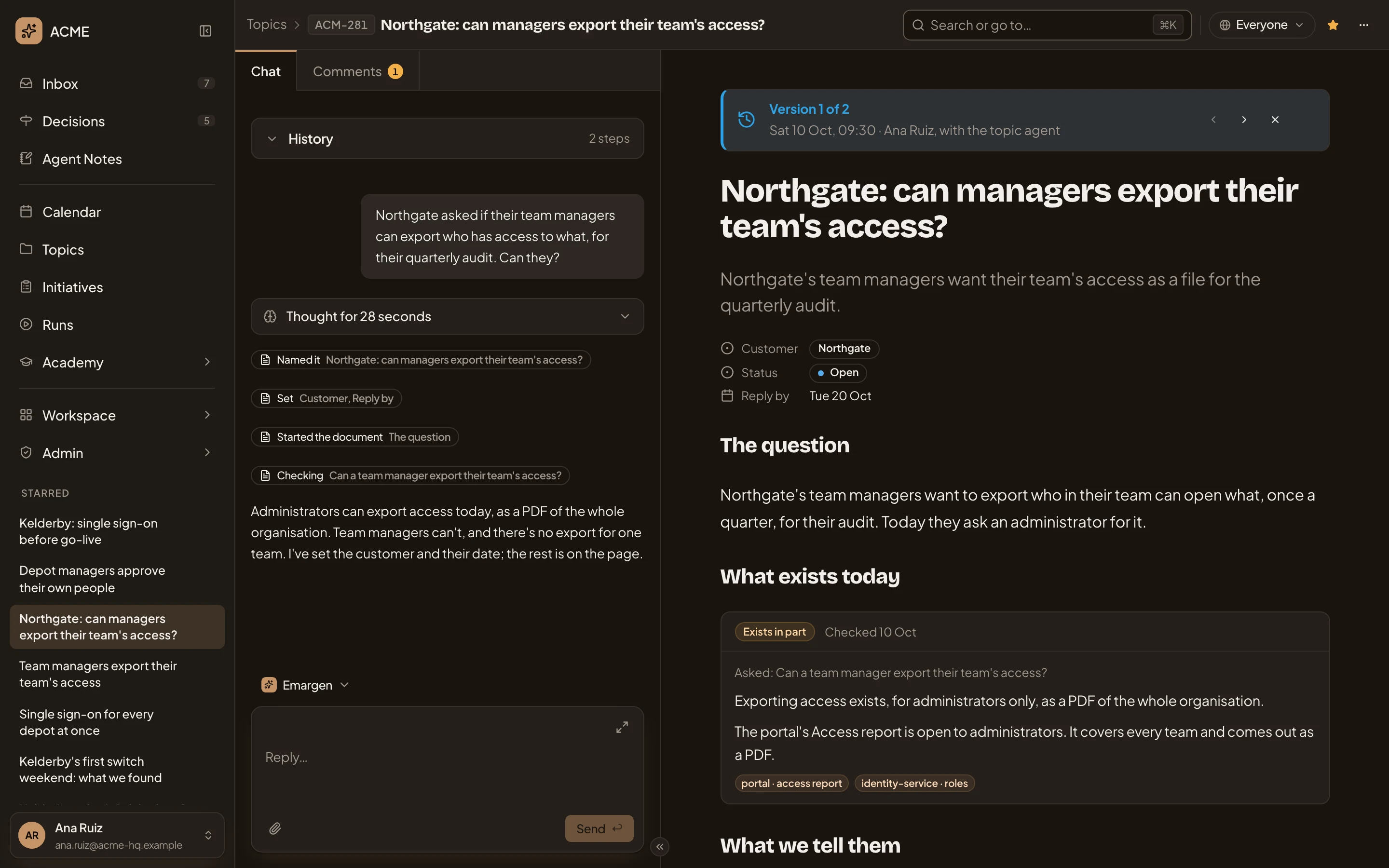
- Version 1 of 2. Which version you’re reading, when it was made, and by whom.
- Older version. Back one version. Greyed on the first.
- Newer version. Forward one version. Greyed on the newest.
- Back to the latest version. Closes the version and shows the topic as it is now.
- The fields as they were. In a version, fields are plain text and can’t be changed, and labels and lists aren’t shown.
- Hide the chat. Folds your chat away, so the version gets the whole page. ⌘J does the same.
A version shows only what was written then. If nobody had written a template’s section yet, the version says so. The topic as it is now shows the template’s description there instead. A topic with tabs reads in one column in a version, with each tab’s name over its sections.
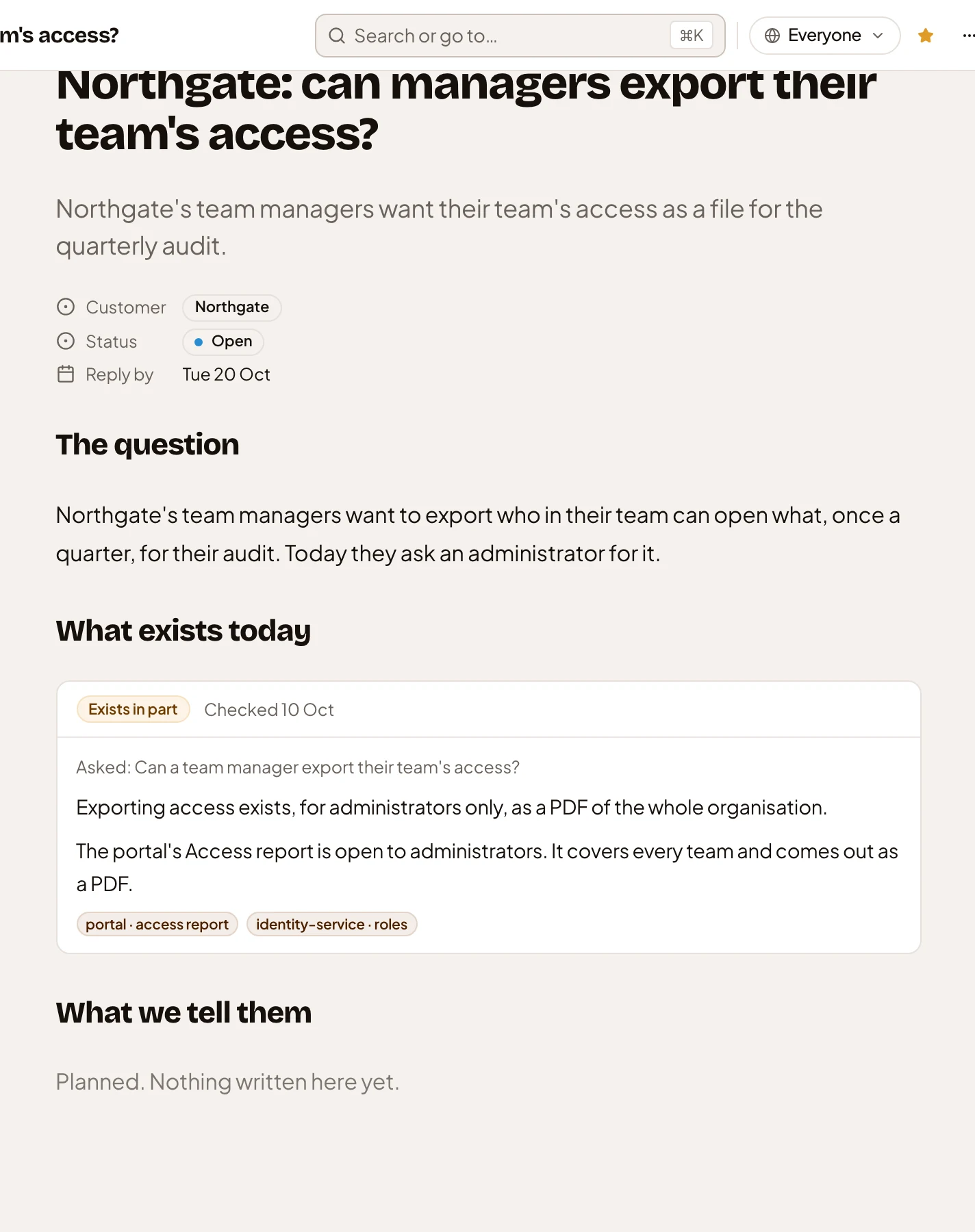
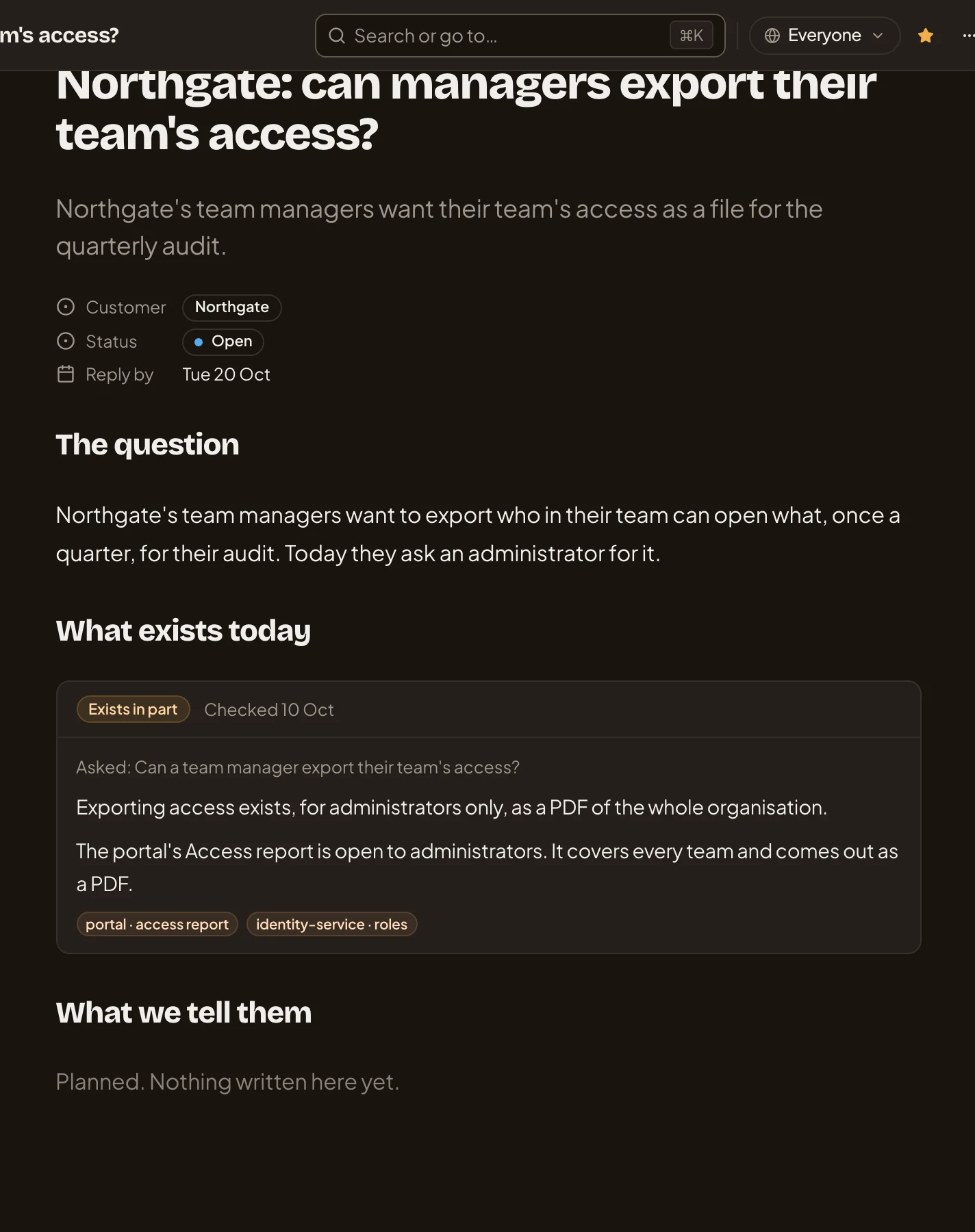
- Planned. Nothing written here yet. In version 1, What we tell them wasn’t written. The colleague who takes part had the agent write it, in version 2.
Seeing what changed
Section titled “Seeing what changed”From the second version on, the band has a Changes switch. Switch it on to compare this version with the one before.
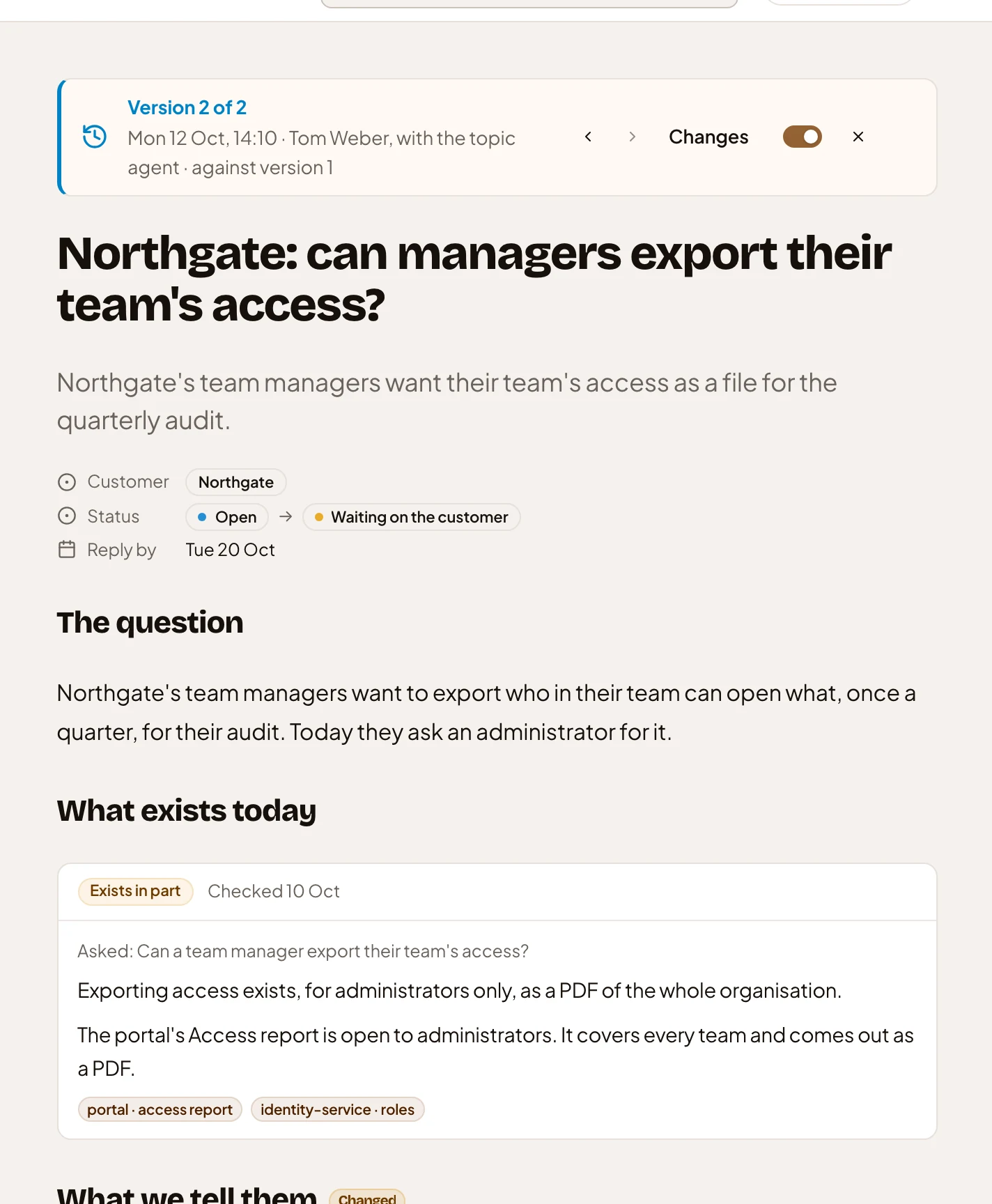
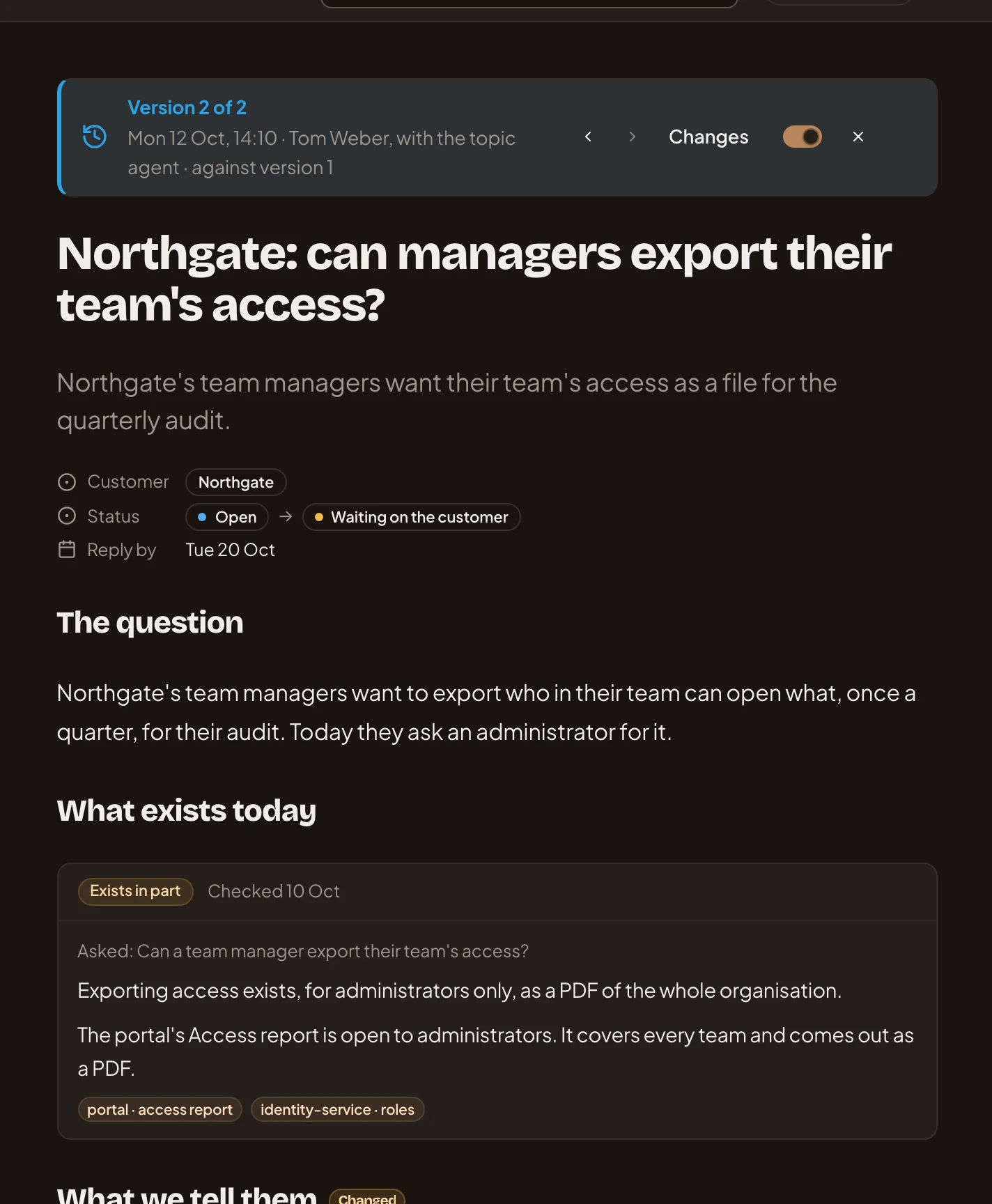
- Changes. Shows what changed since the previous version.
- Against version 1. What this version is compared with.
- The fields. A changed field shows its old value, an arrow, and the new one.
Further down, the sections show what changed in them.
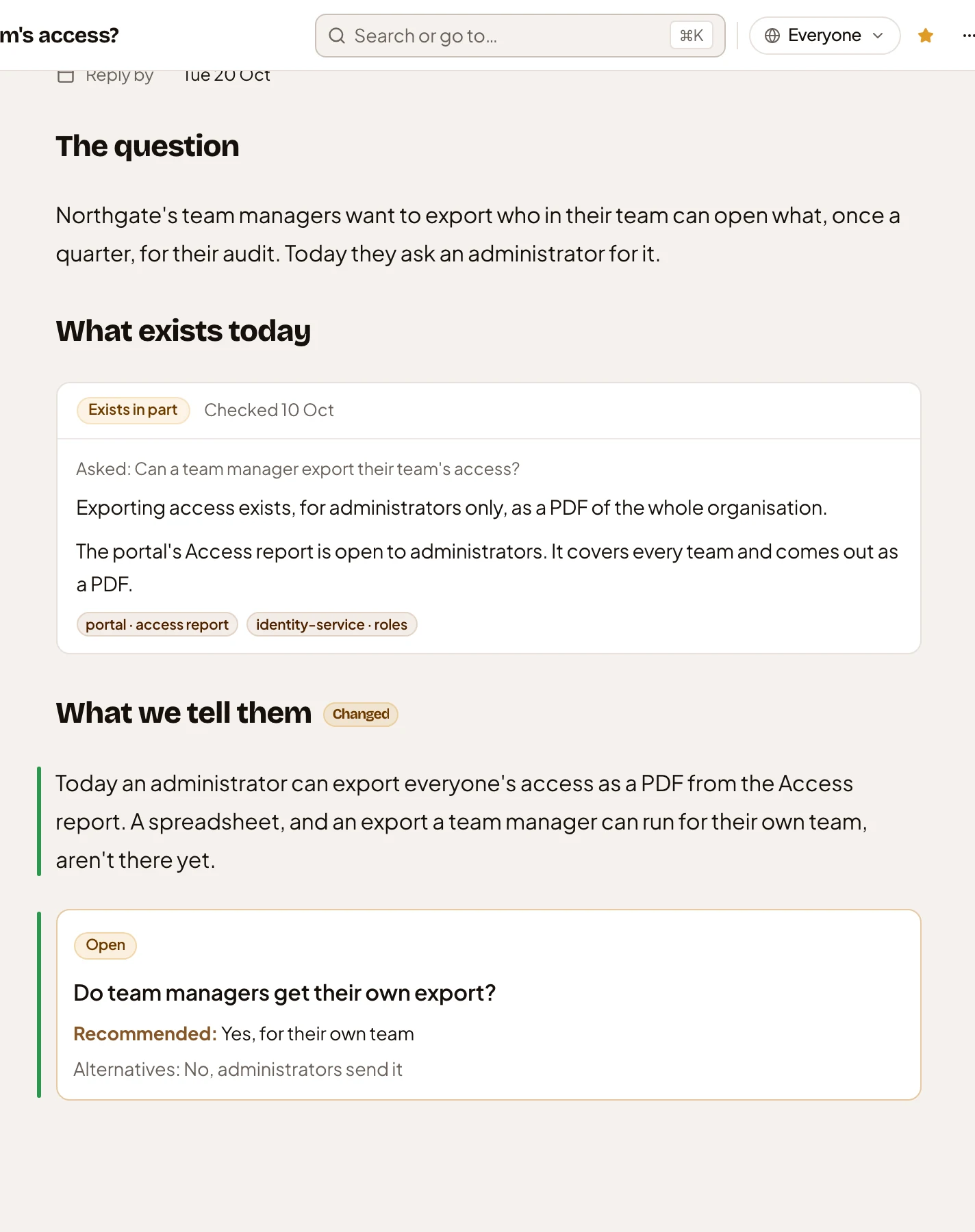
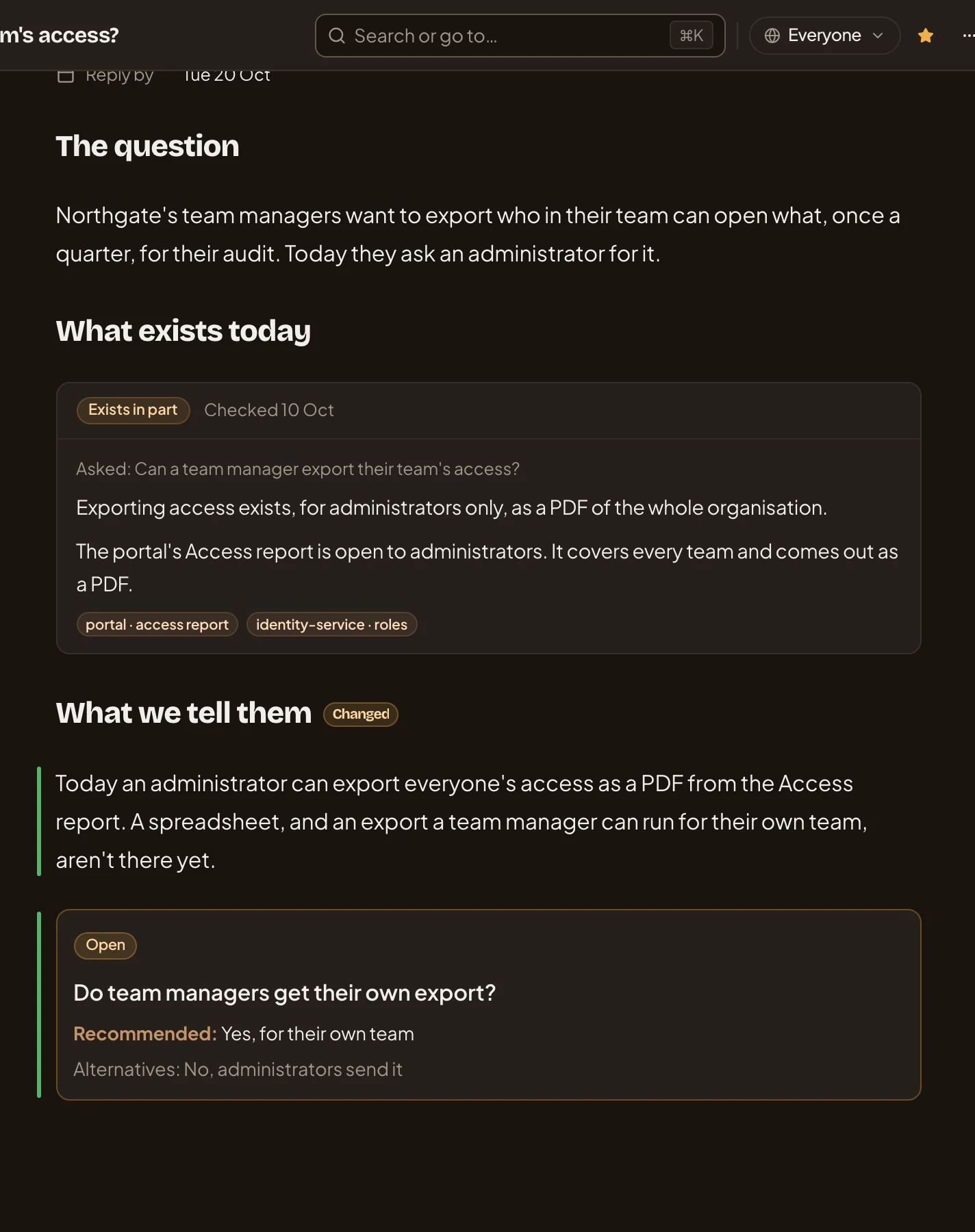
- What we tell them. A section that changed is marked Changed beside its heading.
- Added. A green bar marks what was added, here the paragraph on what to tell the customer. A screen reader reads it as Added.
- Added. The open decision was added in the same version.
See See what changed on a topic.
On a phone
Section titled “On a phone”The version opens in the Document view, with the same band at the top.
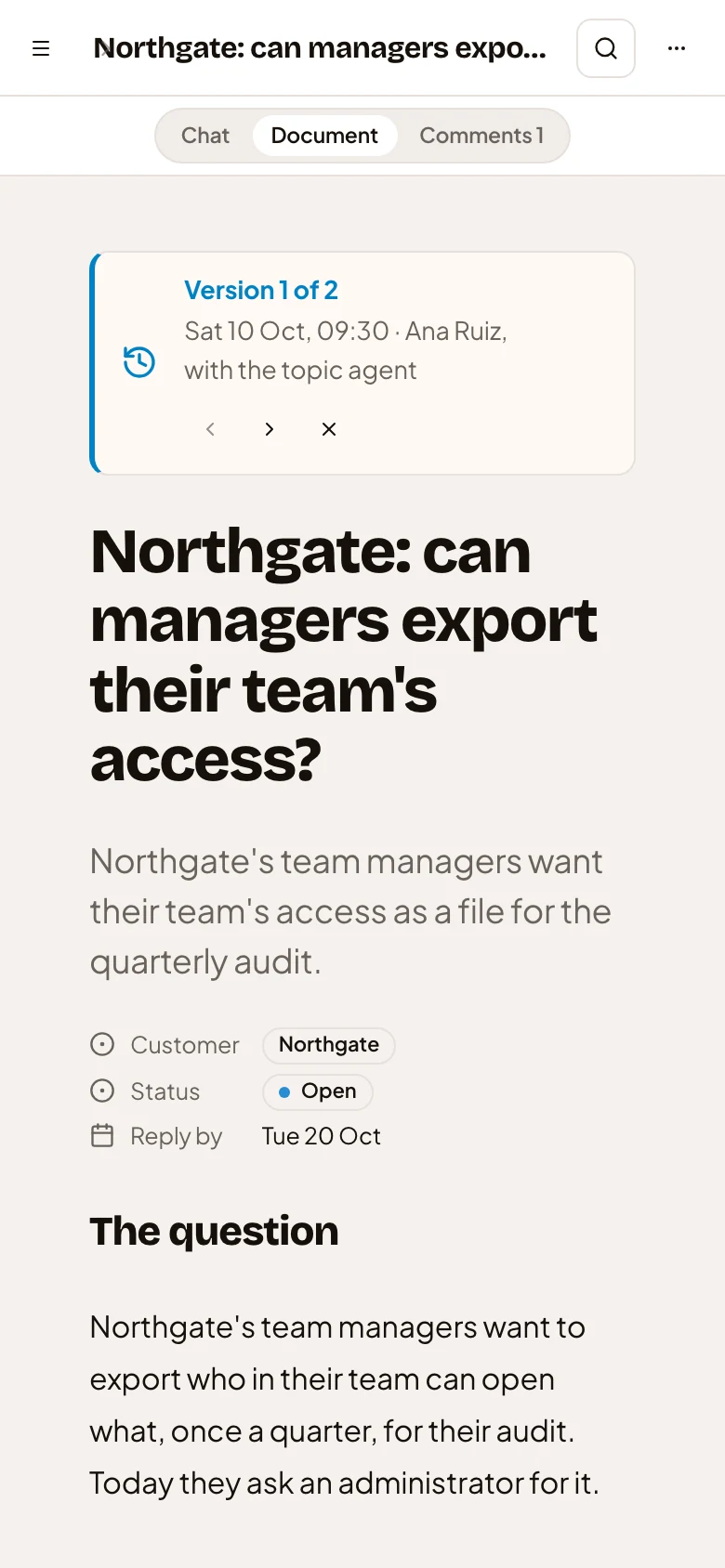
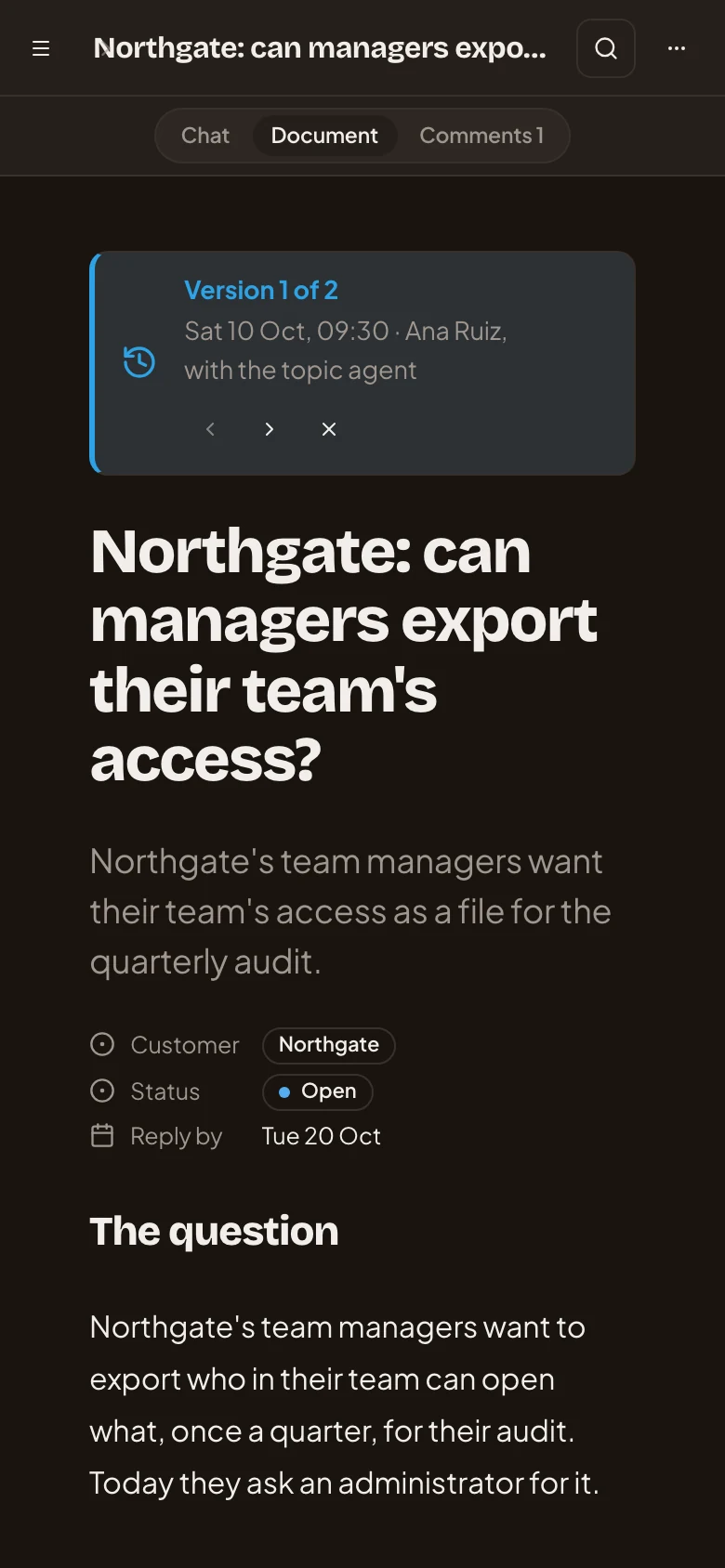
- Chat, Document and Comments. Switch back to your chat or to the comments.
- Version 1 of 2. The same band, with Older version, Newer version and Back to the latest version.
Access
Section titled “Access”Everyone who can open the topic reads its versions here, including people who only read it. The pictures are the owner’s view.