

AgentsHow to
Make a persona
Make a persona when you keep telling the agent the same thing, like how your team answers or what to check first. A security lead might want every claim about customer data checked against the documents. See Personas and skills for the idea.
Before you start
Section titled “Before you start”- Who can
- Anyone can make a persona of their own. People whose role lets them manage personas and skills can also make one for the whole organisation.
- The pictures
- Mira Holm works in security at ACME, the company in the docs’ pictures. She is making a persona that checks what ACME tells customers about where their data lives. Use her words or your own.
-
In the menu, click the chevron beside Workspace to unfold it. Click Personas & skills, then New persona. The page opens empty, with the personas agent beside it.
Open New persona (opens Emargen in a new tab)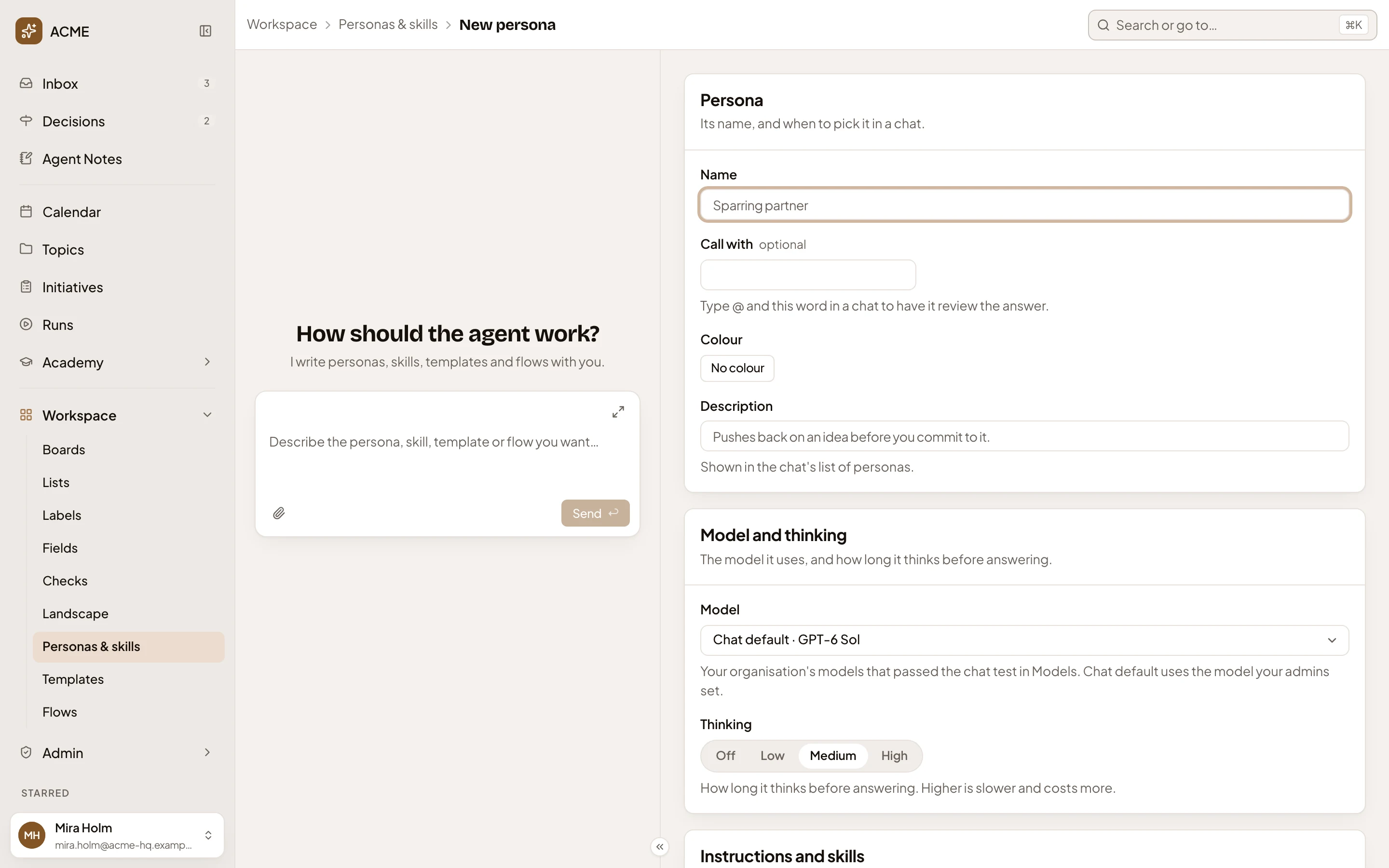
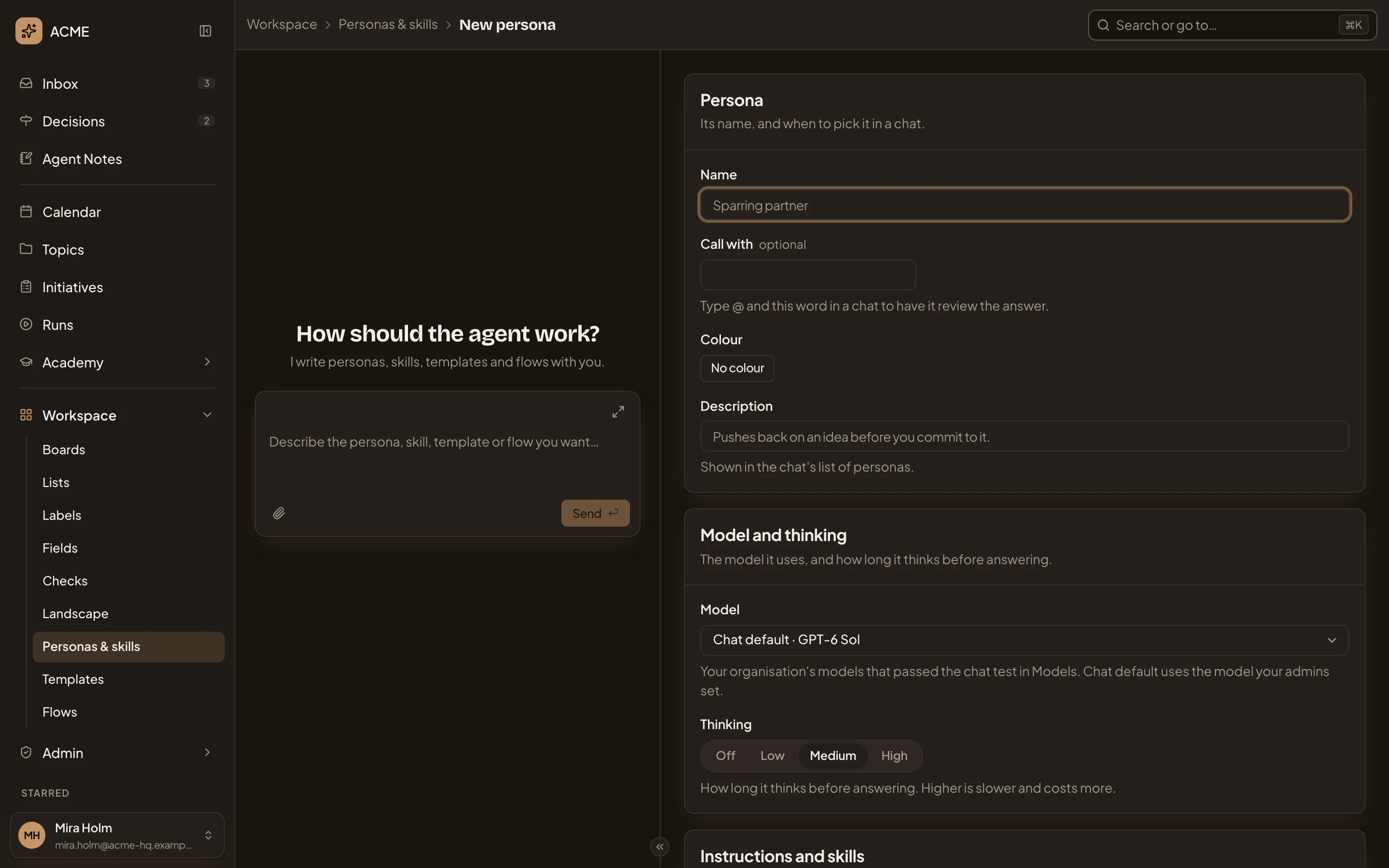
- Personas & skills. Back to the list, without saving.
- Name. What people see in the persona picker.
- Call with. Optional: the word to ask this persona for a review with @. It fills itself in from the name.
- No colour. Its colour.
- Description. One line on when to pick it, shown in the persona picker.
- Model. What it runs on.
- Thinking. How long it thinks before answering.
-
In Name, type Data residency checker. Call with fills in data-residency-checker. Change it to residency, so a colleague can ask for a review with @residency.
-
Click No colour and pick a colour, such as blue. The button then reads Change colour, with a flag in the colour you picked.
-
In Description, type “Checks every claim about where a customer’s data lives against the documents.”
-
Leave Model on Chat default, so the persona follows the model your administrators set. Under Thinking, click High if your model offers it. Levels your model doesn’t support are greyed out. High means longer thinking, which is slower and costs more.
-
Further down, under Instructions and skills, write the persona’s Instructions in your words, and tick the skills it should always have.
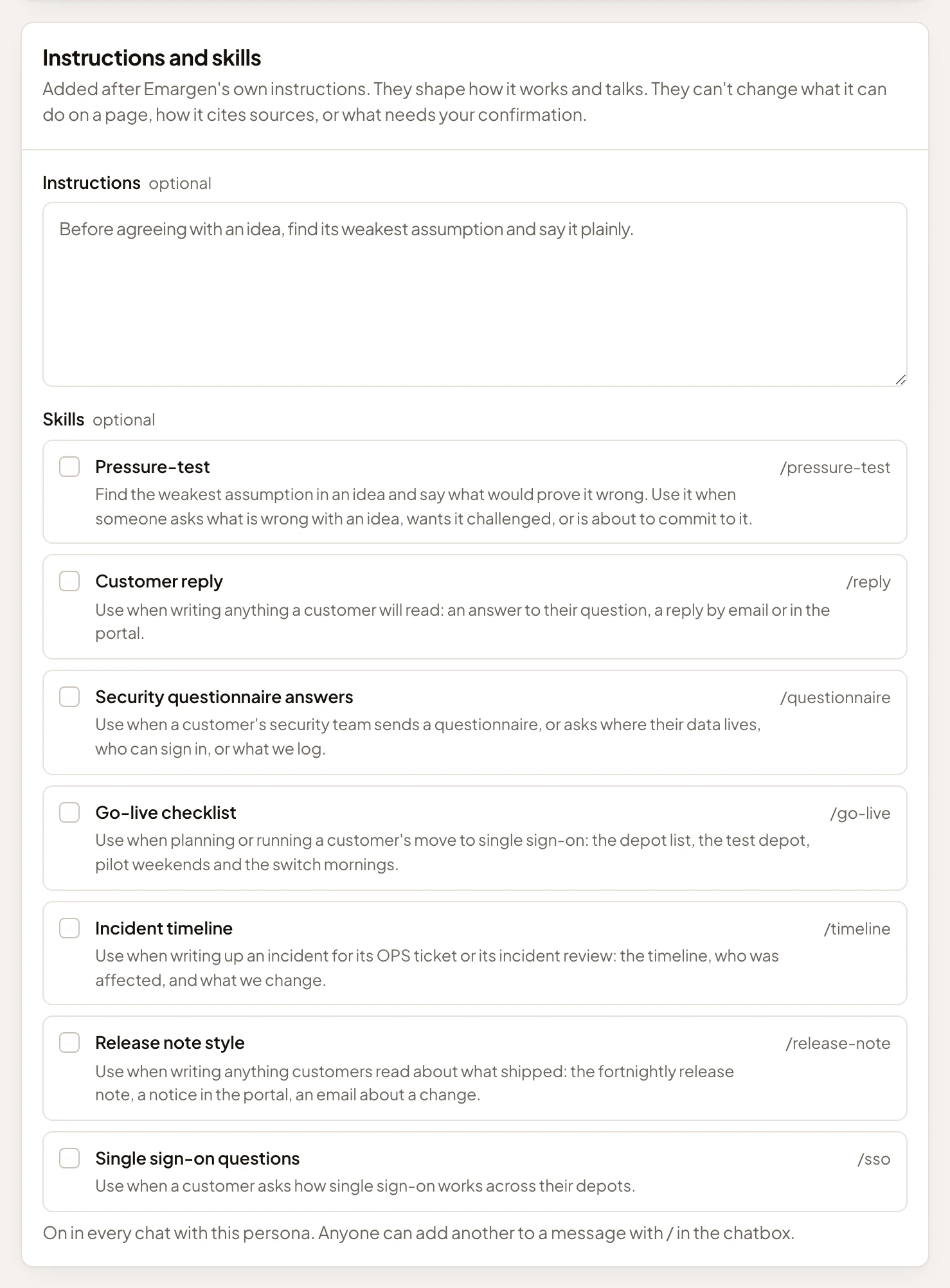
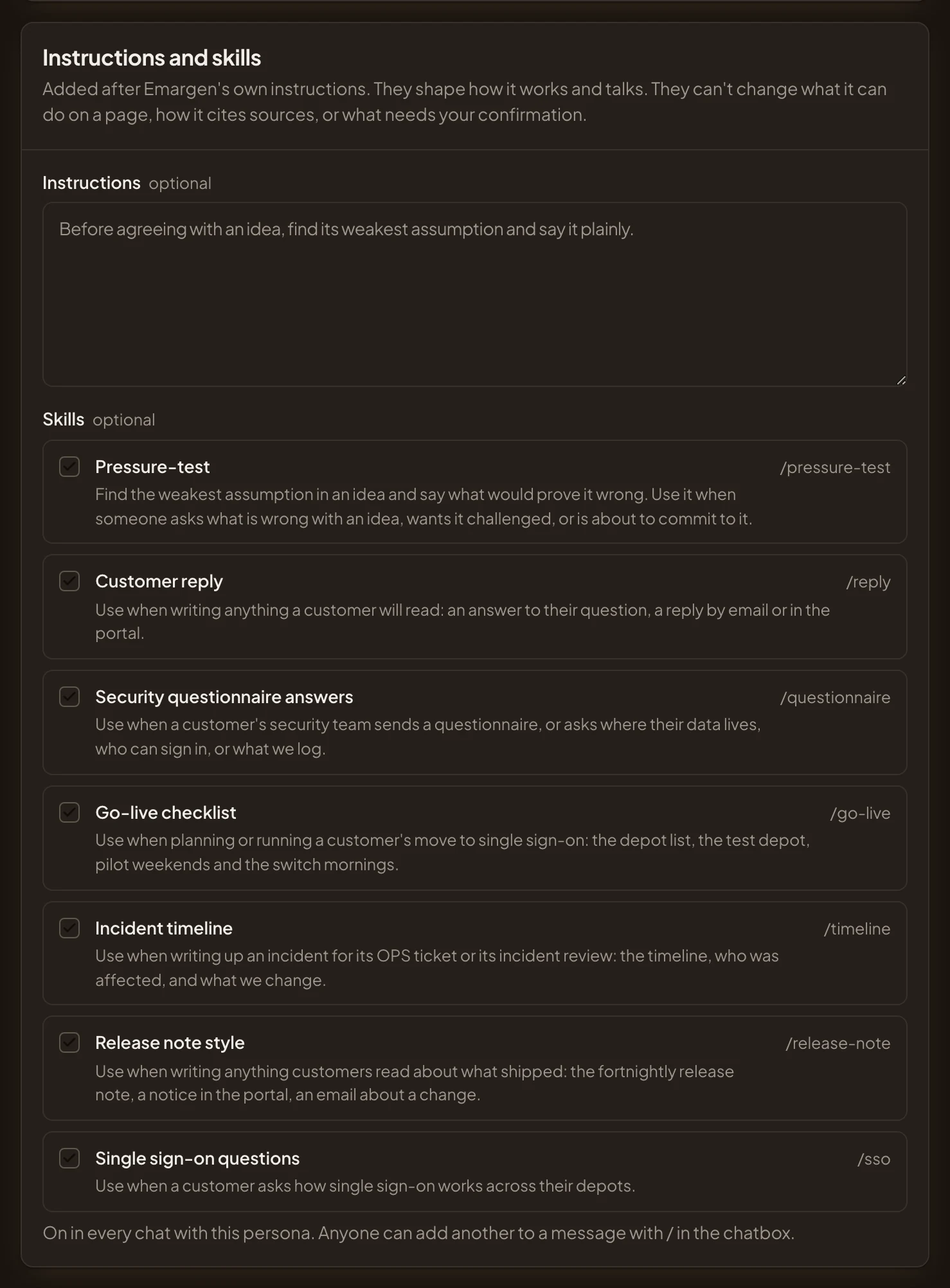
- Instructions. For example: “Check every claim about where data is stored against the documents. Say which claims you couldn’t check. Never name a region the documents don’t.” They add to Emargen’s own way of working. They can’t change what the agent may do.
- Security questionnaire answers. Tick the skills this persona has on in every chat. Here, the organisation’s skill for security questions.
-
At the end, under Sharing, choose Everyone, so everyone in your organisation can use it. Only me keeps it to you, and Shared lets you pick the people. With Everyone, everyone starts on Uses. Leave it, or choose Edits so they can change the persona too.
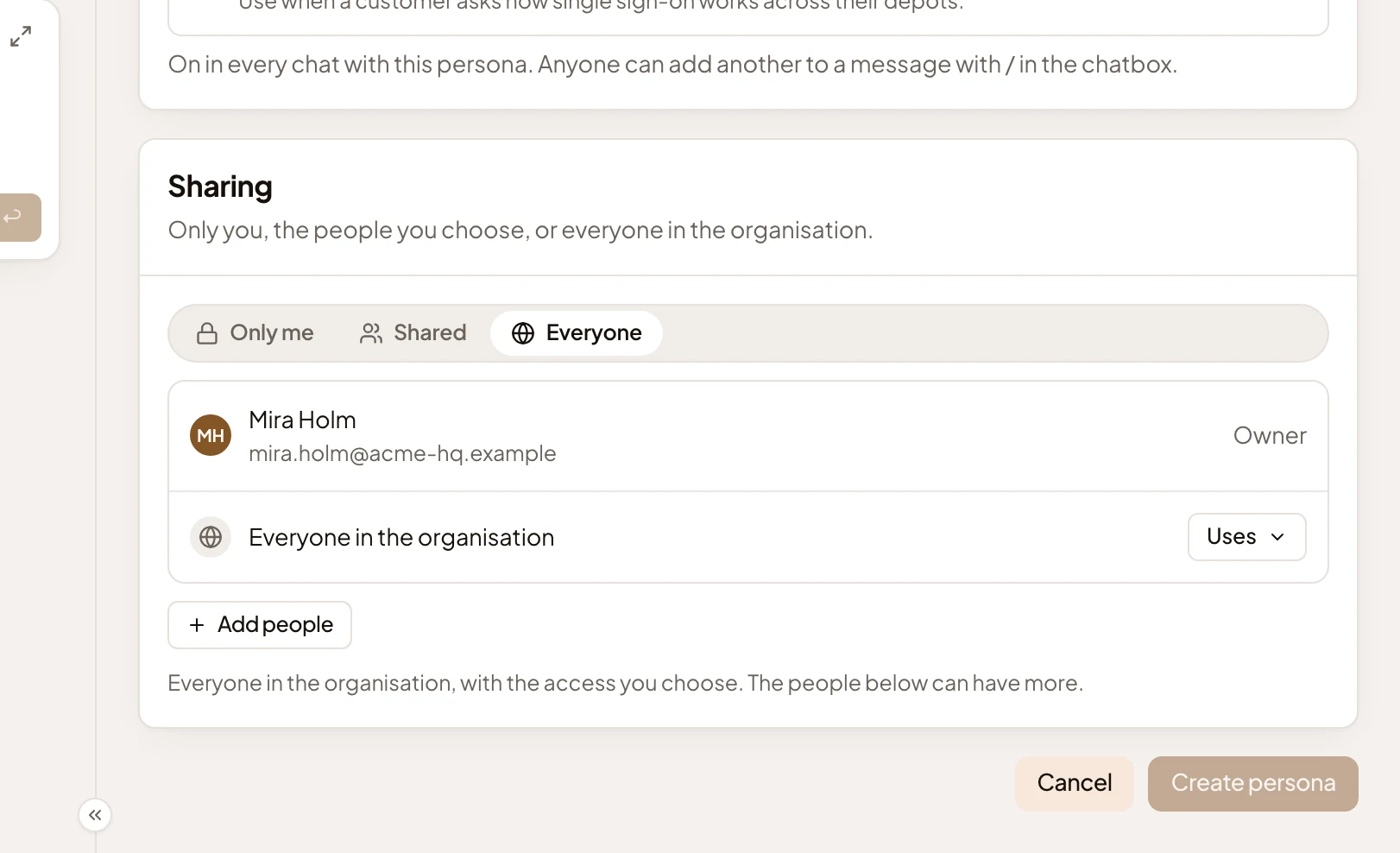
- Sharing. Who may use the persona.
- Access for everyone. Uses, to start with, so everyone can pick the persona in their chats. Click it and choose Edits to let them change it too.
- Create persona. Greyed out until the persona has a name and a Description.
-
Click Create persona. The persona’s page opens with everything you chose, and no Save button. From now on, changes you make there save as you type.
Or ask the personas agent
Section titled “Or ask the personas agent”Instead of filling the page yourself, describe the persona in the chat beside New persona. For example, “A persona that checks every claim about where a customer’s data lives against the documents, and thinks hard.” Give it a name in your message, or the agent picks one.
The agent fills the page part by part as you watch, marking each part Drafted. Then it puts a card in the chat, Create the persona …?, listing what it will save. At the Guided pace, where Emargen starts you, you press Next to go from one part to the next. You set your pace in Your profile, under Agent pace. Nothing is saved until you press Create persona on the card.
The agent makes the persona yours alone. To share it, use Sharing on its page once it is made.
What you get
Section titled “What you get”- Data residency checker in the persona picker of every chat that has one, under Yours and shared, for you and everyone you shared it with.
- Anyone who can use it can ask it for a review by typing @residency in a message.
- On Personas & skills, its Owner column says You. Everyone else finds it under Shared with you.
- You can change who sees it later, with Sharing on its page.