

InitiativesPage by page
The initiatives list
The initiatives list shows every initiative you can see, grouped by where each one stands. Click Initiatives in the menu on the left to open it.
In the pictures, ACME’s list as its customer success lead sees it.
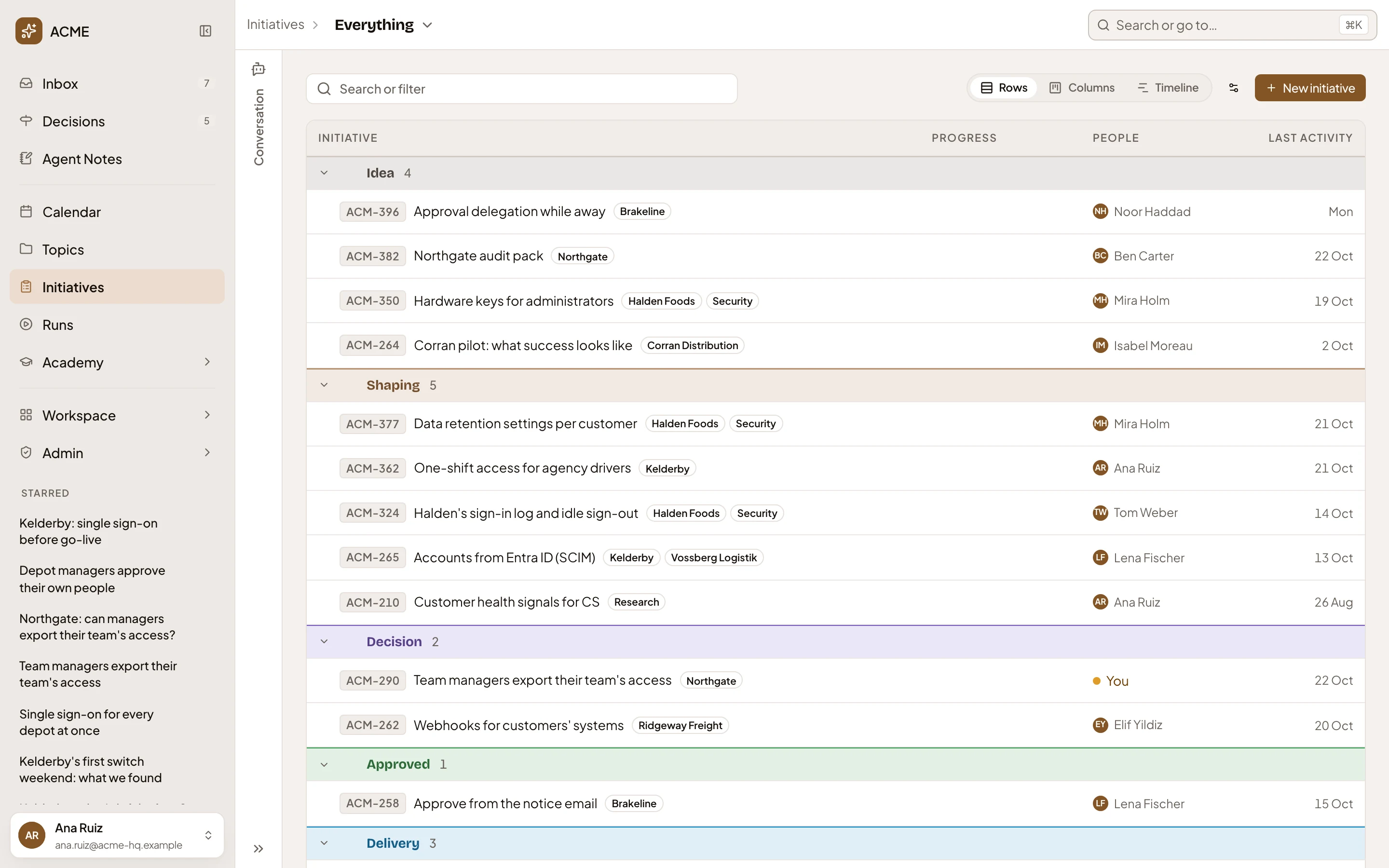
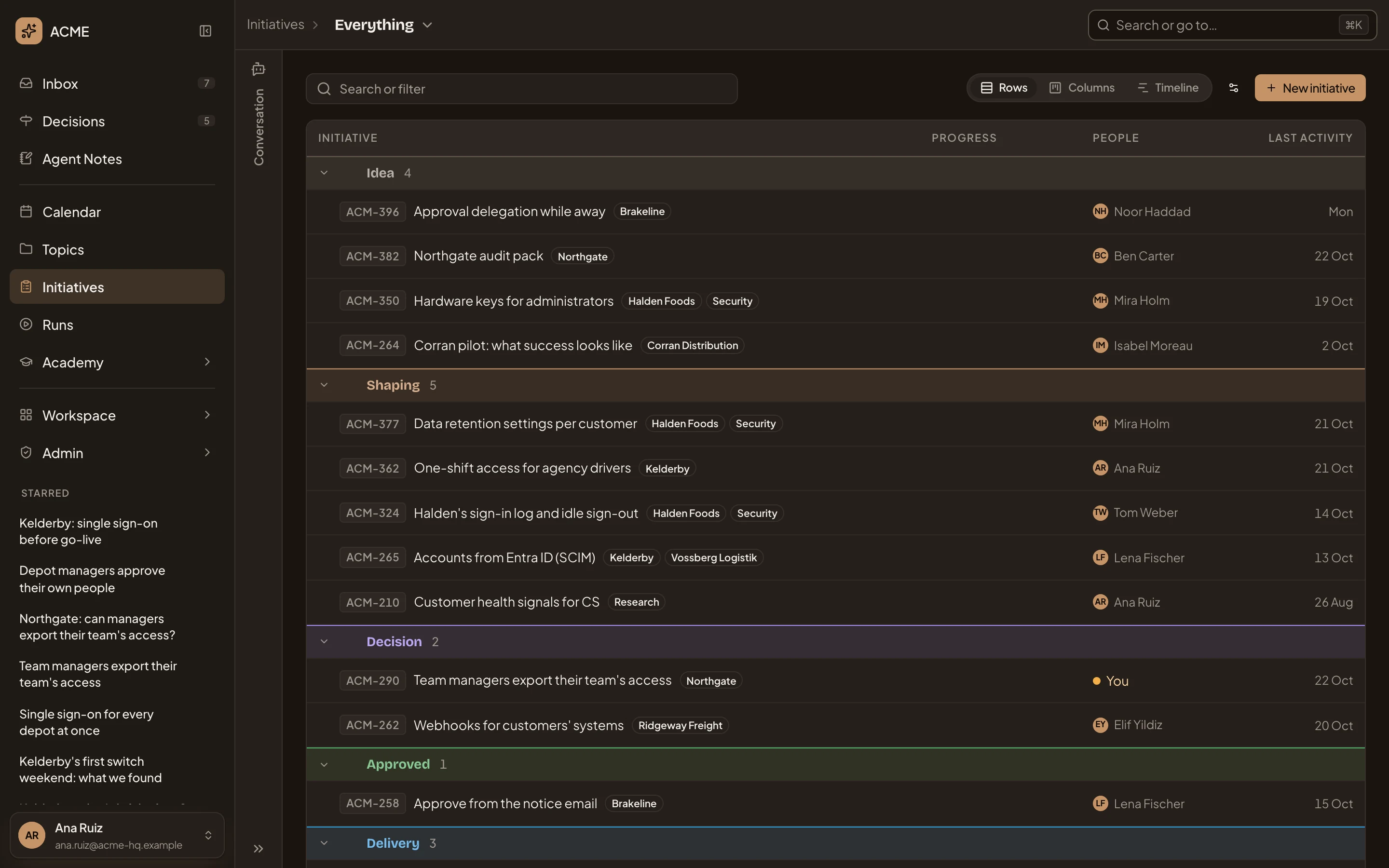
- Where you are. Initiatives, then the board you’re looking at: Everything, every initiative you can see. Click it to switch boards (see Boards).
- Conversation. The chat with the workspace agent, folded (see The chat beside the list).
- Search or filter initiatives. Type words to find titles, or build a filter (see Filtering).
- Rows, Columns and Timeline. Three ways to lay the list out (see Columns and Timeline).
- View options. How the list groups and sorts.
- New initiative. Starts one, on New initiative.
- A group, Shaping, and its count. Click the arrow to fold it, or its name to see that group alone.
- An initiative. Its key, title and labels. Click the title to open it.
- Progress. For an initiative in delivery, a small timeline of its slices. Click it to see the initiative’s details.
- People. Its owner, or You when something on it waits on you, such as a question.
- Last activity. When something last happened on it.
- Done. The groups of closed initiatives start folded. Click one to unfold it.
The groups follow where each initiative stands: Idea, Shaping, Decision, Approved, Delivery, Done, Postponed, Rejected and Merged. Only the ones with an initiative in them show. Idea, Shaping and Decision follow the work, and the others are set on the initiative (see Status). A group shows ten initiatives at a time and pages through the rest.
Outside delivery, Progress shows the initiative’s status, unless the list is already grouped by status.
An initiative’s details
Section titled “An initiative’s details”Click a row (not its title) to select it. A row of buttons opens under it, and the initiative’s details open on the right.
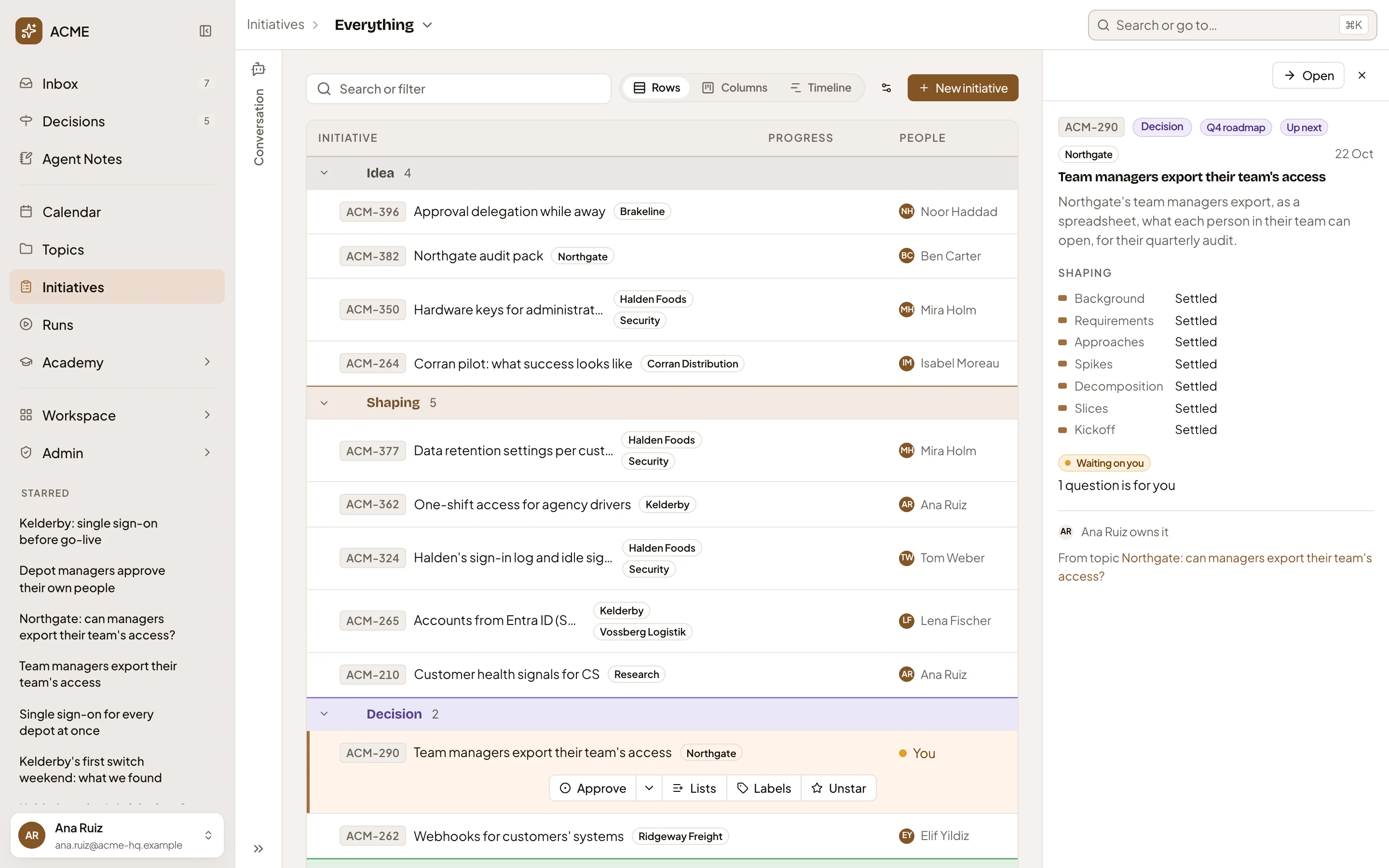
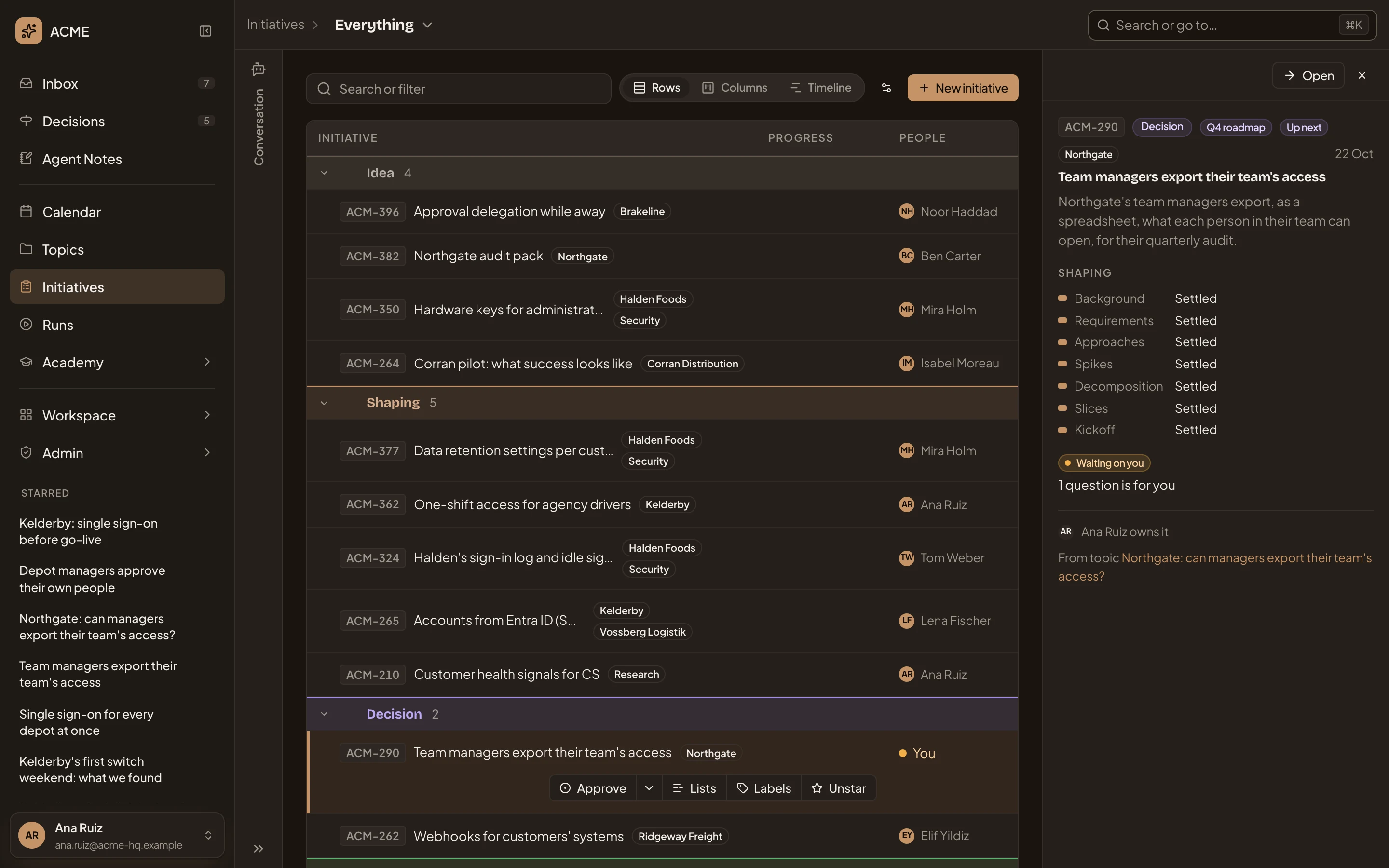
- The selected row’s buttons. The next move for its status, here Approve, with the other moves under the arrow beside it. Then Lists, Labels and the star.
- Open. shows the initiative in full. Close puts the details away.
- Each section of the initiative, and how far it has got, such as Settled.
- Waiting on you. What waits for you there, such as a question.
- From topic. The topic it was made from, when you can open it.
Only initiatives made from a topic in an earlier version of Emargen have From topic. For a new one, name the topics in your first message, or pick them on New initiative.
Only the people who edit an initiative see its status move under the selected row.
Filtering
Section titled “Filtering”Type in the search box to find initiatives by title. It also offers filters as you type, such as Waiting on me, Flagged by me, or a status, label, owner or list. A sentence like “initiatives about sign-in waiting on me” goes to the workspace agent, which sets the filter for you. Once a filter is complete, Save as list keeps it as a list of your own. See Lists.
View options
Section titled “View options”View options sets how the list groups and sorts.
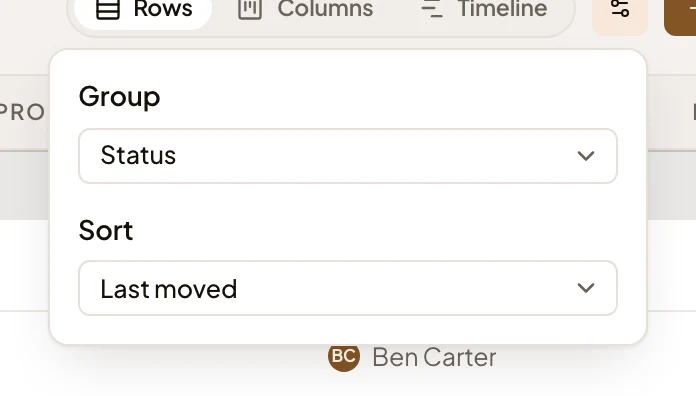
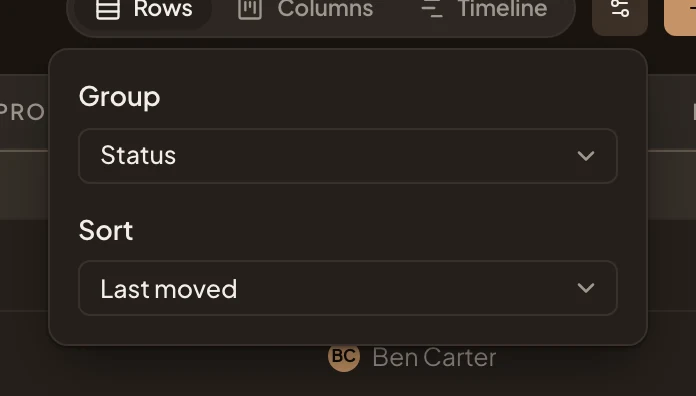
- Group. Status, Owner, List (your lists) or None.
- Sort. Last moved or Title.
On the timeline, View options also sets its time scale, in weeks, months or quarters.
Columns and Timeline
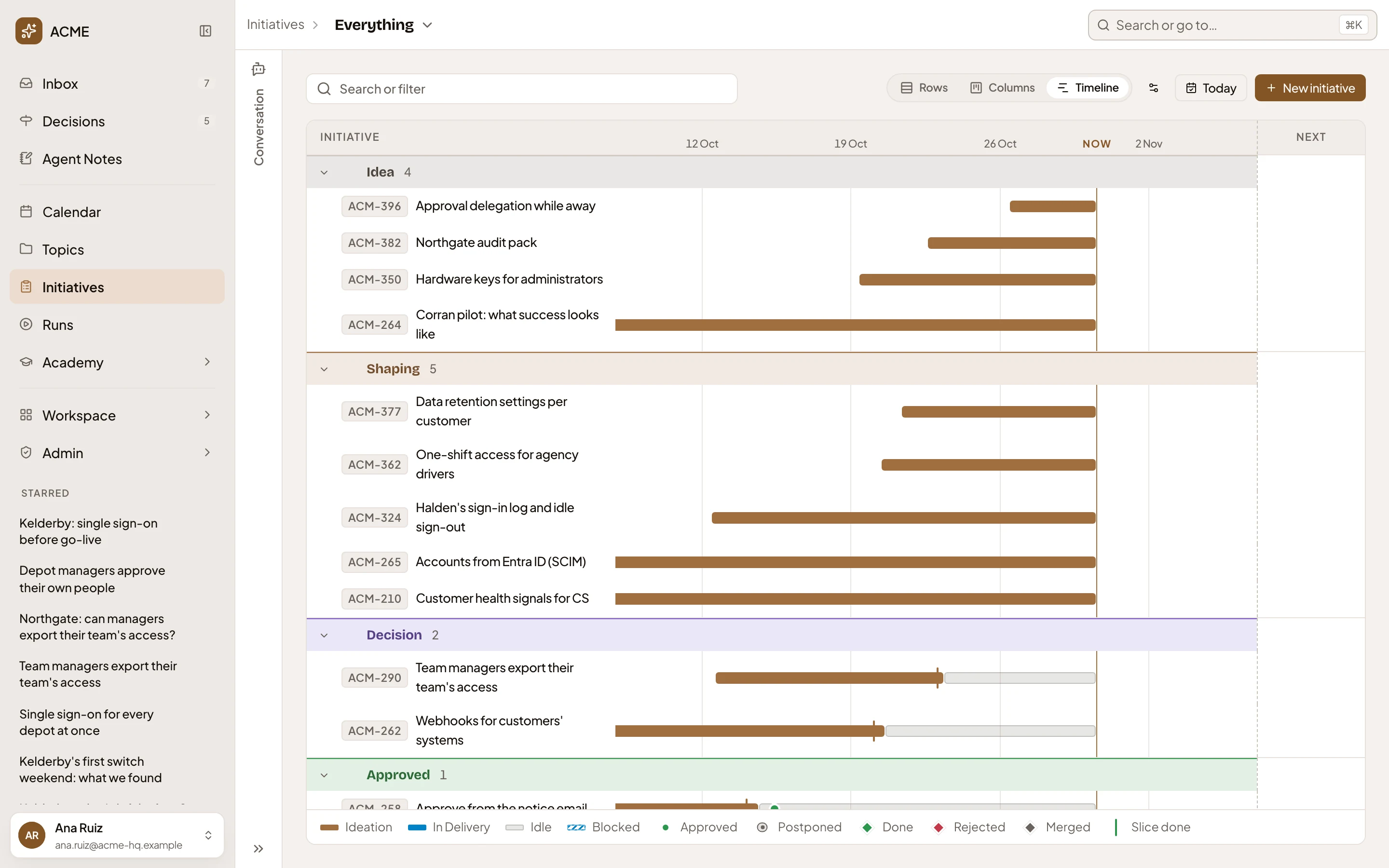
Section titled “Columns and Timeline”Columns shows one column per group, like a board on a wall.
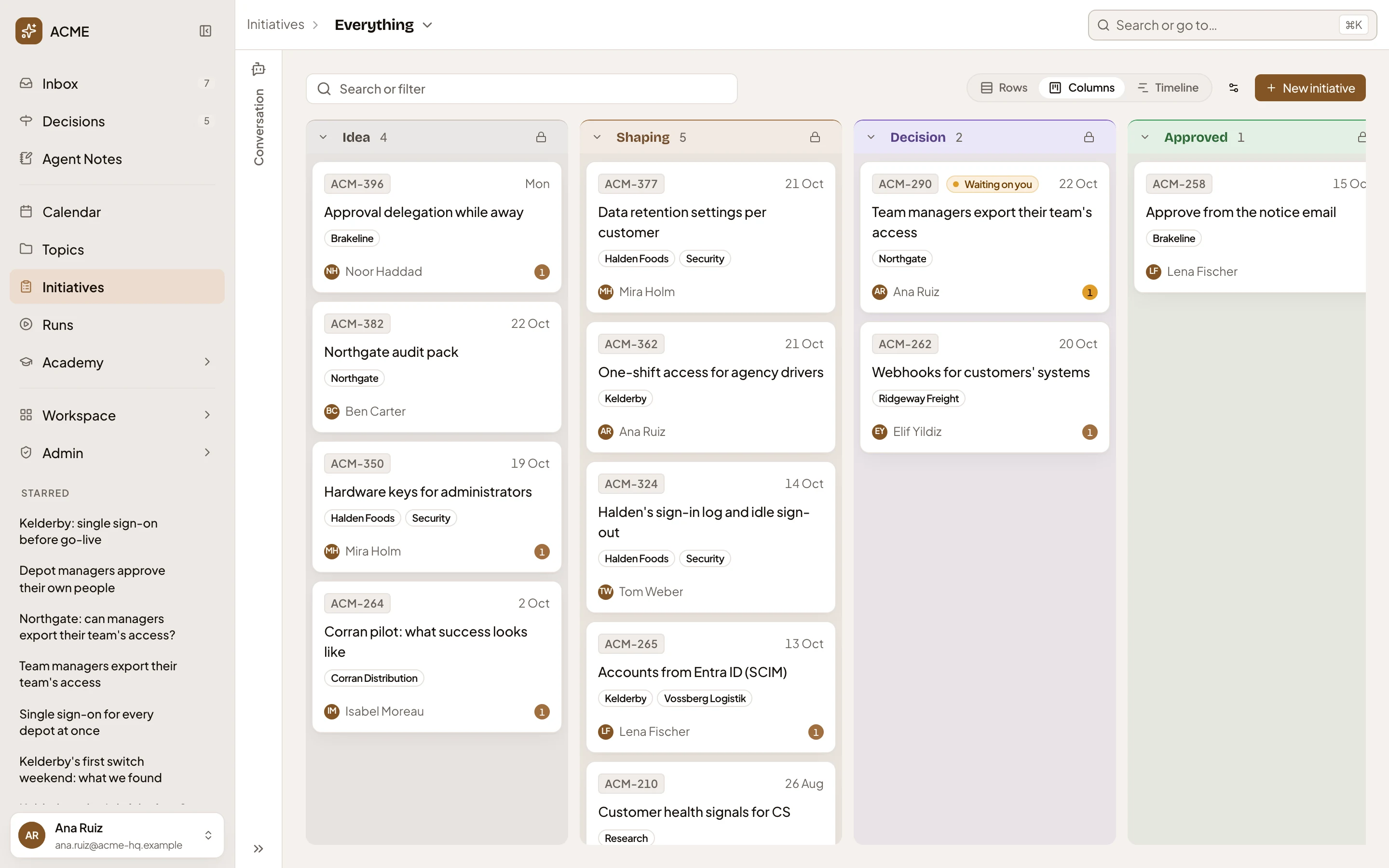
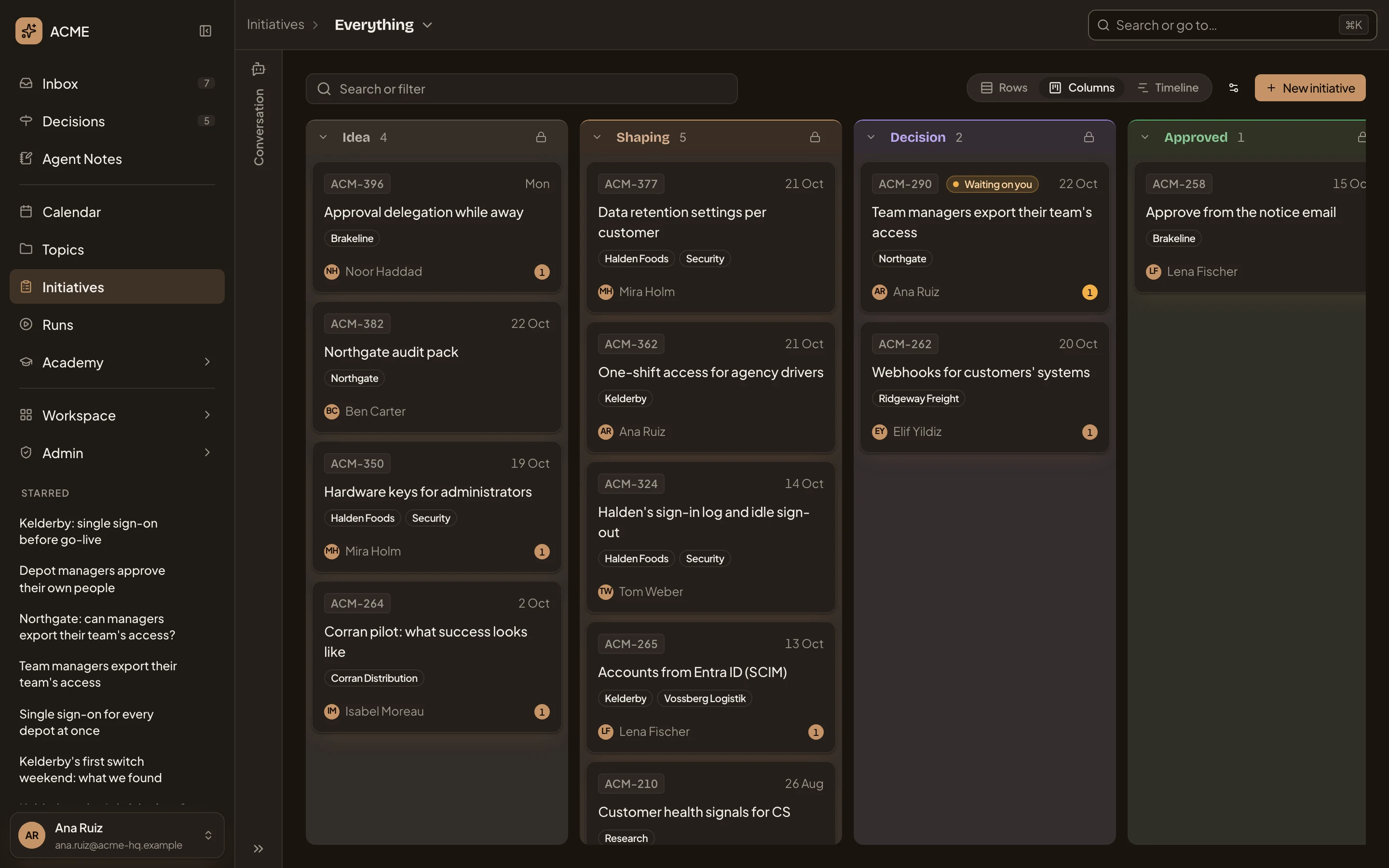
A number in a card’s corner counts the initiative’s open questions. These are the agent’s questions nobody has answered yet, and questions people or the build asked on it. The number is amber when one of them is for you, like ACM-290’s.
Grouped by your lists, you can drag a card from one list’s column to another. Columns by status or owner show a lock, since they don’t take a drag.
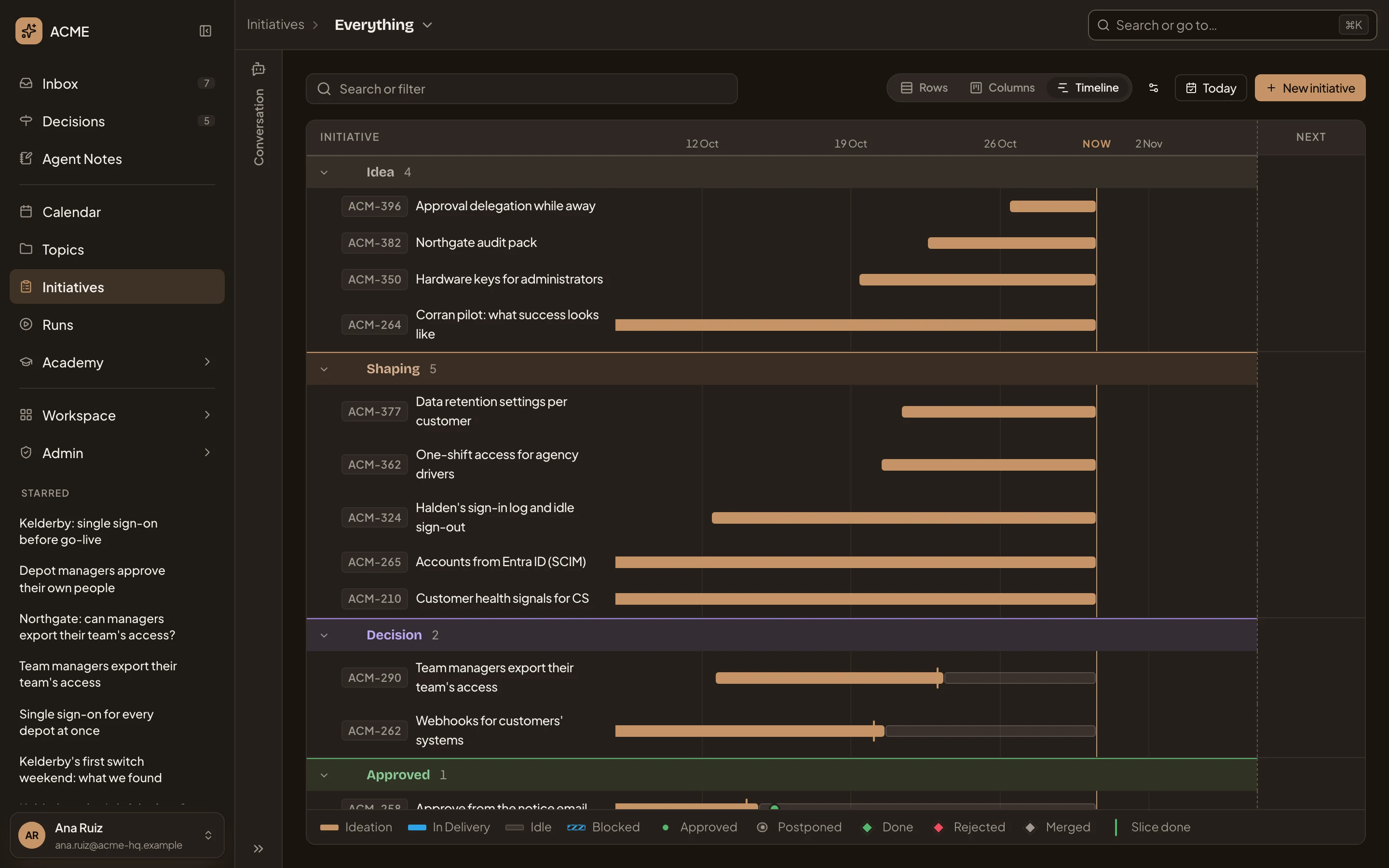
Timeline shows each initiative as a bar over the weeks, coloured by where it stands. A legend under it says what each colour and mark means, and Today brings today into view.
The chat beside the list
Section titled “The chat beside the list”Conversation opens the chat with the workspace agent.
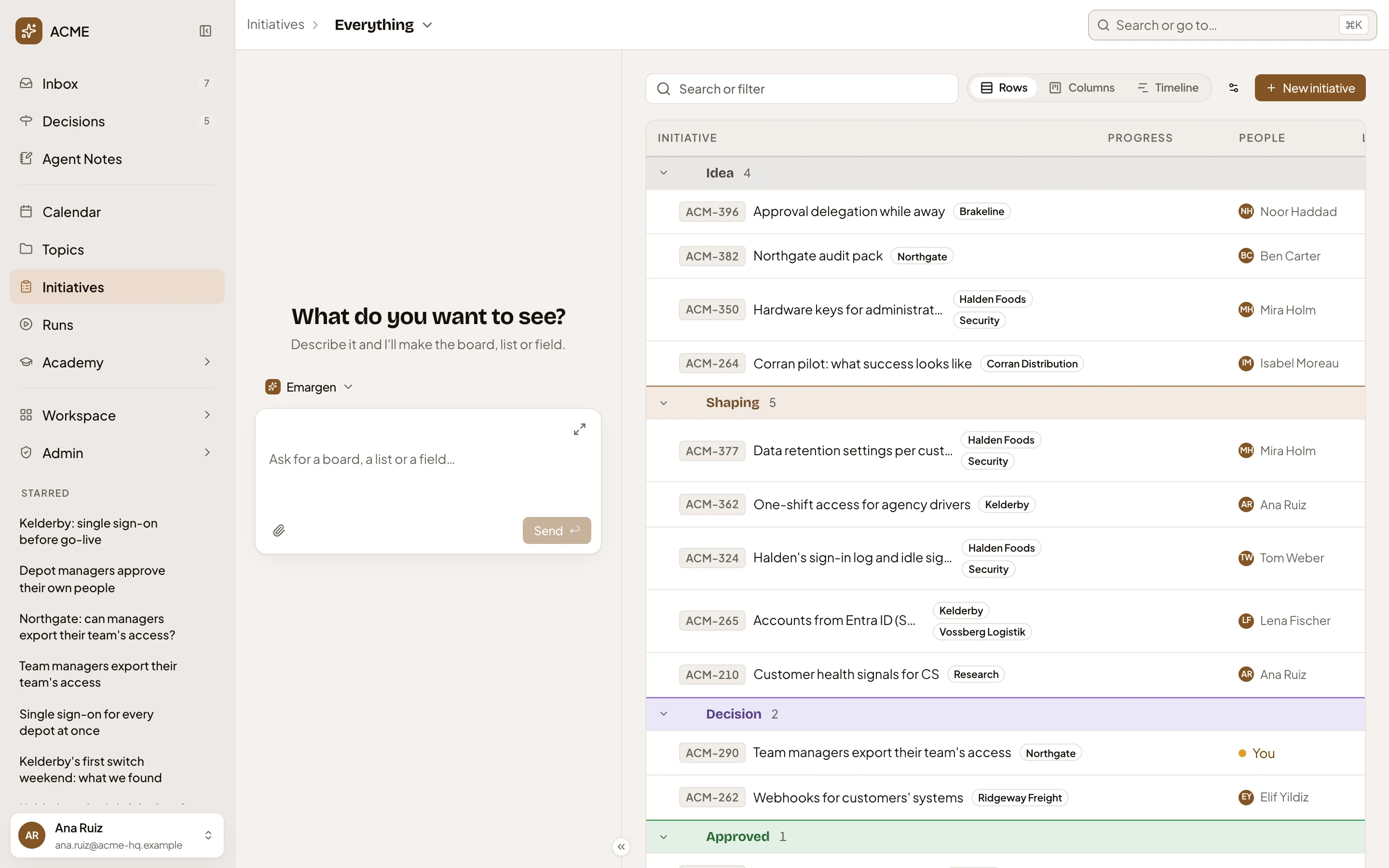
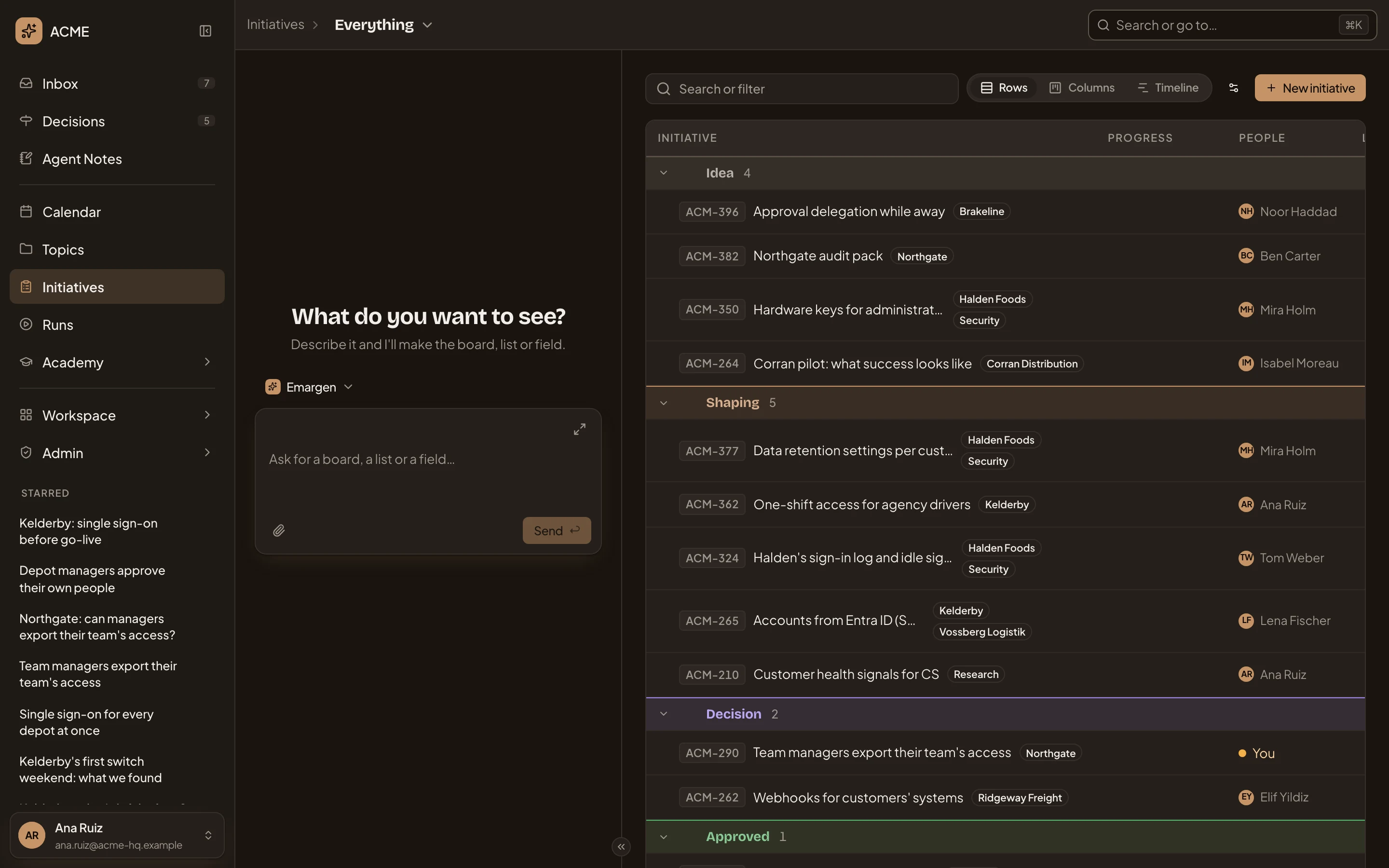
- Ask the workspace agent. Say the board, list or field you want, or how to filter and lay out this list.
It filters and arranges the list for this visit, and drafts boards, lists and fields, asking before anything is saved. Initiatives are shaped in the chat on each initiative’s page. See The agents.
Boards
Section titled “Boards”A board is a saved view of initiatives. It holds the ones that match its conditions, or lists you keep. Click the board’s name at the top to switch.
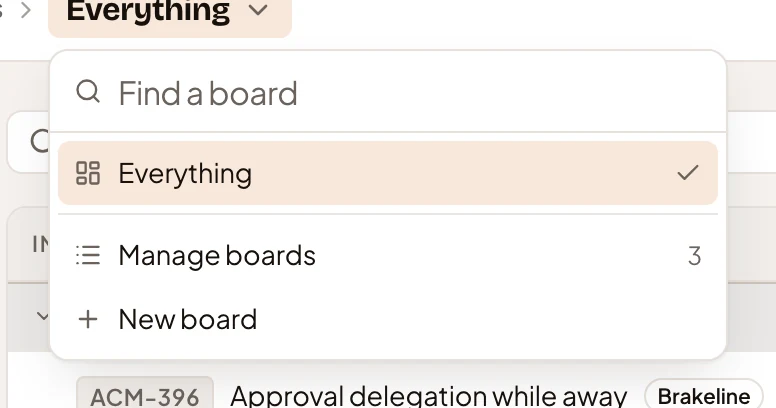
- Everything shows every initiative you can see.
- The boards you opened lately. Type to find any board by name.
- Manage boards opens the boards in your workspace, with how many there are.
- New board makes one with the workspace agent.
A board of initiatives has its own address, and shows the list in the board’s own layout. In the picture, ACME’s Delivery board groups the initiatives by five lists of its own, from Ideas to Shipped.
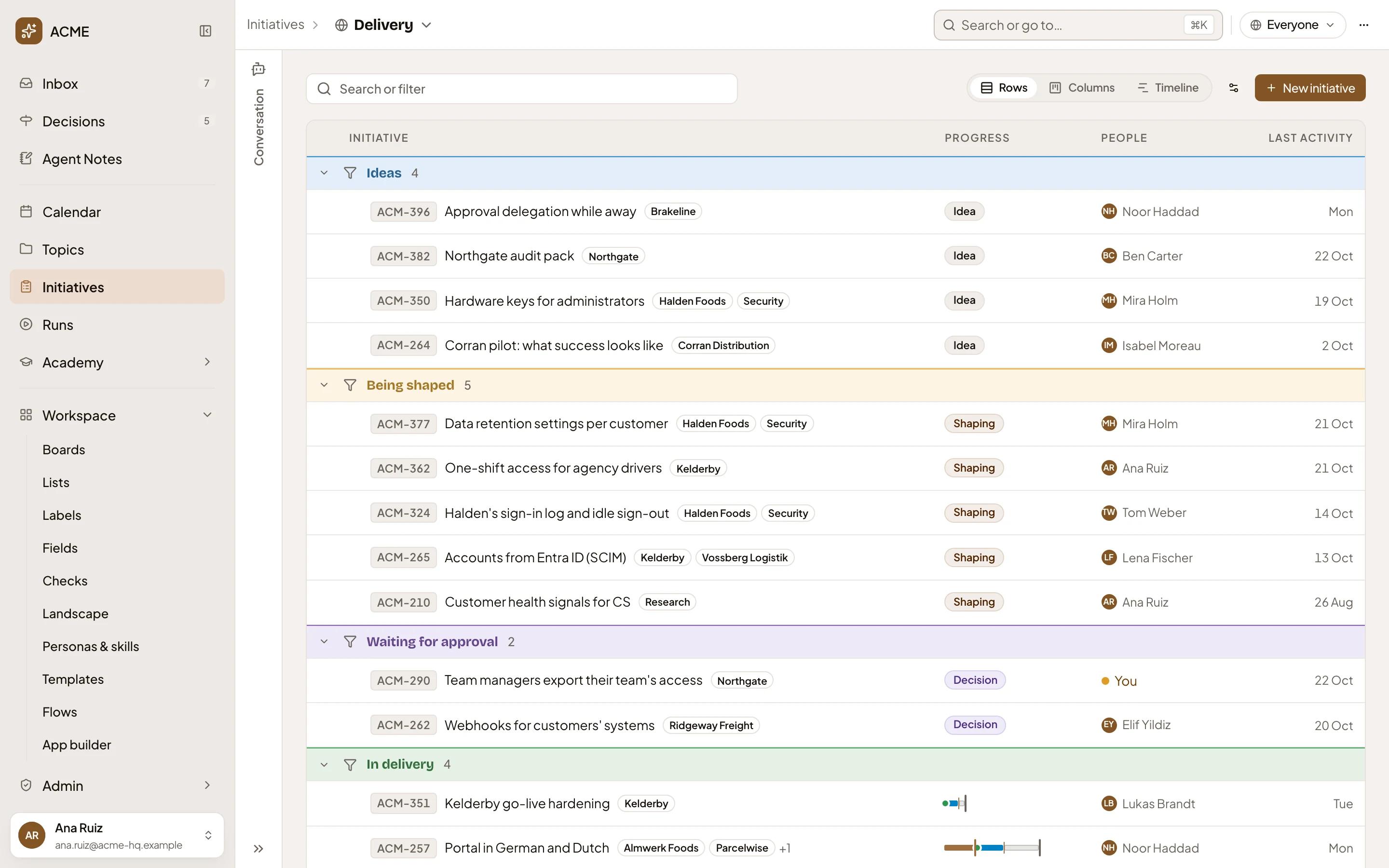
- Delivery: switch board. The board’s name. Click it to switch.
- Sharing. Who sees the board.
- More actions for Delivery. Edit the board (for the people who edit it) or delete it (its owner).
Initiatives in the menu opens the board you used last, or Everything, as your profile’s preferences say.
On a phone
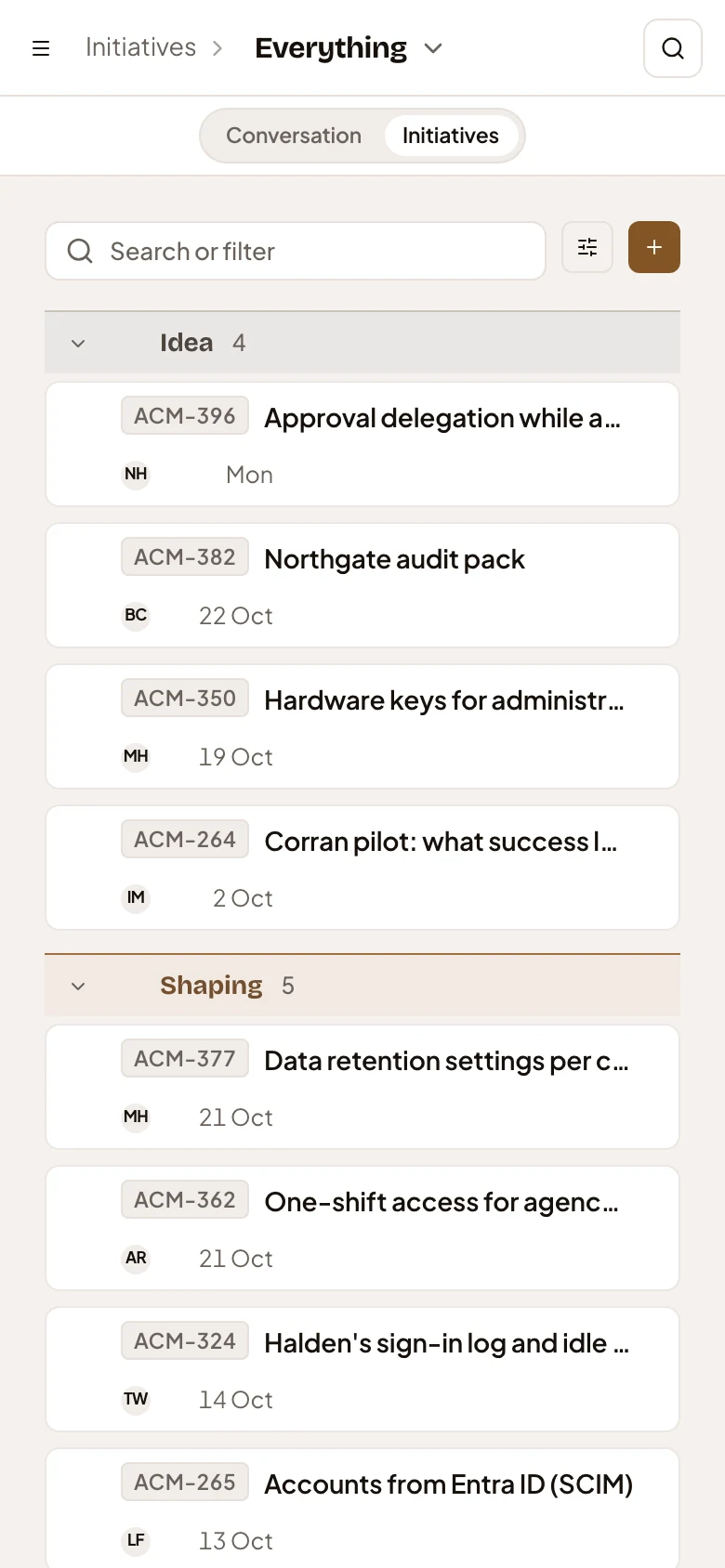
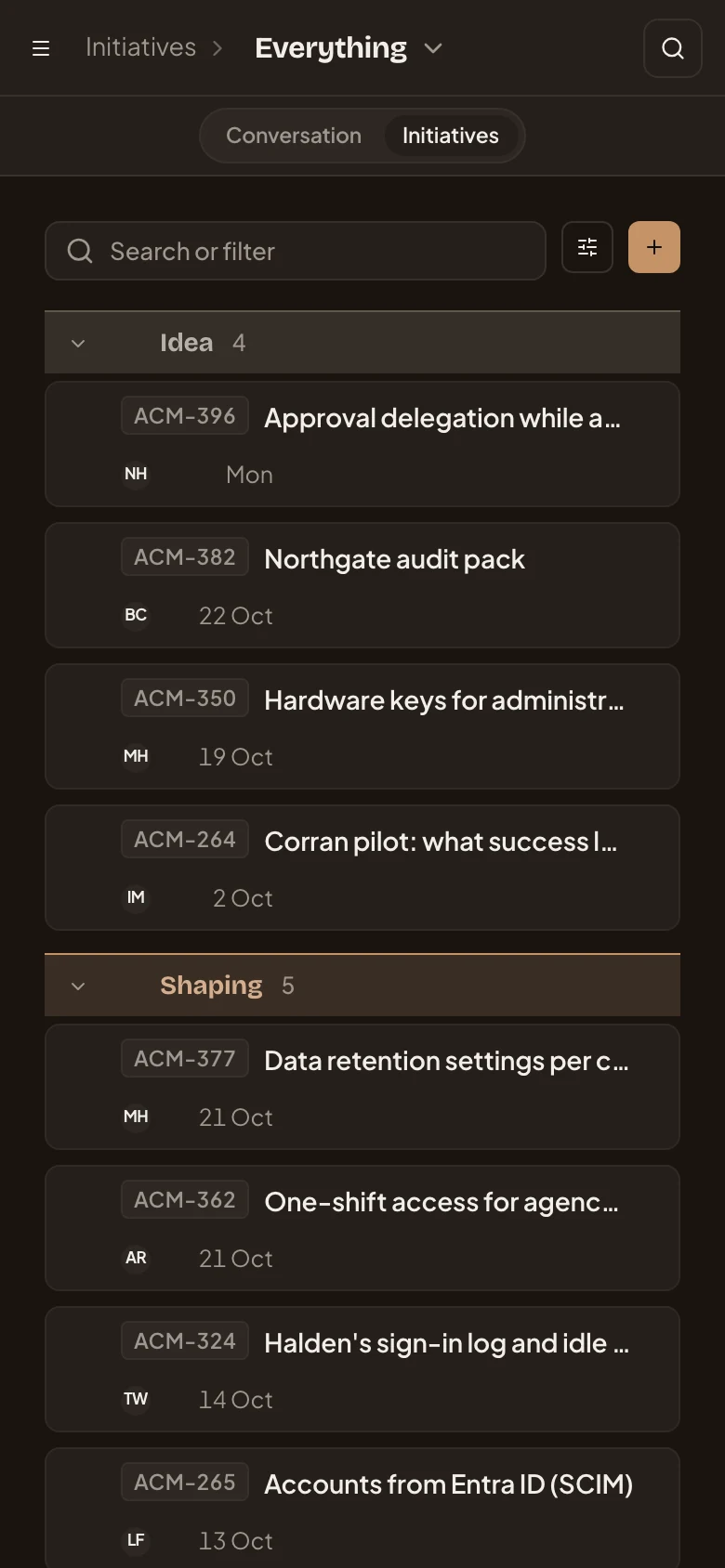
Section titled “On a phone”The list and the chat with the workspace agent take turns, under a Conversation and Initiatives switch. Each initiative is a card with its key, title, owner and when it last moved. View options and New initiative are the two buttons beside the search box.
Access
Section titled “Access”Everyone in the organisation has the initiatives list. It shows the initiatives they can see. That’s their own, the ones shared with them, and the ones shared with everyone.