

InitiativesPage by page
An initiative's page
You shape an initiative with the agent on its page. Your chat is on the left, the open section in the middle, and every section on the rail at the right. Open one by clicking its title on the initiatives list, or from Starred in the menu.
In the pictures, someone in customer success at ACME owns ACM-290, Team managers export their team’s access. It’s published and its status is Decision. Its owner’s page opens on its brief.
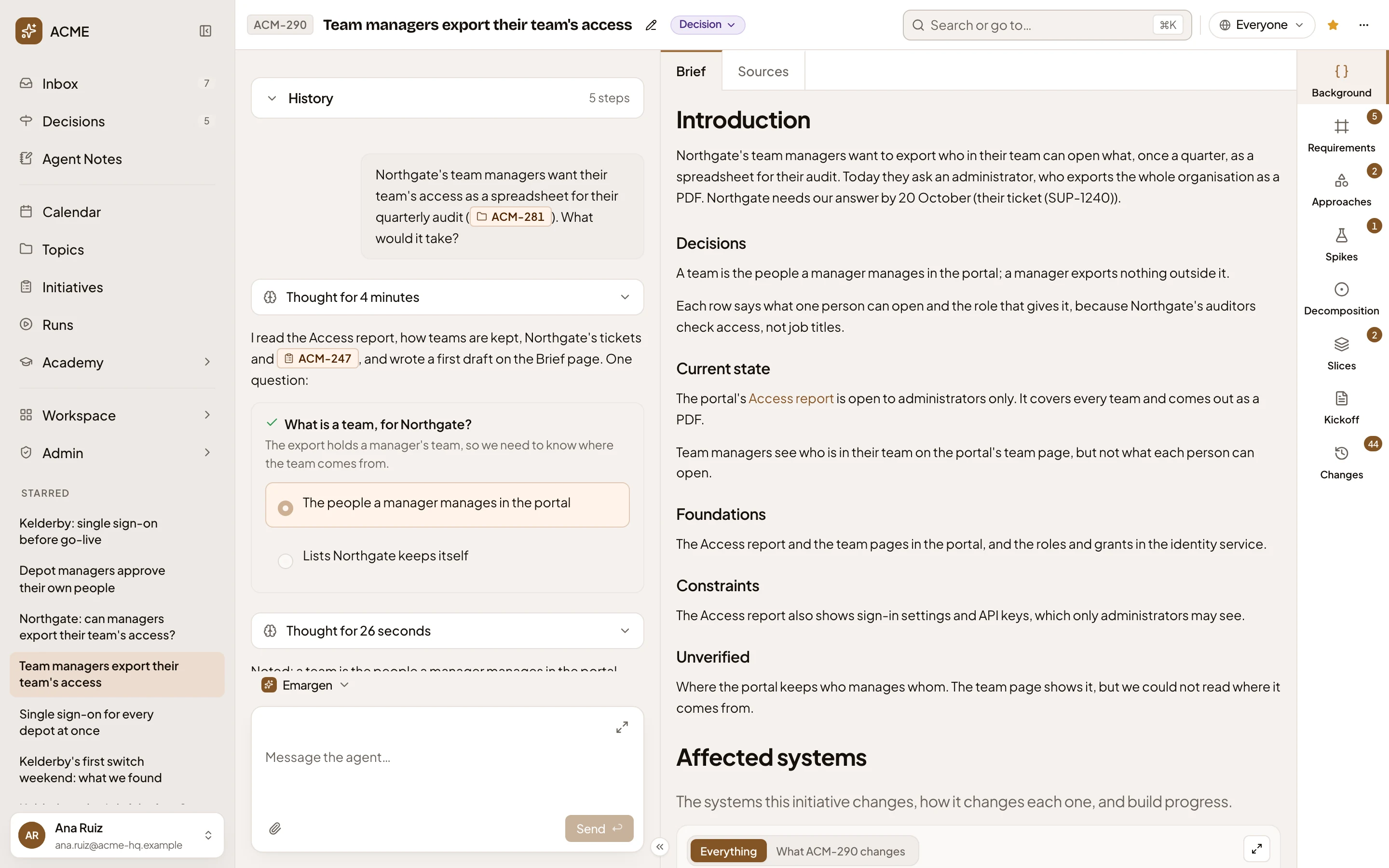
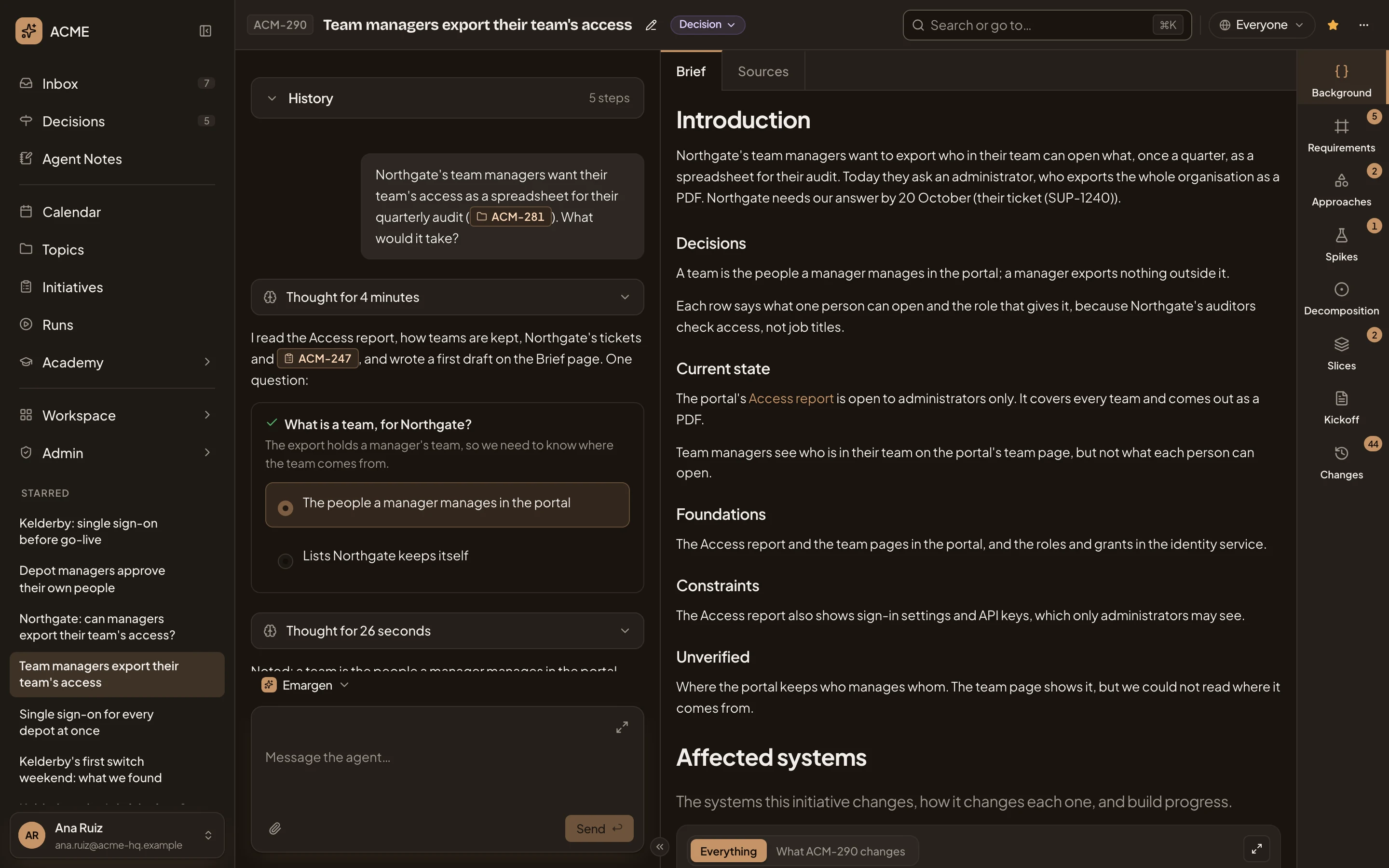
- The key and title. ACM-290, then what the initiative is about.
- Rename initiative. The pencil. Change the title and press Enter, or Esc to leave it. Only people who edit the initiative have it.
- Status: Decision. Where the initiative stands. A menu for the people who edit it (see Status), plain text for everyone else.
- Sharing. Who can open the initiative: Everyone, here (see Sharing).
- Unstar. The star, filled because the initiative is starred. It keeps the initiative under Starred in your menu, for you alone. Click it to take it off.
- More actions. The rest of what you can do with the initiative (see More actions).
- Your chat holds your messages, what the agent read and did, and its questions (see The chat).
- Persona: Emargen. The persona that answers you. Click it to pick another.
- The message box. Tell the agent what you want, answer its question in your own words, paste notes or attach a file.
- Hide the chat. Folds the chat away, so the section has the page. ⌘J does the same.
- The section’s own tabs. Background has Brief and Sources. Approaches and Spikes have one tab per approach or spike.
- The rail. Every section of the initiative, in the order the work fills them. A number counts what it holds.
Drag the divider between the chat and the section to make either side wider.
The sections
Section titled “The sections”Every section is on the rail for everyone who can open the initiative. An empty one is dimmed, and opens on a page that says how it fills.
- Background: the brief and the sources behind it. See Background.
- Requirements: what must be true when the work is done. See Requirements.
- Approaches: the ways to build it, and how each fits. See Approaches and an approach.
- Spikes: what the agent finds out before you decide. See Spikes and a spike.
- Decomposition: what the chosen approach changes in your code. See Decomposition.
- Slices: the plan, in pieces built one after another. See Slices.
- Kickoff: what Publish waits for, and the plan on one page. See The Kickoff.
- Change requests, once the initiative is approved. See Change requests.
- Changes: every change made to the initiative. See Changes.
Each section has its own address, so a link can open any of them. Requirements, say, is the initiative’s address with /requirements after it. Until approval, the initiative’s own address opens the Brief for the people who edit it, and Requirements for everyone else. While there are no requirements, it opens on Background. From approval on, it opens on Slices.
The chat
Section titled “The chat”The chat is yours alone. Everyone who can open the initiative has their own chat on it, and nobody reads anyone else’s. If you edit the initiative, the agent writes into its sections as you talk. If you don’t, it explains and changes nothing.
History, folded at the top, lists the steps the initiative has been through, such as when its brief was checked or its approach chosen. In an empty chat it’s open, with a few questions to ask about the initiative.
When the agent needs something only you know, it asks, with options. In the picture, the agent’s second question on ACM-350, an idea someone in security is shaping:
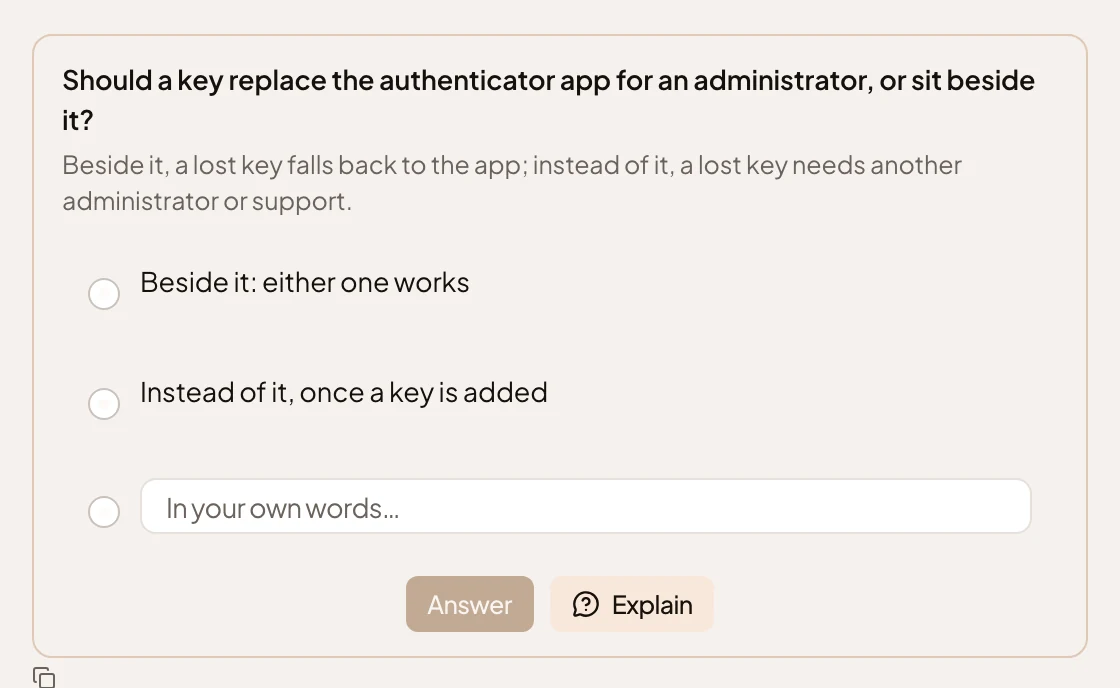
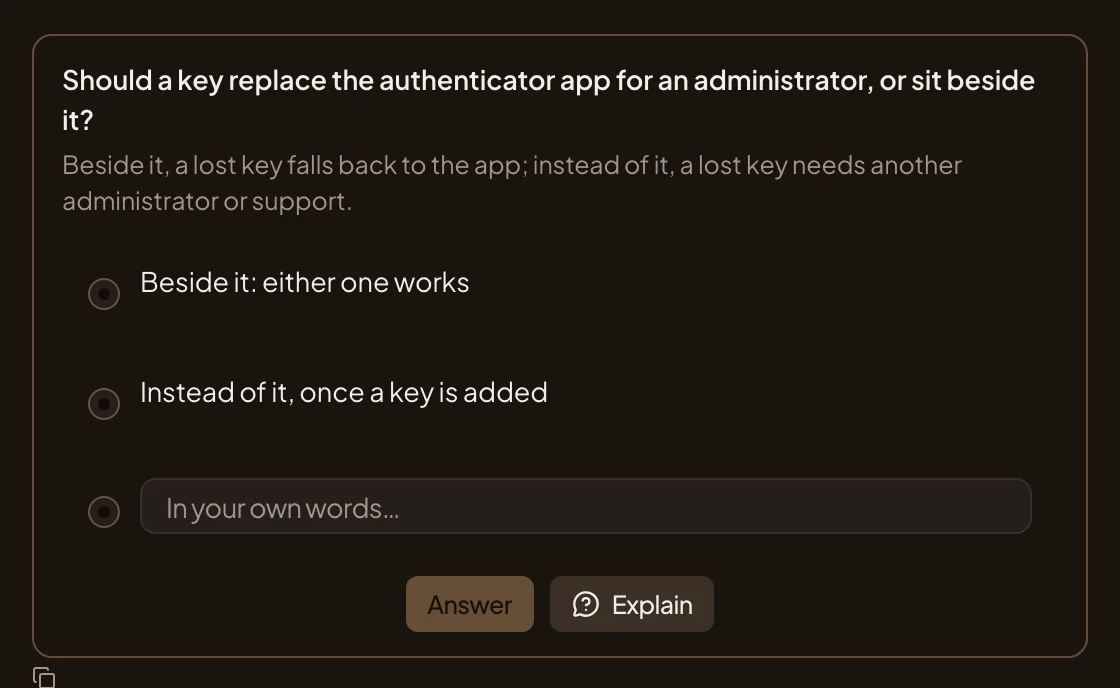
- The options. Pick one.
- Answer in your own words. Write your own answer instead.
- Answer. Sends it.
- Explain. Has the agent talk the question through first.
Once answered, the question stays in the chat with your answer ticked, and it shows in the brief.
Each answer of the agent’s starts with how long it thought, such as Thought for 4 minutes. Click it to read what it did on the way. When it changes the initiative, a line says what and where. It reads Updated with a link to Requirements and “7 changes”, or Created with Approaches and Spikes. Show or hide unfolds the line into each change. A key in its words, such as R0 or SP1, opens a short summary of that requirement or spike.
Under its latest answer, the agent may offer one or two next steps, such as a question you’d likely ask or something it can do here. Click one to ask it, or to have it done. It offers none while it waits on you.
When an answer doesn’t finish, you get one line saying what happened and what to do, with Send again where it helps and Details behind it.
Type / in the message box for the commands. /clear empties the chat, and the agent keeps a short summary of what came before. Show earlier brings it back. /new starts a new chat, and the agent won’t remember the last one.
Status
Section titled “Status”The chip beside the title says where the initiative stands. It is Idea until the first requirement or approach, then Shaping. Once published, it becomes Decision. The rest someone sets by hand, from the chip’s menu.
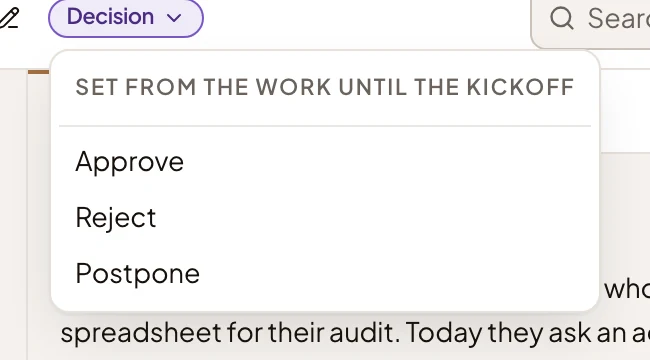
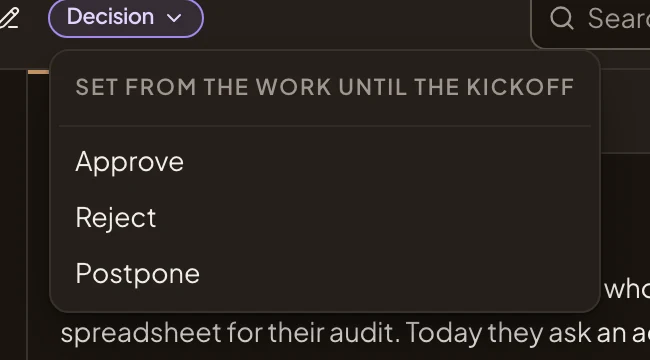
| Status | Moves in the menu |
|---|---|
| Idea, Shaping | Postpone |
| Decision | Approve, Reject, Postpone |
| Approved | Start delivery, Postpone, Reopen |
| Delivery | Mark done, Postpone |
| Done | Back to delivery |
| Postponed | Resume |
| Rejected | Reopen |
| Merged | none |
Reject and Postpone ask for a reason first. It’s optional. Agents read it when a later initiative looks like this one.
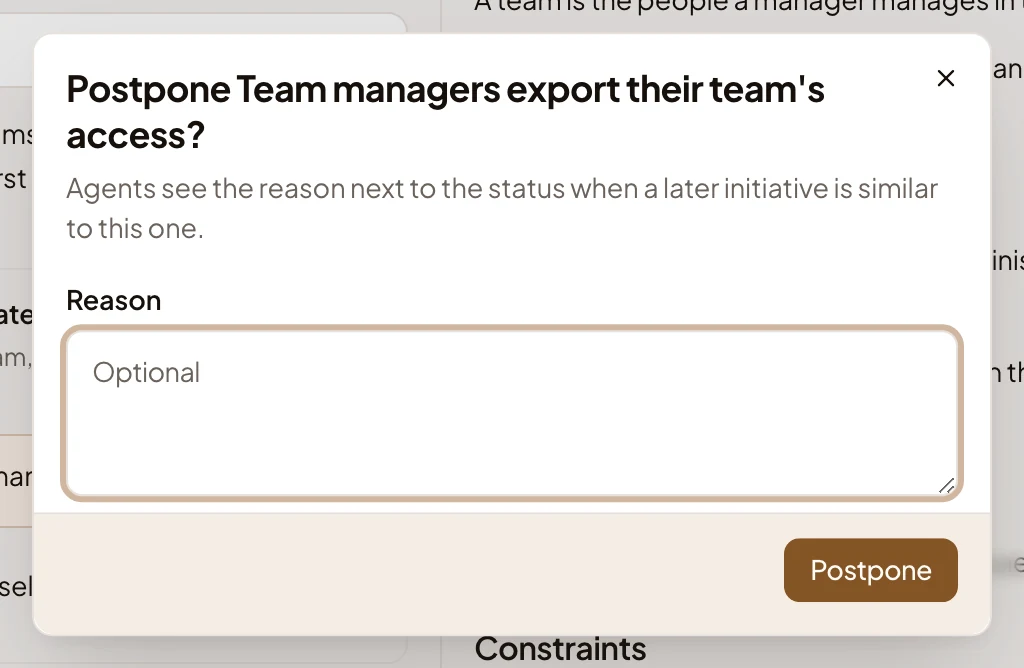
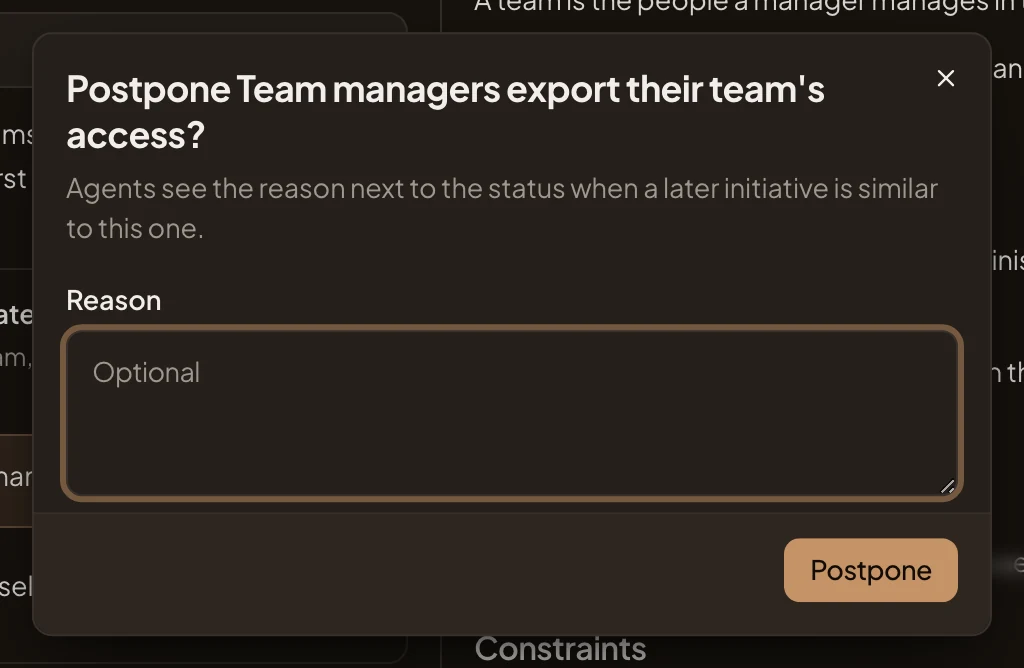
After you resume or reopen it, the work sets the status again. Approve in this menu sets the status by hand and records nobody’s approval. The people who may approve press Approve on the Kickoff instead. Merged is set only by a merge, and nothing moves an initiative out of it.
More actions
Section titled “More actions”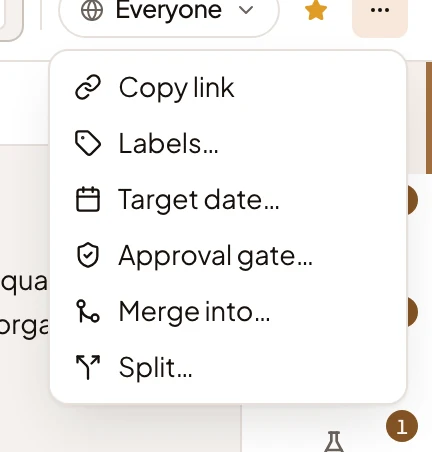
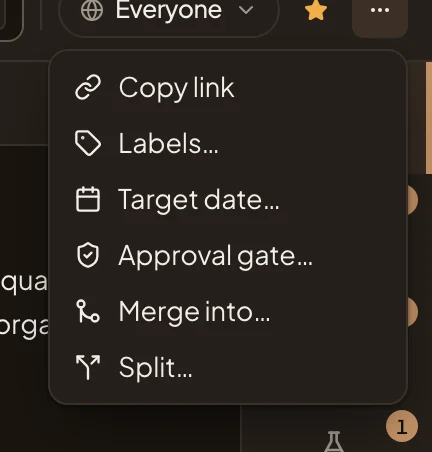
- Copy link copies the initiative’s address. Everyone has it.
- Labels… sets its labels, the same ones topics use.
- Target date… sets the date it should be done by. The plan shows the time left until it.
- Approval gate… is Off or Required. Required means someone other than the owner approves it at its Kickoff, and until then nobody can set Approved, Delivery or Done by hand. Publishing is never held for it. See Approval.
- Merge into… and Split… open the merge and split pages. See Merge and split.
- Delete initiative is for the owner, and only while nothing in the initiative is decided yet, not even an answered question or a requirement’s level. It asks first.
Someone who doesn’t edit the initiative has only Copy link.
Banners
Section titled “Banners”A banner across the top of the page asks the people who edit the initiative to act:
- The agent proposes merging this initiative into another, with why. Review opens the merge page, and Put aside clears it.
- The agent proposes splitting some requirements out into a new initiative, with why. Review opens the split page, and Put aside clears it.
- The agent’s scope check flags initiatives that look like more than one. See the split opens the split page, and Keep as one… asks why it stays one piece of work.
A banner also links to the initiatives a merge or a split joined this one to. A merged initiative says where it went, and when and why it was merged.
When your organisation has no model set for its agents, a notice above Spikes, Decomposition and an unwritten brief says No agent model is set. That work waits until an admin chooses one under Models.
Sharing
Section titled “Sharing”Sharing shows who can open the initiative and what each person may do. Only the owner changes it. See Sharing for how the three choices work.
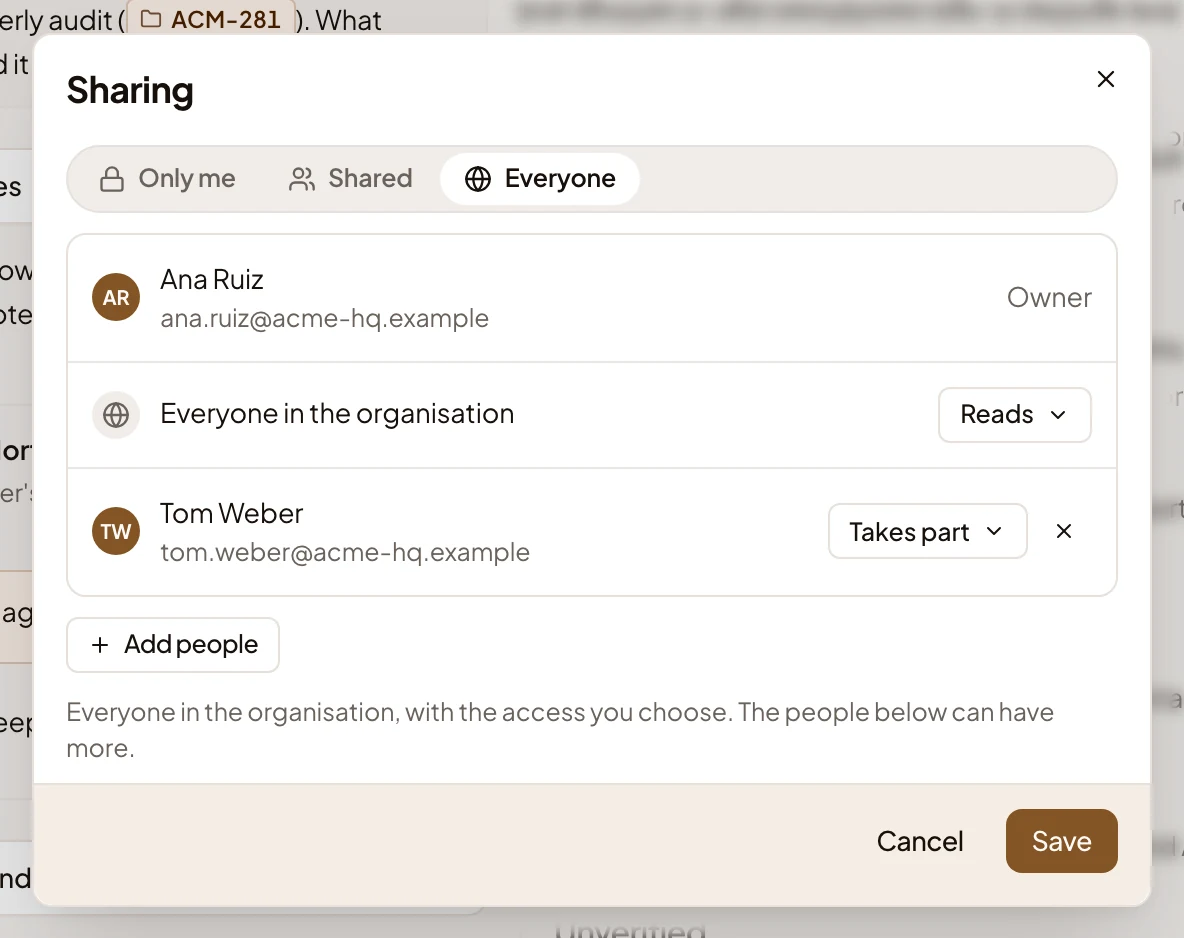
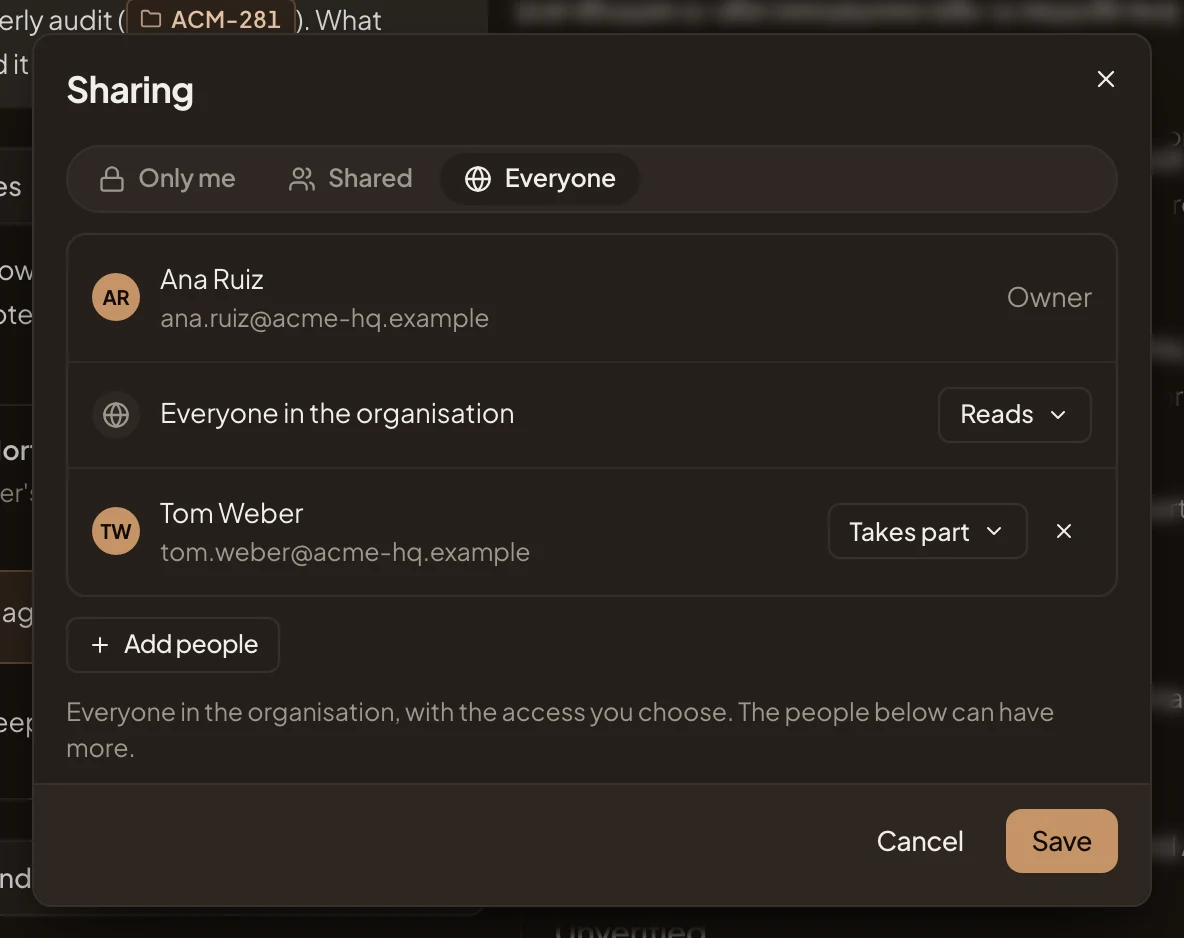
- Only me, Shared or Everyone.
- Access for everyone. With Everyone, what the whole organisation may do: Reads, here.
- Access for Tom Weber. The same for one person.
- Stop sharing with Tom Weber.
- Add people.
- Save. Nothing changes until you press it.
An initiative has one more level than a topic:
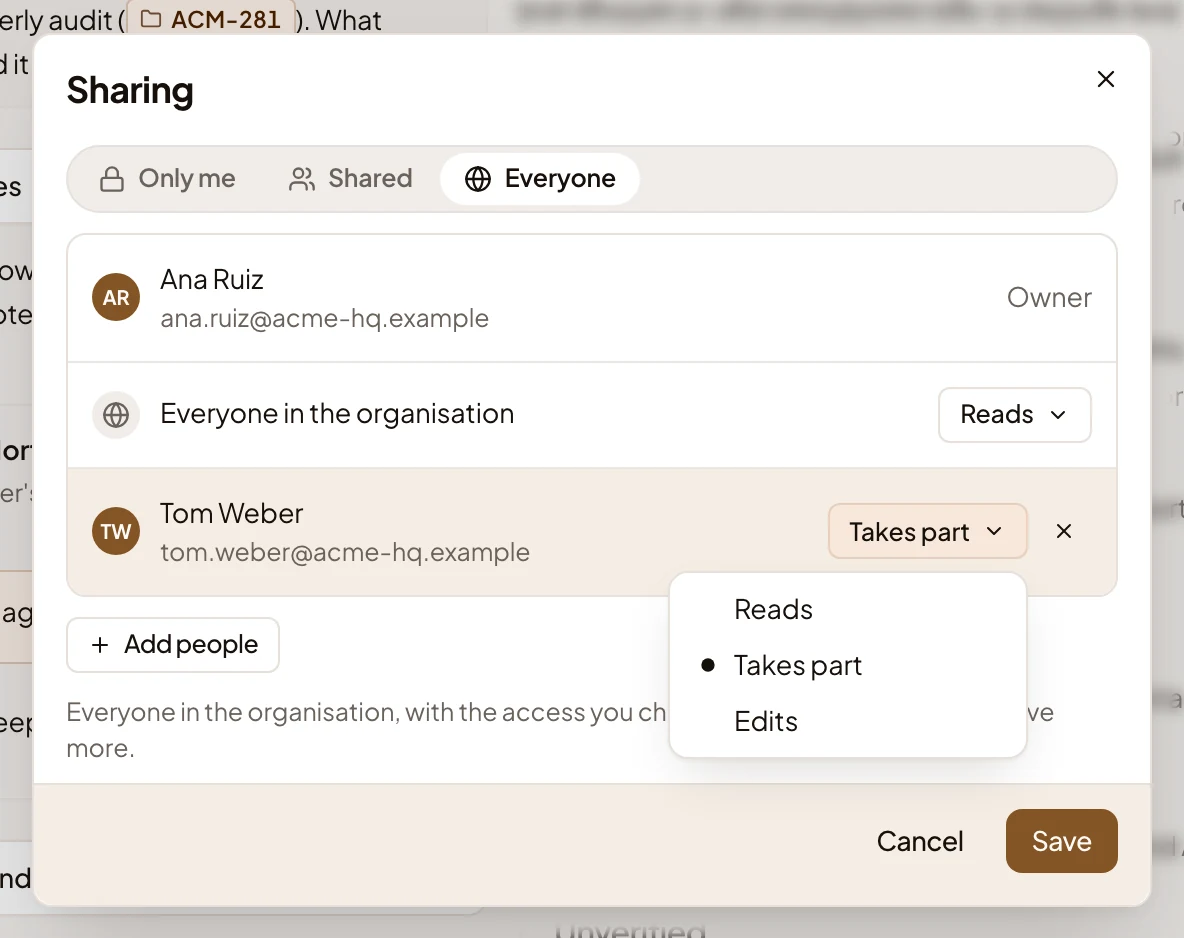
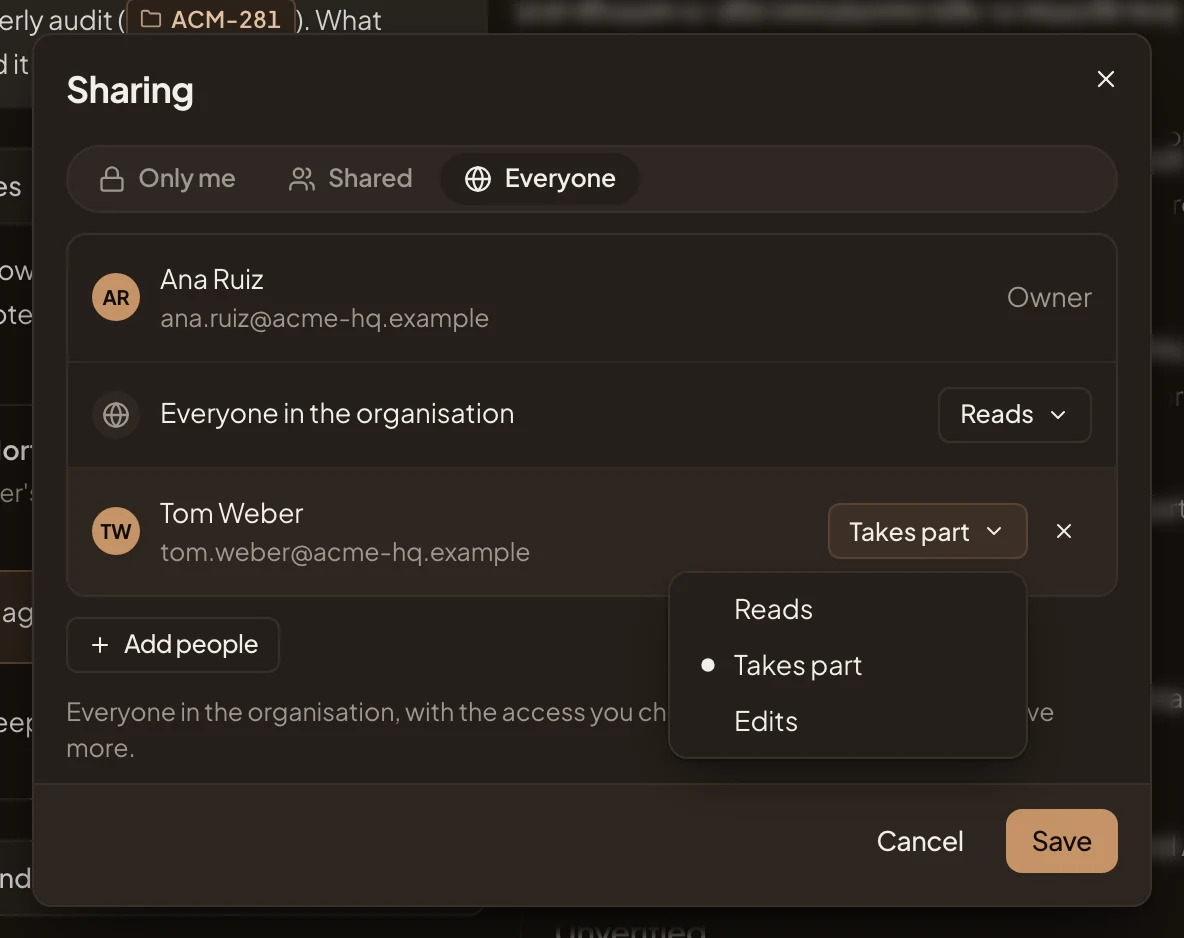
- Reads: they read every section, Changes included, comment, add sources, and have their own chat, which explains and changes nothing.
- Takes part: as Reads, and they answer the agent’s questions that are for nobody in particular, such as a requirement’s level.
- Edits: they shape it as the owner does. Their chat writes into the initiative, and they change requirements, choose the approach, open spikes, publish and set the status.
Comments
Section titled “Comments”On Requirements, Approaches, Spikes, Decomposition, Slices and the Kickoff, the left side has two tabs, Chat and Comments. Comments are where the people on the initiative talk to each other about the open section.
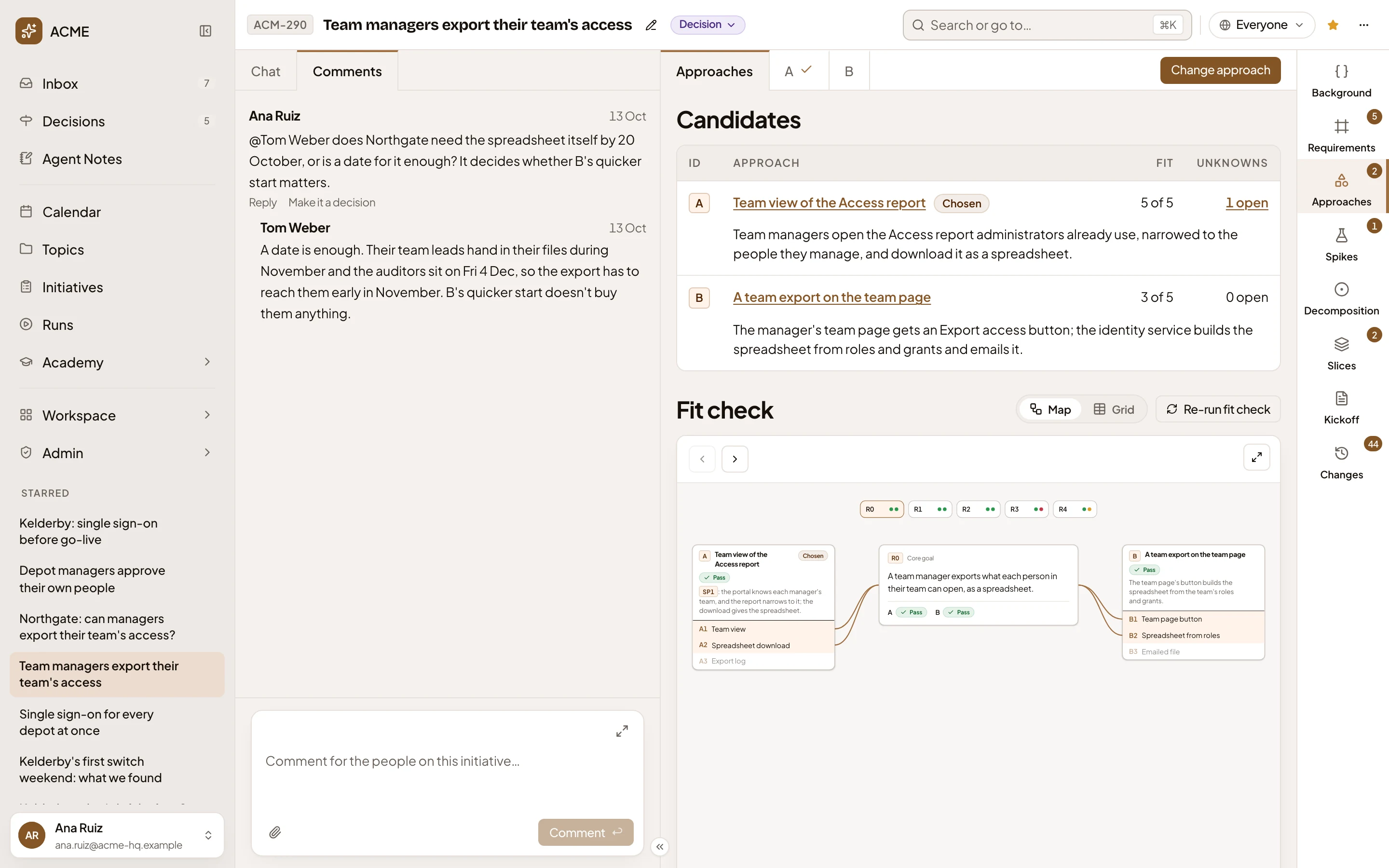
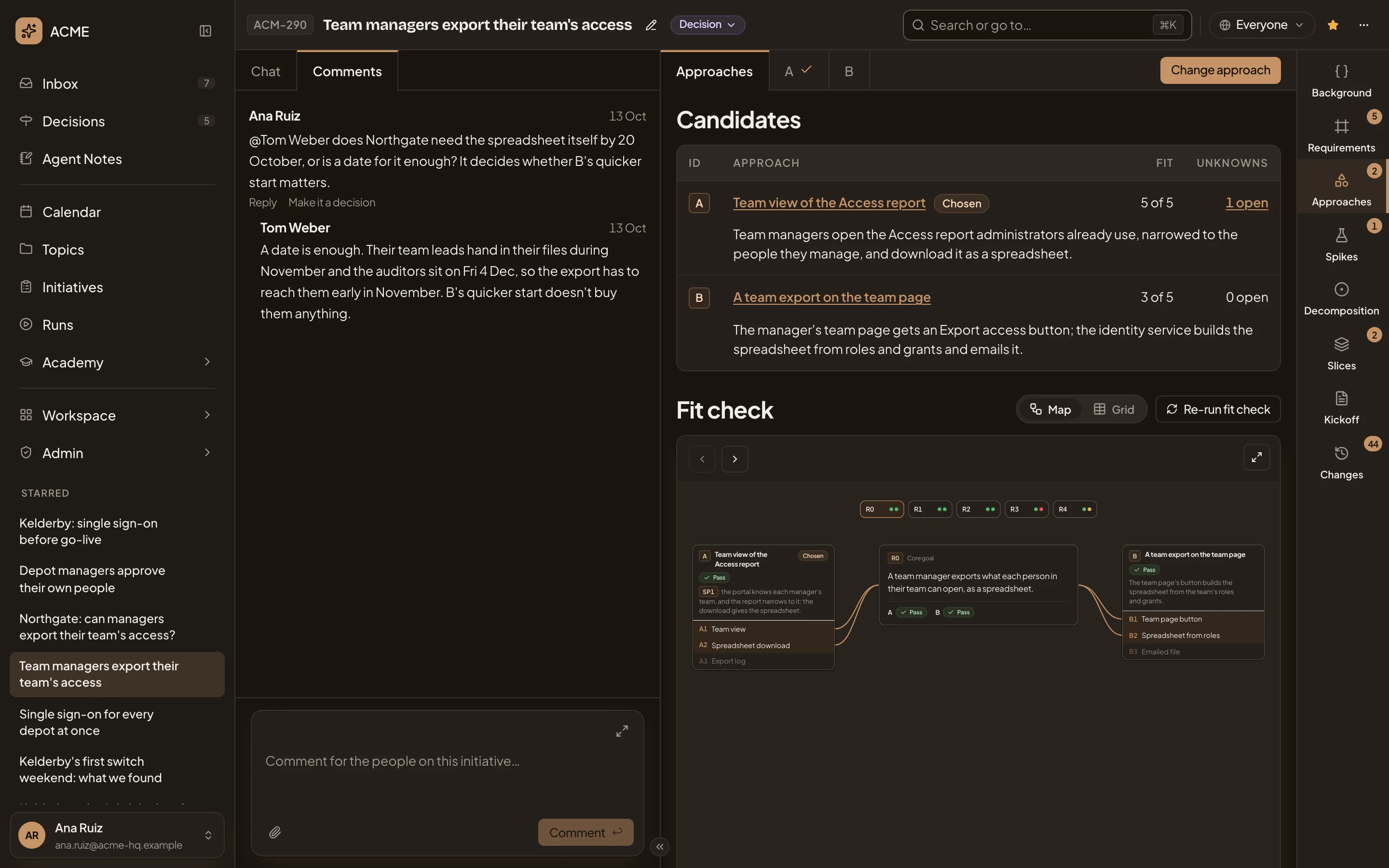
- Comments. The tab.
- A comment, with who wrote it and when, and the replies under it.
- Reply. Answers in the same thread.
- Make it a decision. Turns the comment into a question to decide.
- The comment box. Type @ to tag the owner, someone who already commented, or the agent. A tagged person finds the comment in their Inbox.
- Comment. Posts it.
A comment is about the section, unless you started it from a row’s Comment, which ties it to that row. You can delete your own.
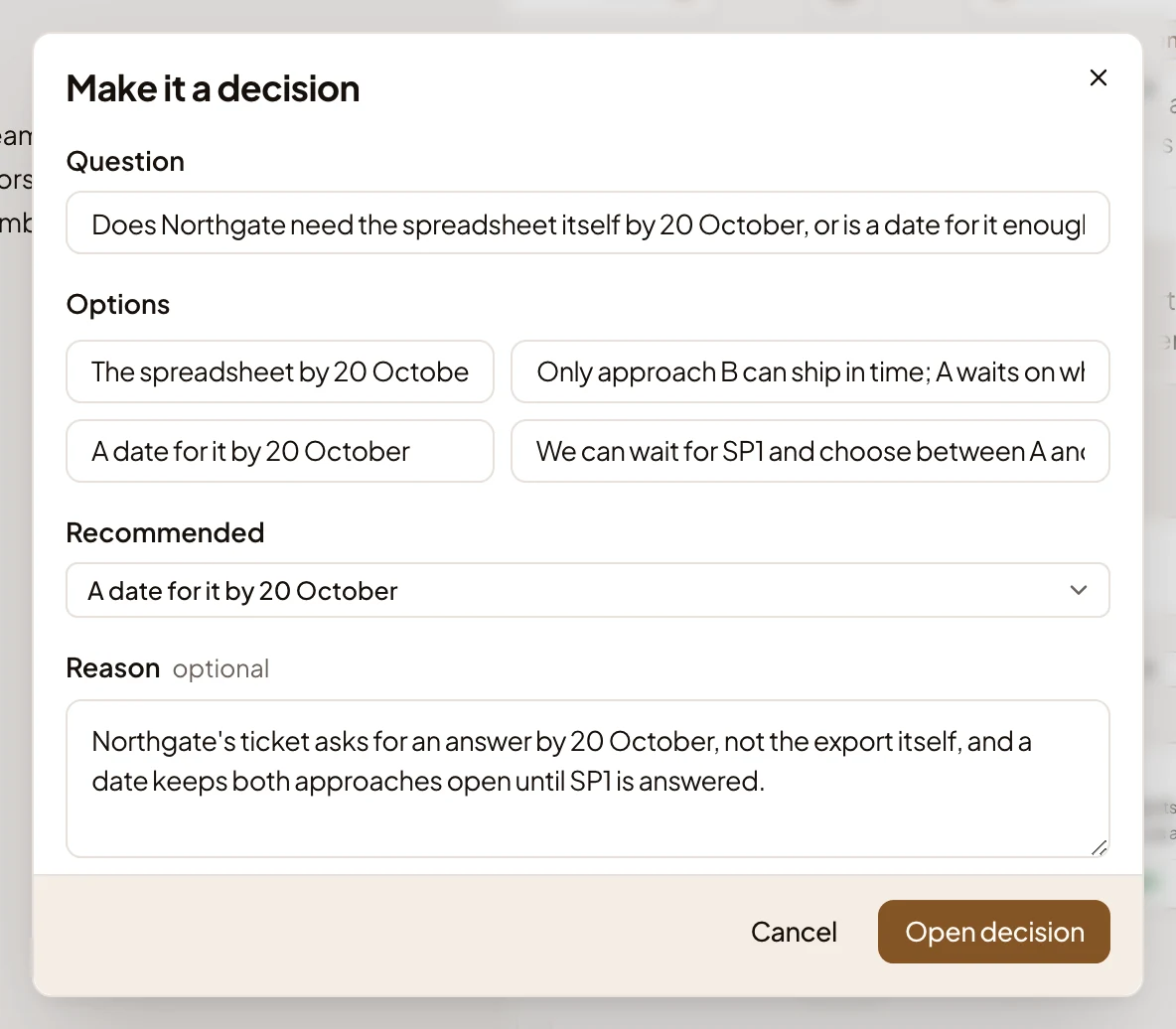
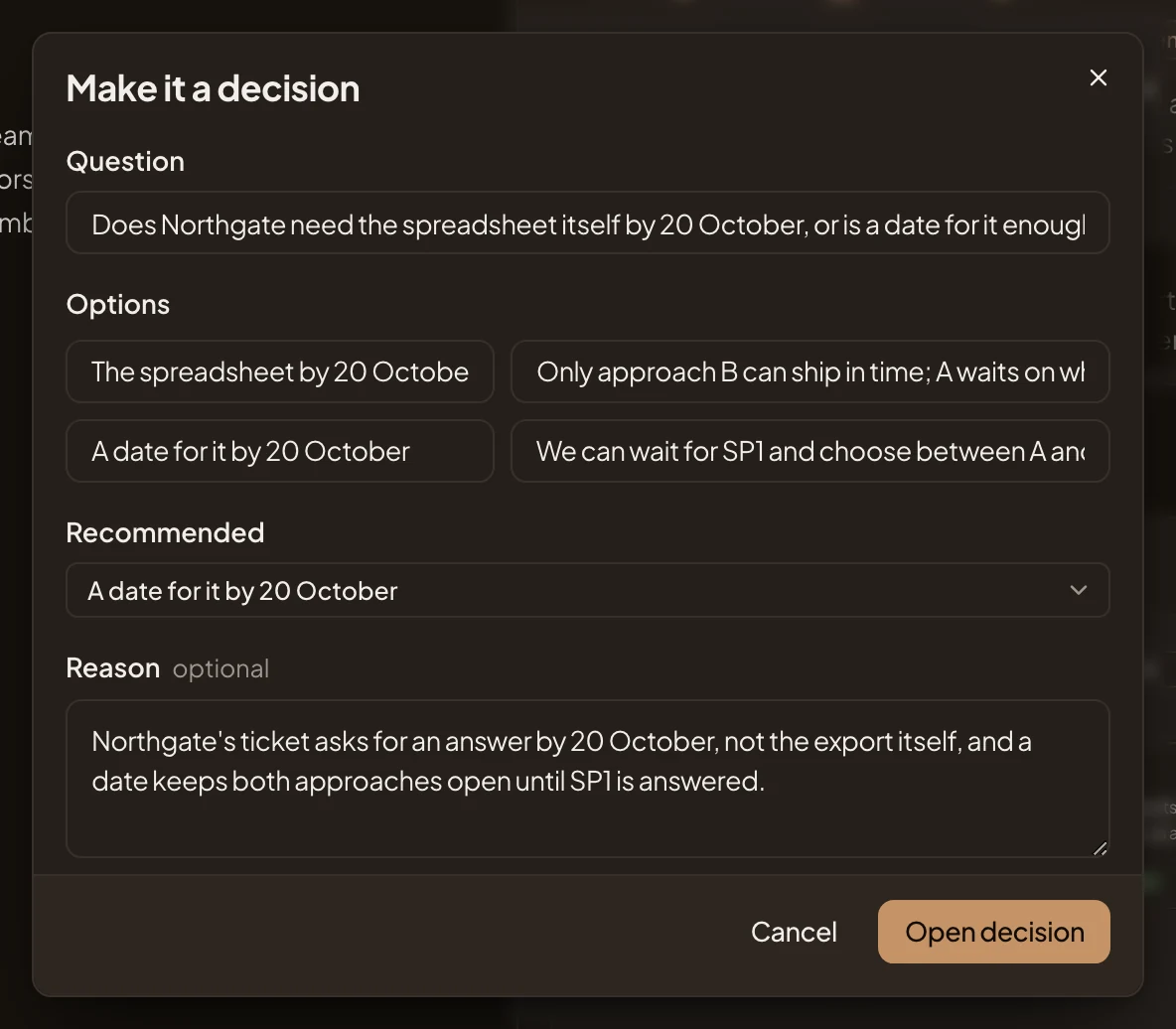
Make it a decision has the agent draft a question from the comment, with the options and what each means. It recommends one and says why. Change what you like, then Open decision. The decision goes to the owner, in Decisions.
Someone who takes part
Section titled “Someone who takes part”In the picture, someone who takes part opens ACM-290. It opens on Requirements. Their chat is their own, still empty, so it shows the initiative’s history and questions to ask. The section has no buttons that change it.
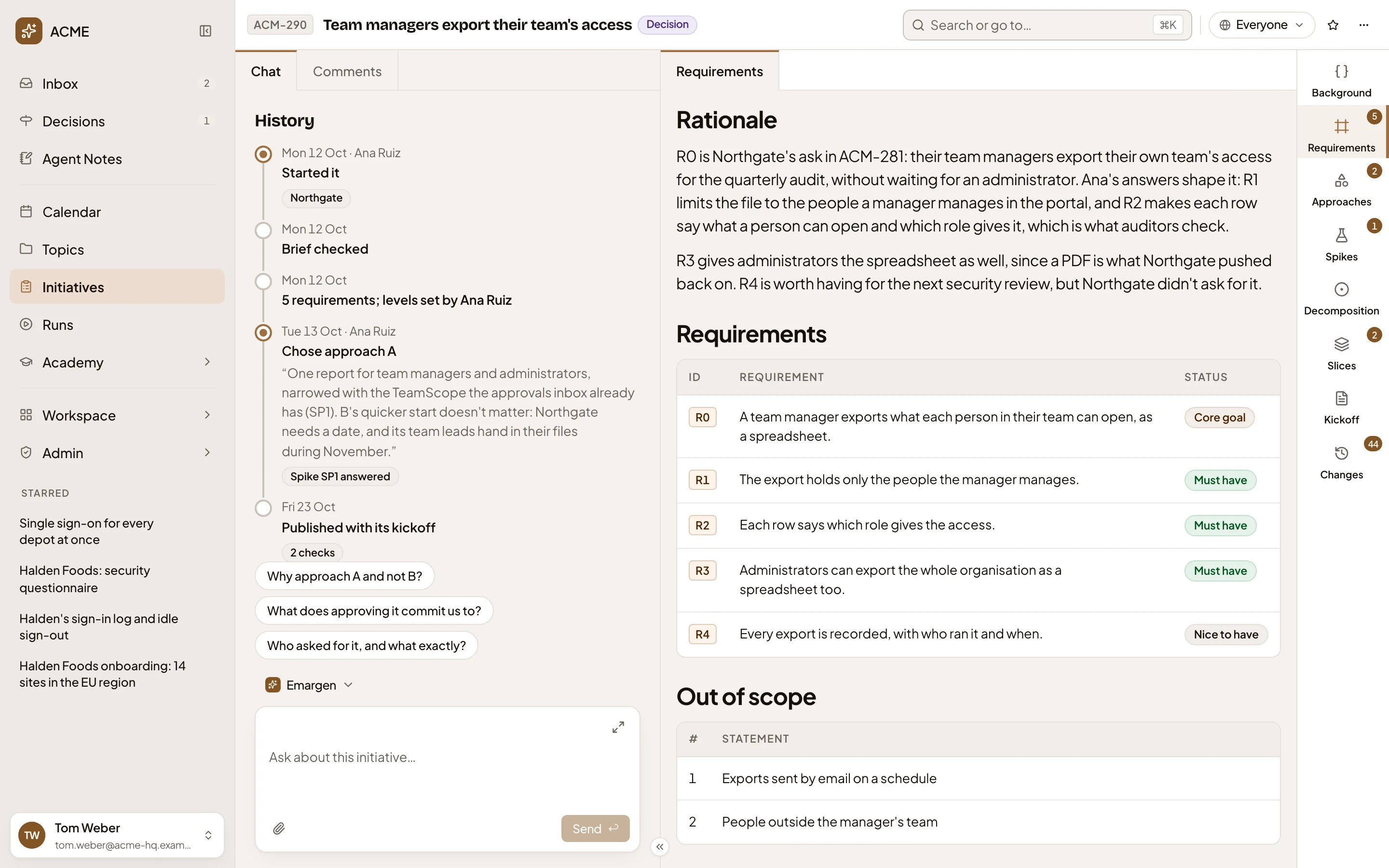
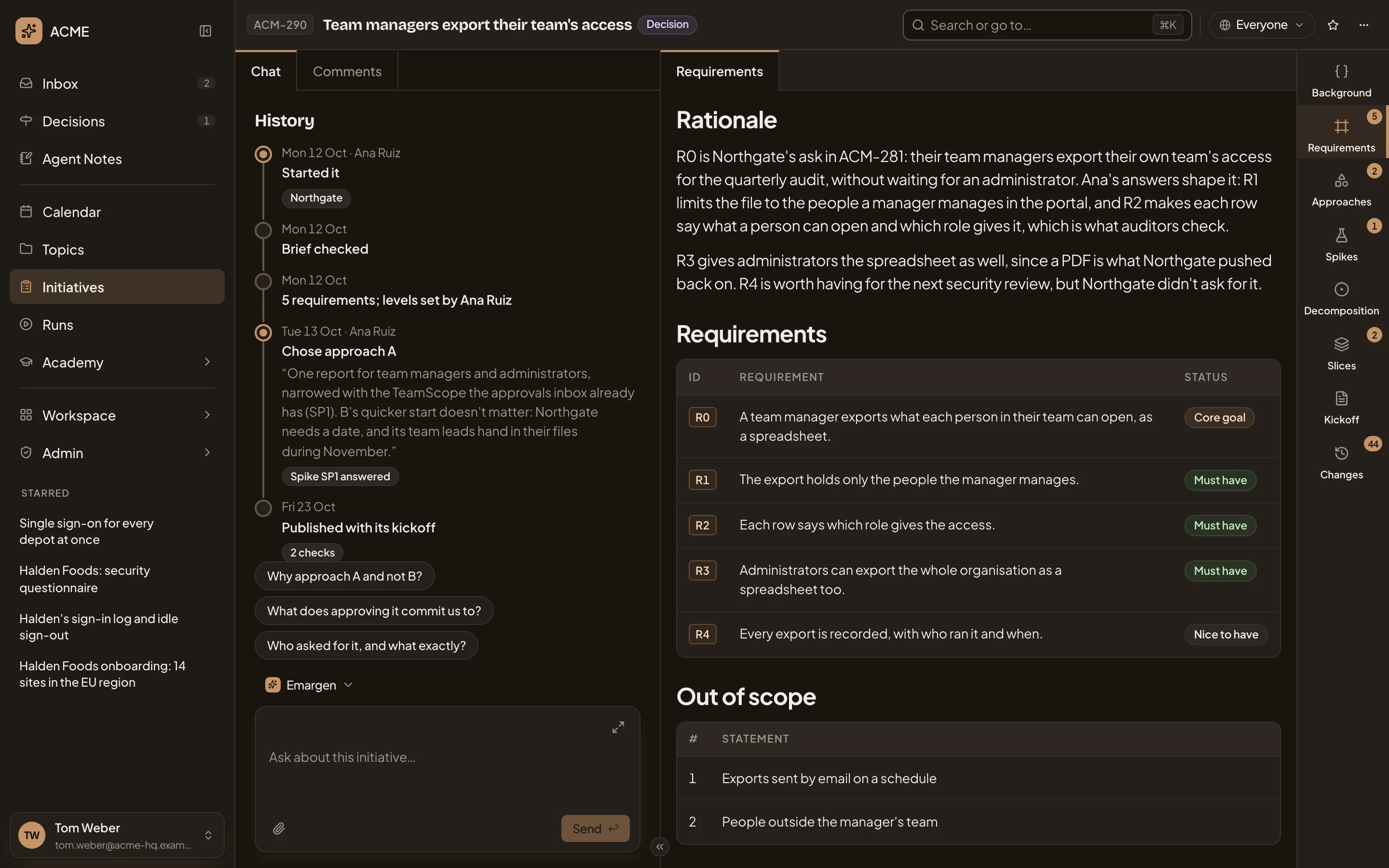
- Decision. The status, as plain text.
- Chat and Comments.
- History. The steps the initiative has been through, from its start to its publishing.
- Questions to ask about the initiative. Click one to ask it.
- Their message box. Their agent answers questions about the initiative.
- Requirements. The section they land on.
- The rail, the same as the owner’s.
In delivery
Section titled “In delivery”Once approved, an initiative opens on its slices. They show what is being built, and how far each piece has got. In the picture, ACM-293, in delivery, as its owner sees it:
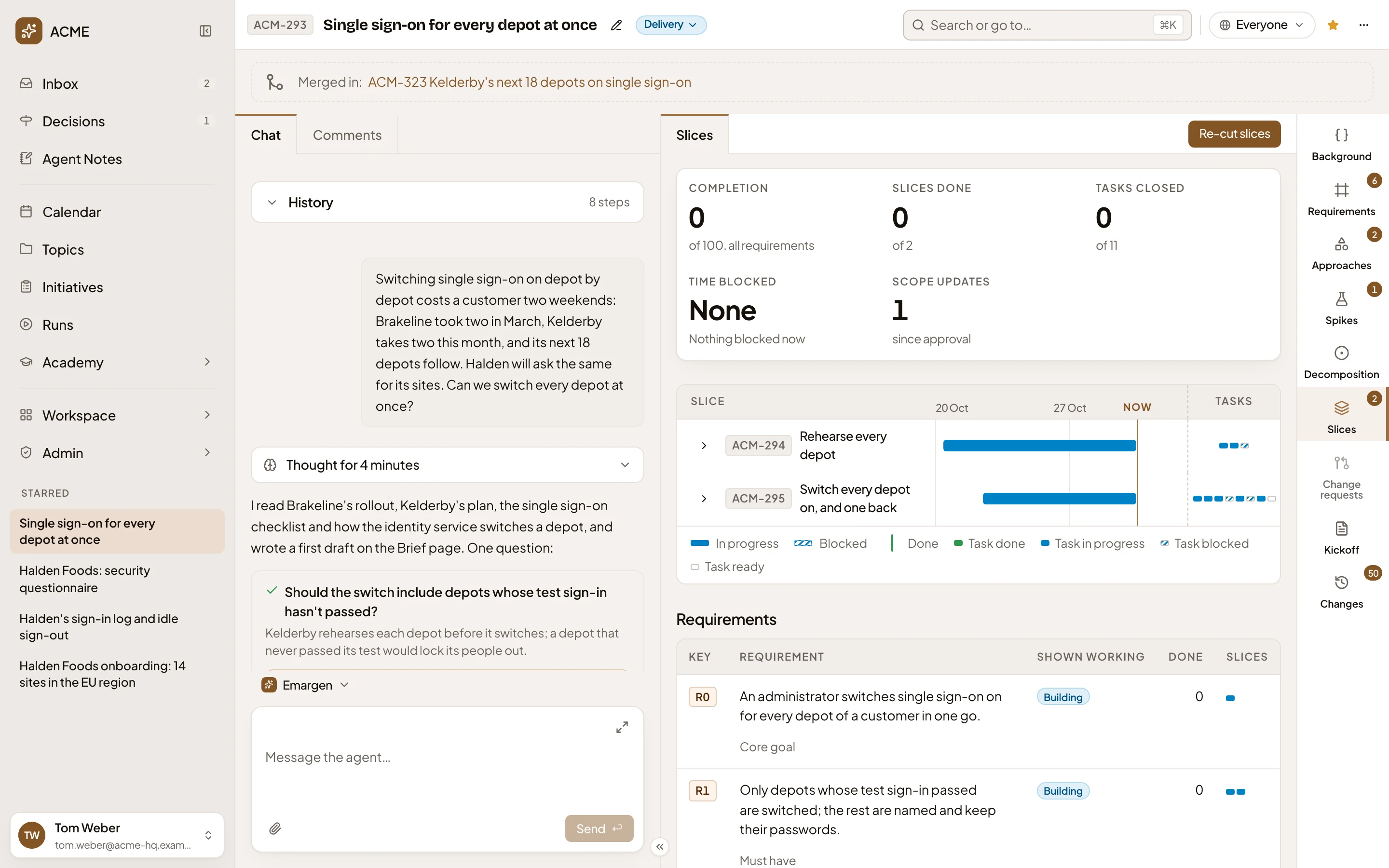
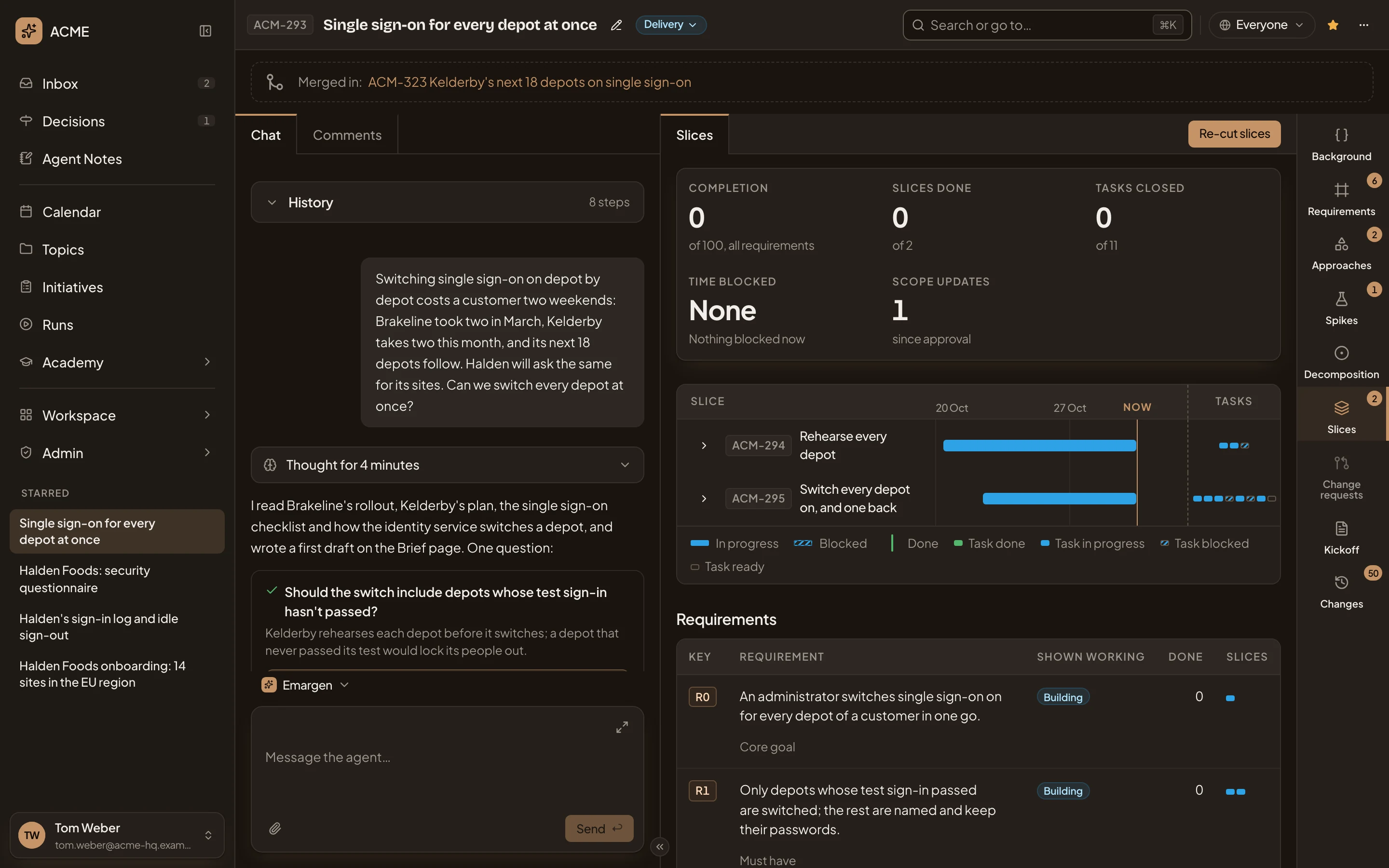
- Status: Delivery.
- Slices, open. See Slices.
- The rail, now with Change requests.
From here the shaping changes only through change requests.
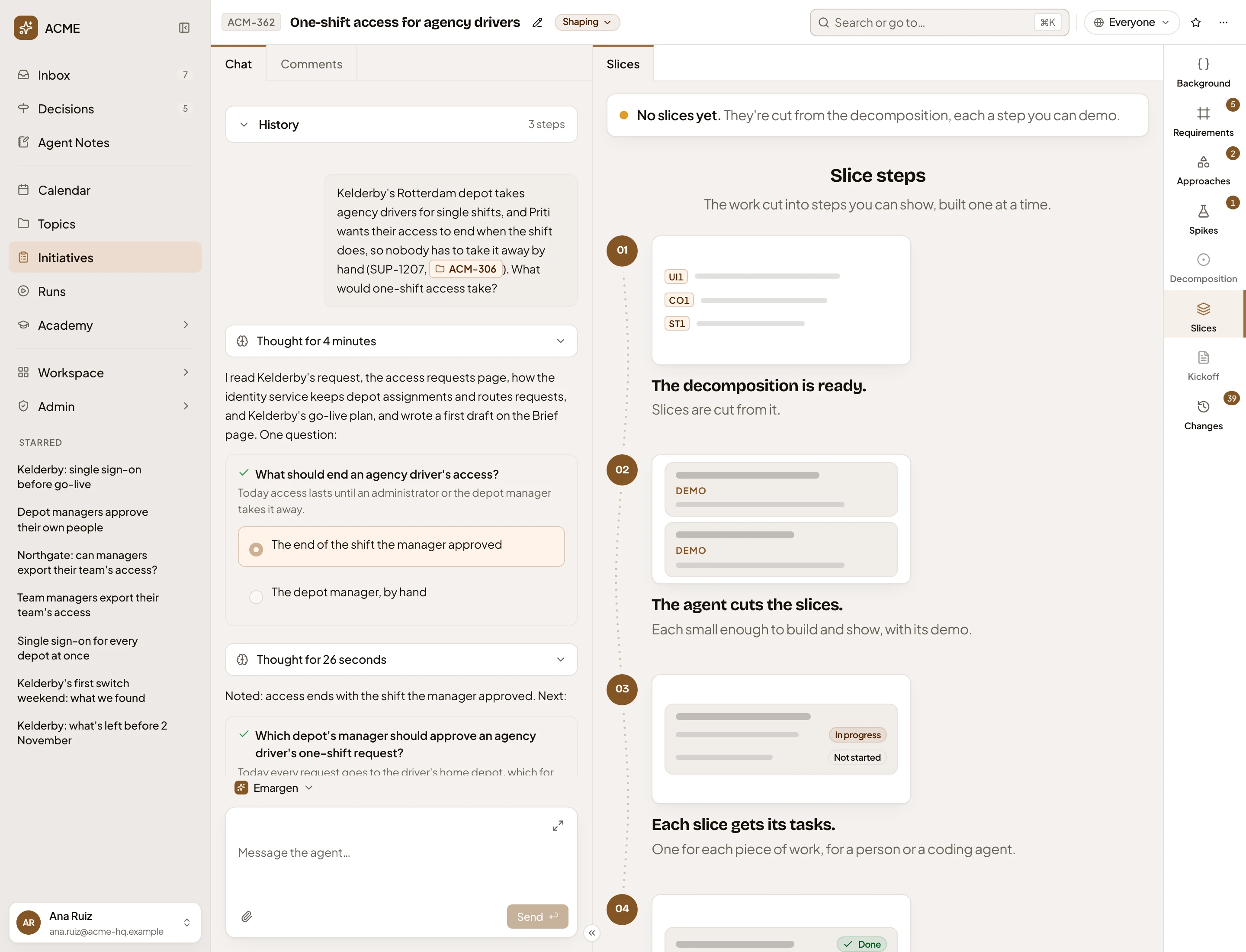
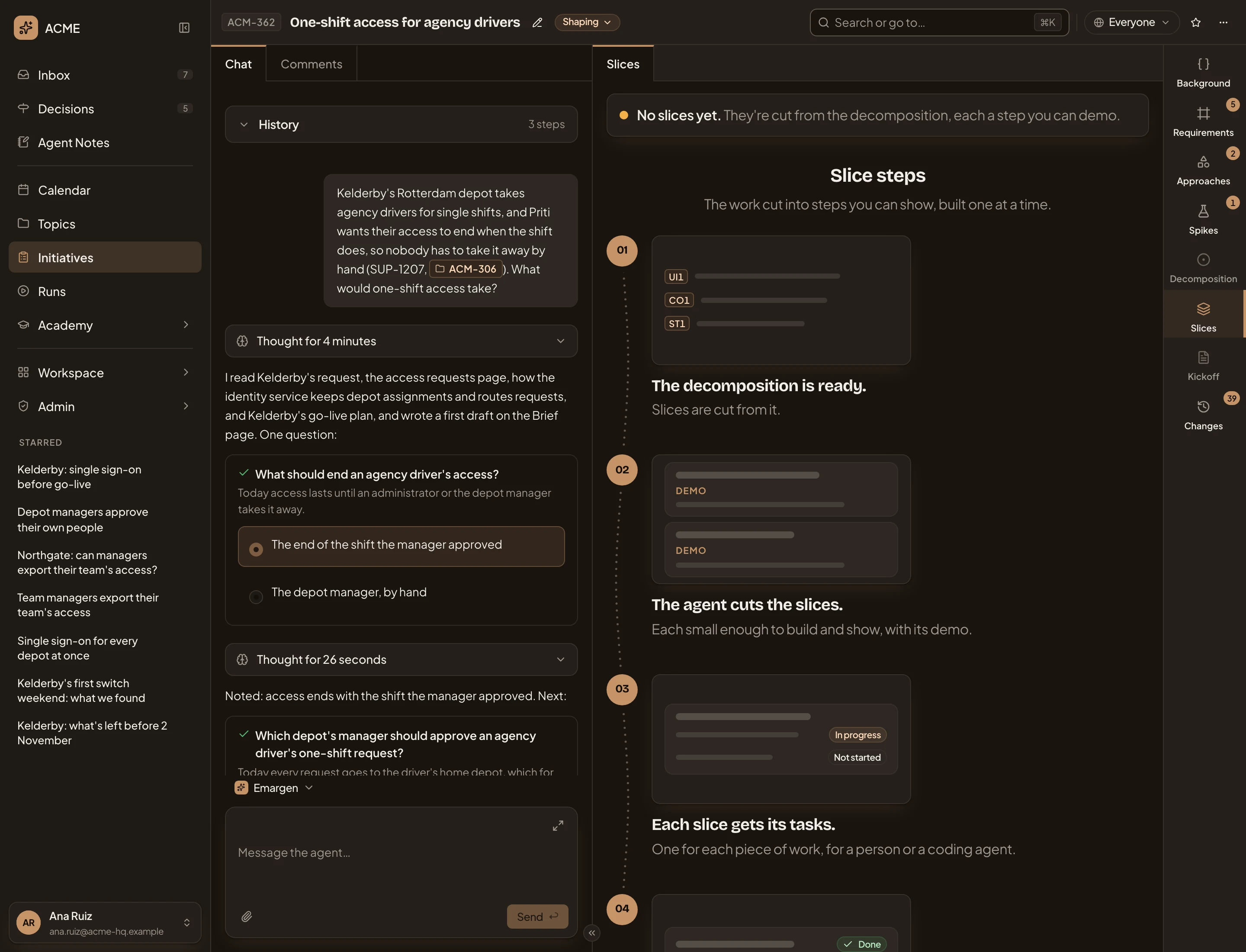
A new initiative opens with your first message and the agent’s answer (see New initiative). An empty section opens on a short guided page. It says what comes there and how it comes together, in four steps, with no buttons. Only Spikes keeps New spike, since a spike can come before anything else. In the picture, ACM-362 has no slices yet:
On a phone
Section titled “On a phone”The chat and the initiative take turns.
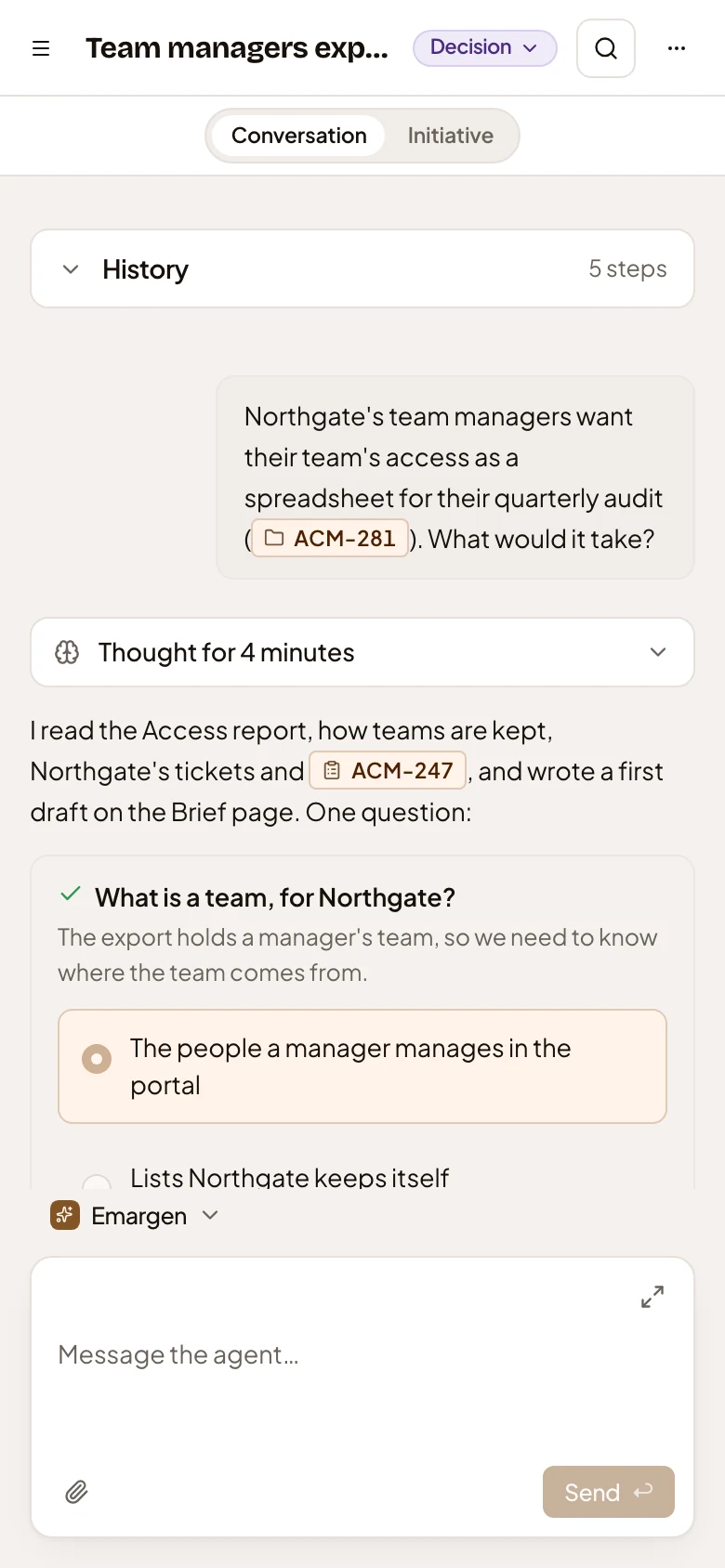
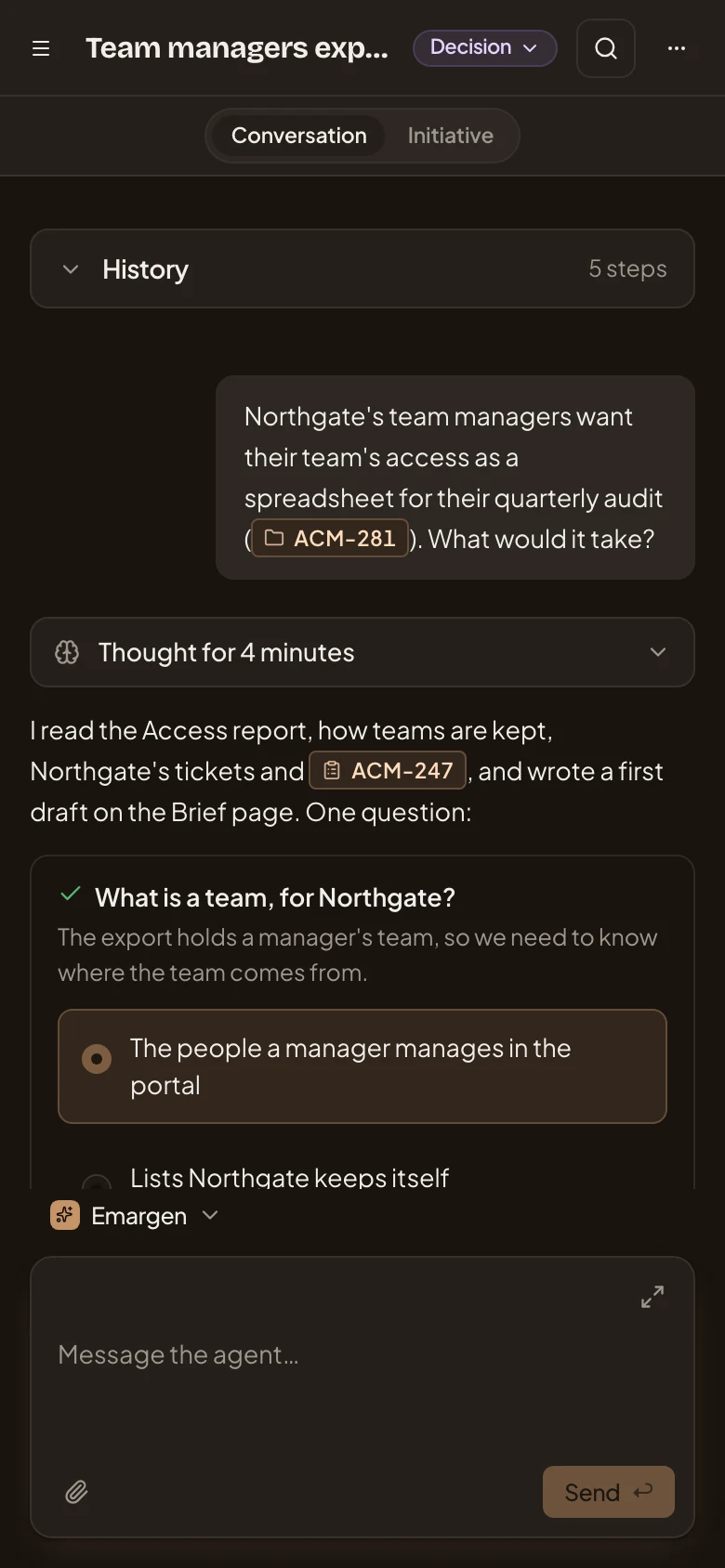
- Status: Decision.
- More actions. On a phone it also holds Sharing, the star and Rename.
- Initiative. Switches from the chat to the sections.
Access
Section titled “Access”Anyone the initiative is shared with sees this page. One set to Only me is its owner’s alone, and being an administrator doesn’t open it. What each person can do is under Sharing. Only the owner changes who sees it, or deletes it.