

AdminPage by page
A searchable content
A searchable content is one thing Emargen searches through a connection, such as a Jira project or a Confluence space. Its page says how Emargen searches it and if its check passed. You can try a search there. Click a content’s name on a connection’s Searchable content tab to open it (see A connection).
Open Connections (opens Emargen in a new tab)ACME’s Tickets (SUP, ENG, OPS), the Jira projects the agent searches when someone asks what customers have reported.
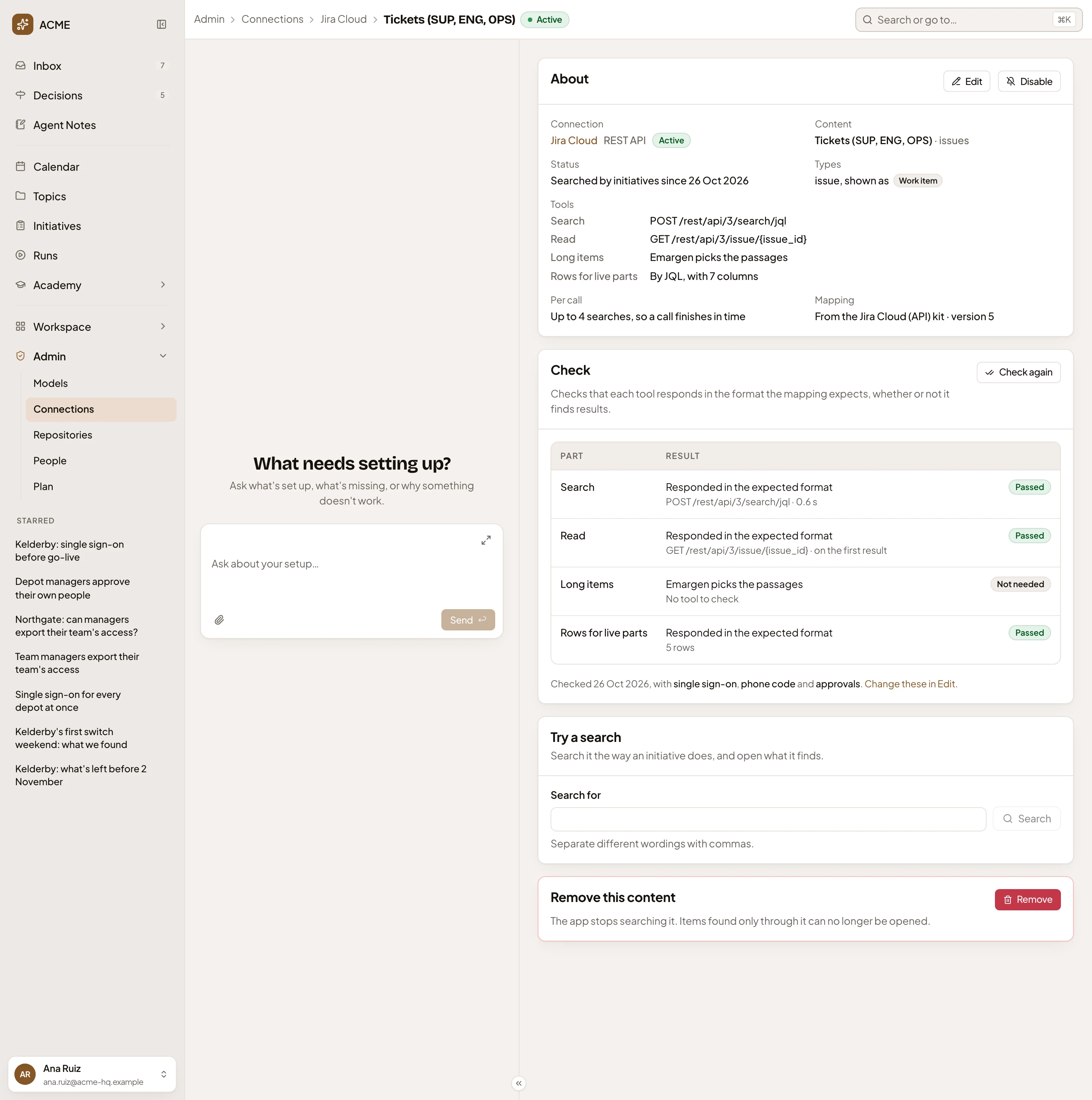
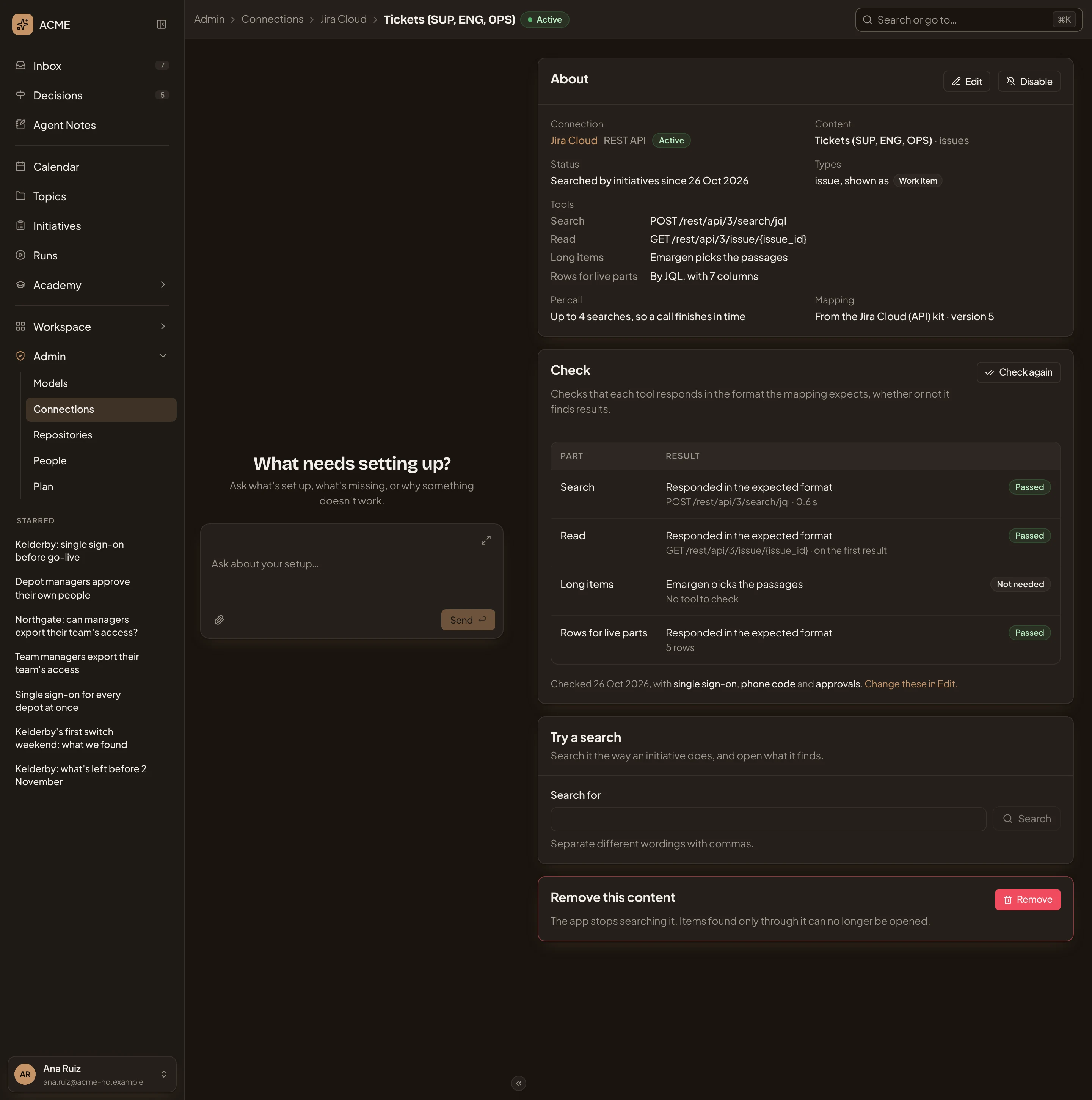
- Edit and Disable. Edit opens the setup steps. Disable stops it being searched, and Enable starts it again.
- Status. Whether it’s searched, and since when.
- Types. What it holds, in the system’s word and in Emargen’s: an issue, shown as a work item. Tools below it names the tool for each part. Search finds items. Read reads one whole. Long items sets who picks the passages in a long one. Rows for live parts fills a live table in a topic.
- Per call. How many searches go in one call, so a call finishes in time. Mapping names where its search settings came from, here the Jira Cloud (API) kit.
- Check again. Runs the check again, live, with the sample searches.
- The check, part by part. Each part’s result: Passed, Failed, Not needed or Not tried. Under it, when it ran and with which searches. Change these in Edit. opens the setup steps.
- Search for. Try a search, the way an initiative’s gather does.
- Remove. Removes the content, once you confirm.
The check
Section titled “The check”The check is how a content goes live. It runs the sample searches and makes sure each tool answers in the shape Emargen expects. It tries a search, reads the first item whole and fetches the rows for a live table. A search that finds nothing still passes, and Read then says it wasn’t tried.
A tool that doesn’t answer, or answers in another shape, fails, and the check says why in words, such as “The service refused the sign-in” or “No answer in time”. Until the check passes, nothing searches the content. Status says “Not searched until the check passes”, or “Not searched: the last check failed”. Emargen stops searching a content when a later check fails, and starts again when one passes. Under a failed check, Ask the agent hands the content to the admin agent in the chat.
Rows for live parts is the exception. When it alone fails, Emargen searches the content all the same, and feeds nothing to live tables in topics until it passes.
If the content’s kit has newer search settings, a notice offers Take newer mapping. Taking it returns the content to draft until it passes the check again.
Try a search
Section titled “Try a search”Type what someone would ask, such as “role change”, and click Search. The page searches the system live and lists what it found, with each item’s title, kind and reference, such as SUP-388. Click one to read it as the agent would. That’s the whole item, or only the passages about what you’re after. Before the check passes, or after one fails, it says the search didn’t succeed.
Remove asks first. When you remove a content, Emargen stops searching it, and no one can open items found only through it. The connection and its tools stay.
The setup steps
Section titled “The setup steps”A content is set up in five steps: Searches, Search, Read, Long items and Check. Edit opens the setup steps already filled in, with Save on each.
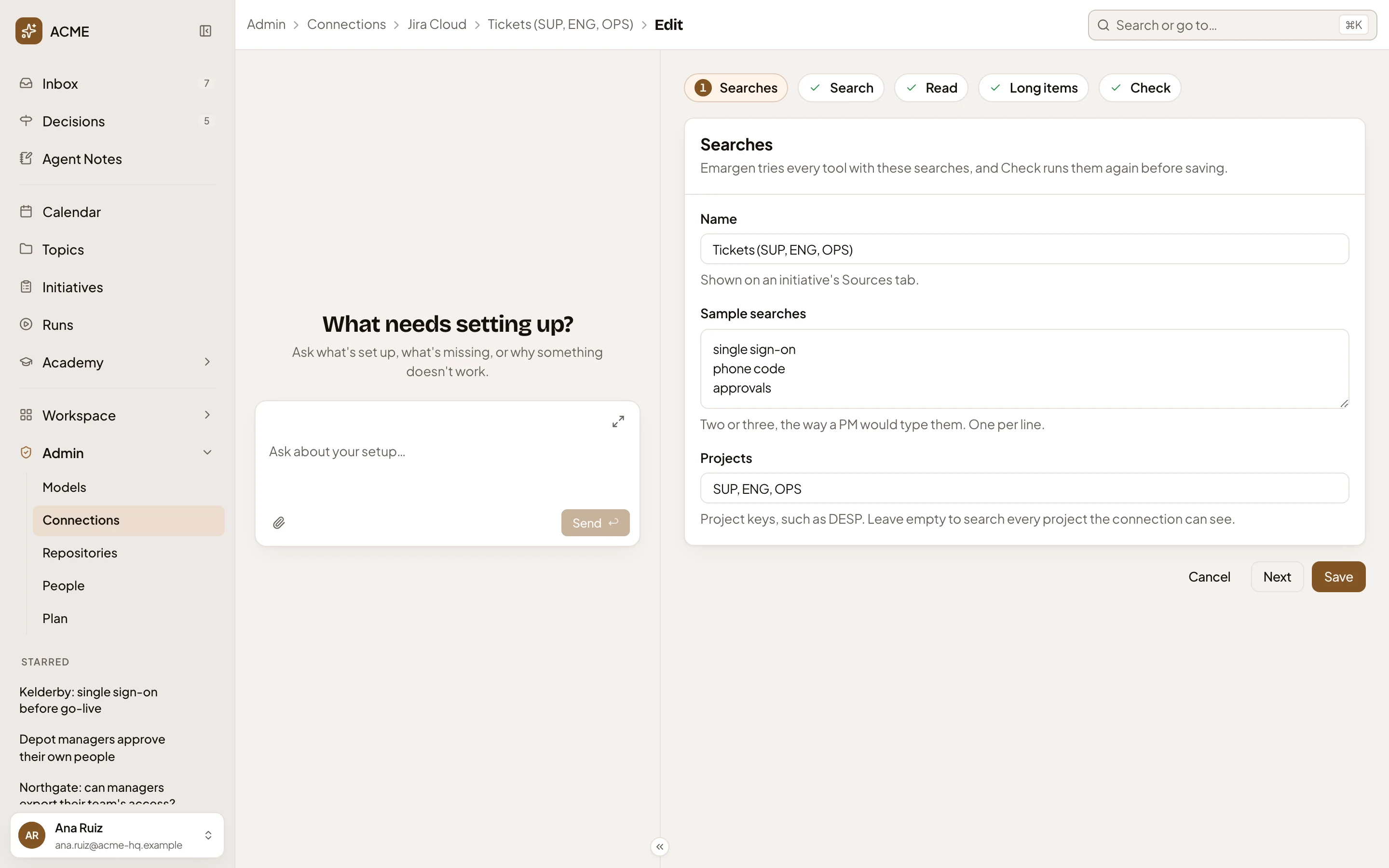
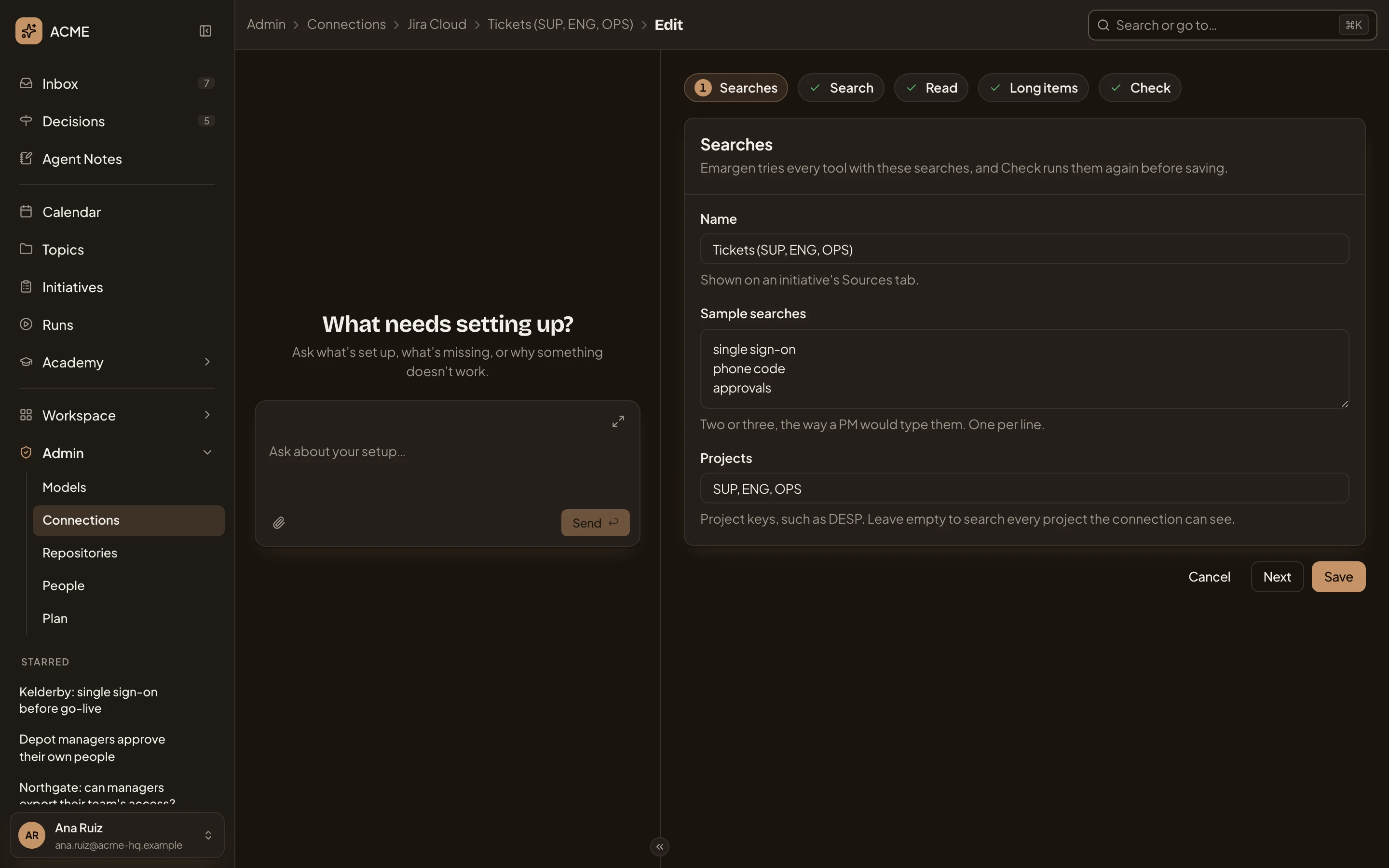
- The steps. Click one to go to it.
- Projects. A setting the kit adds: which Jira projects are searched, by key. Left empty, every project the connection can see. A Confluence content has Spaces instead.
- Save. Saves the content, runs the check with your sample searches, and opens the content’s page with how it went.
- Searches. The content’s Name, as an initiative’s Sources tab shows it, and two or three Sample searches, the way a colleague would type them. Emargen tries every tool with them.
- Search. The tool Emargen searches with, and what it found with your searches. It lists the kinds of item the system has, and how Emargen shows each. A kind left out isn’t searched. Below are the values from the first result, such as its title and link, which you can correct.
- Read. The tool that reads one result whole, and the item as the agent will read it.
- Long items. When an item is long, the agent gets only the passages about its question. Emargen picks them from the whole item, or a tool of the connection does.
- Check. Your searches, run the way the agent will run them, part by part. A part that failed takes you back to its step.
When you change how a content searches, it returns to draft until the check passes again, since a check only covers what it tried.
A new searchable content
Section titled “A new searchable content”On a connection set up by hand, New on its Searchable content tab opens the same steps. A connection made from a kit has no New there. Each step opens once the one before is done. The tools you pick from are the ones switched on in the connection’s Tools tab, so switch them on first. The first step of a new content.
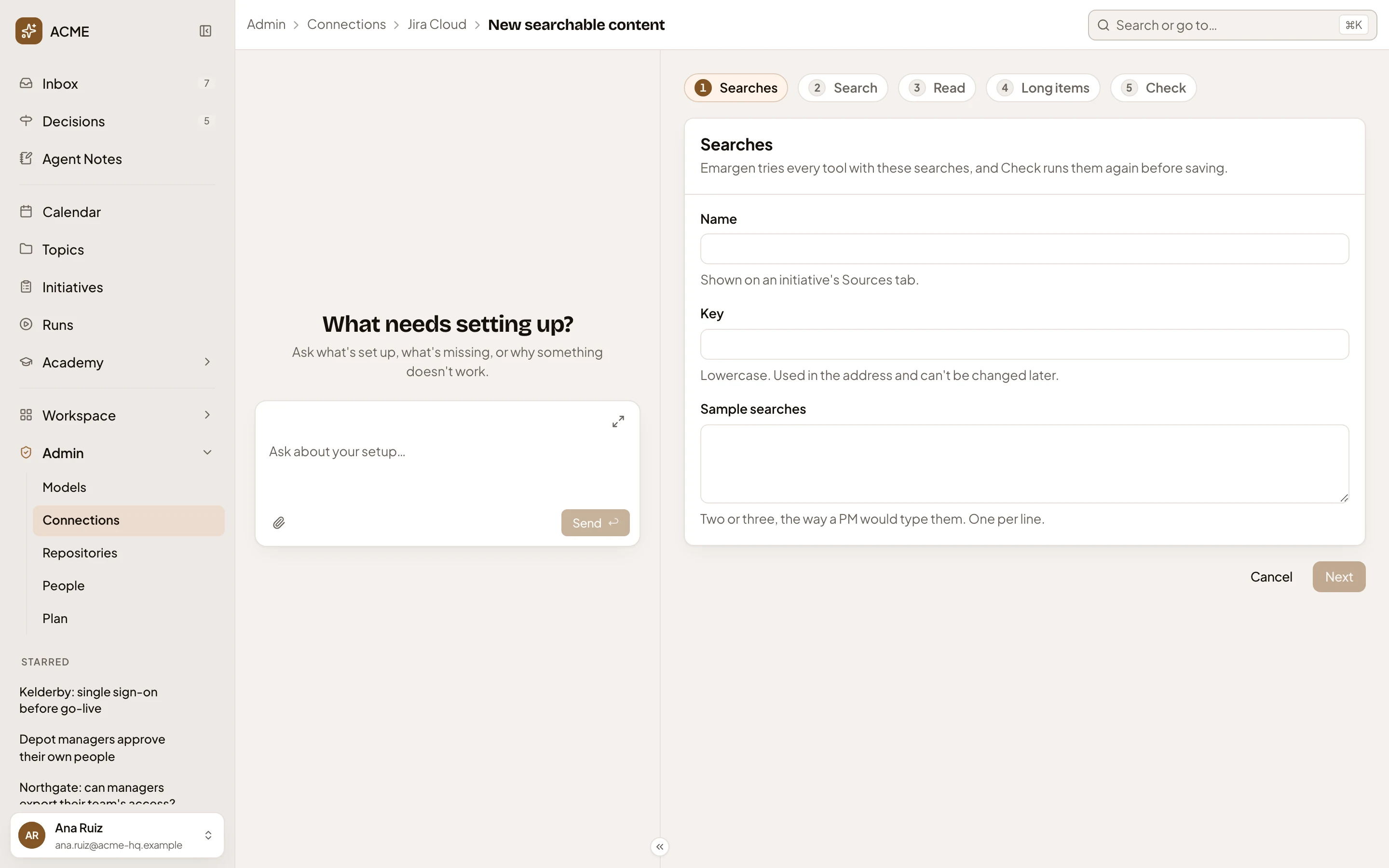
- The steps. Only Searches is open.
- Key. The short name in the content’s address, in lowercase. It’s set once.
- Next. Greyed until the step is filled in.
On a phone
Section titled “On a phone”The page and the admin agent’s chat take turns on the screen. See Admin.
Access
Section titled “Access”Everyone in the organisation can open a content’s page, read its check and try a search. Edit, Disable, Check again and Remove are for the person who connected it and for people whose role lets them manage connections.