

WorkspaceHow to
Make a list that fills itself
Make a list that fills itself when you can say in a rule what belongs on it, like every topic nobody has touched in three weeks. A list fills itself in one of two ways. It keeps whatever matches its conditions, all the time. Or an agent task looks for new things on a schedule and makes topics from them.
Before you start
Section titled “Before you start”- Anyone in the organisation can make a list, and it’s yours.
- You choose topics or initiatives, and whether the list fills itself or is kept by hand. You can’t change either later.
- The pictures show ACME’s support lead making Gone quiet, to answer or close every topic nobody has moved for three weeks.
-
In the menu, click Lists under Workspace. If the section is folded, the arrow unfolds it. Then click New list.
Open New list (opens Emargen in a new tab) -
In Name, type Gone quiet, and in Description, a sentence on what belongs on it.
-
Under Holds, click Topics. Under Type, click Automatic: “Every topic that matches the conditions, newest activity first. Nobody arranges it.”
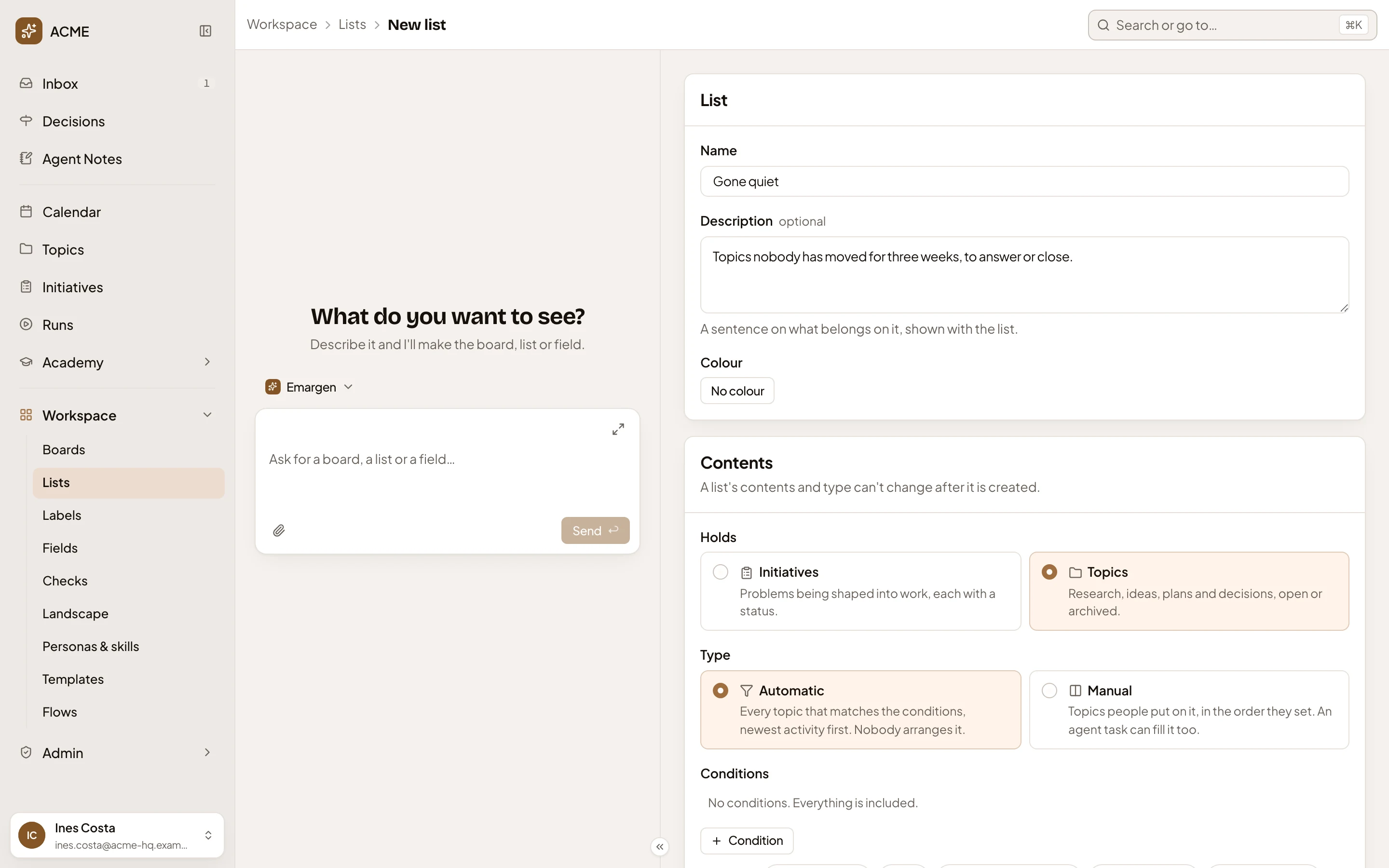
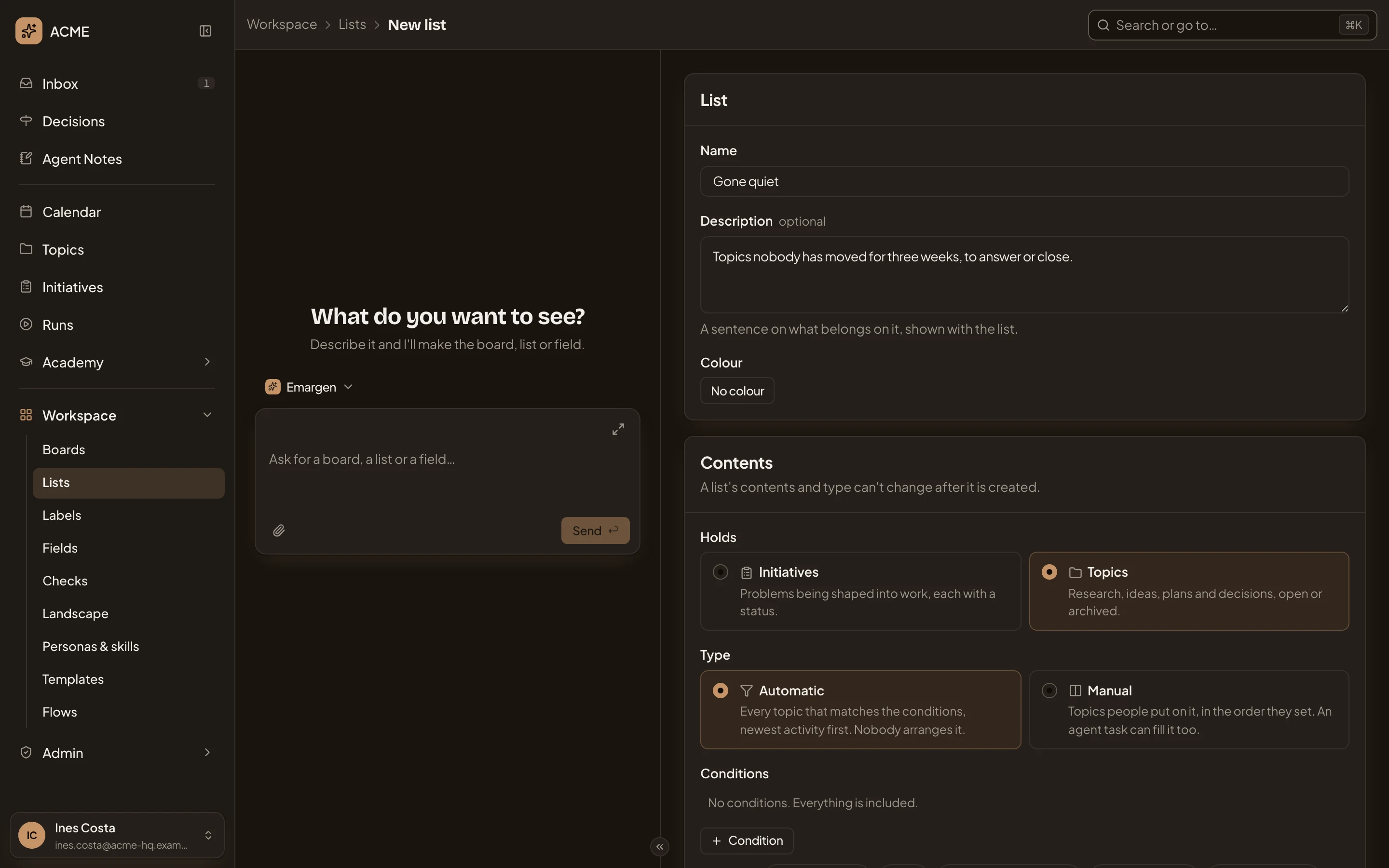
- Name.
- Holds: Topics.
- Automatic.
-
Under Conditions, click No activity in 3 weeks next to Start from. It fills in a condition: Moved is more than 3 weeks ago. Matches today shows what the list holds now.
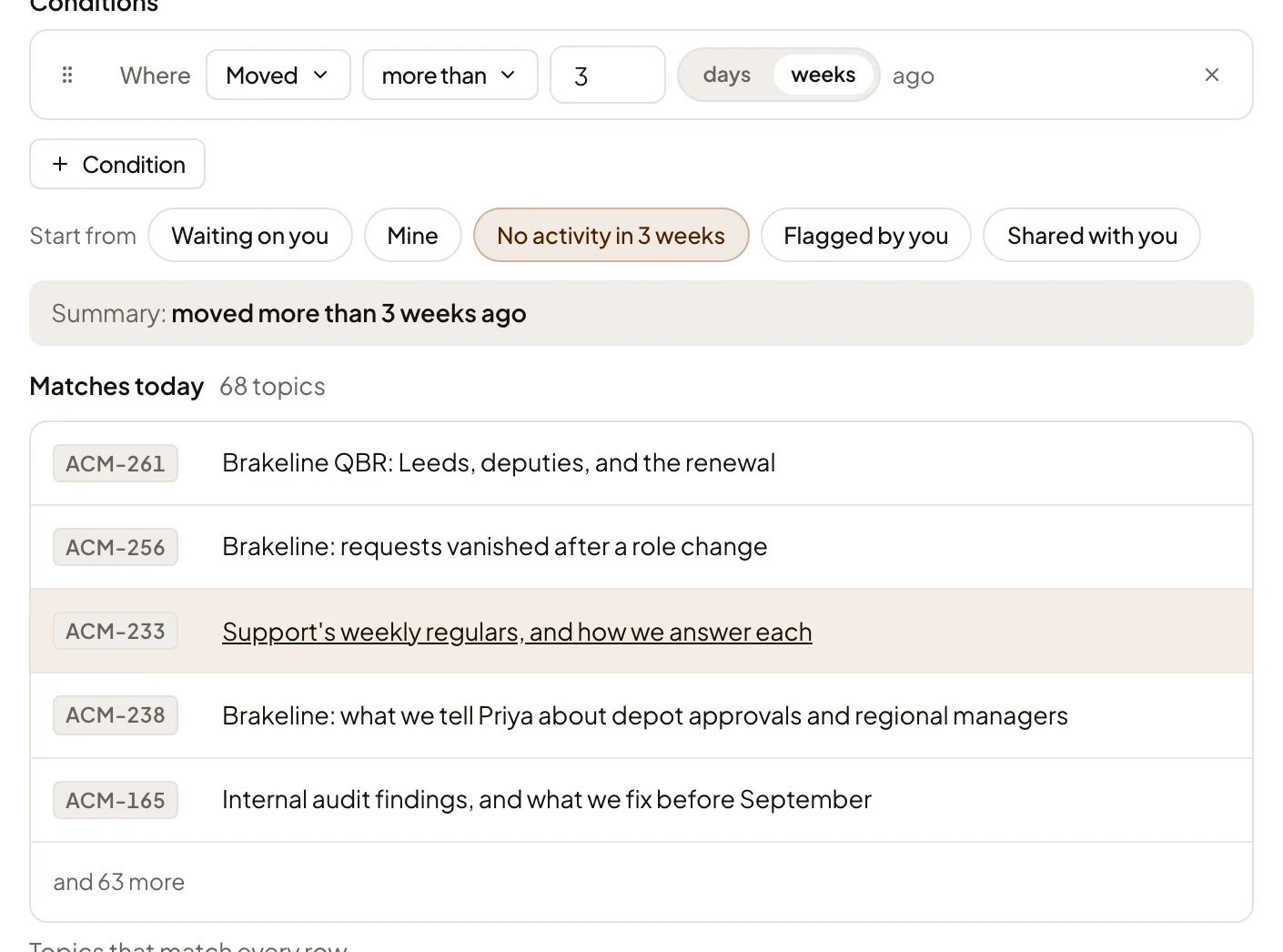
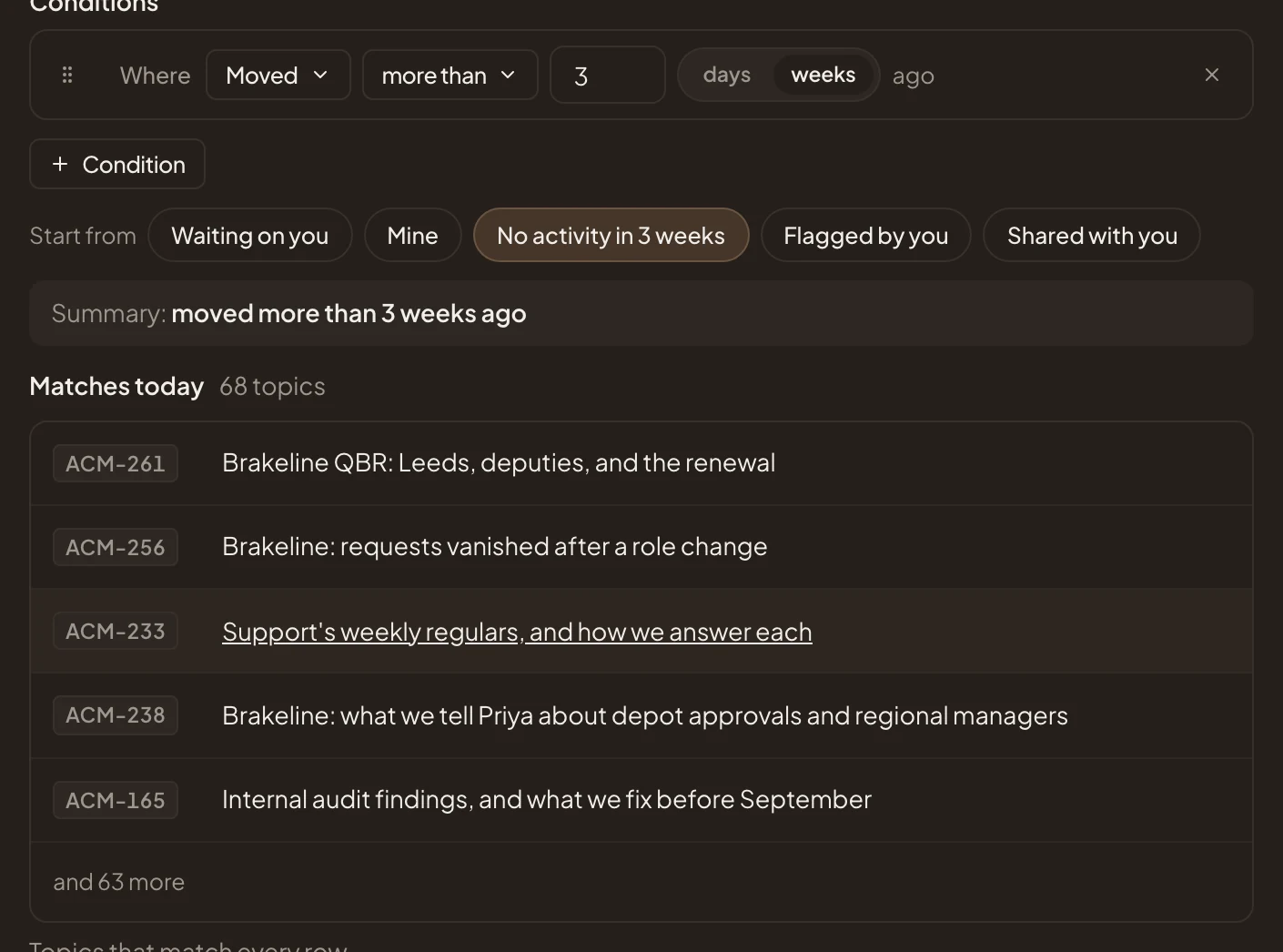
- No activity in 3 weeks. A ready-made condition.
- Number. Change how many.
- Days or weeks.
- Summary. The conditions in words: “moved more than 3 weeks ago”.
- Matches today. What the list holds now. Here, it’s the topics the support lead can see that nobody has moved for three weeks.
To write your own condition, click Condition. A row appears, set to State is open to start with. Click Field and pick the field the row tests. The menu stays open after you pick, so press Escape to close it. Your organisation’s fields are there too, like Status or Reply by:
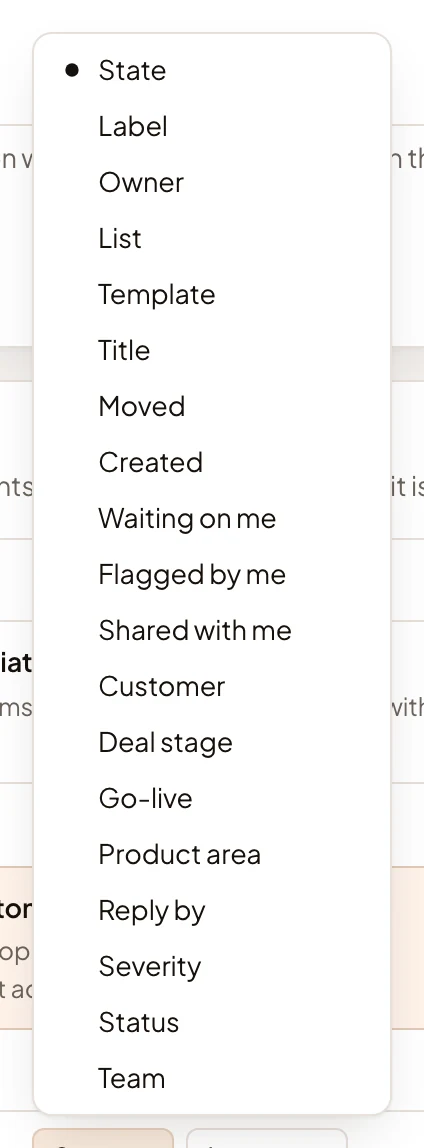
Every row must match. A row that says “me”, like Mine or Waiting on you, means whoever looks at the list. So a shared list of “mine” shows each person their own.
-
Under Sharing, pick Only me, Shared or Everyone. People can view or edit a list that fills itself, and nobody arranges it.
-
Click Create list. You’re back on Lists, with a row for Gone quiet. You’ll see the mark of a list that fills itself, Topics, and how many items you can see.
What you get
Section titled “What you get”- Gone quiet holds every topic you can see that nobody has moved for three weeks. When someone moves one, it leaves the list. When another goes quiet, it joins.
- Everyone sees only the topics on it that they can open.
- To see what it holds, open it from Lists. Its page shows what matches today. The topics list groups only by the lists kept by hand, so this one isn’t a group there. To see it beside other lists, put it on a manual board with Add to a board on its page (see A list).
Let an agent task fill it instead
Section titled “Let an agent task fill it instead”An agent task can fill a list of topics kept by hand. On a schedule, the agent looks for what’s new, in Emargen or in a connected tool like Jira. It makes one topic a run about everything it found, or a topic for each thing, as you choose. The topics go to the top of the list. A support lead’s list of customer questions works this way.
-
On New list, under Holds, click Topics, and leave Type on Manual.
-
Under Filled by an agent task, click Fill it with an agent task. The task’s fields open.
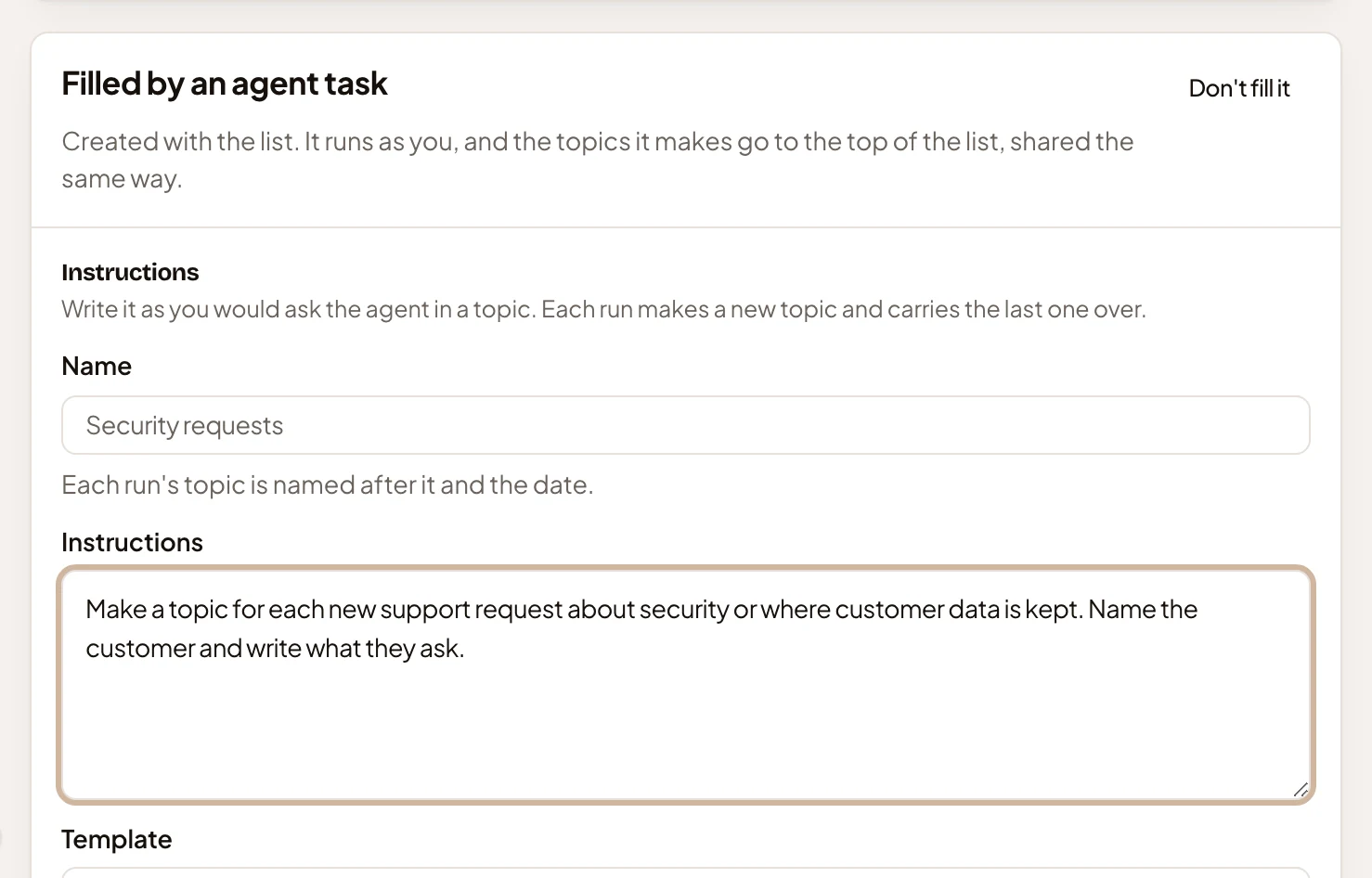
- Don’t fill it. Closes the task’s fields.
- Name. Left empty, the task takes the list’s name.
- Instructions. In your words, as you would ask the agent in a topic.
-
Write the instructions and pick a Template for its topics. Under Output, choose what it Makes, and under Schedule, when it runs. Once you’ve written the instructions, the agent reads them. Under Agent’s interpretation, it shows where it will look and how far back. When your words say “me”, it shows who that is.
-
Click Create list. It makes the list and its task, and opens the list’s page, with Run now, Pause and Open the task.
The task is live from then on. It runs on its schedule, as you, and only you change it. If you were only trying it out, press Pause on the list’s page. See Fill a list with an agent task for every field and what a run does.
Ask the agent instead
Section titled “Ask the agent instead”The workspace agent beside the page can fill this in for you. Ask it for “a list of every customer question whose Reply by is in the next week”. It may ask you something first. Then it shows its draft on the page, a part at a time, with Next, and puts a card in the chat. Press Create list on the card. You get the list the card describes, even if the form still shows Initiatives under Holds. If the card says the form changed after it asked, ask again.