

InitiativesPage by page
Requirements
Requirements says what must be true when the work is done, and why. The agent writes them from the brief, and you decide how much each one matters. Click Requirements on the rail of an initiative’s page. See Requirements for the idea.
In the pictures, ACM-290 has five requirements. R0 is the customer’s request. R1 to R4 come from the owner’s answers and what the agent found.
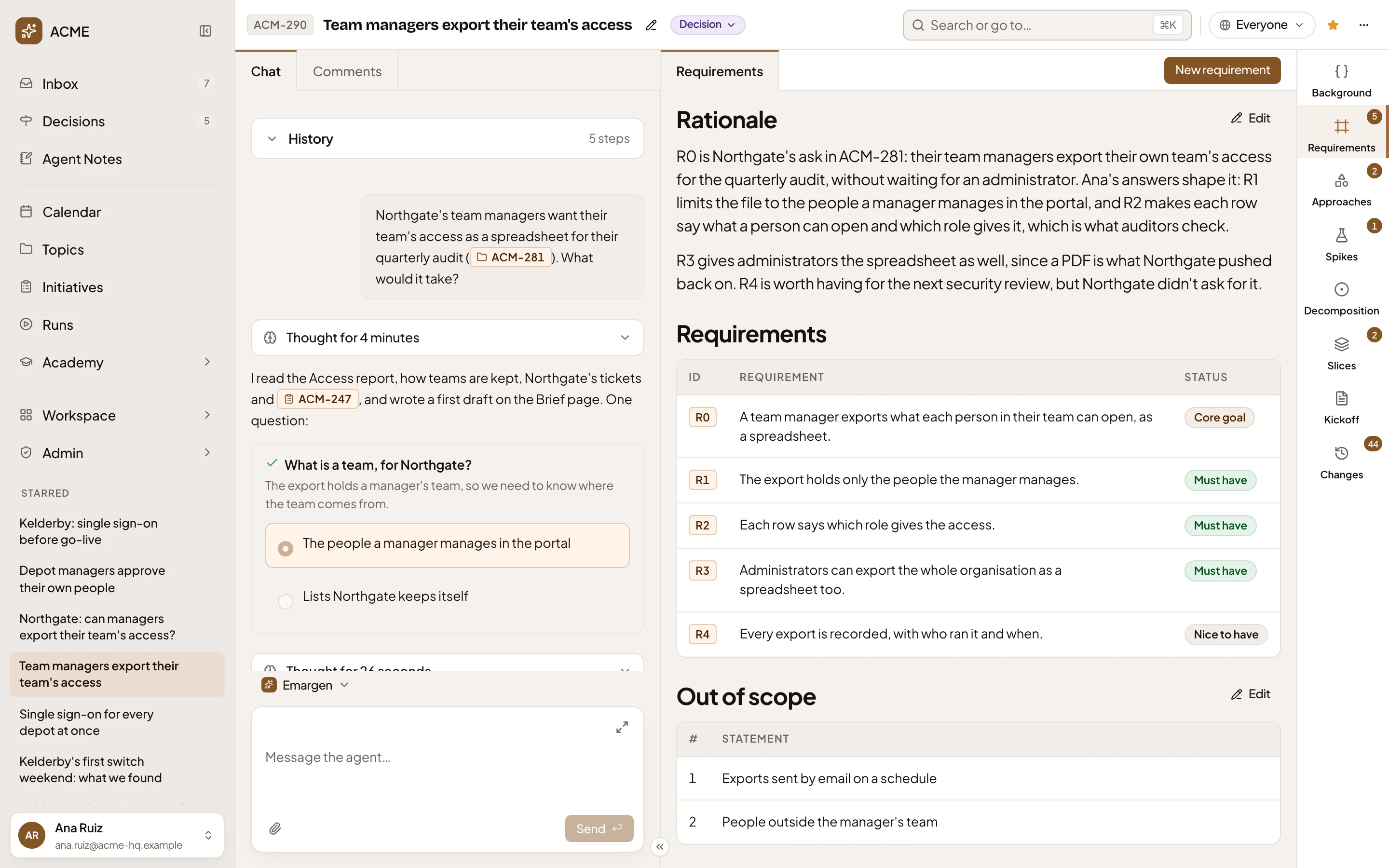
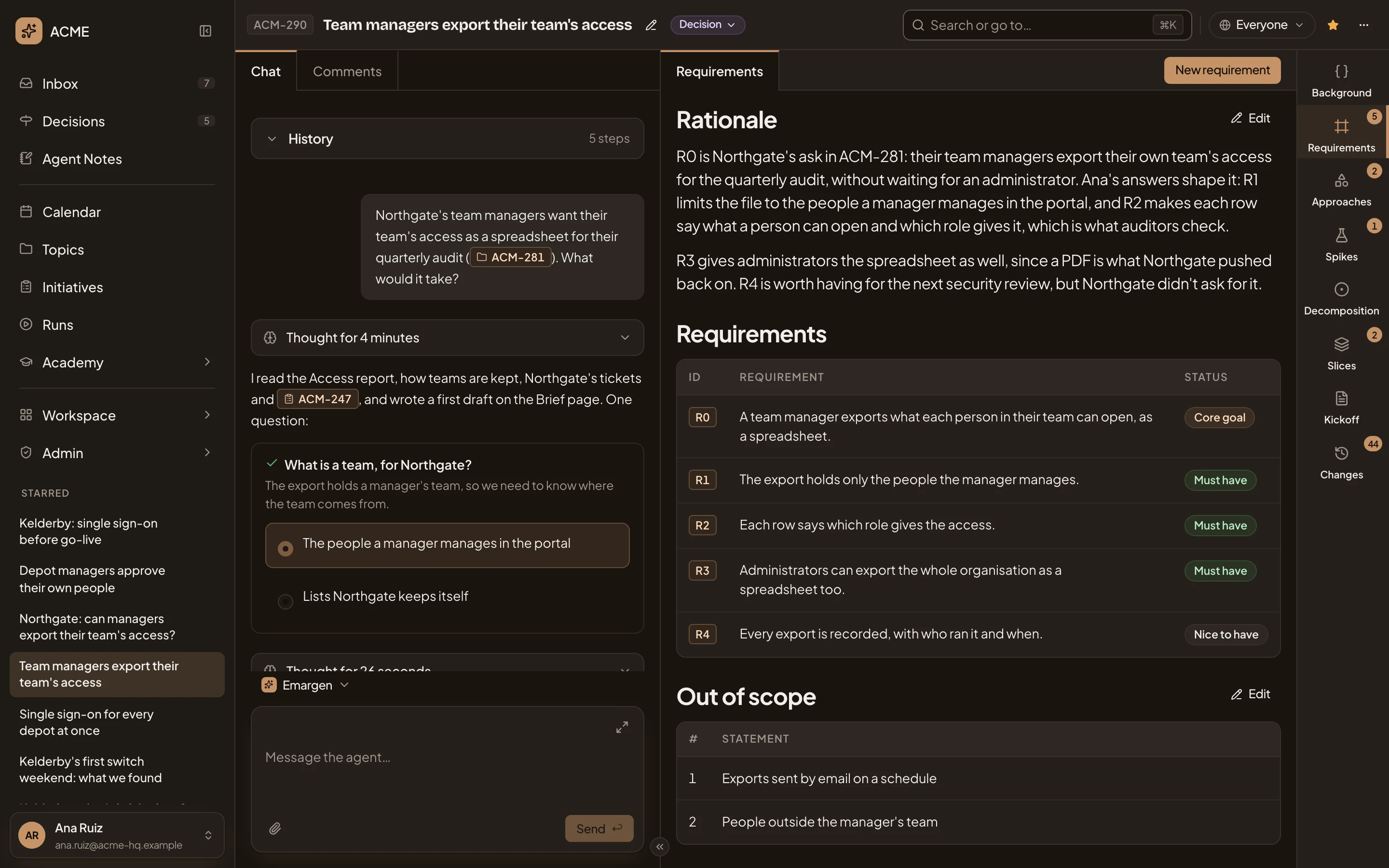
- Requirements. The section’s only tab.
- New requirement. Propose a requirement to the agent (see Changing requirements).
- Rationale. Why the work matters. Who has the problem, how it shows, what it costs, and how the requirements answer it.
- Edit the rationale. Propose a change to it.
- Core goal. R0 here, the requirement the whole initiative is for.
- Status of R1. The requirement’s level, Must have here. Click it to change it (see Levels).
- Out of scope. The lines the initiative draws.
- Edit out of scope. Propose a change to them.
Each requirement has a key, R0, R1 and on. When requirements are reordered, their keys stay the same, so R3 means the same requirement wherever it is named. A deleted requirement’s key is never used again.
Levels
Section titled “Levels”A requirement is the Core goal, Must have, Nice to have or Out. Click a requirement’s level to change it.
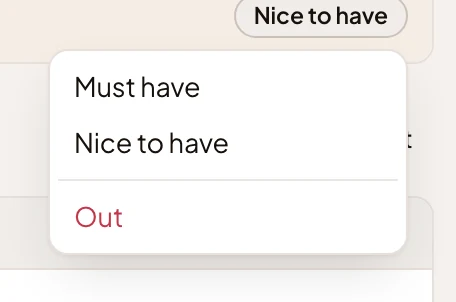
- Must have: the work fails without it.
- Nice to have: worth having. The work stands without it.
- Out: not in this initiative. After you confirm, the requirement moves under Out of scope, and the fit check stops counting it.
A level changes at once, with no agent. The core goal has no menu. To make another requirement the core goal, use that row’s Core goal, and the old one becomes a must-have.
While requirements are new, the agent asks you for each one’s level in the chat, one at a time. It suggests a level and says why. Pick a level and answer. A level you set here closes its question. People who take part answer these questions too. Every requirement needs a level before you can publish. Until then, Review at the top brings back the questions for the requirements still without one.
Changing requirements
Section titled “Changing requirements”Click a requirement to select it. Its buttons open under it.
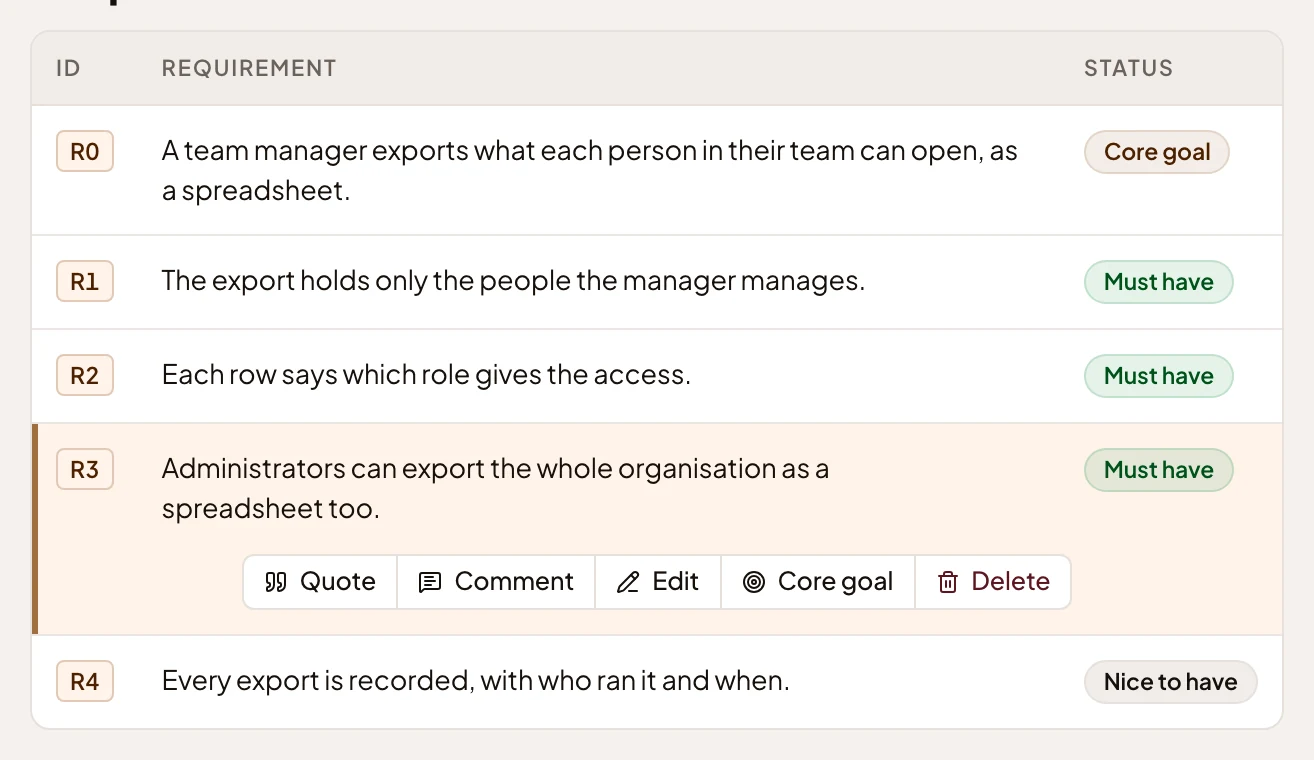
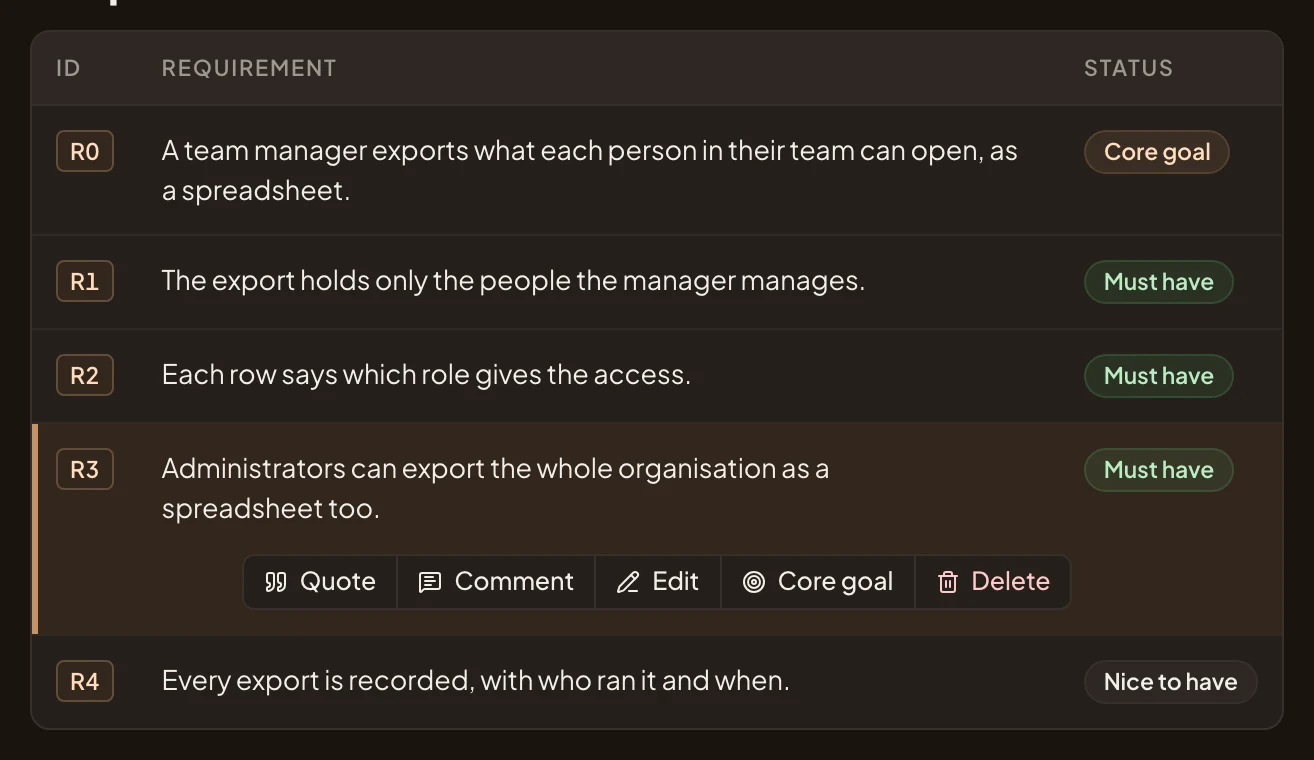
- Quote. Puts the requirement in your message box, to ask the agent about it.
- Comment. A comment about this requirement, for the people on the initiative.
- Edit. Propose new wording.
- Core goal. Propose this one as the core goal, and say why. The agent checks the approaches against it again.
- Delete. Deletes it, after asking.
New requirement, Edit, Core goal and the Edit buttons on the rationale and out of scope open the same kind of dialog. You say what you want, and the agent does the writing.
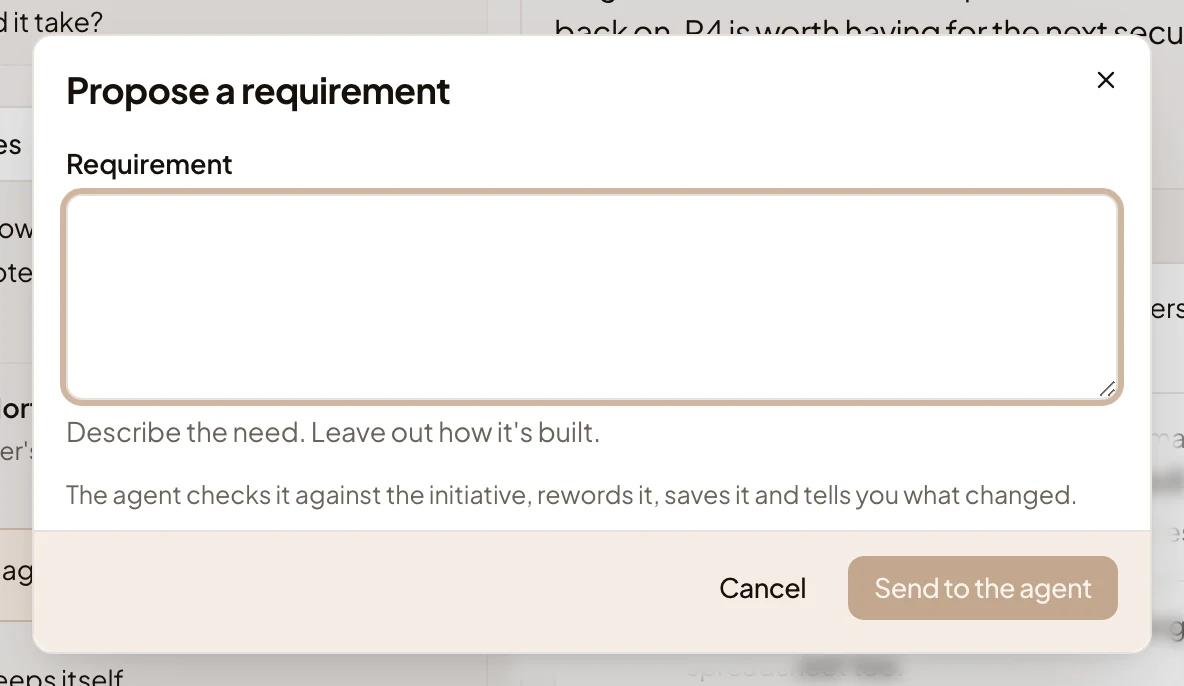
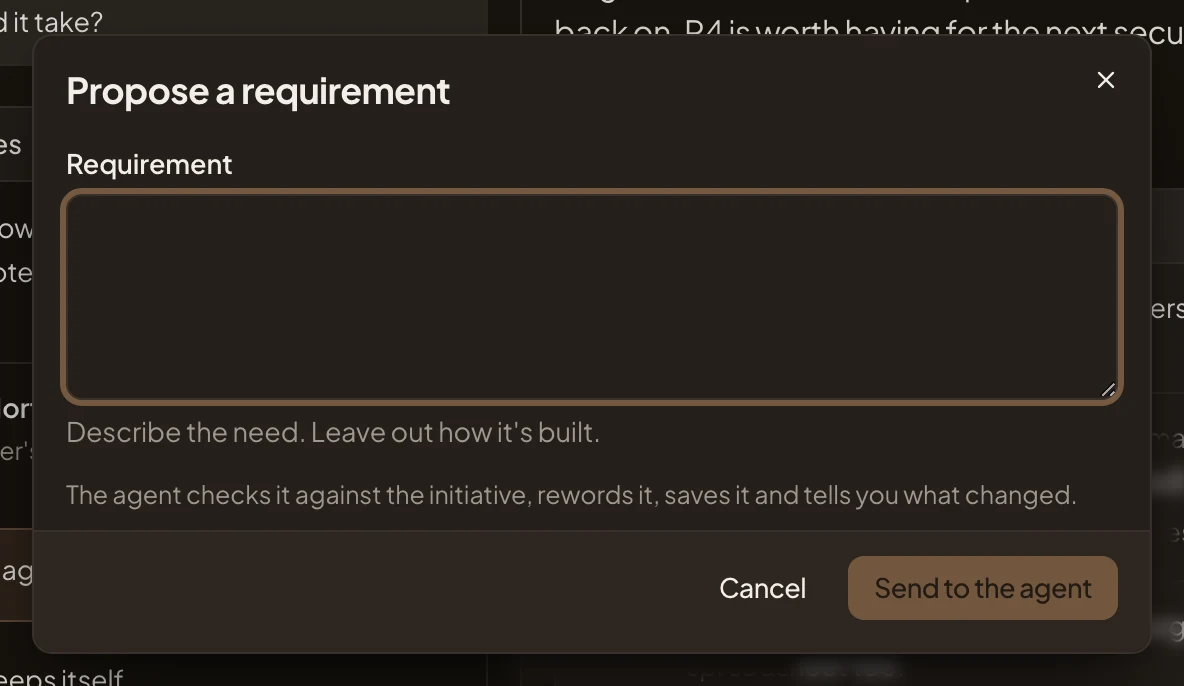
Describe the need and leave out how it’s built, then press Send to the agent. Your words go into your chat as a proposal. The agent checks it against the initiative, rewords it and saves it. Then it says in the chat what changed. Wait until the agent finishes, then send your proposal.
A change to something already written shows the words as they stand, above your change:
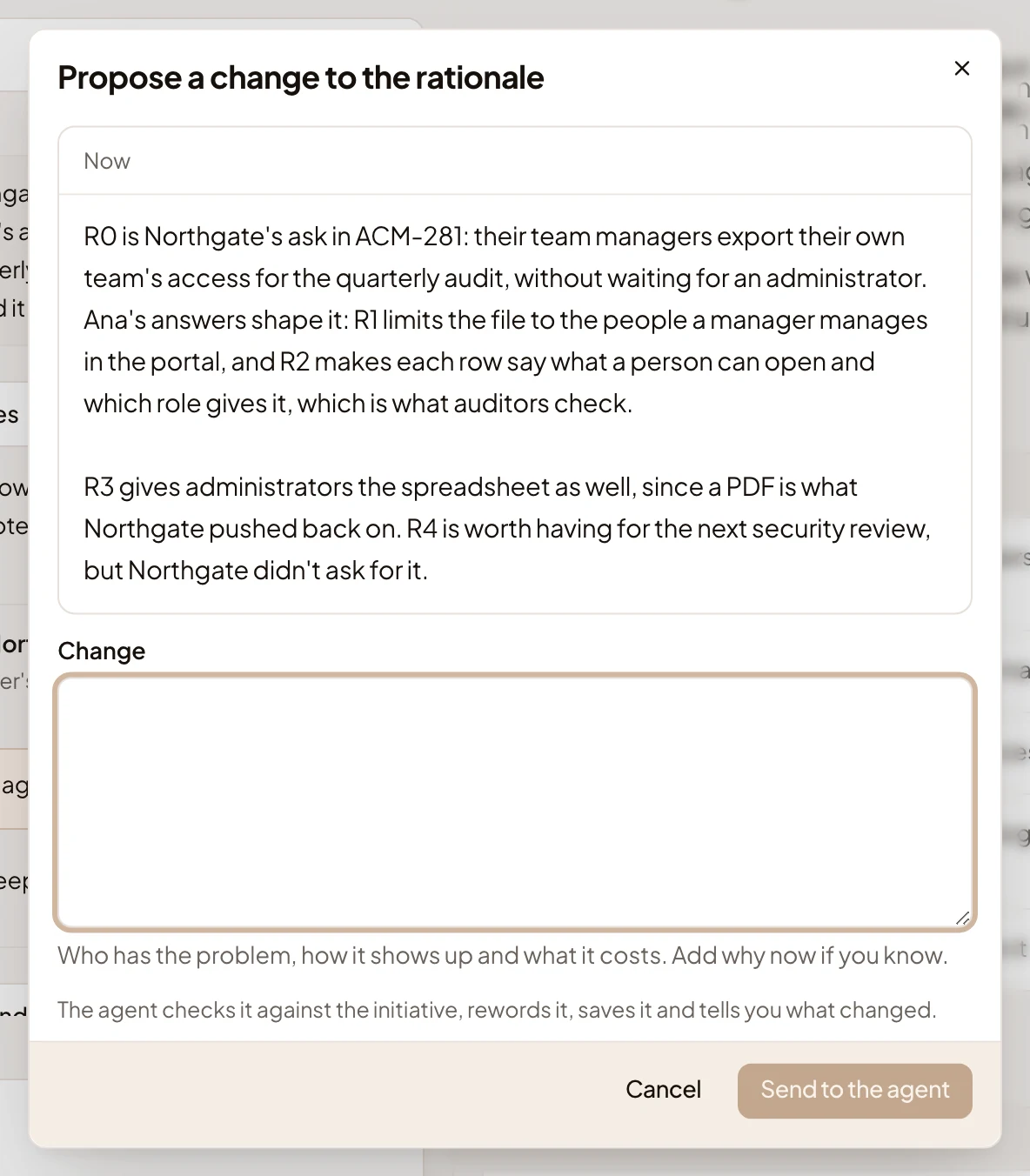
Out of scope lists the lines the initiative draws, then the requirements ruled out. A ruled-out requirement has Reconsider, which asks the agent to look again at the parts built for it. Restore brings it back at once with no level.
From approval on, requirements change only through change requests. A selected requirement offers Propose instead of Edit, to everyone who can see the initiative, and the people who edit it decide.
Before there are requirements, the section says No requirements yet and shows how they come together, from the brief to the fit check. The agent proposes them when you press Start the requirements on the brief.
Access
Section titled “Access”Everyone who can open the initiative reads its requirements. The owner and the people who edit it have the buttons that change them. Someone who reads or takes part sees the same table without them.