

InboxHow to
Find anything
Do this when you remember a word but not where you saw it, like a customer’s name or a phrase from a decision. The search box at the top right of every page, which reads Search or go to…, looks everywhere you can see. Search or filter, above the Inbox and above Agent Notes, looks only in that list.
Before you start
Section titled “Before you start”- Who can
- Anyone can search. You only find what you can see, like the topics and initiatives shared with you, and your own inbox and notes.
- The pictures
- The pictures show ACME’s customer success lead looking for everything about Kelderby, a customer going live in November.
-
Open your Inbox.
Open the Inbox (opens Emargen in a new tab) -
Click the search box at the top right, Search or go to…, or press ⌘K (Ctrl+K on Windows and Linux). Type the word you remember. Suggestions appear under the box as you type, in groups.
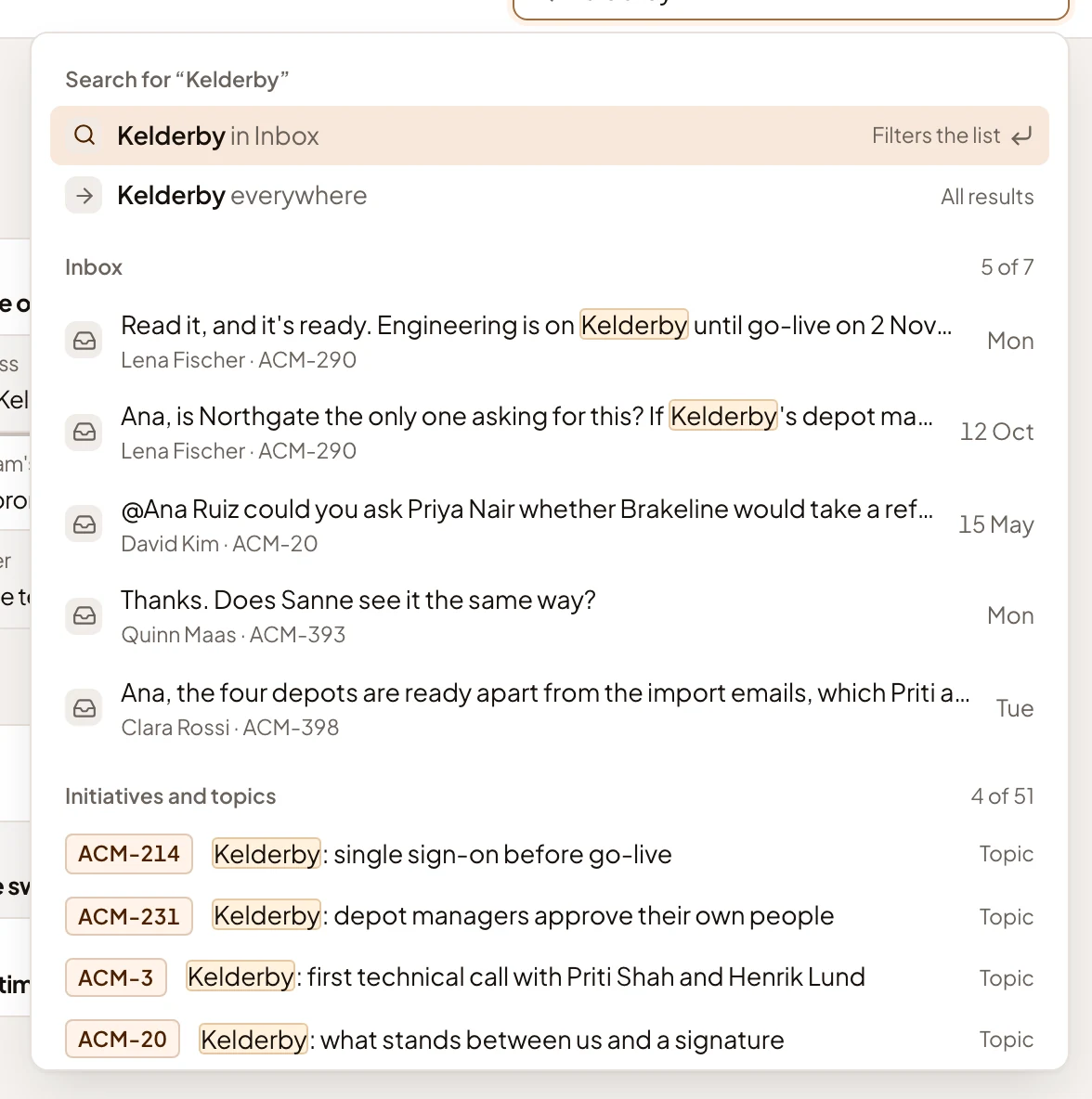
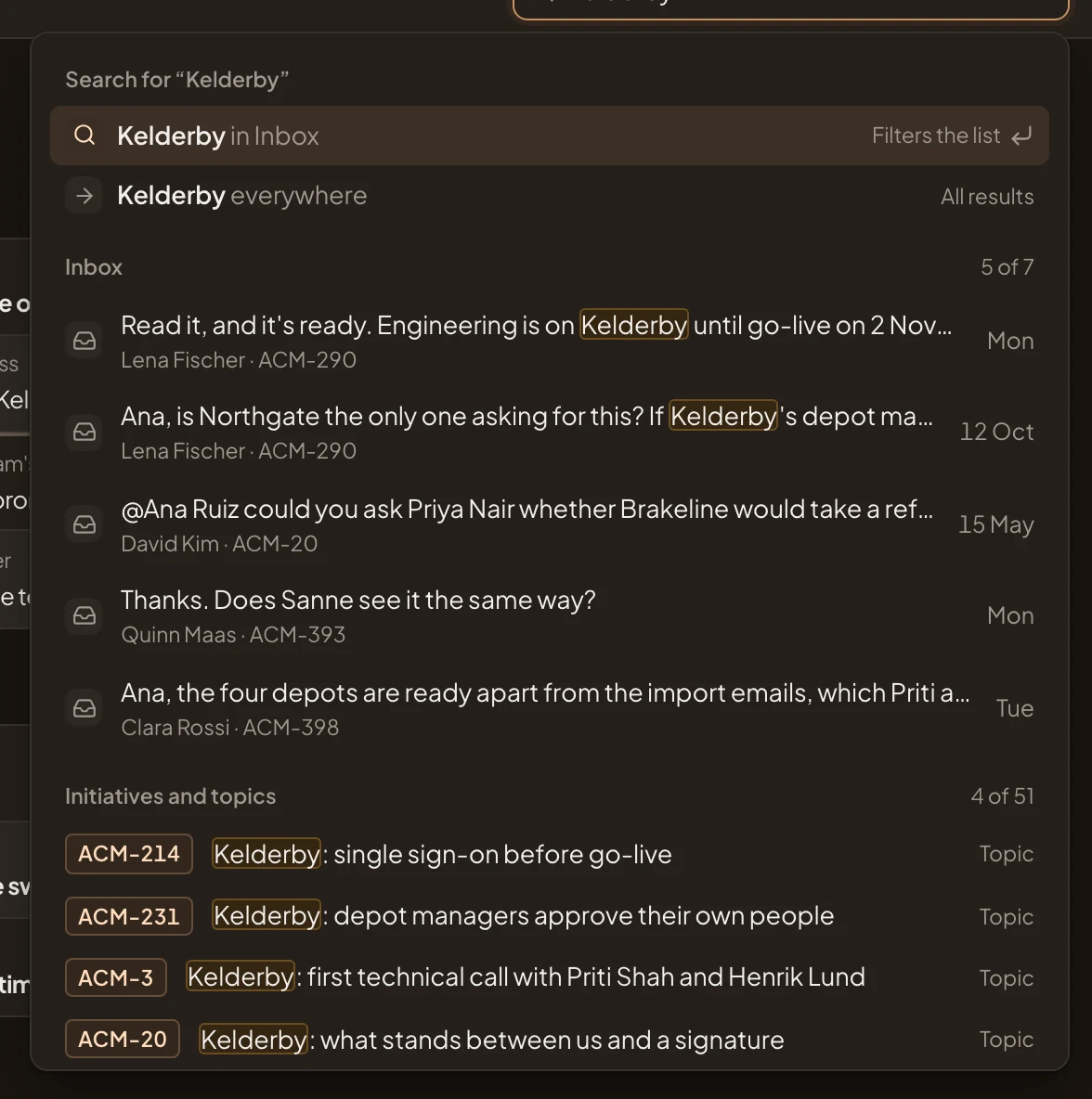
- Kelderby in Inbox. Searches only the list you’re on. It’s picked already, so Enter chooses it. On a topic or an initiative, it searches inside it.
- Kelderby everywhere. Opens the Search page with every result.
- Inbox. Items in your inbox with the word, and how many there are.
- Initiatives and topics. Those that match.
- Landscape. Entries of your organisation’s Landscape with the word.
- Agent Notes. Your notes with the word.
Further down, Rows lists passages inside topics and initiatives, each with the part it sits in.
Pick Ask the agent about at the end to ask the agent beside the page about your word. Clicking a suggestion goes straight to it.
-
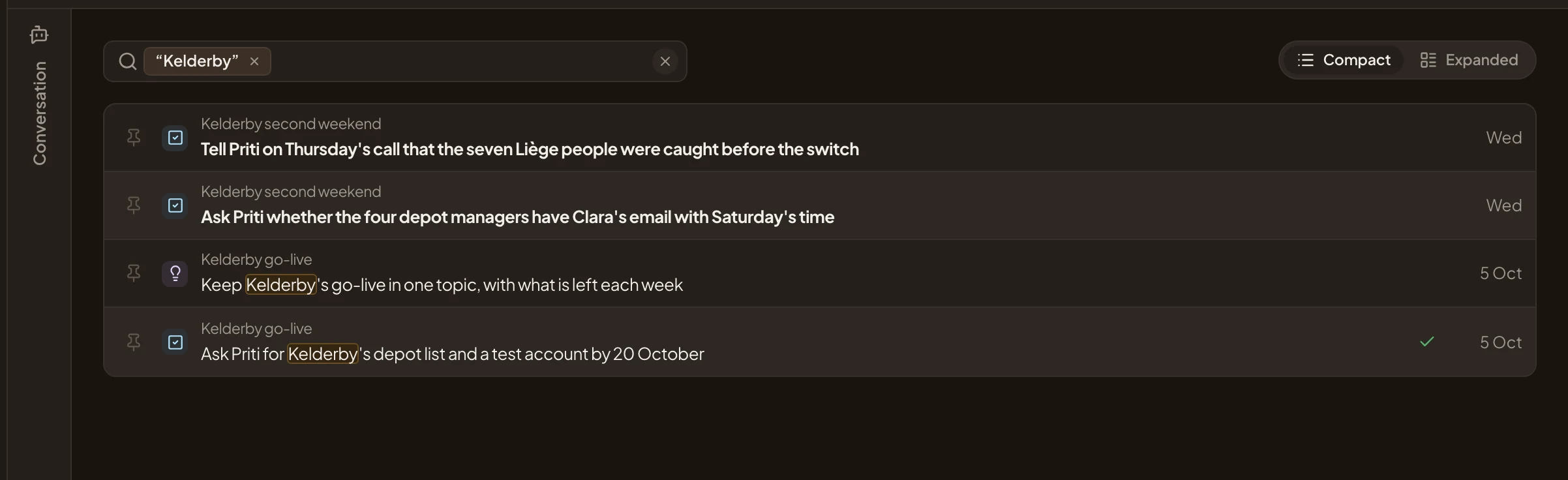
Press Enter. The Inbox keeps only the items with the word, and marks it. The word sits in Search or filter as a chip, in quotes. Typing a word in that box and pressing Enter does the same.
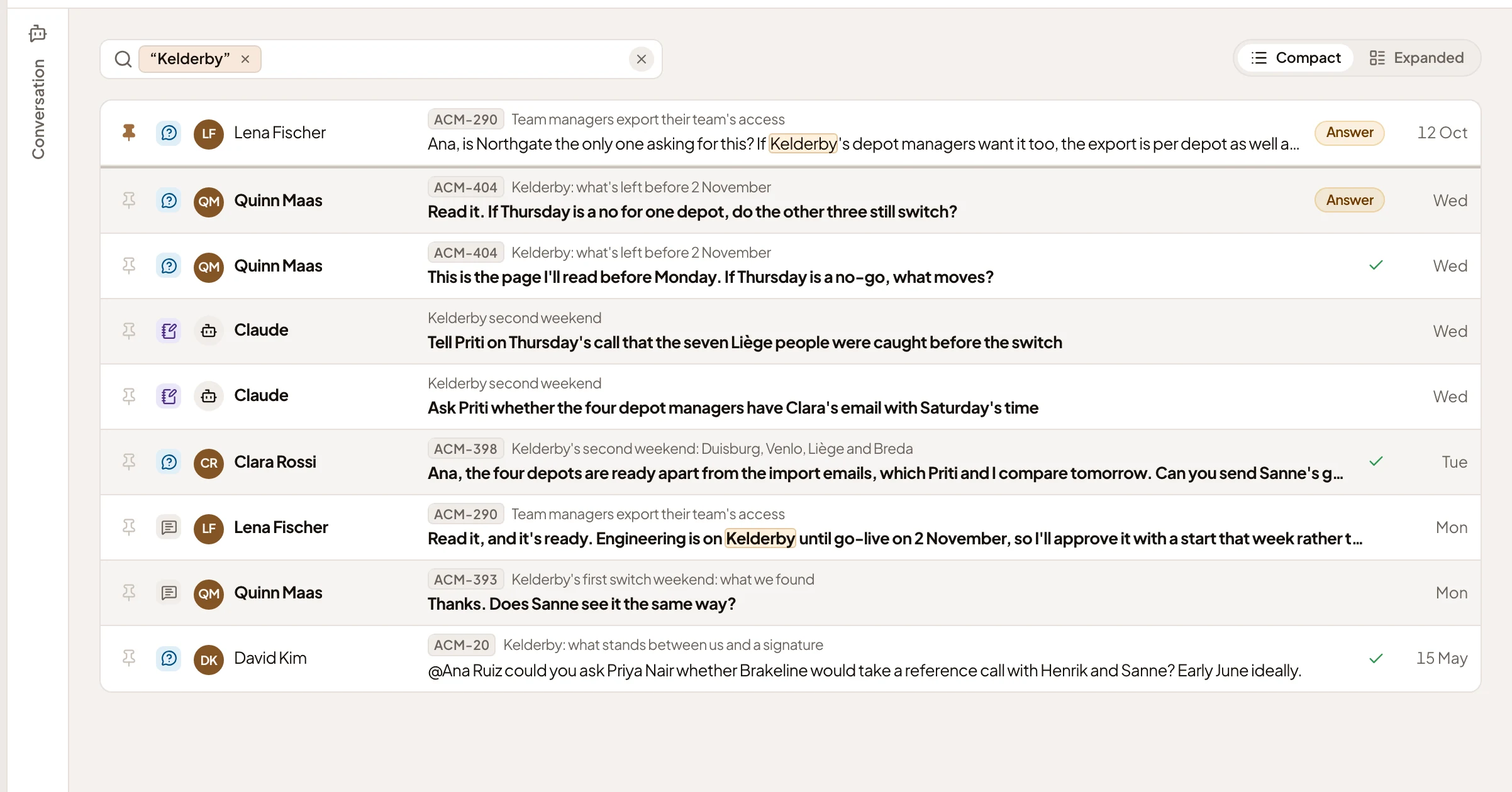
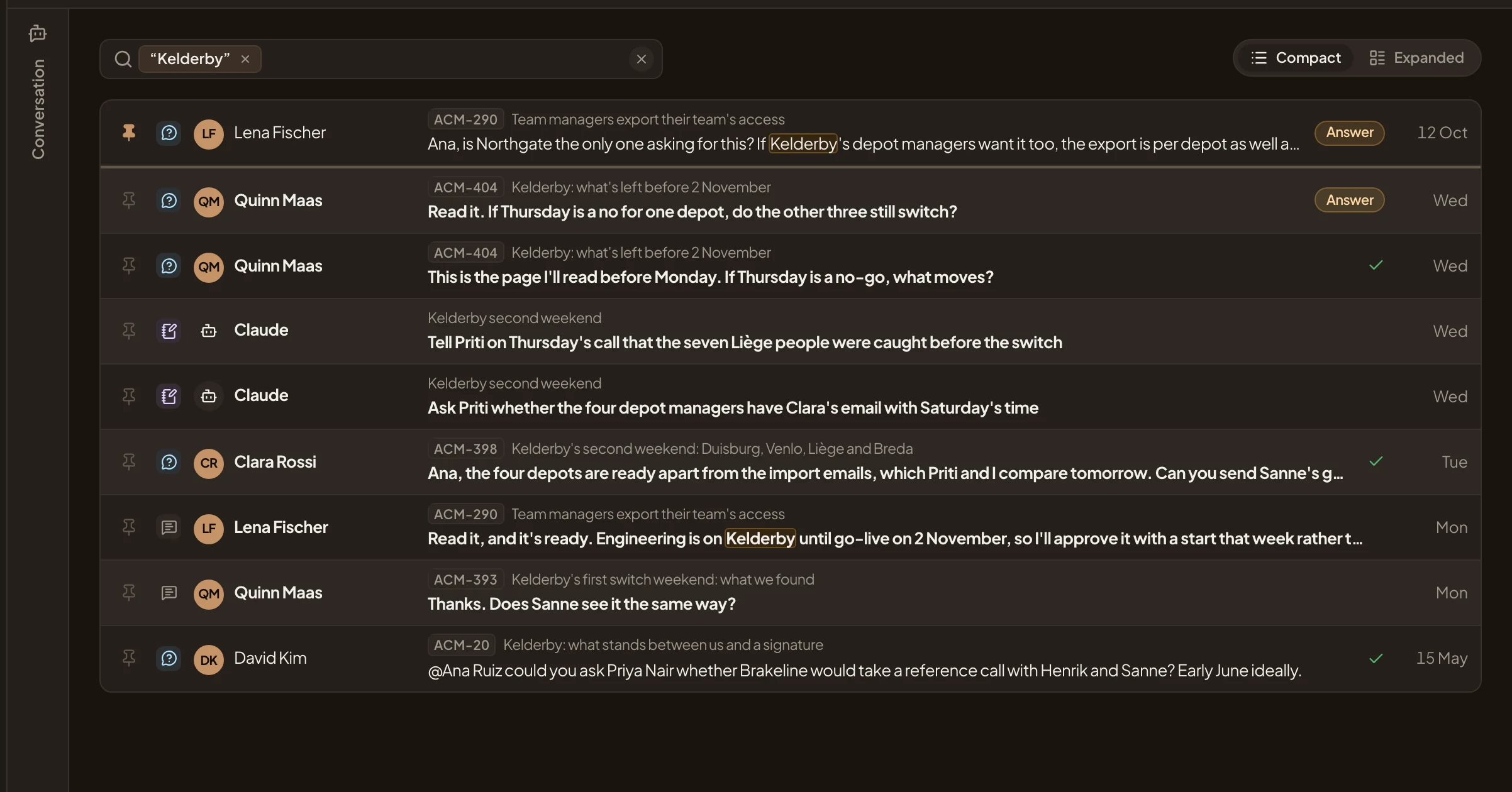
- The word, marked where it matched.
Your open todos are in the Inbox, so a todo with the word shows here too.
-
Click the × on the chip to take the word off.
-
To look everywhere, click the search box at the top right again, type the word, and pick the suggestion that ends in everywhere. The Search page opens with every topic, initiative and passage that has the word, best first. Click a result to open it. Your browser’s Back brings the results back.
-
To find one of your notes, click Agent Notes in the menu. Type the word in Search or filter, and press Enter. You can search a note’s title, its text, labels, session or repository.
Open Agent Notes (opens Emargen in a new tab)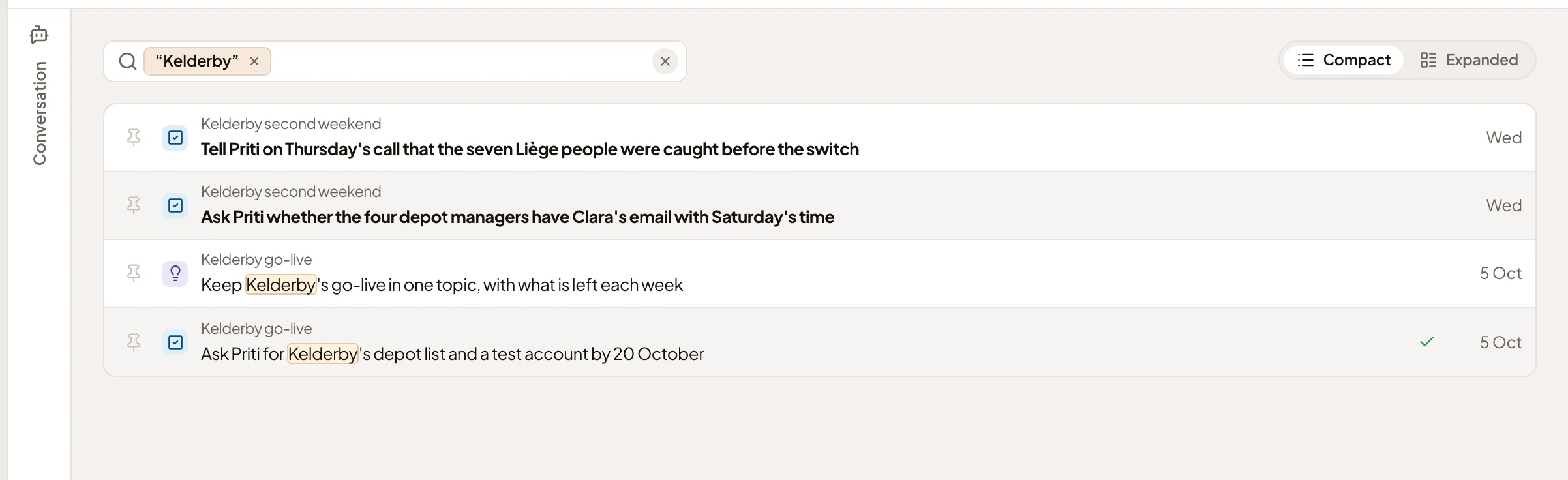
- The word, marked in a note’s title.
In Expanded, a note found by a word in its text shows the passage around the word.
-
To narrow it further, add a filter from the same box. Click Search or filter, then Kind, then Todo, and press Esc to close the menu.
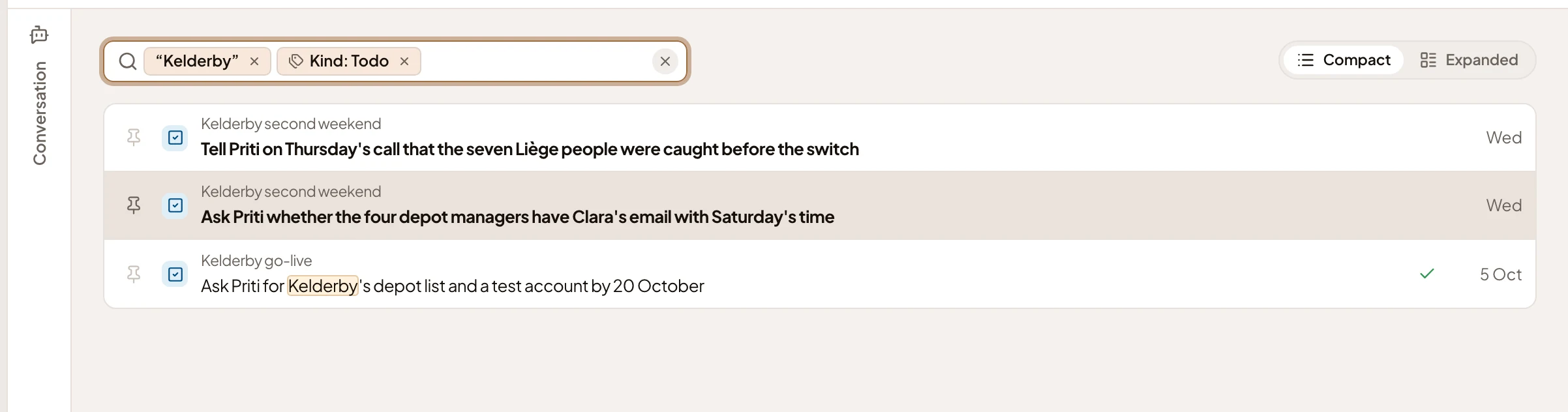
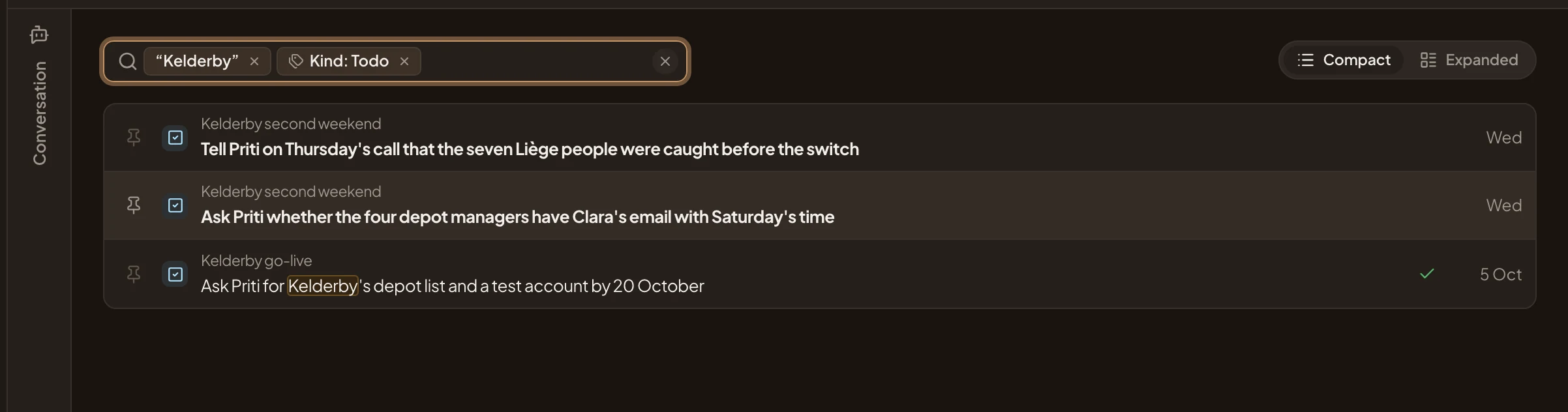
- Kind: Todo, a chip beside the word. Its × takes it off.
- A note that has the word and is a todo.
A note has to match the words and every filter. Agent Notes also filters by Session, Repository and Initiative, and Open shows the notes still to deal with. The Inbox’s box filters by Your turn, Type and Initiative the same way.
What you get
Section titled “What you get”The words and filters stay in the page’s address, so Back, or a link you keep, brings the list back as you left it. Clear search and filters, the × at the end of the box, takes them all off at once.