

AcademyPage by page
Explore
Explore is where you ask about anything you want to understand at work, in a chat of your own. Open it with Explore under Academy in the menu. See Explore and your learning profile.
Open Explore (opens Emargen in a new tab)The picture shows someone in customer success at ACME with two earlier chats. The page opens on an empty chat, with a greeting and a few questions to start from.
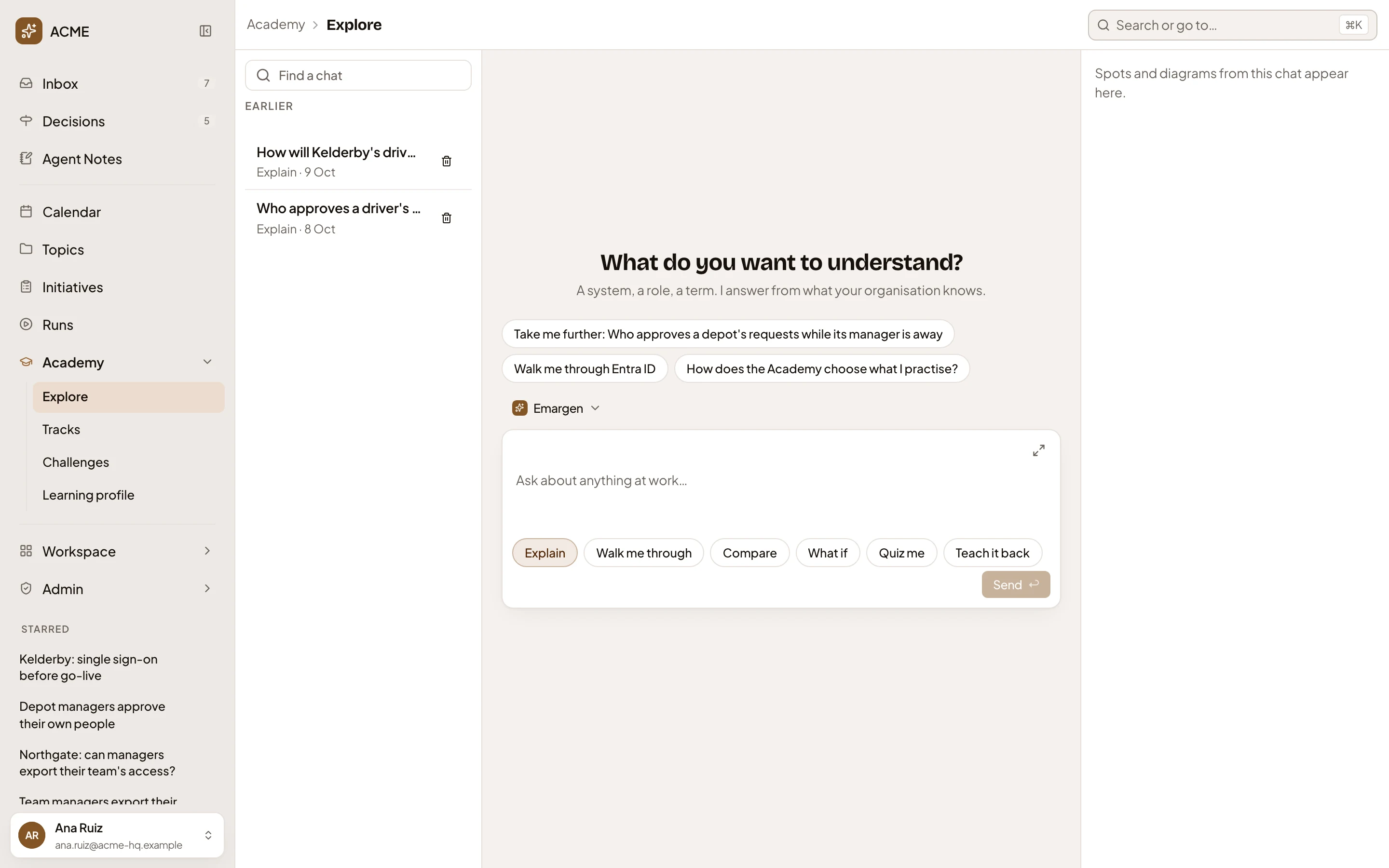
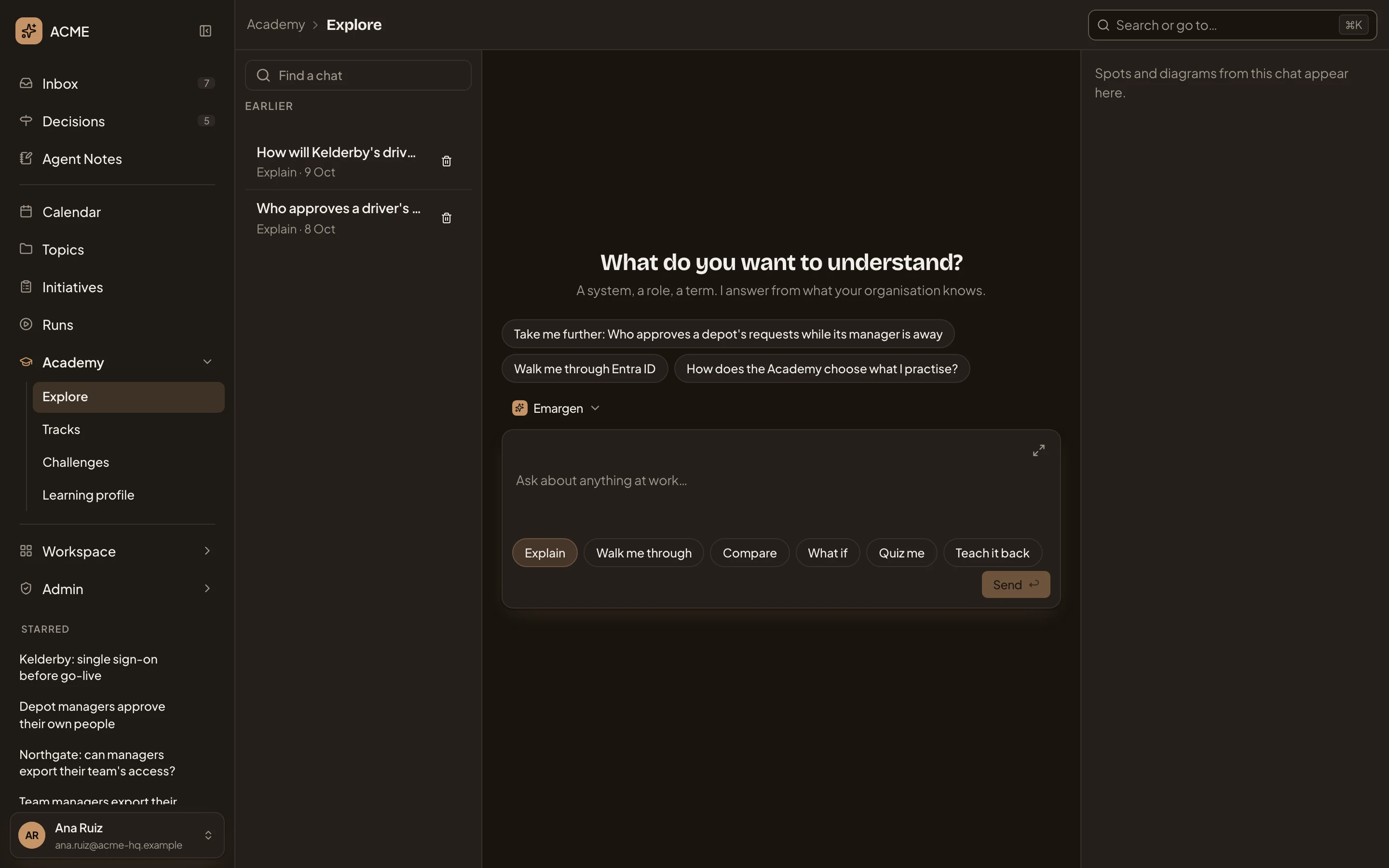
- Find a chat. Searches names and everything said in a chat.
- A chat. It takes its name from the first thing you asked. Beside it are its way to learn and its date. Click it to open. The newest come first, under Today, Yesterday and Earlier.
- Delete chat. Deletes the chat once you confirm. What was said goes for good, and any practice it led to stays.
- A few questions to start from, written for you from what you practise and ask about.
- Emargen. The persona that answers. Click it to pick another (Personas and skills).
- The message box. Ask about anything, like a system, a role, a term, or how two parts work together.
- Ways to learn: Explain, Walk me through, Compare, What if, Quiz me or Teach it back. The chat keeps the one you pick.
- From this chat. The spots and drawings of the chat you’re in (see From this chat).
Explore answers from your connected tools, the record and the Landscape, and from these docs about Emargen. It starts from what you already practise. Its feedback is never a score, and your answers in it don’t count as practice. You can’t attach files in Explore.
From this chat
Section titled “From this chat”- On your map: the spots the chat is about, on a small map of your own.
- Named in this chat: the spots it brought up. For a spot that isn’t on your map yet, Practise this adds it to your track From your chats, which is drafted in the background. Check me quizzes you now on the named spots that are on your map.
- Drawn in this chat: its diagrams, tables and maps.
- Save as a topic, which has the agent write what the chat found in a private topic, with a link back to the chat. It leaves out the transcript, and you can keep a chat once.
With no chats yet, the list on the left says “No chats yet.”. A search with no match says “No chats match.”
On a phone
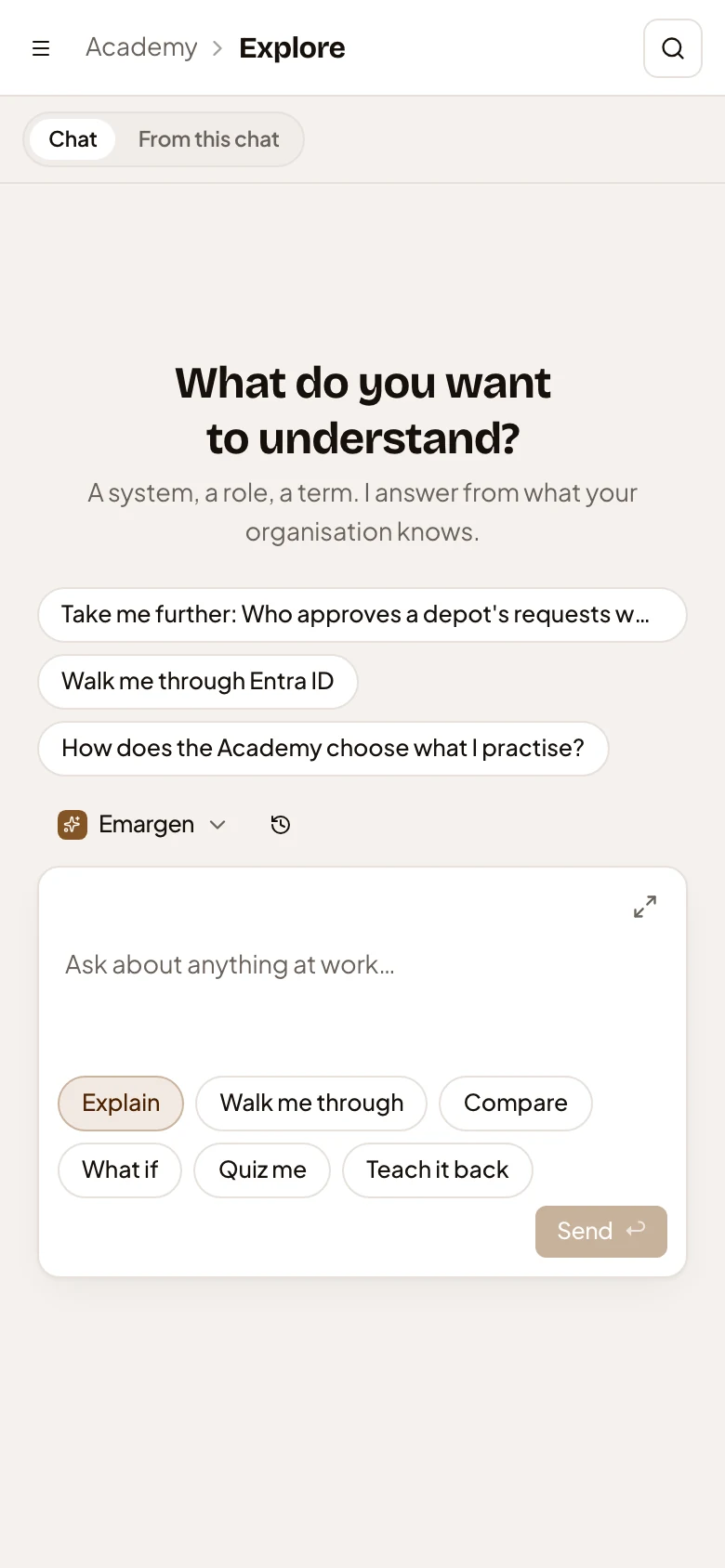
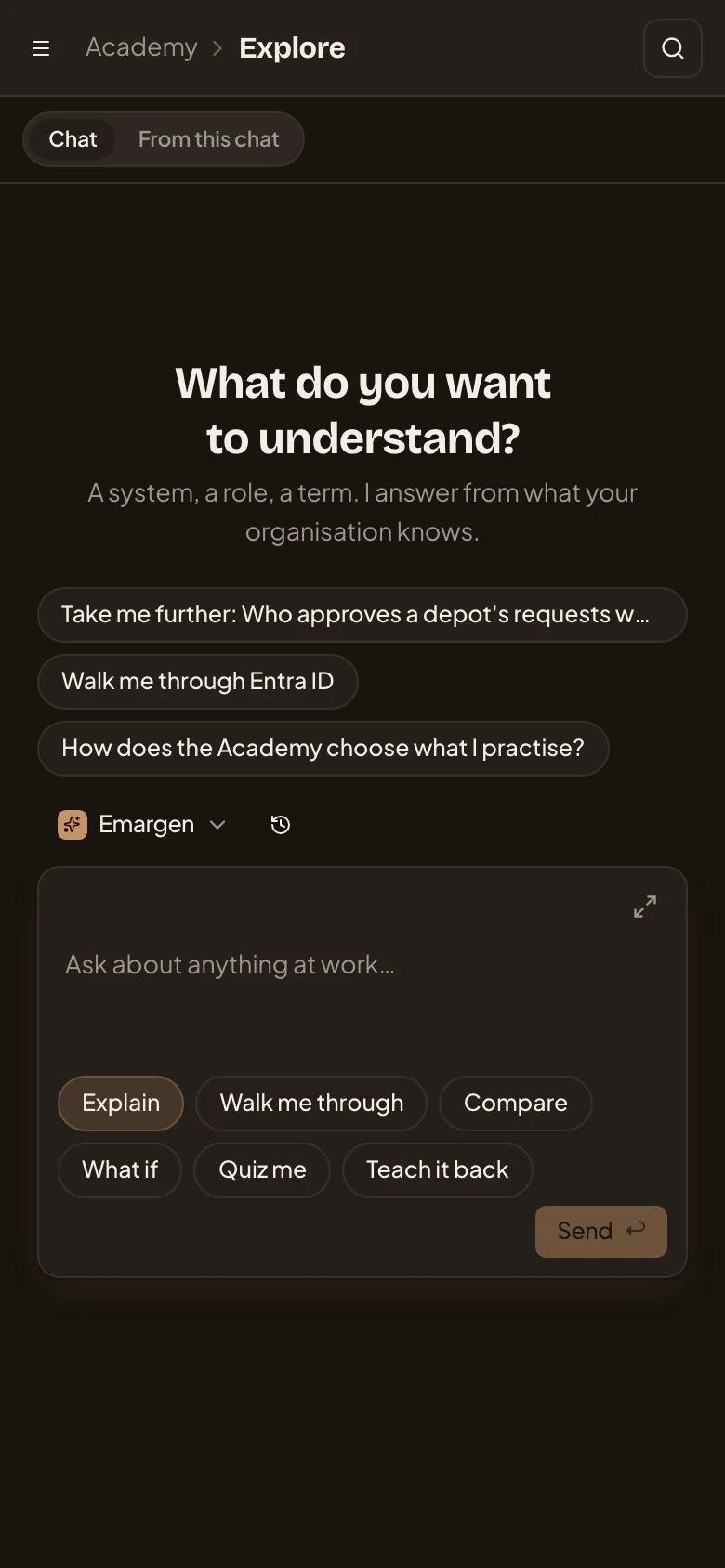
Section titled “On a phone”On a phone, you switch between the chat and From this chat, and your earlier chats are behind the clock button beside the persona.
Access
Section titled “Access”Everyone in the organisation has an Explore of their own. Your chats are yours alone, and nobody else reads them.