

Getting aroundPage by page
Search
Search finds what you remember a word of: a customer’s name, a system, a phrase from a decision. It looks inside every topic and initiative you can open, down to a topic’s files and an initiative’s requirements. It also looks in the Landscape, your Inbox and your Agent Notes.
- The search box at the top of every page, Search or go to…, opens a panel as you type. ⌘K (Ctrl+K on Windows and Linux) opens it from anywhere. The same box takes you to a page by its name, or starts something new.
- The Search page lists every result. The search box opens it when you choose everywhere.
You only ever find what you may open. The matches from the Inbox and Agent Notes are your own. See Find anything for the job step by step.
The Search page
Section titled “The Search page”Someone in customer success looks for everything about Kelderby, a customer going live on 2 November.
Open the search in the pictures (opens Emargen in a new tab)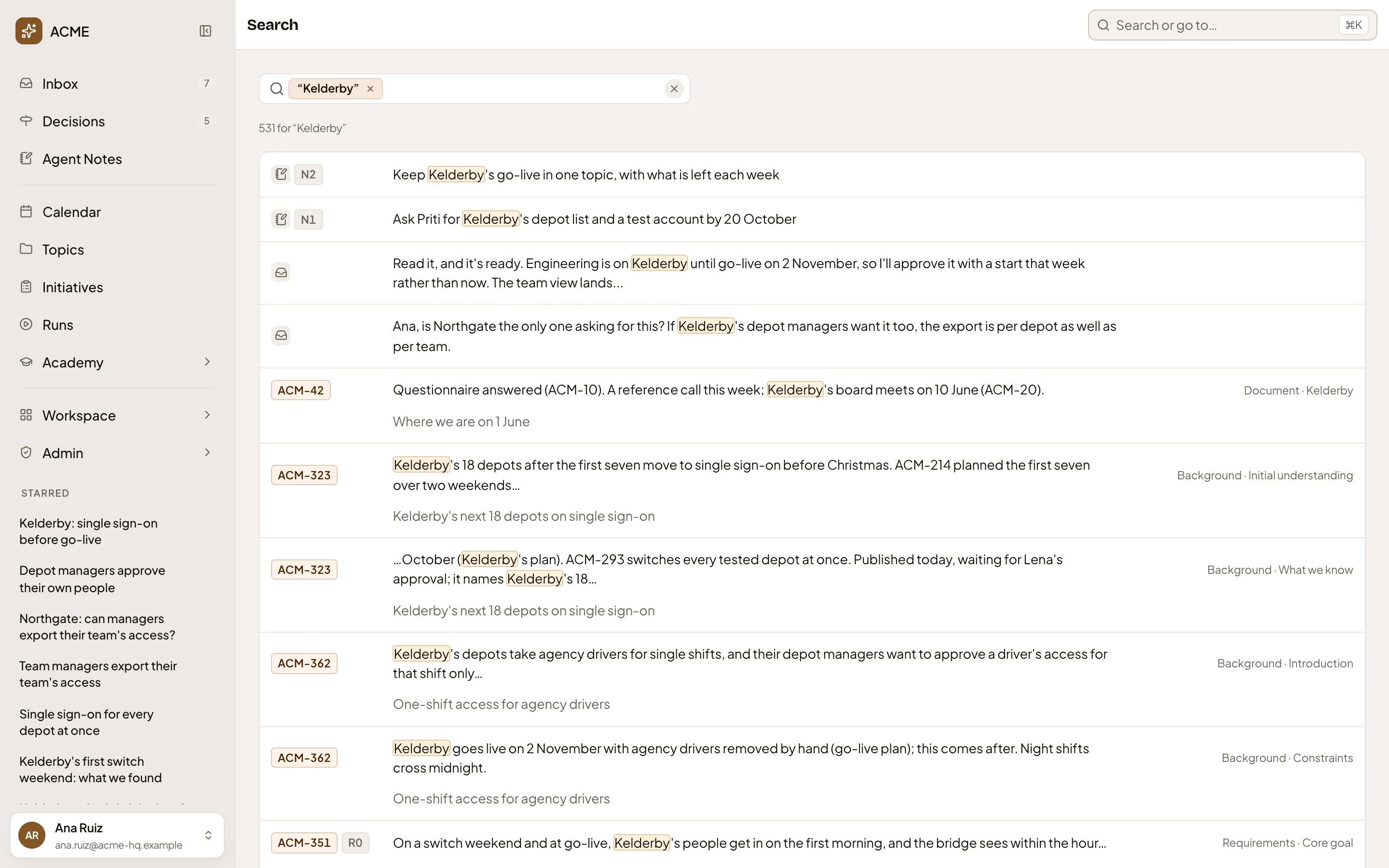
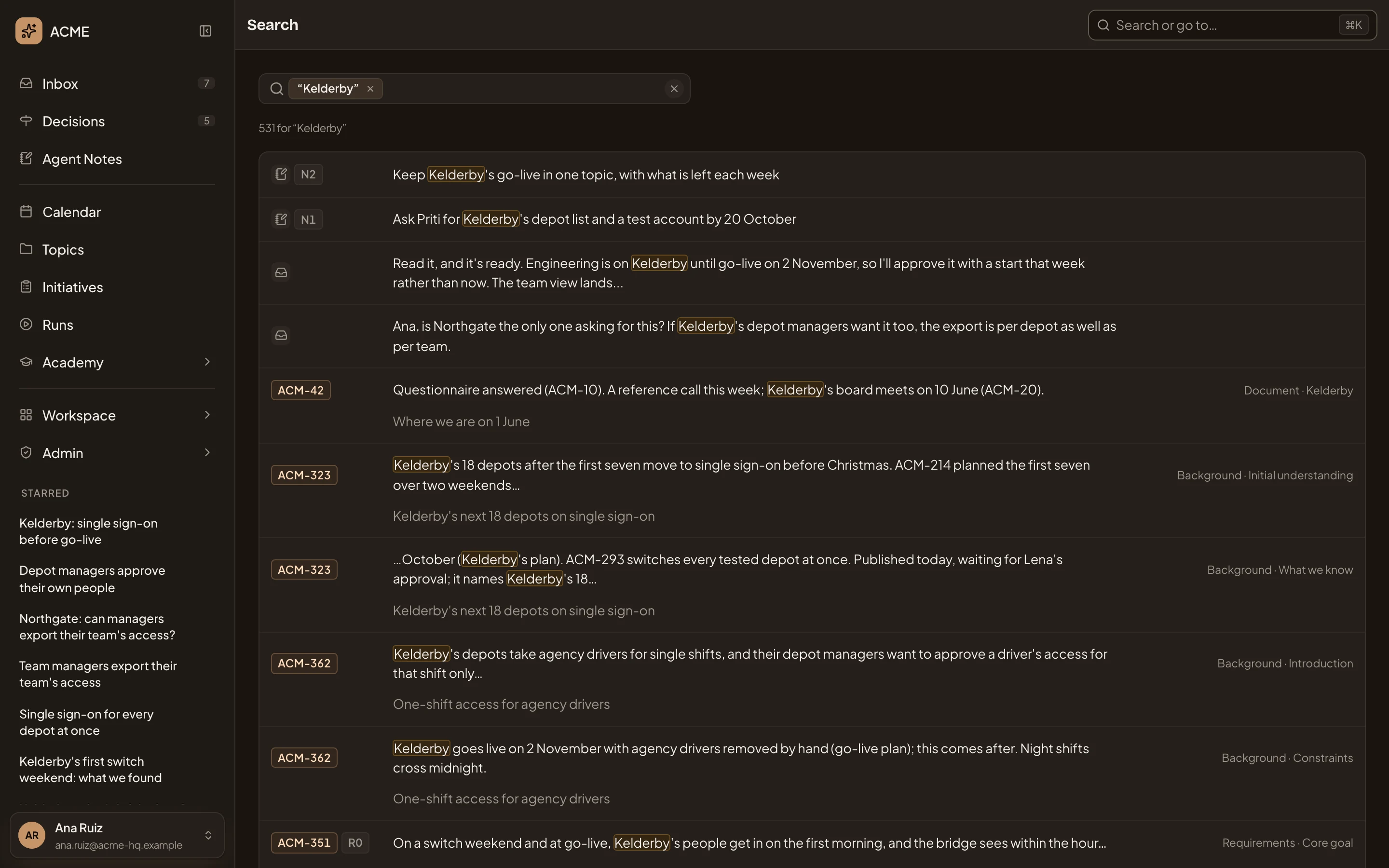
- Search.
- The words you searched for, as a chip in the box. Its × takes them off.
- Search or filter. Type more words and press Enter, or click it for filters (see Narrowing the results).
- Clear search and filters. Empties the box.
- How many results there are for your words.
- A note of yours, by its number. An item from your Inbox has no key.
- The key of the topic or initiative a passage is in. A passage inside an initiative’s row also has the row’s own key, like R4 for a requirement.
- The passage, with your words marked. Click to open the result.
- Where it sits. The part of the topic or initiative and the section, like Document · The question or Requirements · Core goal.
- The title of the topic or initiative it’s in.
The results are ranked in one list, best first. Some passages show the words with their marks, like [^1] for a source or ** around bold words. Open the result to read it as it shows on the page.
The results come twenty to a page. Under the last one:


- Which results you’re looking at, of how many.
- Previous page. Greyed on the first page.
- A page’s number. Click it to go there.
- Next page.
Click a result to open it where it is. A passage from an initiative opens at its tab and row. Your words and filters stay in the page’s address, so your browser’s Back, or a link you keep, brings the results back as you left them.
Narrowing the results
Section titled “Narrowing the results”Click Search or filter for the filters.
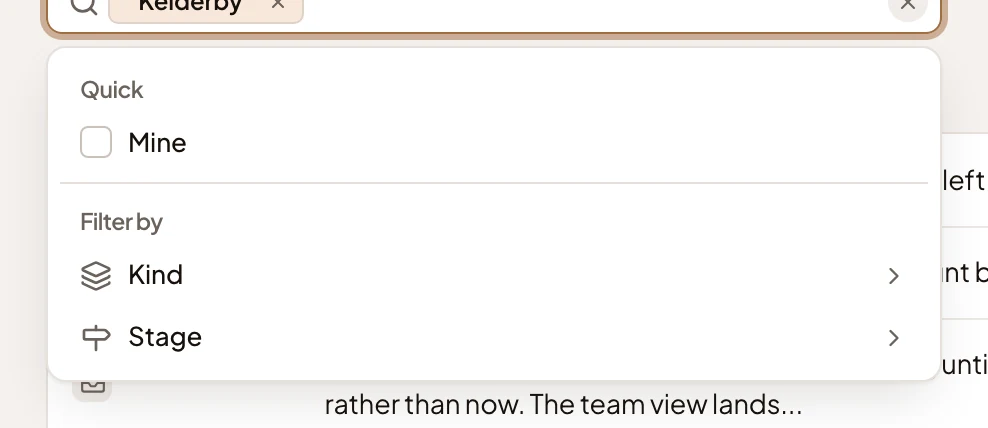
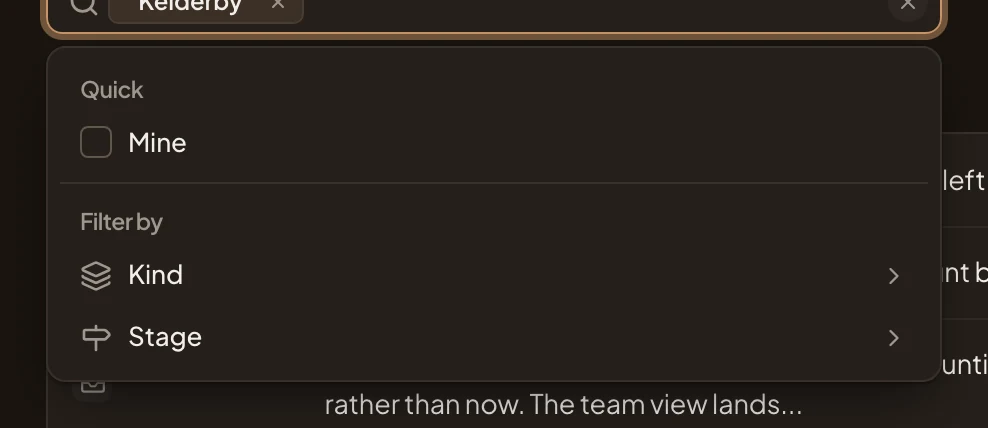
- Mine. Only your own topics and initiatives, what’s inside them, and your Inbox and notes.
- Kind. One kind of result.
- Stage. Only initiatives at one stage, like Shaping or Published, and their rows.
Kind offers Initiatives, Topics, Rows, Landscape, Inbox and Agent Notes. Rows are what sits inside a topic or an initiative, like a section of a document or a requirement.
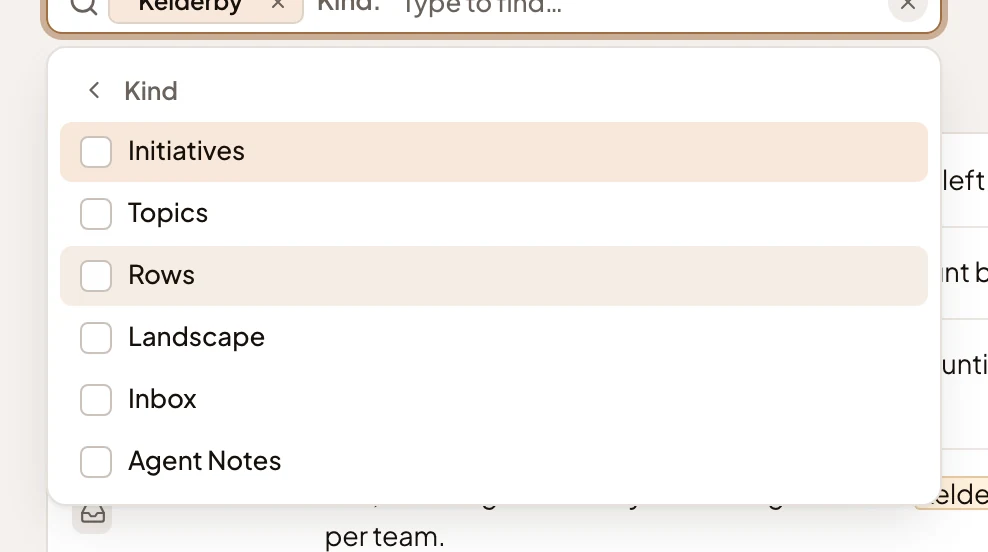
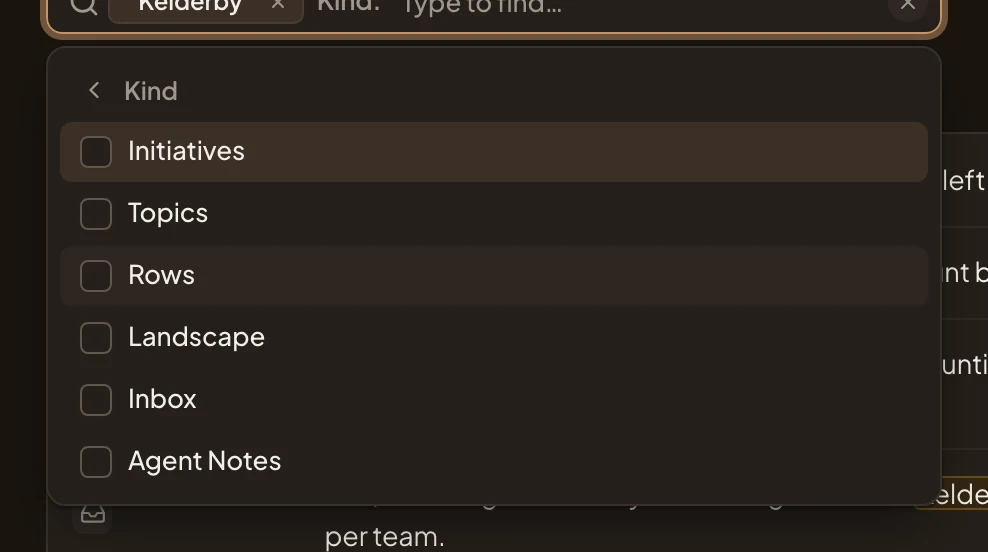
You can narrow by one kind and one stage at a time. Ticking a second kind replaces the first. Each filter shows as a chip beside your words, and its × takes it off. Here Topics is picked, which keeps the topics with Kelderby in their title.
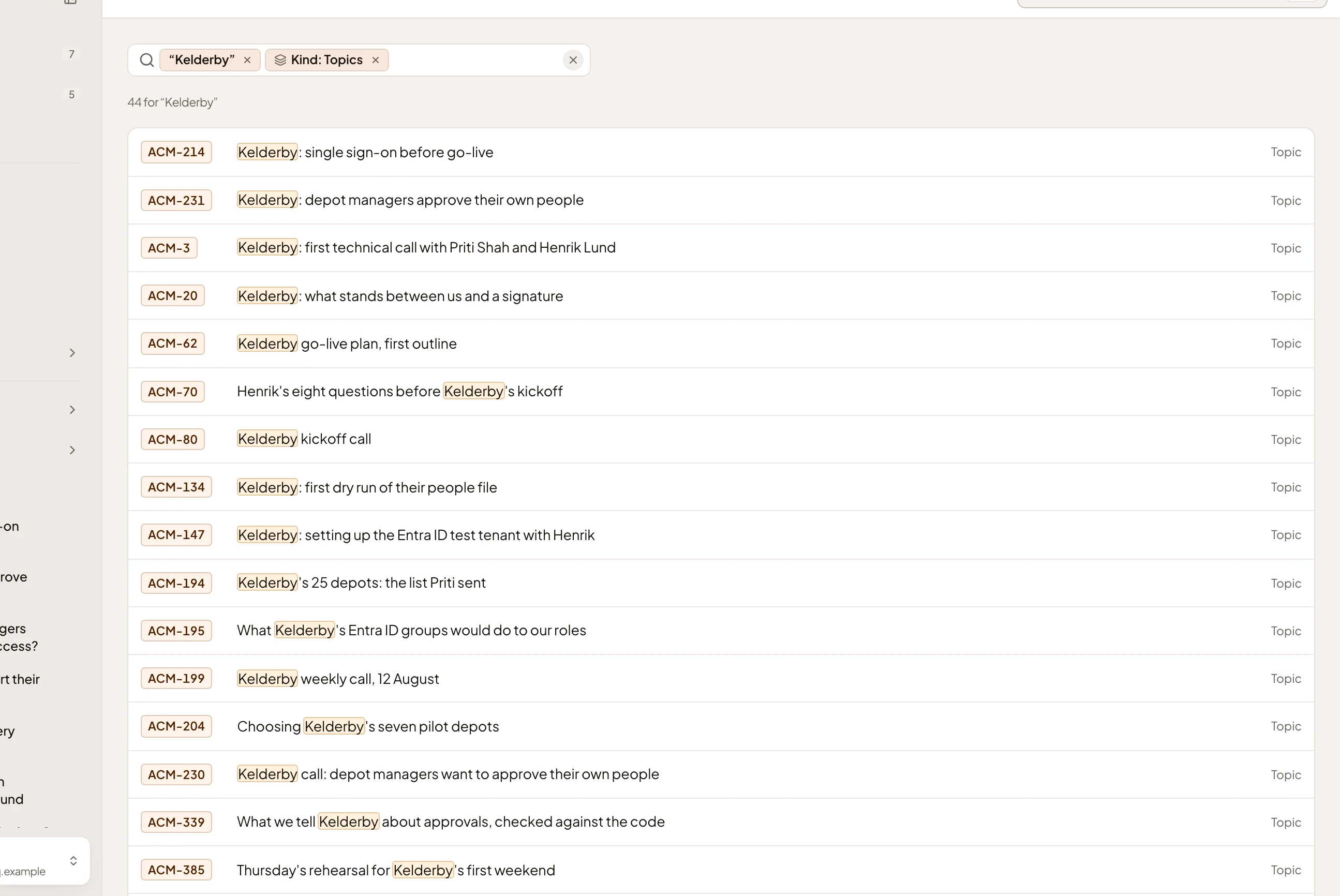
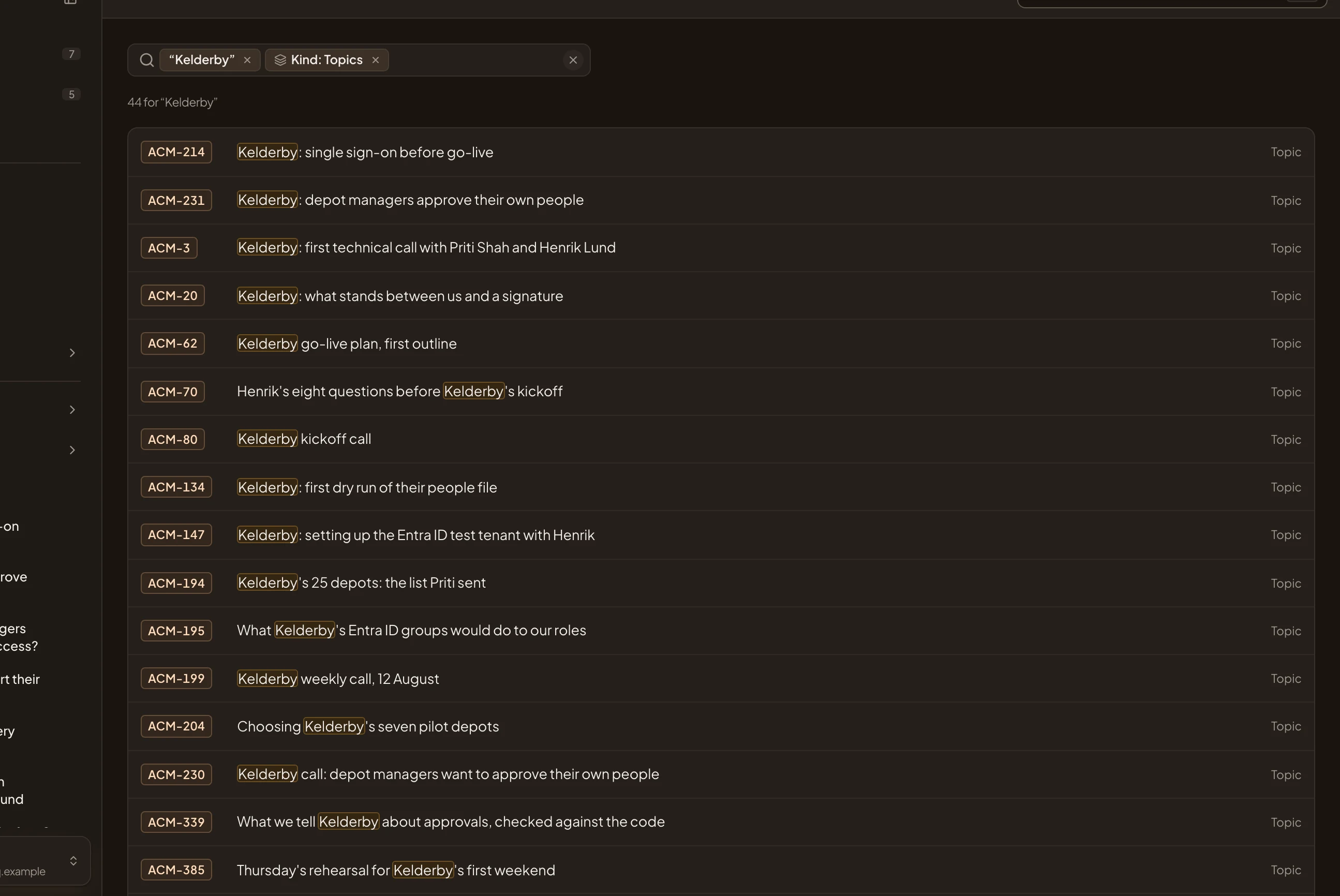
- Kind: Topics. The filter, as a chip.
Nothing found
Section titled “Nothing found”- With no words, the page says “Search initiatives, topics and their rows, the Landscape, your Inbox and Agent Notes.”
- When nothing matches, it says “Nothing found for” and your words. Try fewer words, or another word for the same thing.
- When search can’t be reached, it says “Search is unavailable right now.” Try again in a moment.
Search or go to… (⌘K)
Section titled “Search or go to… (⌘K)”Click the search box at the top of any page, or press ⌘K, and start typing. A panel opens under the box and changes as you type. It searches first where you are, then everywhere.
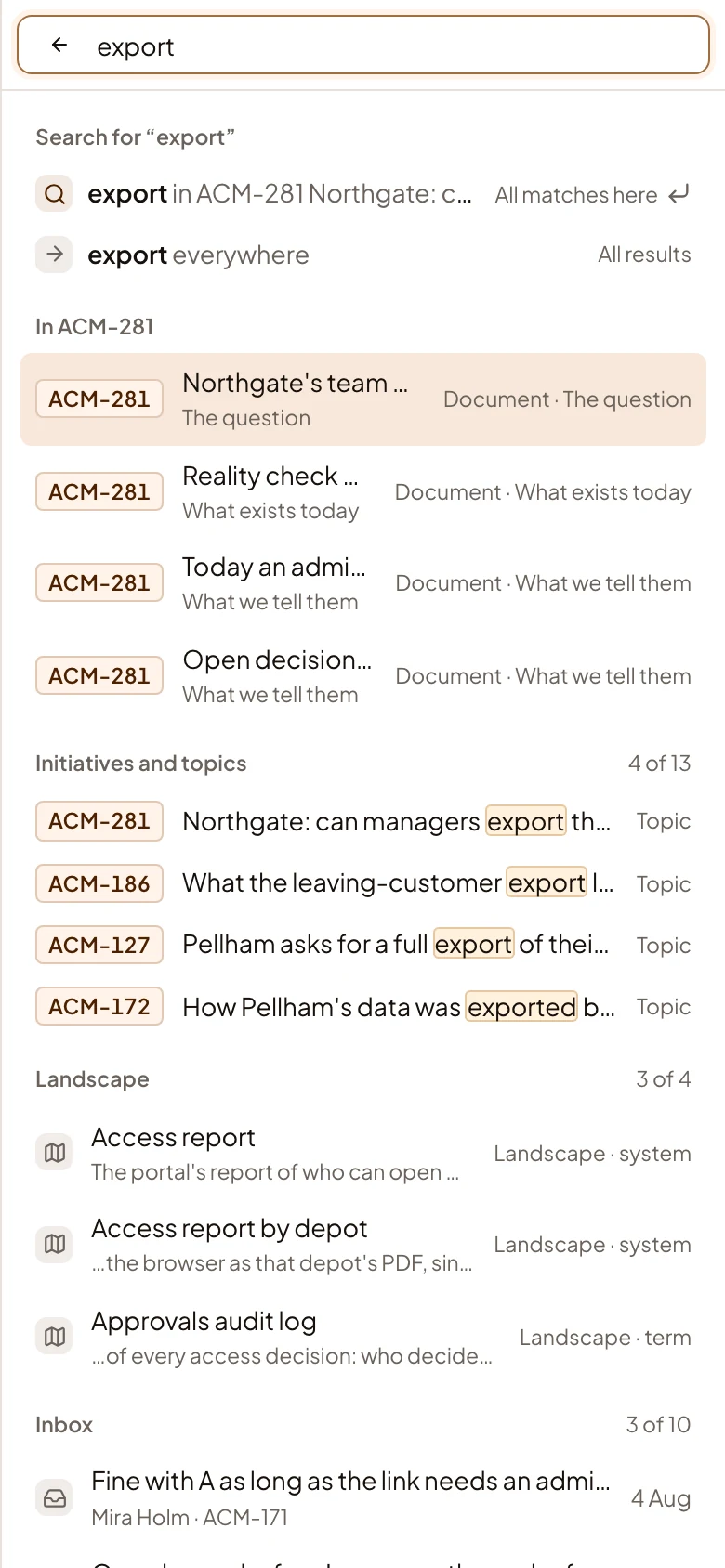
Here someone is on a topic, a customer’s question about exporting their team’s access, and types “export”:
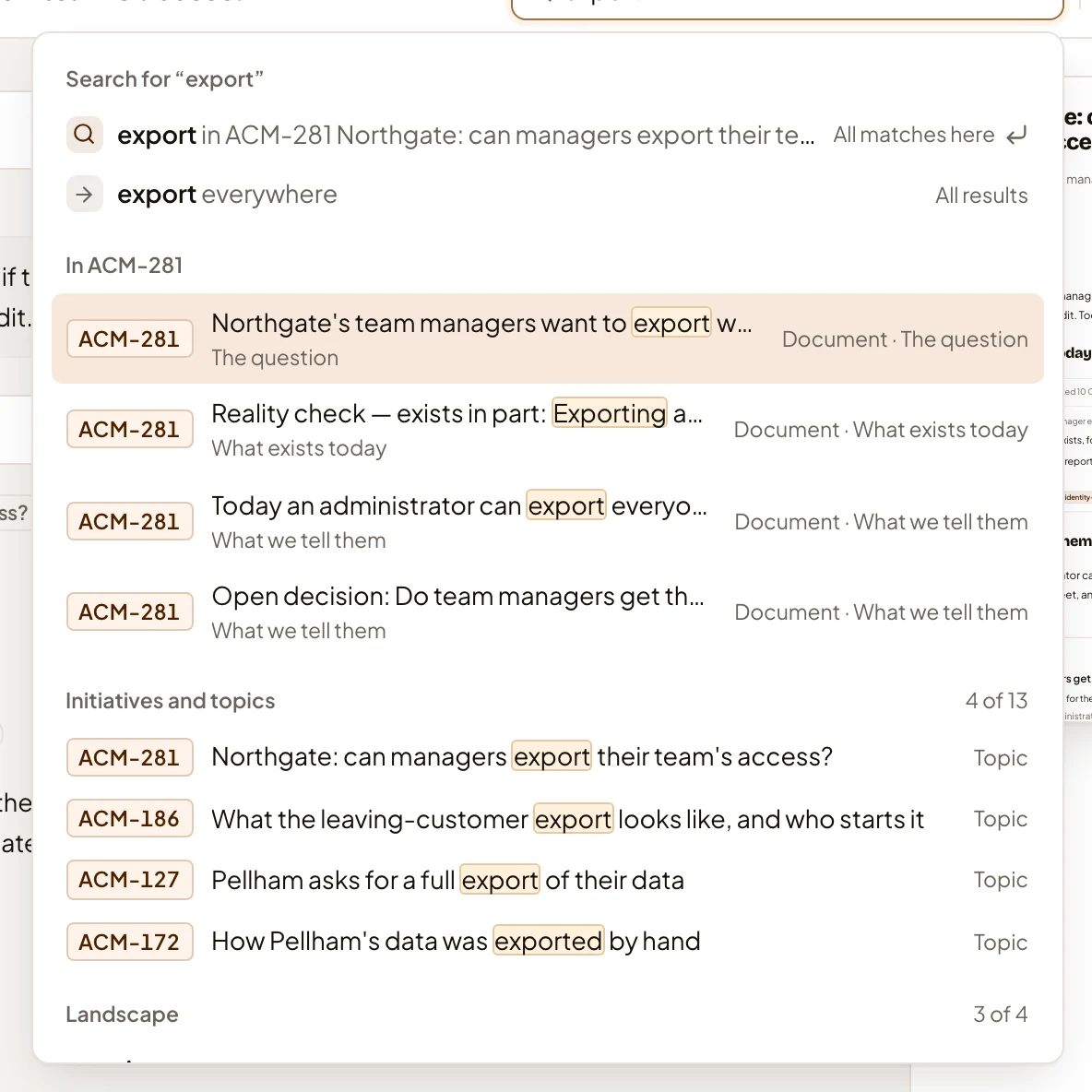
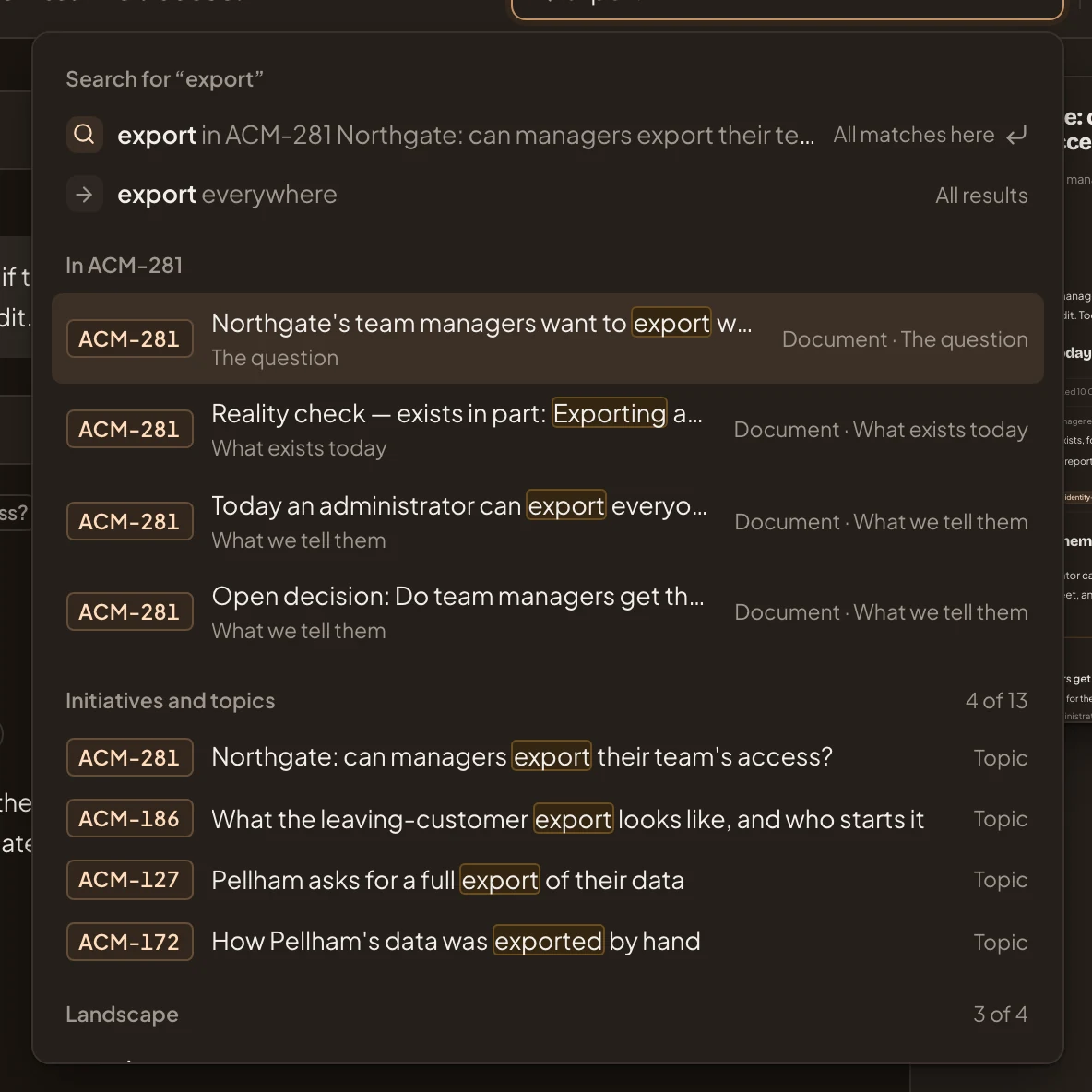
- Your words where you are, here in ACM-281. All matches here opens the Search page with only what’s inside this topic.
- Your words everywhere. All results opens the Search page.
- In ACM-281. The passages inside the topic you’re on, with the section each is in. The first is picked, so Enter opens the topic.
- Initiatives and topics. Those with your words in their key or title. An initiative says its stage. “4 of 13” means more are on the Search page.
Under them, Landscape lists your organisation’s systems, roles and terms with your words. Further down the same panel:
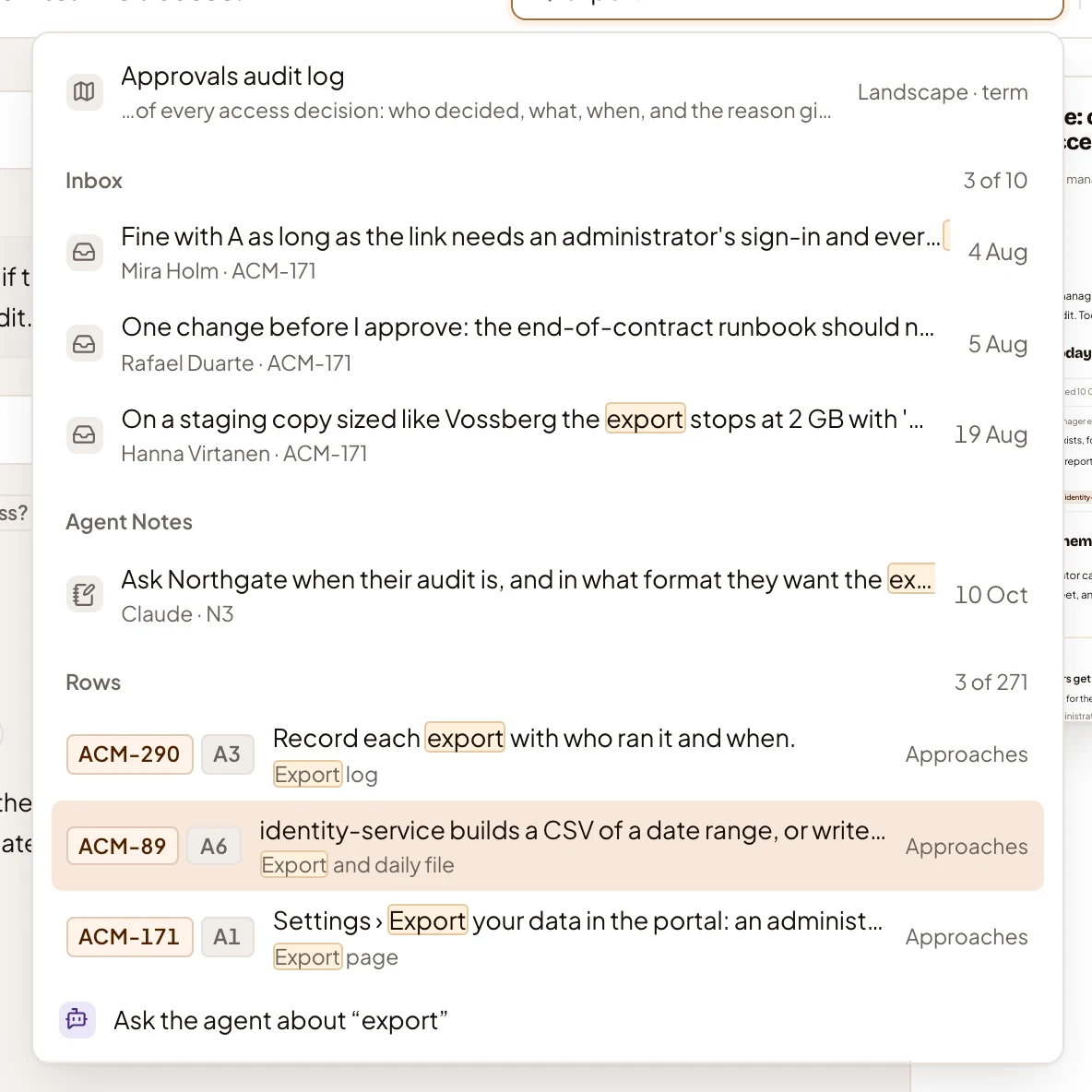
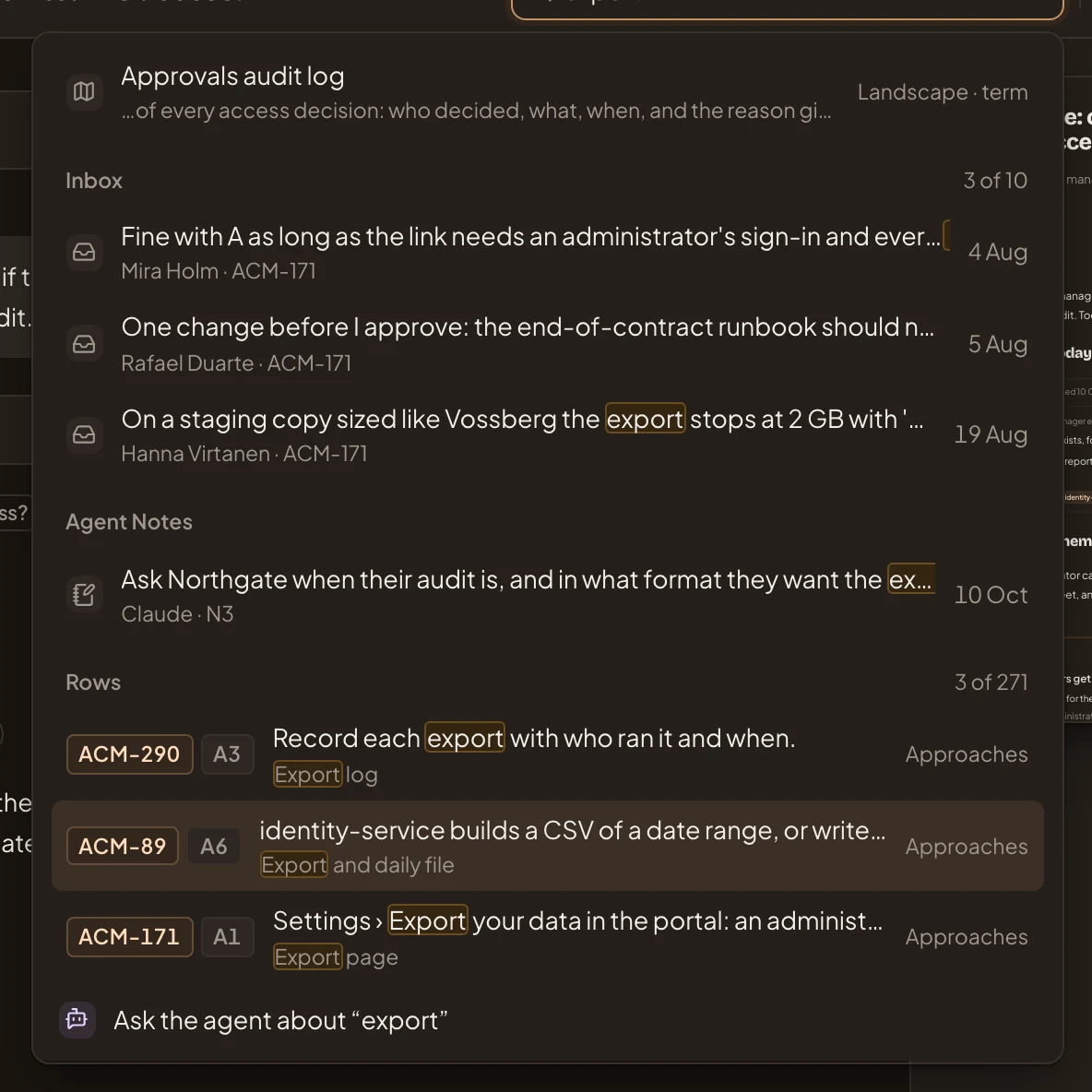
- Inbox. Items that arrived for you, with who sent them and on what.
- Agent Notes. Notes your agents left you.
- Rows. Passages inside other topics and initiatives.
- Ask the agent about your words (see Ask the agent).
What the first row does depends on where you are.
- On a topic or an initiative, it says “in” its key and title, and All matches here.
- On the Inbox or Agent Notes, it says “in Inbox” or “in Agent Notes”, and Filters the list. Your words go into the list’s own box, and the list keeps only what has them.
- On the topics or initiatives list, or one of their boards, it says “in topics” or “in initiatives”, and Filters the list the same way.
- Anywhere else there’s no row for where you are, and everywhere comes first.
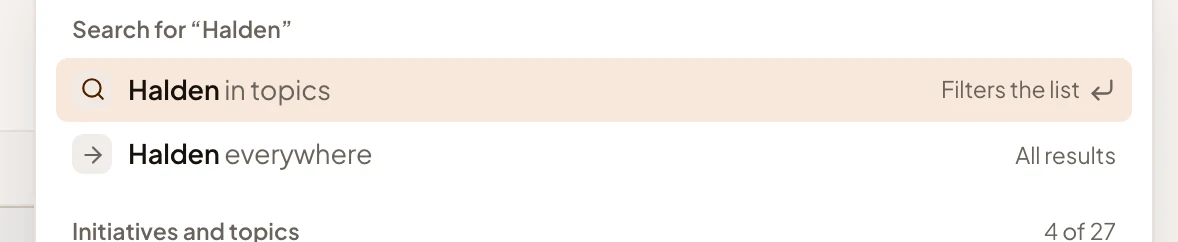
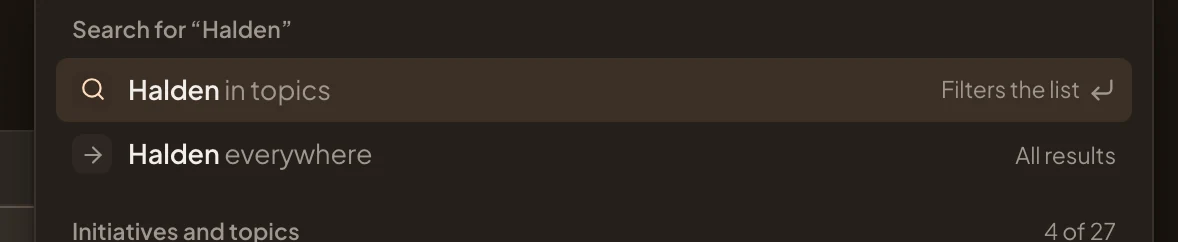
- On the topics list, your words in topics, which Filters the list.
Going to a page, or starting something
Section titled “Going to a page, or starting something”Type a page’s name to go there, or what you want to make. Each word you type has to start a word of the name, so “board” finds Boards and New board.
Open Workspace › Boards (opens Emargen in a new tab)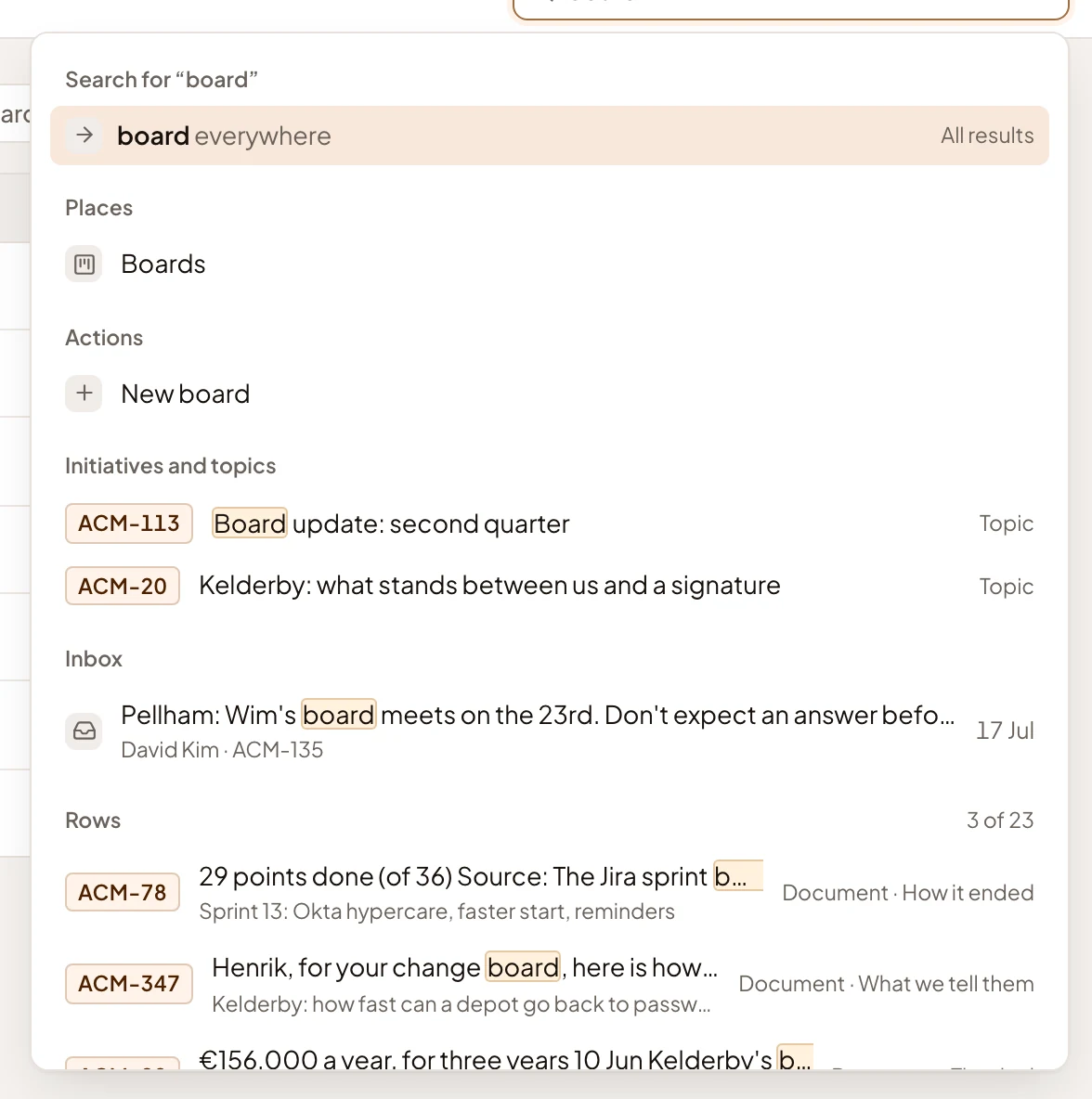
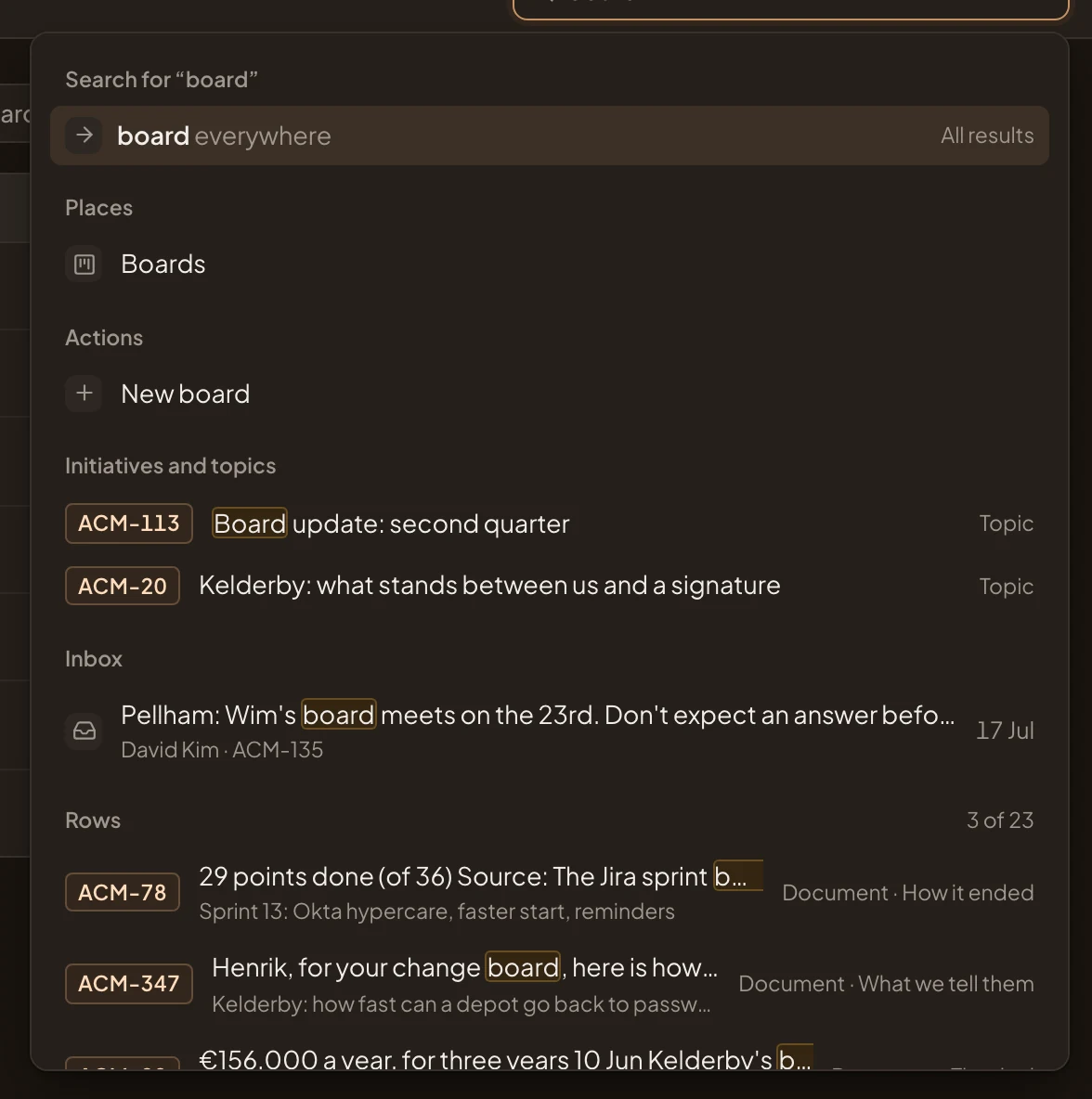
- Your words everywhere, picked. Every page with no list of its own starts here.
- Places. Pages whose name starts with your words. Click one to go there.
- Actions. Something new to make. Click New initiative, New topic, New board and New list to open their pages.
It finds every page in the menu by name, and your profile, Preferences and Security.
Ask the agent
Section titled “Ask the agent”The last row, Ask the agent about your words, puts them in the chat beside the page. You can finish the question before you send it. If the chat is folded, it opens. It shows only on a page with a chat beside it.
With nothing typed
Section titled “With nothing typed”With nothing typed, the panel lists the Inbox, Initiatives and Topics, then the initiatives and topics you open most. Recent visits count more than ones from a month ago. You only see what you may still open.
Moving in the panel
Section titled “Moving in the panel”- ↑ and ↓ move between rows. Enter picks the one marked.
- Every pick closes the panel and empties the box, so the next search starts fresh.
- Esc, or a click outside, closes the panel.
On a phone
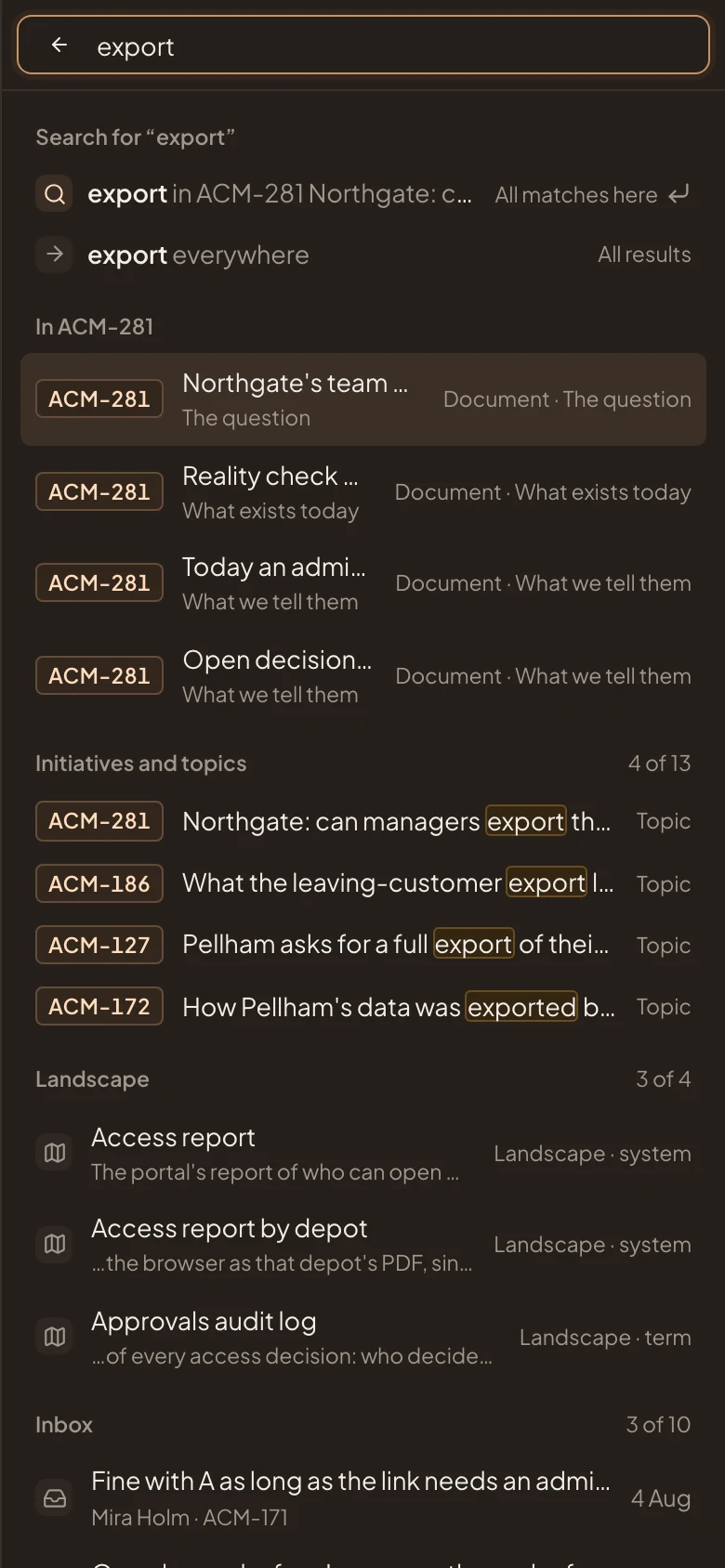
Section titled “On a phone”On a phone, the search is a button at the top right of every page. It opens the search on the whole screen, with a back arrow to close it. The rows are the same.
Access
Section titled “Access”Everyone in the organisation has the search, and finds only what they may open. Your own topics and initiatives, and anything shared with you. A topic shared with everyone shows in the topics list only of the people it names, but anyone finds it here.
- Find anything, step by step.
- Around every page, the rest of the frame.
- Start a topic, when nothing you find has it yet.